How to Convert a Set of Quotes or Inspirational Messages into a Slideshow?


Transform quotes into captivating slideshows effortlessly with our step-by-step guide. Create inspiring presentations that leave a lasting impression. Start today!”
In a world bustling with digital content, transforming a set of quotes or inspirational messages into a captivating slideshow can amplify their impact and reach. This step-by-step guide will walk you through the process, utilizing the powerful combination of Google Slides and MagicSlides GPT.
How to Convert a Set of Quotes or Inspirational Messages into a Slideshow?
Visit Google Slides
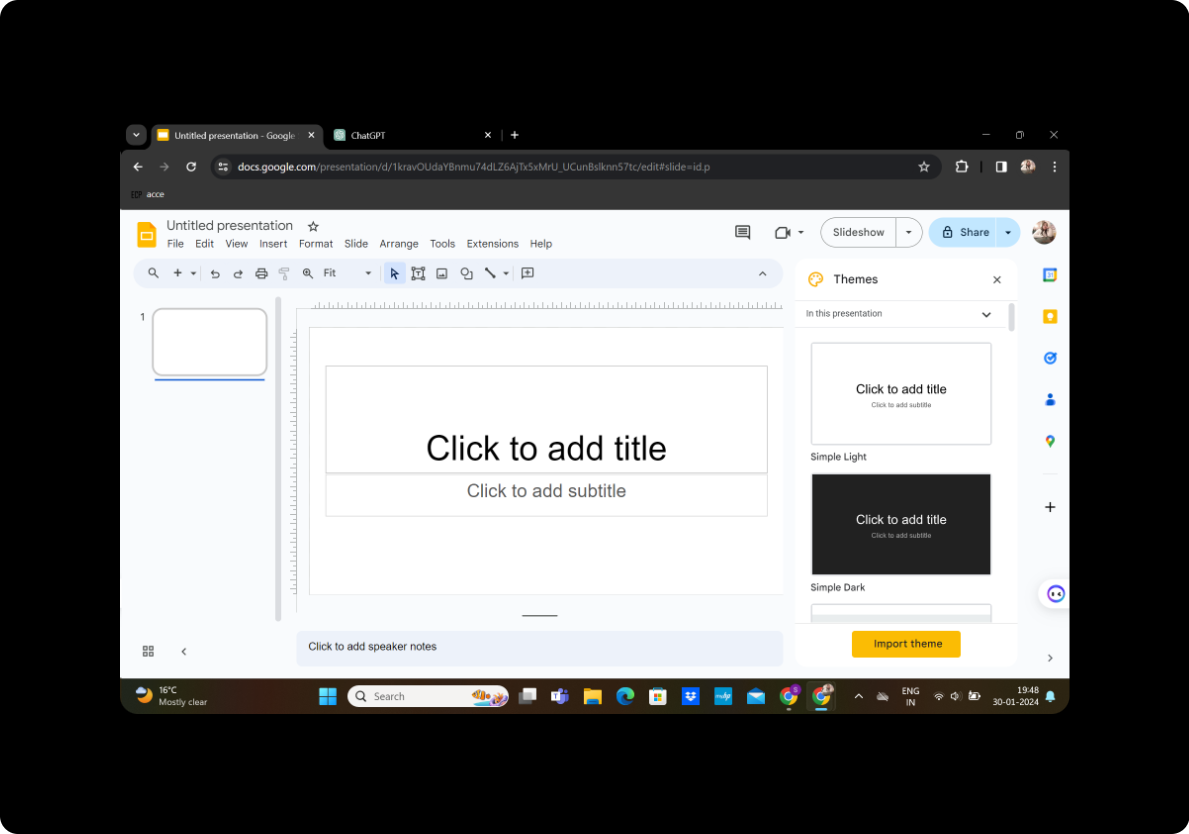
Begin by navigating to Google Slides, a user-friendly online presentation tool offered by Google. If you don't have an account, sign up for one. Once logged in, create a new presentation.
Sign In with Google to Google Slides
Ensure you're signed in to your Google account to access the full suite of features in Google Slides.
Steps to Transform Quotes into a Slideshow
Step 1: Download MagicSlides GPT (if not downloaded)
If you don't have MagicSlides GPT as an extension, download it from the Chrome Web Store. Open the extensions menu and click on "MagicSlides GPT" to activate the tool.
Step 2: Activate MagicSlides GPT
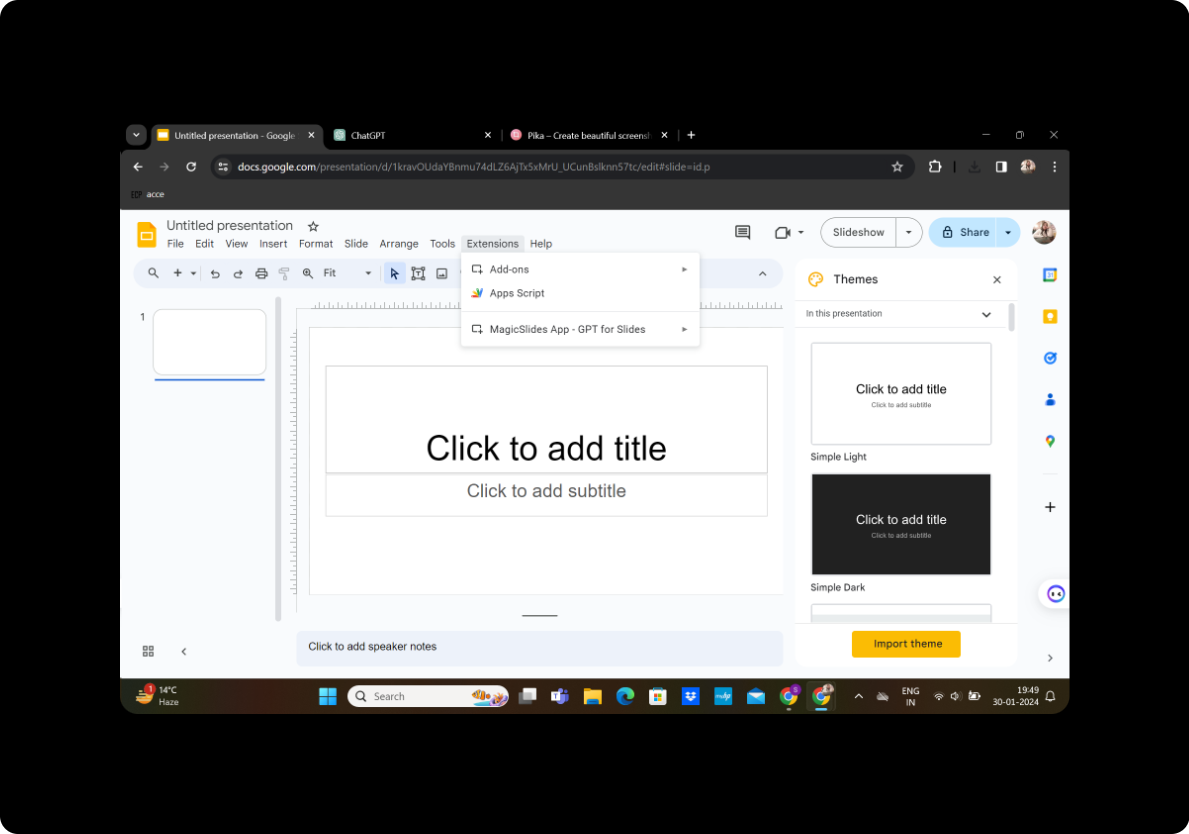
Click on the MagicSlides GPT extension icon. If it's your first time using it, follow the on-screen instructions to set up the tool.
Step 3: Generate PowerPoint in MagicSlides GPT
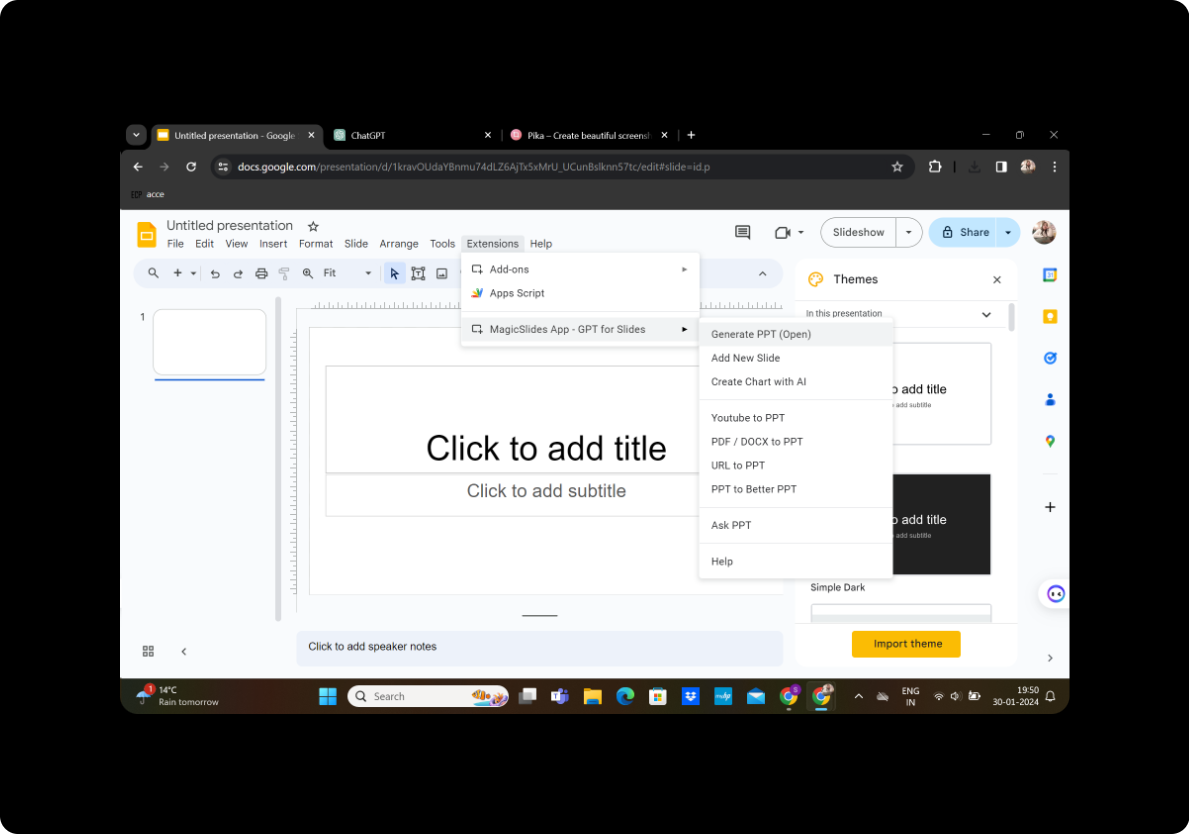
Once activated, click on "Generate PPT" within the MagicSlides GPT interface.
Step 4: Add Title and Content
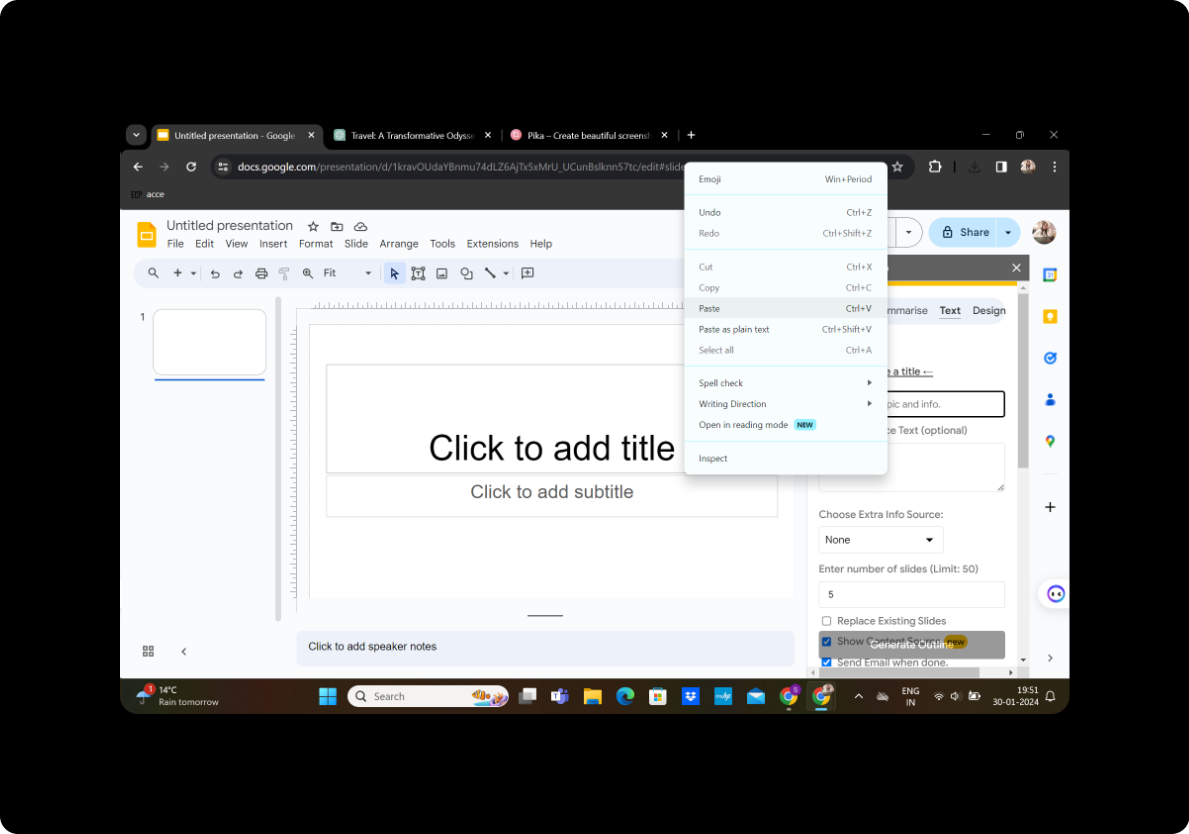
In the generated PowerPoint interface, input your presentation title in the designated box. Copy and paste your quotes or inspirational messages into the text box.
Step 5: Set Slide Preferences
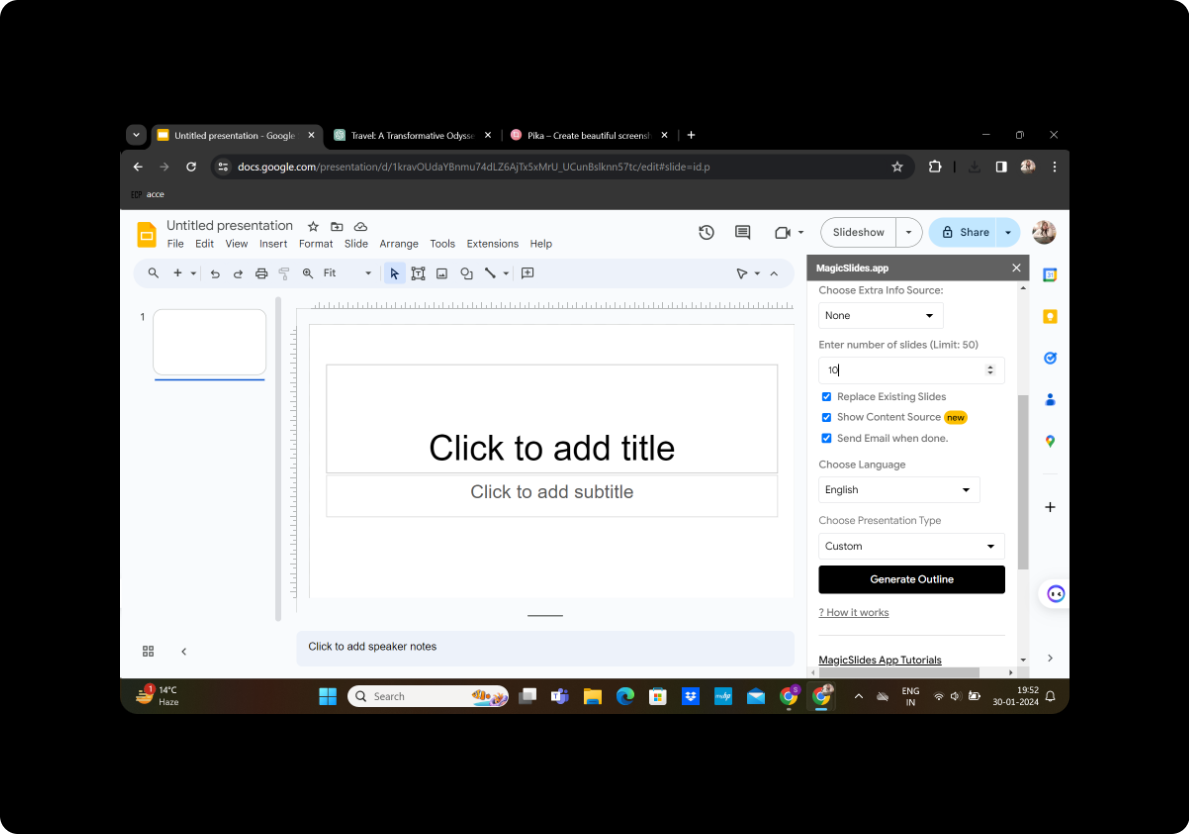
Select the number of slides you want and customize your presentation by adjusting settings like slide duration and transition effects.
Step 6: Generate Outline
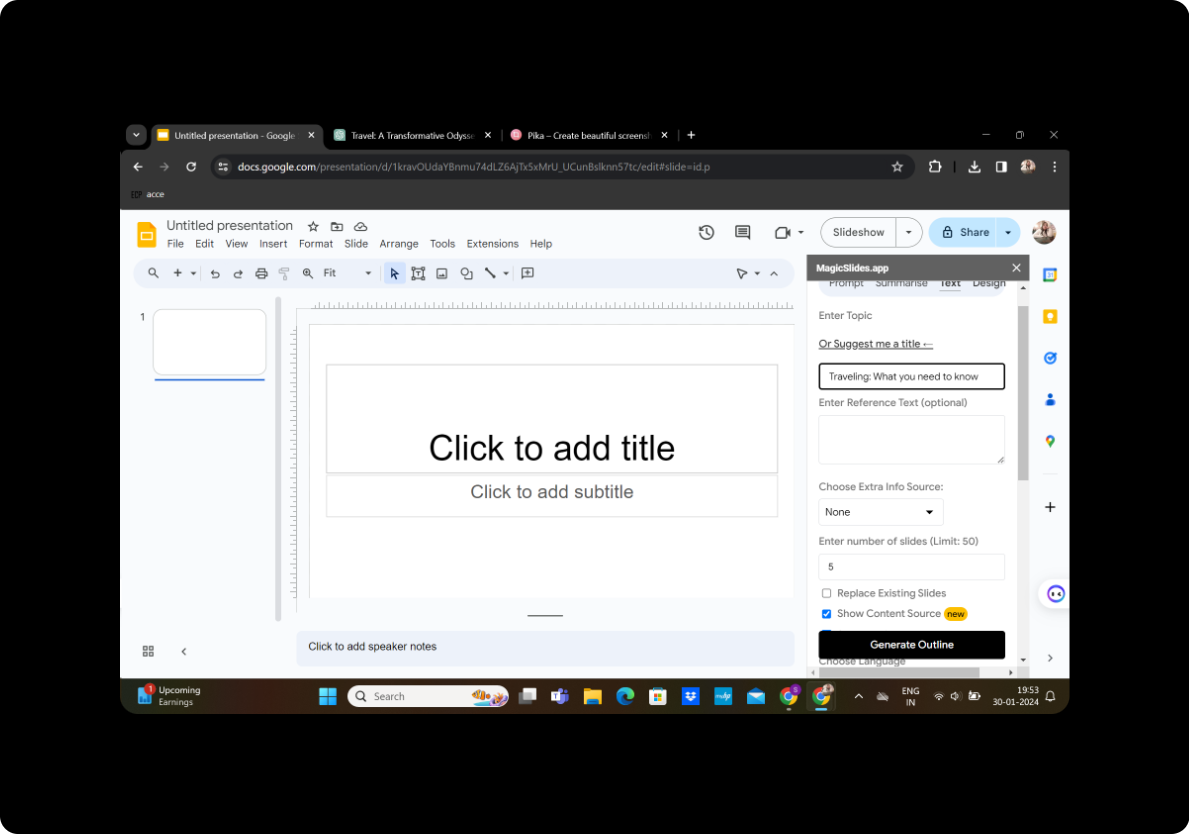
Click on "Generate Outline" to let MagicSlides GPT create an initial structure for your presentation.
Step 7: Modify as Per Preference

Review the generated outline and modify it according to your preferences. Edit slide content, rearrange slides, and fine-tune the details.
Step 8: Generate Presentation
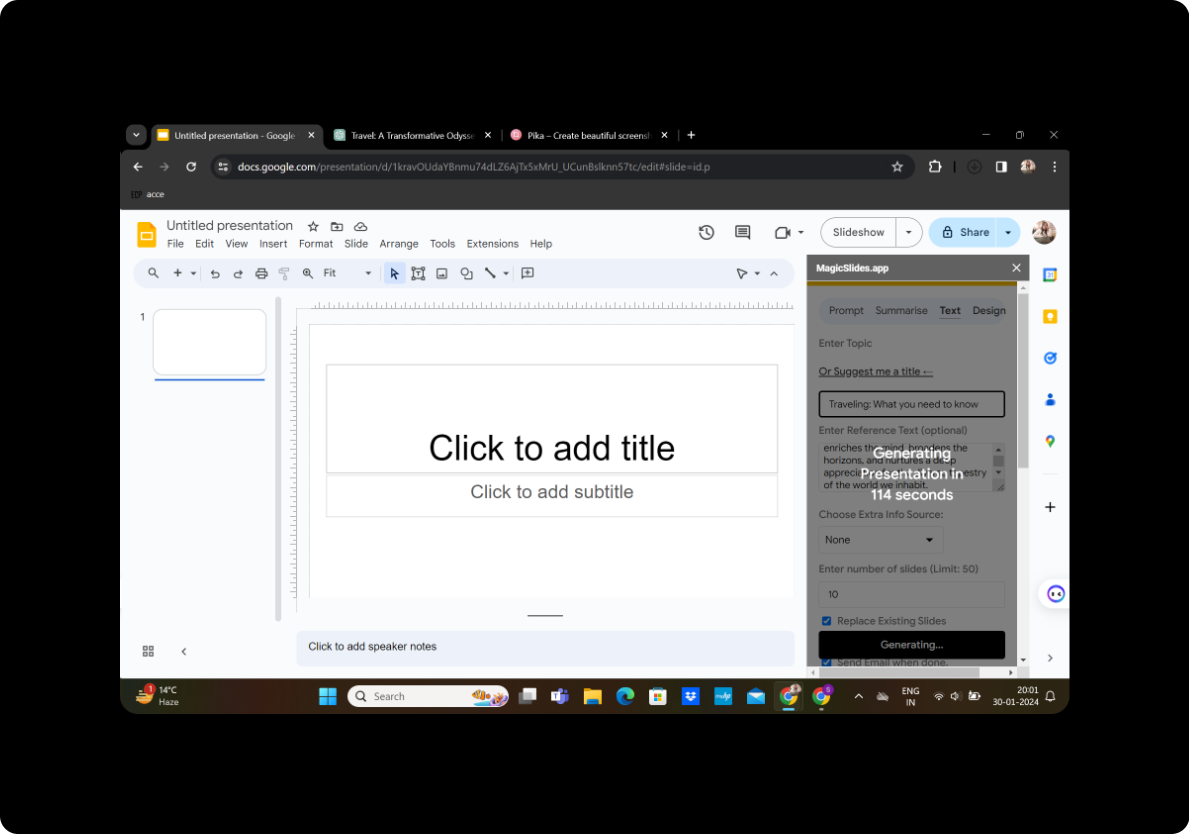
Once satisfied, click on "Generate Presentation" to let MagicSlides GPT transform your quotes into a visually appealing slideshow.
Your Presentation Is Ready!
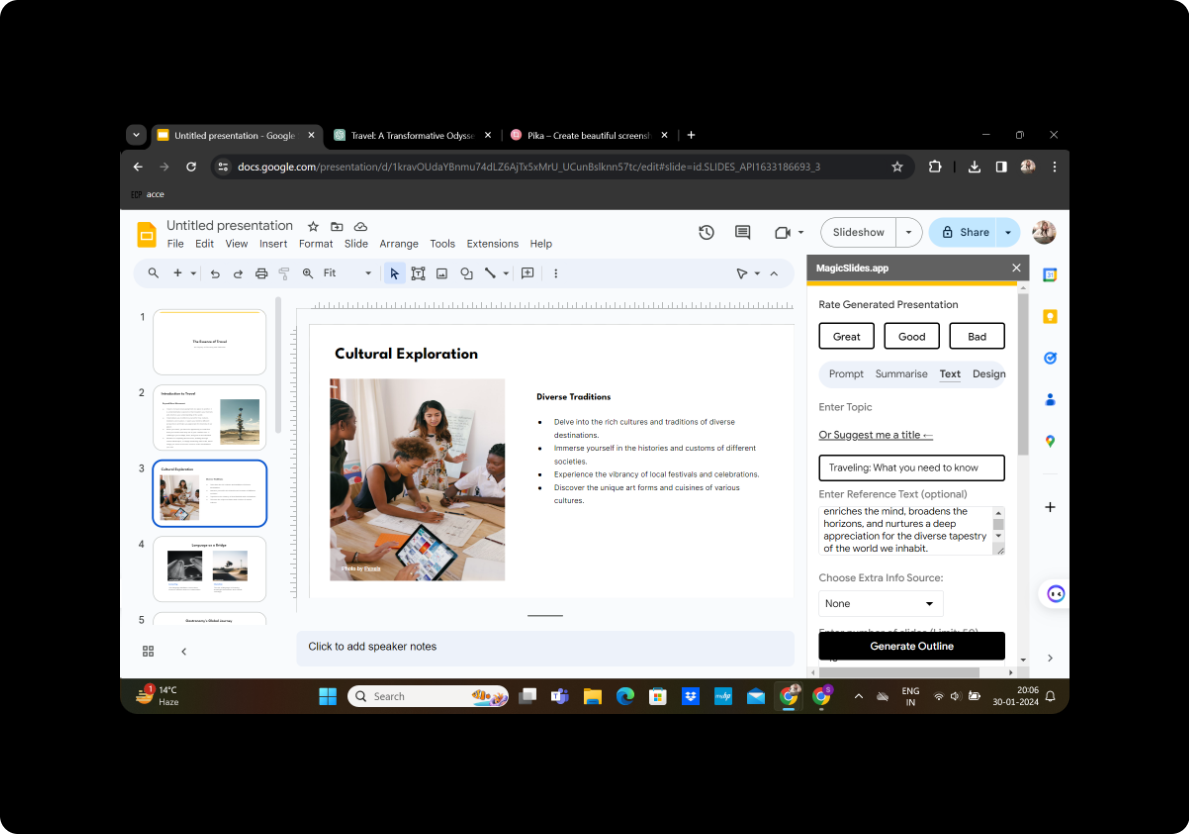
Congratulations! Your presentation is now ready to captivate and inspire your audience.
Conclusion
Converting quotes or inspirational messages into a slideshow has never been easier, thanks to the seamless integration of Google Slides and MagicSlides GPT. This dynamic duo empowers you to effortlessly transform static content into engaging presentations, allowing your messages to resonate on a broader scale.
Frequently Asked Questions
Can I use MagicSlides GPT with other presentation tools? Yes, MagicSlides GPT is specifically designed to integrate with Google Slides, ensuring a smooth and efficient conversion process.
How can I share my presentation with others? After generating your presentation, use Google Slides' sharing options to collaborate or present your content to a wider audience.
Can I customize the design of my slides further? Absolutely! MagicSlides GPT provides extensive customization options, allowing you to tailor the visual elements to your liking.
Is MagicSlides GPT free to use? MagicSlides GPT may have both free and premium features. Check the extension details for specific information on pricing.
Can I use MagicSlides GPT offline? No, MagicSlides GPT requires an internet connection to function as it leverages cloud-based processing for optimal performance.


