How to Convert Classic Novels into Immersive PowerPoint Book Talks


Transform timeless tales with immersive PowerPoint book talks. Learn to convert classic novels into captivating presentations with our expert guide!
In the ever-evolving landscape of digital presentations, turning classic novels into immersive PowerPoint book talks has become an engaging way to captivate audiences. With tools like MagicSlides GPT, this process is now more accessible than ever. Follow these simple steps to bring your favorite literary works to life through visually compelling presentations.
How to Convert Classic Novels into Immersive PowerPoint Book Talks
Step 1: Open Google Slides and Start a Blank Presentation
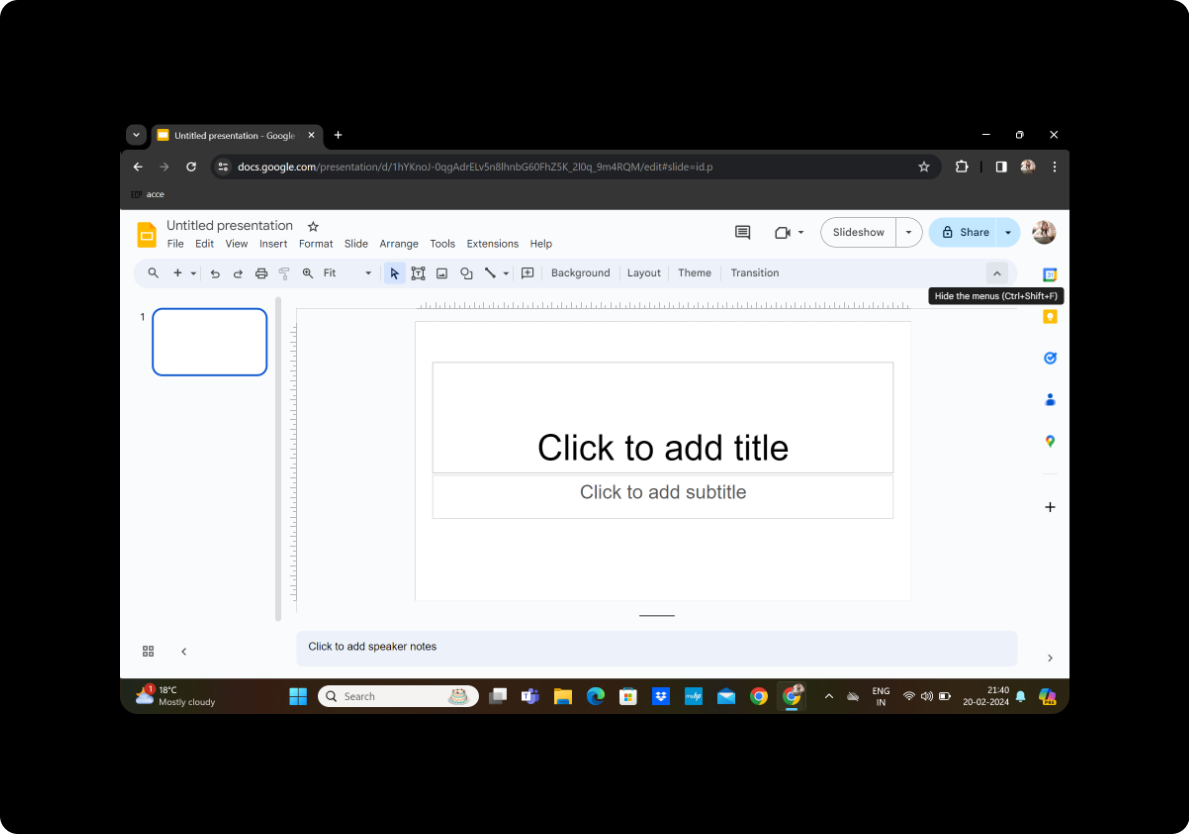
Begin by opening Google Slides and creating a new, blank presentation. If you're not already signed in, ensure you sign in with your Google account.
Step 2: Click on Extensions and MagicSlides GPT
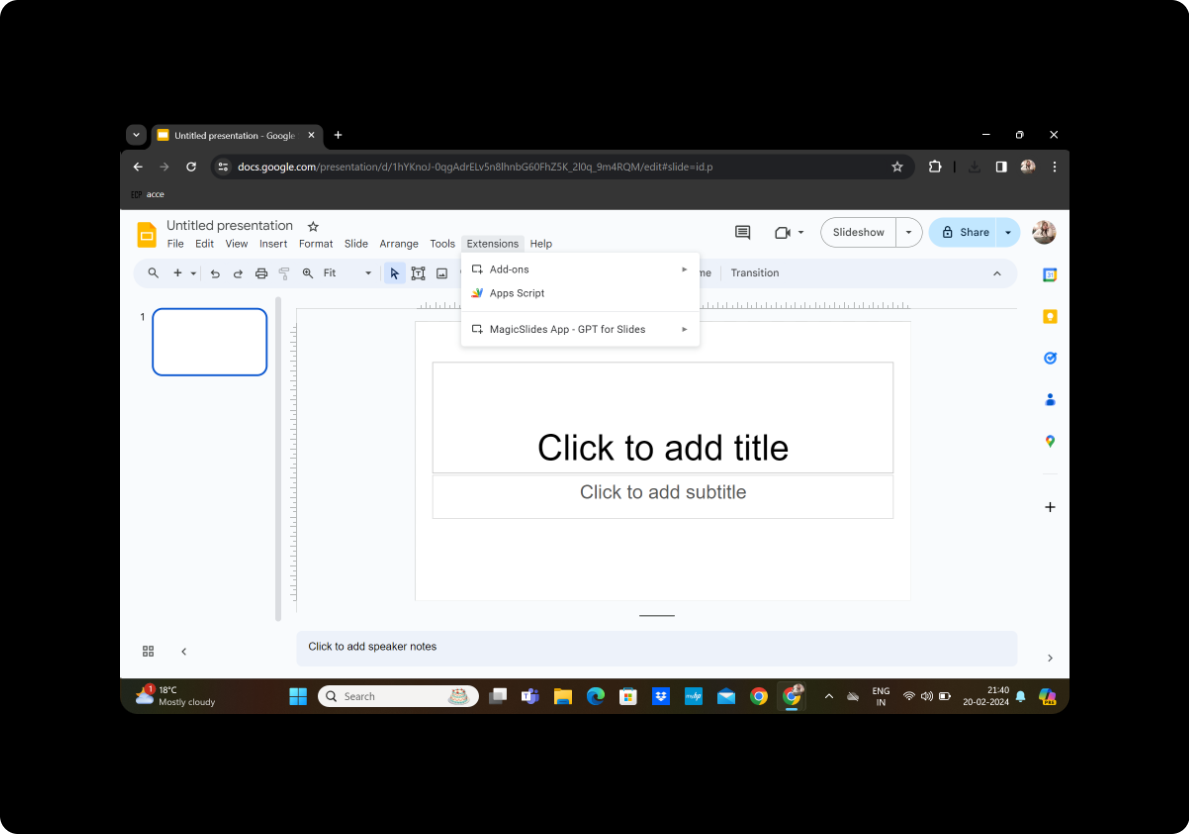
Navigate to the extensions menu and click on MagicSlides GPT. This innovative tool will be your key to transforming classic novels into captivating PowerPoint presentations.
Step 3: Click on 'PDF/DOCX to PPT'
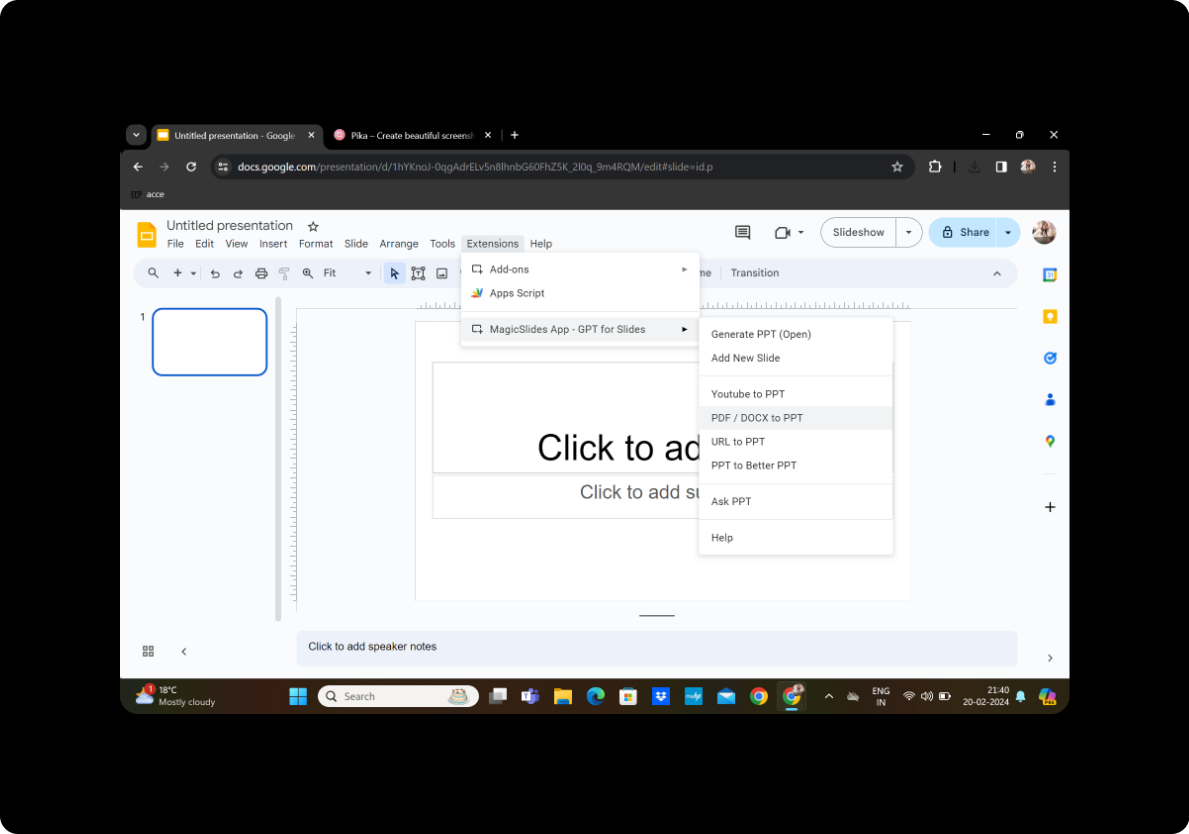
Within the MagicSlides GPT interface, locate the 'PDF/DOCX to PPT' option. Click on it to initiate the process of converting your classic novel into a PowerPoint presentation.
Step 4: Upload the PDF and Click on 'Fetch Transcript'
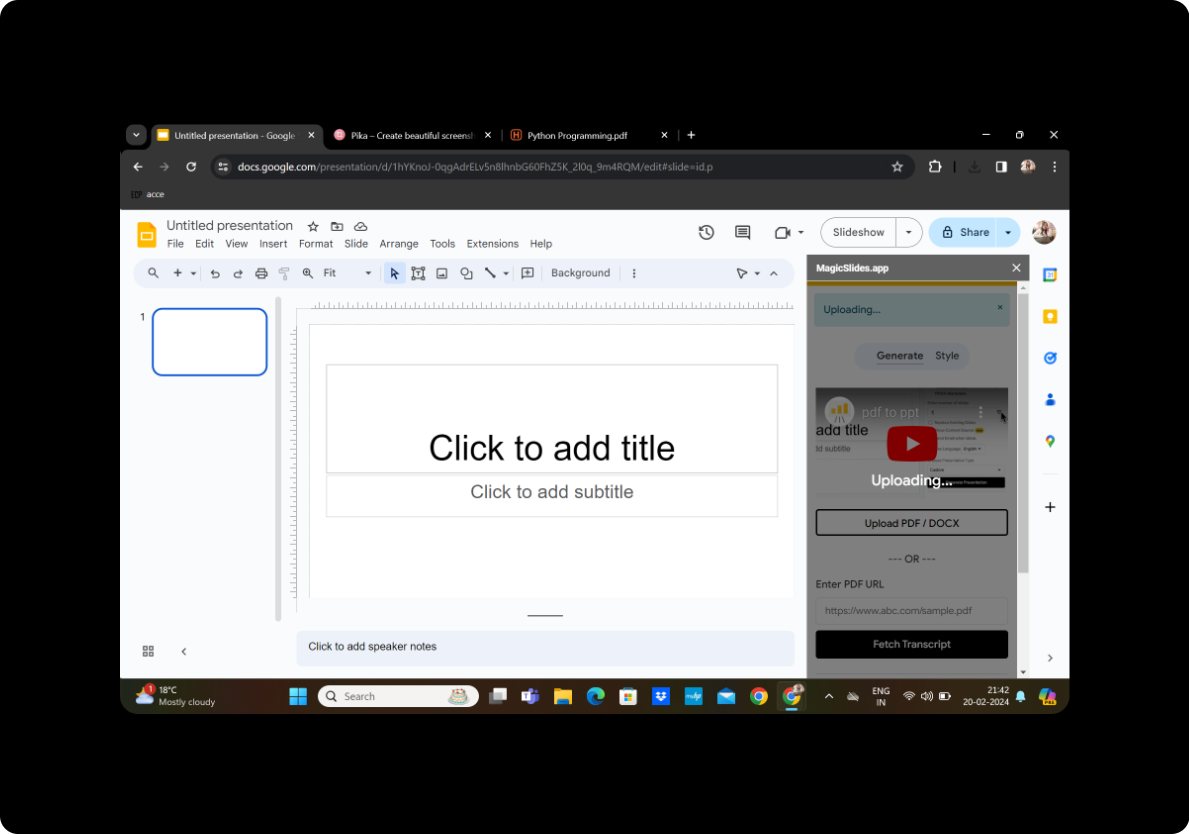
Upload the PDF version of the classic novel you want to transform. Once uploaded, click on 'Fetch Transcript' to extract the text from the document.
Step 5: Select the Number of Slides
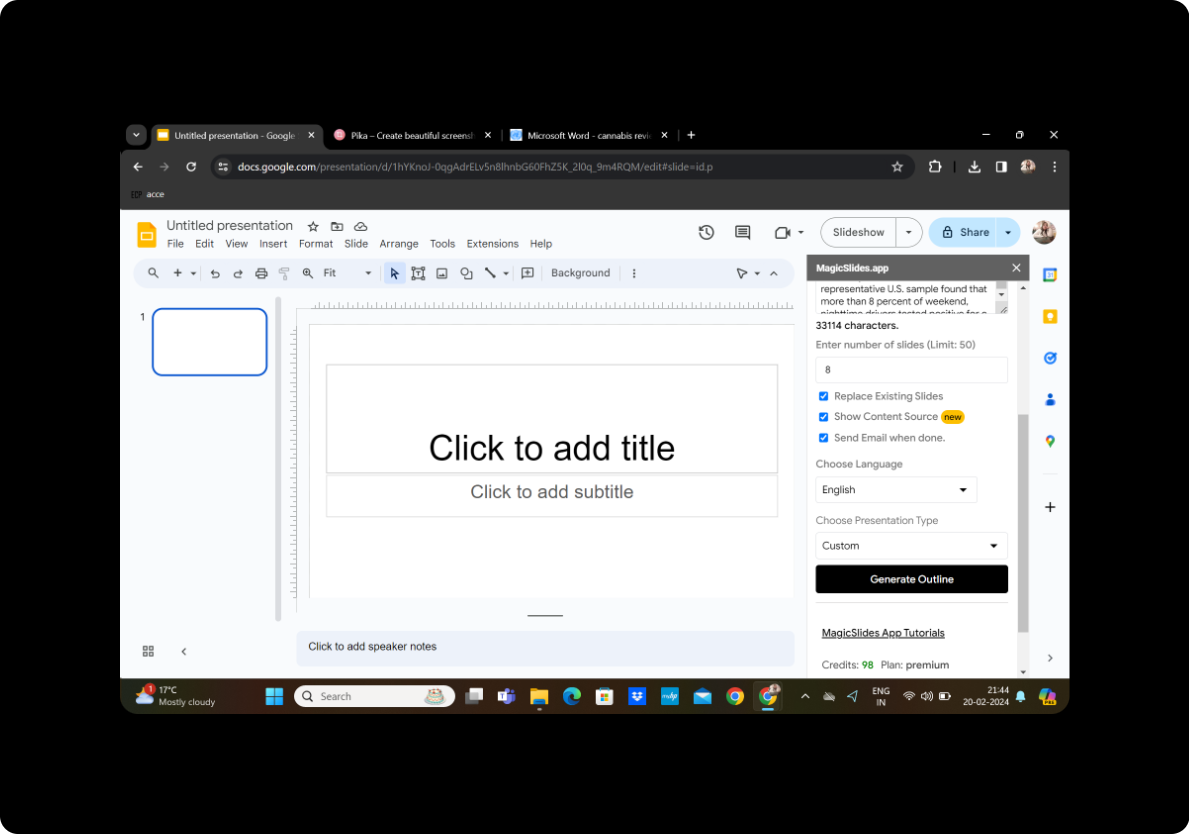
Customize your presentation by selecting the desired number of slides. This step allows you to control the pace and depth of your book talk.
Step 6: Click on 'Generate Outline'
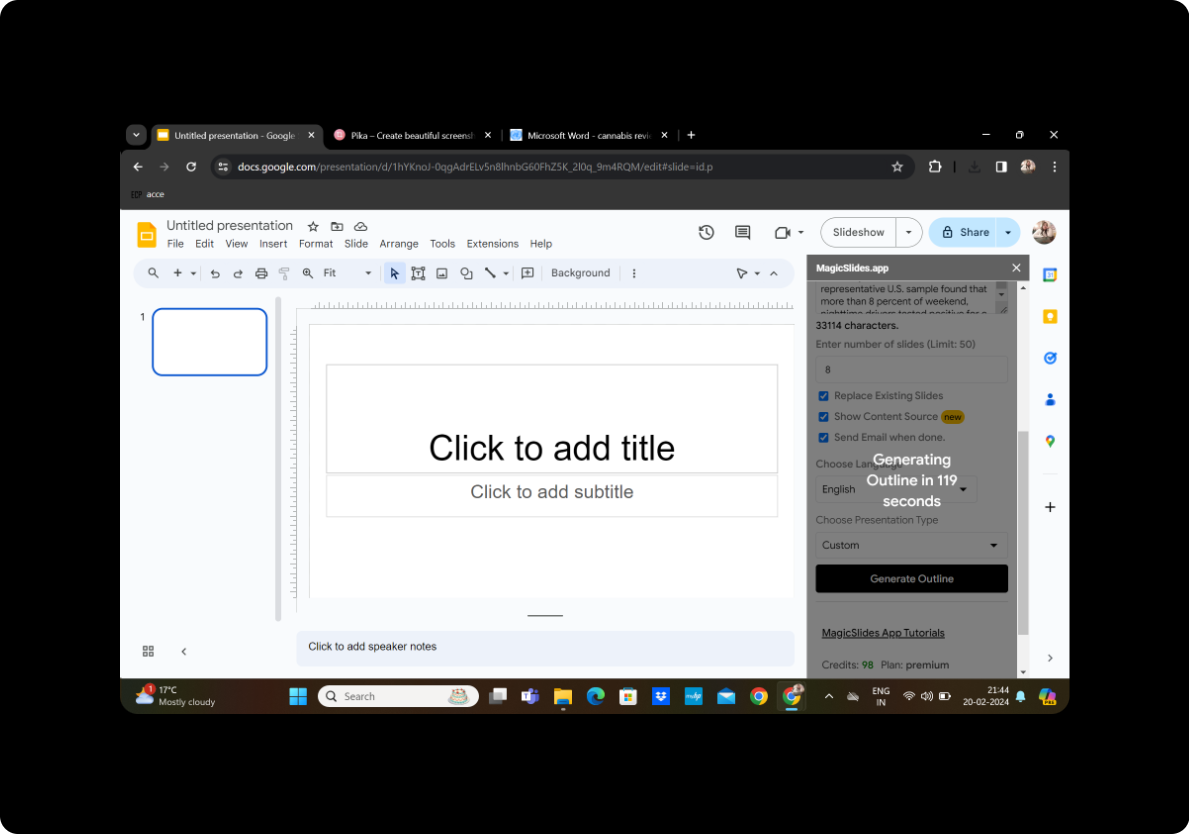
MagicSlides GPT will automatically generate an outline based on the content of the classic novel. Review the outline to ensure it aligns with the key themes and chapters.
Step 7: Click on 'Generate Presentation'
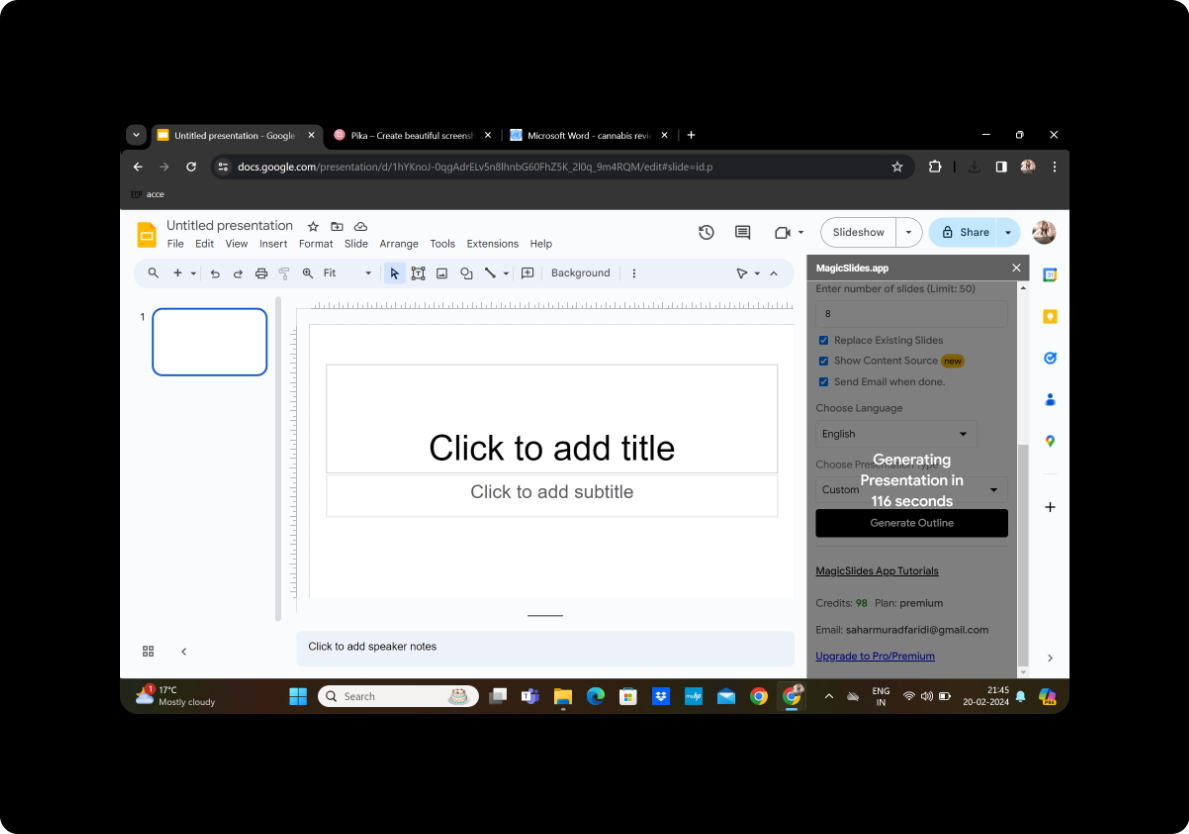
Once satisfied with the outline, click on 'Generate Presentation.' MagicSlides GPT will use its advanced capabilities to create a visually appealing PowerPoint presentation.
Step 8: Your Presentation is Ready
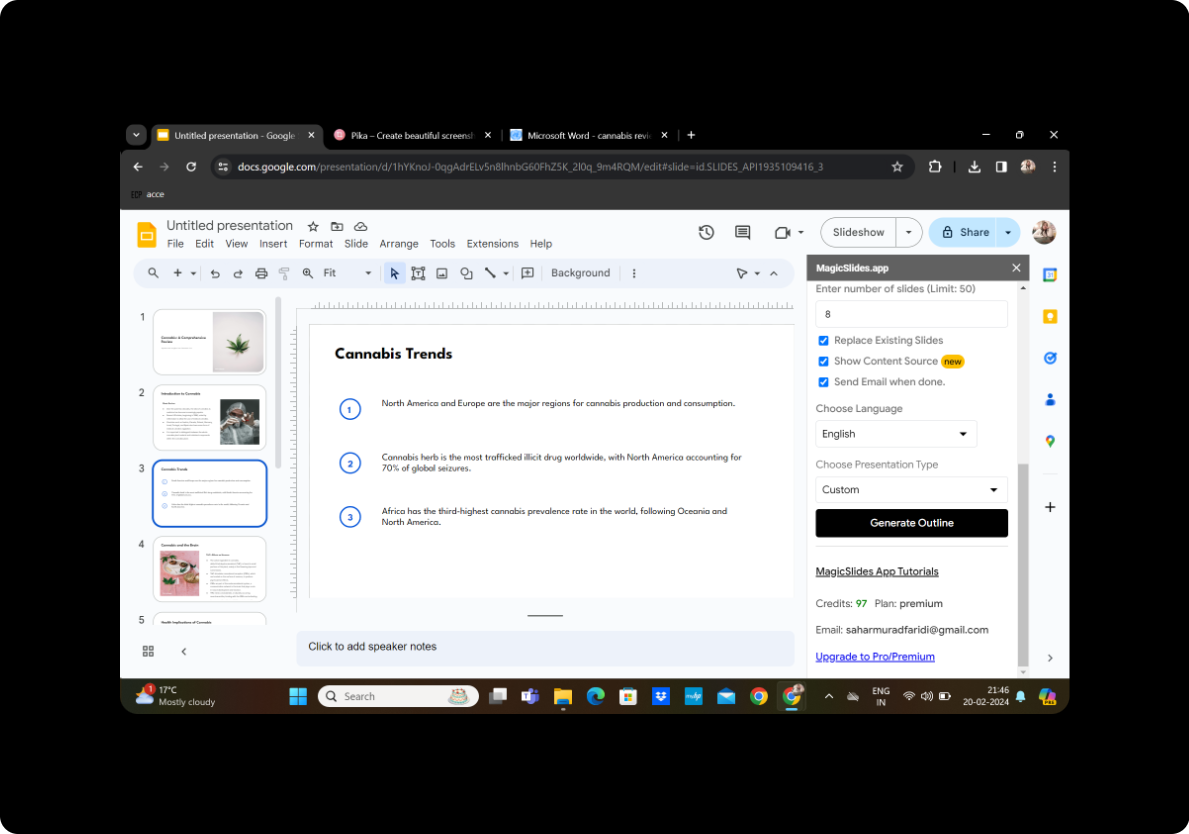
Congratulations! Your immersive PowerPoint book talk is now ready for exploration and sharing.
Conclusion
Incorporating classic novels into PowerPoint presentations provides a fresh and engaging way to share literary insights. With the help of MagicSlides GPT, the process is streamlined, allowing you to focus on delivering an immersive book talk that resonates with your audience.
Frequently Asked Questions
Can I customize the design of the slides? Absolutely! MagicSlides GPT allows you to customize the design, layout, and visual elements of your presentation.
Is there a limit to the size of the PDF I can upload? While there may be some limitations, MagicSlides GPT is designed to handle a variety of document sizes. For optimal results, consider breaking down large documents into smaller sections.
Can I edit the generated presentation? Certainly! Once MagicSlides GPT generates the presentation, you can further edit and enhance it using Google Slides' built-in tools.
How long does the process take? The processing time varies based on the length and complexity of the classic novel. Generally, it is a quick and efficient process.
Can I share the presentation with others? Yes, you can easily share your presentation with others by using the sharing options in Google Slides.
With these steps and FAQs in mind, you're now equipped to effortlessly turn classic novels into immersive PowerPoint book talks, offering a unique and interactive way to share literary treasures.


