How to Convert Financial Statements from Text to PowerPoint Slides


Effortlessly transform financial statements into dynamic PowerPoint slides with our step-by-step guide for a visually compelling presentation. Elevate your data now!
Financial statements are crucial for conveying a company's financial performance. Converting these statements into engaging PowerPoint slides can simplify complex data for better understanding. In this guide, we'll explore the step-by-step process using MagicSlides GPT, a powerful tool that streamlines the conversion of financial text into visually appealing presentations.
How to Convert Financial Statements from Text to PowerPoint Slides
Step 1: Open Google Slides and a Blank Presentation
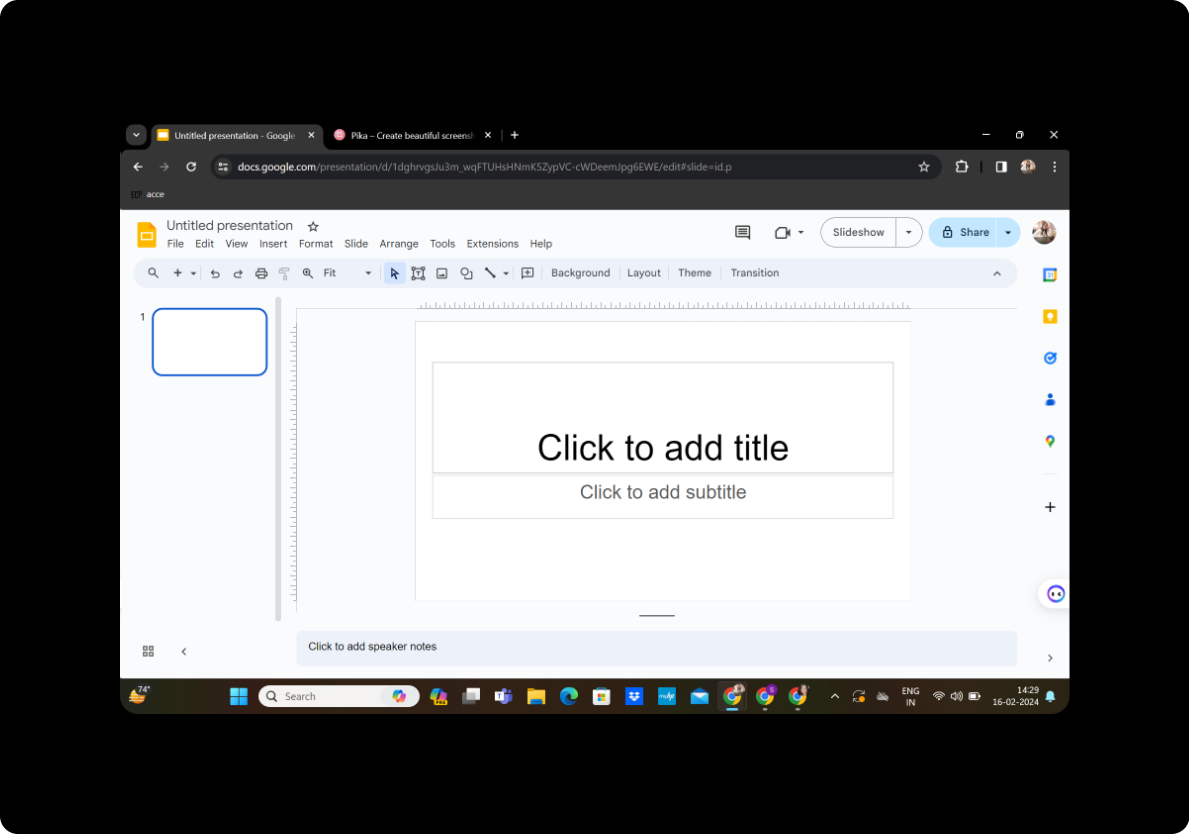
Begin by logging into your Google account and opening Google Slides. Create a new presentation to serve as the canvas for your financial statement slides.
Step 2: Click on Extensions and MagicSlides GPT
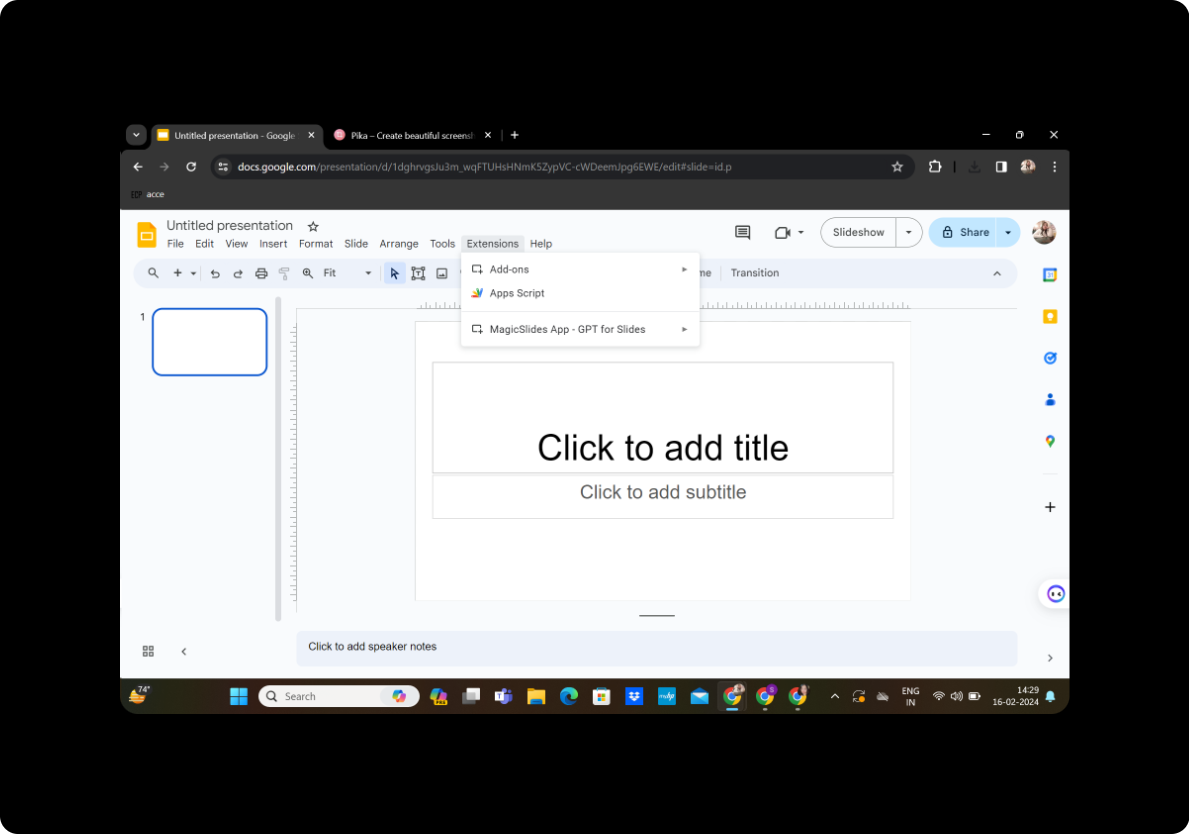
Navigate to the extensions menu within Google Slides. Locate and click on "MagicSlides GPT" to activate the tool.
Step 3: Click on 'Generate PPT'
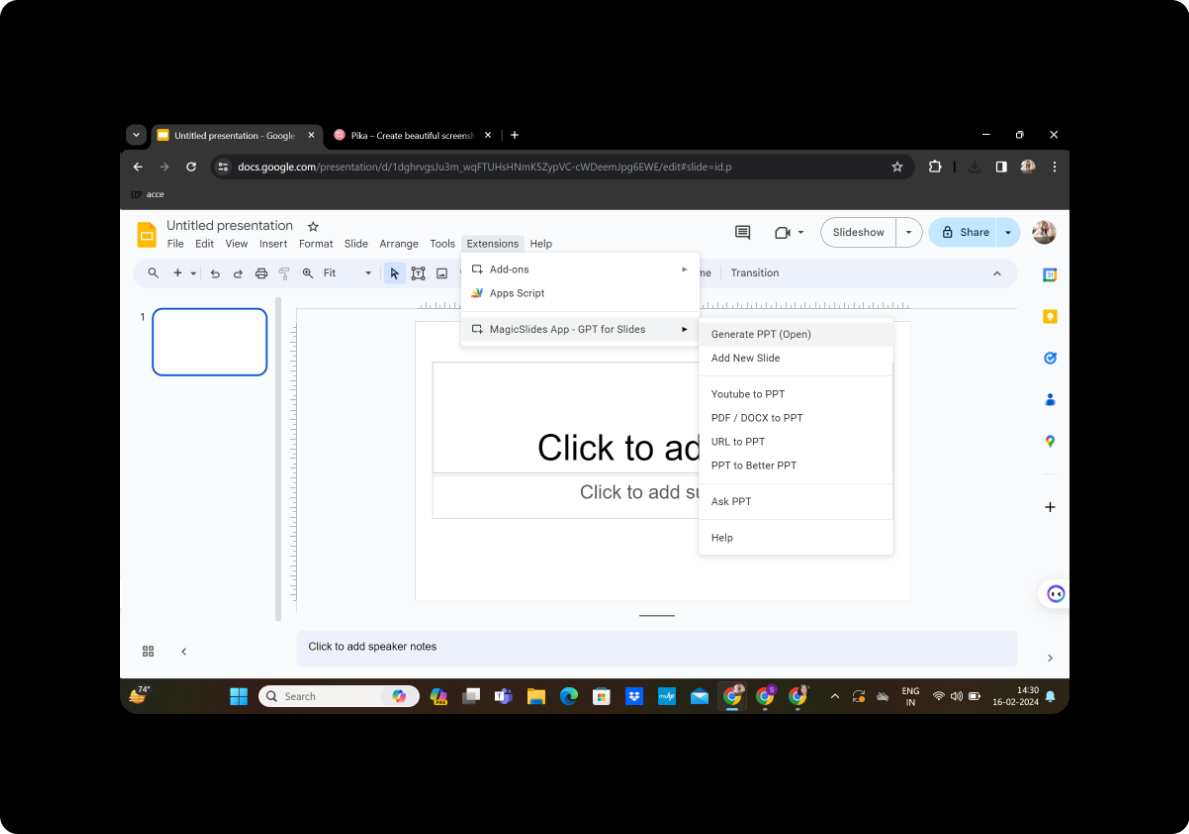
After activating MagicSlides GPT, find the 'Generate PPT' option. Click on it to initiate the process of converting financial text into PowerPoint slides.
Step 4: Enter the Title and Text Content in the Given Space
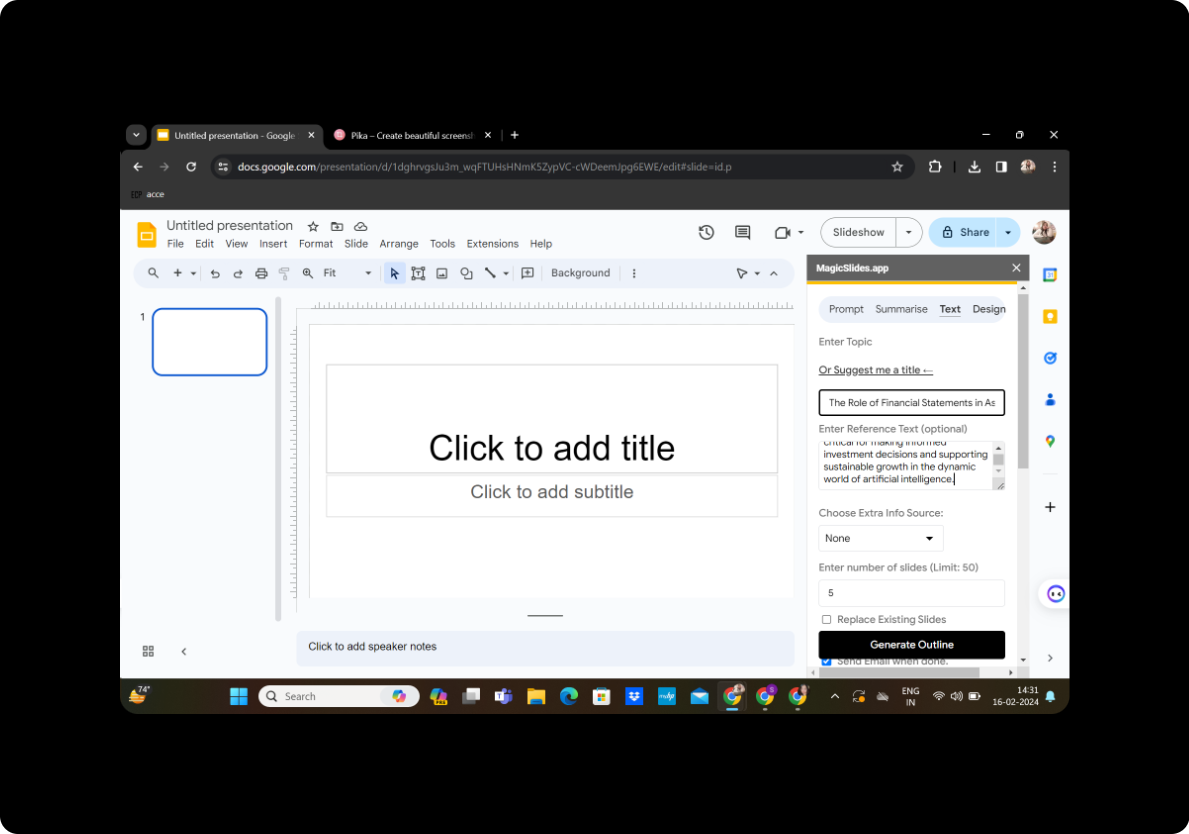
Provide a title for your presentation, and enter the relevant financial text content into the designated space. Be concise and clear to ensure the effectiveness of your slides.
Step 5: Click on 'Generate Outline'
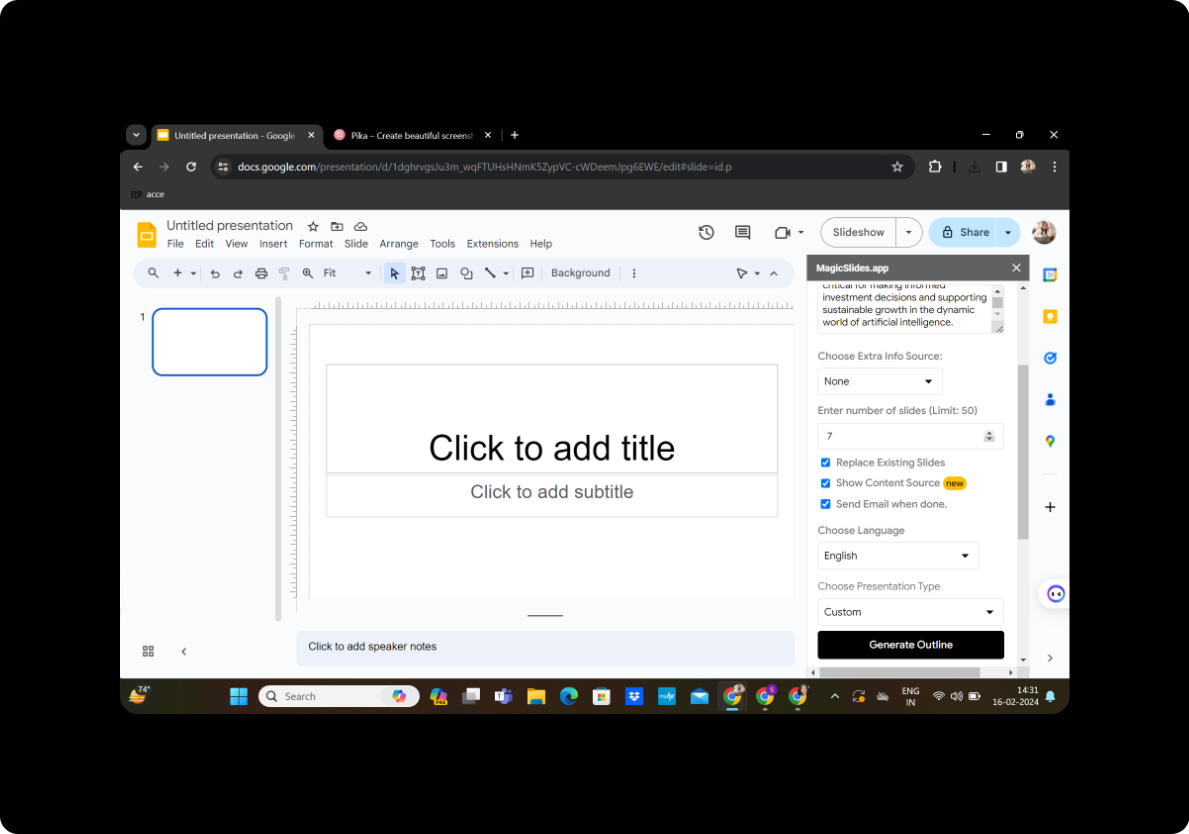
Once you've entered the content, click on 'Generate Outline.' MagicSlides GPT will analyze the text and create an initial outline for your presentation.
Step 6: Select the Number of Slides
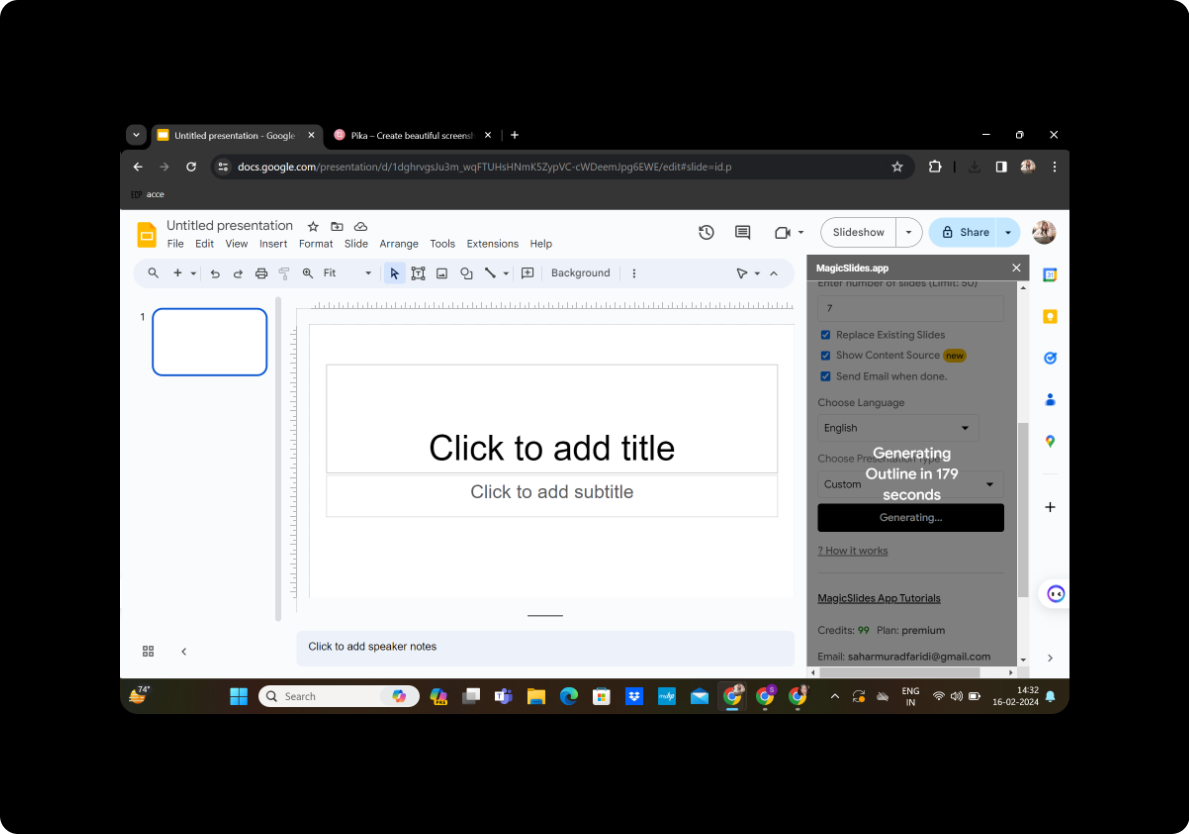
Review the generated outline and choose the number of slides you want in your presentation. This step allows you to customize the structure and flow of your financial presentation.
Step 7: Click on 'Generate Presentation'
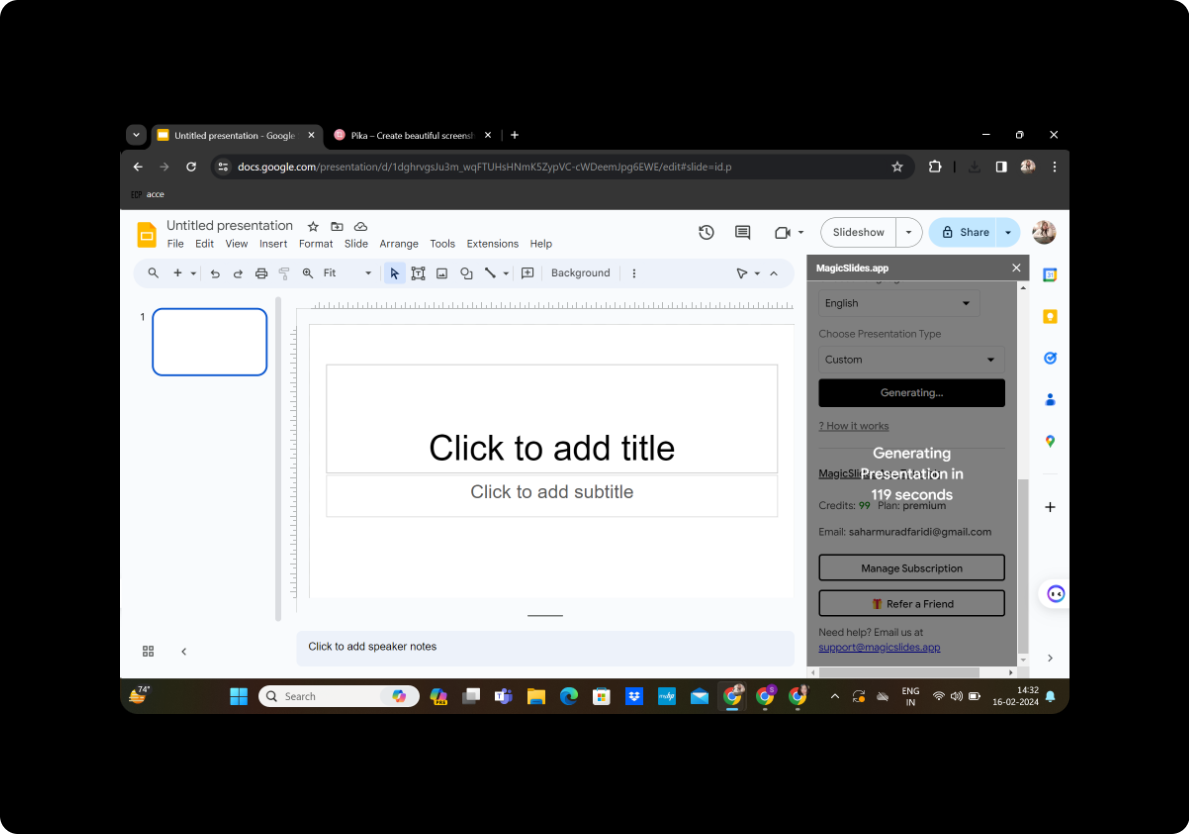
Once satisfied with the outline and slide count, click on 'Generate Presentation.' MagicSlides GPT will transform your financial text into a visually engaging PowerPoint presentation.
Step 8: Your Presentation is Ready

Congratulations! Your presentation is now ready for review, refinement, and sharing. Ensure that the slides accurately represent the financial data and insights you wish to convey.
Conclusion
Converting financial statements from text to PowerPoint slides has never been easier with the innovative MagicSlides GPT tool. This process not only simplifies complex financial information but also enhances communication and comprehension. By following these straightforward steps, you can transform raw financial text into a dynamic presentation that effectively communicates your company's financial performance.
Frequently Asked Questions
Can I edit the generated slides? Yes, MagicSlides GPT allows you to review and edit the generated slides to ensure accuracy and relevance.
Is MagicSlides GPT compatible with all financial statement formats? MagicSlides GPT is designed to handle various text formats, making it versatile for different financial statement structures.
Can I add visual elements to the presentation? Certainly! You can enhance your presentation by adding charts, graphs, and other visual elements to complement the financial text.
Is there a limit to the number of slides I can generate? MagicSlides GPT provides flexibility, allowing you to select the desired number of slides based on your content and presentation preferences.
How can I share the final presentation with others? Once your presentation is ready, you can easily share it by saving it to Google Drive or downloading it for offline use.


