How to Convert Lessons into Bite-Sized Presentations


Transform your lessons into engaging, bite-sized presentations with our step-by-step guide. Elevate learning experiences effortlessly. Start creating impactful content now!
In the ever-evolving landscape of digital education, creating concise and engaging presentations is key to capturing your audience's attention. This step-by-step guide will walk you through the process of converting lessons into bite-sized presentations using Google Slides and the innovative MagicSlides GPT extension.
How to Convert Lessons into Bite-Sized Presentations
Bite-sized learning involves breaking down complex concepts into smaller, easily digestible chunks. This approach not only enhances comprehension but also facilitates effective knowledge retention. To embark on this journey, follow these steps:
Visit Google Slides
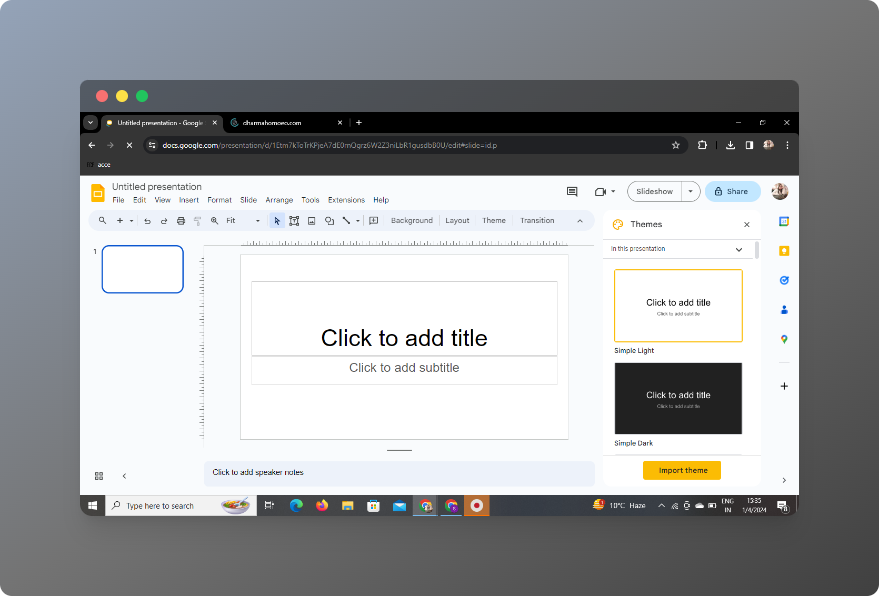
Begin by visiting Google Slides, a user-friendly cloud-based presentation tool offered by Google. If you don't have a Google account, you'll need to sign up. Once logged in, you're ready to dive into the world of bite-sized presentations.
Sign In with Google to Google Slides
Ensure you are signed in to your Google account to access the full suite of features in Google Slides seamlessly. This step is crucial for saving and sharing your presentations effortlessly.
Leveraging MagicSlides GPT: Turning Concepts into Slides
In Extensions, Click on MagicSlides GPT (If Downloaded)
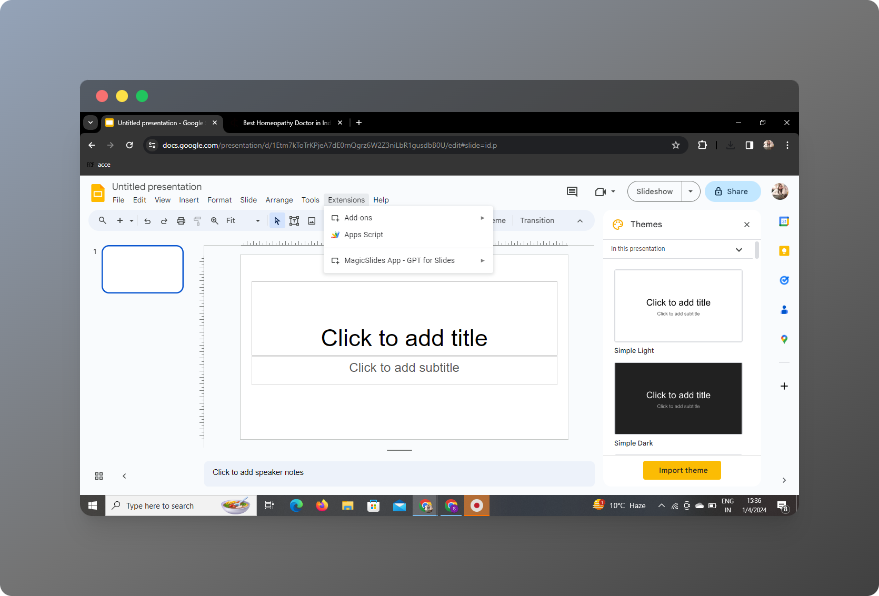
If you've already downloaded the MagicSlides GPT extension, navigate to your browser's extensions and click on MagicSlides. This extension enhances your presentation creation process by integrating powerful AI capabilities.
If Not Downloaded, First Download as an Extension, Then Open
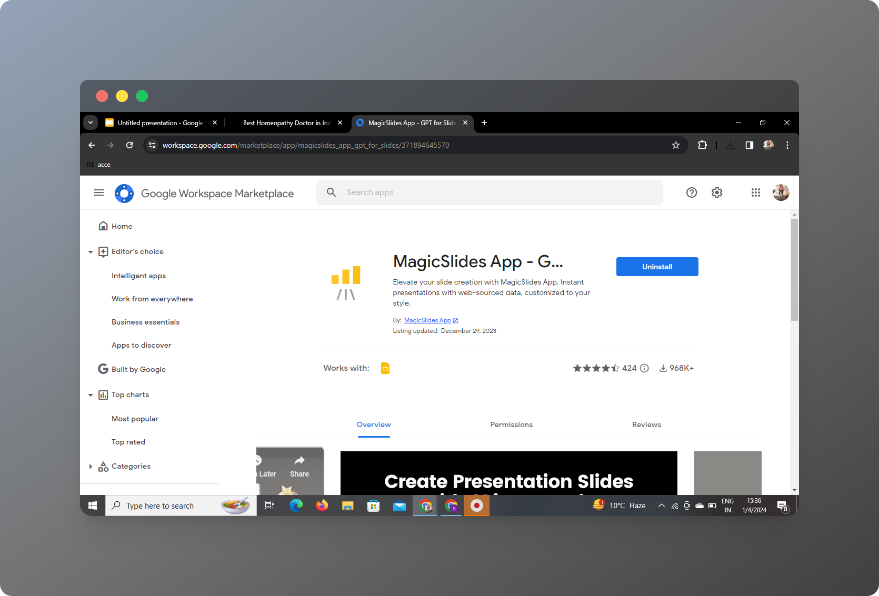
For those new to MagicSlides GPT, you can easily download it as a browser extension. Once downloaded, open the extension to activate its features within Google Slides.
Click on 'Generate PPT' in MagicSlides GPT
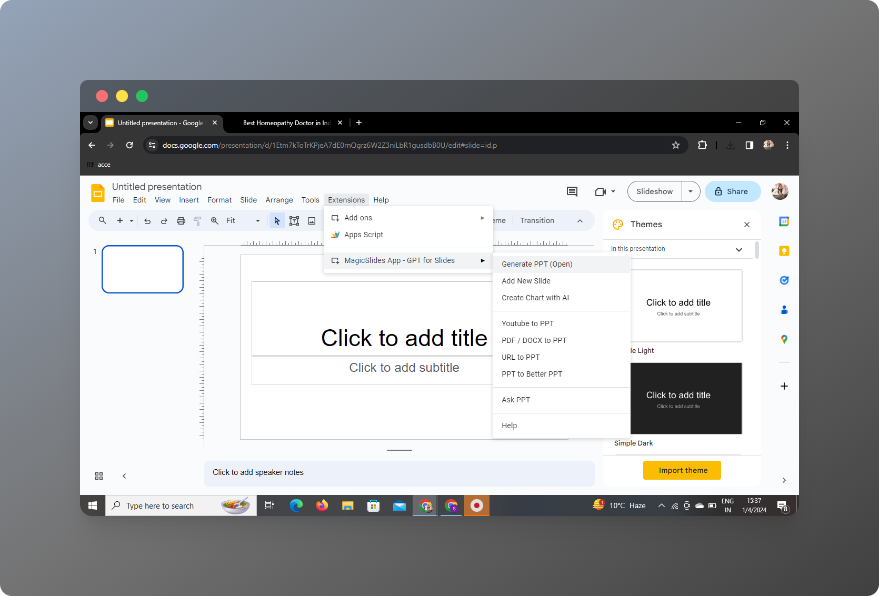
With MagicSlides GPT now accessible, click on the "Generate PPT" option. This will initiate the process of converting your lesson content into a visually appealing presentation.
Click on 'Summarize' Option
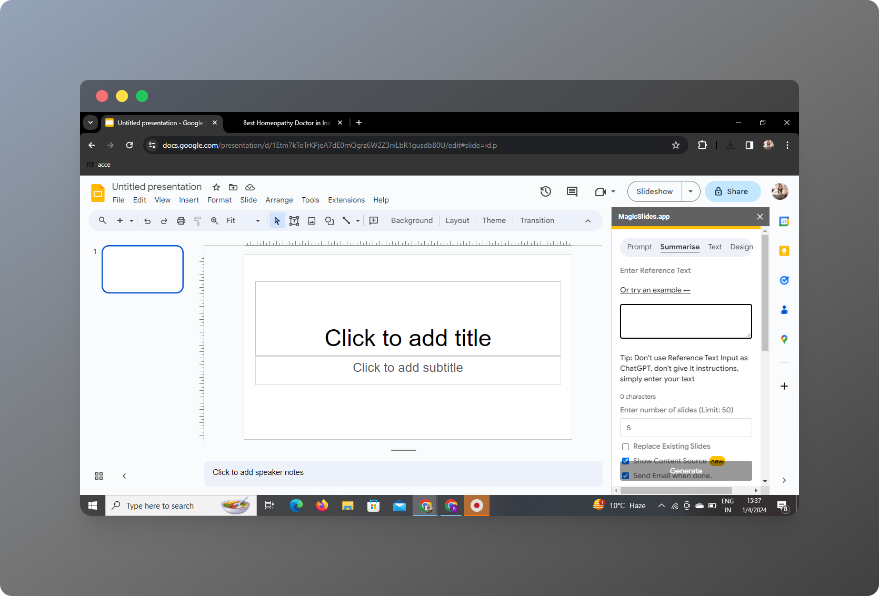
MagicSlides GPT provides a "Summarize" option, allowing you to distill the essence of your lesson into key points. Click on this option to streamline your content for optimal clarity.
Paste Your Lesson
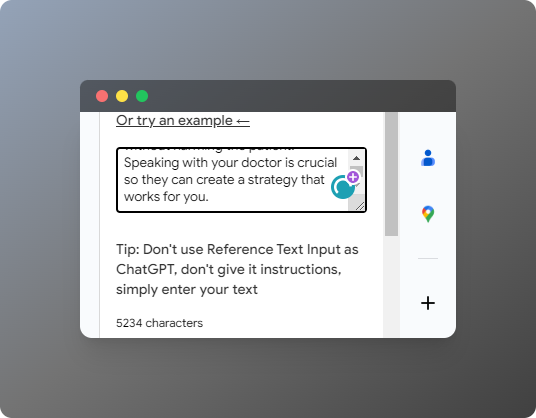
Paste your lesson content into the designated area.
Select the Number of Slides
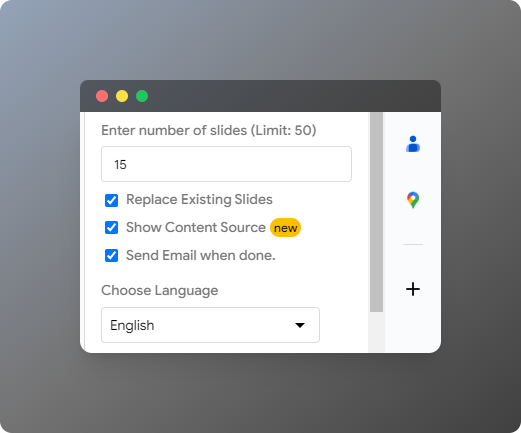
Additionally, select the desired number of slides to create a concise and focused presentation tailored to your audience's needs.
Click on 'Generate Presentation'
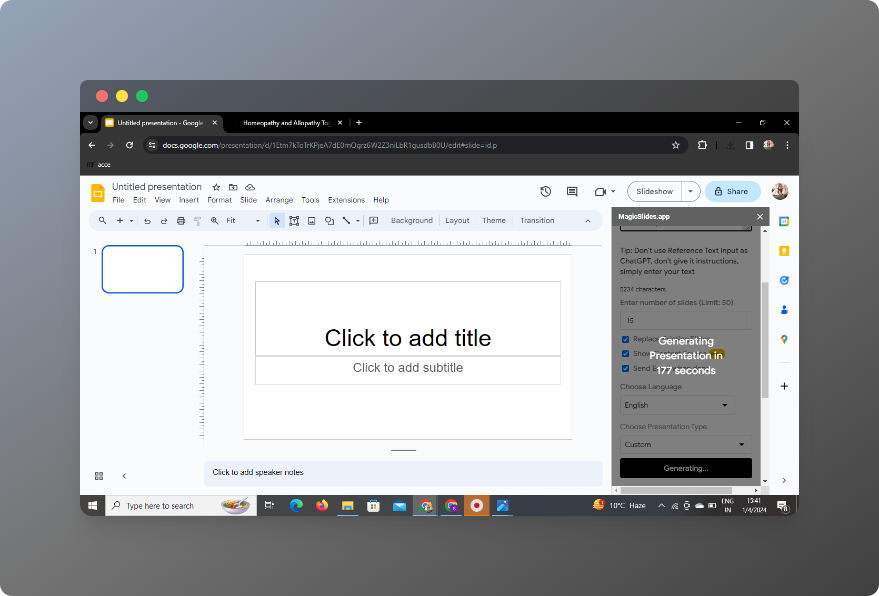
Once you've configured your preferences, click on the "Generate Presentation" button. MagicSlides GPT will work its magic, transforming your lesson into bite-sized, visually appealing slides.
Your Presentation Is Ready
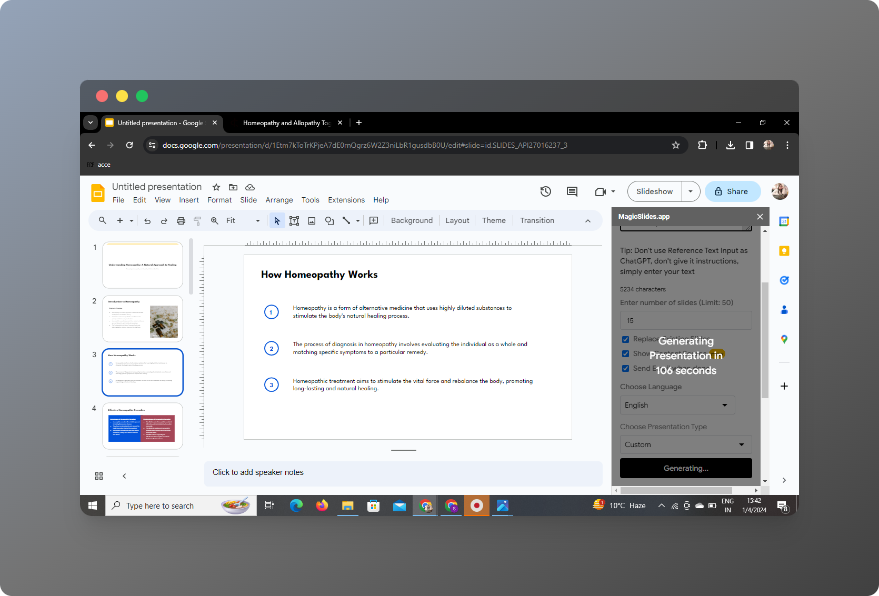
Congratulations! Your bite-sized presentation is now ready to captivate your audience. The combination of Google Slides and MagicSlides GPT simplifies the process, allowing you to focus on delivering impactful content.
Bottom Line
In conclusion, embracing bite-sized learning through concise presentations is a powerful strategy for educators, trainers, and content creators. With the right tools and techniques, you can make your lessons more accessible and engaging.
Frequently Asked Questions (FAQs)
- Can I use MagicSlides GPT with other presentation tools?MagicSlides GPT is currently designed to work seamlessly with Google Slides.
- Are there any limitations on the length of the lessons I can convert?While MagicSlides GPT is versatile, extremely lengthy lessons may require additional editing for optimal results.
- Can I customize the design of the slides?Yes, Google Slides offers customization options, allowing you to enhance the visual appeal of your presentations.
- Is MagicSlides GPT free to use?Basic features of MagicSlides GPT are free, with optional premium features available for more advanced functionality.
- How can I share my bite-sized presentations with others?Google Slides allows easy sharing and collaboration. Simply click on the share button, and you can invite others to view or edit your presentation.


