How to convert PowerPoint to Word


Easily convert PowerPoint presentations to Word documents with this step-by-step guide for seamless content sharing
Converting a PowerPoint presentation to a Word document can be incredibly useful, especially when you need to share your slides' content in a more text-focused format.
Whether you're creating handouts, a report, or simply want to make notes from your presentation, exporting your PowerPoint slides to Word is a straightforward process.
In this blog post, we'll guide you through the steps to convert a PowerPoint presentation to a Word document, ensuring that you can easily transfer your slide content into a format that suits your needs.
How to convert powerpoint to word
Step 1: Open Your PowerPoint Presentation
Begin by opening the PowerPoint presentation that you want to convert to Word.
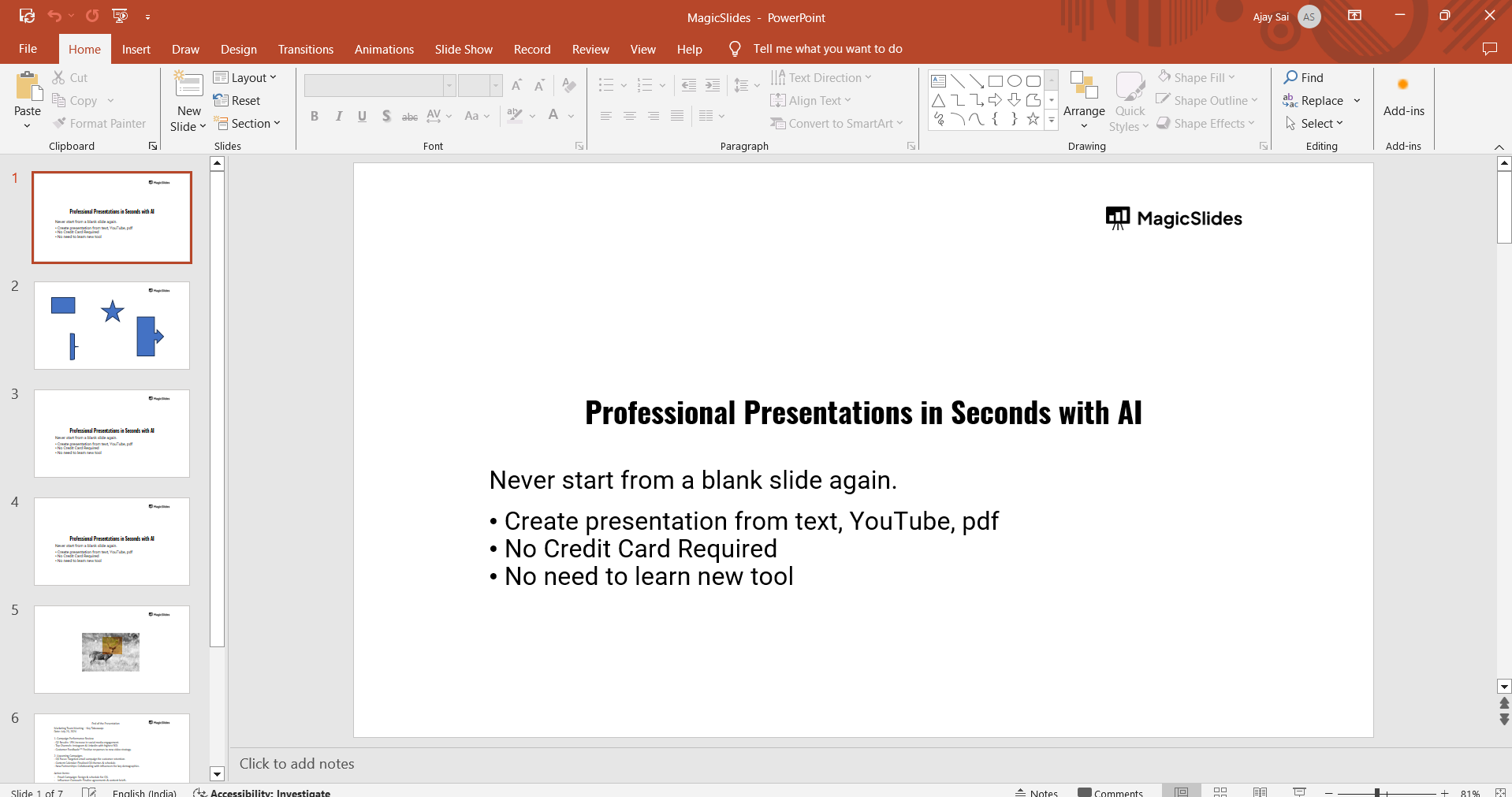
You can do this by double-clicking the PowerPoint file or by opening PowerPoint and selecting the file from the "Open" menu.
Step 2: Go to the File Menu
Once your presentation is open, navigate to the "File" menu located in the top-left corner of the screen. Click on "File" to open the drop-down menu.
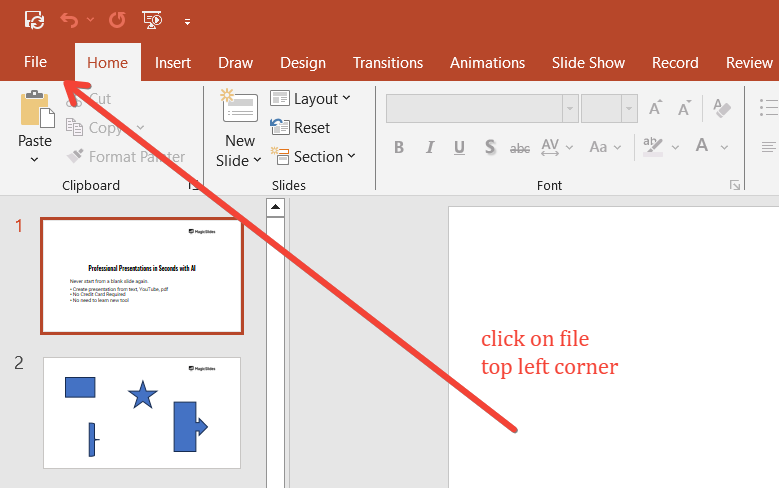
Step 3: Select "Export" or "Save As"
In the "File" menu, you have two options to start the conversion process:
"Export" or "Save As." Click on "Export" to proceed with the conversion.
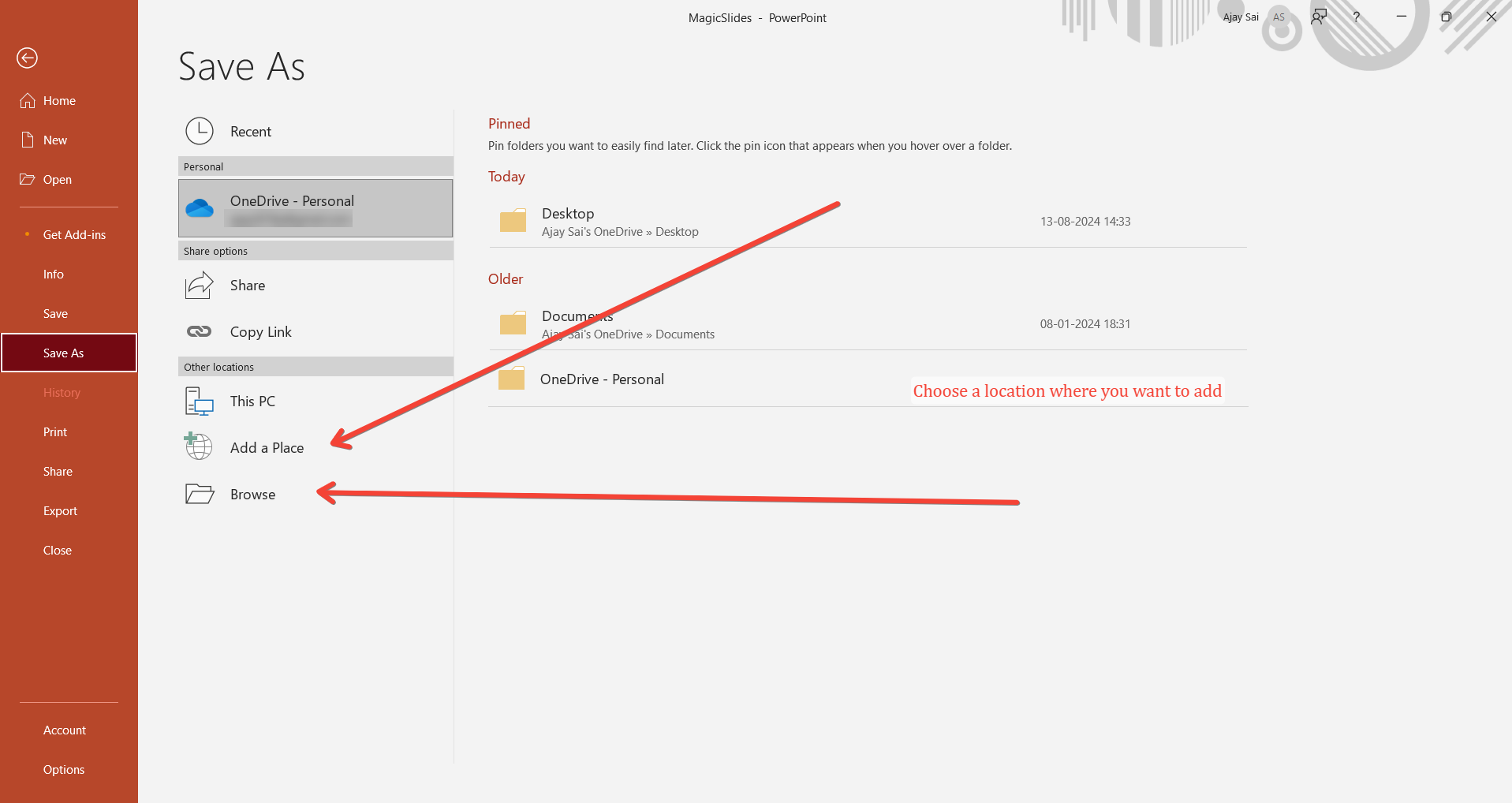
If you're using an older version of PowerPoint, you might need to use "Save As."
Step 4: Choose "Create Handouts" or "Create Word Document"
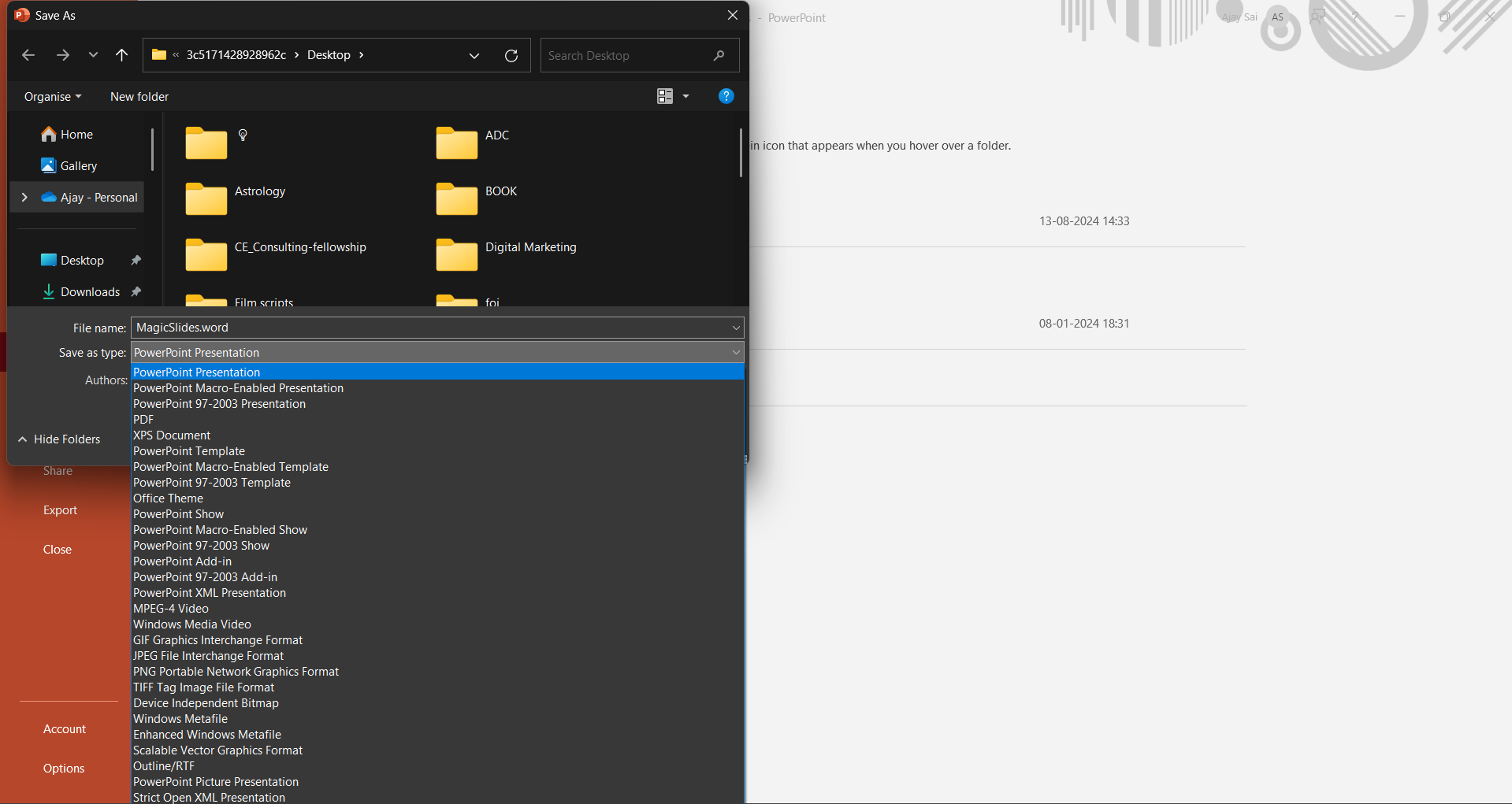
After selecting "Export," you'll see several options. Look for "Create Handouts" and click on it.
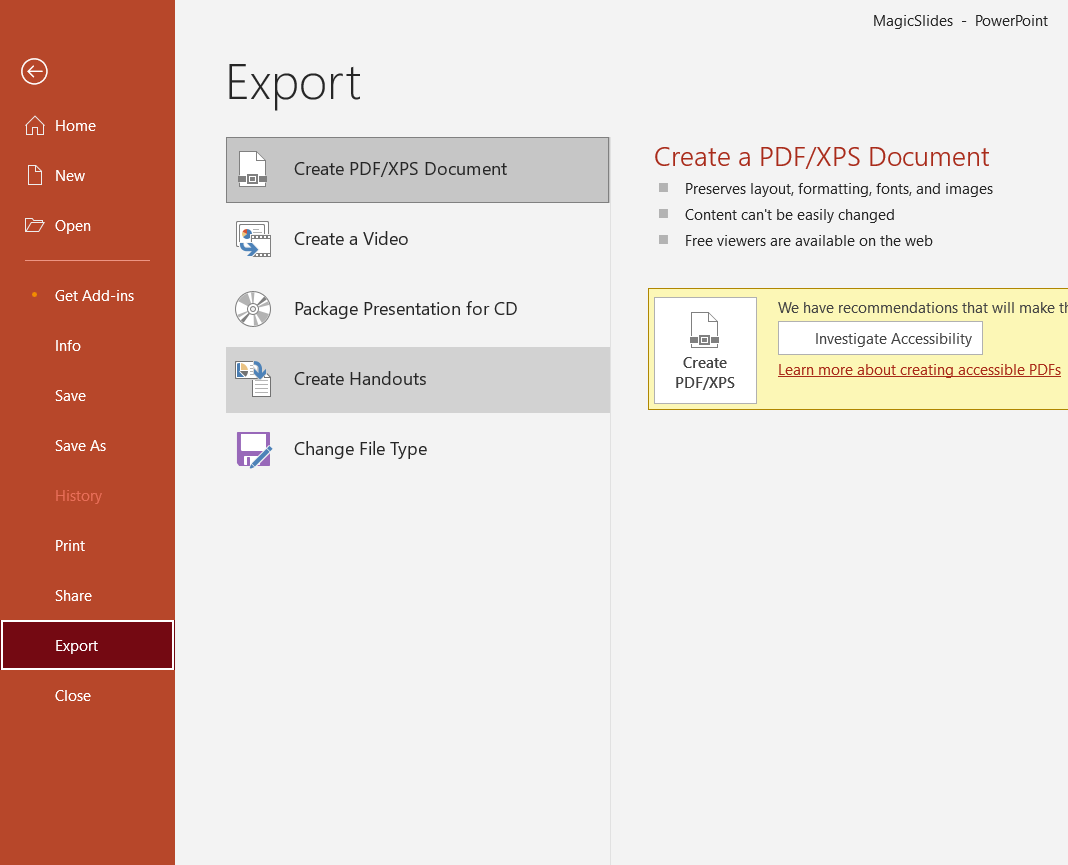
In some versions of PowerPoint, this option might be labeled as "Create Word Document." If there is a option directly create word doc.
Step 5: Select a Layout Option
A new dialog box will appear, giving you different layout options for your Word document.
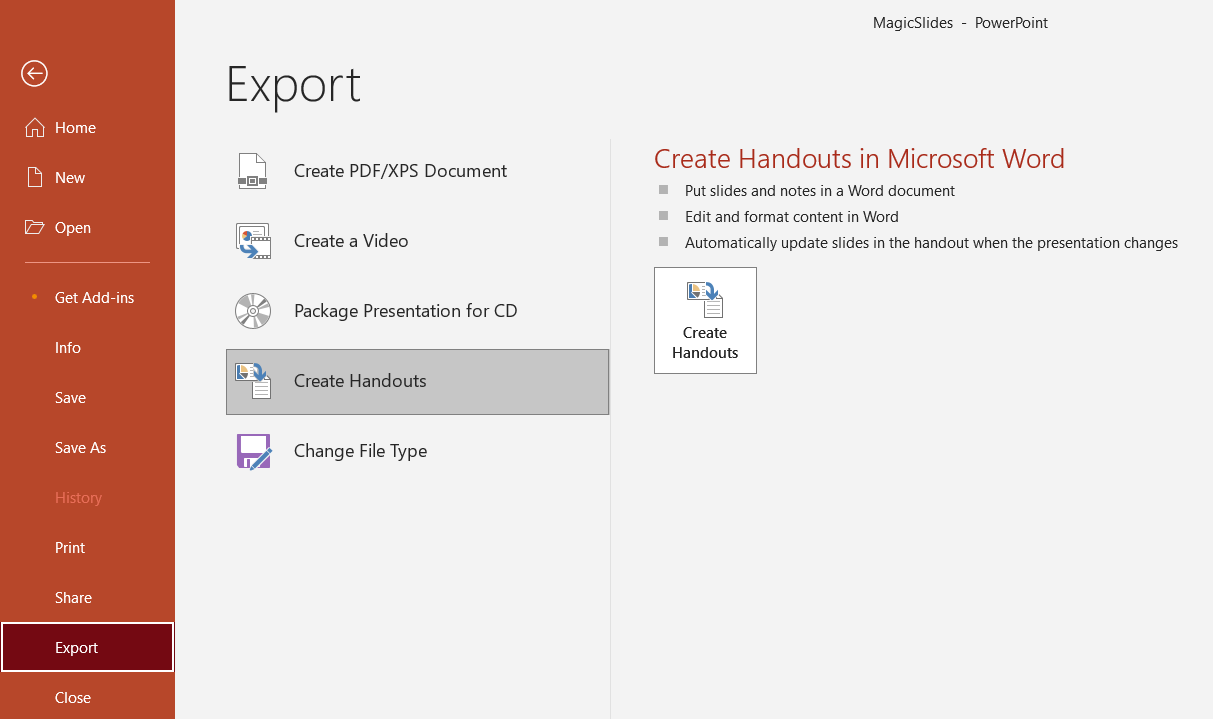
You can choose to include the slides alongside the notes, the slides only, or the notes only. Select the layout that best fits your needs. Once you've made your choice, click "OK."
Step 6: Wait for the Conversion Process
PowerPoint will now begin the conversion process. Depending on the size of your presentation, this may take a few moments.
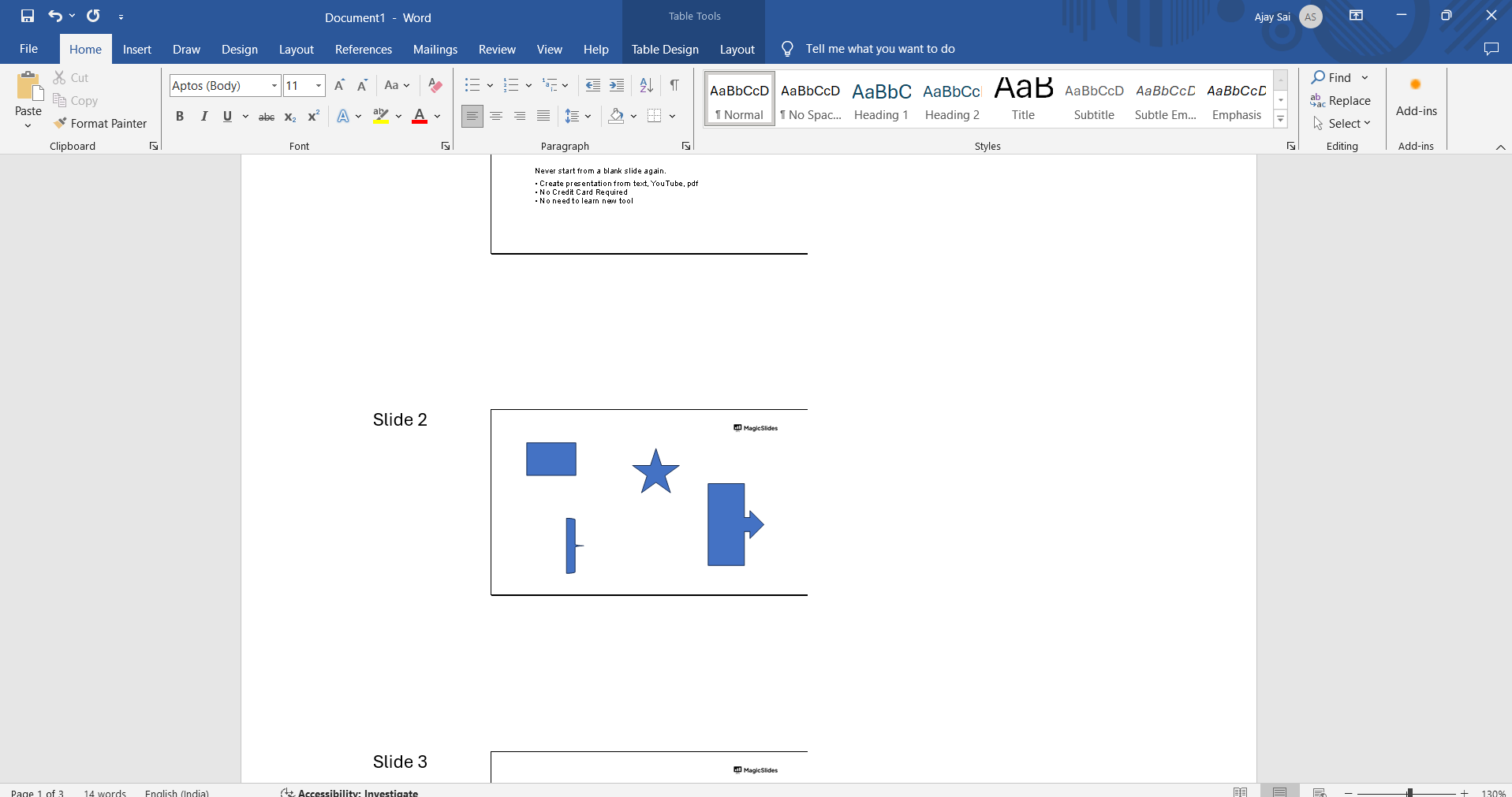
Once the conversion is complete, your presentation will open in Microsoft Word.
Step 7: Save the Word Document
With the Word document open, review the content to ensure everything has been transferred correctly.
Once you're satisfied with the result, save the document by going to "File" and selecting "Save As." Choose your desired location, enter a file name, and click "Save."
Conclusion
Converting a PowerPoint presentation to a Word document is a simple process that can be extremely helpful for creating handouts, reports, or notes from your slides.
By following these steps, you can quickly and efficiently transfer your presentation content into Word, making it easy to share and edit as needed.
Whether you're preparing materials for a meeting or need a text-based version of your slides, this conversion process ensures you have the flexibility to work with your content in the format that best suits your needs.
Tired of maing presentations? what if we tell you you can make presentation with just a prompt, convert YouTube videos to PPTs, convert website content to PPTs? Yes! checkout magicslides.app that does all and enjoy the free credits to make presentations in seconds.
FAQs to guide you!
Can I convert only specific slides from PowerPoint to Word?
No, the conversion process applies to the entire presentation. You’ll need to manually delete any slides in Word that you don’t want.
Will images and graphics be included in the Word document?
Yes, images and graphics from your PowerPoint slides will be included in the Word document based on the layout you choose.
Can I edit the content after converting to Word?
Absolutely! Once your PowerPoint is converted to a Word document, you can freely edit the text, images, and layout.


