How to Copy Multiple Slides in Google Slides (Step-by-Step Guide)


Learn how to copy multiple slides in Google Slides with this step-by-step guide. Copy slides between presentations, use shortcuts, and preserve formatting.
Copying multiple slides in Google Slides is a quick way to reuse content, combine presentations, or duplicate sections without recreating your work from scratch. Whether you’re preparing a business presentation, updating a school project, or building a reusable template, copying several slides at once can save you a significant amount of time.
In this guide, you’ll learn how to select multiple slides, copy them within the same presentation or into another Google Slides file, and preserve their formatting. We’ll also cover useful keyboard shortcuts and tips to help you manage your presentations more efficiently.
How to Copy Multiple Slides in Google Slides?
To copy multiple slides in Google Slides, select the slides you want to copy from the left slide thumbnail panel. Hold Shift to select consecutive slides or Ctrl (Windows) / Command (Mac) to select non-consecutive slides. Then copy the selected slides and paste them into the same presentation or another Google Slides presentation.
Step 1. Open the Google Slides presentation that contains the slides you want to copy, along with the destination presentation where you want to paste them.
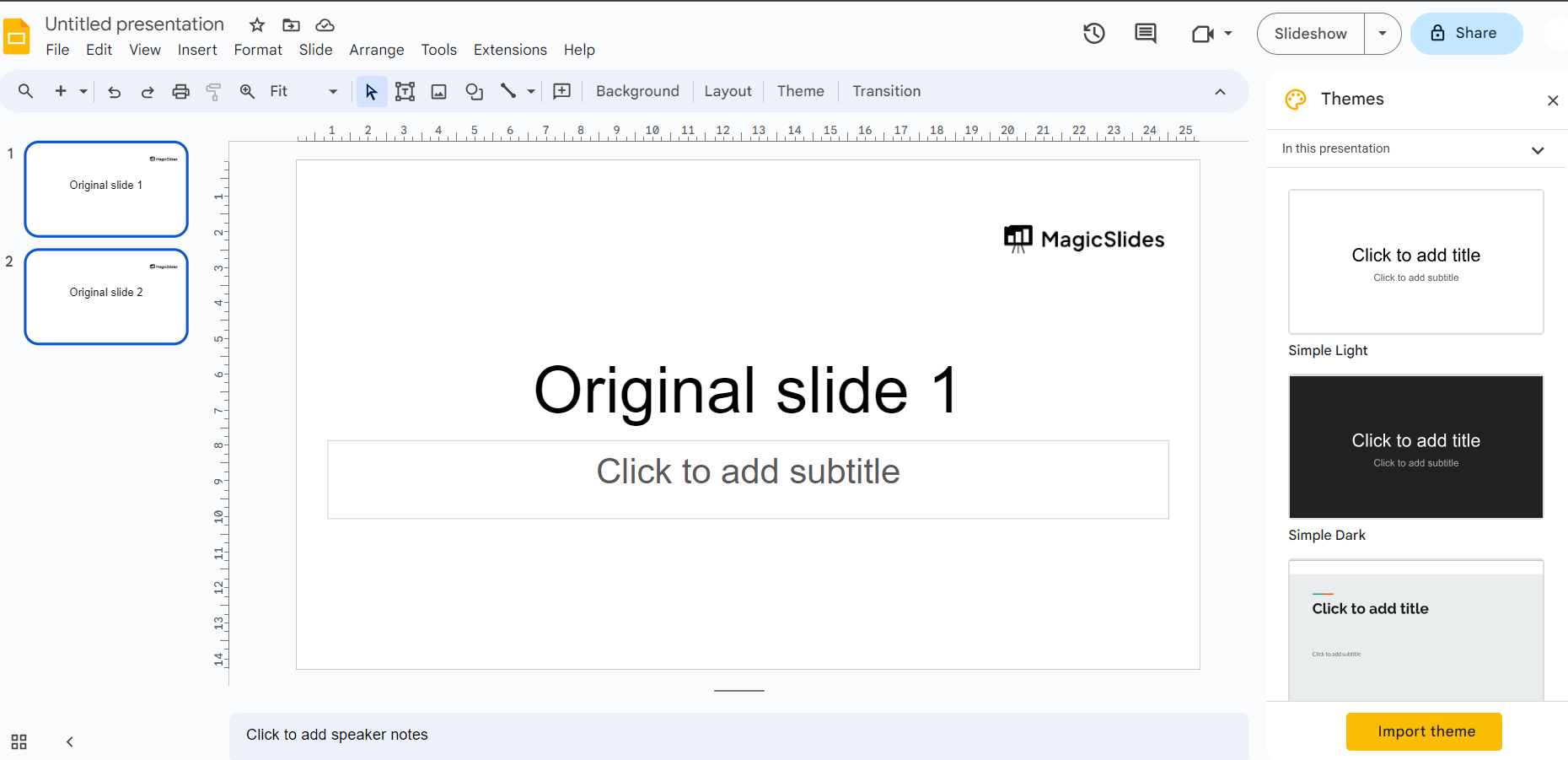
Step 2. Select the Slides:
Click the first slide in the left slide thumbnail panel. To select consecutive slides, hold Shift and click the last slide in the range. To select non-consecutive slides, hold Ctrl (Windows) or Command (Mac) while clicking each slide you want to copy.
Step 3. Copy Slides:
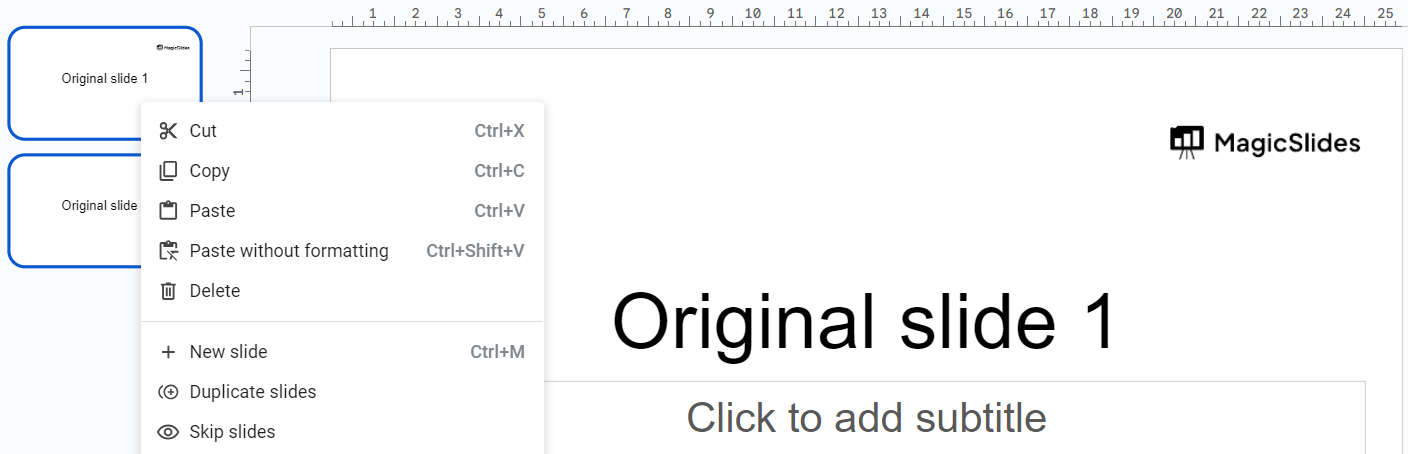
- Once the desired slides are selected, right-click on any of the selected slides.
- Choose “Copy” from the context menu.
Step 4. Paste the Slides:
Switch to the destination presentation where you want to insert the copied slides. Click the slide thumbnail after which you want the copied slides to appear, then right-click and select Paste, or press Ctrl + V (Windows) or Command + V (Mac).
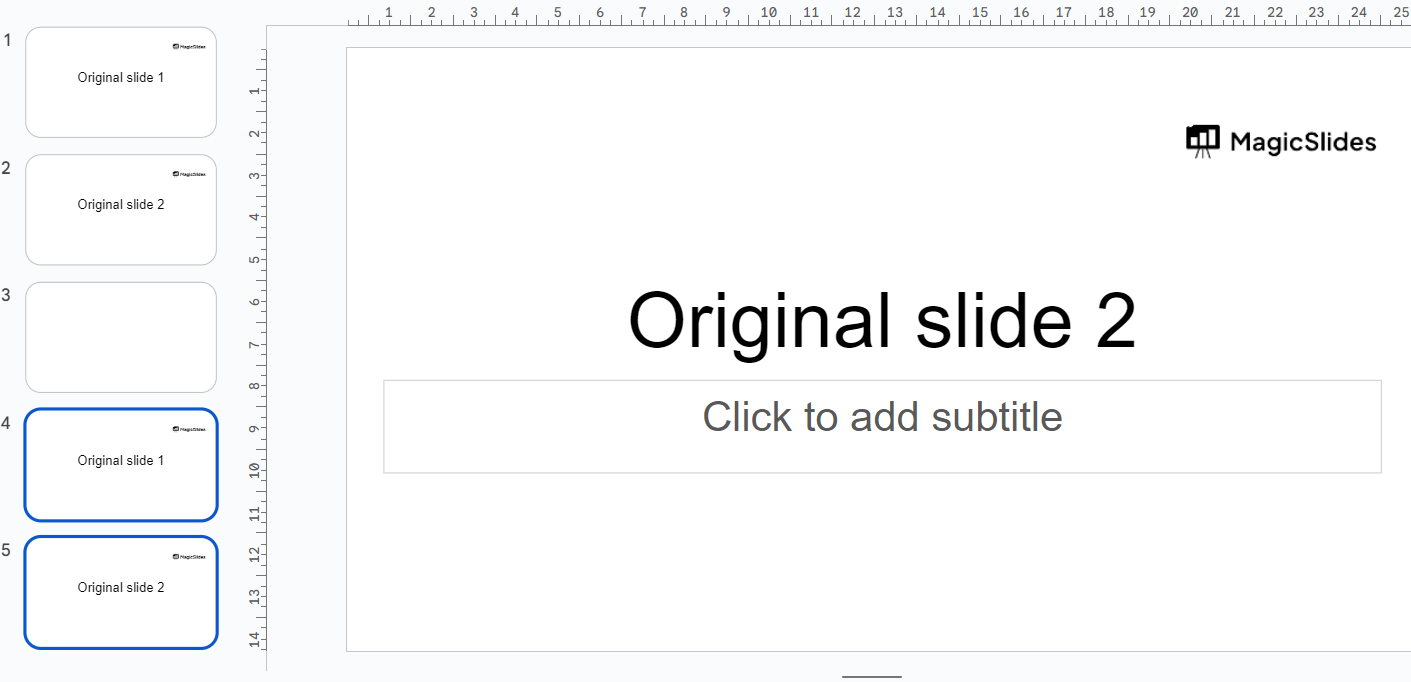
Step 5. Adjust Slide Order (if necessary): After pasting the slides, you can rearrange them in the new presentation if needed.
Step 6. If the destination presentation uses a different theme, fonts, or layouts, review the copied slides and make any necessary formatting adjustments to ensure they match the rest of your presentation.
Step 7. Google Slides automatically saves your changes to Google Drive, so you don’t need to manually save the presentation.
Create Professional Google Slides Faster with MagicSlides
Copying multiple slides is a great way to reuse existing content, but if you’re starting a new presentation, you don’t have to build every slide manually. MagicSlides helps you create professional Google Slides presentations in minutes using AI Presentation Maker.
Simply enter a topic or upload content such as a PDF, Word document, website URL, YouTube video, or text prompt, and MagicSlides Google Slide Addon automatically generates a well-structured, editable presentation. You can then customize the slides, update the design, and present or export them as needed.

With MagicSlides, you can:
- Generate complete presentations from a topic or prompt.
- Convert PDFs, Word documents, and URLs into Google Slides.
- Turn YouTube videos into presentation slides.
- Edit and customize every slide after generation.
- Save hours of manual slide creation and formatting.
Whether you’re creating business presentations, school projects, sales decks, or training materials, MagicSlides makes it easy to go from idea to presentation in just a few clicks.
Conclusion
Copying multiple slides in Google Slides is one of the easiest ways to reuse content, combine presentations, and save time. By selecting multiple slides with Shift or Ctrl/Command, you can quickly move slides within the same presentation or copy them into another Google Slides file while preserving most formatting and content.
Before presenting, review the slide order, theme, and formatting to ensure everything looks consistent. With these steps, you can organize and manage your presentations more efficiently, whether you’re working on a school project, business presentation, or collaborative team deck.
Frequently Asked Questions
Q1. How do I copy multiple slides in Google Slides?
Select the slides you want to copy by holding Shift (for consecutive slides) or Ctrl (Windows) / Command (Mac) for non-consecutive slides. Then press Ctrl + C (or Command + C) and paste them using Ctrl + V (or Command + V) in the desired presentation.
Q2. Can I copy multiple slides to another Google Slides presentation?
Yes. Open both presentations, copy the selected slides from the original presentation, and paste them into the destination presentation. Google Slides preserves most formatting, images, animations, and speaker notes.
Q3. How do I select multiple slides at once?
To select consecutive slides, click the first slide, hold Shift, and click the last slide. To select individual slides that aren’t next to each other, hold Ctrl (Windows) or Command (Mac) while clicking each slide.
Q4. Can I duplicate multiple slides in the same presentation?
Yes. Select the slides you want to duplicate, then right-click and choose Duplicate slides, or use the keyboard shortcut Ctrl + D (Windows) or Command + D (Mac).
Q5. Will animations and transitions be copied?
Yes. In most cases, animations, transitions, speaker notes, images, and other slide elements are copied along with the selected slides. However, you should review the presentation after pasting to ensure everything appears correctly.
Q6. Why did my slide formatting change after pasting?
Formatting may change if the destination presentation uses a different theme, fonts, or layouts. You can reapply the original theme or manually adjust the formatting to match your preferred design.
Q7. Can I copy multiple slides on the Google Slides mobile app?
The Google Slides mobile app supports basic editing, but selecting and copying multiple slides is much easier on the desktop version. For the best experience, use Google Slides in a web browser.


