How to create a Google Slides Presentation for a Template


Create professional presentations quickly by customizing Google Slides templates tailored to your content and style
How to Create a Google Slides Presentation from a Template: Step-by-Step Guide
Using a template in Google Slides can save you time and ensure your presentation looks professional and cohesive.
Templates come with pre-designed layouts, styles, and fonts, making it easier to focus on your content rather than design.
This guide will walk you through the process of creating a Google Slides presentation using a template, step by step.
Step 1: Open Google Slides
Start by going to Google Slides in your web browser. You’ll need to sign in to your Google account if you haven’t already.
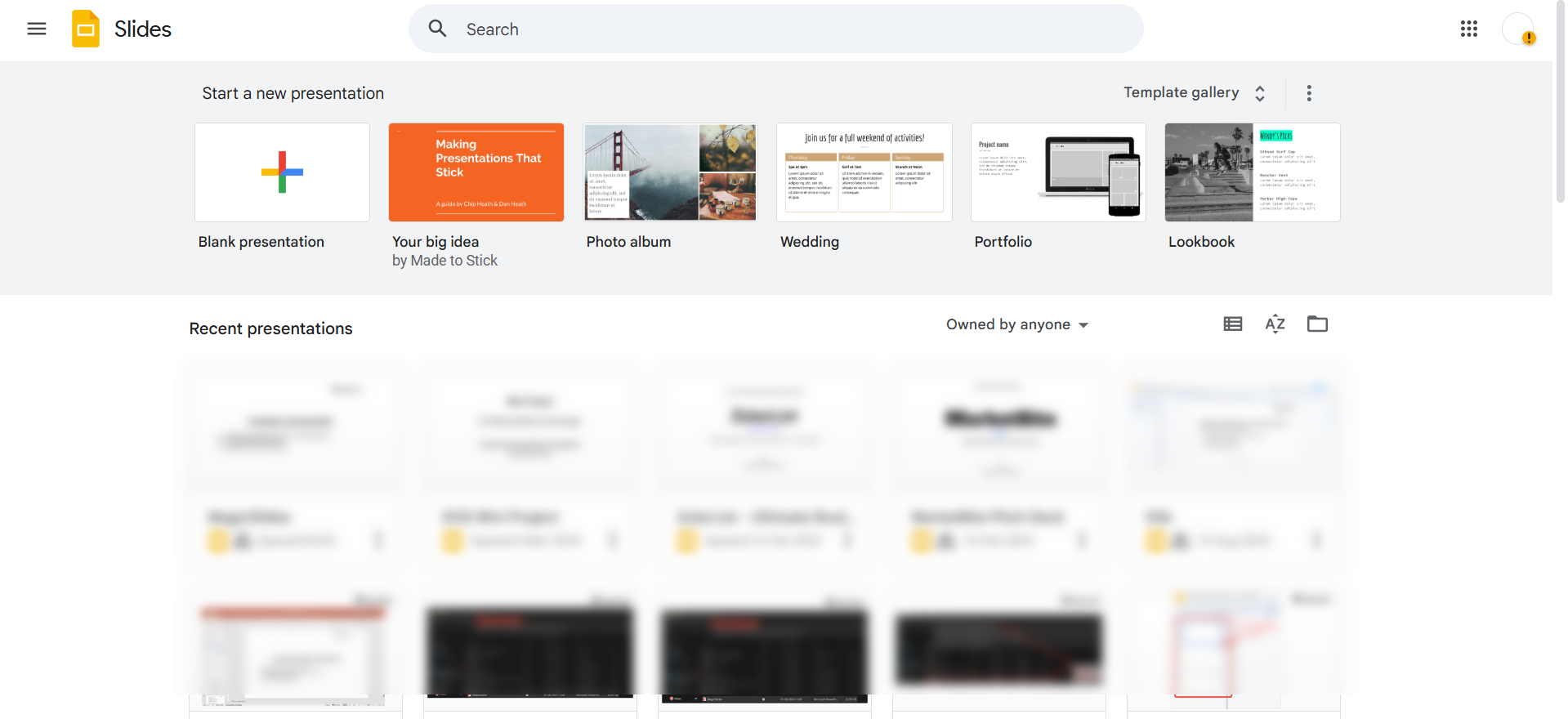
Step 2: Access the Template Gallery
On the Google Slides homepage, click on the “Template Gallery” button located at the top right. Here you’ll find a variety of free templates categorized by themes such as business, education, and more.
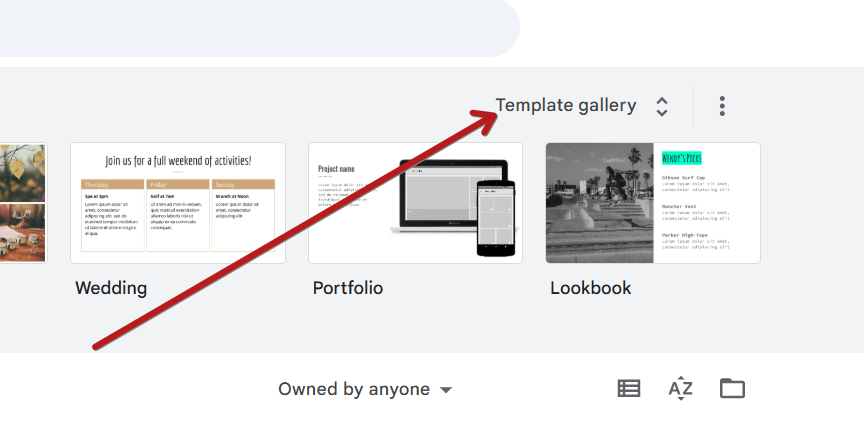
Step 3: Choose a Template
Browse through the available templates and select one that suits your presentation’s purpose. Click on the template thumbnail to open a new presentation with that design.
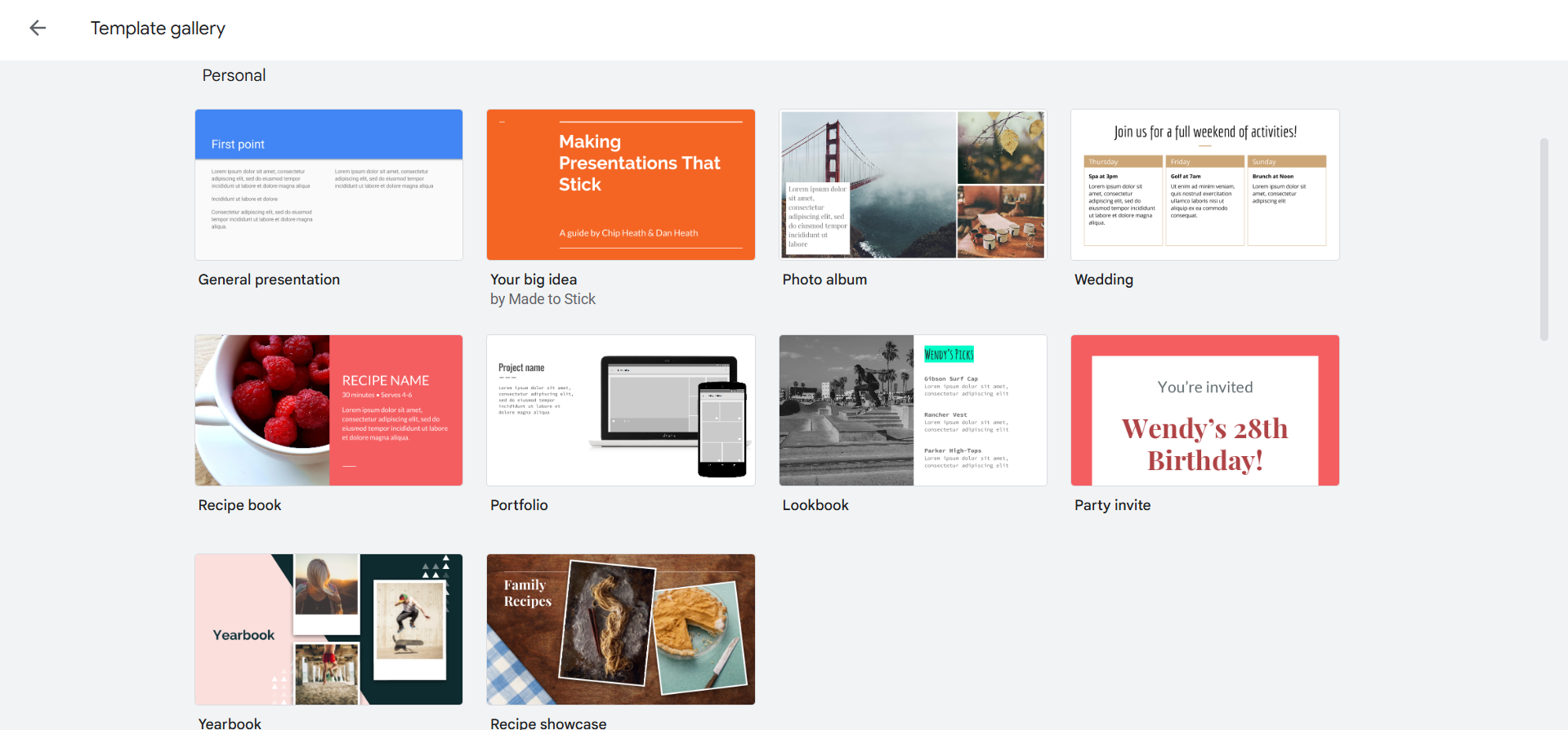
Step 4: Customize the Slides
Once the template opens, you can start customizing it:
- Replace the placeholder text with your own content.
- Change images by clicking on them and selecting “Replace image.”
- Add or delete slides as necessary using the toolbar.
Step 5: Adjust the Theme or Layout
If needed, modify the theme colors or fonts by clicking on Slide > Edit theme in the menu bar. You can also adjust the layout of individual slides by clicking on Layout and selecting a different slide design from the options.
Step 6: Add Additional Elements
Enhance your presentation by adding shapes, charts, videos, or animations using the toolbar options. This helps to make your slides more engaging and visually appealing.
Step 7: Save and Share Your Presentation
Google Slides automatically saves your work. To share, click the Share button at the top right, enter email addresses, and set permission levels (view, comment, or edit).
Tired of spending hours crafting a presentation? Here’s a smarter solution MagicSlides
Whether it’s for work, school, or a pitch deck, building a presentation from scratch can take hours from researching and organizing content to designing each slide. But what if you could skip all that and have your presentation ready in under a minute? That’s exactly what MagicSlides does for you.
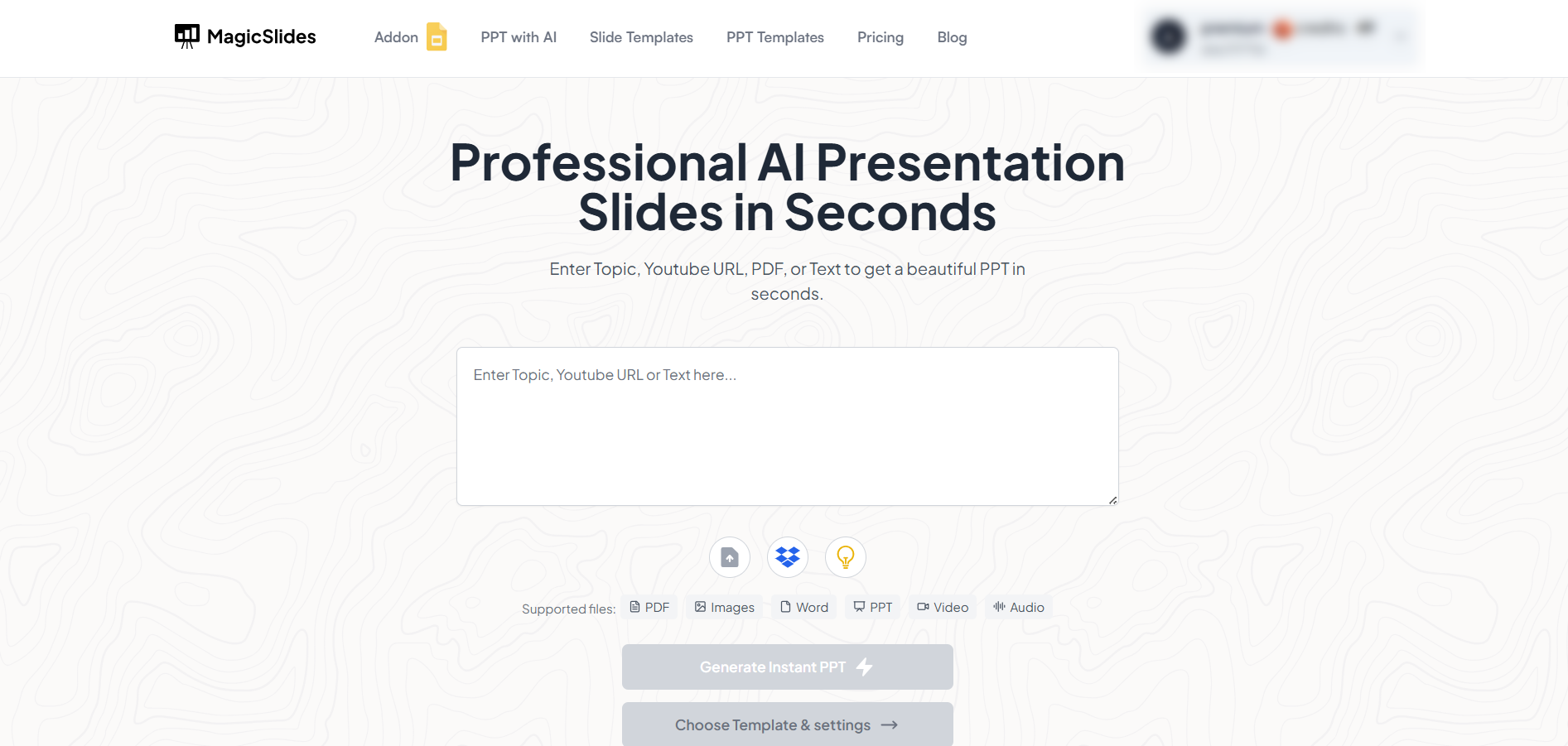
MagicSlides is an AI-powered tool that creates professional, engaging presentations with just one prompt. Simply enter your topic, and the platform will generate a full deck complete with structured content, design elements, and suggested visuals.
Here’s what you’ll love about MagicSlides:
- Instant slide generation with just one prompt
- Smart content organization and bullet points
- Visually polished designs, no design skills needed
- Multiple formats: Download as PowerPoint, use in Google Slides
- Supports customization, edits, and re-generation
- Converts YouTube videos, URLs, or text into full presentations
- Perfect for business, education, content creation, and more
Want to try it yourself? Click here to start creating your first presentation for free!
Conclusion:
Using a Google Slides template is a quick and efficient way to create professional presentations with consistent design.
Templates provide a solid framework that you can easily customize to suit your message and style.
By following these steps, you can create attractive, organized, and impactful presentations in no time.
FAQs are here help!
Can I use third-party templates in Google Slides?
Yes, you can import third-party templates by uploading them as a PowerPoint file or using add-ons.
Can I change the template after I start editing?
You can change themes but switching templates entirely requires starting a new presentation with the desired template.
Are Google Slides templates free?
Most templates in Google Slides are free, but some third-party templates may require purchase or subscription.


