How to Create a Google Slides Presentation from an Outline (Step-by-Step Guide)


Learn how to create Google Slides presentation from outline using manual ways and AI tools. Follow this step-by-step guide to turn your outline into quick slides.
If you’re wondering how to create a Google Slides presentation from an outline, the process is easier than you might think. Whether you have meeting notes, a project outline, lecture points, or a blog draft, you can transform your outline into organized slides in just a few steps.
Google Slides lets you build presentations quickly by turning your main ideas into individual slides. You can either create slides manually or use AI tools to automate the entire process.
In this guide, you’ll learn exactly how to create a Google Slides presentation from an outline, along with tips to improve slide design and save time.
Why Use an Outline Before Creating Google Slides?
Creating an outline before designing your slides helps organize your ideas and improves presentation flow. Instead of adding content randomly, an outline gives each slide a clear purpose.
Benefits of using an outline include:
- Faster presentation creation
- Better organization of ideas
- Improved audience understanding
- Reduced editing time
- More consistent slide structure
Whether you’re creating a business presentation, classroom project, or pitch deck, starting with an outline makes the entire process easier.
How to Create a Google Slides Presentation from an Outline?
Step 1. Prepare Your Text Outline
- Before jumping into Google Slides, create a structured text outline using any word processor (Google Docs, Microsoft Word, Notepad, etc.).
- Use proper hierarchy with bullet points or numbered lists.
- For example:
- Slide Title
- Main Point 1
- Main Point 2
- Slide Title
- For example:
- This structure will make it easier to break content into individual slides.
Step 2. Open Google Slides
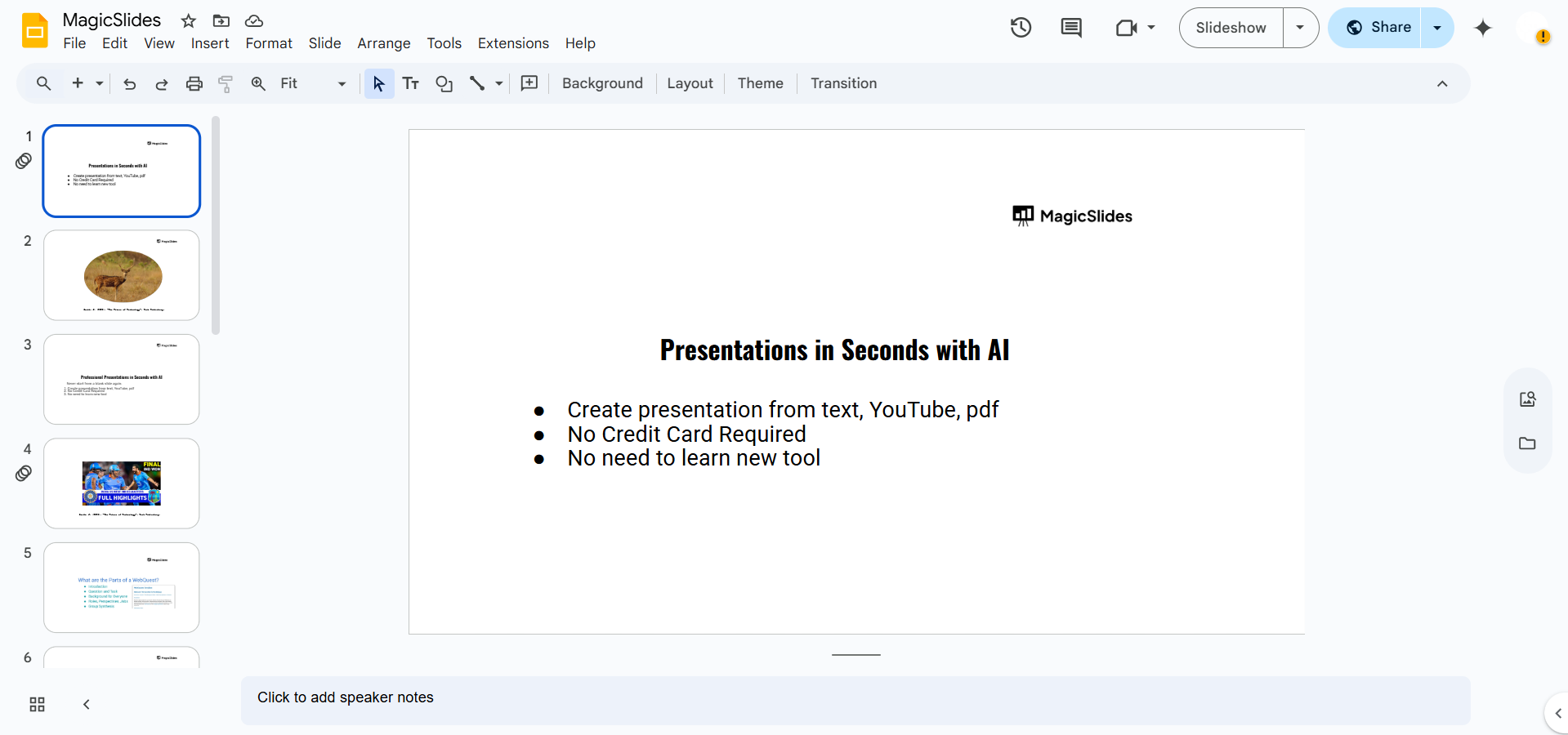
- Visit Google Slides and create a new blank presentation. You can also type slide.new in your browser to instantly open a new presentation and start building your slides.
Step 3. Create Your Slide Structure
- Use the slide panel on the left side of Google Slides to organize your presentation. Create a new slide for each major heading in your outline and arrange them in the correct order.
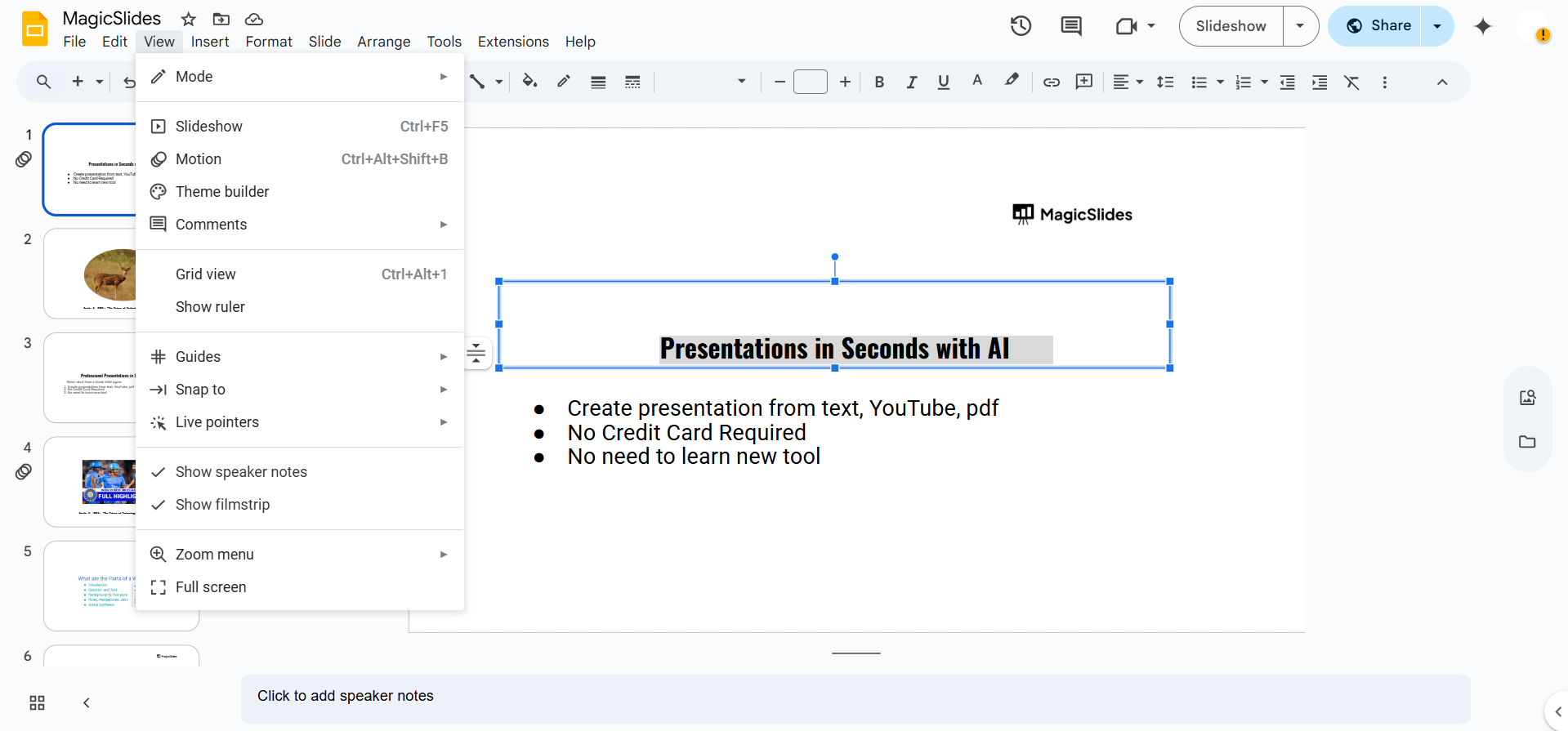
- This allows you to visualize the presentation flow before adding detailed content.
Step 4. Manually Copy and Paste Outline Content
- Begin pasting each main heading from your text outline as the slide title.
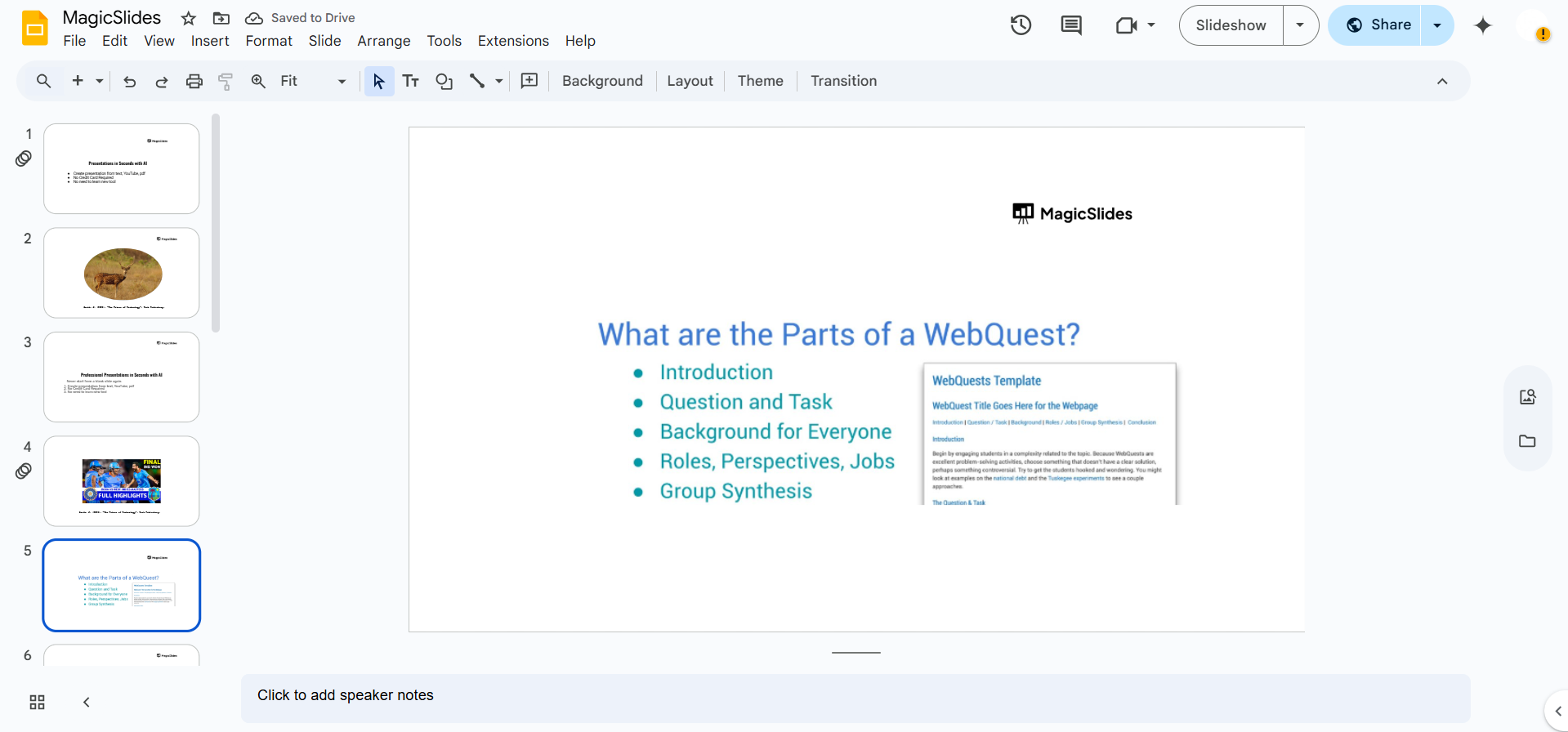
- Add corresponding sub-points in the slide body area using bullet points.
- Continue this process for each point in your outline.
Step 5. Format and Style Your Slides
- After inserting content, choose a suitable theme from the “Themes” panel on the right.
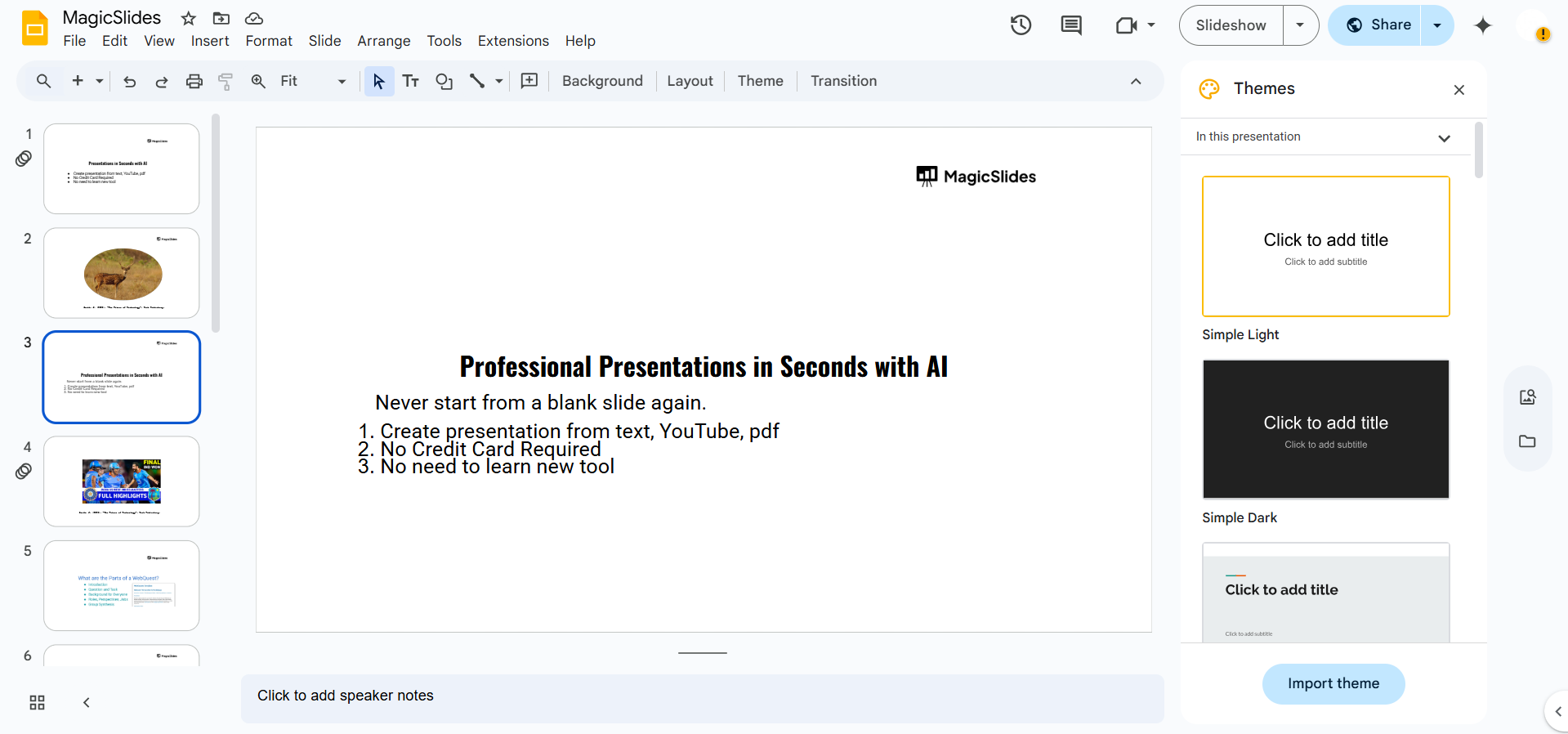
- Use Google Slides’ built-in formatting tools to adjust font sizes, text alignment, colors, etc.
- Keep slides clean and uncluttered one main idea per slide is ideal.
Step 6. Add Visual Elements
- Enhance your slides by inserting images, charts, or diagrams that align with your content.
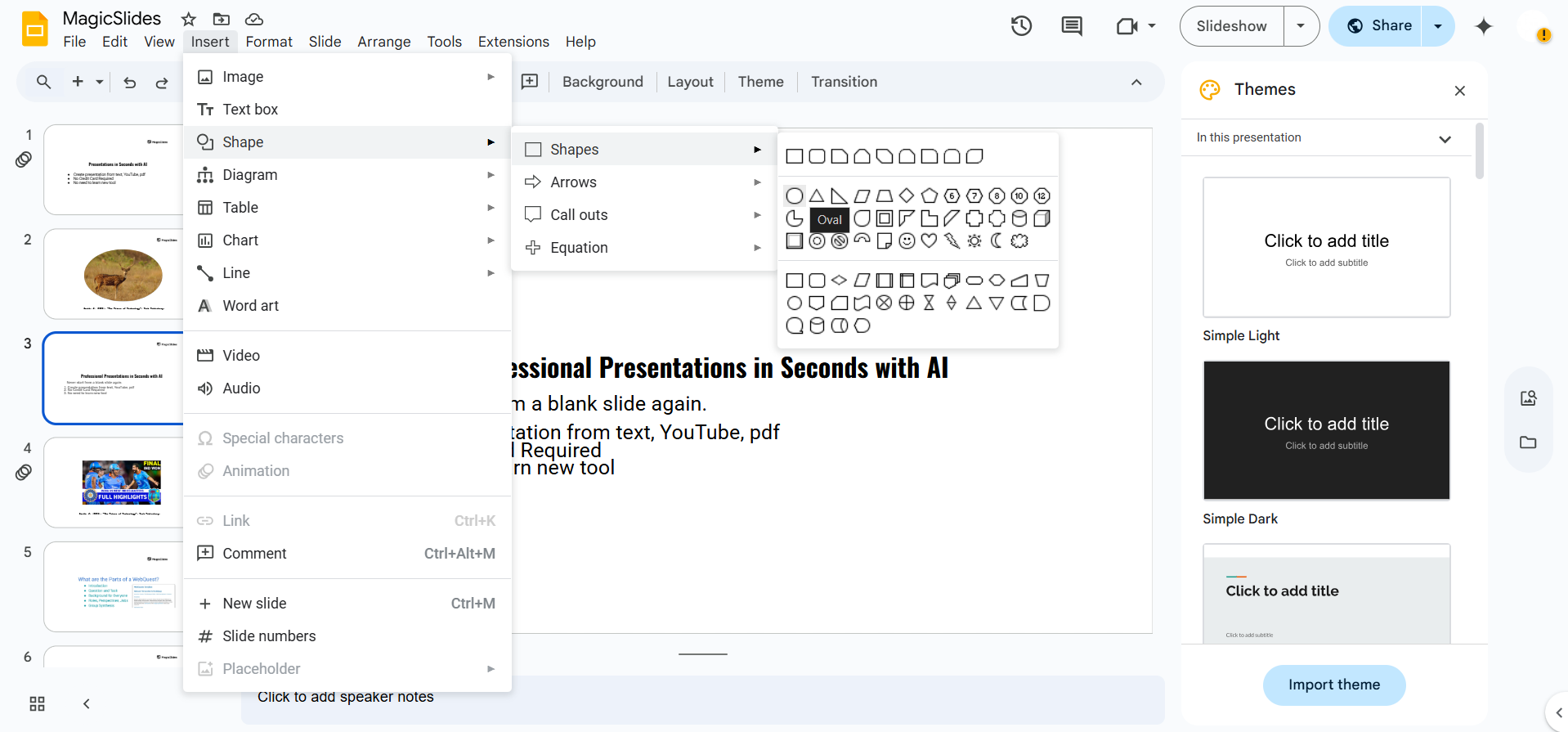
- Go to Insert > Image or Insert > Chart to include visuals.
- Visuals help engage your audience and support comprehension.
Step 7. Review and Rehearse
- Once the slides are built, review your presentation for consistency and clarity.
- Use Present mode to simulate the final delivery.
- Make edits as needed based on timing, design flow, and readability.
While creating slides manually works well for simple presentations, larger outlines and lengthy documents can take considerable time to convert into slides. AI presentation tools can help automate this process and significantly reduce the time spent building presentations.
Create a Google Slides Presentation from an Outline Automatically
MagicSlides.App helps automate this process. Simply paste your outline, enter your topic, or upload your content, and the AI generates a complete Google Slides presentation within minutes.

MagicSlides can:
- Convert outlines into presentations instantly
- Generate slide titles and content automatically
- Create visually appealing slide designs
- Support Google Slides and PowerPoint formats
- Turn text, PDFs, URLs, and YouTube videos into presentations
This allows you to focus on your message instead of spending hours formatting slides manually.

Here’s what you’ll love about MagicSlides:
- Instant slide generation with just one prompt
- Smart content organization and bullet points
- Visually polished designs, no design skills needed
- Multiple formats: Download as PowerPoint, use in Google Slides
- Supports customization, edits, and regeneration
- Converts YouTube videos, URLs, or text into full presentations
- Perfect for business, education, content creation, and more
Common Mistakes to Avoid When Creating Slides from an Outline
- Adding too much text to each slide.
- Using inconsistent fonts and colors.
- Skipping images and visual elements.
- Creating slides without a clear hierarchy.
- Including multiple ideas on a single slide.
Avoiding these mistakes can make your presentation easier to understand and more engaging for your audience.
Tips for Creating Better Google Slides Presentations
- Limit each slide to one main idea.
- Use visuals to support your message.
- Keep text concise and readable.
- Maintain consistent fonts and colors.
- Use speaker notes for additional information.
These practices can make your presentation more professional and easier for your audience to follow.
Conclusion
Learning how to create a Google Slides presentation from an outline can help you save time and organize your ideas more effectively. Whether you build your slides manually or use AI tools like MagicSlides, starting with a well-structured outline allows you to create clearer, more engaging presentations.
By following these steps, you can turn outlines, notes, reports, and documents into professional Google Slides presentations in much less time.
Also read: 70+ SEO Topics for Presentation, Seminar & PPT Ideas for Students
FAQs
Q1. How do I create a Google Slides presentation from an outline?
You can create a Google Slides presentation from an outline by turning each major point into a slide title and using supporting points as slide content.
Q2. Can Google Slides automatically create slides from an outline?
Google Slides does not currently offer automatic outline conversion, but AI tools can generate slides from outlines.
Q3. What is the best format for an outline?
Bullet points and hierarchical headings work best because they make it easier to organize content into slides.
Q4. Can AI create a Google Slides presentation from an outline?
Yes. AI presentation tools can convert outlines, text documents, PDFs, and other content into complete Google Slides presentations automatically, helping you save time and improve slide design.


