how to create a microsoft powerpoint templates


Discover the art of personalizing your presentations with our guide on how to create Microsoft PowerPoint templates.
Your presentations should reflect your unique style and brand. One way to achieve this is by creating custom Microsoft PowerPoint templates. In this blog post, we'll walk you through the process step by step. Whether you're a business professional, a teacher, or a student, crafting your own templates allows you to convey your message in a visually appealing and consistent manner. Let's dive into the world of customized PowerPoint templates and unlock your presentation's full potential.
Steps to Create Custom Microsoft PowerPoint Templates:
Step 1: Open Microsoft PowerPoint Launch PowerPoint on your computer, and either start a new presentation or open an existing one that you'd like to base your template on.
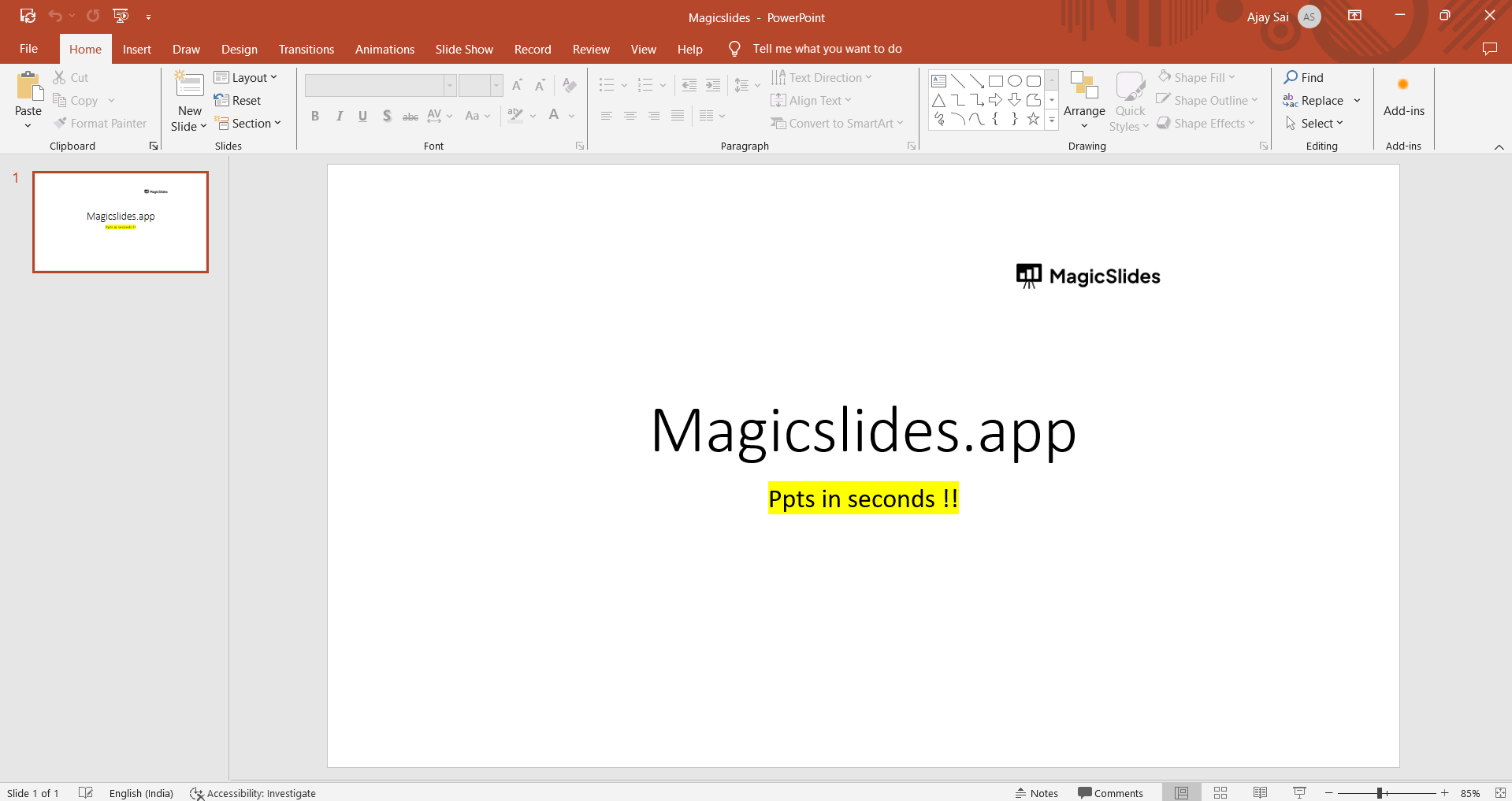
Step 2: Design the Slide Master Access the "View" tab and select "Slide Master." This is where you'll design the main layout for your template, including fonts, colors, backgrounds, and placeholders.
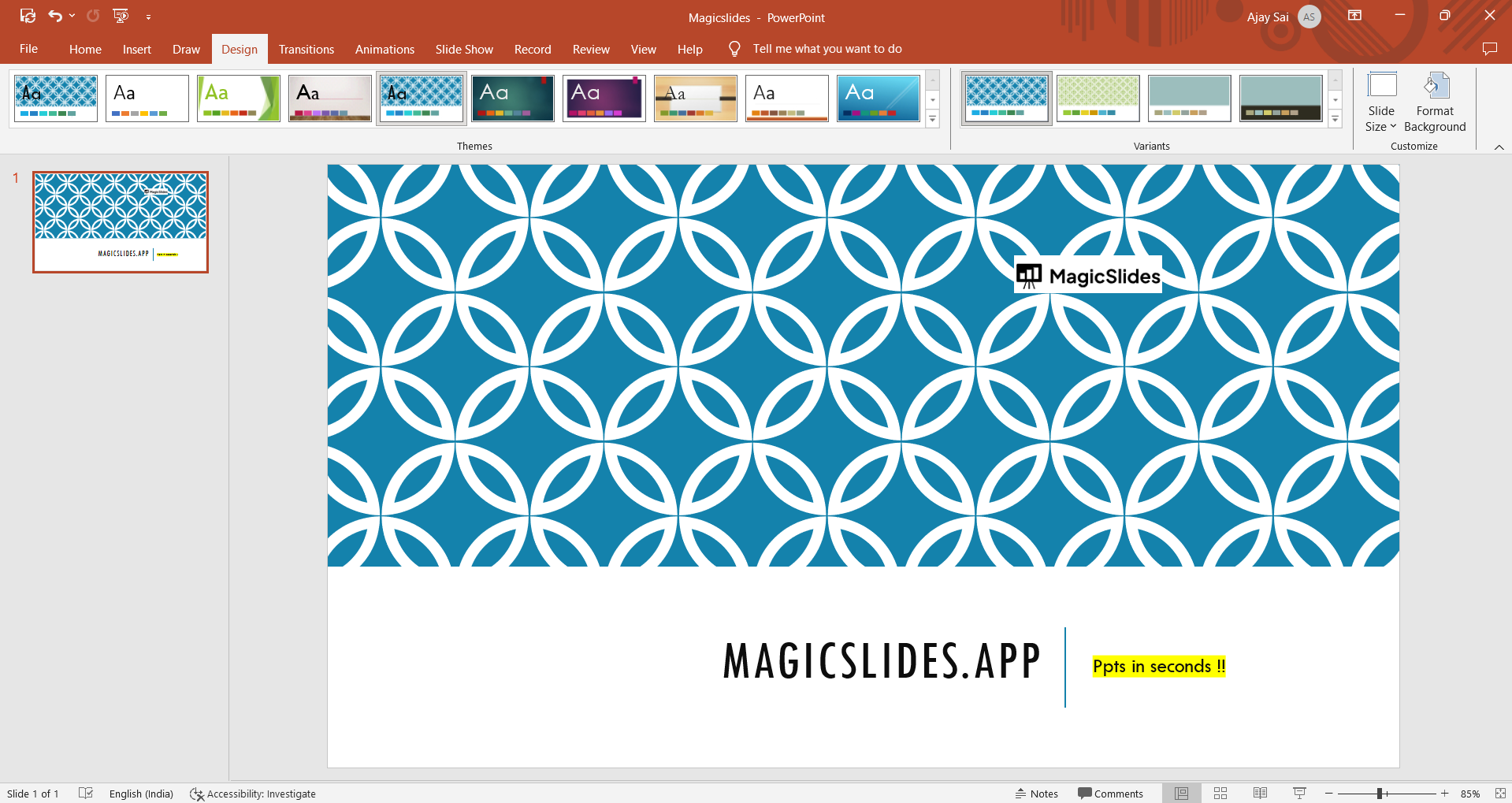
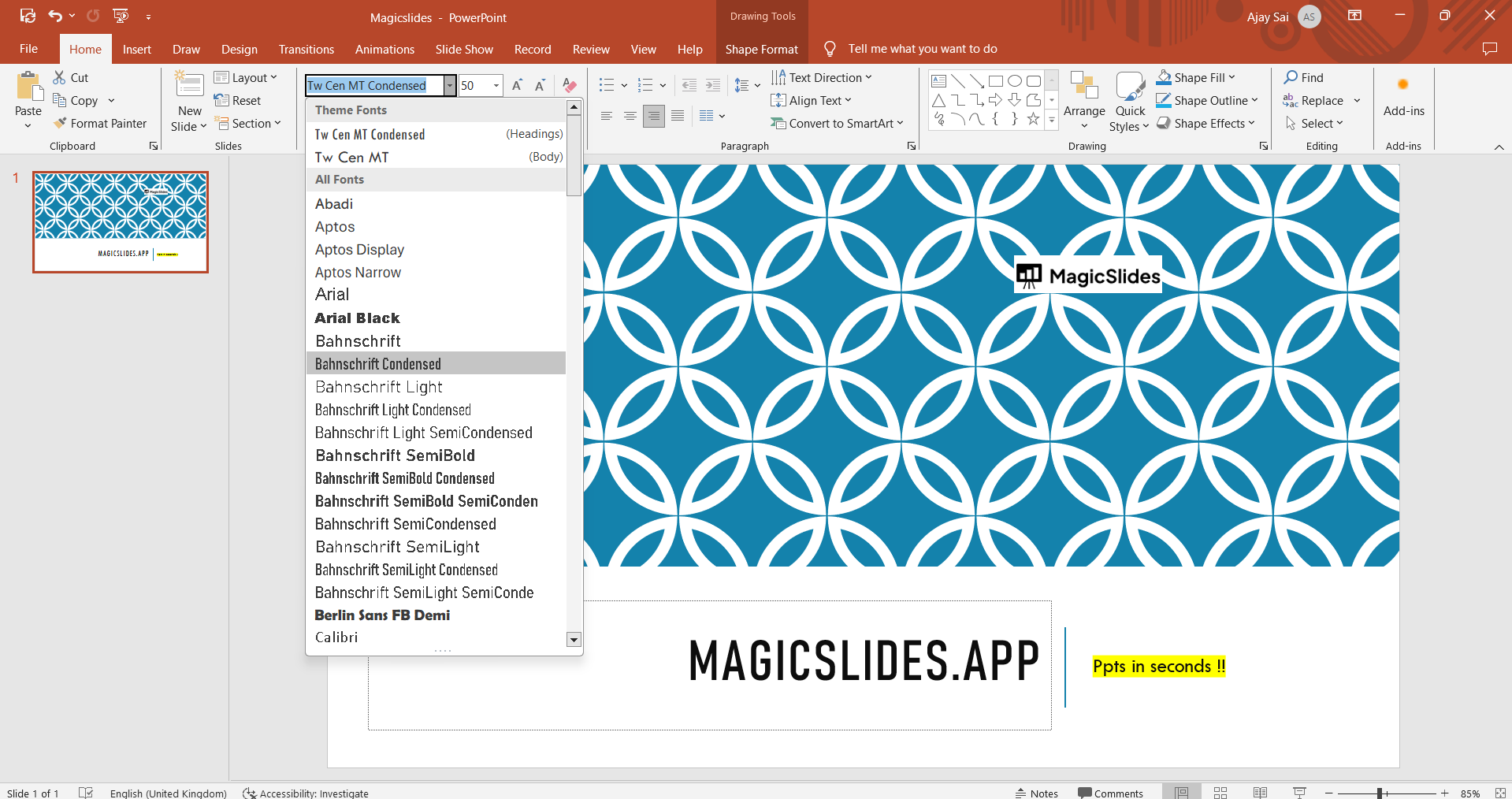
Step 3: Customize Fonts and Text Styles Within the Slide Master view, you can customize fonts and text styles. Choose the fonts that best represent your brand or style, and set default text styles for titles and body text.
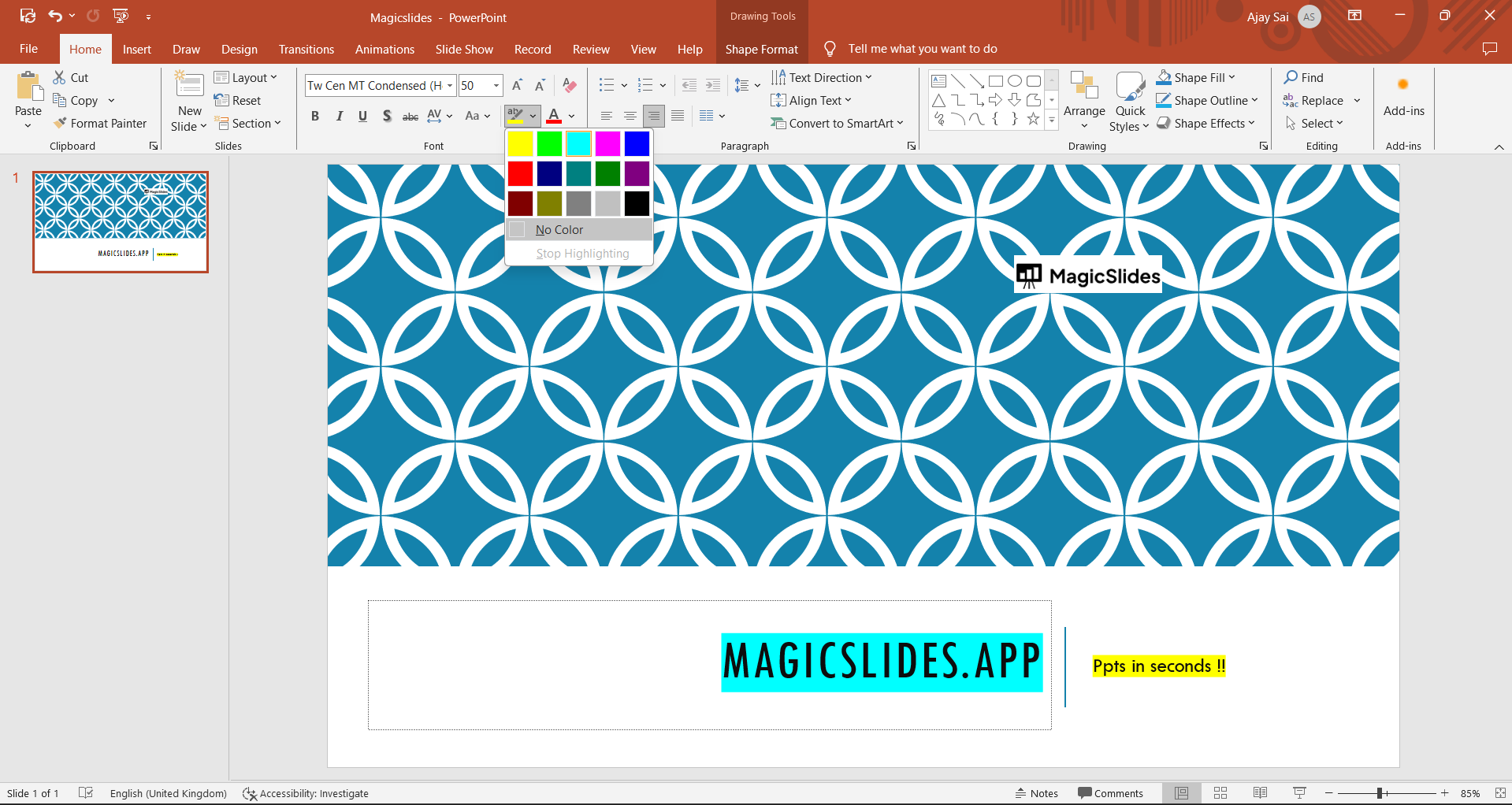
Step 4: Adjust Colors and Backgrounds Define the color scheme for your template. You can modify the background color of your slides and customize color themes for various slide elements, ensuring consistency throughout your presentation.
Step 5: Create Custom Layouts In Slide Master view, you can create custom layouts. These layouts determine how your content is arranged on slides. For example, you can have one layout for title slides and another for content slides.
Step 6: Add Placeholders Include placeholders for text, images, and other content elements. Ensure that placeholders are appropriately sized and positioned, making it easy for users to add content.
Conclusion:
Crafting custom Microsoft PowerPoint templates empowers you to communicate your message effectively while maintaining a consistent and professional look. Whether you're a seasoned presenter or just getting started, this guide will help you create templates that stand out and resonate with your audience.
As you apply your unique style and branding to your presentations, you'll not only save time but also leave a lasting impression. So, start creating your custom templates today and elevate your PowerPoint game to the next level.
frequently asked questions
Why should I create custom PowerPoint templates?
Answer: Creating custom PowerPoint templates allows you to establish a consistent and professional visual identity for your presentations. It saves time, ensures brand consistency, and helps you convey your message effectively.
Can I edit an existing PowerPoint template to suit my needs?
Answer: Yes, you can edit existing PowerPoint templates to customize them. However, creating a template from scratch provides more design flexibility and allows you to align the template with your specific requirements.
How do I ensure my custom template works across different versions of PowerPoint?
Answer: To ensure compatibility, create your custom template in the earliest version of PowerPoint that your audience may use. Additionally, save your template in the ".pptx" format, which is widely compatible.
Are there any design principles I should follow when creating PowerPoint templates?
Answer: Yes, consider design principles like simplicity, consistency, and readability. Use a clear color scheme, legible fonts, and ensure that your template accommodates various content types, such as text, images, and charts.
Can I share my custom PowerPoint templates with others in my organization?
Answer: Absolutely. You can share your custom templates with colleagues in your organization by saving and distributing them via email, a shared network drive, or a dedicated template repository. This promotes consistency in branding and design across your organization's presentations.


