How to Create a Multilevel List in PowerPoint


Multilevel lists in PowerPoint help organize information clearly, enhancing the presentation’s structure and readability
Multilevel lists in PowerPoint help organize content into a clear hierarchy, making complex information easier to understand.
Whether you’re outlining key points, creating an agenda, or showing step-by-step instructions, multilevel lists can enhance the clarity of your presentation.
In this guide, we’ll walk you through how to create a multilevel list in PowerPoint, step by step.
How to Create a Multilevel List in PowerPoint: A Step-by-Step Guide
Step 1: Open Your PowerPoint Presentation
Start by opening your PowerPoint presentation and navigate to the slide where you want to create a multilevel list.
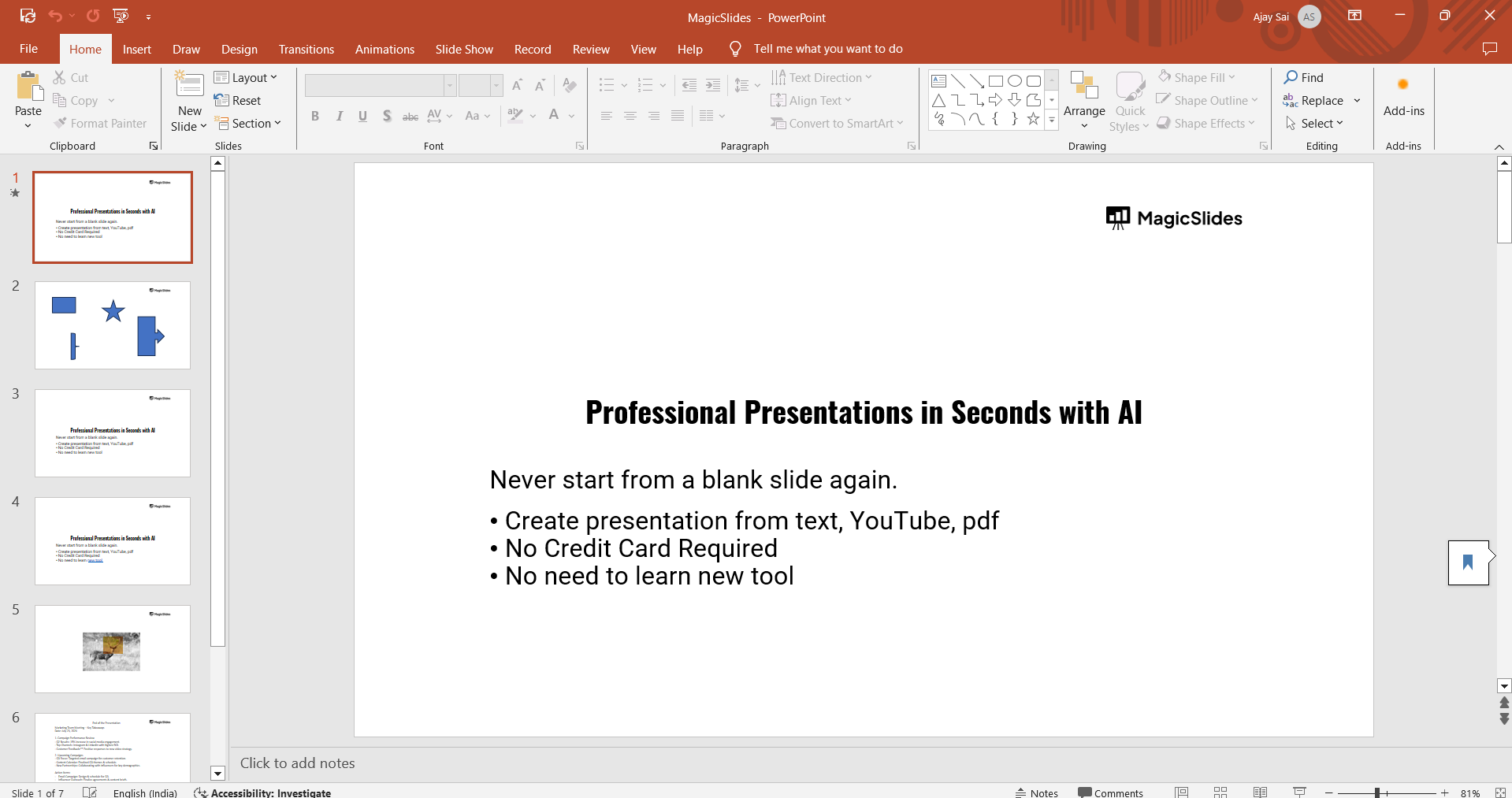
If you don’t have a text placeholder, click on the “Insert” tab and select “Text Box” to add a text area where your list will appear.
Step 2: Insert a List
Click inside the text box or placeholder where you want to create the list.
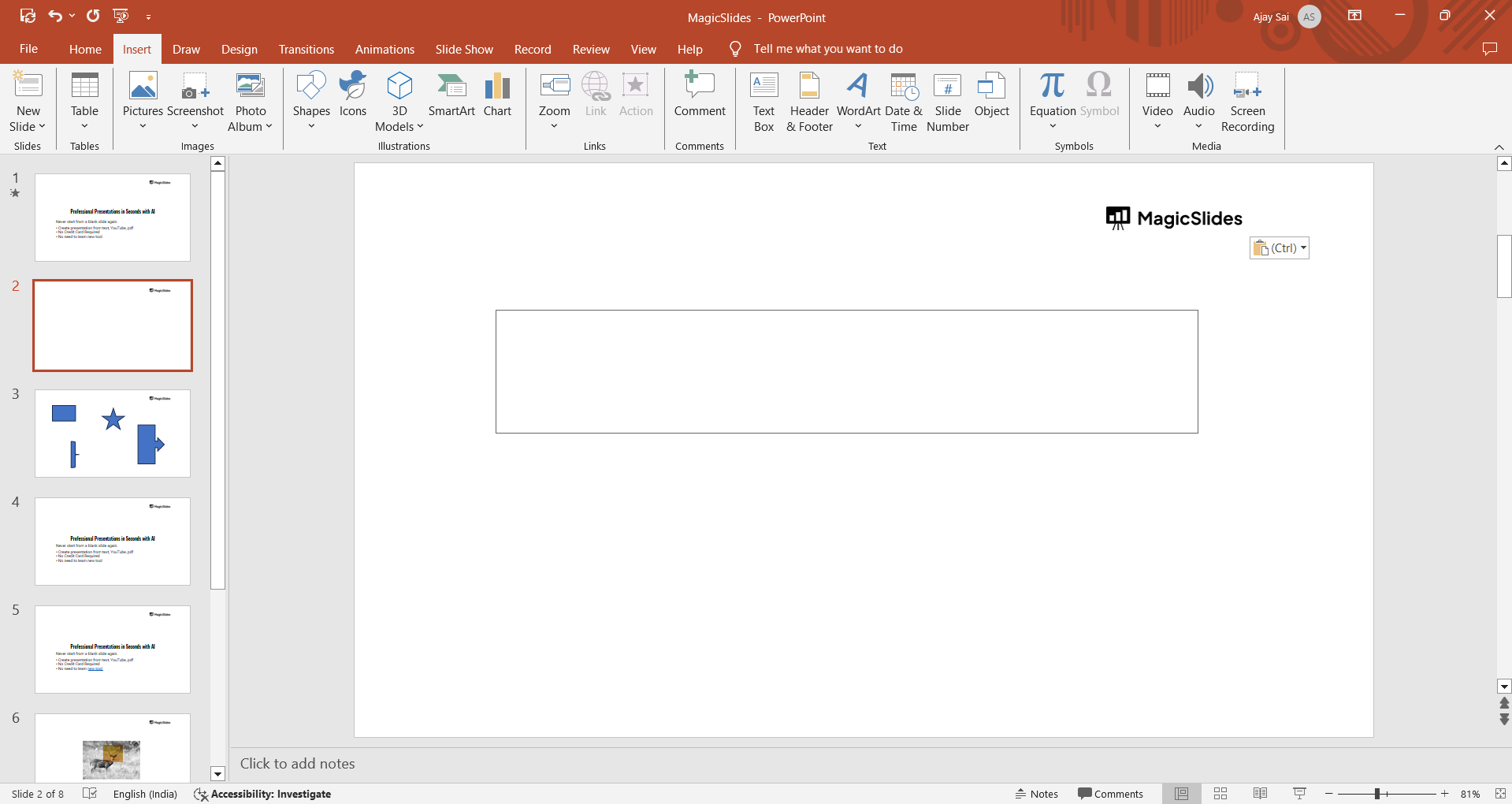
Navigate to the “Home” tab and select either the “Bullets” or “Numbering” button from the “Paragraph” section.
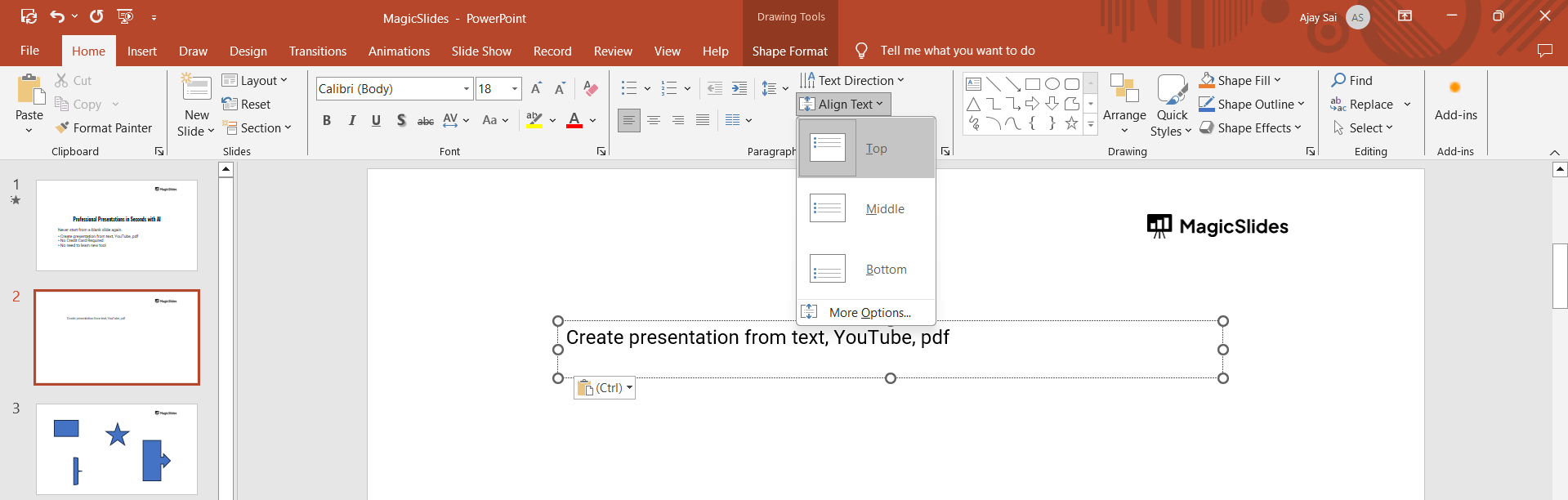
This will start your first level of the list. Type your first item and press “Enter” to add more items at the same level.
Step 3: Create a Sublevel Item
To create a sublevel (second level) item, place your cursor at the beginning of the list item you want to indent.
Press the “Tab” key on your keyboard, and the item will automatically indent, creating a sublevel.
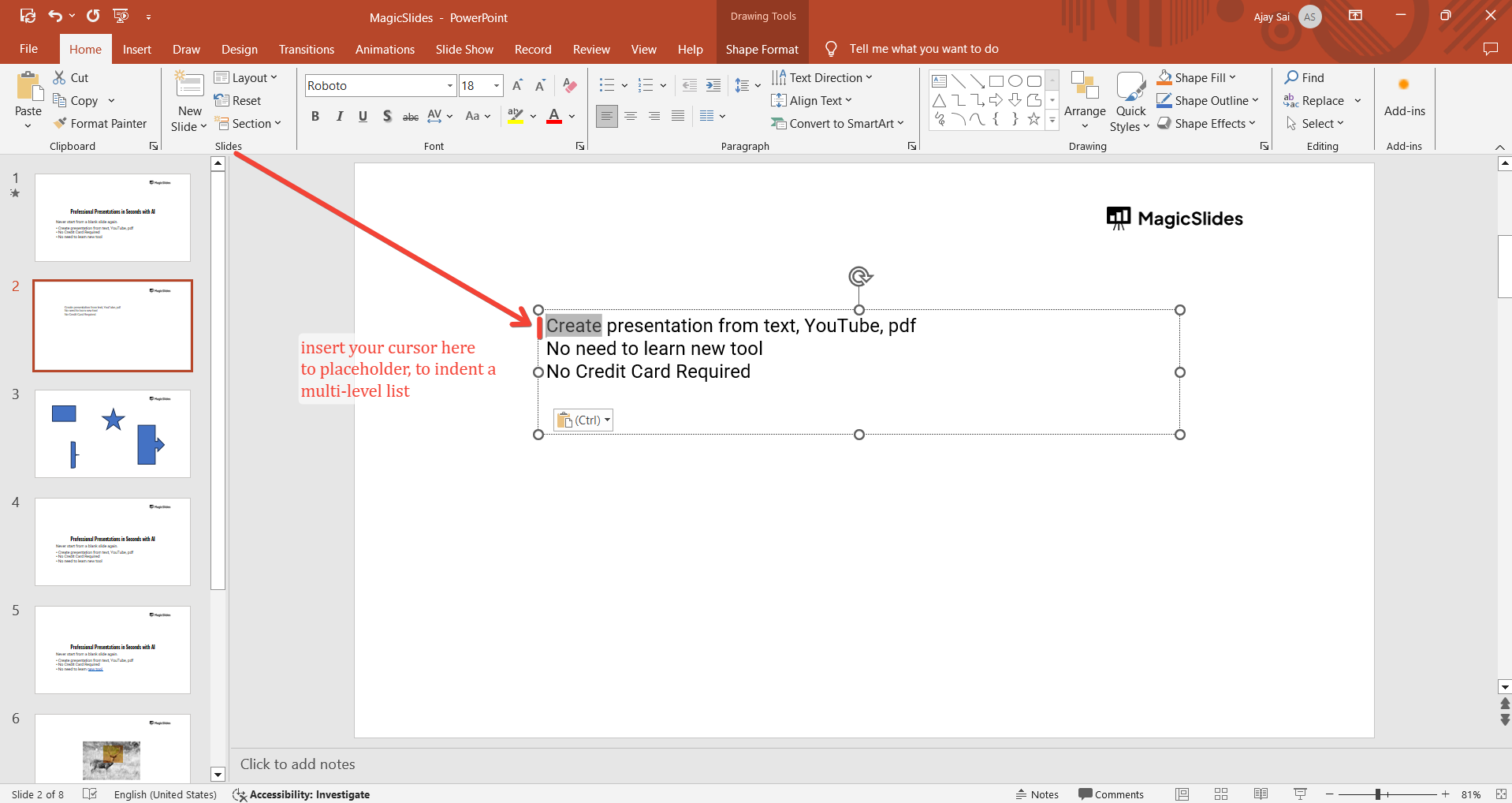
This helps visually differentiate between main points and subpoints in your list.
Step 4: Add More Levels as Needed
You can add additional sublevels by pressing “Tab” again for each new level, creating a multilevel structure.
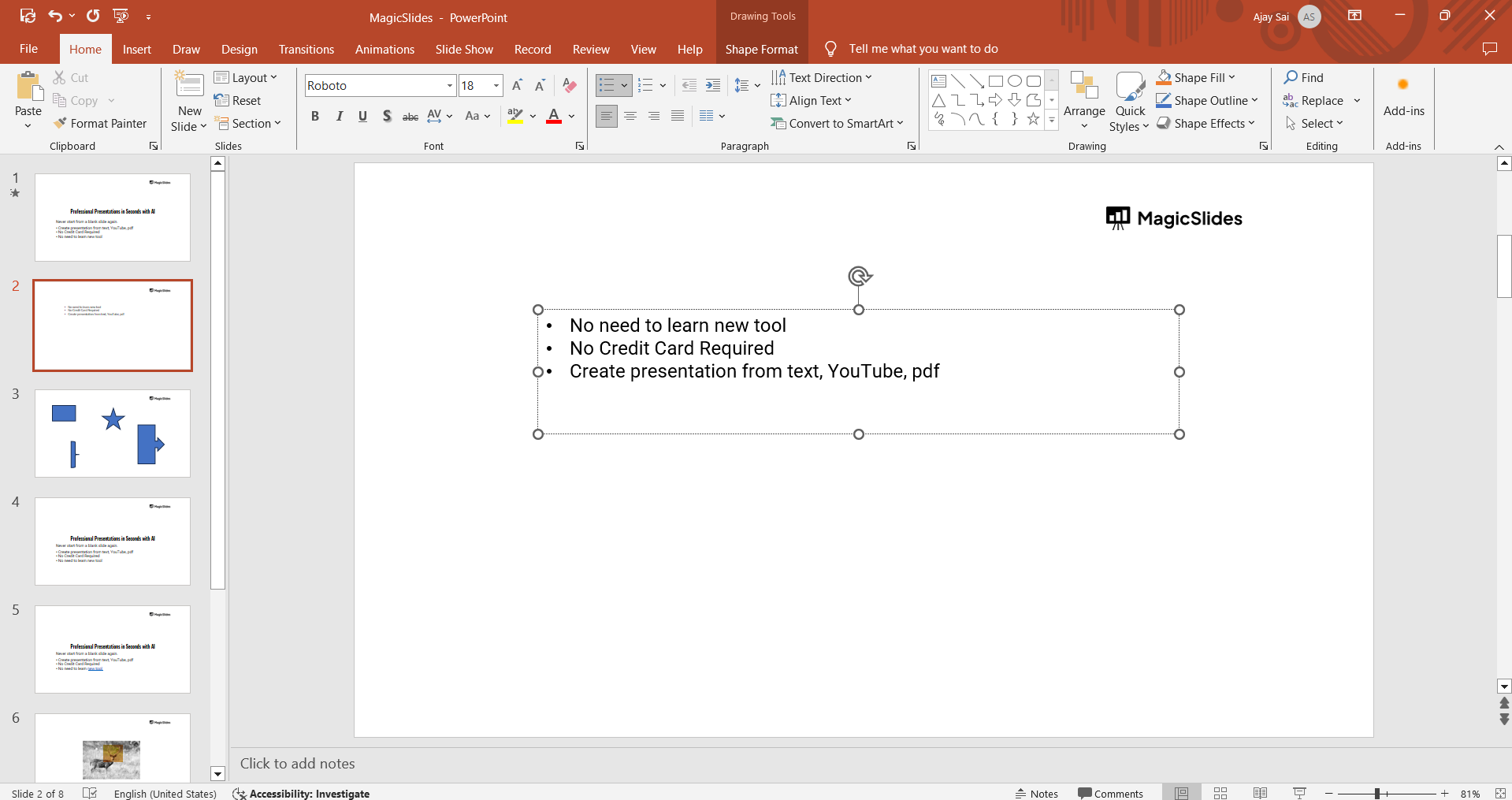
To move back to a higher level, press “Shift + Tab.” This allows you to adjust the hierarchy of your list easily, making it flexible for various presentation needs.
Step 5: Customize Your Multilevel List
To change the appearance of your multilevel list, right-click on any list item and select “Bullets and Numbering.”
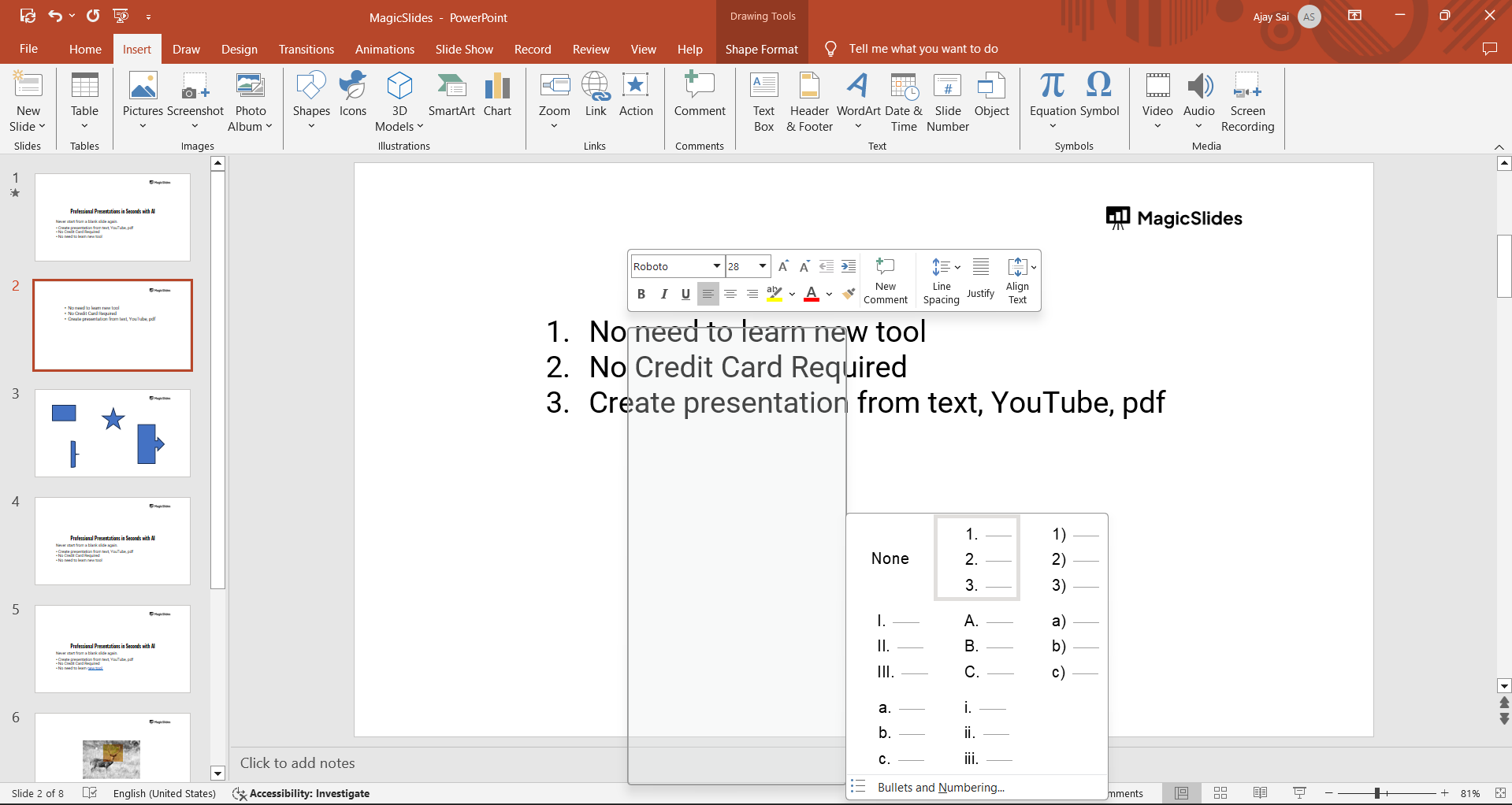
You can choose different bullet styles, numbering formats, or customize the size and color to match your presentation’s design.
This customization helps make your list visually appealing and consistent with your overall slide theme.
After mastering multilevel lists in PowerPoint, you may want to explore how to make your slides advance automatically in PowerPoint, helping you create a smoother presentation flow
Conclusion
Creating multilevel lists in PowerPoint is a powerful way to organize content and present information in a structured manner.
With just a few clicks, you can create detailed lists that help your audience follow along easily.
Use these steps to add multilevel lists to your presentations and improve the clarity and impact of your content!
FAQs can come handy!
Can I customize the bullets or numbering style in a multilevel list?
Yes, right-click on the list, select “Bullets and Numbering,” and choose your preferred styles or formats.
How do I decrease the indentation level in a multilevel list?
Press “Shift + Tab” to move an item back to a higher level in the list hierarchy.
Can I create multilevel lists with different bullet styles at each level?
Yes, you can customize each level by selecting different bullet or numbering styles for each sublevel.


