How to create a placeholder in PowerPoint?


Learn how to create a placeholder in PowerPoint to organize and structure your content effectively.
What is a Placeholder in PowerPoint?
In the world of presentations, Microsoft PowerPoint is a powerful tool that enables users to create visually engaging and impactful slides.
One of the key elements that enhance the flexibility and organization of your slides is the use of placeholders. A placeholder in PowerPoint is a pre-formatted container on a slide for text, graphics, or other content.
Understanding how to create and use placeholders effectively can significantly improve your presentation's layout and design. This blog post will guide you step-by-step on how to create a placeholder in PowerPoint, ensuring that your presentations are both professional and visually appealing.
Step-by-Step Guide to Creating a Placeholder in PowerPoint
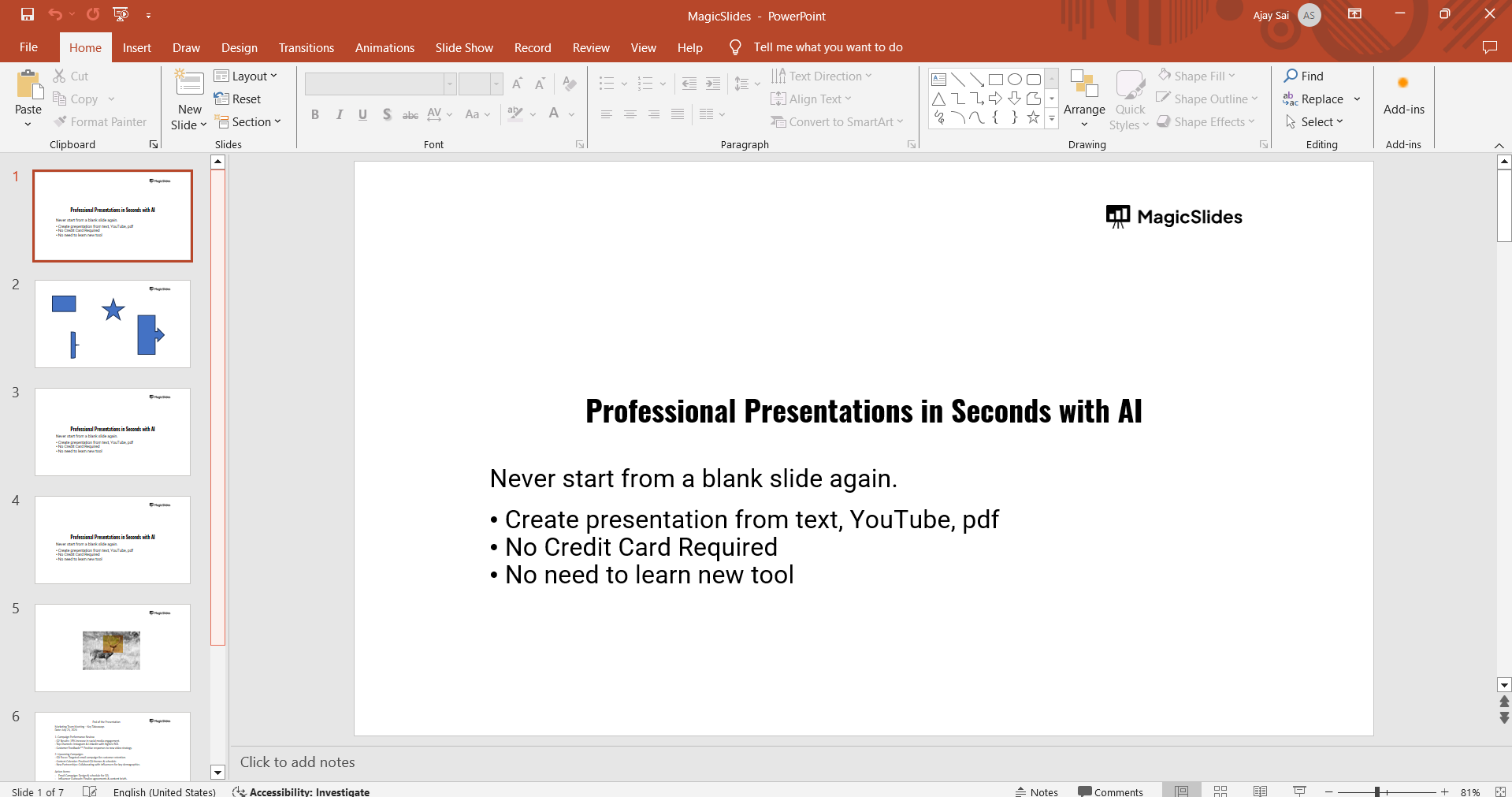
Step 1: Open PowerPoint and Select a Slide Layout
Begin by opening Microsoft PowerPoint. Choose an existing presentation or create a new one. Select the slide layout where you want to add a placeholder.
PowerPoint offers various layouts such as Title Slide, Title and Content, Two Content, etc.
Step 2: Access Slide Master View
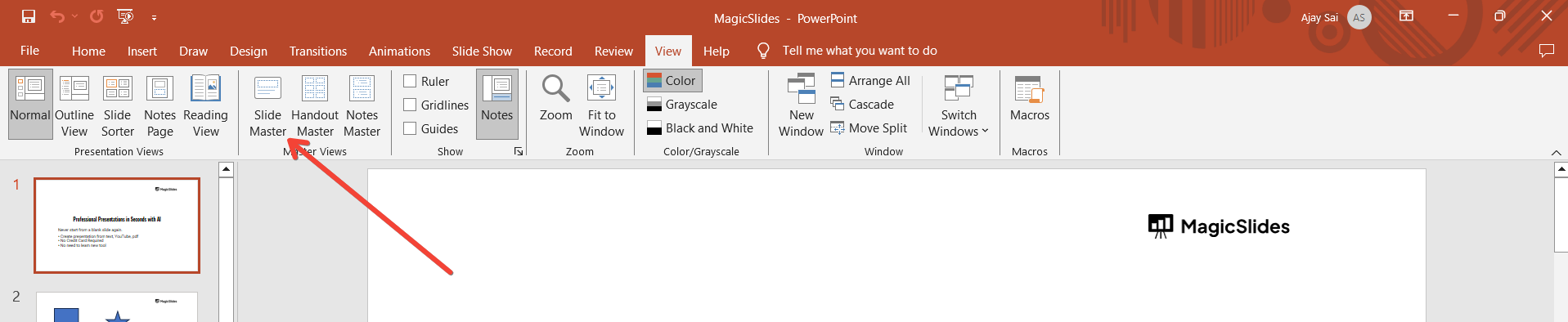
To create or modify placeholders, you need to access the Slide Master view.
Click on the "View" tab in the ribbon at the top of the screen, then select "Slide Master."
This view allows you to edit the slide layouts used in your presentation.
Step 3: Choose the Layout to Edit
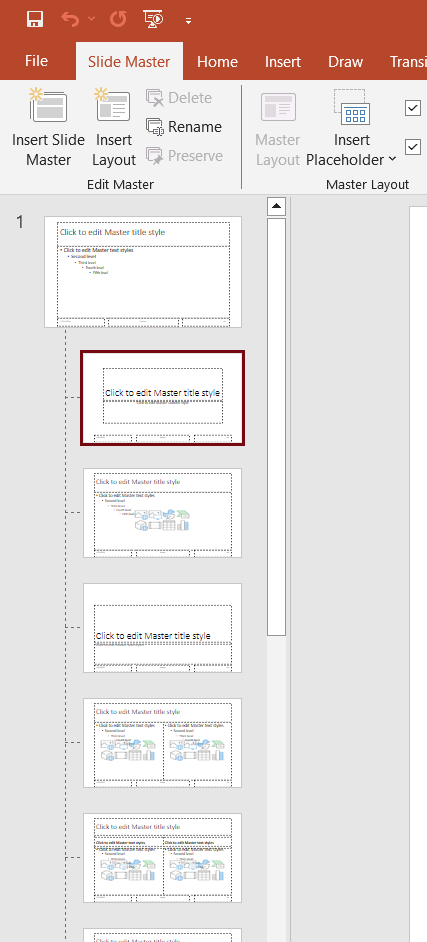
In the Slide Master view, you’ll see a list of slide layouts on the left pane. Select the layout where you want to add the placeholder.
For example: You might choose the Title and Content layout if you want to add an additional content placeholder.
Step 4: Insert a Placeholder
With the desired layout selected, click on the "Insert Placeholder" button in the Slide Master tab.
You can choose from various types of placeholders such as text, picture, chart, table, SmartArt, media, or online image. Select the type of placeholder that suits your needs.
Step 5: Customize the Placeholder
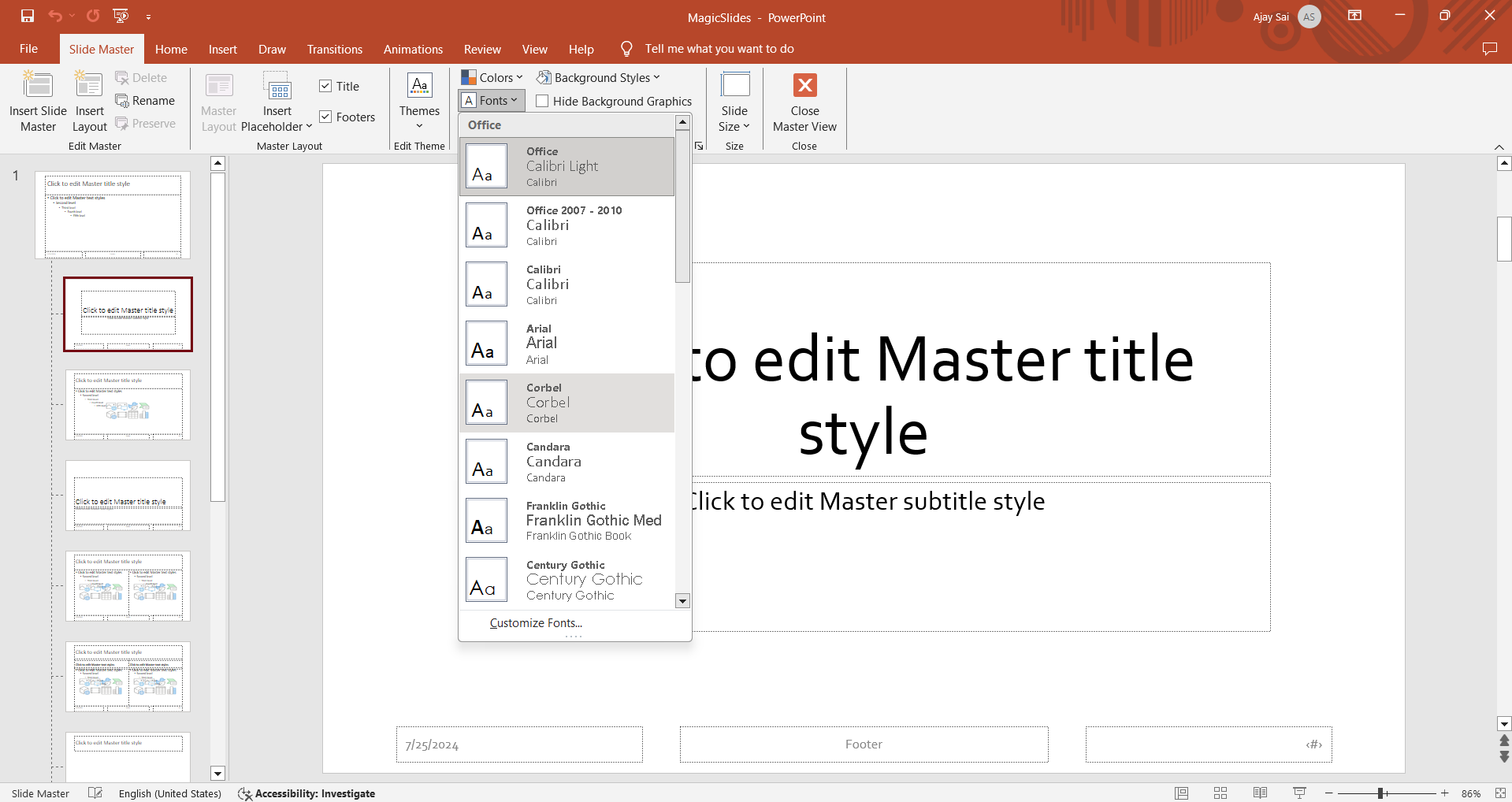
After placing the placeholder, you can customize its properties. Right-click on the placeholder and select "Format Placeholder" to adjust settings such as fill color, border, shadow, and more.
This customization ensures that the placeholder matches your presentation’s theme.
Step 6: Exit Slide Master View
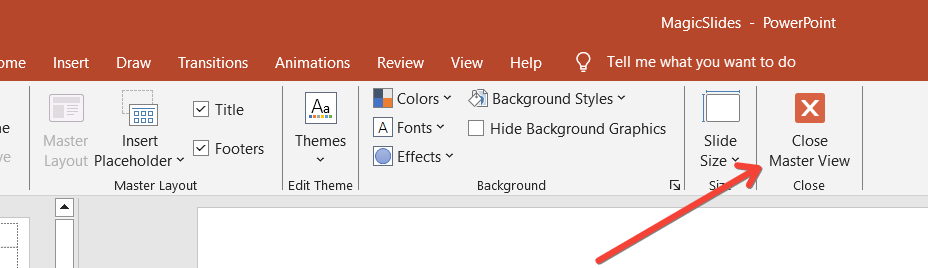
Once you’ve added and customized the placeholder, exit the Slide Master view by clicking on the "Close Master View" button in the Slide Master tab.
Your placeholder is now ready to use in the chosen slide layout.
Step 7: Add Content to the Placeholder
Return to the normal view of your presentation. Select the slide layout where you added the placeholder.
You can now click on the placeholder and add content, whether it’s text, an image, a chart, or any other type of content.
Conclusion
Creating and using placeholders in PowerPoint can greatly enhance the structure and visual appeal of your presentations.
By following these steps, you can easily add placeholders to your slides, allowing for a more organized and professional look. Mastering the use of placeholders not only streamlines the process of adding content but also ensures consistency across your presentation.
Now, you’re ready to make your slides more dynamic and engaging, helping you deliver your message effectively.
Frequently Asked Questions:
What is a placeholder in PowerPoint?
A placeholder in PowerPoint is a pre-formatted container that holds content such as text, images, charts, tables, and other elements. Placeholders help in organizing and structuring content on a slide, ensuring consistency and ease of formatting throughout the presentation.
Can I add multiple placeholders to a single slide?
Yes, you can add multiple placeholders to a single slide. This is especially useful for complex slides where you need to display various types of content, such as text alongside images or charts.
Simply repeat the steps to insert placeholders as needed.
How can I edit the properties of a placeholder?
To edit the properties of a placeholder, right-click on the placeholder and select "Format Placeholder." This will open a menu where you can customize settings such as fill color, border style, shadow effects, and more.
Customizing placeholders helps ensure they match the overall design and theme of your presentation.
Can placeholders be used in custom slide layouts?
Yes, placeholders can be used in custom slide layouts. By accessing the Slide Master view, you can create and save custom layouts with specific placeholders tailored to your presentation needs.
These custom layouts can then be applied to slides throughout your presentation, maintaining a consistent and professional look.


