How to create a PPT from an earnings forecast document for corporate meetings?


Learn the art of transforming earnings forecasts into impactful PowerPoint presentations for corporate meetings with our step-by-step guide. Elevate your presentations!
In the corporate world, effective communication is paramount, especially during meetings where complex data like earnings forecasts needs to be presented with clarity. One way to achieve this is by converting your earnings forecast documents into compelling PowerPoint presentations. In this blog, we'll guide you through the process using Google Slides and the innovative MagicSlides GPT extension.
How to create a PPT from an earnings forecast document for corporate meetings
Before we dive into the steps, ensure you have a Google account. If not, sign up for one—it's quick and free. Google Slides is a cloud-based presentation tool, and having a Google account grants you access to a world of collaborative and intuitive features.
Step 1: Visit Google Slides
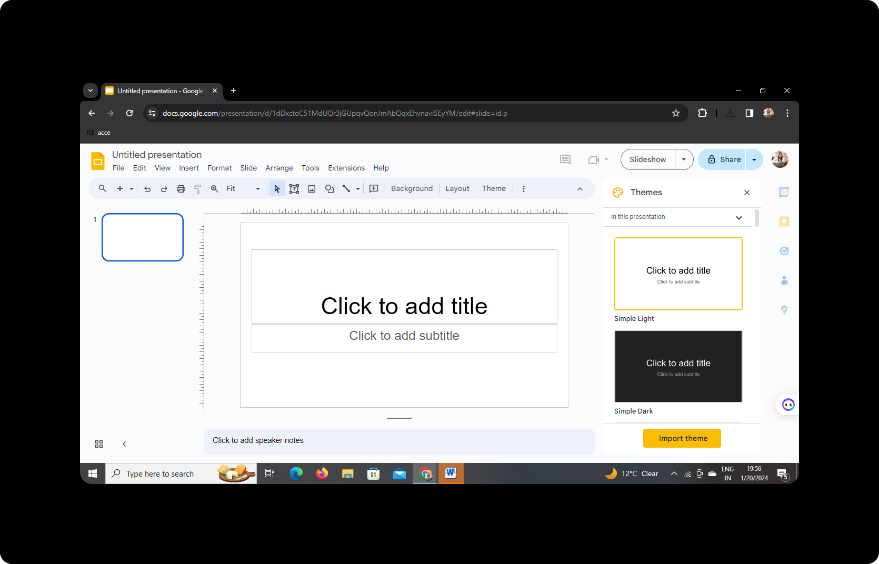
Head to Google Slides (slides.google.com) and sign in with your Google account. If you're new to Google Slides, click on "Blank" to start a new presentation.
Step 2: Sign In with Google to Google Slides
After accessing Google Slides, make sure you're signed in with your Google account. This step is crucial for saving and accessing your presentation across devices.
Step 3: In Extensions, Click on MagicSlides GPT (if downloaded)
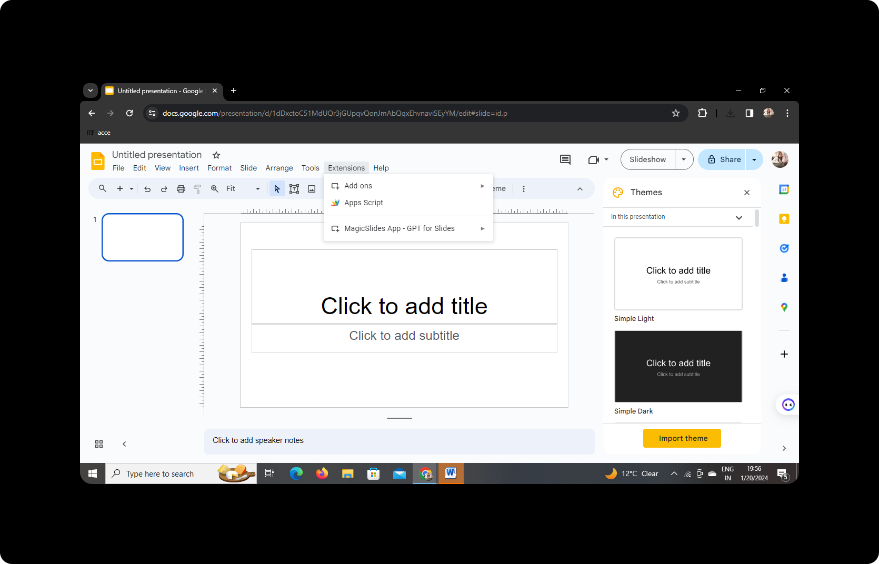
If you've already downloaded the MagicSlides GPT extension, navigate to the extensions tab in Google Slides and click on MagicSlides. This powerful tool adds a layer of magic to your presentation creation process.
Step 4: If Not Downloaded, First Download MagicSlides GPT as an Extension, Then Open
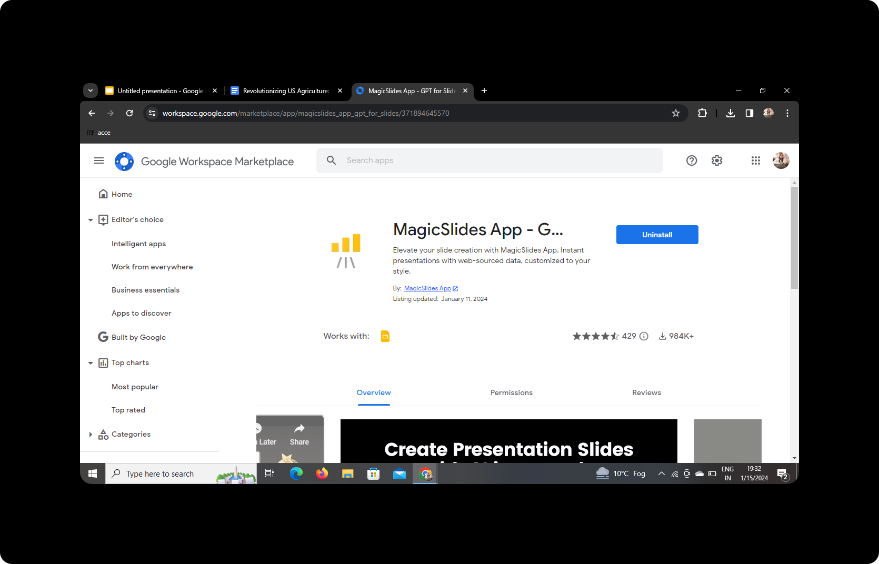
If you haven't downloaded MagicSlides GPT yet, fear not. Simply go to the Chrome Web Store, search for MagicSlides GPT, download the extension, and open it within Google Slides.
Step 5: Click on PDF/DOCX to PPT in MagicSlides GPT
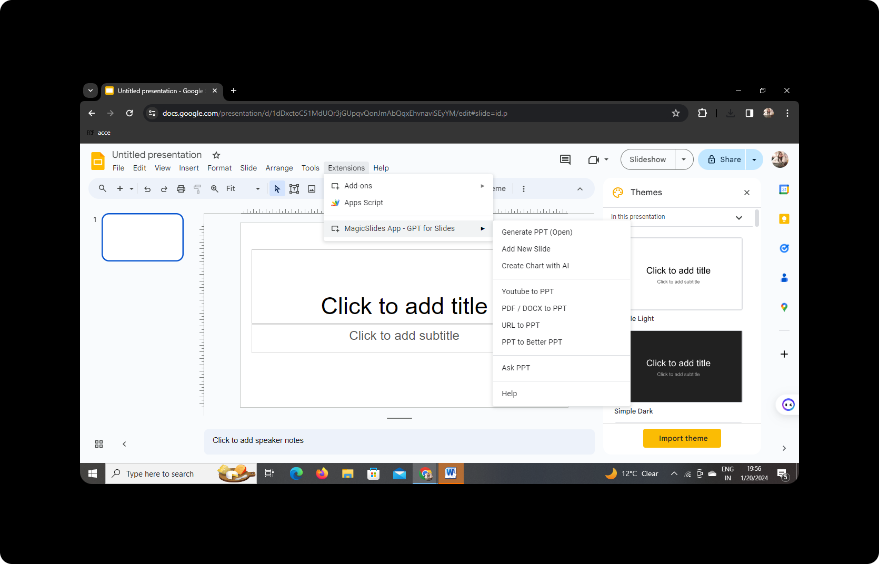
With MagicSlides GPT activated, locate the PDF/DOCX to PPT conversion option. This feature streamlines the process of turning your earnings forecast document into a dynamic PowerPoint presentation.
Step 6: Click on 'Upload PDF/DOCX' Option and Upload Your Content
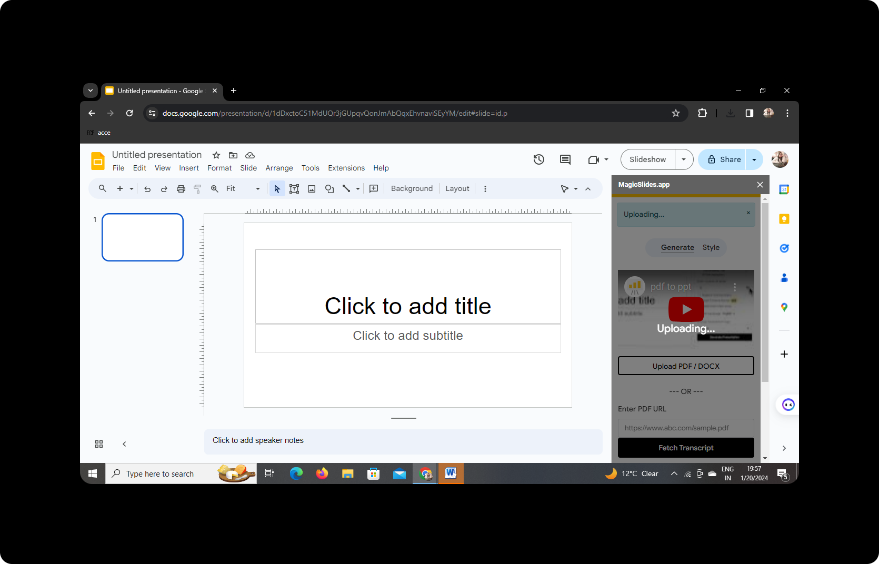
Initiate the transformation process by selecting the 'Upload PDF/DOCX' option. Upload your earnings forecast document, and MagicSlides GPT will begin analyzing and converting the content.
Step 7: Select the Number of Slides
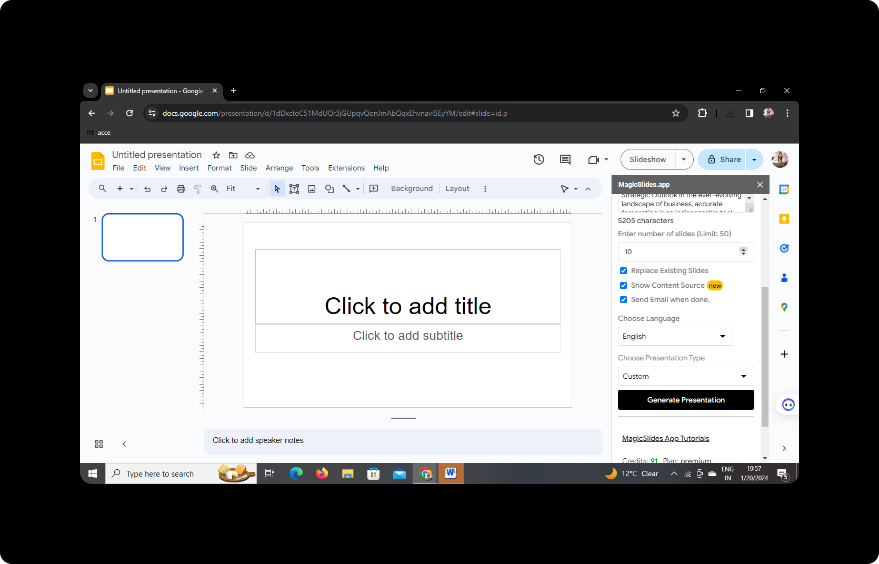
Tailor the presentation to your needs by choosing the number of slides you wish to generate. This flexibility ensures that your presentation aligns with the pacing and structure you desire.
Step 8: Click on Generate Presentation
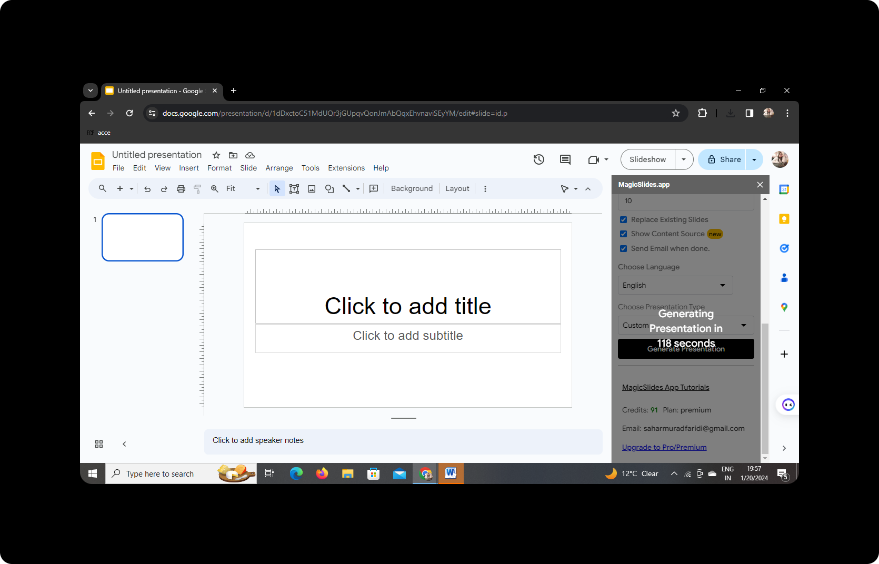
Hit the 'Generate Presentation' button, and let MagicSlides GPT work its magic. The tool will create a visually appealing PowerPoint presentation based on the insights from your earnings forecast document.
Step 9: Your Presentation is Ready
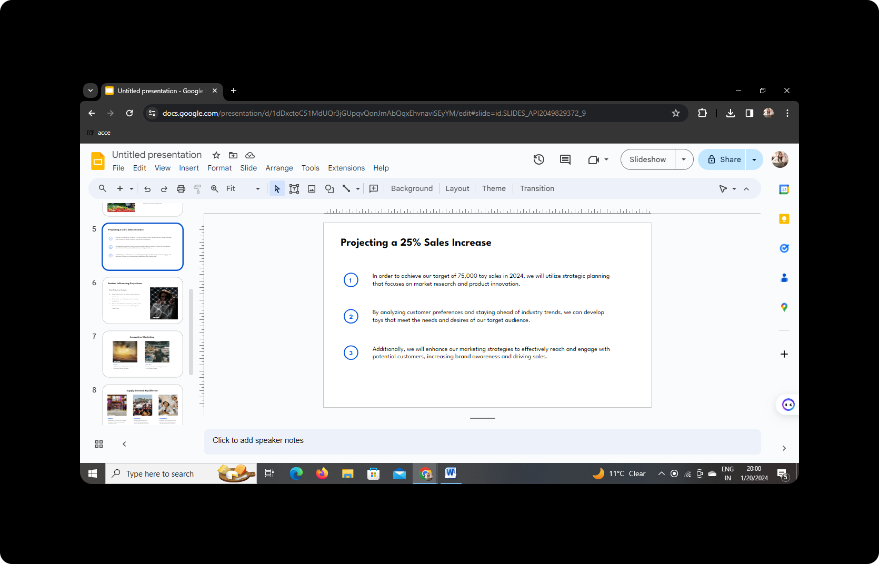
Congratulations! Your presentation is now ready for corporate meetings, complete with visually engaging slides that effectively communicate your earnings forecast.
Conclusion
In conclusion, the combination of Google Slides and MagicSlides GPT provides a seamless and efficient way to transform dense earnings forecast documents into engaging presentations. This approach not only saves time but also enhances the impact of your communication in corporate settings.
Frequently Asked Questions
Q: Is MagicSlides GPT compatible with all browsers? A: Yes, MagicSlides GPT is a Chrome extension, making it compatible with the Chrome browser.
Q: Can I customize the design of the slides generated by MagicSlides? A: Absolutely! Google Slides provides a range of customization options to enhance the visual appeal of your presentation.
Q: How long does it take for MagicSlides to generate a presentation? A: The time varies depending on the complexity of the document, but the process is generally quick and efficient.
Q: Can I edit the generated slides in Google Slides? A: Yes, Google Slides allows you to edit and fine-tune the presentation even after MagicSlides has generated it.
Q: Is MagicSlides GPT free to use? A: MagicSlides GPT offers both free and premium features. Explore the free version to get started, and consider upgrading for additional functionalities.


