How to Create a Repeated Pattern in Canva


Design stunning repeated patterns in Canva effortlessly with this step-by-step guide for creative projects
Creating a repeated pattern in Canva is a great way to design custom backgrounds, seamless patterns, or visually appealing designs.
Whether for social media, branding, or personal projects, Canva offers simple tools to help you achieve this.
Follow these step-by-step instructions to create a repeated pattern effortlessly.
How to Create a Repeated Pattern in Canva | Steps to Create a Repeated Pattern in Canva
Step 1: Open Canva and Select Your Design Type
Log in to your Canva account.
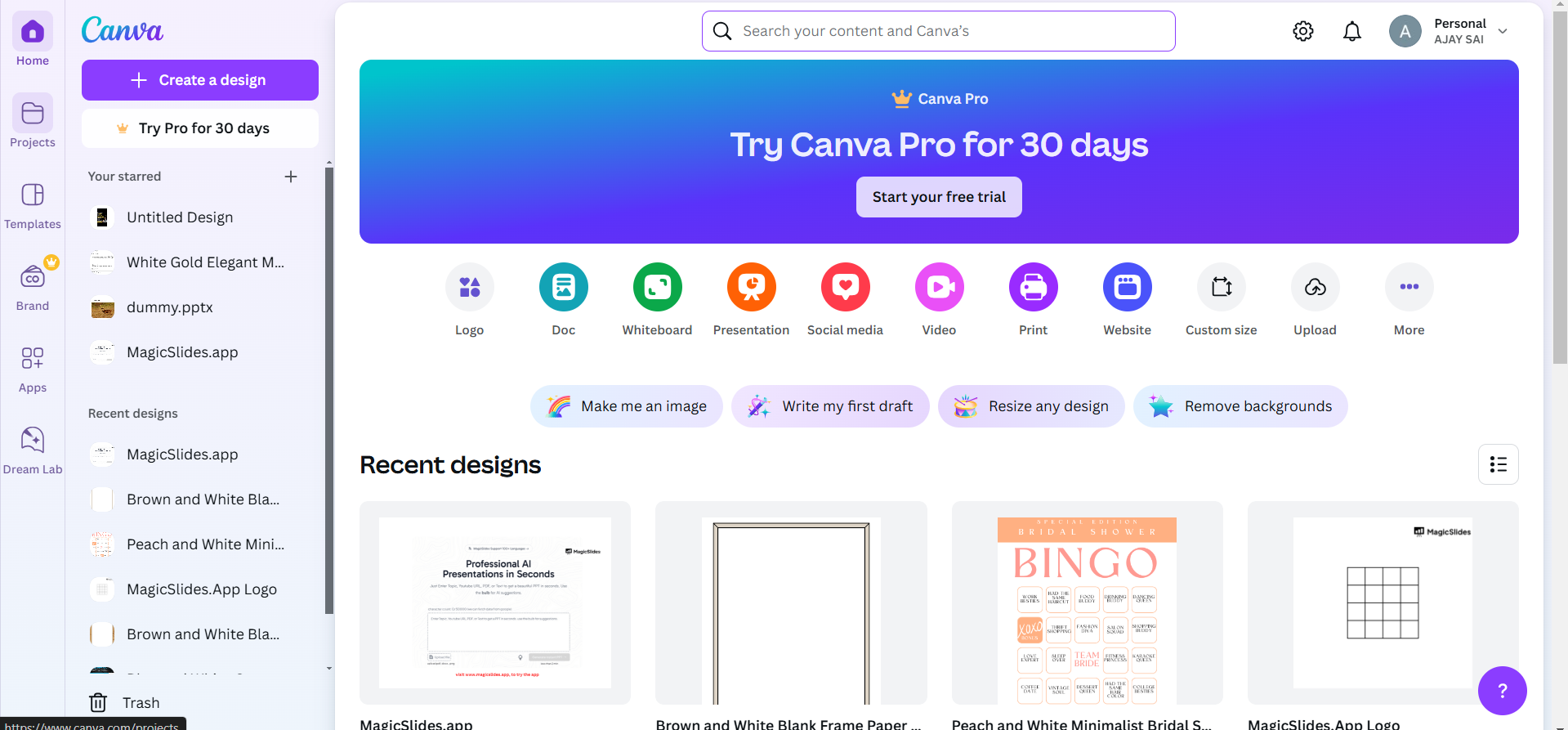
Click on the “Create a Design” button and choose the desired design type, such as a poster, Instagram post, or custom size, based on your needs.
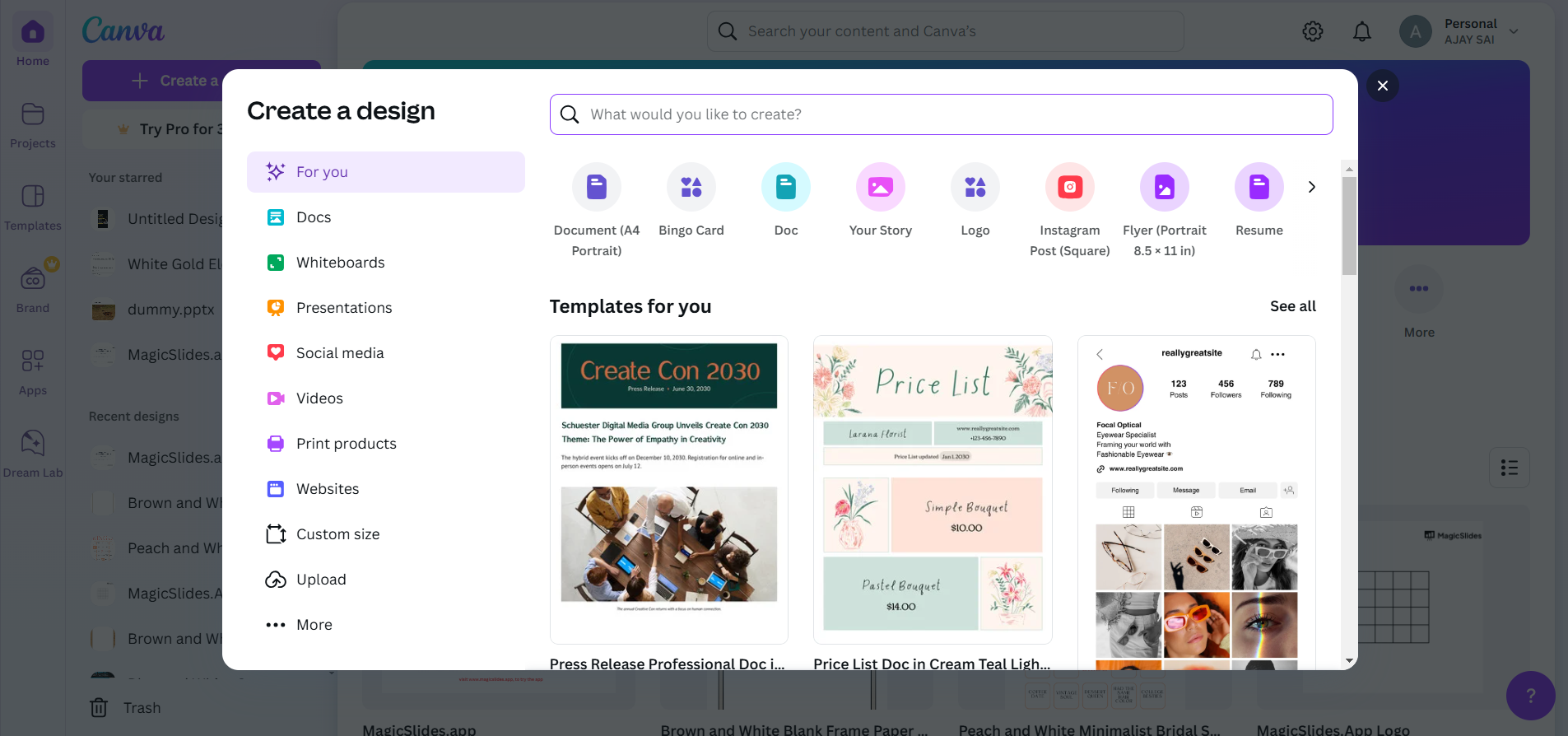
Step 2: Add Your Base Element
Choose the element you want to repeat (e.g., an icon, image, or text).
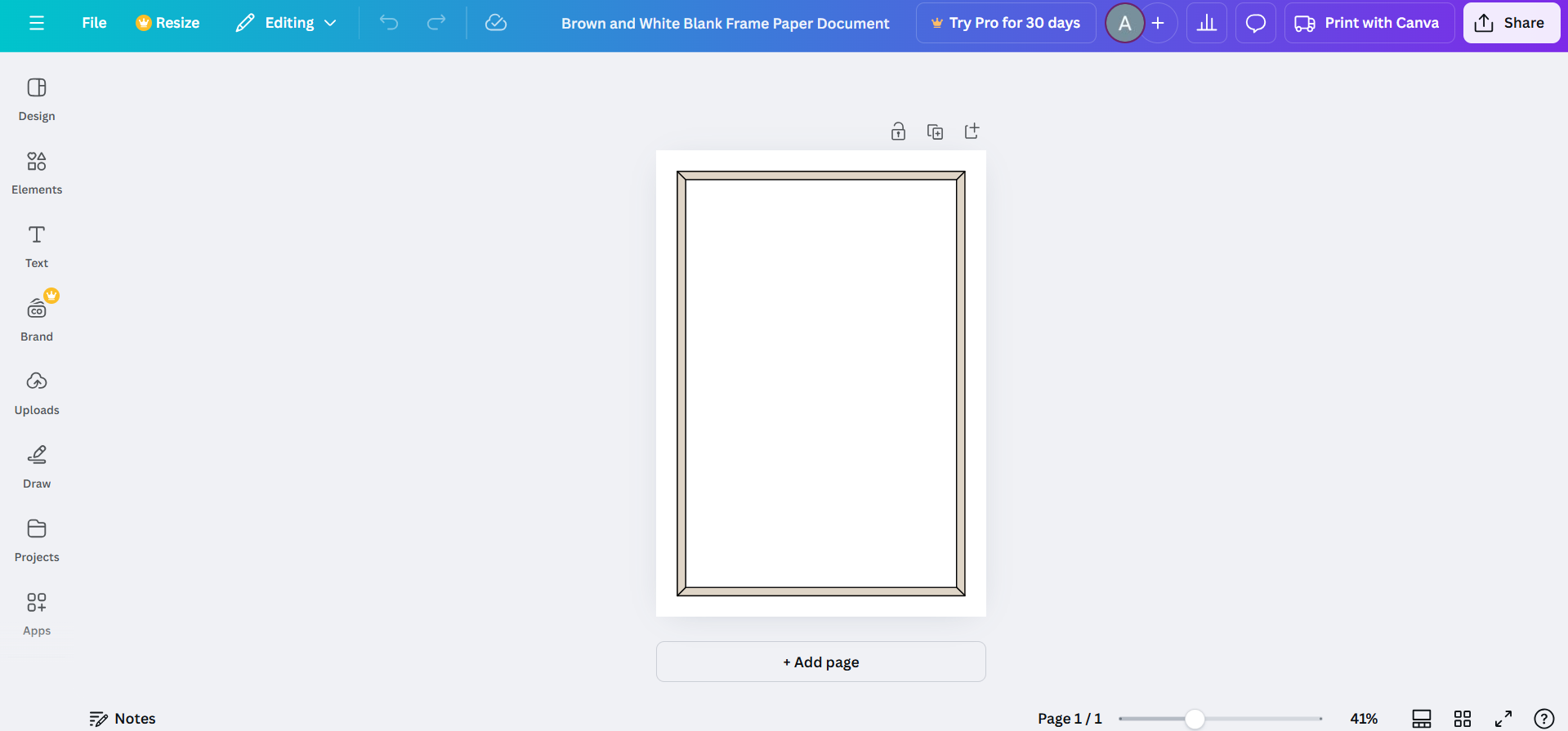
Use Canva’s “Elements” tab or upload your own graphic by clicking “Uploads.” Position the element in your design workspace.
Step 3: Duplicate the Element
Select the element, then click the “Duplicate” button in the toolbar above, or use the shortcut Ctrl + D (Windows) or Cmd + D (Mac).
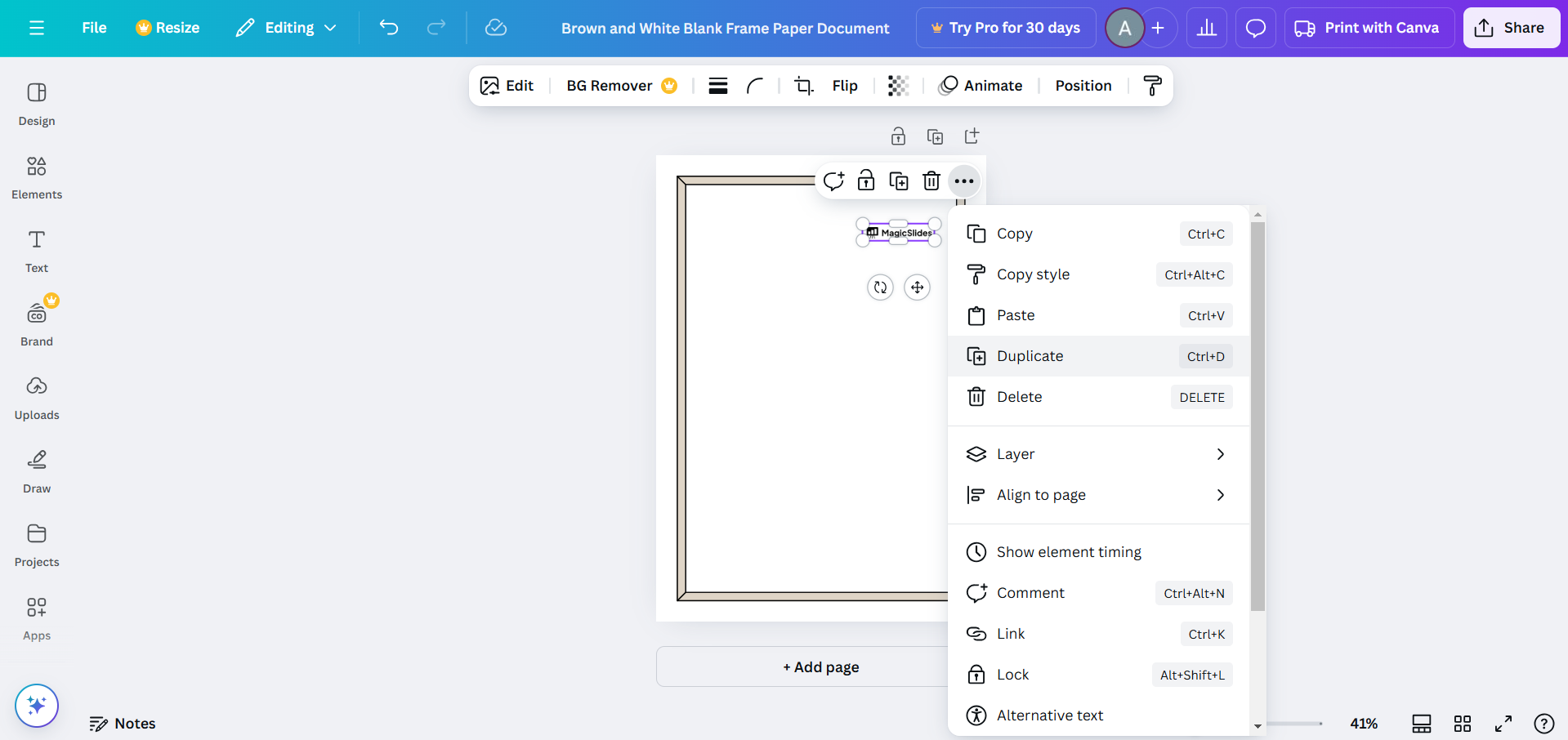
Drag the duplicated element to a new position in the design, creating the foundation of your pattern.
Step 4: Align and Space the Elements
Use Canva’s alignment tools to ensure the elements are evenly spaced.
To maintain consistent gaps, enable “Rulers” and “Guides” under the File menu.
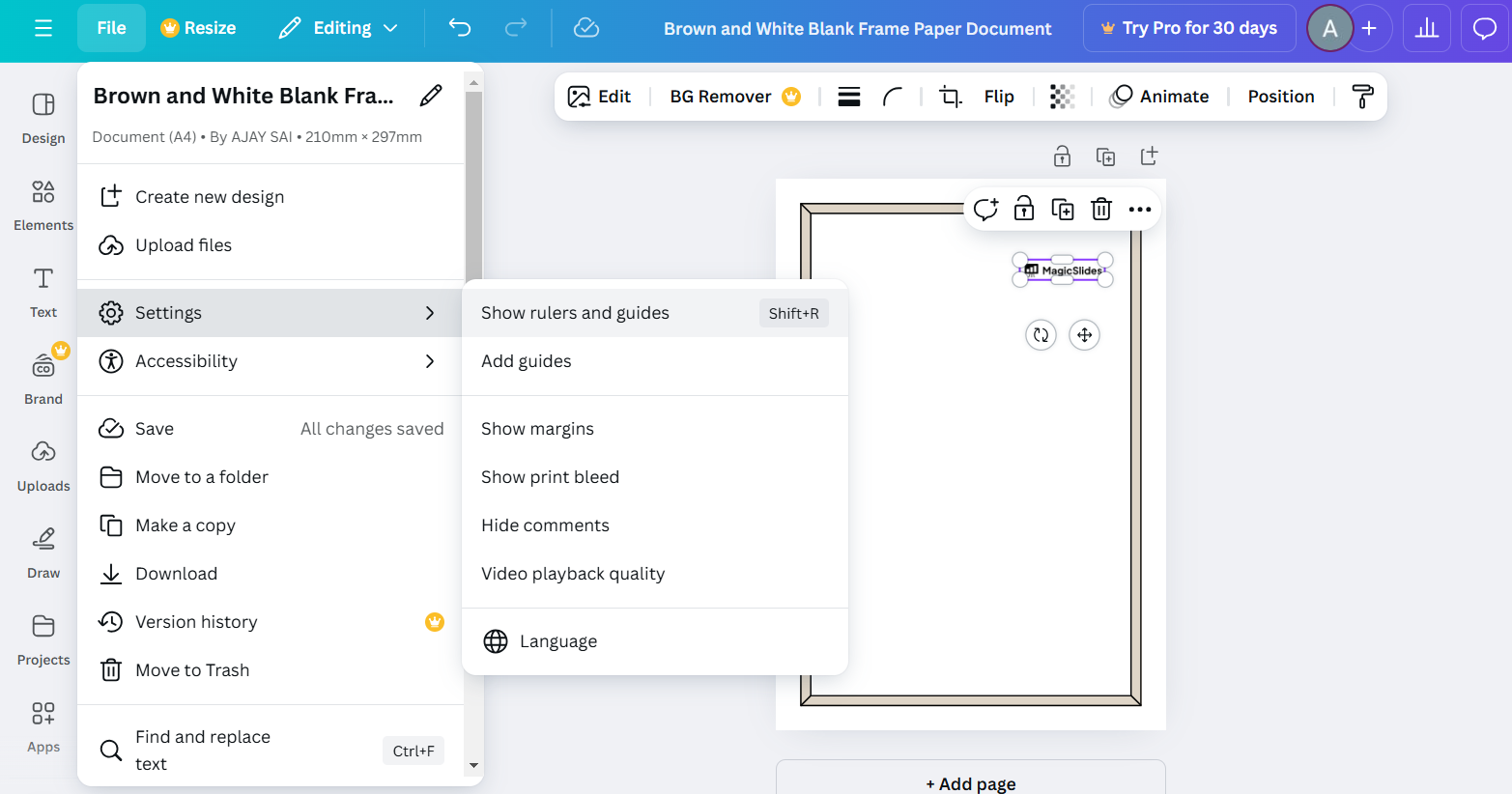
Drag and place the elements in rows or columns to form a grid-like structure.
Step 5: Repeat the Process
Continue duplicating and positioning the element across the canvas until the desired area is covered.
Zoom out to view the overall pattern and adjust as needed for uniformity.
Step 6: Save and Download Your Design
Once satisfied with your repeated pattern, click the “Share” button and select “Download.”
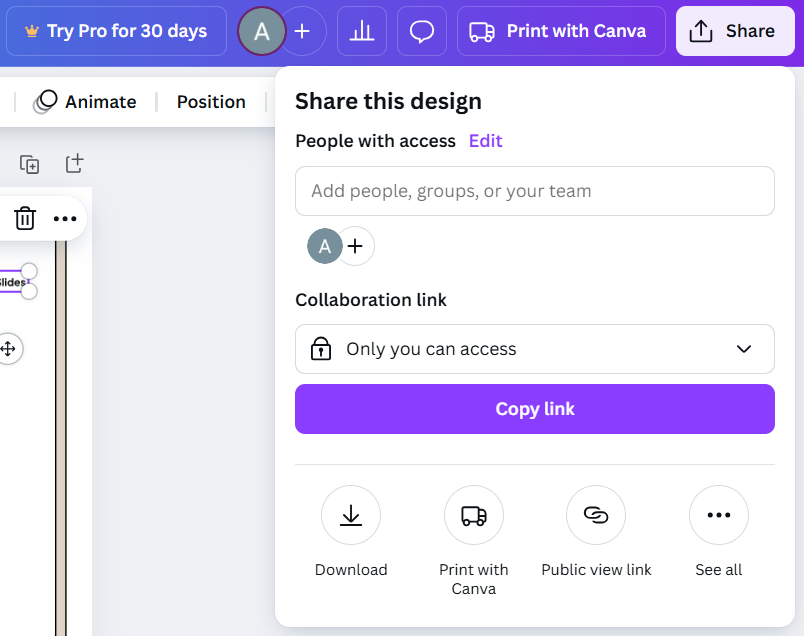
Choose the appropriate file type (PNG, JPG, or PDF) and resolution for your project.
After learning how to create a repeated pattern in Canva, check out how to use frames in Canva to enhance your design compositions.
Conclusion
Creating a repeated pattern in Canva is a straightforward process that allows you to unleash your creativity.
By following these steps, you can design stunning patterns for any purpose, from branding to decoration.
Experiment with different elements and layouts to make your patterns truly unique.
FAQs on Creating a Repeated Pattern in Canva
Can I create seamless patterns in Canva?
While Canva doesn’t directly support seamless patterns, you can design them by carefully aligning elements.
Are there pre-made patterns in Canva?
Yes, Canva offers pre-designed patterns under the “Elements” tab, which you can customize.
Can I use a repeated pattern as a background?
Absolutely! After creating your pattern, resize it or adjust the transparency to use it as a background.
By mastering these steps, you can efficiently create repeated patterns and elevate your Canva designs!


