How to Create a Roadmap in PowerPoint: Step-by-Step Guide


Learn how to create a roadmap in PowerPoint with simple step-by-step instructions. Build project and product roadmaps, add milestones, and design professional slides.
Creating a roadmap in PowerPoint is a simple way to visualize projects, product launches, business plans, and key milestones. With PowerPoint’s shapes, SmartArt, icons, and timeline tools, you can build a professional roadmap without specialized design software.
In this guide, you’ll learn how to create a roadmap in PowerPoint, customize it for different projects, and use AI tools such as MagicSlides when you want to create presentation slides faster.
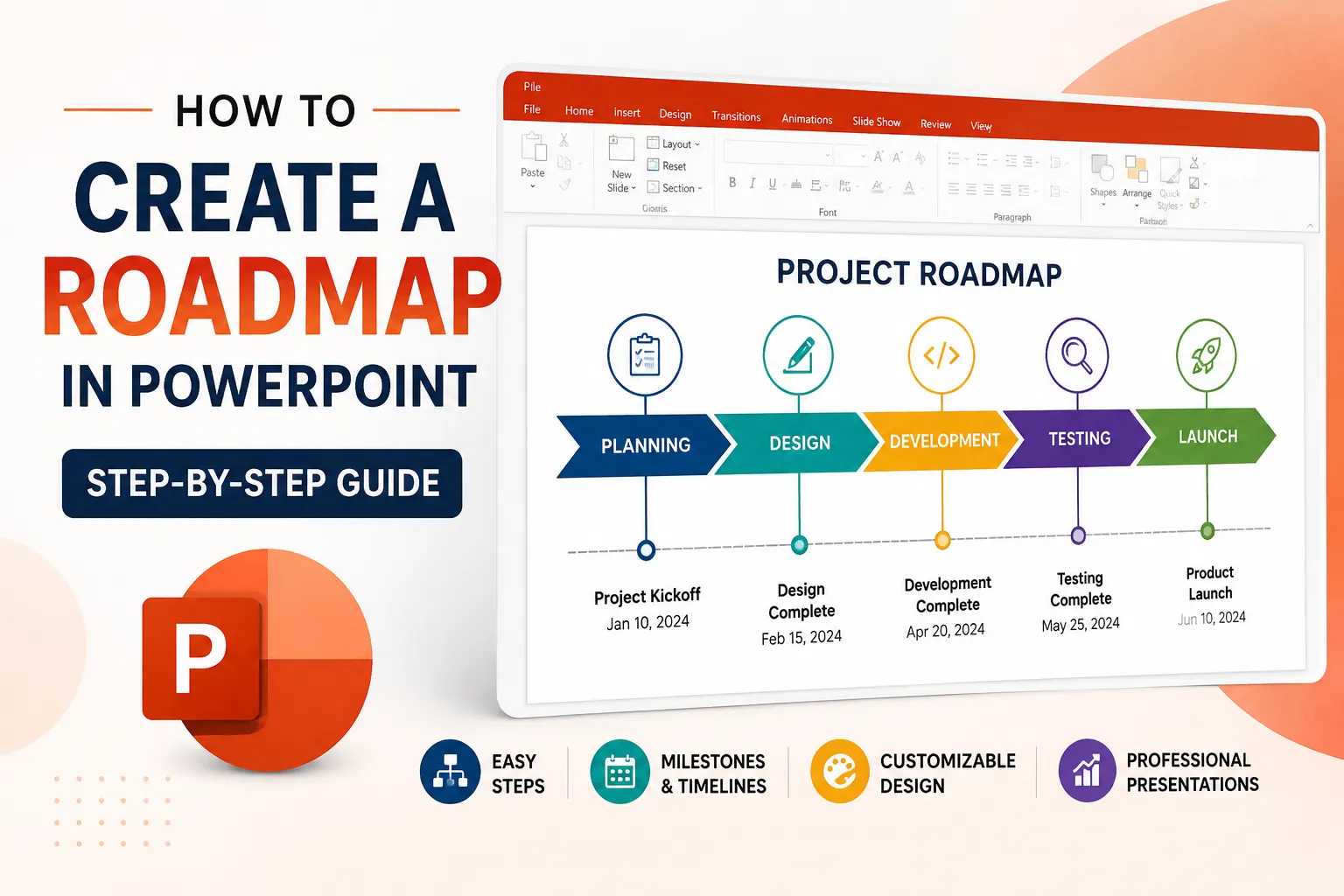
What Is a Roadmap?
A roadmap is a visual plan that shows where a project, product, or business initiative is going and when important activities are expected to happen.
A typical roadmap includes:
- Project phases
- Dates or time periods
- Major milestones
- Deliverables
- Dependencies or priorities
- Progress indicators
The goal isn’t to include every task. A good roadmap gives your audience a quick understanding of what is happening, when it is happening, and what comes next.
How to Create a Roadmap in PowerPoint
1. Start with a blank PowerPoint slide
Open PowerPoint and create a new presentation. Choose a Blank Layout so you have more control over the roadmap’s design.
For a standard horizontal roadmap, use a 16:9 widescreen slide.
2. Create the roadmap timeline
Go to Insert → Shapes and choose a line, arrow, or rectangle to create your timeline.
Place the timeline horizontally across the center of the slide. This will become the foundation of your roadmap.
Keep enough space above and below the timeline for milestones and descriptions.
3. Add your roadmap phases
Use rounded rectangles or other shapes to represent major project phases.
For example:
Research → Planning → Development → Testing → Launch
Keep the wording short. A roadmap should be scannable rather than filled with paragraphs.
4. Add milestones
Use circles, icons, or other shapes to highlight important dates and events.
Examples include:
- Project kickoff
- Prototype completed
- Beta launch
- Customer testing
- Product launch
- Post-launch review
Use a consistent visual style for milestones so readers can immediately recognize them.
5. Add dates and supporting information
Add dates or time periods underneath the appropriate phases.
For example:
Q1 → Q2 → Q3 → Q4
For more detailed roadmaps, you can use months or specific dates.
Avoid adding too much text. If an item requires a paragraph to explain, it probably belongs in another slide or document.
6. Customize the design
Select your roadmap elements and adjust:
- Colors
- Fonts
- Line thickness
- Shape sizes
- Icons
- Spacing
Use your company’s brand colors when appropriate, but keep contrast high enough for easy reading.
A useful rule is to use one primary color, one accent color, and neutral colors rather than giving every phase a different color.
7. Align and group the elements
Select multiple objects and use Shape Format → Align to keep everything evenly spaced.
You can also group related elements so they move together when you reposition the roadmap.
This small step makes a significant difference to the final presentation.
How to Create a Project Roadmap in PowerPoint
For a project roadmap, organize the slide around major phases rather than individual tasks.
A simple structure could be:
Planning → Design → Development → Testing → Deployment
Under each phase, include only the most important deliverables or milestones.
For example, under Development you might show:
- Build MVP
- Internal testing
- Stakeholder review
This gives executives and stakeholders a high-level view without overwhelming them with project-management details.
How to Create a Product Roadmap in PowerPoint
A product roadmap can organize planned features by timeframe.
For example:
| Now | Next | Later |
| Feature A | Feature C | Feature E |
| Feature B | Feature D | Feature F |
You can also organize a product roadmap by quarter, release, customer segment, or product goal.
Choose the structure based on what your audience needs to understand.
How to Create a Curved Roadmap in PowerPoint
A curved roadmap can make a presentation more visually engaging.
Go to Insert → Shapes → Curve or use curved lines and connectors to create the path. Add milestones along the curve using circles or icons.
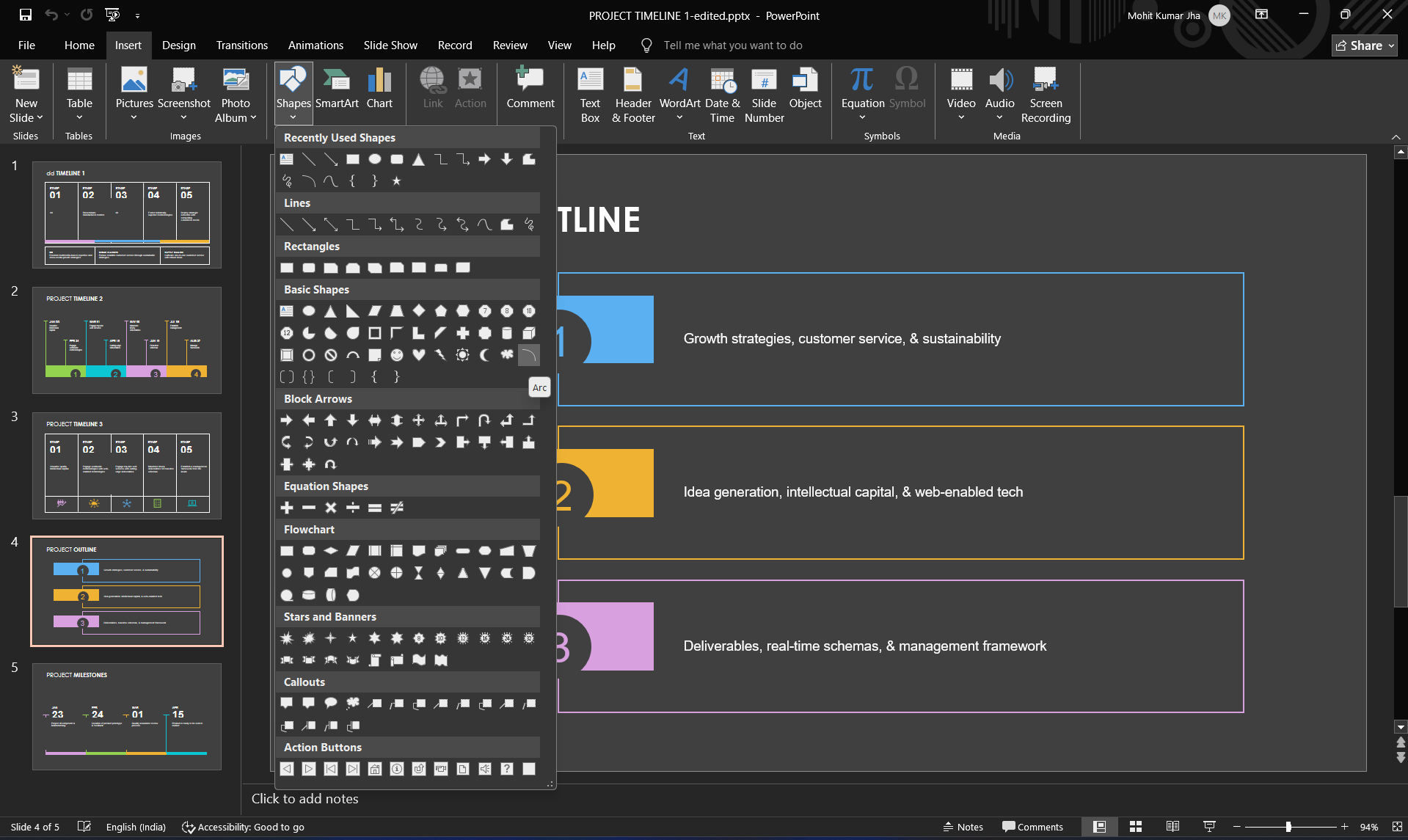
However, don’t sacrifice readability for visual effects. A simple horizontal roadmap is often better for business presentations because the sequence is immediately obvious.
Want to Create the Roadmap Faster?
Building a roadmap manually gives you complete control, but it can take time to design the layout, write the content, and format every element.
An AI presentation tool such as MagicSlides AI PPT Maker can speed up the initial presentation-creation process. MagicSlides can generate presentations from topics and other sources, and its platform supports editable presentation output.

You can use it when you want to generate a starting point quickly and then customize the roadmap to match your project, brand, and presentation requirements.
The important distinction is that AI should help with the starting point, not replace your judgment. Review the generated content, dates, milestones, and terminology before presenting it to stakeholders.
Tips for Making a Better PowerPoint Roadmap
Keep these principles in mind:
- Keep it simple. A roadmap should communicate direction at a glance.
- Show priorities. Don’t give every activity equal visual weight.
- Use consistent spacing. Uneven alignment makes even good information look unprofessional.
- Limit text. Use short labels and let the presenter provide additional context.
- Design for your audience. An executive roadmap should be more high-level than a roadmap used by a project team.
- Update it regularly. A roadmap becomes less useful when it no longer reflects the actual project.
Final Thoughts
Learning how to create a roadmap in PowerPoint doesn’t require advanced design skills. Start with a clear timeline, organize your major phases, add meaningful milestones, and keep the design easy to scan.
If you need complete control, PowerPoint’s native tools are enough to build a roadmap from scratch. If speed is more important, MagicSlides can help you generate a presentation starting point that you can refine and customize.
The best roadmap isn’t the one with the most graphics; it’s the one that helps your audience understand where you’re going, what happens next, and when it will happen.
Also read: How to Add Text Effects to a Title in PowerPoint?
Frequently Asked Questions
Q1. Can I create a roadmap in PowerPoint for free?
Yes. You can create a roadmap using PowerPoint’s built-in shapes, lines, icons, and SmartArt features. You can also start with an existing template and customize it.
Q2. What is the easiest way to make a roadmap in PowerPoint?
For a simple roadmap, create a horizontal timeline, add phases and milestones, and then format the elements consistently. For faster presentation creation, an AI presentation tool such as MagicSlides can help generate an initial deck that you can edit.
Q3. Can I create a product roadmap in PowerPoint?
Yes. Product roadmaps can be organized by quarter, release, feature, product goal, or priority. Choose the structure that best communicates your product strategy to the intended audience.
Q4. Should a roadmap include every project task?
No. A roadmap should provide a high-level view of direction, timing, priorities, and milestones. Detailed tasks are generally better managed in a project-management system.
Also read: How to Do Line Spacing in PowerPoint: Step-by-Step Guide


