How to create a Small Link Microsoft PowerPoint


Learn to create small, clean links in Microsoft PowerPoint for a polished and professional presentation
Shortening links in Microsoft PowerPoint makes your presentations cleaner and more professional.
Whether you're sharing external resources or linking to specific slides, small links enhance readability and keep your design tidy.
Follow these steps to create short and clickable links in PowerPoint.
How to Create a Small Link in Microsoft PowerPoint | Steps to Create a Small Link in Microsoft PowerPoint
Step 1: Copy the URL
Navigate to the webpage or resource you want to link to.
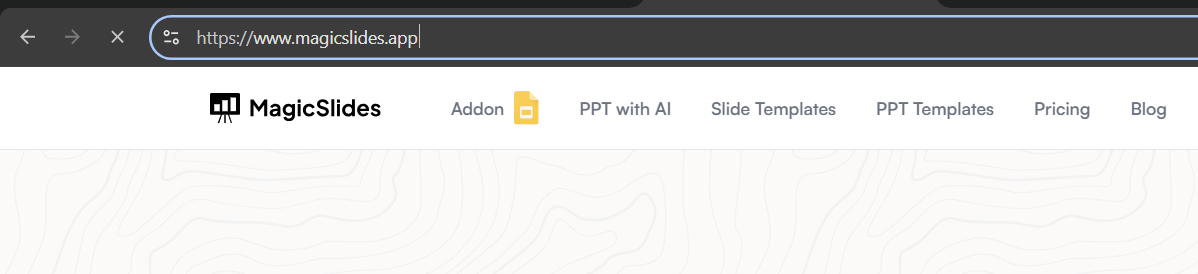
Copy the full URL by selecting it in the browser’s address bar and pressing Ctrl + C (Windows) or Cmd + C (Mac).
Step 2: Use a URL Shortener
Open a URL-shortening service like Bitly, TinyURL, or Rebrandly in your browser.
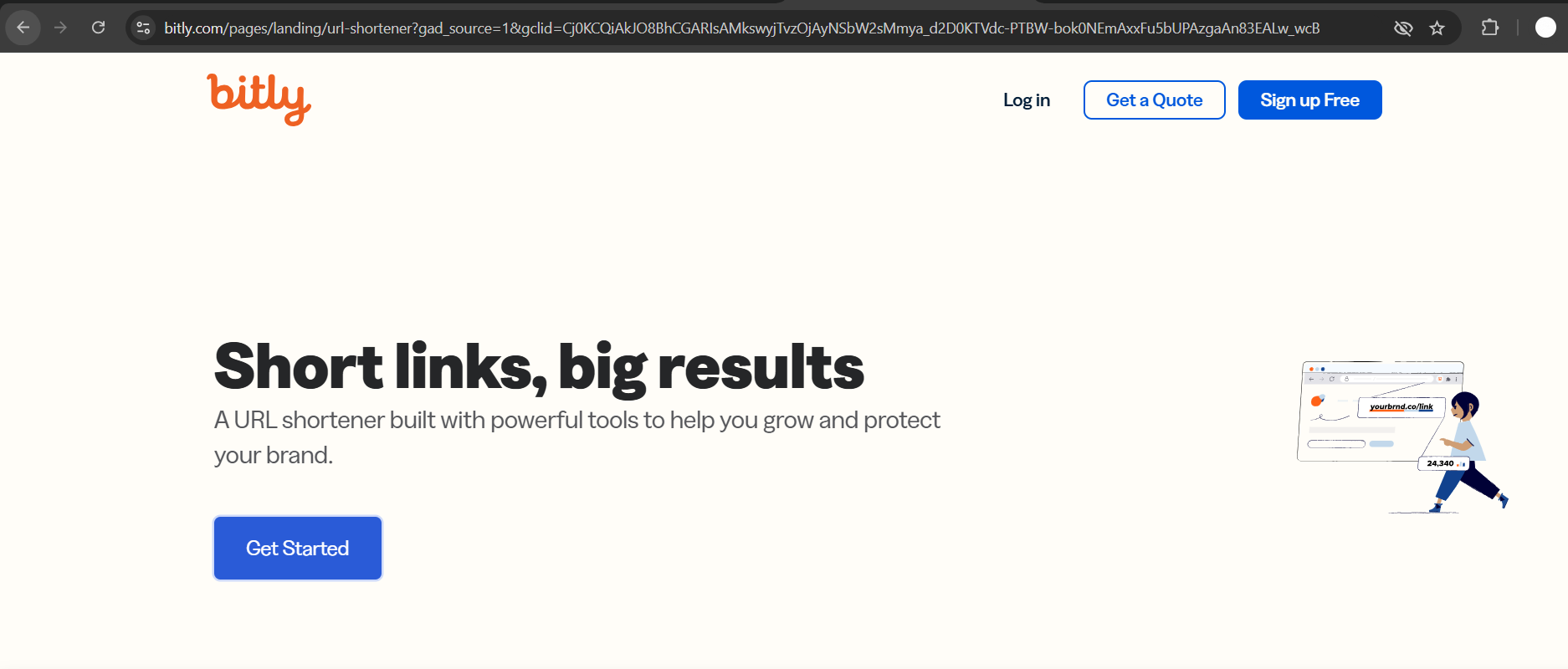
Paste the copied URL into the shortening tool and click Shorten or a similar button.
Copy the newly generated short link for use in PowerPoint.
Step 3: Insert the Link in PowerPoint
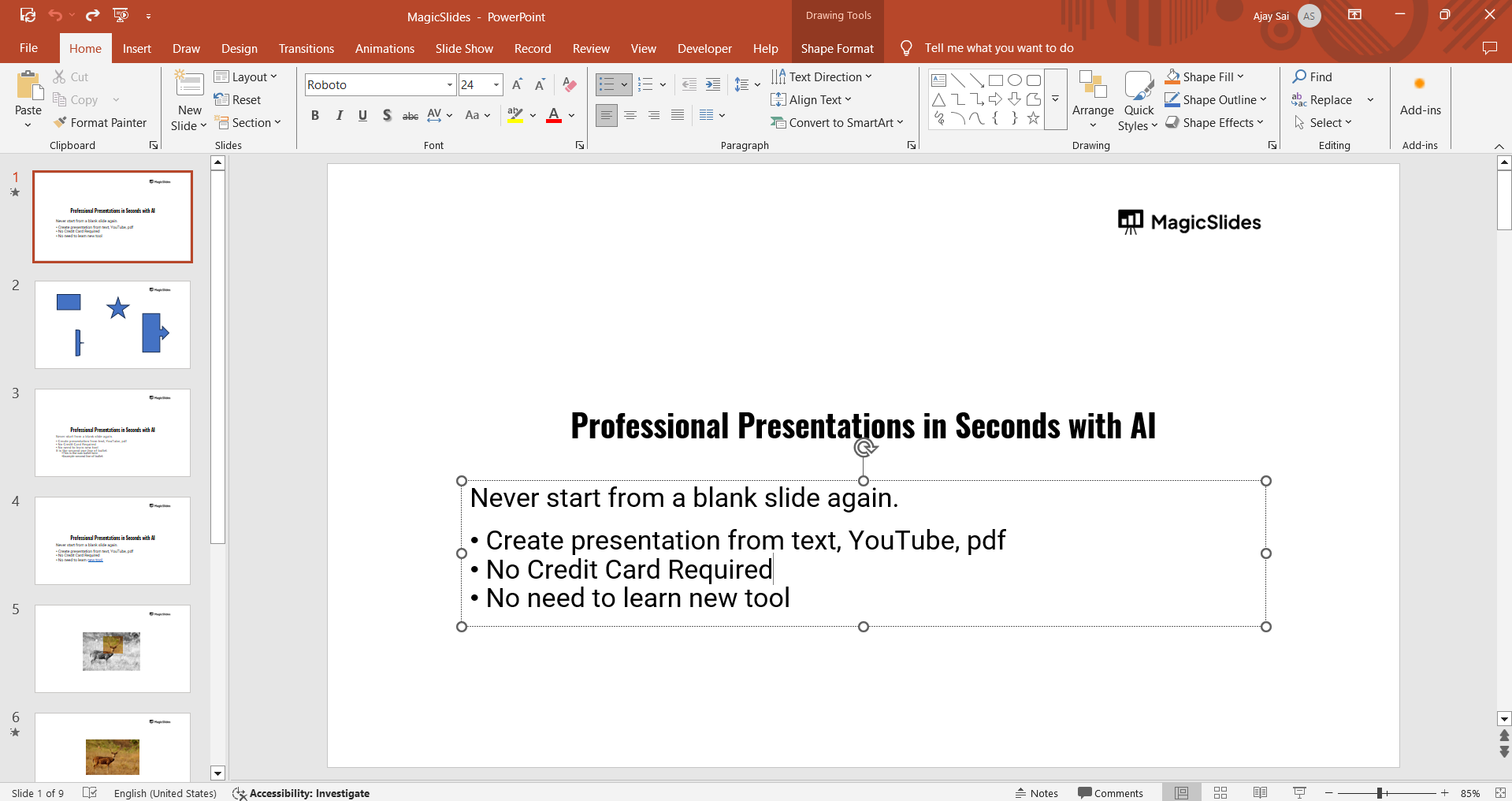
Open your PowerPoint presentation and navigate to the slide where you want to add the link.
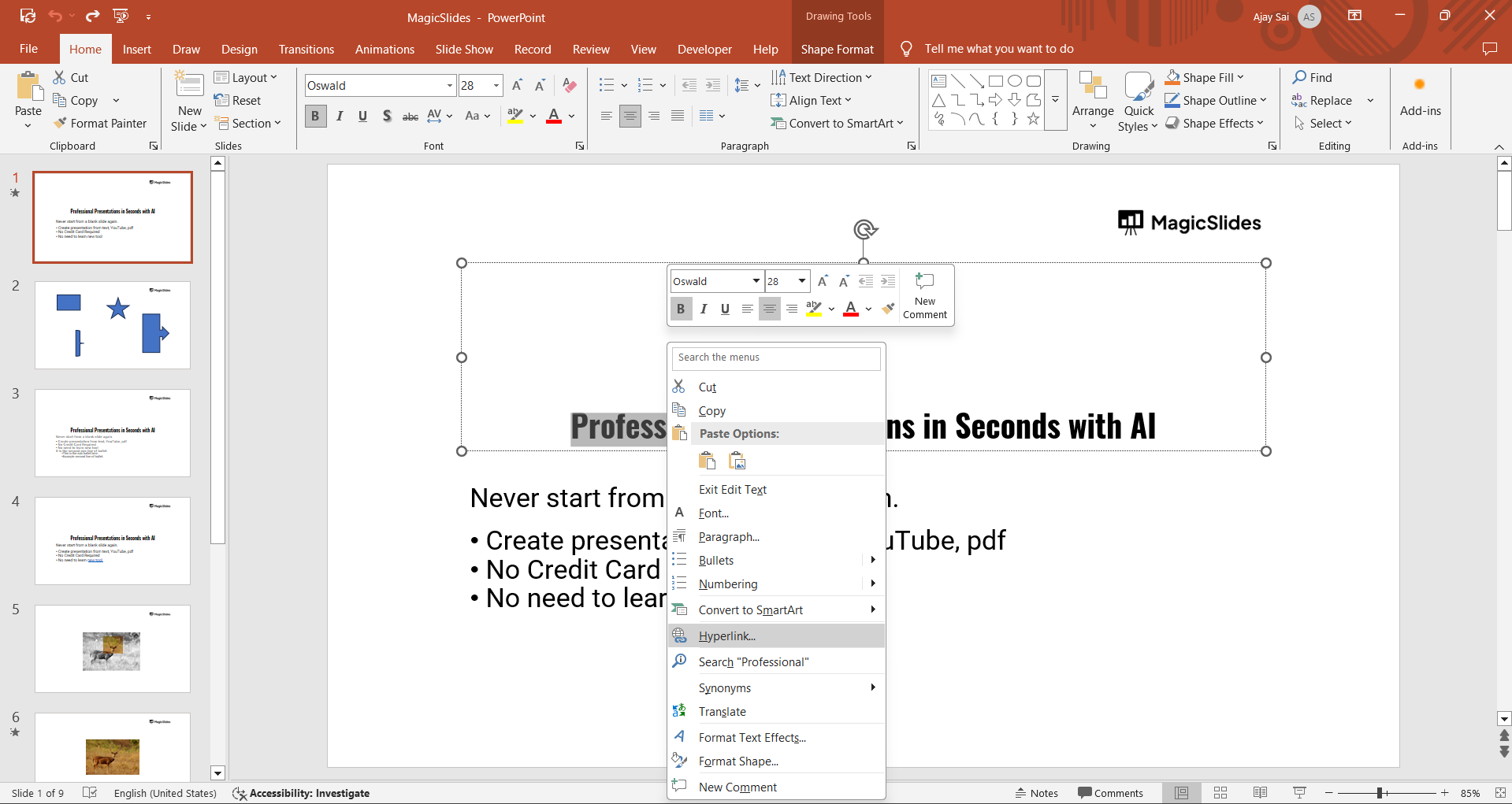
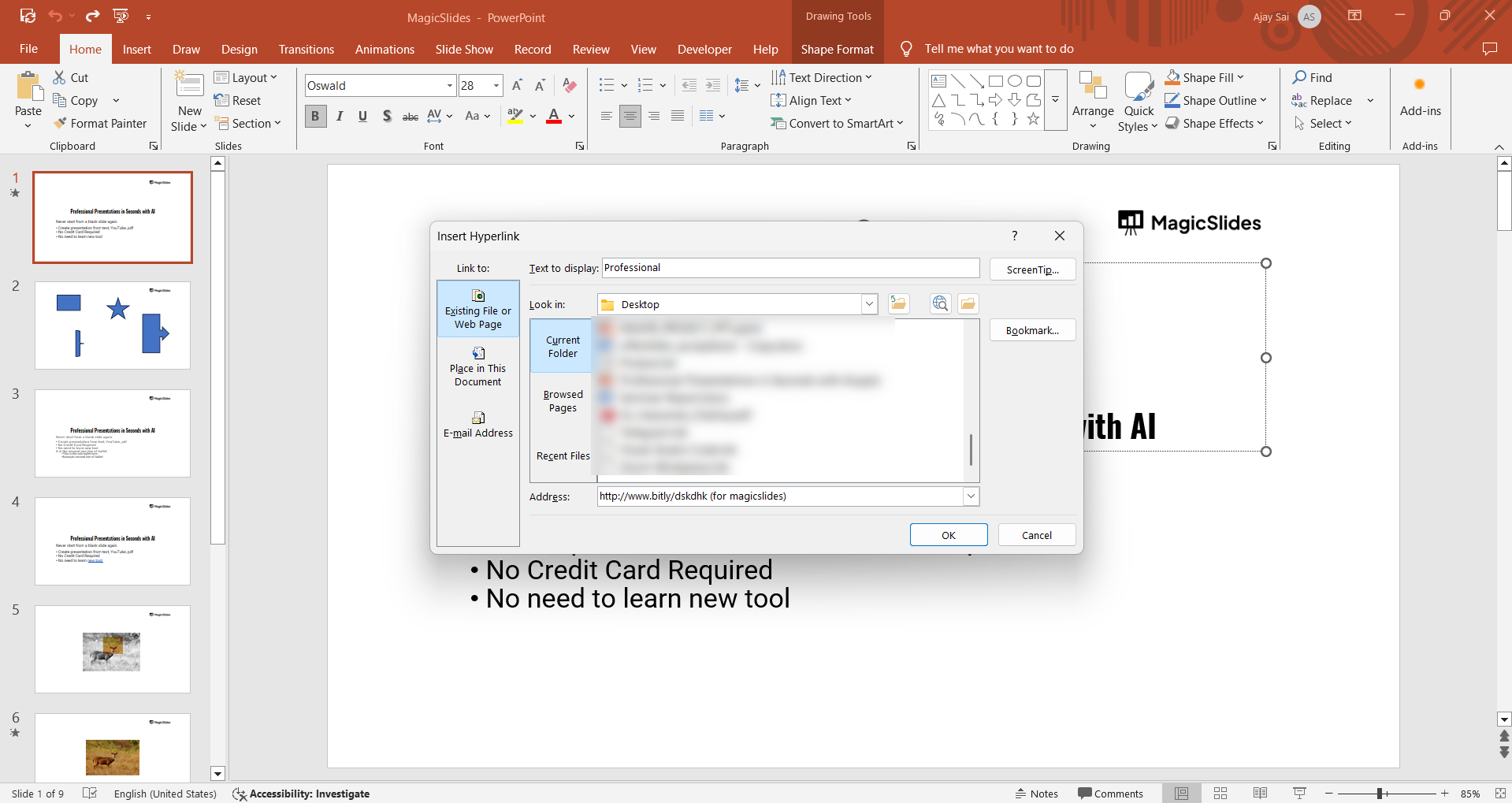
Highlight the text or click on the shape/image you want to link. Right-click and choose “Hyperlink” (or click the Insert tab > Hyperlink).
Step 4: Add the Shortened Link
In the Insert Hyperlink dialog box, paste the shortened URL into the Address field.
Click OK to save the hyperlink.
Step 5: Test the Link
Click on the linked text or shape in the slide to ensure it redirects correctly.
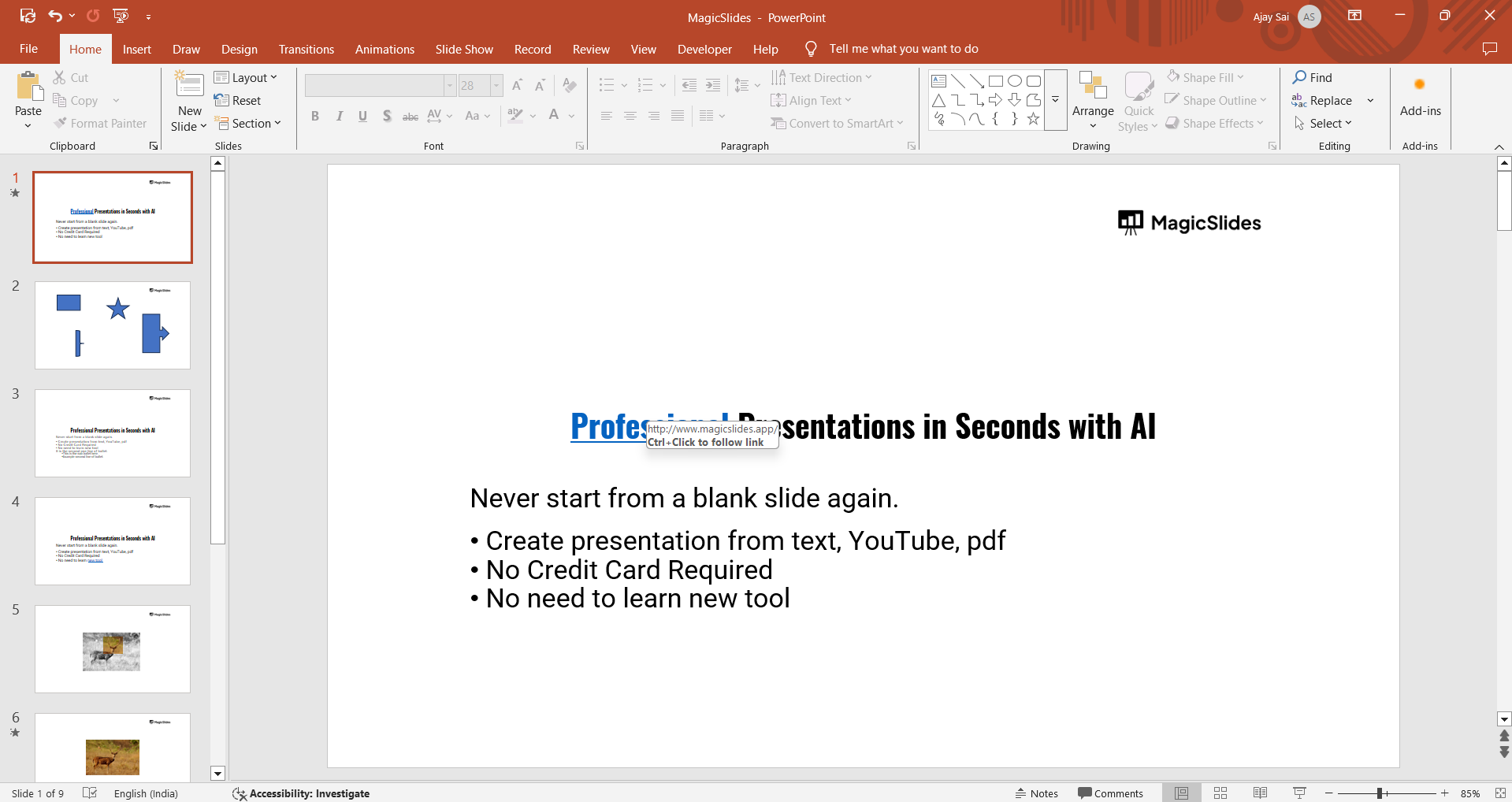
Adjust if necessary to avoid broken links or errors.
Conclusion
Creating small links in PowerPoint enhances the visual appeal and functionality of your presentations.
With a URL shortener and PowerPoint’s hyperlink feature, you can easily share resources while maintaining a clean design. Follow these steps to make your presentations more engaging and user-friendly.
FAQs on Creating Small Links in PowerPoint
Are shortened URLs safe to use in PowerPoint?
Yes, shortened URLs are safe if generated through trusted services like Bitly or TinyURL.
Can I use custom names for my short links?
Many URL-shortening tools allow customization, enabling you to create branded or recognizable links.
Do shortened links expire?
It depends on the service. Some tools, like Bitly, keep links active indefinitely, while others may have limits.
By using shortened links, you can deliver polished and effective PowerPoint presentations with streamlined access to external resources!


