How to Create a Bullet Point + Image Slide with AI (with examples)


Create professional bullet point and image slides in minutes with AI using MagicSlides.app. Follow these simple steps for success.
How to Create a Bullet Point + Image Slide with AI
Creating presentations can be a daunting task, especially when you're pressed for time. Thankfully, AI-powered tools like MagicSlides.app can make this process a breeze. In this post, we’ll walk you through how to create a professional-looking bullet point + image slide in just a few simple steps. Let's dive in!
Why Use AI to Create Slides?
AI tools can help you save time by automating repetitive tasks like formatting, choosing images, and even structuring content. MagicSlides.app is a great option that leverages AI to generate high-quality slides with minimal effort. Whether you're working on a business presentation, an academic project, or a personal portfolio, AI can enhance your workflow.
Step-by-Step Guide to Creating a Bullet Point + Image Slide
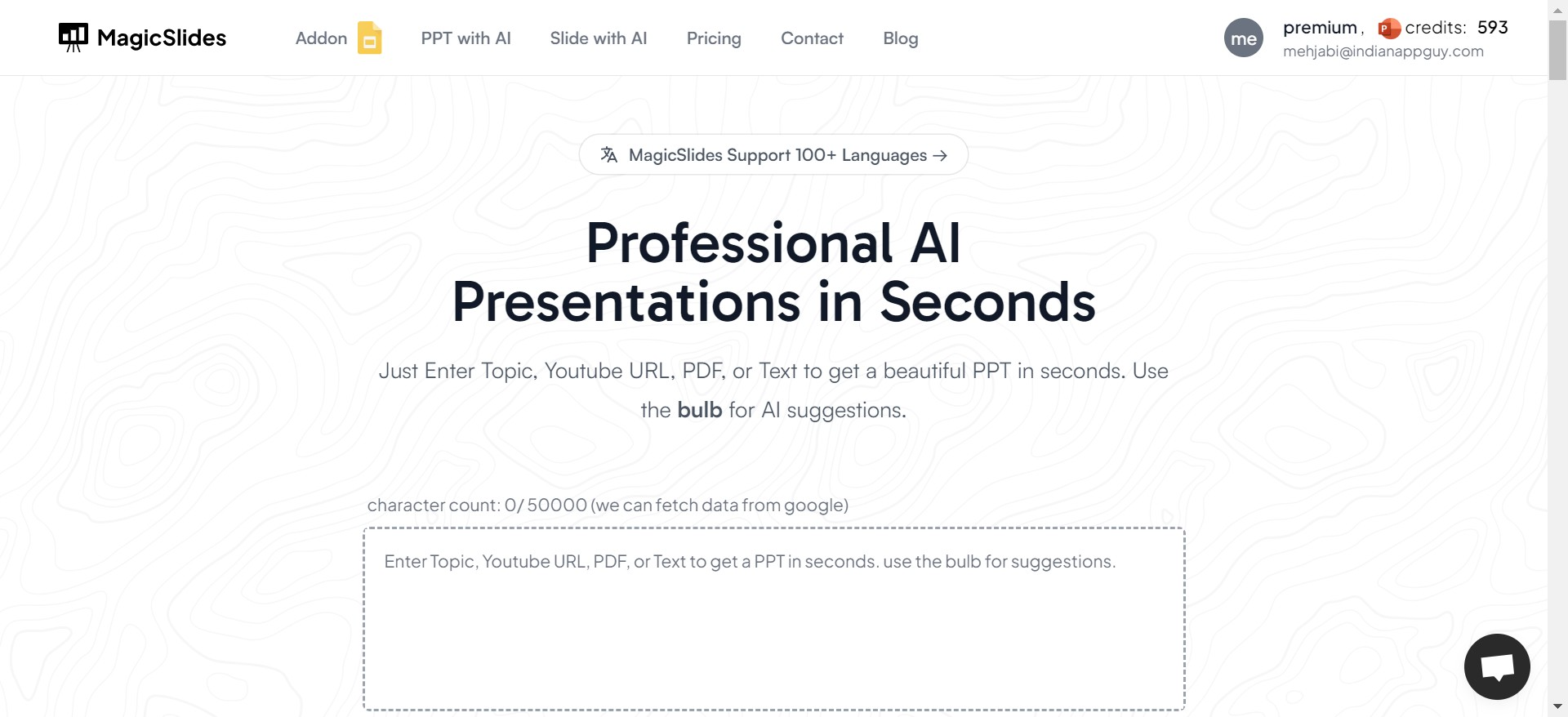
1. Visit MagicSlides.app
First, navigate to MagicSlides.app using your preferred browser.
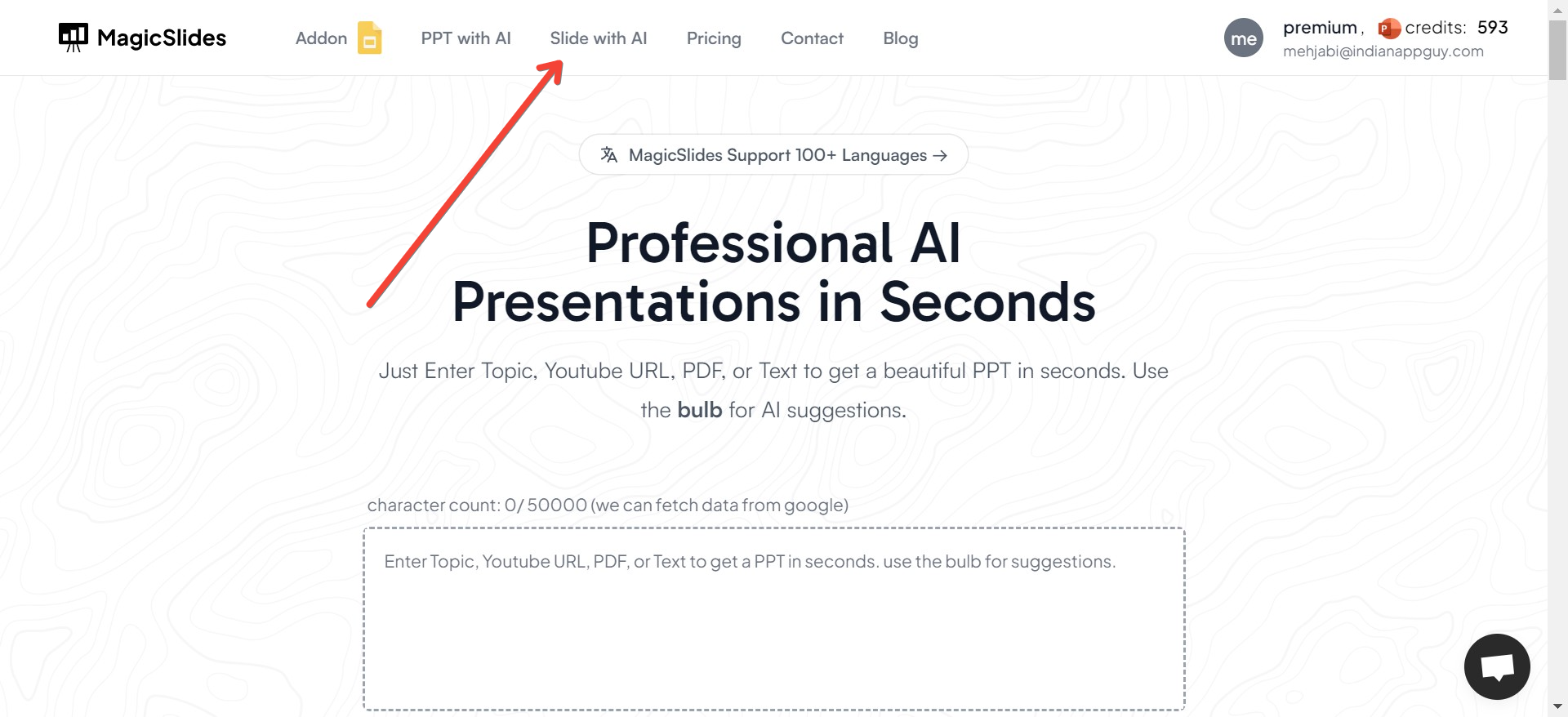
2. Click on "Slide with AI"
Once you’ve reached the MagicSlides homepage, locate the button that says "Slide with AI." Clicking on this will guide you to a new page where you will see different tools that can be used to generate slides with AI.
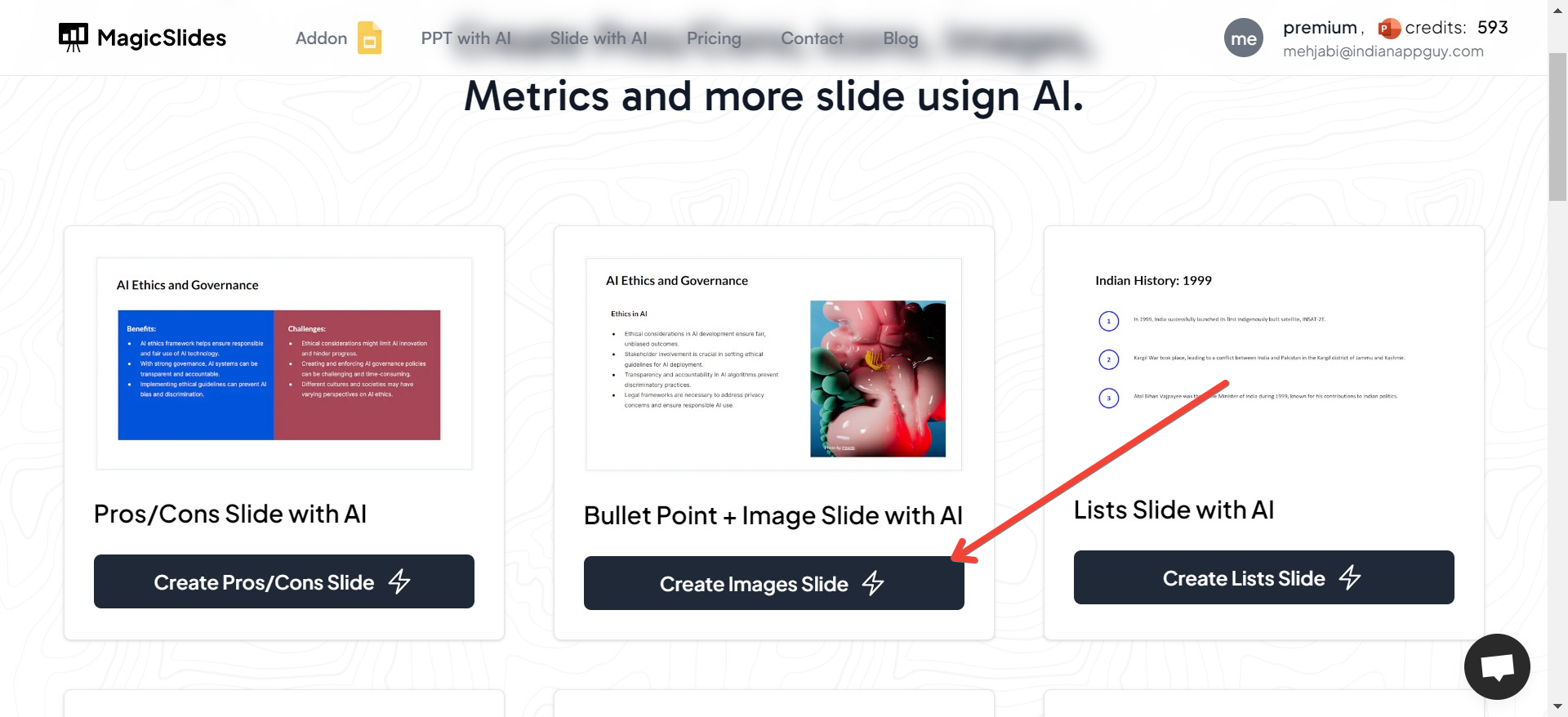
3. Choose "Bullet Point + Image Slide"
After clicking on "Slide with AI," you’ll see several slide options. Look for the "Bullet Point + Image Slide" template and select it.
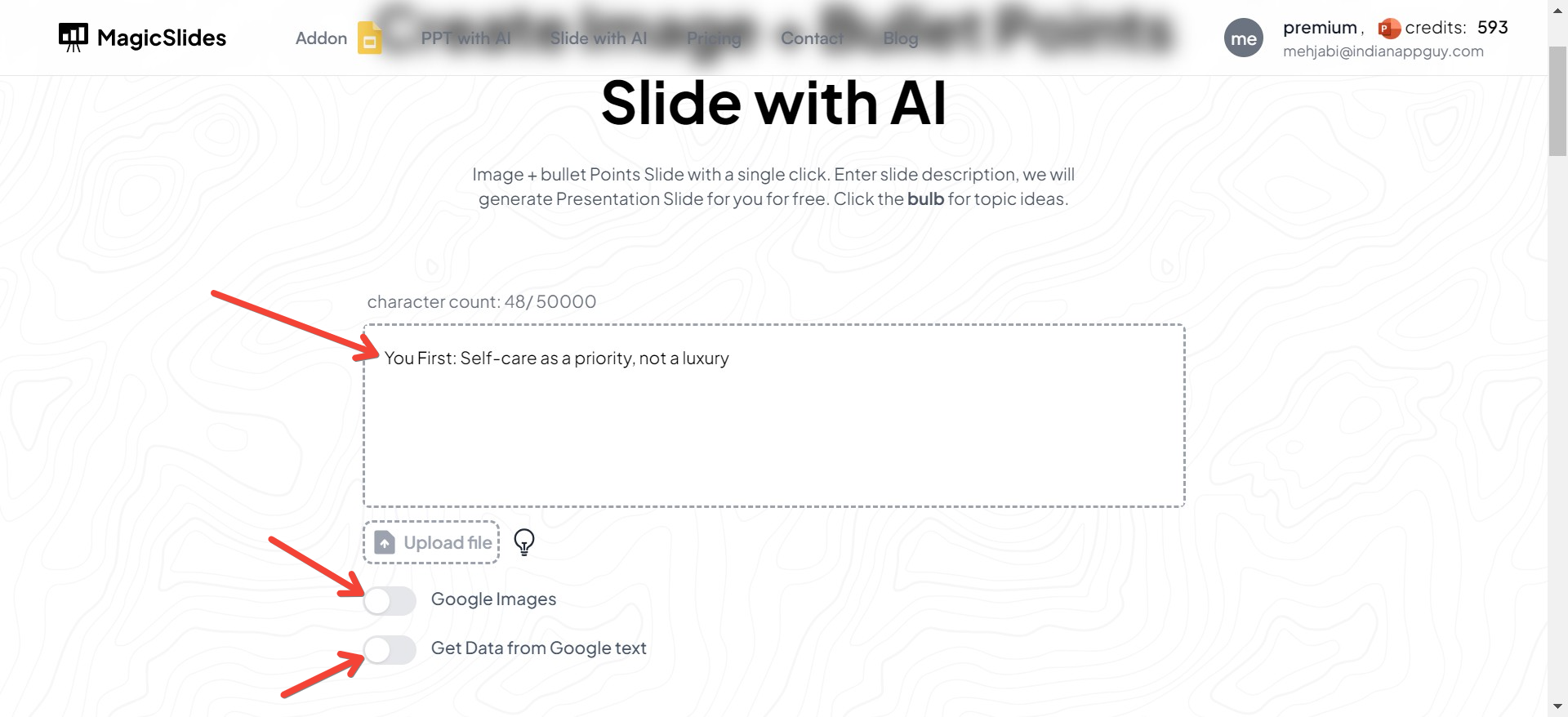
4. Enter Your Topic
In the next step, you’ll be prompted to enter a topic. This is crucial as it helps the AI understand the context of your slide. Whether you're working on a presentation about digital marketing, data analysis, or any other topic, simply type in your key topic or subject.
For example, if your topic is "The Benefits of Remote Work," enter that into the provided field. The AI will then use this information to generate relevant bullet points and suggest images that match the subject.
5. Generate the Slide
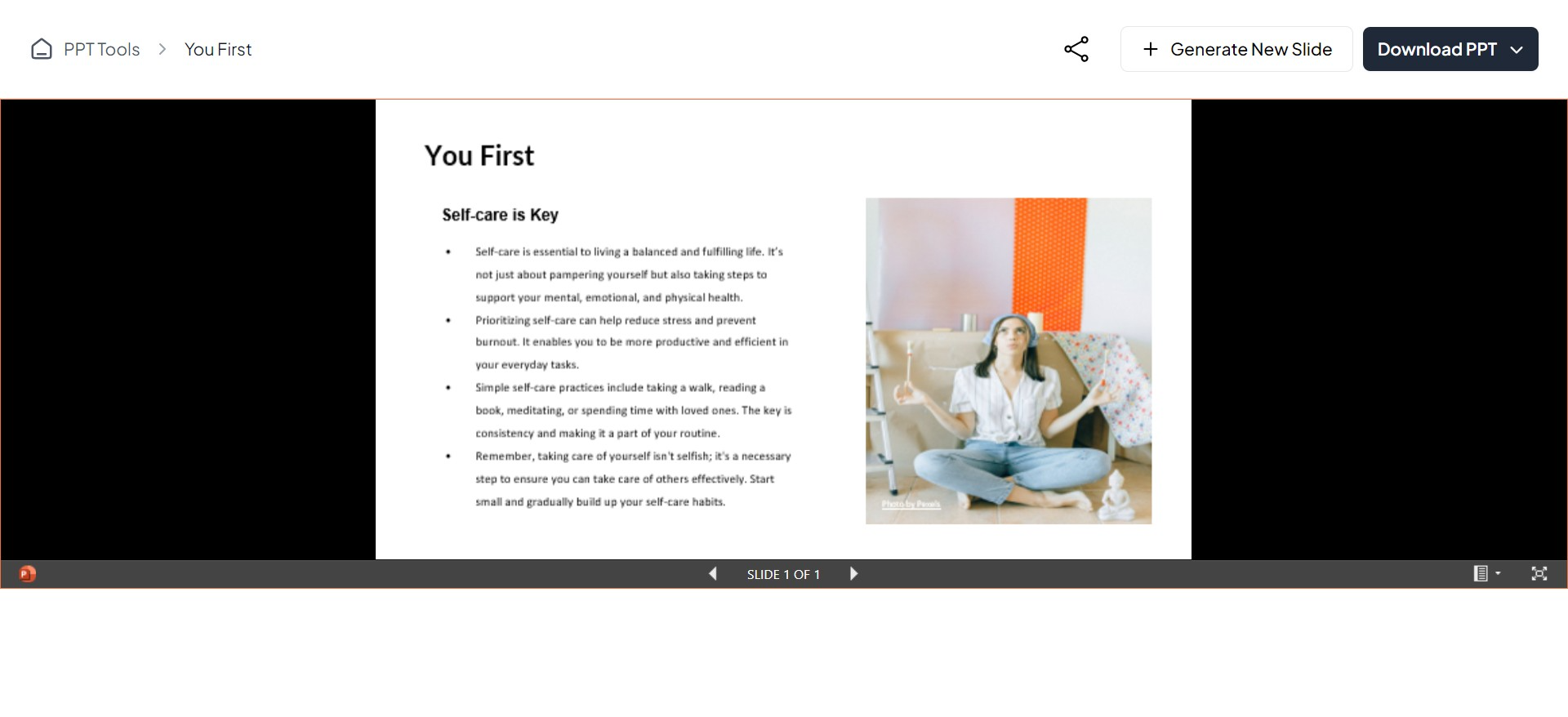
After inputting all your details, simply click "Generate Slide." This is where MagicSlides’ AI gets to work. Within seconds, the tool will create a slide that includes the bullet points you specified, along with a relevant image.
The AI considers the context of your topic and ensures that the bullet points are both concise and informative. It also selects an image that complements the content, making sure your slide is visually appealing.
6. Review Your Slide
Once your slide is generated, it’s time to review it. The bullet points will already be neatly formatted, and the image will be placed in alignment with your chosen layout. You can make minor edits if necessary, such as tweaking the text or changing the image. MagicSlides also offers options to customize font sizes, colors, and styles if you want to further personalize your slide.
Tips for Creating Effective Bullet Point + Image Slides
While AI can help speed up the process, it's still essential to follow some basic design principles to ensure your slides are effective.
- Keep bullet points concise: Avoid long sentences. Instead, aim for clear and short statements that get the message across.
- Choose high-quality images: The image you use should enhance your message, not distract from it. Ensure it’s relevant to your content.
- Balance text and visuals: A good slide has a balance between the text (bullet points) and the image. Don’t overload your slide with too much information or too many visuals.
Final Thoughts
Creating a bullet point + image slide with MagicSlides.app is an easy, fast, and efficient process, thanks to AI-powered technology. This tool is perfect for professionals, students, and anyone looking to make engaging presentations without the hassle. With just a few clicks, you can have a slide that not only looks polished but also conveys your message clearly.
Why not give it a try? Head over to MagicSlides.app and start building your AI-generated slides today!


