How to Create a PowerPoint Month Template That Saves Time


Learn how to create a PowerPoint month template to streamline your workflow. Save time with MagicSlides, an AI-powered tool for instant presentations.
Creating a PowerPoint month template can significantly streamline your workflow, especially if you frequently prepare monthly reports, schedules, or business plans. Instead of starting from scratch every month, a well-designed template saves time, ensures consistency, and enhances the visual appeal of your presentations.
In this blog, we will walk you through the process of creating an effective month-based template in PowerPoint. We will also introduce MagicSlides.app, an AI-powered tool that can generate PowerPoint presentations instantly, helping you save even more time.
Why You Need a PowerPoint Month Template
A PowerPoint month template is useful for:
- Monthly Business Reports – Keep your stakeholders updated with structured reports.
- Marketing Plans – Present campaign strategies, goals, and outcomes.
- Project Management – Track progress with clear timelines and milestones.
- Editorial Calendars – Plan content releases efficiently.
- Financial Reviews – Present revenue, expenses, and projections seamlessly.
By creating a reusable template, you eliminate repetitive formatting work, ensuring a polished and professional presentation every time.
How to Create a PowerPoint Month Template Manually
If you prefer to create your PowerPoint month template manually, follow these steps:
Step 1: Define the Structure of Your Template
Start by identifying the key sections you need. A typical month template may include:
- Cover Slide – Title of the month and presentation date.
- Agenda Slide – Overview of what the presentation will cover.
- Monthly Summary – Highlights of achievements, goals, or tasks completed.
- Graphs and Charts – Visual representation of performance metrics.
- Task List and Deadlines – Upcoming projects and important dates.
- Conclusion and Next Steps – Summary and key takeaways.
Step 2: Set Up the Master Slide
The Master Slide in PowerPoint allows you to maintain a consistent look across all slides.
- Open PowerPoint and go to the View tab.
- Click on Slide Master.
- Choose a theme or create a custom design.
- Add placeholders for text, dates, and charts.
- Save your layout as a template (.potx) file.
Step 3: Add Dynamic Elements
To make your template flexible:
- Use SmartArt – Great for creating monthly workflows.
- Insert Editable Charts – Update data without redesigning the slides.
- Use Icons and Infographics – Enhance readability and engagement.
- Add Monthly Calendar Slides – Display important deadlines clearly.
Once your PowerPoint month template is ready, save it as a reusable file.
Faster Alternative: Generate a PowerPoint Month Template Instantly with MagicSlides
If you do not want to spend hours designing a template, MagicSlides.app is a powerful AI-based tool that can generate custom PowerPoint presentations in seconds.
How to Use MagicSlides.app
- Visit MagicSlides.app
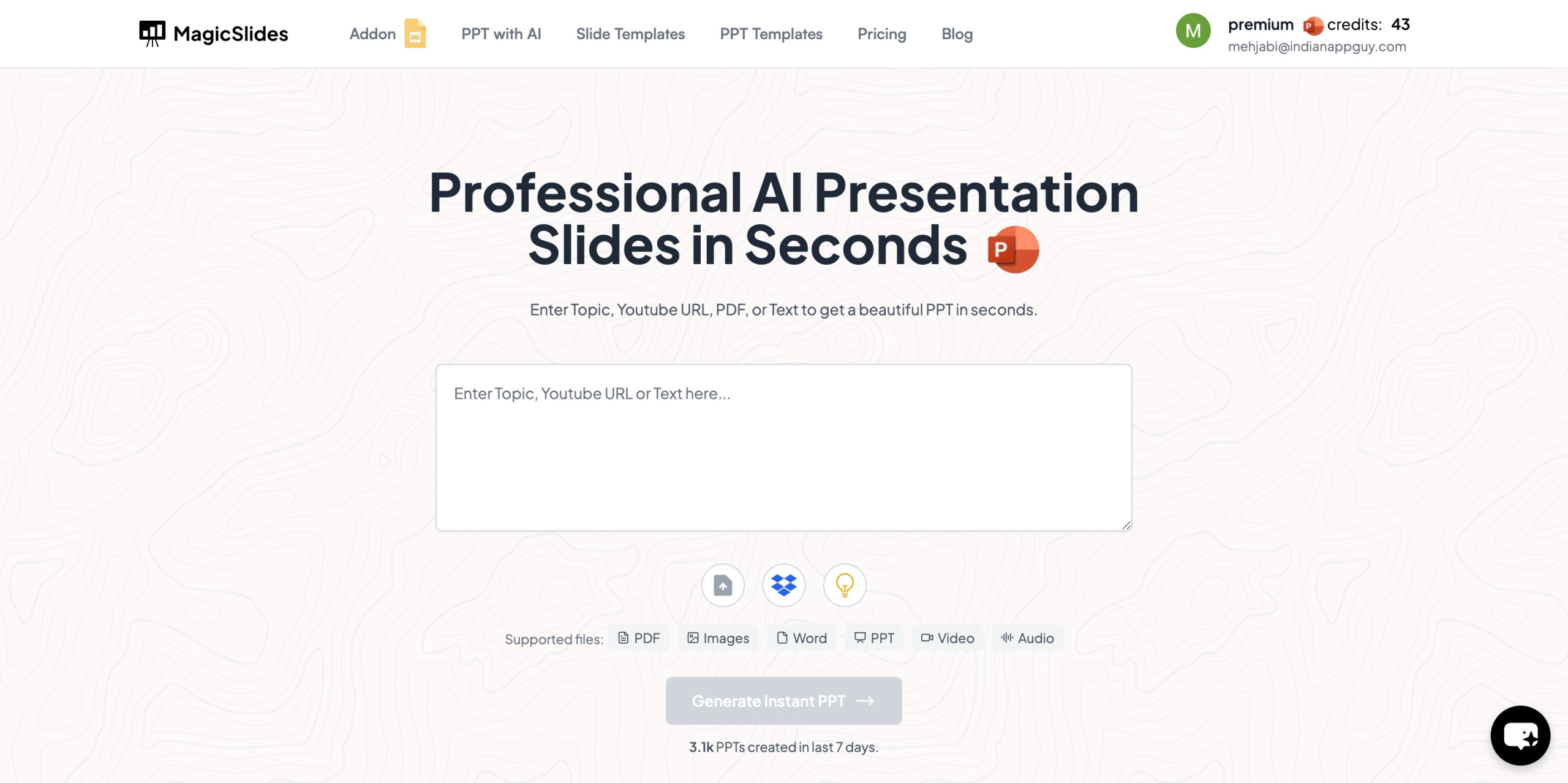
- Enter Your Topic – Type in the presentation title (e.g., "March Monthly Report").
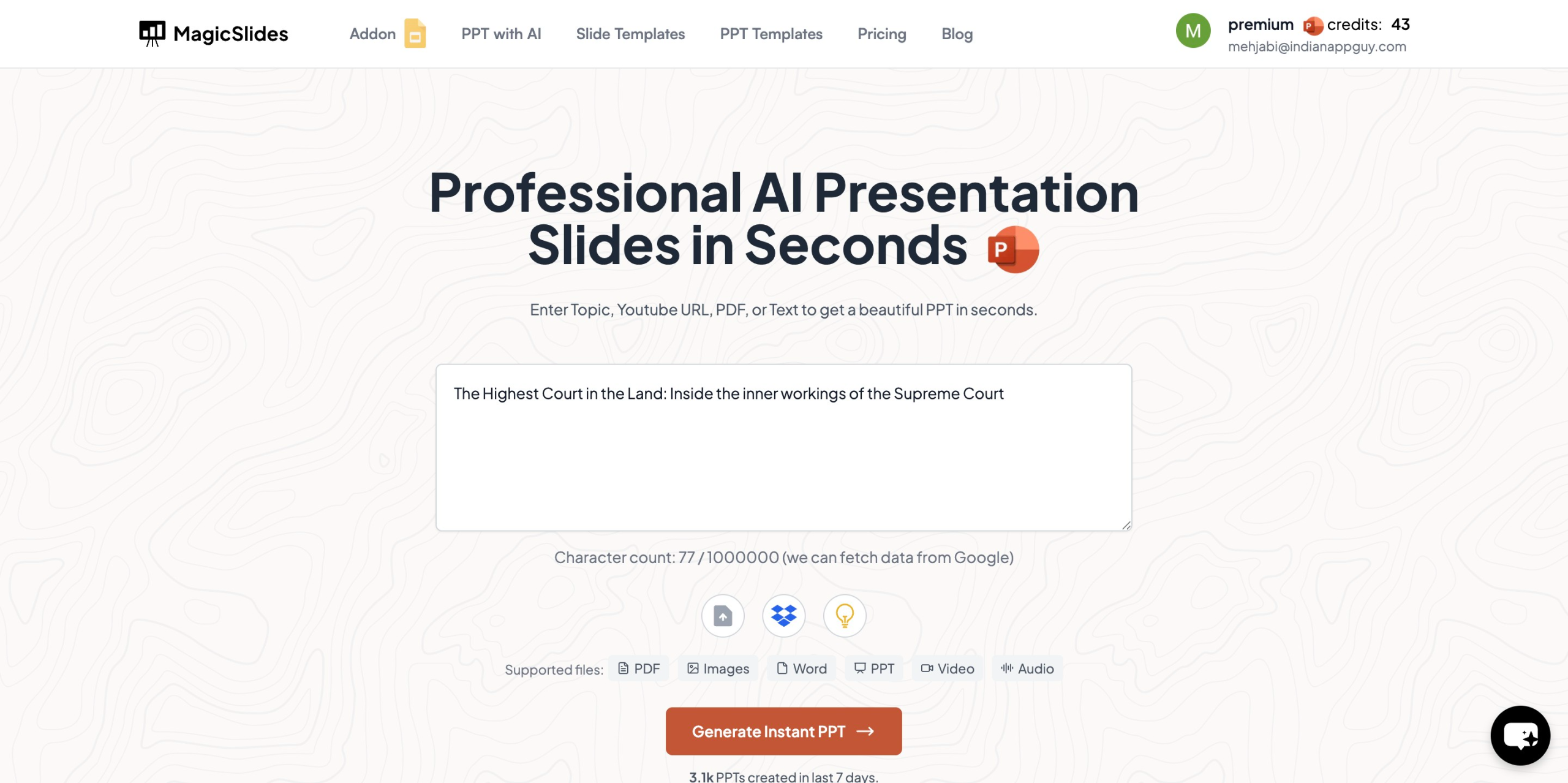
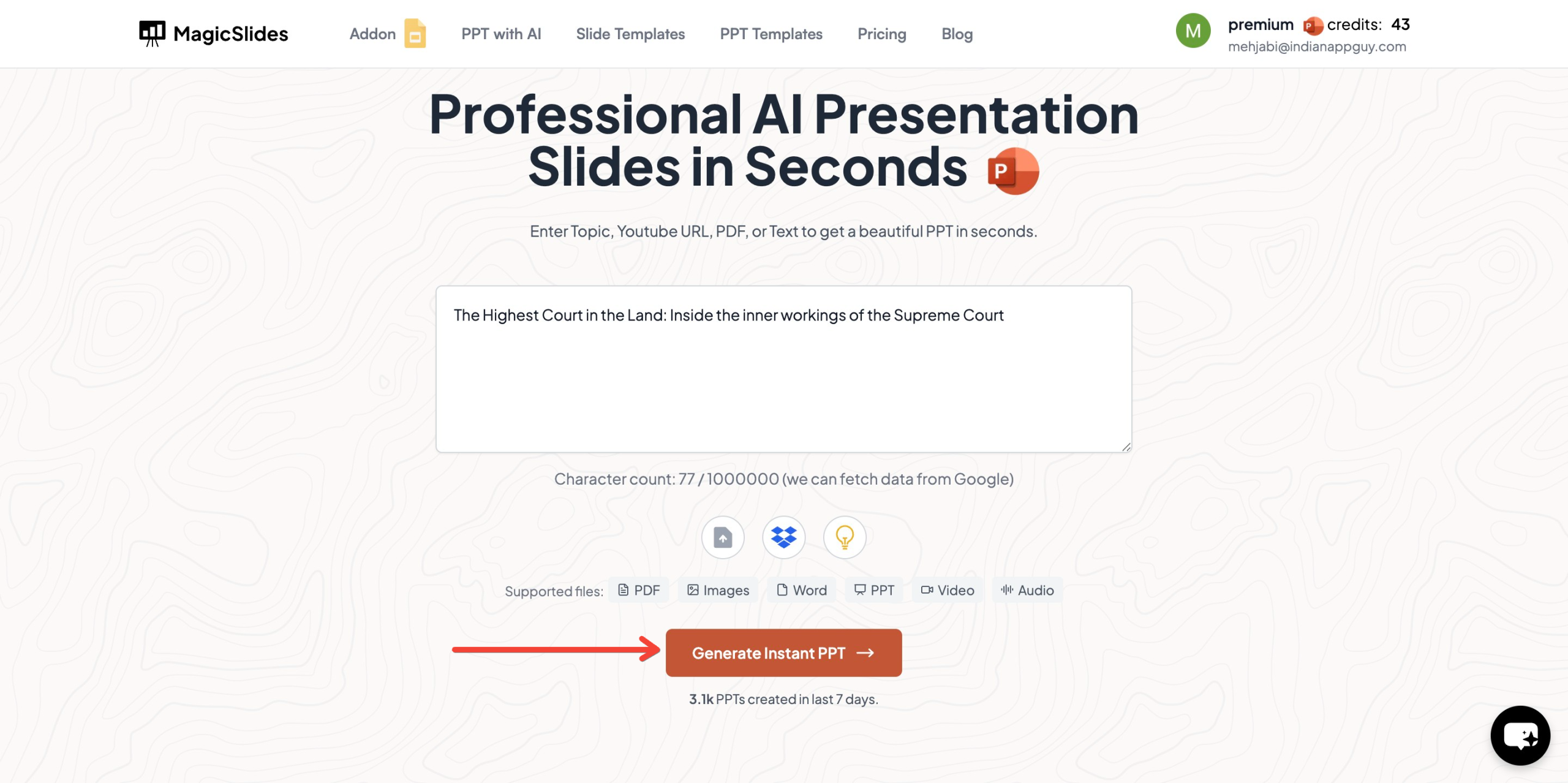
- Click "Generate Instant PPT" – The AI will create slides instantly.
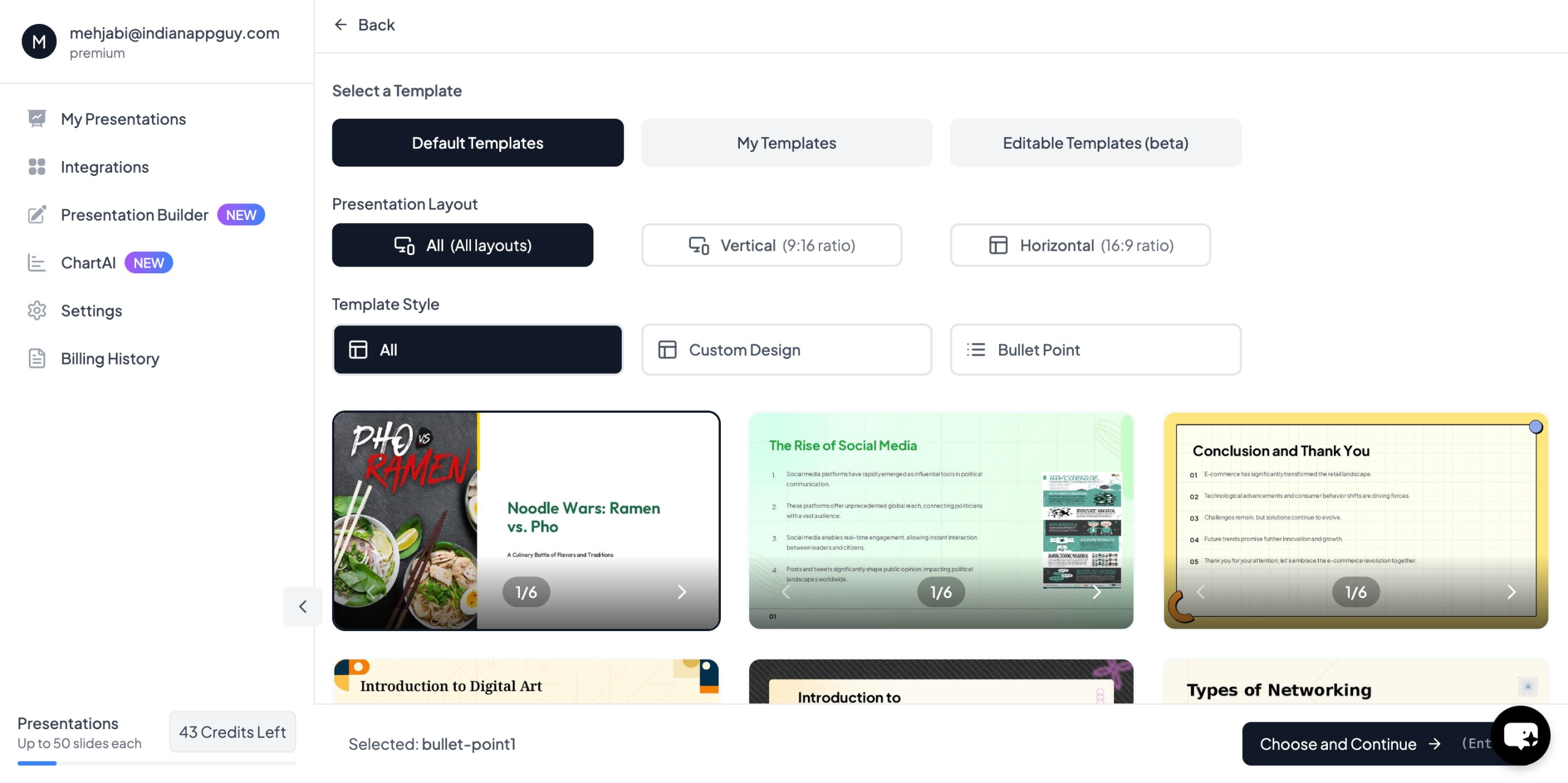
- Choose Your Template and Number of Slides – Customize based on your needs.
- Fill in the Required Details – Adjust slide content as needed.
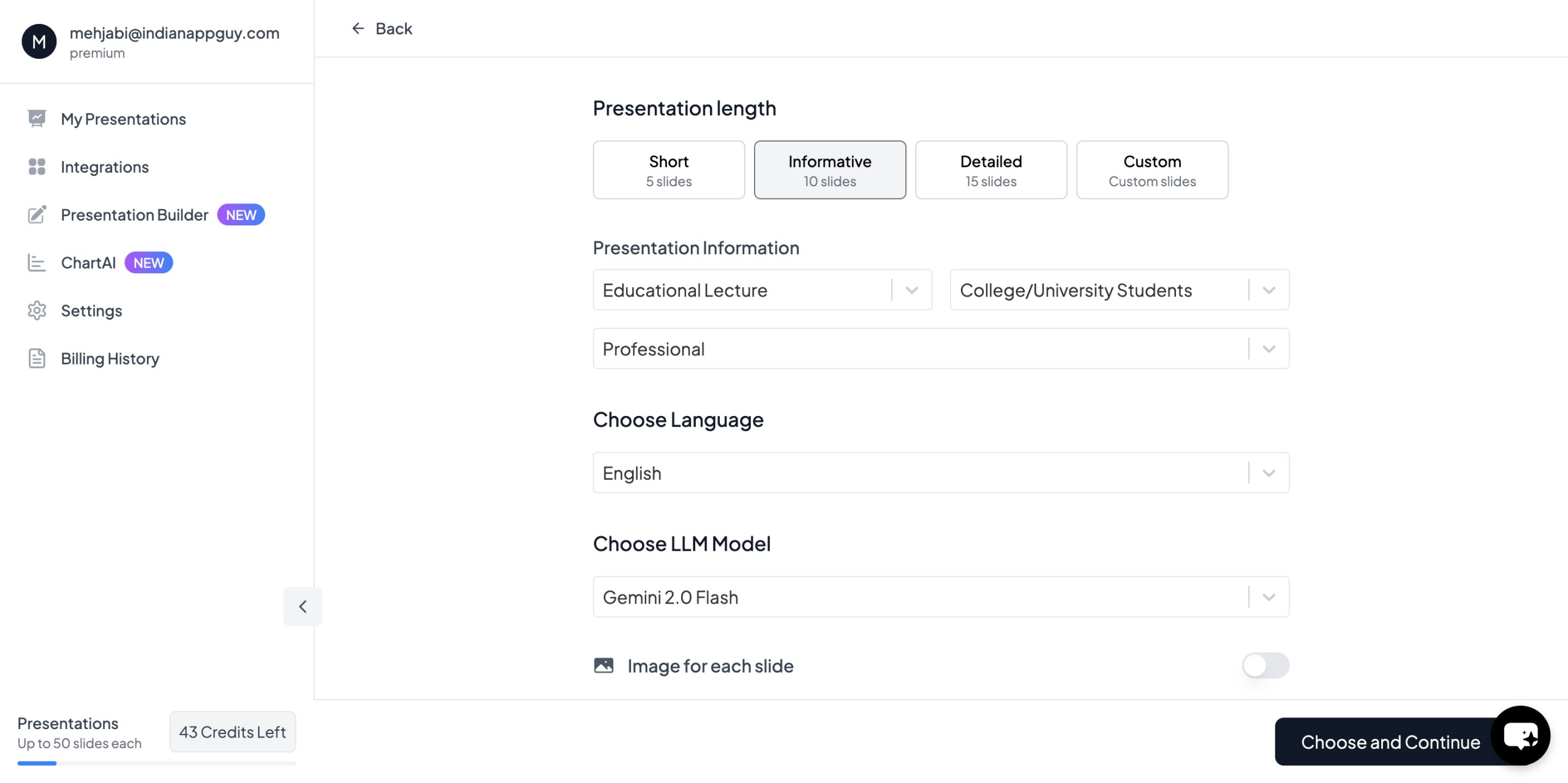
- Click "Start Generation" – Your PowerPoint presentation is ready.
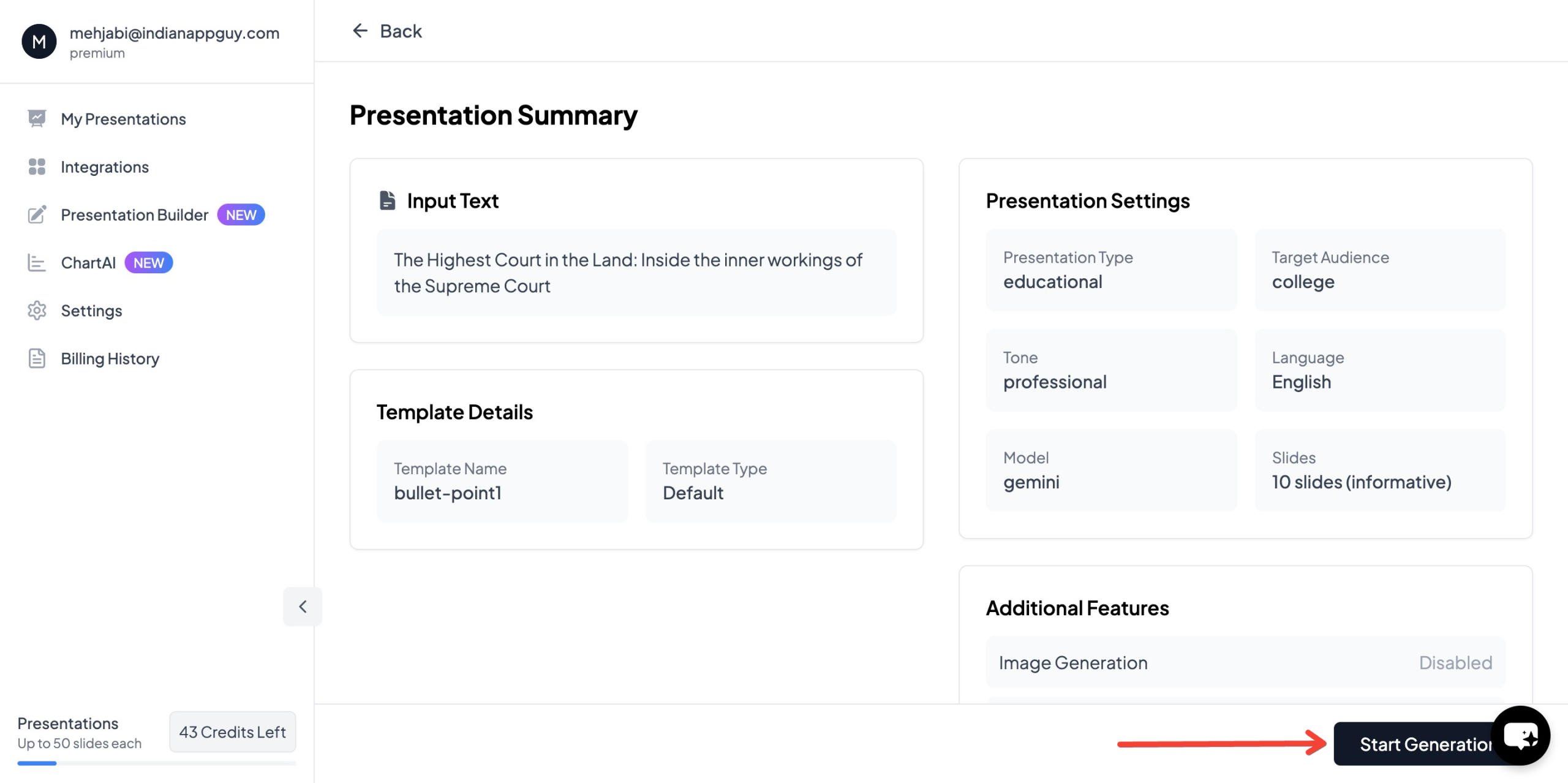
With MagicSlides, you no longer need to manually design templates or format slides, saving you hours of work.
MagicSlides Pricing Plans
MagicSlides offers different pricing plans based on your requirements:
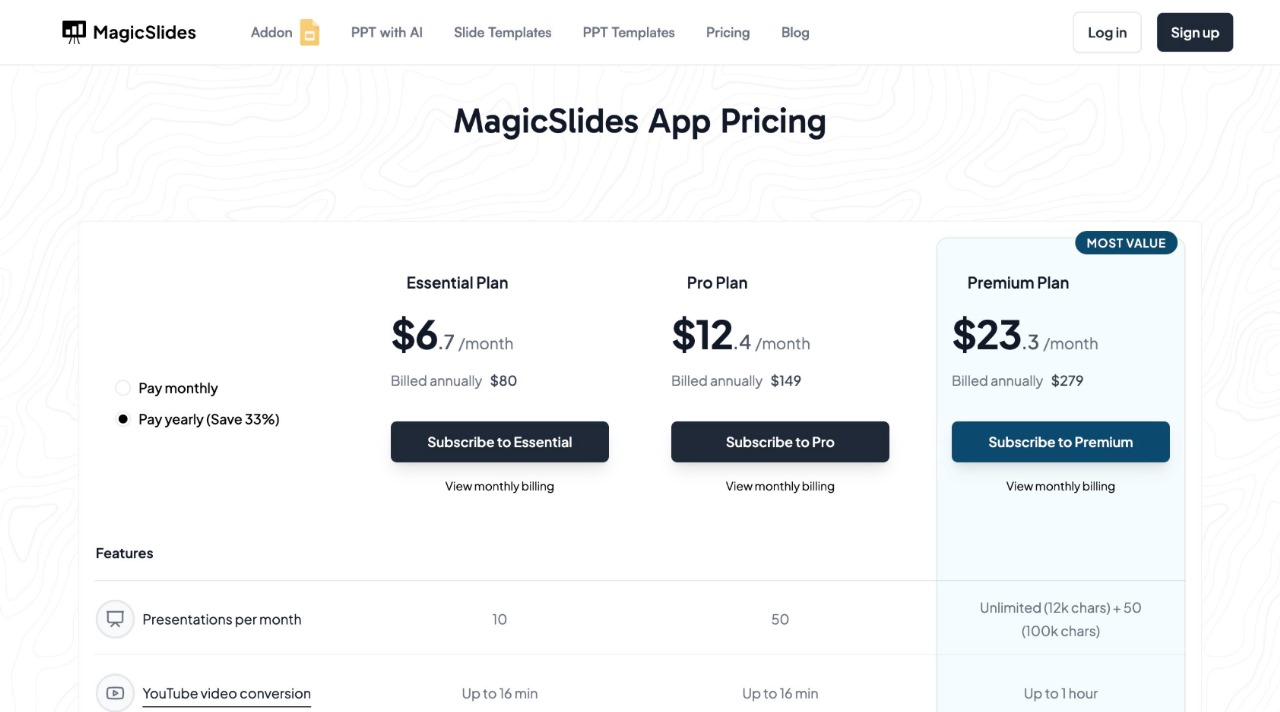
Essential Plan – $6.7/month (Billed annually: $80)
- 10 presentations per month
- Up to 10 slides per presentation
- 12,000 character input limit
- Convert YouTube videos (up to 16 minutes)
- Convert PDFs (up to 5 pages)
- Includes images and data from Google and Wikipedia
Pro Plan – $12.4/month (Billed annually: $149)
- 50 presentations per month
- Up to 15 slides per presentation
- 12,000 character input limit
- Convert YouTube videos (up to 16 minutes)
- Convert PDFs (up to 5 pages)
- AI-generated images included
- Access to GPT for ChatGPT, Figma Plugin, Zapier Integration, and more
Premium Plan – Custom Pricing
- Unlimited presentations (up to 50 slides each)
- 100,000 character input limit
- Convert YouTube videos (up to 1 hour)
- Convert PDFs (up to 20 pages)
- Includes AI-generated images, support for over 100 languages, and AskPPT chat functionality
If you are unsure which plan suits your needs, you can use the MagicSlides Plan Calculator to compare features and pricing.
Conclusion
A PowerPoint month template is a valuable tool for creating professional and consistent presentations every month. You can either design a custom template manually in PowerPoint or save time by using MagicSlides.app, an AI-powered tool that generates high-quality slides in seconds.
If you frequently prepare monthly reports, business updates, or financial reviews, investing in an efficient solution like MagicSlides can help you stay productive and focus on delivering impactful presentations. Visit MagicSlides.app today to explore its features and pricing plans.


