How to Create PowerPoint Slides from Textual Project Plans Efficiently


Learn efficient PowerPoint slide creation from textual project plans. Elevate your presentations with practical tips for a polished and impactful outcome.
In the fast-paced world of project management, effective communication is key. Transforming textual project plans into engaging presentations is a skill that can significantly enhance collaboration and understanding among team members. In this blog post, we'll guide you through the process of efficiently creating PowerPoint slides from textual project plans using the powerful MagicSlides extension for Google Slides.
How to Create PowerPoint Slides from Textual Project Plans Efficiently
Before diving into the steps, let's start with the basics. To get started, open Google Slides and create a blank presentation. If you don't have a Google account, sign up to access the full suite of Google Workspace tools.
Step 1: Accessing MagicSlides
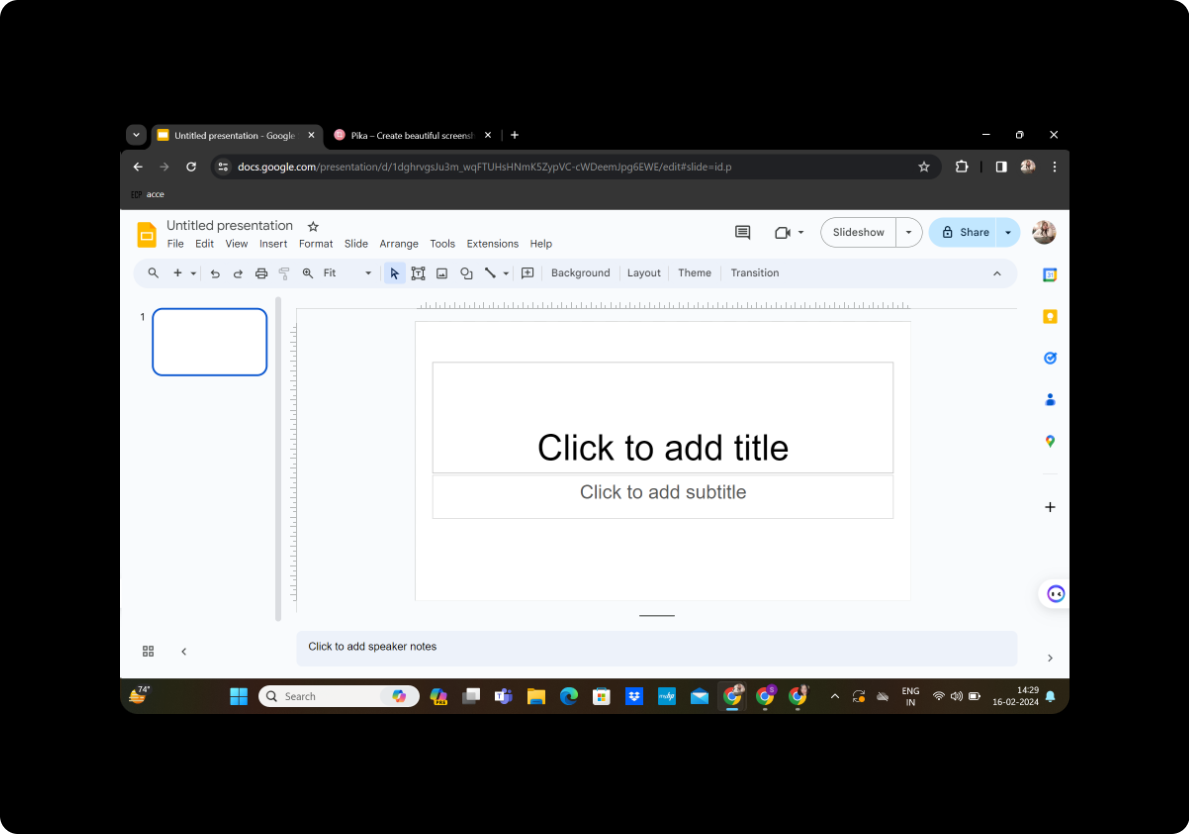
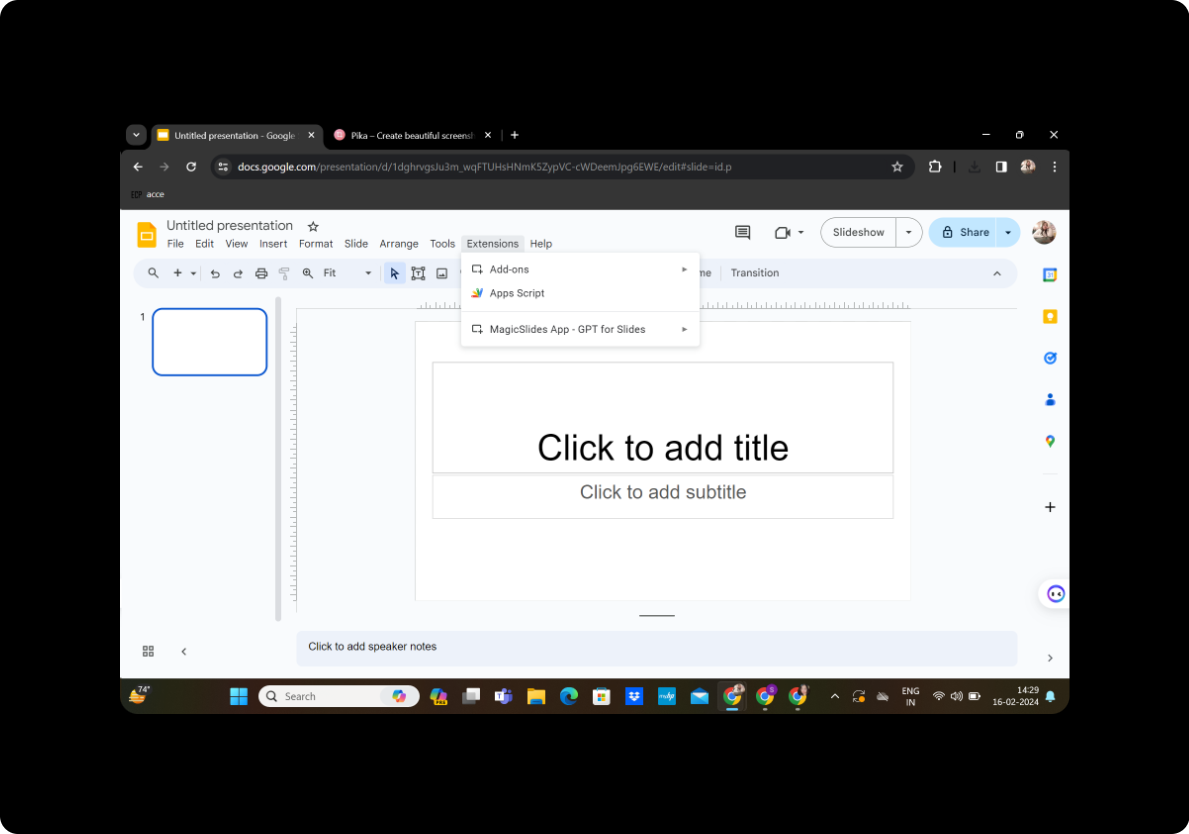
Click on the "Extensions" menu in Google Slides and select "MagicSlides GPT." This innovative extension seamlessly integrates with Google Slides, providing you with advanced capabilities to transform text into captivating presentations.
Step 2: Initiating the Process
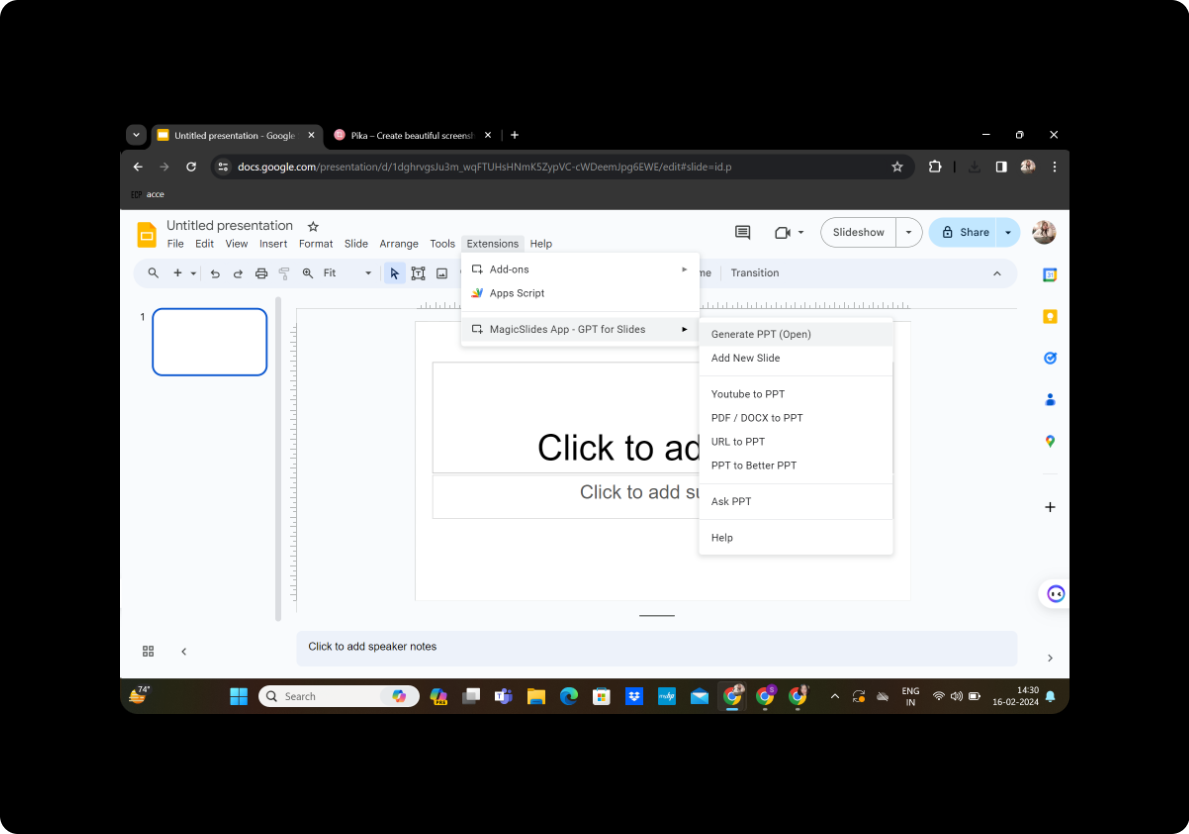
Once MagicSlides is open, click on "Generate PPT" to kickstart the conversion process. This feature leverages GPT technology to understand and interpret your textual project plans.
Step 3: Title and Text Input
In the provided space, enter the title and text content of your project plan. Be concise and clear to ensure the AI accurately captures the essence of your plan.
Step 4: Generating Outline
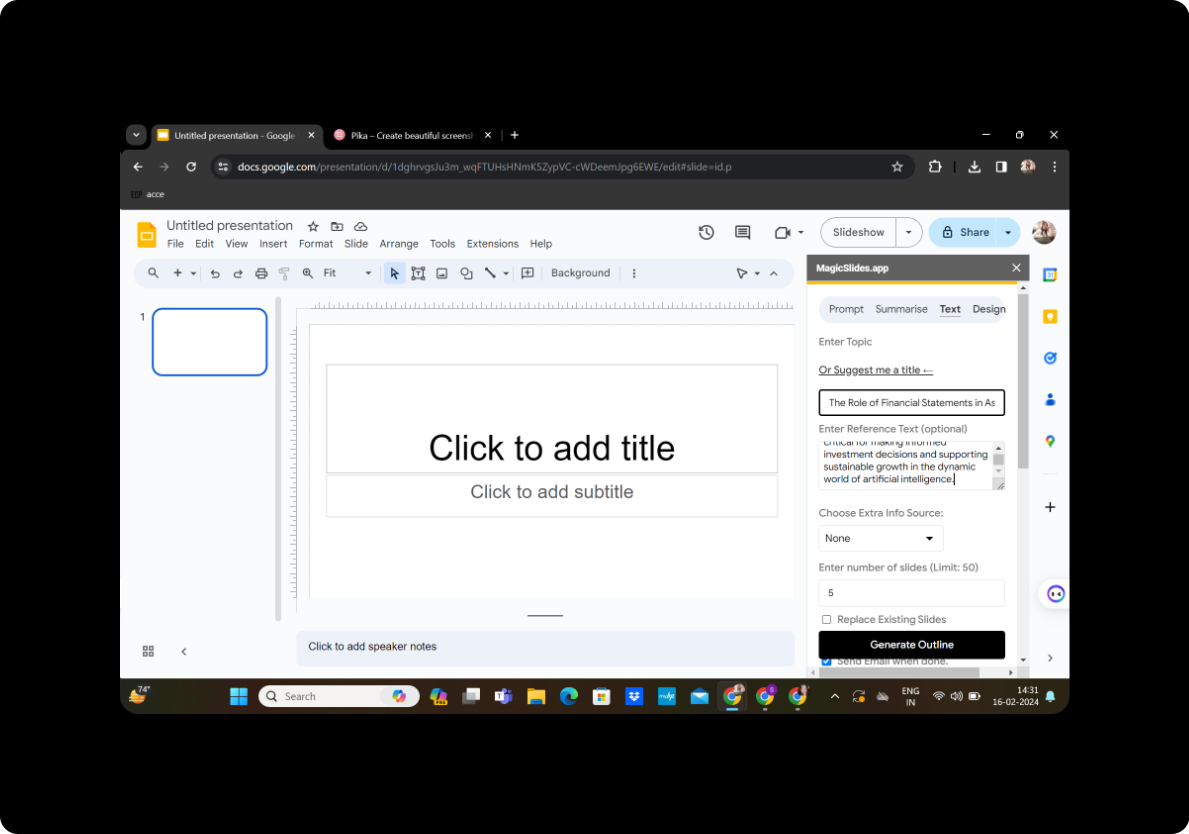
Click on "Generate Outline" to allow MagicSlides to analyze your input and create a preliminary outline for your PowerPoint presentation. This step is crucial for organizing your project plan into a structured and visually appealing format.
Step 5: Slide Customization
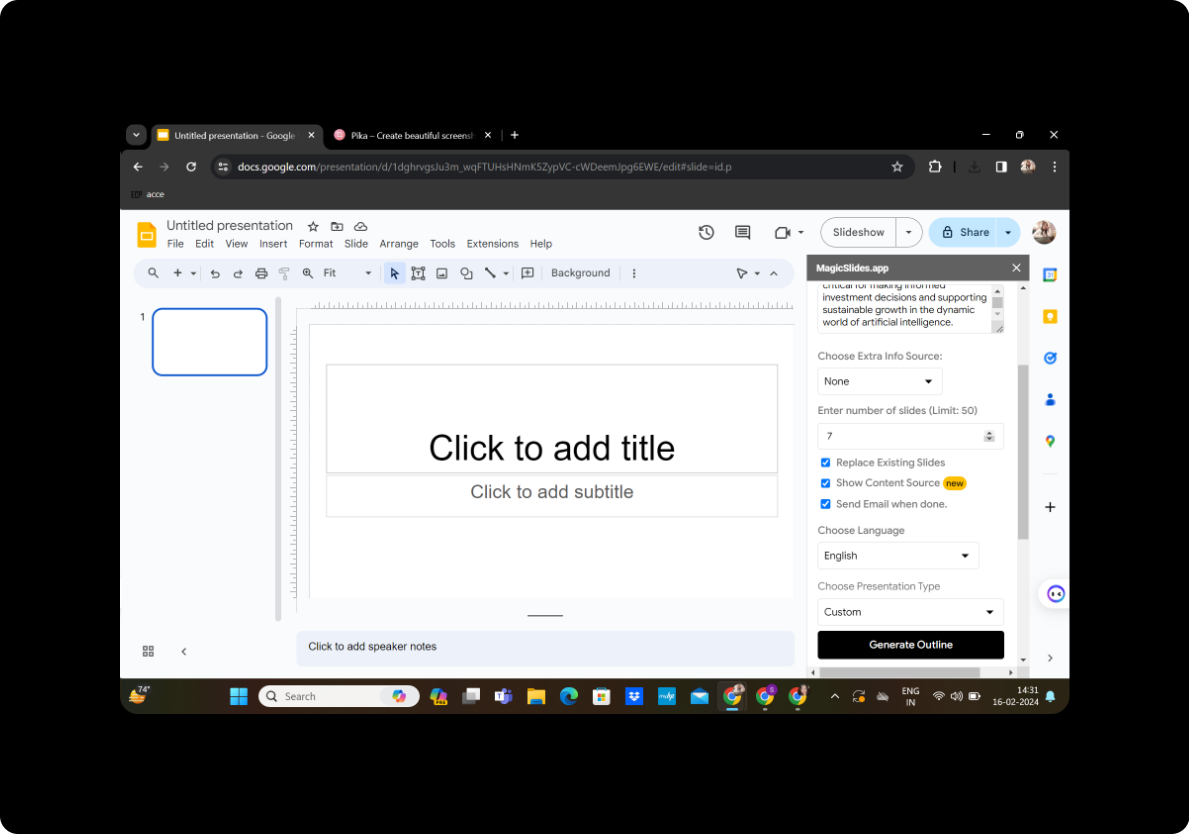
Select the number of slides you desire and customize the layout according to your preferences. MagicSlides offers flexibility in tailoring the presentation to match your unique communication style.
Step 6: Finalizing the Presentation
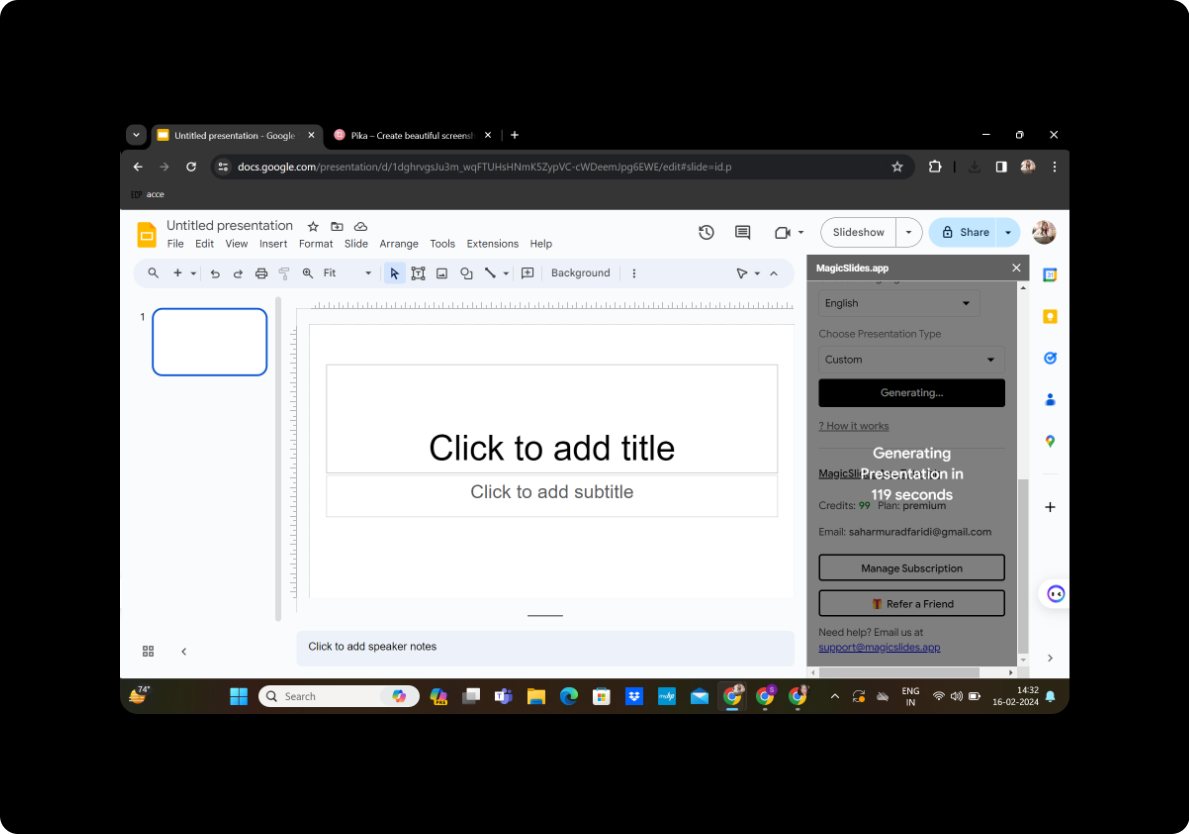
Once satisfied with the generated outline, click on "Generate Presentation." MagicSlides will use its advanced algorithms to convert your textual project plan into a polished and professional PowerPoint presentation.
Step 7: Your Presentation is Ready
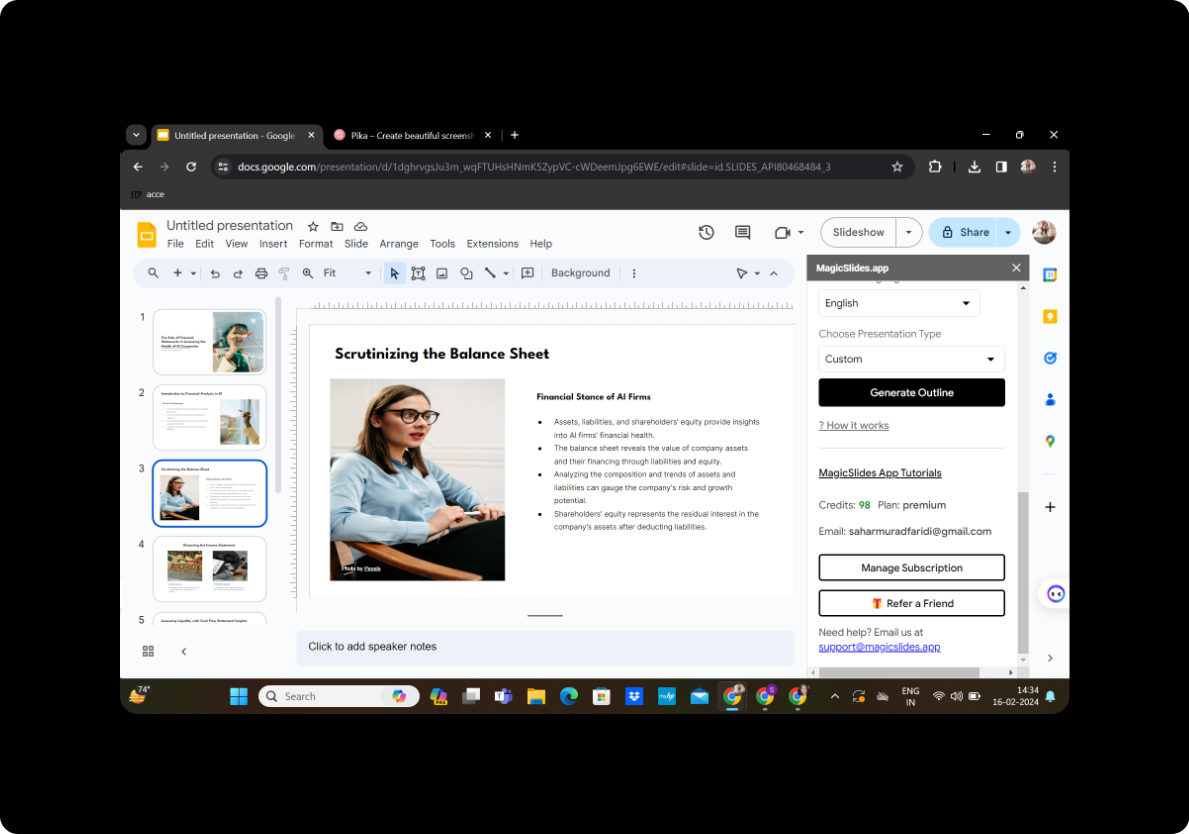
Congratulations! Your presentation is now ready for review, sharing, or presenting to your team. Save your work, and you're good to go.
Conclusion
Creating PowerPoint slides from textual project plans doesn't have to be a cumbersome task. With the aid of MagicSlides, the process becomes not only efficient but also enjoyable. The seamless integration of AI technology with Google Slides empowers project managers and team leaders to communicate their ideas effectively.
FAQs
How accurate is MagicSlides in generating presentations?
MagicSlides employs advanced GPT technology to ensure accurate interpretation and representation of textual content, resulting in high-quality presentations.
Can I edit the generated slides?
Absolutely! MagicSlides provides editing features, allowing you to refine and customize the presentation to meet your specific needs.
Is MagicSlides compatible with other presentation tools?
As of now, MagicSlides is optimized for Google Slides, offering a smooth and integrated experience within the platform.
What if I want to add visuals to my presentation?
MagicSlides supports the integration of images and other visual elements to enhance the overall appeal of your slides.
How can I share my presentation with my team?
Once your presentation is ready, simply save it and use Google Slides' sharing options to collaborate with your team effortlessly.
In conclusion, MagicSlides simplifies the process of turning textual project plans into engaging presentations, fostering clearer communication and collaboration within your team. Try it out and experience the transformative power of AI in your project management efforts!


