Addon google slides iconPPT with AISlide TemplatesPPT TemplatesPricingBlog
    PPT with AISlide TemplatesPPT TemplatesPricingBlog
    1. Home
    2. Blog
    3. How to delete ai on snapchat

    How to delete ai on snapchat

    magicslides app

    Published By

    magicslides app
    Mohit Kumar Jha

    Approved By

    Mohit Kumar Jha

    Published On

    July 23th, 2024

    Reading Time

    3 min read

    We might often get annoyed by the ai feature on snapchat, here let’s see how to delete ai on snapchat


    Snapchat, the popular social media platform known for its unique features and engaging experiences, constantly evolves to keep users entertained. One such feature is "My AI," which offers personalized content and interactions. While My AI can be fun and engaging, there may come a time when you wish to remove it from your chat list for various reasons. In this blog post, we'll explore in detail how you can remove My AI from your Snapchat.
    Step 1: Open the Snapchat App To begin the process of removing 'My AI' from your Snapchat chat, you need to open the Snapchat app on your mobile device. Snapchat is available for both Android and iOS devices. Once you've launched the app, you'll be greeted with the camera view, which is Snapchat's default starting point.
    notion image
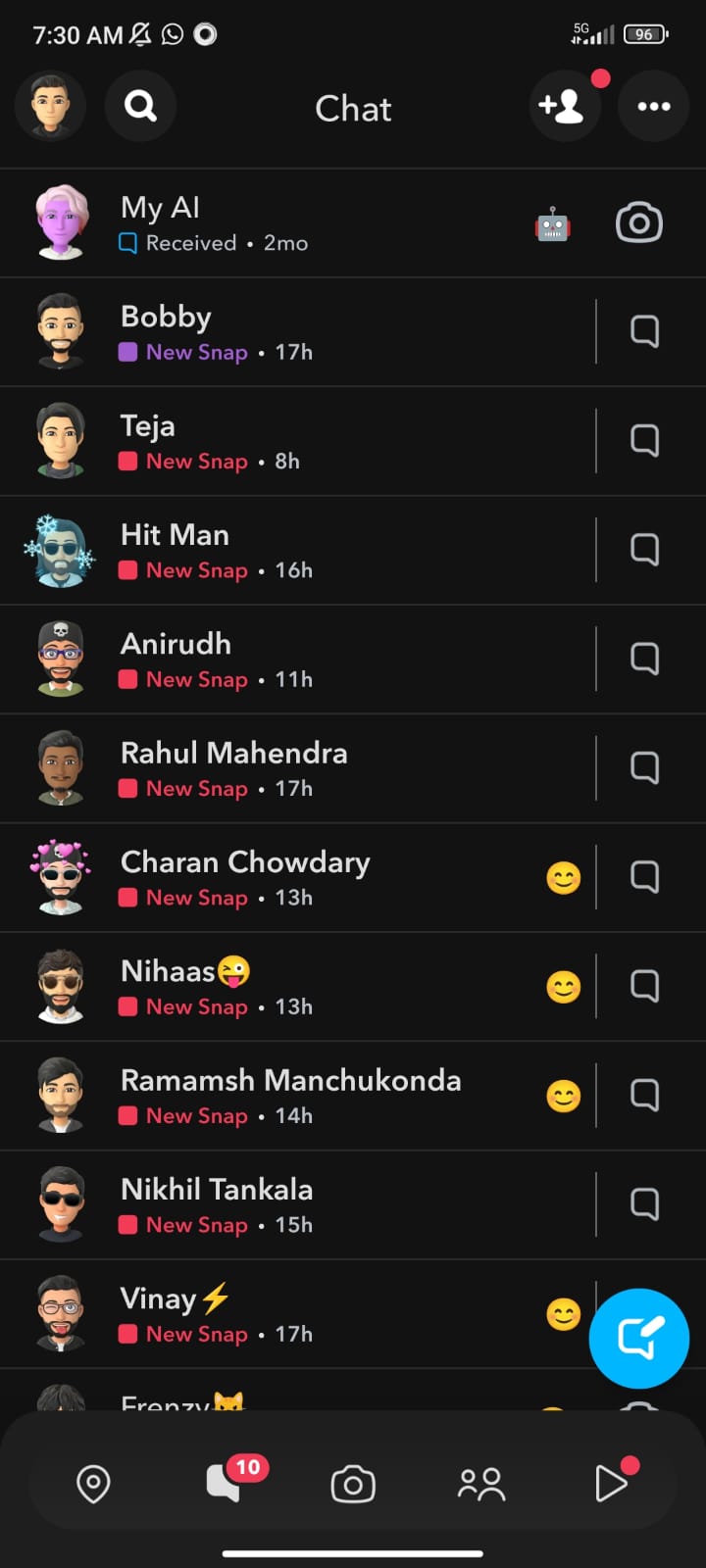
    Step 2: Locate the 'My AI' Chat To locate the 'My AI' chat, swipe right from the camera view or tap on the chat icon located at the bottom left corner of the screen. This action will take you to the 'Chat' section, where you can see a list of your ongoing conversations and chats. 'My AI' should be listed among your chats, but it might not always be at the top.
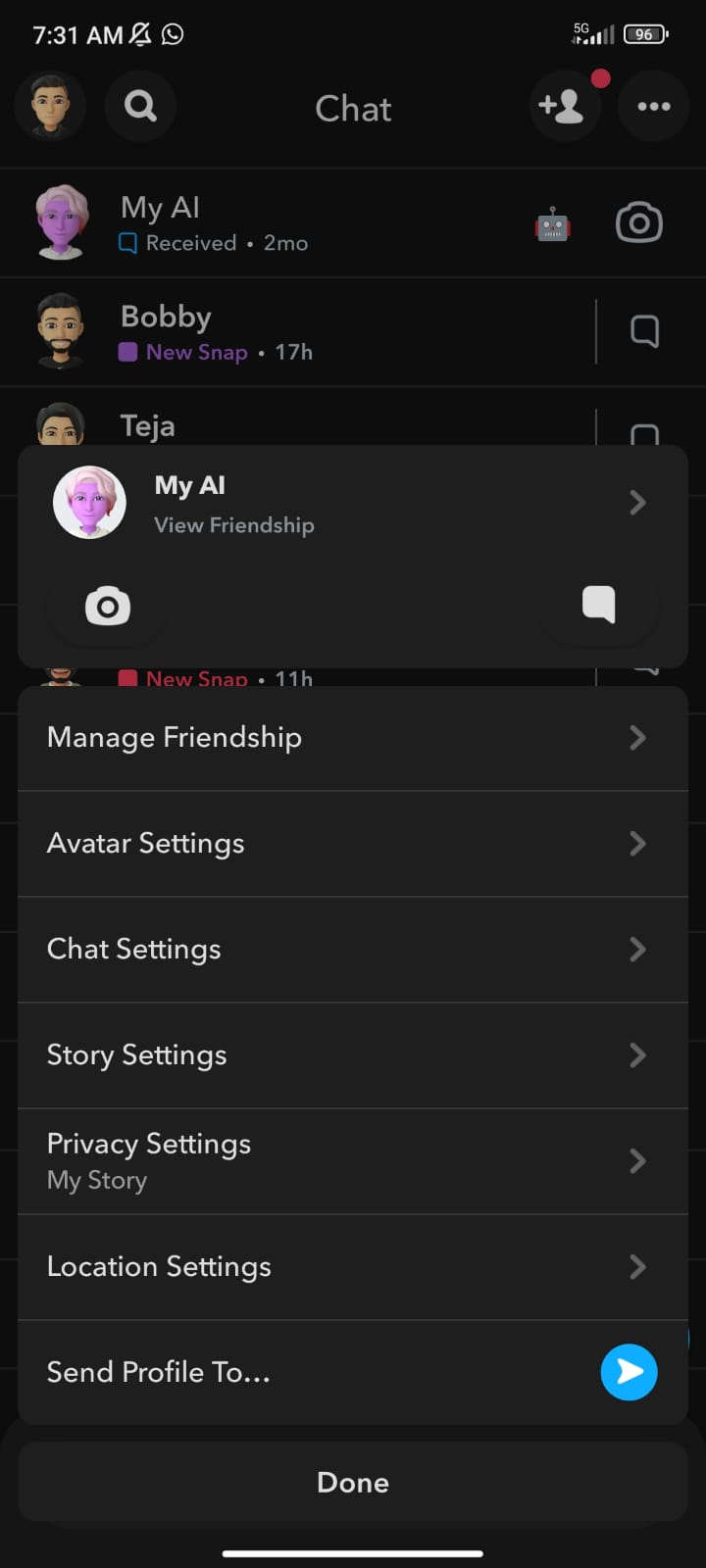
    Step 3: Access Chat Settings Now that you've found the 'My AI' chat, it's time to access the chat settings. This step is crucial for initiating the process of removing 'My AI' from your chat feed. To access the chat settings, tap and hold on the 'My AI' chat. When you do this, a menu of options will appear on the screen, providing you with various actions you can take regarding this chat.
    notion image
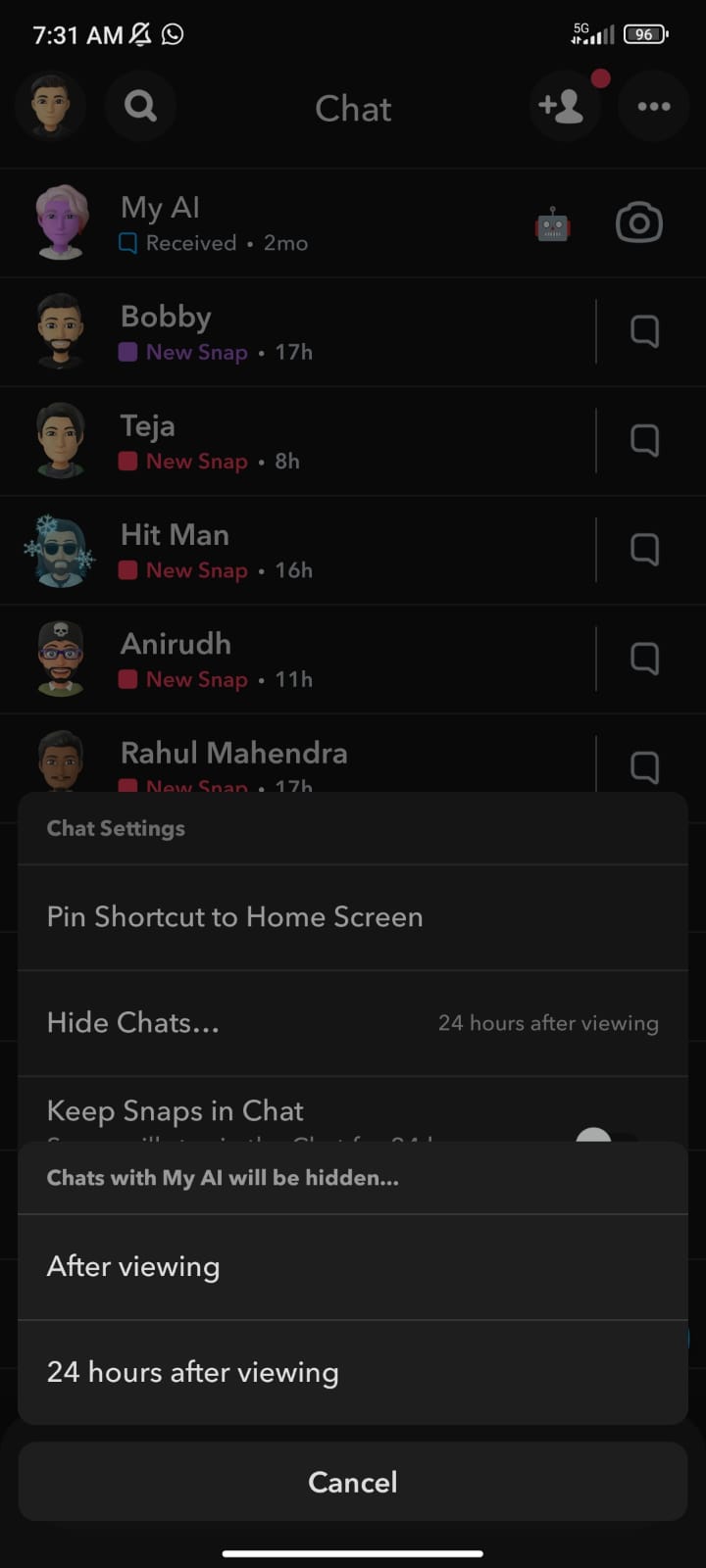
    Step 4: Clear from Chat Feed Within the menu of options that appear when you tap and hold on the 'My AI' chat, look for the one labeled 'Chat Settings.' This option is what you need to proceed with removing 'My AI' from your chat feed. Tap on 'Chat Settings' to access further options related to this chat. Inside the 'Chat Settings,' you'll find the option you're looking for: 'Clear from Chat Feed.' This action will effectively remove 'My AI' from your chat feed, making it disappear from your list of ongoing conversations.
    notion image
    Removing 'My AI' from your Snapchat chat list can be accomplished through these two straightforward methods, catering to both Snapchat+ members and regular users. Whether you prefer the exclusive method available to Snapchat+ members or the alternative approach from your settings, the process is simple and effective. By following these procedures, you can customize your Snapchat experience and chat list to suit your preferences, ensuring that your interactions on the platform are exactly how you want them to be. Say goodbye to 'My AI' in your chat list and enjoy a more tailored Snapchat experience!

    Share on socials

    About the author

    Sanskar Tiwari profile photo
    Sanskar Tiwari— Founder at MagicSlides

    Sanskar is Founder at IAG Tech, For the past 3 years sanskar have build more than 24+ products, taught 100k students how to code.

    More from Sanskar

    More from the blog

      50+ Best AI Topics for Presentation

      6 February 2026

      How to Flip an Image in PowerPoint in 2026

      5 February 2026

      How to Make Text to Presentation Using AI in Few Minutes

      4 February 2026

      100+ Best Seminar Topics for Students in 2026

      3 February 2026

      Best Presentation AI Tool of 2026 (with Real Use Cases + Comparisons)

      2 February 2026

      250+ Good Morning Messages for Her (Romantic, Deep, Cute & Sweet)

      30 January 2026

      200+ Heart Touching Birthday Wishes for Sister (Short, Funny and More)

      29 January 2026

      50+ History Presentation Topics For 2026

      28 January 2026

      How to Add Music to Your Canva Presentation: A Step-by-Step Guide

      27 January 2026

    Table of Contents

    Create Presentations in Seconds

    Transform your ideas into professional presentations with AI. No design skills needed.

    Try MagicSlides Free

    Create Stunning Presentations with AI in Seconds ✨

    Transform any topic, text, YouTube video, PDF or URL into beautiful presentations instantly with MagicSlides AI.

    Try MagicSlides AI Presentation Maker
    MagicSlides AI Presentation

    Footer

    Solutions

    • MagicSlides App
    • Google Slides Add-on
    • MagicSlides in Chrome
    • MagicSlides in Figma
    • MagicSlides in ChatGPT
    • MagicSlides in Telegram
    • MagicSlides in Zapier
    • MagicSlides in Figma Slides

    Tools

    • AI PPT Tools
    • QR Code Generator
    • Design Tools
    • PPT Templates
    • Slide Templates
    • PDF Tools

    Examples

    • AI Presentations
    • PPT by MagicSlides
    • Quizzes
    • Charts
    • Coloring Pages

    Resources

    • Changelog
    • Documentation
    • API Docs

    Top Blogs

    • How to Create Presentation Using ChatGPT
    • 100+ Best Seminar Topics for Students in 2025

    Company

    • Help
    • MCP
    • Blog
    • Pricing
    • Affiliate Program
    • Manage Subscription
    • Privacy Policy
    • Contact Us
    • Terms & Conditions
    • Refund & Cancellation Policy

    We also built

    • SheetAI - GPT For Sheets
    • MagicForm - GPT For Google Forms
    • SecondBrain.fyi
    • BlogBee - Free Blogging Platform

    © 2026 IndianAppGuy Tech Pvt Ltd. All rights reserved.