How to do a Text Box with Border PowerPoint


Easily enhance your PowerPoint slides by adding and customizing text boxes with stylish borders
Adding a border to a text box in PowerPoint enhances its visual appeal, making your content stand out.
Whether it's for emphasis or stylistic purposes, the process is quick and easy. Follow this step-by-step guide to create a text box with a border.
How to Add a Text Box with a Border in PowerPoint | Steps to Add a Text Box with a Border in PowerPoint
Step 1: Insert a Text Box
Open your PowerPoint presentation and navigate to the slide where you want to add the text box.
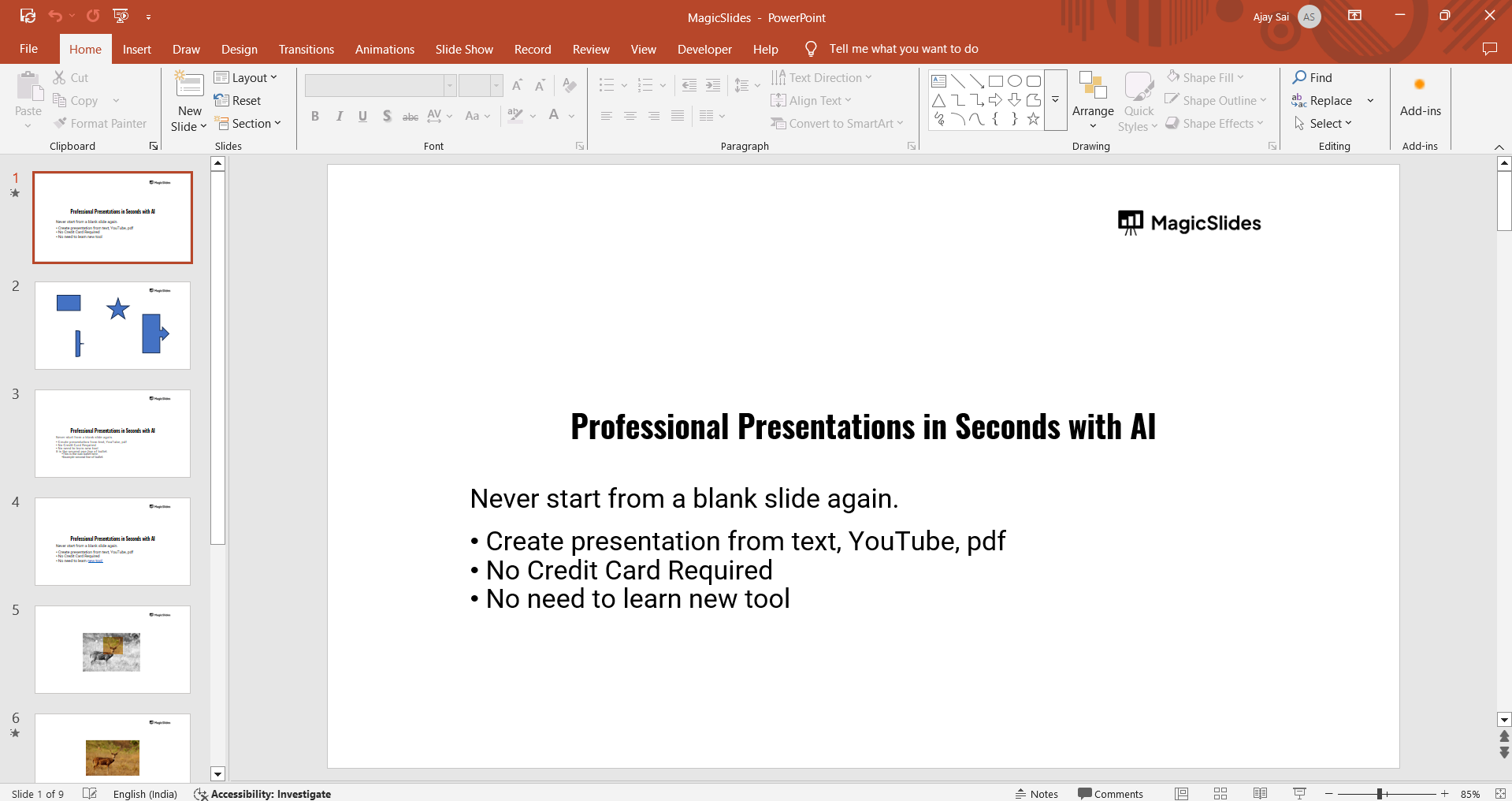
Go to the Insert tab on the ribbon. Click on Text Box, then click and drag on the slide to draw the box where you want it.
Step 2: Add Text to the Box
Click inside the text box and type or paste your desired content.
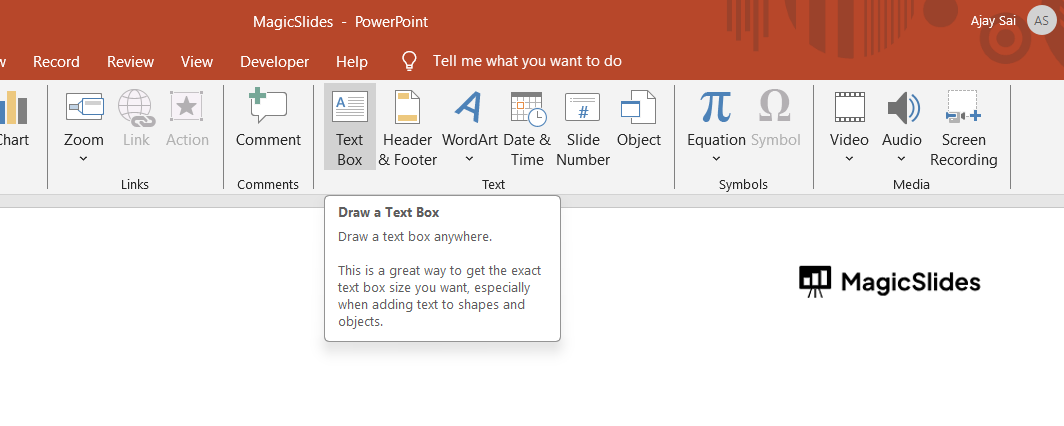
Format the text using the options under the Home tab, such as font, size, and color.
Step 3: Apply a Border
Click on the edge of the text box to select it.
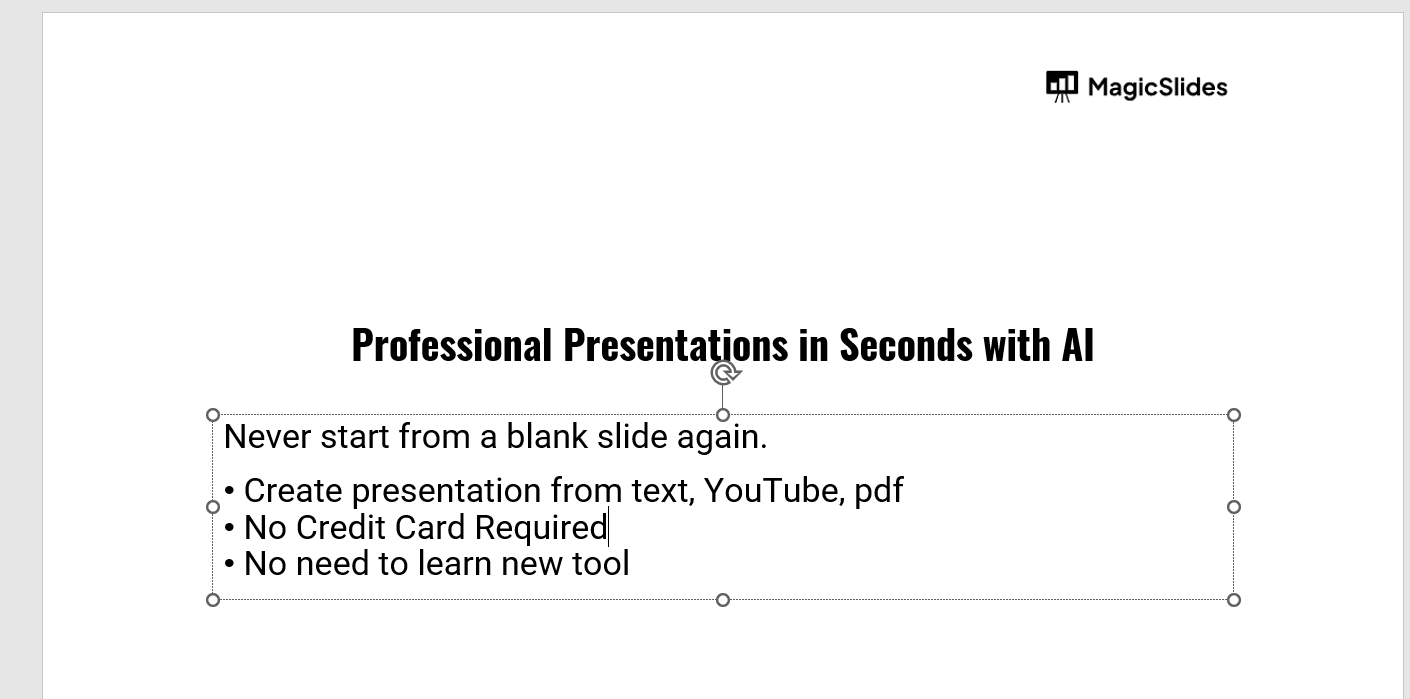
Navigate to the Format Shape tab, which appears when the text box is selected.
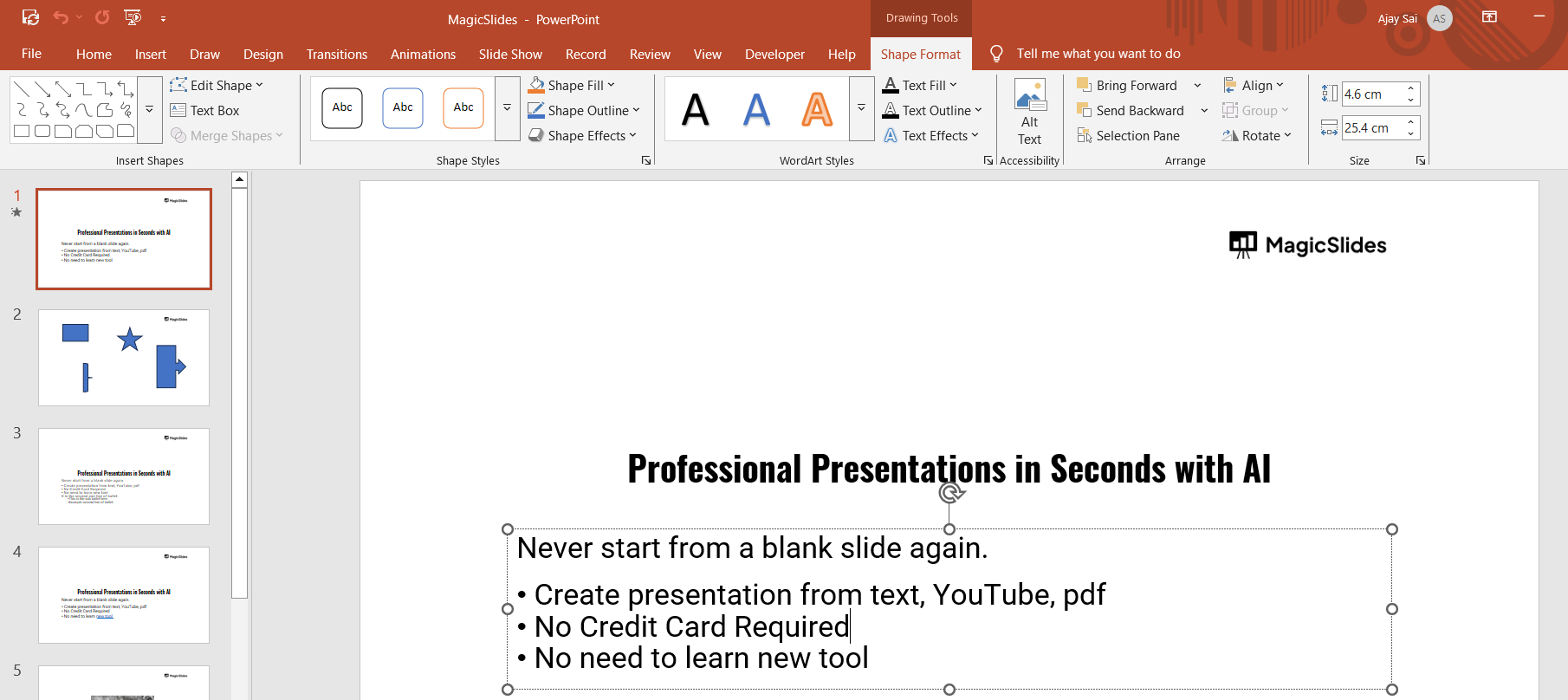
Click on Shape Outline in the ribbon. Choose a border color from the dropdown menu.
Step 4: Customize the Border Style
Under Shape Outline, hover over Weight to select the thickness of the border.
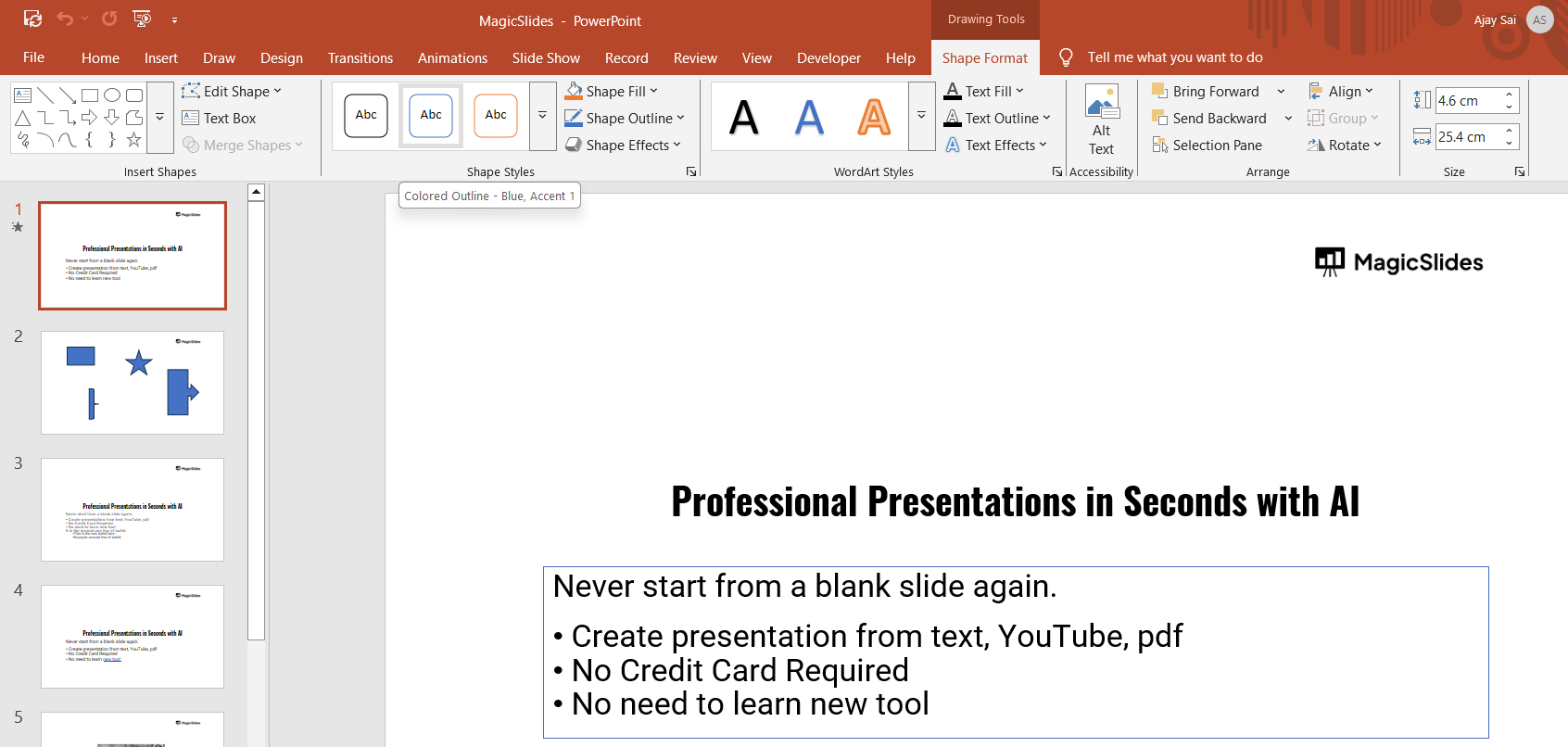
For a more detailed design, click on Dashes to choose a dotted or dashed style.
Experiment with different options to achieve your preferred look.
Step 5: Adjust the Text Box Layout
Drag the edges of the text box to resize it as needed.
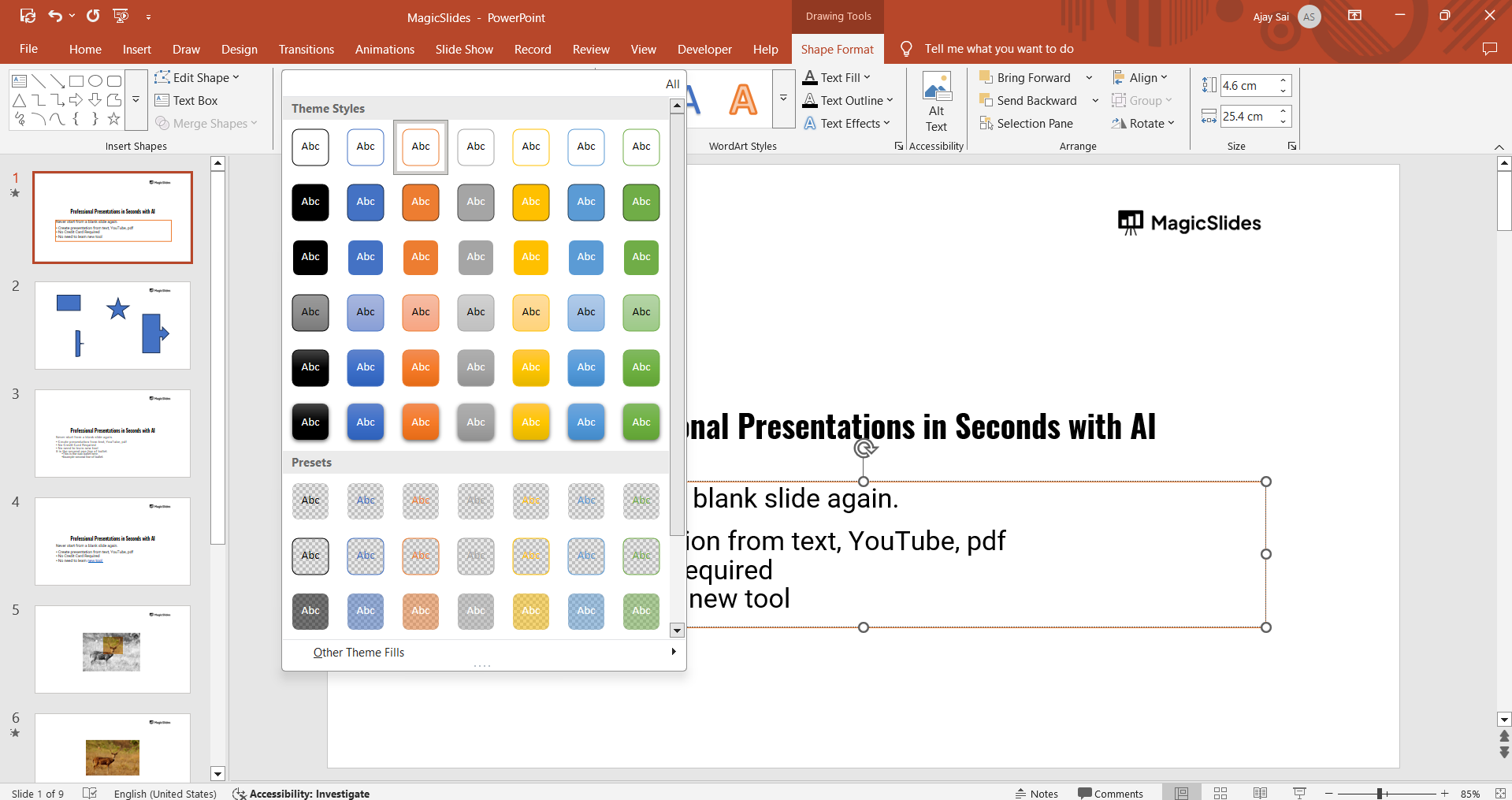
Use the alignment tools under the Home tab to position the text box on the slide.
Step 6: Add Shadow or Effects (Optional)
For a more dynamic appearance, go to the Format Shape tab.
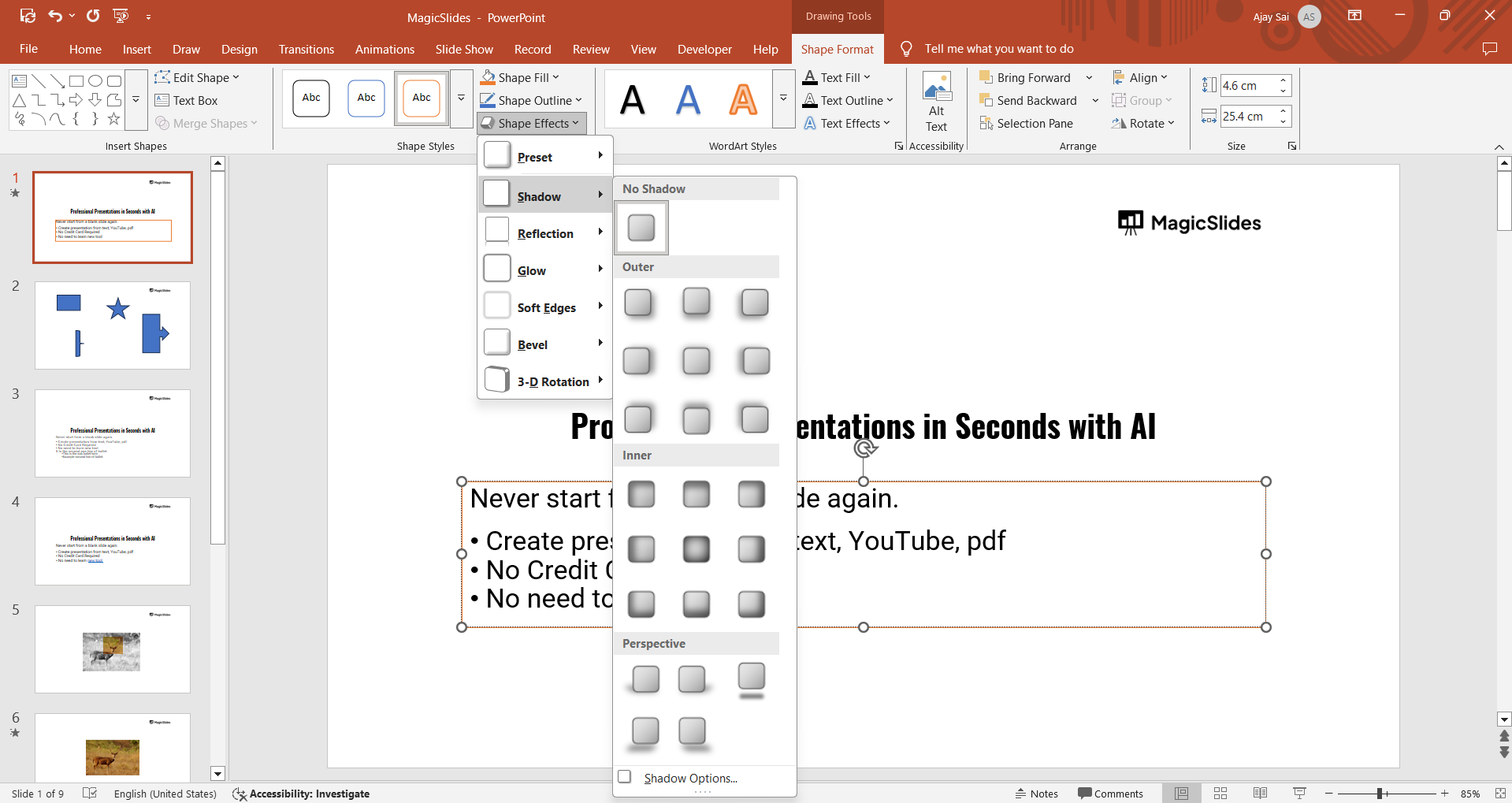
Click on Shape Effects to add shadows, reflections, or glow to the border.
Conclusion
Creating a text box with a border in PowerPoint is a simple yet effective way to highlight important information or enhance your slide's design.
By following these steps, you can customize the look and feel of your text box to suit your presentation’s theme.
FAQs on Adding a Text Box with a Border in PowerPoint
Can I change the border color later?
Yes, you can select the text box and use the Shape Outline option to modify the color.
Can I remove the border from a text box?
Yes, simply select the text box, go to Shape Outline, and choose No Outline.
Are the border styles consistent across all PowerPoint versions?
Most versions support similar border customization options, but the interface might vary slightly.
By mastering these steps, you can create polished, professional slides that captivate your audience!


