How to do Ranking in Google forms


Elevate your survey game with Google Forms by mastering the art of ranking in minutes!
Google Forms is a versatile tool for creating surveys, quizzes, and feedback forms, and one feature that adds a layer of sophistication is the ranking feature.
By incorporating ranking questions, you can gather valuable insights on preferences and priorities.
In this comprehensive guide, we'll take you through each step to master the art of ranking in Google Forms, making your surveys more dynamic and insightful.
How to do ranking in Google forms
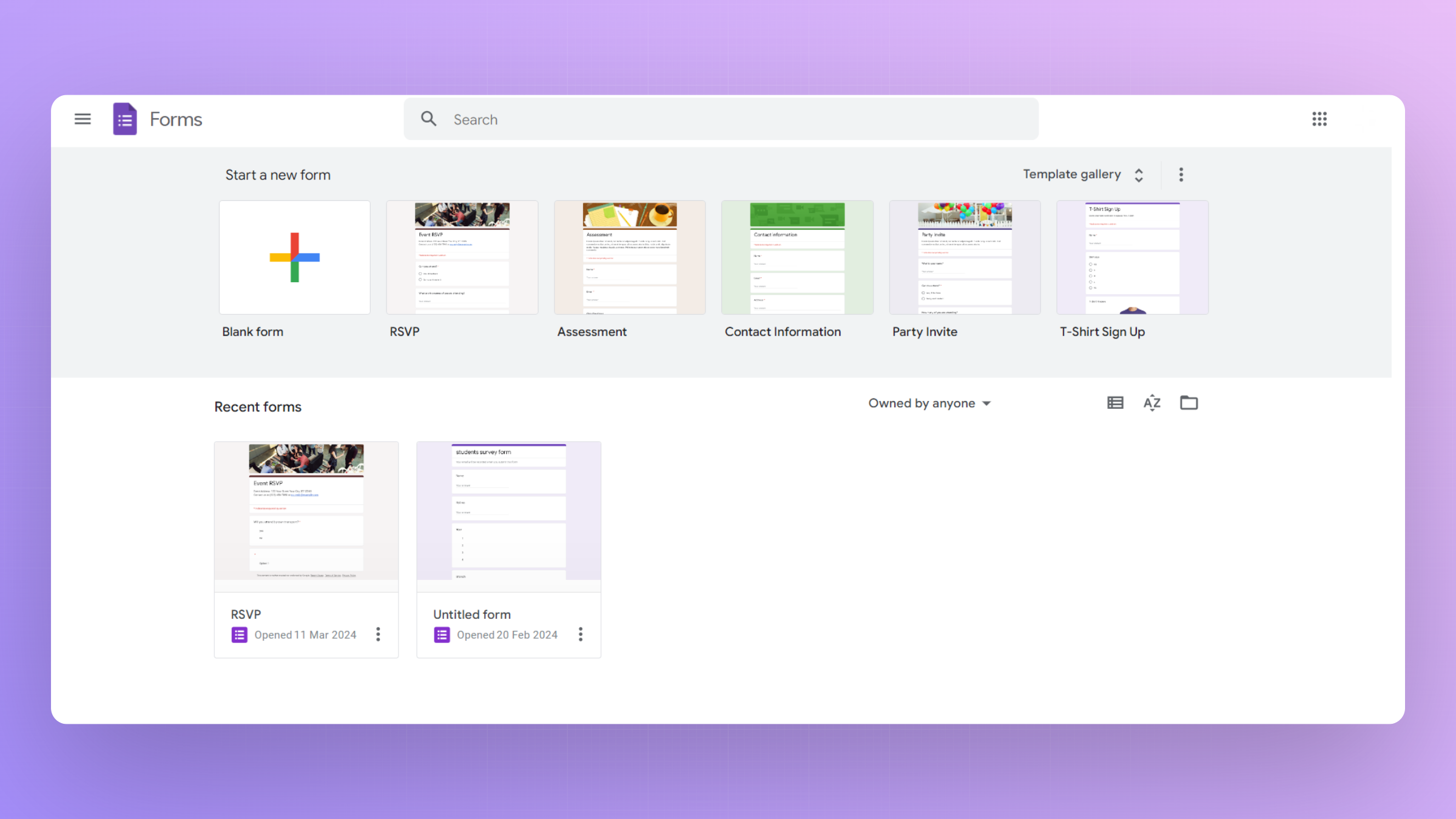
Step 1: Create or Open a Google Form
Begin by either creating a new Google Form or opening an existing one where you want to incorporate ranking questions. Access Google Forms through your Google Drive or directly at forms.google.com.
Step 2: Add a New Question
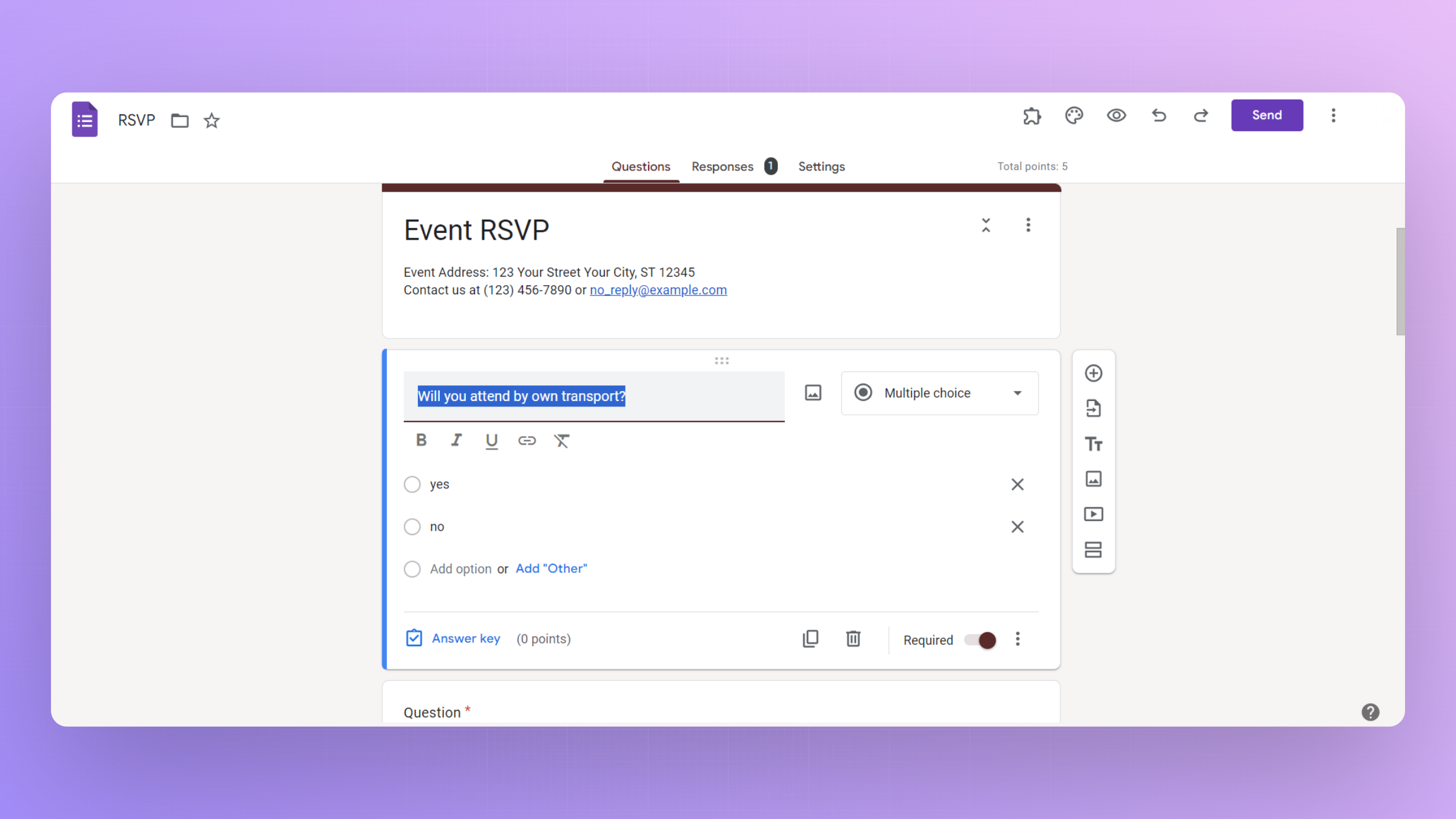
Within your form, click on the "+" icon to add a new question. Choose the type of question as "Multiple Choice."
Step 3: Set Up the Ranking Question
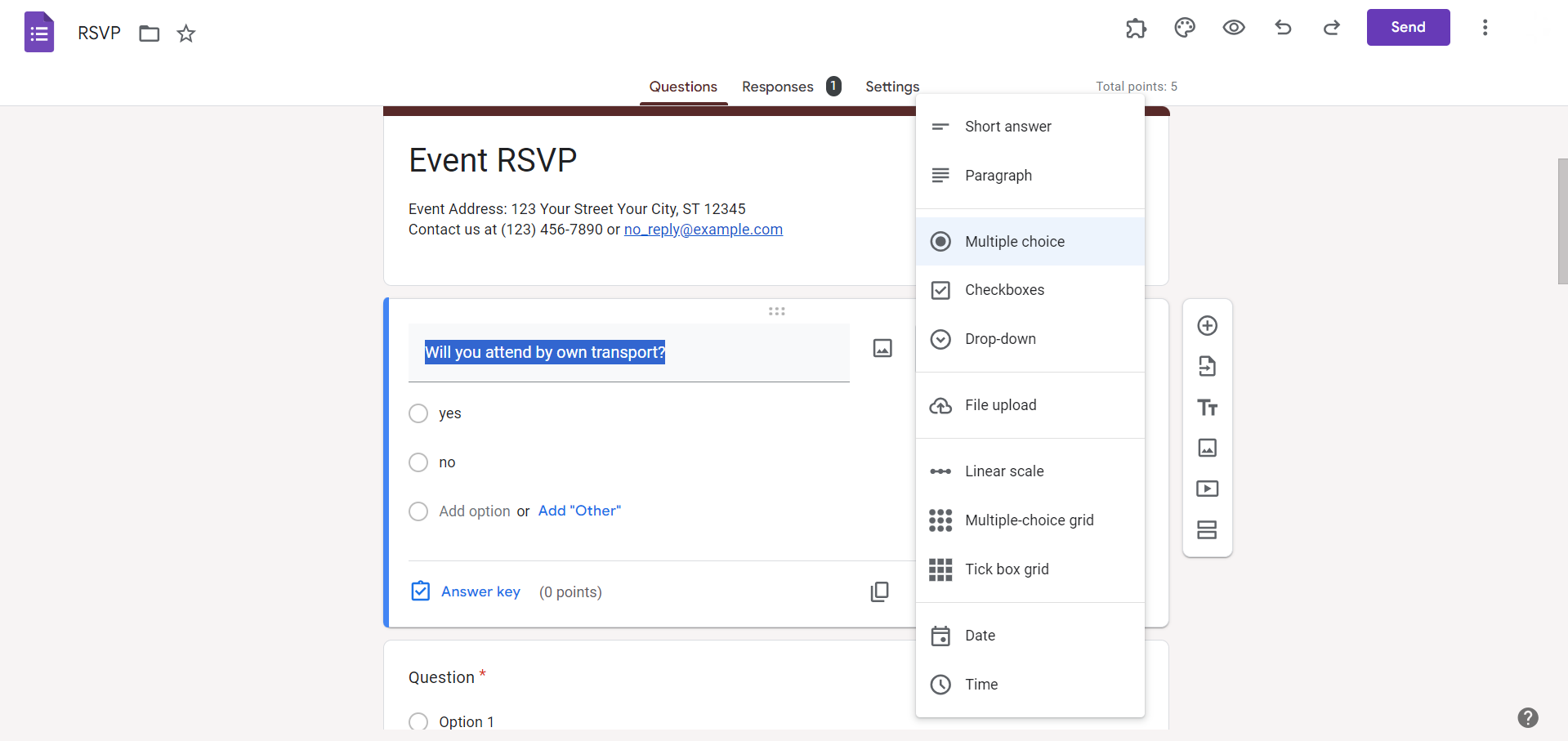
For the multiple-choice question, write your query and then click on the three dots at the bottom right of the question box. Select "Multiple choice grid" and choose the "Ranking" option.
Step 4: Define the Choices
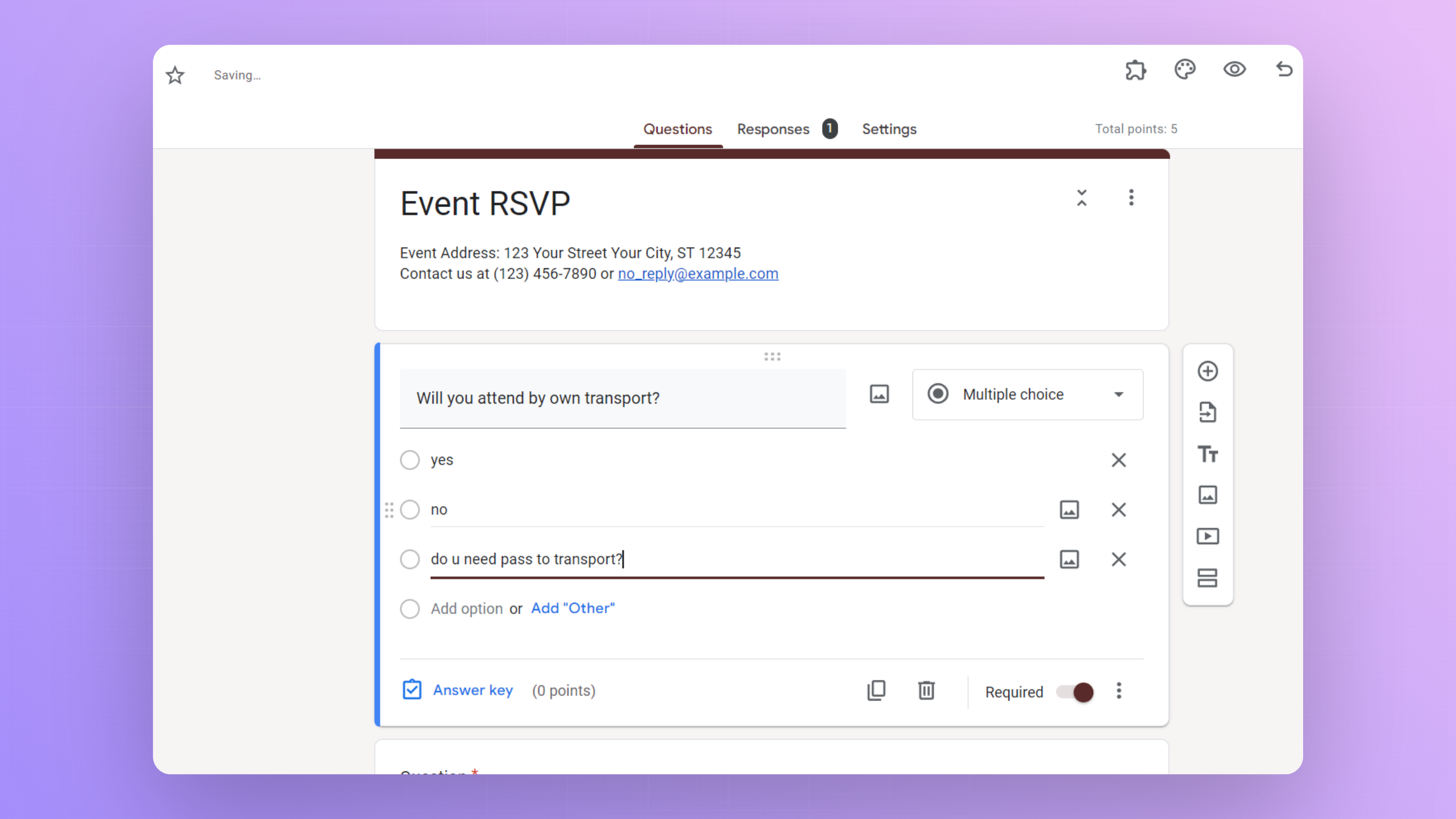
List the choices you want respondents to rank in the provided rows of the grid. You can add or remove rows based on the number of items to be ranked.
Step 5: Configure Additional Settings
Customize the question further by adjusting settings such as whether to shuffle the order of the choices or allow multiple items to have the same rank.
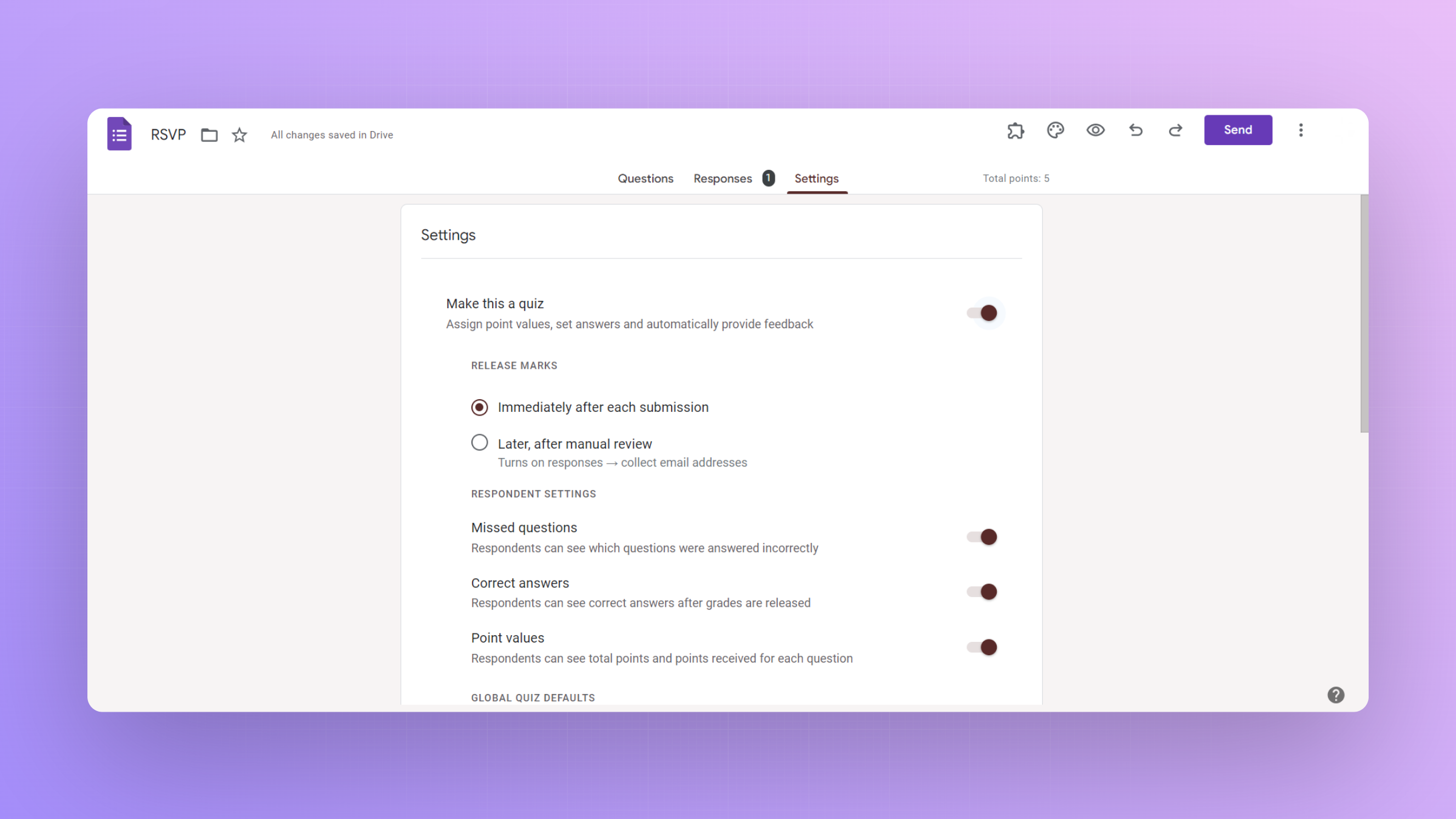
Connecting google forms to google sheets is a great way to enhance your productivity, to enhance it even further know how to do ranking while creating the form questions itself from here
Step 6: Preview and Test
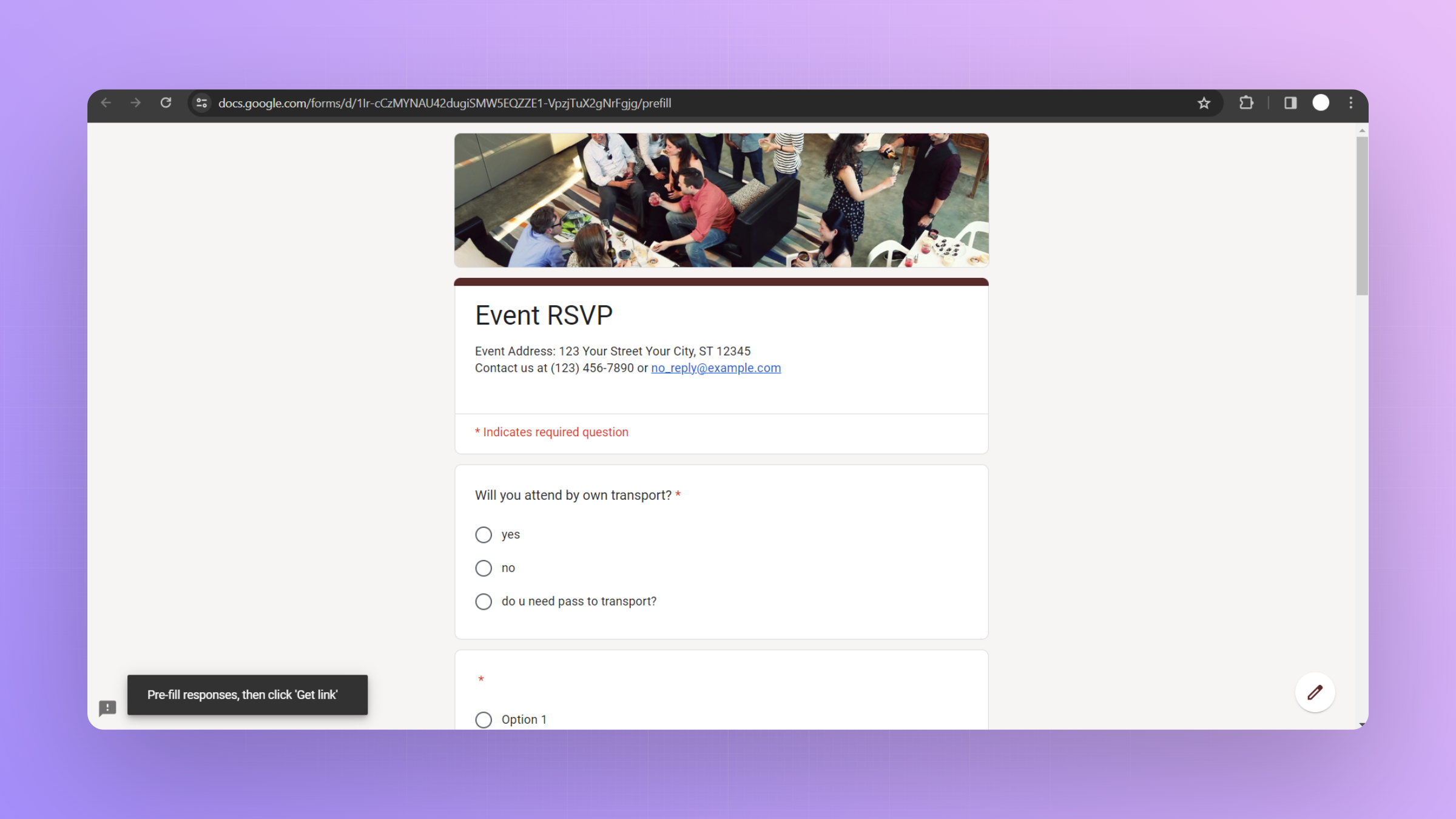
Before finalizing your form, use the "Preview" option to see how the ranking question will appear to respondents. Test it to ensure the ranking functionality works as intended.
Conclusion:
Incorporating ranking questions in your Google Forms can transform your surveys into powerful tools for understanding preferences, priorities, and opinions.
This feature enables respondents to provide nuanced feedback, giving you a deeper understanding of their perspectives.
As you integrate ranking questions into your forms, consider the context and the type of information you aim to gather.
Tired of making presentations? what if we tell you you can make a presentation with just a prompt, convert YouTube videos to PPTs, convert website content to PPTs? Yes! checkout magicslides.app that does all and enjoy the free credits to make presentations in seconds.
Frequently Asked Questions:
Can respondents rank items equally in Google Forms ranking questions?
No, the ranking feature in Google Forms requires unique rankings for each item, promoting distinct preferences.
Is it possible to add images to the choices in a ranking question?
Currently, Google Forms supports text-only choices for ranking questions; images cannot be directly inserted.
Can I customize the appearance of the ranking grid to match my survey's theme?
While you can't extensively customize the grid, Google Forms automatically adapts the grid's appearance to your form's theme.
How are the results presented for ranking questions in Google Forms?
Google Forms aggregates and presents the ranking results in a clear format, reflecting the overall preferences.


