How to do subscript in PowerPoint


Enhance your PowerPoint presentations by learning how to easily add subscript text for clarity.
In PowerPoint presentations, adding subscript text can be essential for mathematical equations, chemical formulas, or even just for stylistic purposes. However, finding the right tools to format your text can sometimes be tricky. In this guide, we'll walk through a simple step-by-step process to help you effortlessly add subscript text to your PowerPoint slides, enhancing the visual appeal and clarity of your presentations.
How to do subscript in PowerPoint
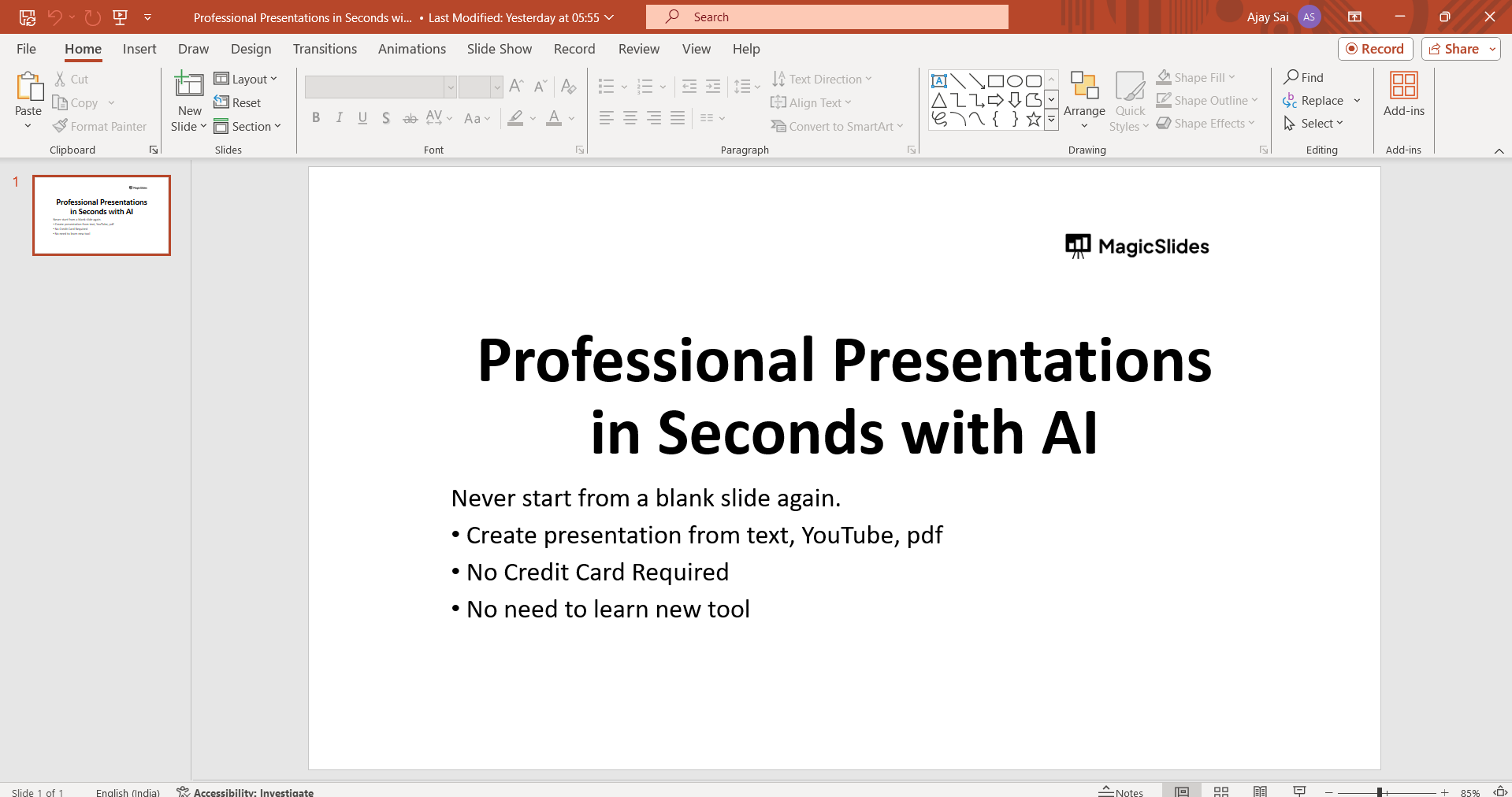
Step 1: Open Your PowerPoint Presentation
Begin by opening the PowerPoint presentation where you want to add subscript text. Ensure that you are in the slide where you want to make the changes.
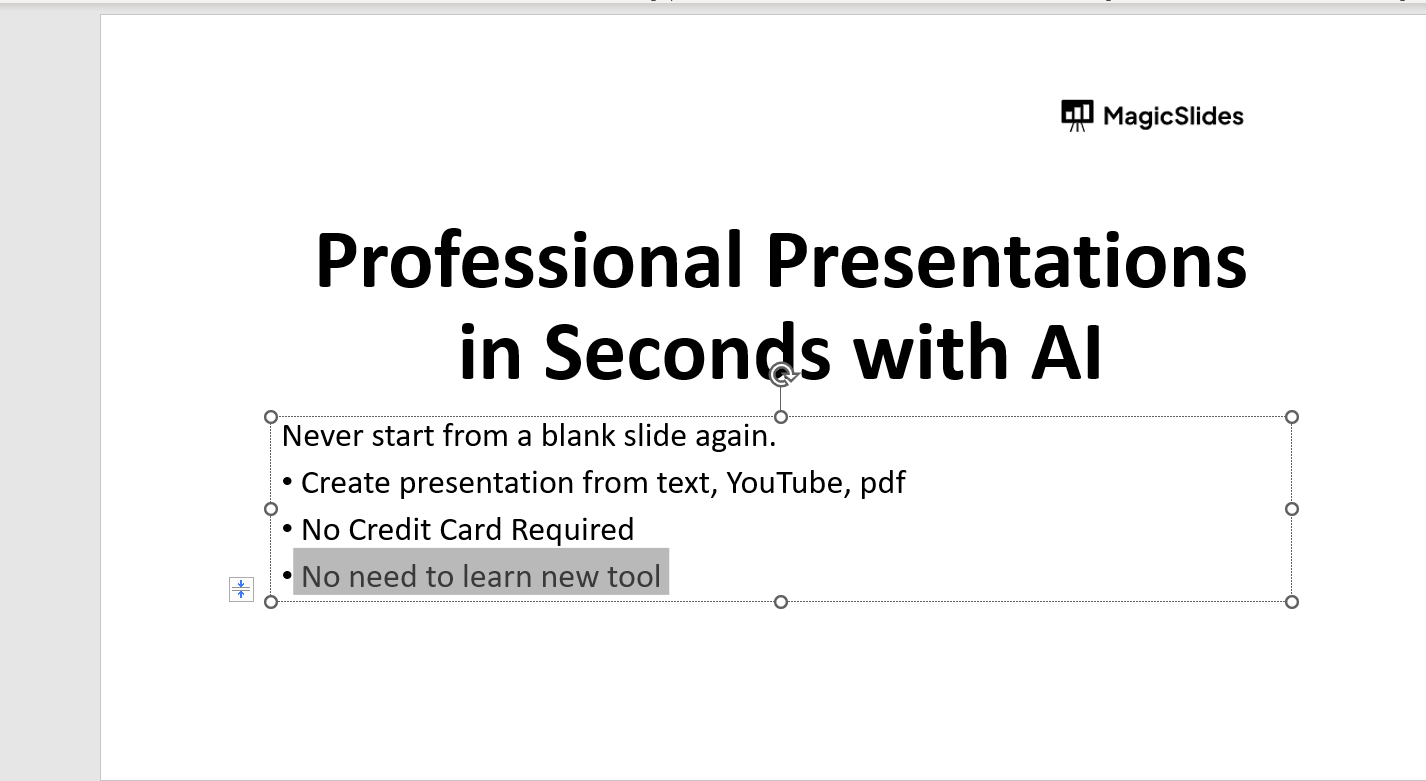
Step 2: Select the Text You Want to Format
Click and drag to select the text that you want to convert to subscript. This could be a single character, a word, or an entire phrase.
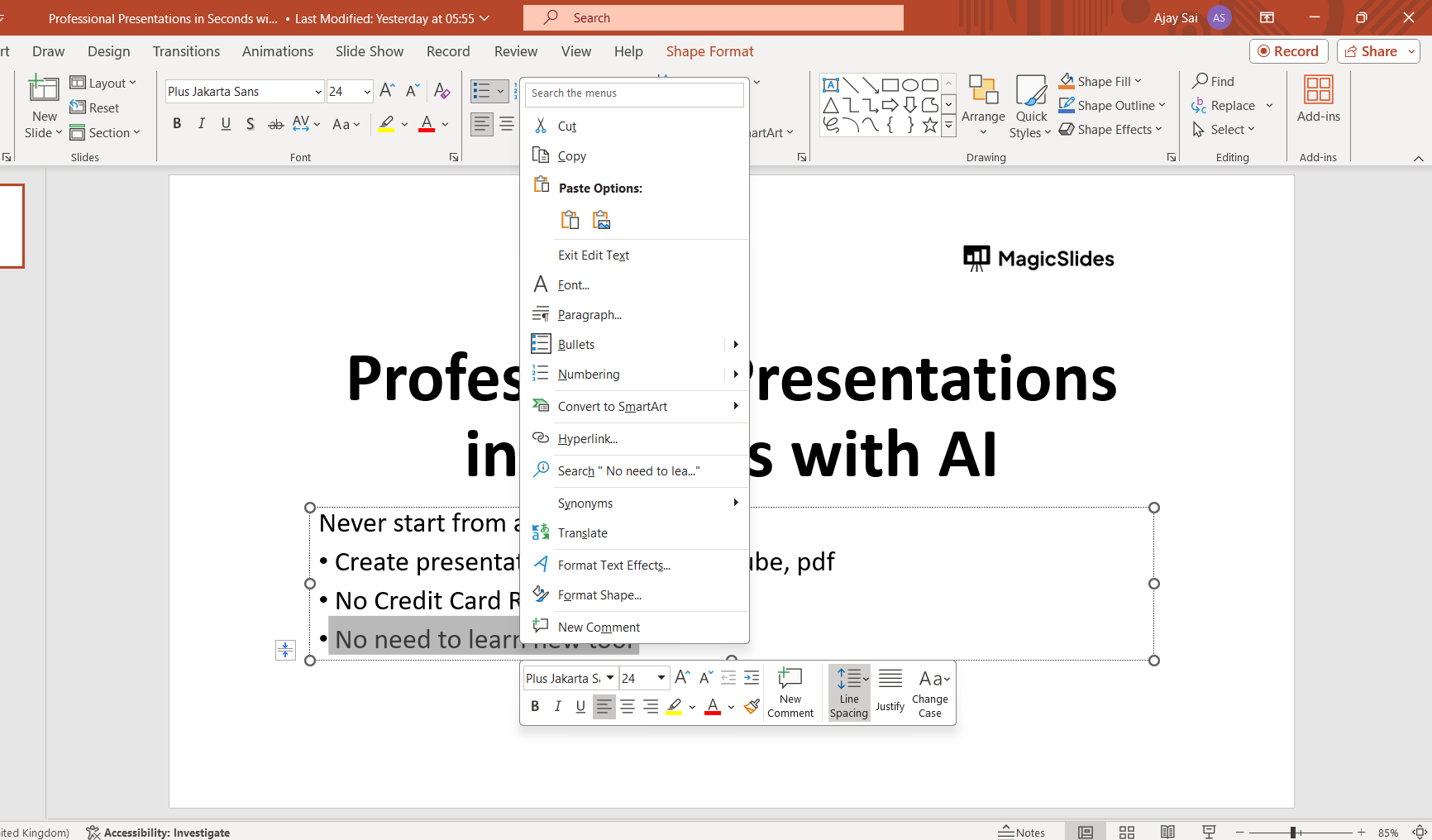
Step 3: Access the Font Dialog Box
Once the text is selected, right-click on it to open a contextual menu. From the menu, choose "Font" to open the Font dialog box. Alternatively, you can press Ctrl + D on your keyboard to open the Font dialog box directly.
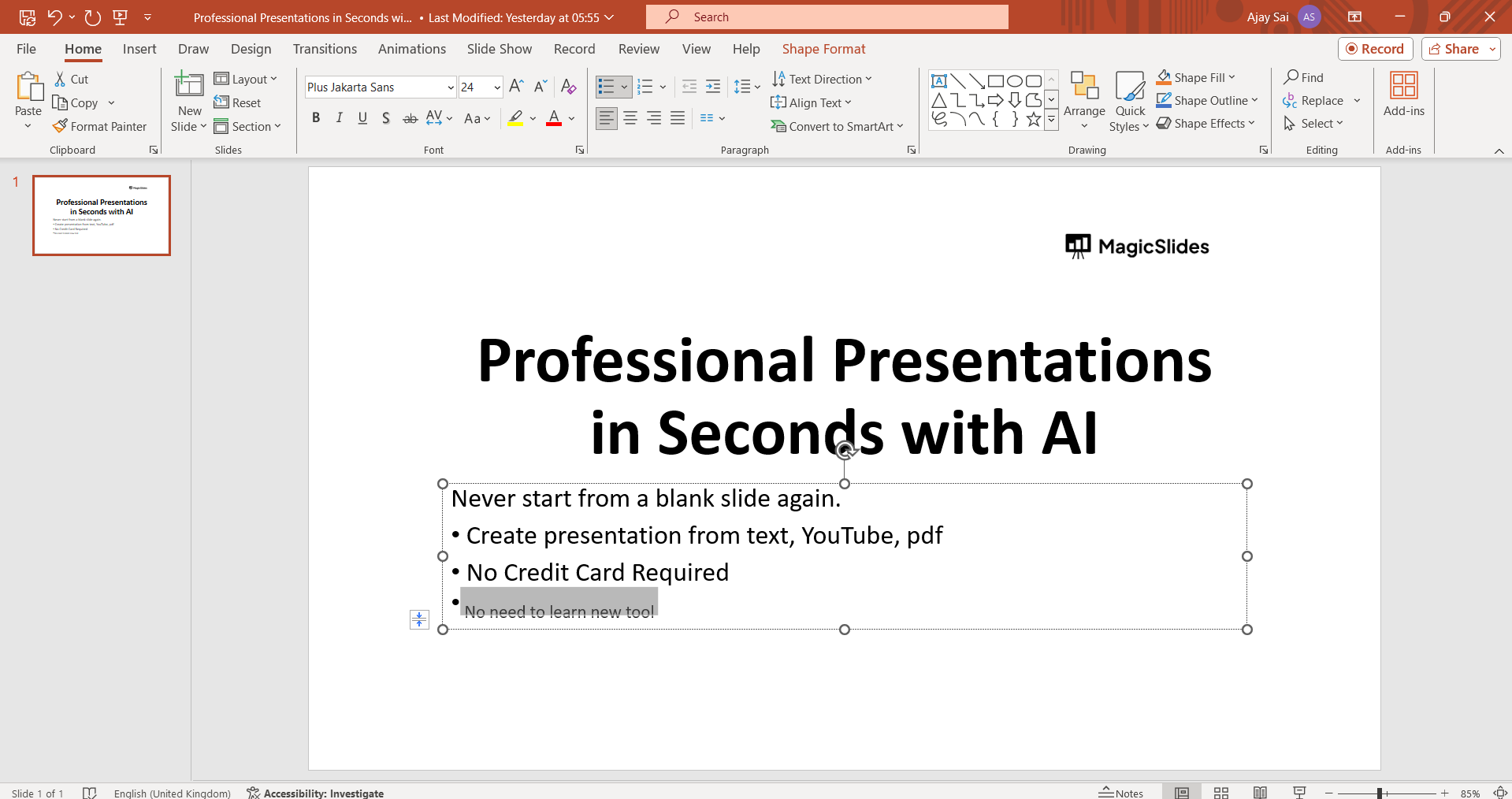
Step 4: Apply Subscript Formatting
In the Font dialog box, locate the "Effects" section. Check the box next to "Subscript" to apply the subscript formatting to the selected text. You should see a preview of the changes in the preview box or simply use ctrl+ = to apply subscripting directly.
Step 5: Confirm and Close
Once you're satisfied with the formatting changes, click "OK" to apply the subscript formatting to the selected text. The changes will be reflected immediately on your PowerPoint slide.
Conclusion:
Adding subscript text in PowerPoint presentations doesn't have to be a daunting task. With just a few simple steps, you can enhance the visual appeal and clarity of your slides, whether you're presenting complex scientific data or simply adding a touch of style to your text. By following this step-by-step guide, you'll be able to effortlessly incorporate subscript text into your PowerPoint presentations, helping you communicate your message effectively to your audience.
Frequently Asked Questions:
Why Use Subscript Text in PowerPoint?
Subscript text is commonly used for mathematical equations, chemical formulas, and footnotes for clarity.
Can I Use Subscript for Numbers and Letters?
Yes, you can apply subscript formatting to both numbers and letters in PowerPoint.
Is Subscript Formatting Permanent?
No, you can easily remove subscript formatting by repeating the process and unchecking the "Subscript" option.
Does Subscript Formatting Affect Font Size?
Subscript formatting typically reduces the size of the selected text to fit the subscript position.


