How to do the Second Bullet Point on Google Slides


Learn how to add and customize a second bullet point in Google Slides effortlessly
Bullet points are an essential part of creating organized and visually appealing content in presentations.
If you’re working with Google Slides and want to add a second bullet point to your slide, this guide will walk you through the process step by step.
By following these simple instructions, you can make your content clear and structured for your audience.
How to Add a Second Bullet Point in Google Slides
Step 1: Open Your Google Slides Presentation
Log in to your Google account and access your presentation. Select the slide where you want to add bullet points.
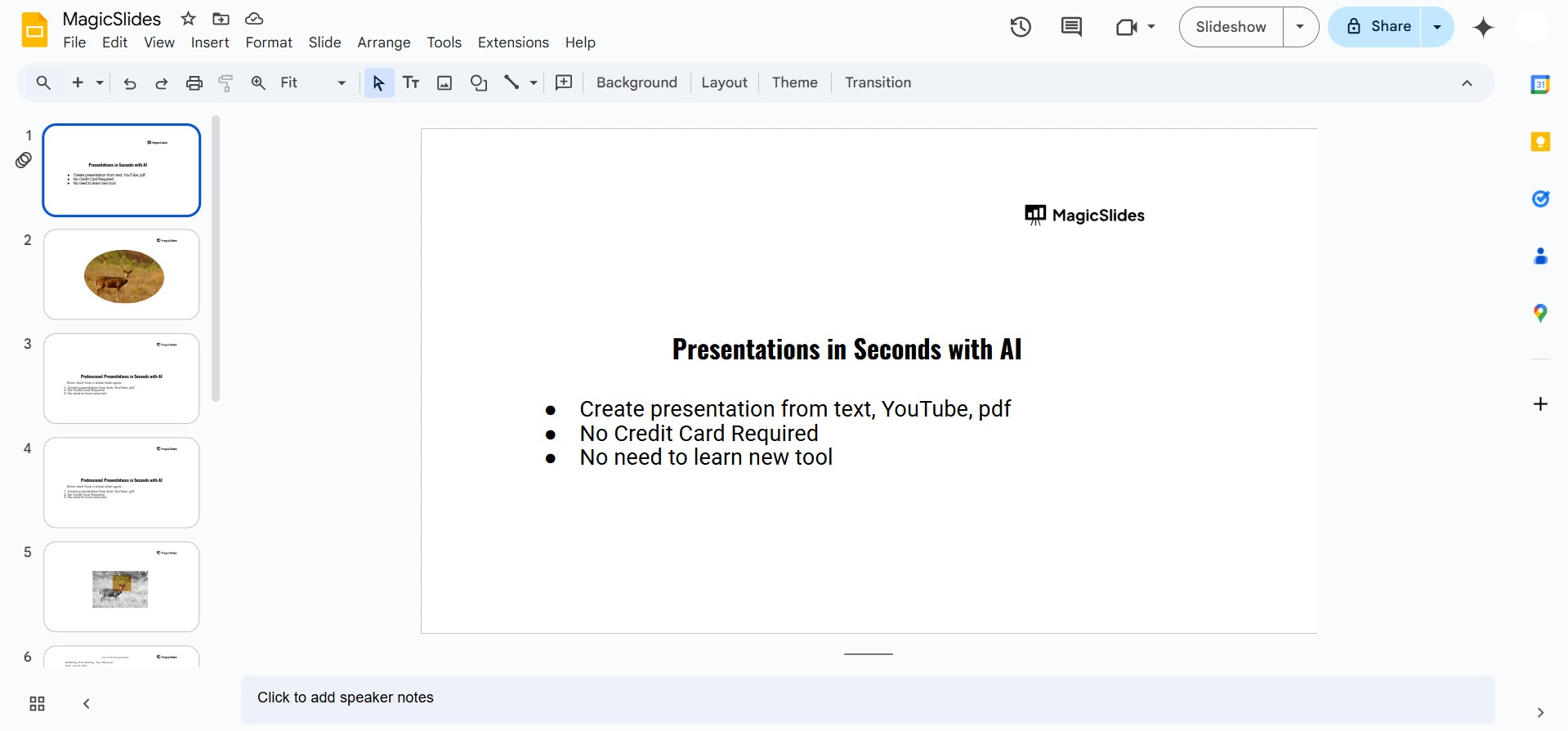
Step 2: Enable Bullet Points
Click inside a text box or create a new one by clicking Insert > Text Box from the menu bar.
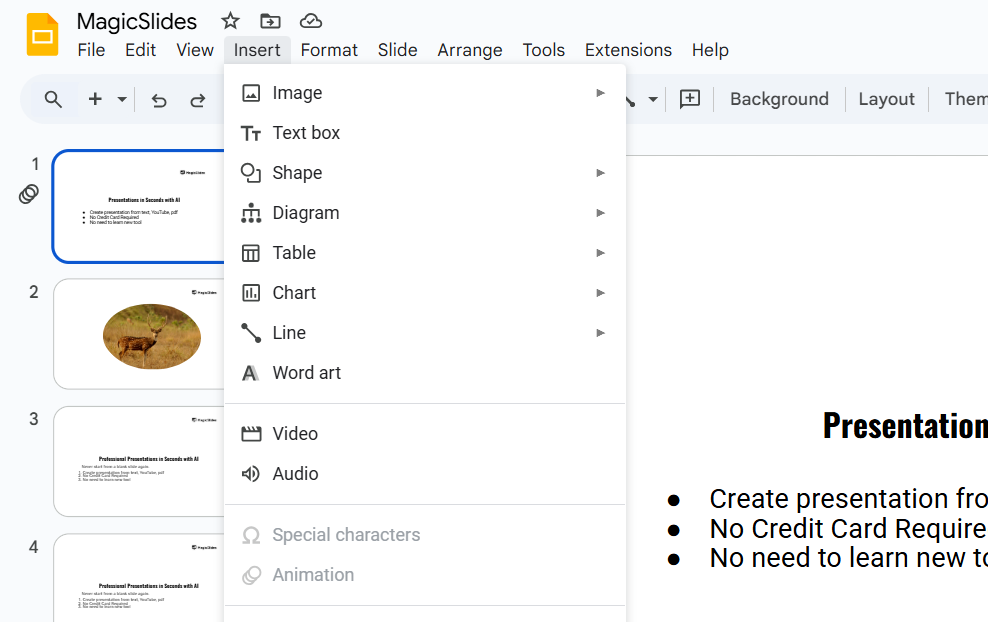
Highlight the text or position your cursor where you want the bullets to appear.
Click the Bulleted List icon in the toolbar or go to Format > Bullets & Numbering > Bulleted List to enable bullet points.
Step 3: Add the First Bullet Point
Type your first bullet point and press Enter to move to the next line. This will automatically create a new bullet point.
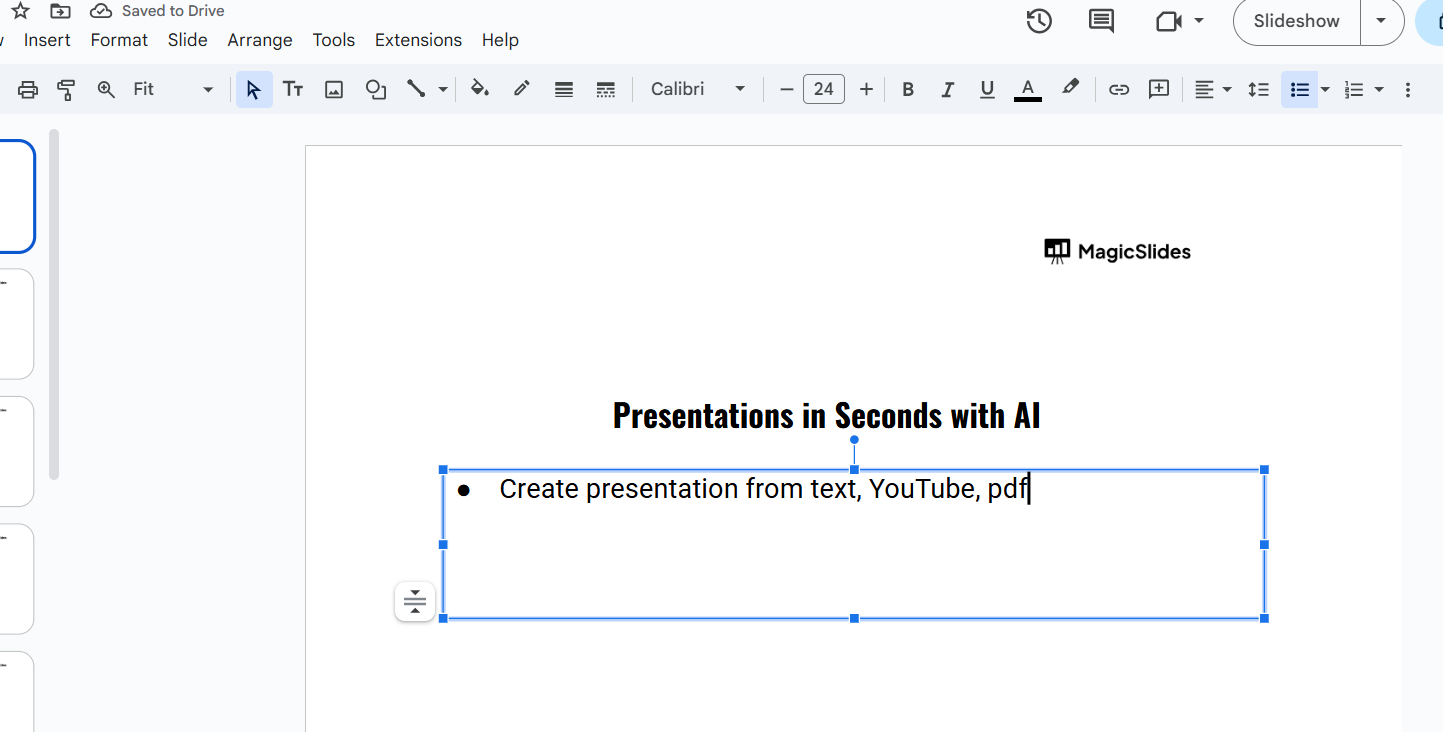
Step 4: Insert the Second Bullet Point
Type the text for your second bullet point. Press Enter again to create additional bullet points as needed.
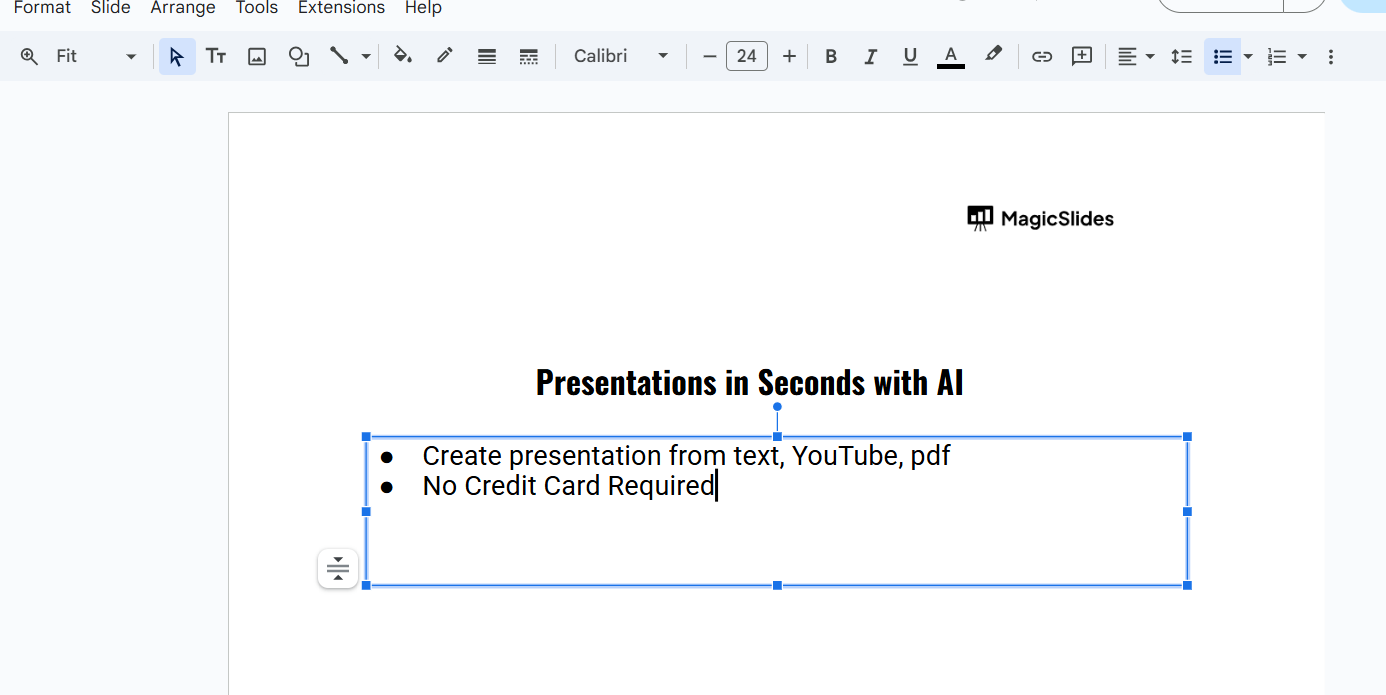
Step 5: Adjust Indentation (Optional)
To make the second bullet point a sub-bullet, press Tab after placing your cursor at the start of the second line.
Alternatively, use Shift + Tab to reduce the indentation and make it a main bullet again.
Step 6: Format the Bullet Points (Optional)
Customize the bullet style by going to Format > Bullets & Numbering > List Options.
Choose different shapes, colors, or sizes to match your presentation theme.
Conclusion
Adding a second bullet point in Google Slides is straightforward and enhances the readability of your content.
With these easy steps, you can create well-structured lists that keep your audience engaged and your information organized.
Experiment with formatting options to make your bullets visually appealing and impactful.
FAQs on Adding Bullet Points in Google Slides
How do I create a sub-bullet in Google Slides?
To create a sub-bullet, press Tab after typing a main bullet point. This indents the line and converts it into a sub-bullet.
Can I change the style of bullet points?
Yes! Go to Format > Bullets & Numbering > List Options to choose different bullet styles, including icons or symbols.
What if the bullet list doesn’t appear when I press Enter?
Ensure the Bulleted List option is enabled in the toolbar or the Format menu. If it’s not active, enable it to start using bullet points.
Using bullet points effectively in Google Slides will improve your presentation’s clarity and help you communicate your ideas more efficiently.


