How to Download Instagram Reels on Any Device [2026]


Download Instagram Reels in HD on iPhone, Android, Windows, and Mac. Learn how to save Reels without watermark using fast browser-based methods.
Instagram doesn’t give you a save button for Reels you didn’t post. Here’s how to download Instagram Reels in HD on iPhone, Android, Windows, and Mac — the quick browser method, the legit in-app options, and how to get a clean file with no watermark.
Instagram Reels are built to be watched in the app, not saved to your device. There’s a “Save” bookmark, but that only tucks a Reel into a private collection inside Instagram — it doesn’t give you an actual video file you can keep, re-watch offline, or drop into an edit.
To get the MP4 itself, you need a workaround. This guide walks through every reliable way to download Instagram Reels across devices — starting with the fastest method that works everywhere, then the platform-specific steps, plus a straight answer on watermarks and what’s actually legal.
Can you download Instagram Reels?
Yes — with a caveat. If you posted the Reel, you can save the original file straight from Instagram, no third-party tool needed (see Method 2). If someone else posted it, Instagram doesn’t offer a built-in download for the file, so you’ll use a browser-based downloader that reads the Reel’s public URL and hands you the MP4.
The method you pick comes down to two things: whether the Reel is your own, and whether you need a standalone video file or just want to re-watch it offline.
The fastest route for most people:
- Open the Reel in the Instagram app.
- Tap the paper-plane / share icon, then Copy link.
- Open a Reels downloader in your browser.
- Paste the link and tap Download.
- Save the HD MP4 to your device.
Is it legal to download Instagram Reels?
Downloading for personal use — watching offline, saving your own content, keeping a reference — is generally fine. Where it gets risky is re-uploading someone else’s Reel as your own, which can violate copyright even if you credit the creator.
Good rules of thumb:
- Your own Reels? Download freely — you own them.
- Someone else’s? Fine to save for personal reference. Get permission before you repost or reuse it publicly.
- Private accounts? Off-limits. Downloaders only work on public Reels, and you shouldn’t try to grab private content.
This is context, not legal advice — when in doubt, ask the creator.
Method 1: Use a browser-based Reels downloader (works on any device)
This is the method that works the same on every phone and computer, with nothing to install. The catch with most downloader sites is the experience — aggressive ads, fake download buttons, and sketchy privacy. So the tool you choose matters.
1. MagicSlides Reels Downloader
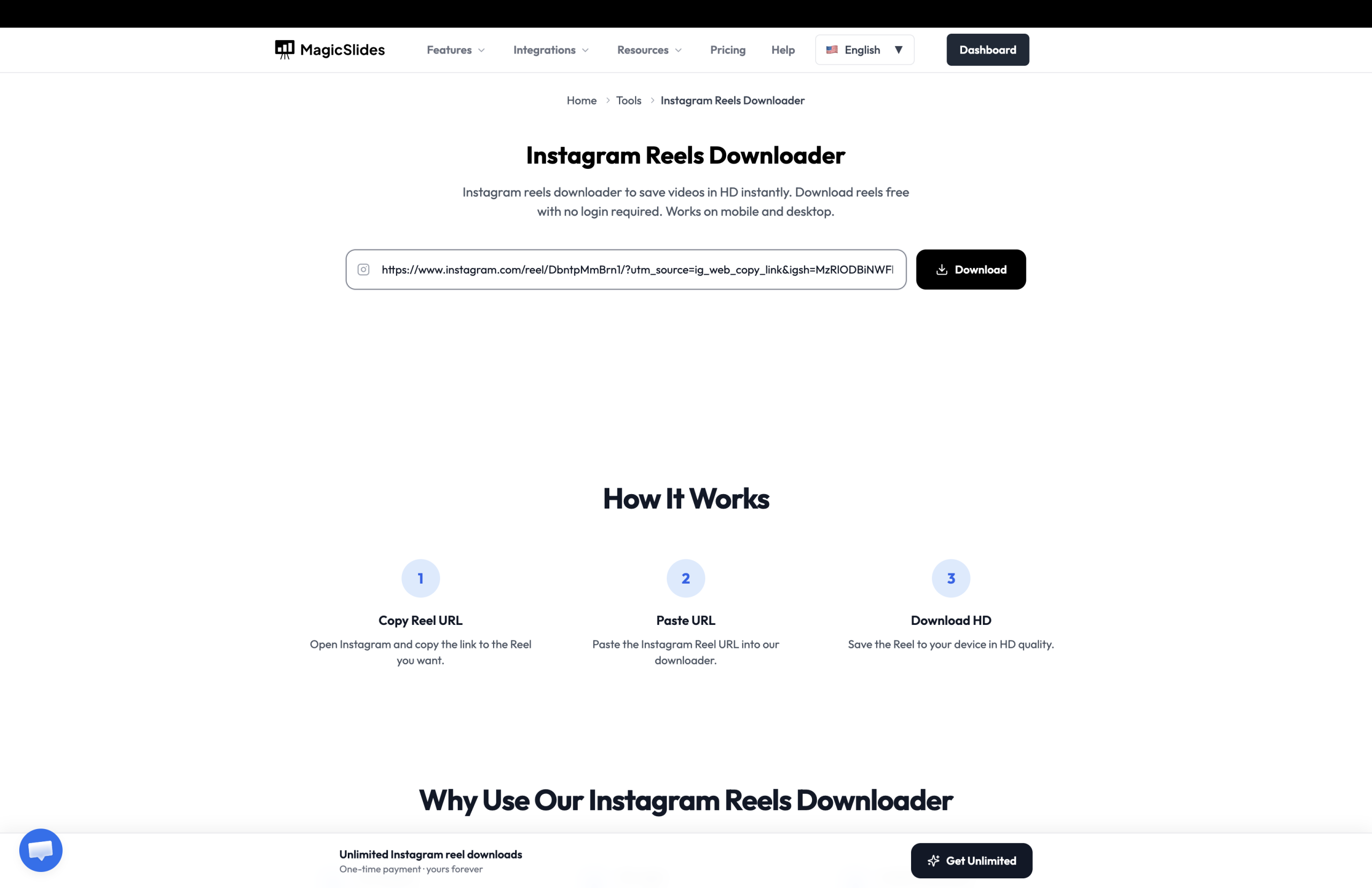
A no-clutter web tool that pulls the original HD MP4 from any public Reel — and keeps the caption and hashtags too, which is handy if you’re researching or reposting your own content. No Instagram account required, and it works right in the browser on mobile and desktop.
- Copy the Reel’s link from Instagram (share icon → Copy link).
- Go to the MagicSlides Instagram Reels Downloader.
- Paste the link and click Download.
- Preview the thumbnail and caption, then tap Download HD Video to save the MP4.
A note on random downloader sites: Free downloaders come and go, change domains, and bury the real button under ads. Whatever you use: never enter personal info, keep an ad blocker on, and if a site adds its own watermark to the file, switch tools.
Method 2: Save your own Reels from Instagram
If the Reel is yours, you don’t need any third-party tool — and this is the cleanest, highest-quality option.
- Open the Reel you posted.
- Tap the three-dot menu (···).
- Choose Save to camera roll (or set Instagram to auto-save your Reels in Settings → Account → Original content).
You get the original video saved straight to your device, at full quality, with no watermark. This only works for Reels on your own account.
Method 3: Download Instagram Reels on iPhone
Here’s how to save a Reel to your Camera Roll on iPhone using the browser method.
- Open the Instagram app and find the Reel.
- Tap the share (paper-plane) icon, then tap Copy link.
- Open Safari and go to the Reels downloader.
- Paste the link and tap Download.
- Tap Download HD Video — on iPhone, this usually saves to the Files app.
- To move it into Photos: open Files, find the video, tap the share icon, and choose Save Video.
The Reel now lives in your Photos app and plays offline.
Method 4: Download Instagram Reels on Android
On Android, the flow is nearly identical — copy the link, paste, save.
- Open Instagram and find the Reel.
- Tap Share, then Copy link.
- Open Chrome (or your browser) and go to the Reels downloader.
- Paste the link, tap Download, then Download HD Video.
- The MP4 lands in your Downloads folder and shows up in your Gallery.
Most dedicated downloader apps aren’t on the Play Store because of platform rules, so a browser-based tool is both safer and simpler on Android.
Method 5: Download Instagram Reels on Windows or Mac
On desktop, the browser method is the easiest path and works in any browser on any OS:
- Copy the Reel’s URL from Instagram on the web or your phone.
- Open the Reels downloader in Chrome, Safari, Edge, or Firefox.
- Paste the link, click Download, then Download HD Video.
- The MP4 saves to your Downloads folder.
Because it’s all in the browser, there’s nothing to install and no OS-specific app to keep updated.
How to download Instagram Reels without a watermark
This is one of the most-searched questions, and the answer is simpler than most guides make it sound.
A downloader that extracts the original video file gives you a clean MP4 — no overlay. The “watermark” people run into usually comes from one of two places:
- Screen recording. If you screen-record a Reel, you also capture Instagram’s buttons and UI. That’s not a watermark — it’s the app interface baked into your recording.
- The downloader adds its own branding. Some sites stamp the output. If yours does, switch to one that returns the original file untouched.
The fix is almost always to use a URL-based downloader instead of screen recording. The output should be the original Reel as a clean MP4.
Comparison table: methods at a glance
| Method | Devices | Watermark | Best for |
|---|---|---|---|
| Reels downloader (browser) | Any | No (clean tool) | Any public Reel, fast |
| Save your own Reel | iPhone, Android | No | Reels you posted |
| Instagram “Save” bookmark | Any | N/A (no file) | Re-watch in-app only |
| Screen recording | Any | Captures UI | Last resort |
Tips for saving and organizing downloaded Reels
- Rename right away. Downloads often save with a random string. A clear name (“competitor-hook-idea-aug2026.mp4”) makes it findable later.
- Sort into folders. If you download regularly — for inspiration, swipe files, or reposting your own content — group by project or theme. A flat downloads folder gets messy fast.
- Back up to the cloud. Video files fill up local storage quickly. Move the keepers to Google Drive, iCloud, or Dropbox.
- Note the source. If you plan to reference or repost, keep the original creator and URL — it matters for both credit and copyright.
Frequently asked questions
How do I save an Instagram Reel to my camera roll on iPhone?
Copy the Reel’s link from the Instagram app, paste it into a browser-based downloader in Safari, and download the MP4. Then open the Files app, find the video, tap the share icon, and choose “Save Video.” The Reel will appear in your Photos.
Can I download Instagram Reels without an app?
Yes. Browser-based downloaders work on any device with nothing to install. Copy the Reel’s URL, paste it into the tool, and download the MP4 — on iPhone Safari, Android Chrome, or any desktop browser.
Do downloaded Reels have a watermark?
Not if you use a downloader that extracts the original file. Watermarks only appear if the downloader adds its own branding (switch tools if so) or if you screen-record the Reel and capture Instagram’s interface along with it.
Do I need an Instagram account to download a Reel?
No. A browser-based Reels downloader doesn’t require you to log into Instagram at all. You only need the public link to the Reel.
Can I download Reels from a private account?
No. Downloaders only work with public Reels. Content from private accounts isn’t accessible, and you shouldn’t attempt to download it.
What format and quality do Reels download in?
Most tools save Reels as MP4 — the most compatible format — typically at the highest quality Instagram serves, often 1080×1920 Full HD.
Is it legal to repost a downloaded Reel?
Reposting someone else’s Reel without permission can breach copyright, even with credit. Saving for personal use is generally fine; get the creator’s okay before you reshare or reuse it publicly.
Whichever method you choose, only download Reels you have the right to save. For a clean, HD file in a couple of taps, start with the MagicSlides Instagram Reels Downloader.


