how to duplicate a slide in ppt


Streamline your PowerPoint creation with our guide on how to duplicate a slide in PPT.
PowerPoint presentations often require the repetition or modification of a specific slide. Duplicating a slide is a handy trick that can save you time and effort when working on your PPT.
In this guide, we will walk you through the steps to easily duplicate a slide in PowerPoint, making your presentation creation process more efficient.
Steps: How to Duplicate a Slide in PowerPoint (PPT)
- Open Your PowerPoint Presentation:
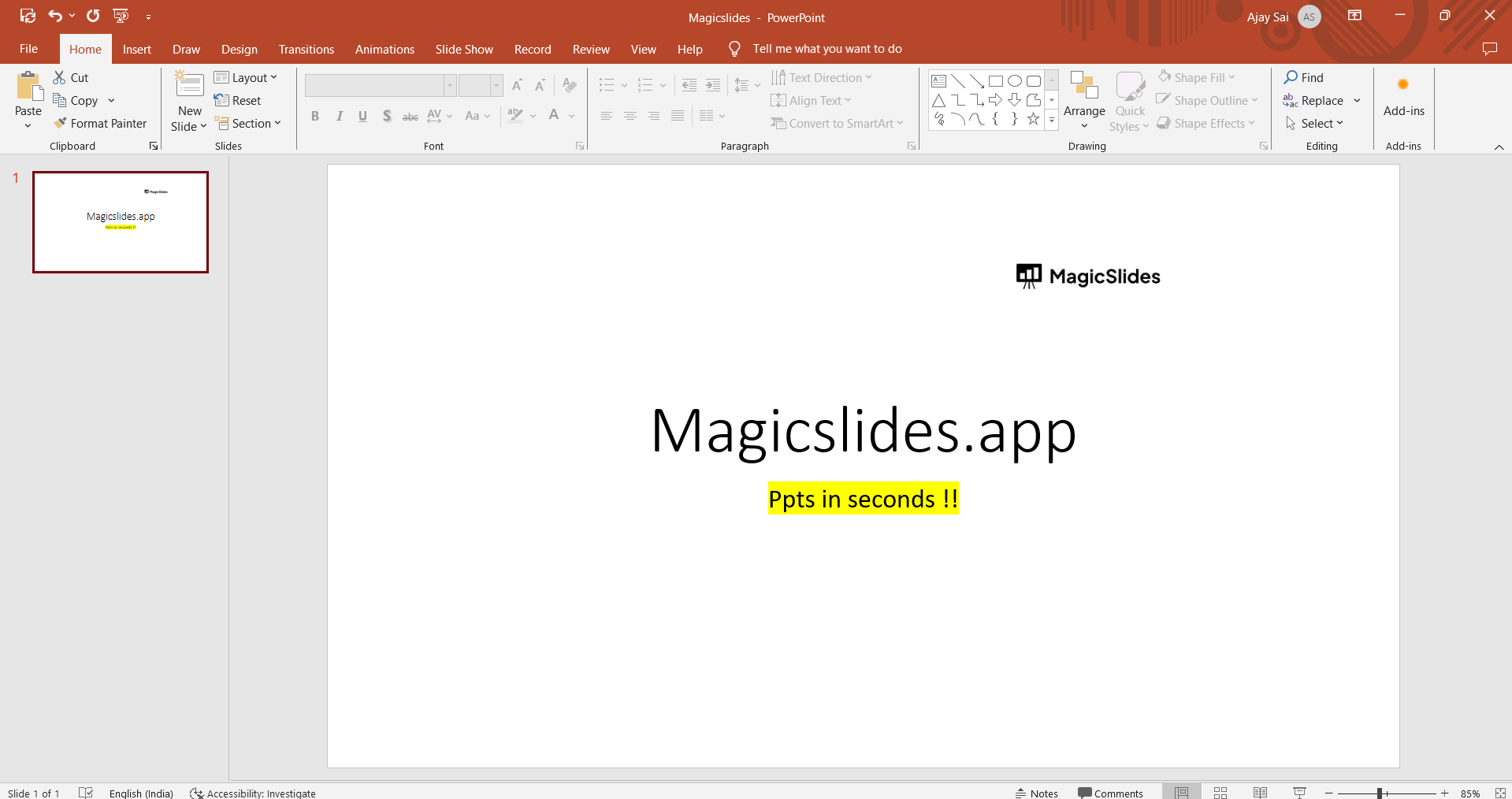
- Start by opening the PowerPoint presentation that contains the slide you want to duplicate. Ensure that your presentation is ready for editing.
- Select the Slide to Duplicate:
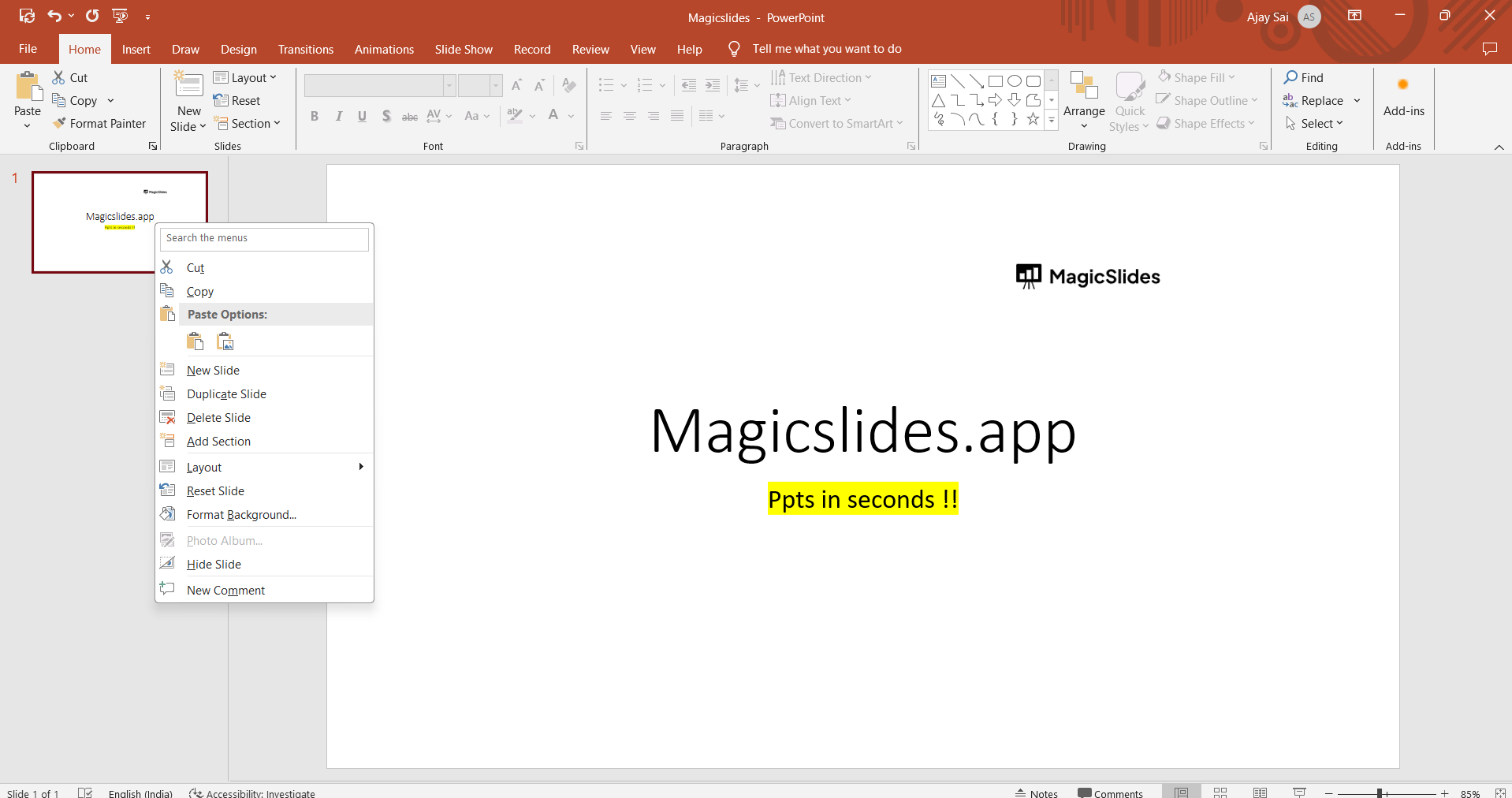
- In the slide sorter view on the left-hand side, click on the thumbnail of the slide you want to duplicate. This will select the slide.
- Copy the Slide:
- With the slide selected, copy it by pressing "Ctrl+C" (Windows) or "Command+C" (Mac) on your keyboard. Alternatively, you can right-click on the selected slide and choose "Copy."
- Insert the Duplicated Slide:
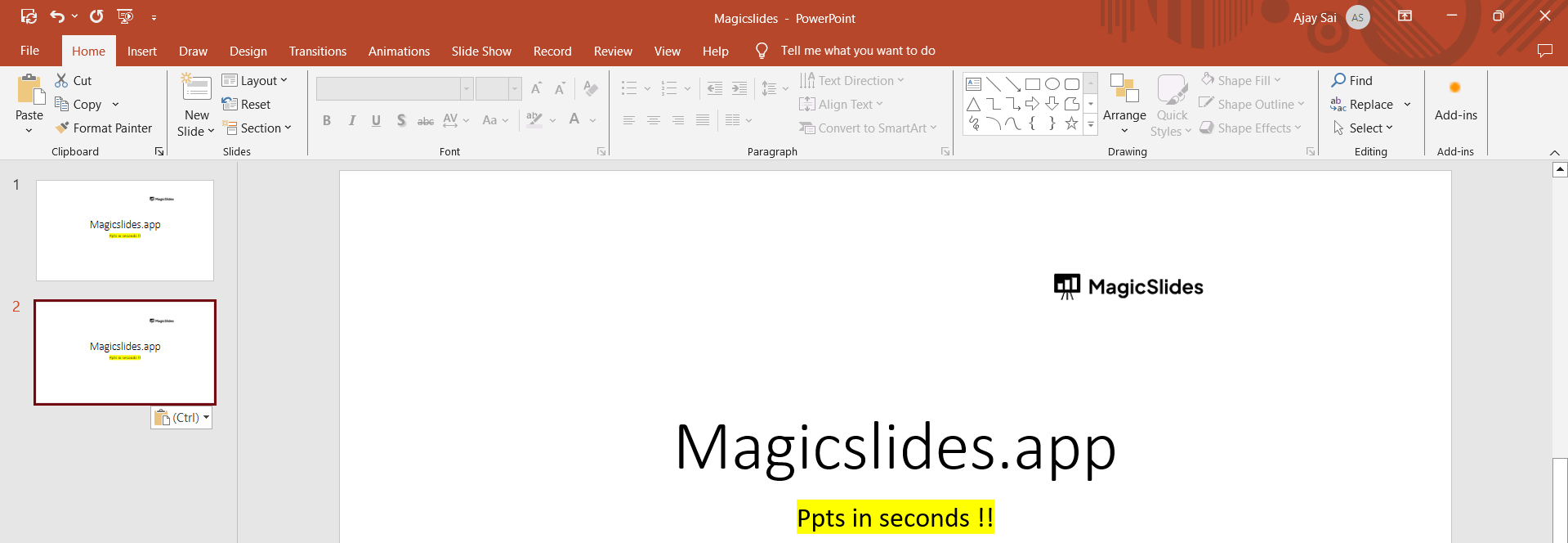
- To insert the duplicated slide, right-click on the slide thumbnail in the slide sorter view where you want the duplicate to appear. Then, choose "Paste" from the context menu.
- Verify the Duplicated Slide:
- The selected slide will now be duplicated and inserted at the location you chose. Check that the duplicate slide appears as expected.
- Repeat as Needed:
- To duplicate additional slides, repeat these steps for each slide you want to duplicate within your presentation.
Conclusion:
Duplicating a slide in PowerPoint is a simple and efficient way to save time and maintain consistency within your presentation. Whether you need to reuse a specific layout or make variations of a slide, this process allows you to streamline your PowerPoint creation and editing.
By following these easy steps, you can easily duplicate slides and make your presentations more polished and effective.
FAQs
- Why would I want to duplicate a slide in my PowerPoint presentation?
- Duplicating a slide can save time and maintain consistency when you need to reuse a specific layout or content.
- Can I duplicate multiple slides at once in PowerPoint?
- Yes, you can select multiple slides by holding down the "Ctrl" (Windows) or "Command" (Mac) key and duplicating them together using the same method.
- What happens to animations and transitions when I duplicate a slide?
- Animations and transitions on the duplicated slide will be preserved. You can modify or remove them as needed.
- Is there a limit to how many times I can duplicate a single slide?
- In theory, you can duplicate a slide as many times as you like. However, be mindful of the overall file size and performance, especially with complex presentations.
- Can I duplicate slides in PowerPoint Online or on a Mac?
- Yes, you can duplicate slides in both PowerPoint Online and the Mac version. The steps are similar to the ones outlined in this guide.


