How to Embed a Video in Canva Using YouTube or MP4 Files Easily


Learn how to embed a video in Canva using YouTube links or MP4 uploads. Easy step-by-step guide with tips, fixes, FAQs, and AI slide tools.
To put a video in Canva is really easy. You just open your design, paste a link from YouTube, or upload a video file, then put the video where you want it. This only takes a click, and it makes your content more interesting.
Canva is a design platform that people use for presentations, social media pictures and business stuff. Pictures and words are okay. Video is better because it moves, gets people’s attention and explains things faster.
If you make slides for school or work, learning how to put a video in Canva can make your design better away. You can use a YouTube video, upload your video or add videos from other apps in Canva.
In this guide you will learn the ways to do this, some helpful tips, and how to fix common video problems with Canva videos.
How to Embed a Video in Canva – Quick Answer
To learn how to embed a video in Canva, open your Canva design, click Uploads or Apps, then paste a YouTube link or upload an MP4 file. Once added, drag the video into your design, resize it, and place it where needed.
This is the fastest way to add motion to presentation slides, business content, or social media graphics. If you want a Canva YouTube video embed, use the Apps section. If you have your own file, choose Uploads and add the video directly.
After inserting the file, Canva lets you trim clips, resize frames, and move the video anywhere on the page. That makes it useful for tutorials, product demos, classroom lessons, and interactive presentations.
For best results, preview your design before sharing. This helps confirm the video plays smoothly and looks right on screen.
Why Learn How to Embed a Video in Canva?
Learning how to put a video in Canva helps you make your designs more interesting and look professional. A video can explain things to people faster than using words and it usually keeps them paying attention for a longer time.
If you make slides for school or for your job adding a video can make a plain slide fun to watch. A short video that shows how to do something or a video that teaches you something or a video that introduces something can make what you are saying easier to understand and remember.
For business workers, video is really helpful in sales presentations, training and when they are trying to market something. For teachers it can make their lessons better by using pictures and videos to explain things. People who make content also use the video tools in Canva to make their social media posts stronger.
Another good thing about using video in Canva is that it is easy to use. Of sending people to YouTube or some other website to watch a video you can just put the video right in your Canva project.
When you learn how to put a video in Canva you can make designs that look new and polished and that work better. You can make videos a part of your Canva projects.
How to Embed a Video in Canva Using YouTube Link?
One of the easiest ways to learn how to embed a video in Canva is by using a YouTube link. This method works well for tutorials, product demos, interviews, and classroom content.
Step 1. Start by opening your Canva presentation or design. On the left panel, click Apps and search for YouTube Embed.
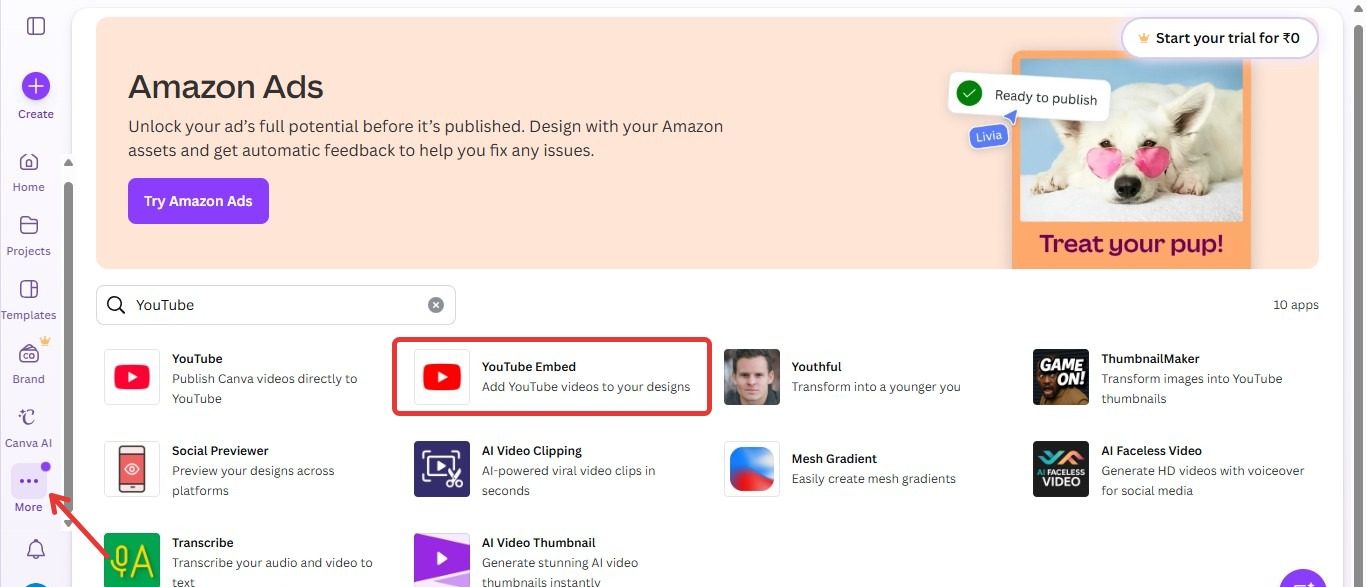
Step 2. Select the YouTube tool, then paste the video URL into the search bar.
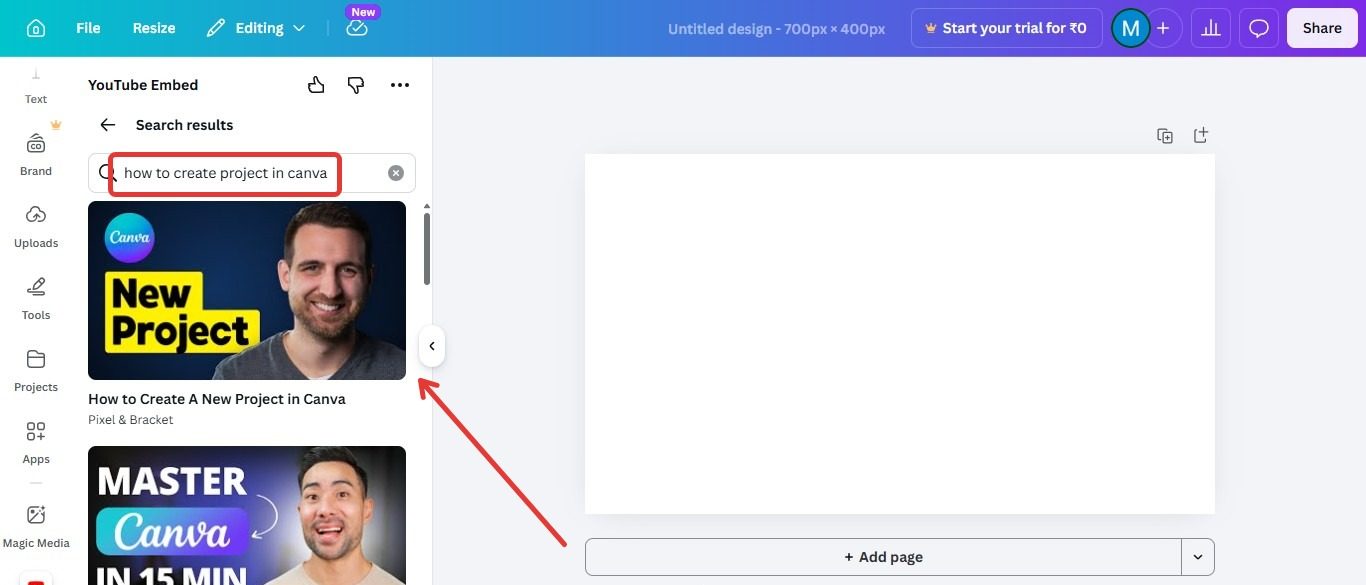
Step 3. Tap on the video and Canva will load the video so you can add it directly to your page.
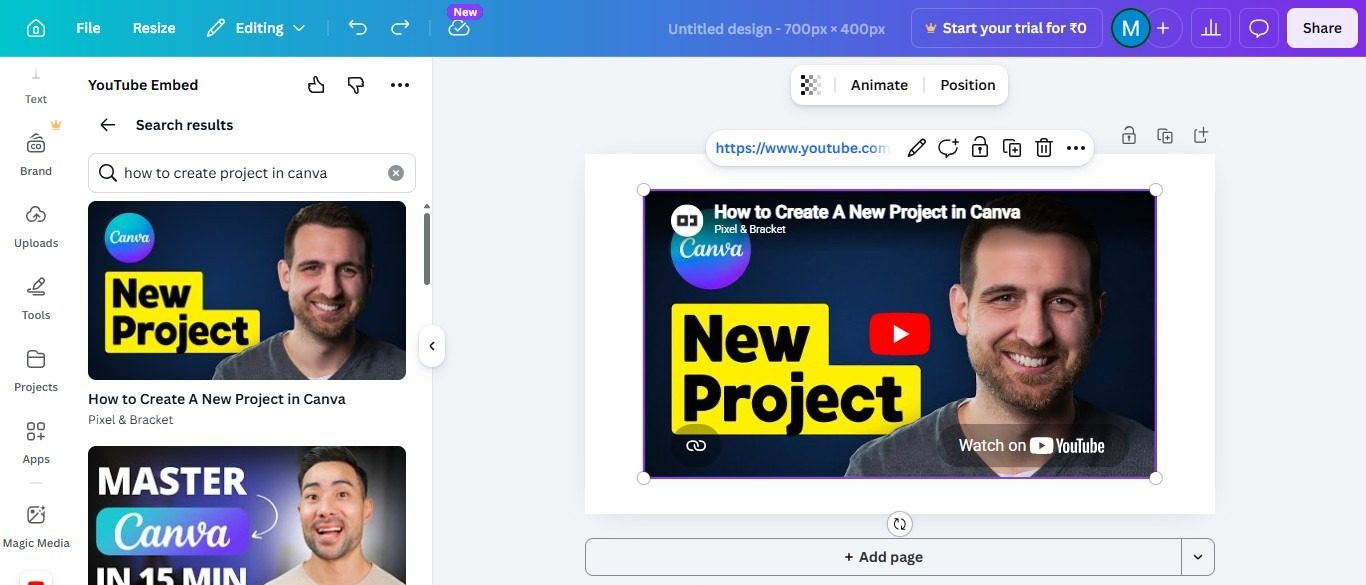
A Canva YouTube video embed is helpful because you do not need to download the video first. It saves storage space and speeds up the design process.
Make sure before presenting, preview the slide to make sure playback works correctly. If the link is private or restricted, Canva may not load it. Public YouTube videos usually work best for this method.
How to Embed a Video in Canva by Uploading MP4 File
If you have your own video, the best way to learn how to embed a video in Canva is by uploading an MP4 file. This method is reliable because the video is stored inside your Canva project.
Step 1. Open your design and click Uploads from the left menu. Then select Upload Files.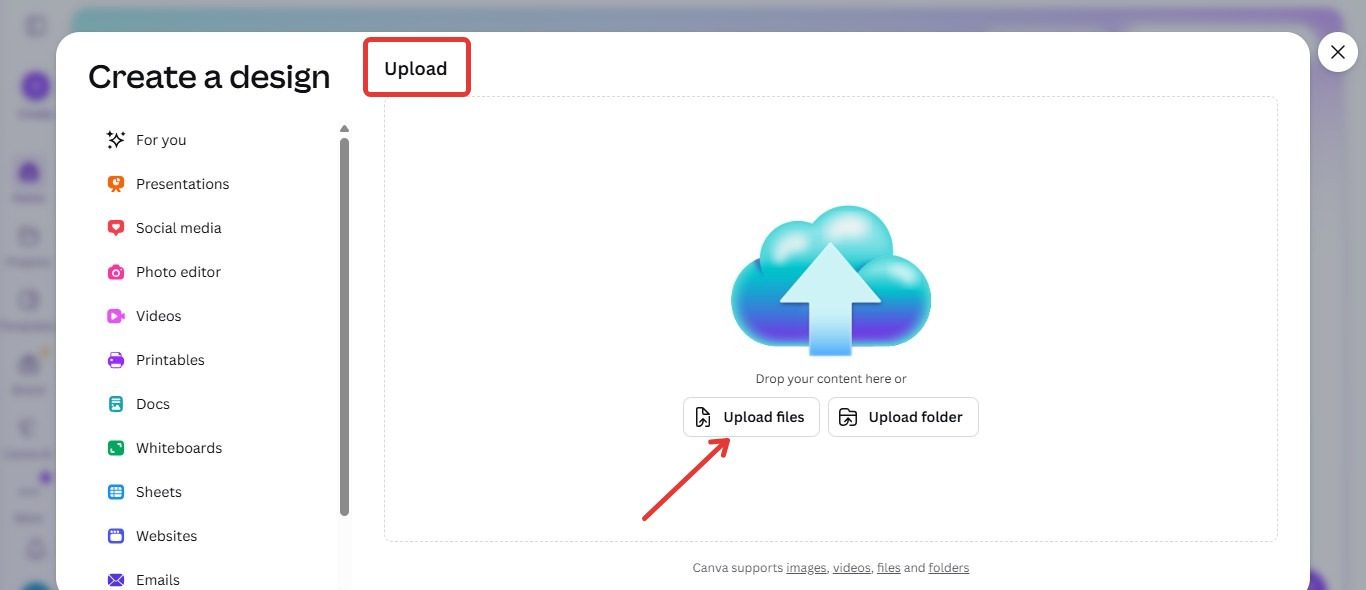
Step 2. Choose your MP4 or MOV video from your device. After the file finishes uploading, drag it onto your page.
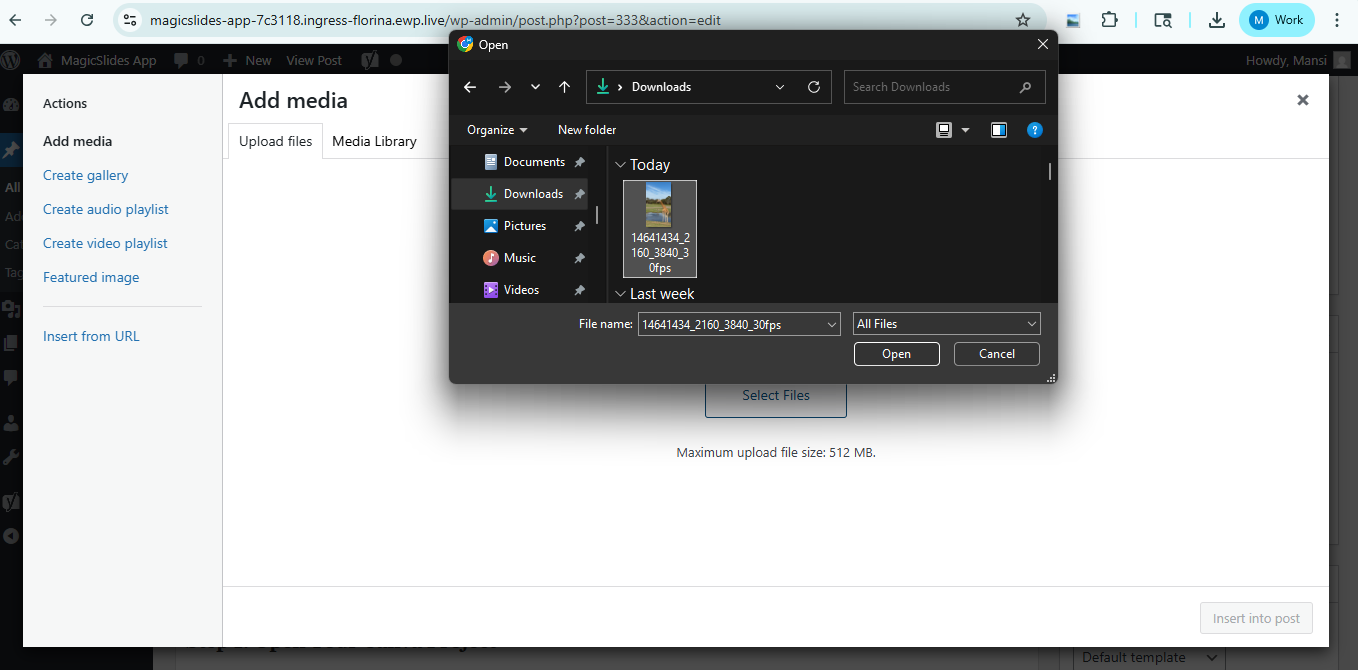
Once you add it you can make the frame bigger or smaller move it around in the layout and cut the video if you need to. This is really helpful for business presentations training videos, product demos or personal branding content.
Lots of users like this option because it does not rely on a link from outside. Uploaded files usually play better during presentations, than some embedded media.
If your upload is slow try making the file smaller or check your internet connection. For the results use a clear and high-quality video with good sound. Uploading your file is one of the easiest ways to add video in Canva like a pro.
Why Embedded Video Does Not Work in Canva?
Sometimes a video in Canva will not play. This happens because of the link, the file or the internet. It is pretty common. Usually it is easy to fix.
If you are using a YouTube link in Canva you have to make sure the video is public. If the video is private or restricted it may not load in Canva. If your internet is slow it can also cause the video to buffer or not play all.
When you upload a file to Canva it is best to use a file that’s in MP4 format. If you use a file that’s in a different format it may not work right and you will get errors.
Another thing that can go wrong is when you download your design from Canva as a PDF or something else. Sometimes when you do this the video will not play anymore.
The best thing to do is to test the video in Canva Present mode or use a Canva share link before you show it to people. This way you can make sure the video, in Canva is working okay.
Create Canva-Ready Videos and Slides Faster with AI
To save time when you are trying to figure out how to put a video in Canva, MagicSlides AI Presentation Tool can really help you do it faster. You do not have to make every slide by hand you can make nice looking presentations in just a few minutes and then make them look even better inside Canva.
It is great for making slides that make sense from a topic some text, a website link, a PDF file or some notes. This is really helpful for students, people who work in business teachers and marketers who need to make presentations without having to start from scratch.
When your slides are all ready you can move them over to Canva to make the changes add your companies branding, animations and videos. Then you can add a YouTube video link. Upload some MP4 video clips to make the presentation more fun to watch.
This way of doing things works well when you need to get things done quickly and still make them look good. You can use MagicSlides AI to make the content. Then use Canva to make it look nice and add videos and other media.

Conclusion
Embedding a video in Canva is a straightforward process that can significantly enhance your designs and engage your audience more effectively.
By following these simple steps, you can easily incorporate videos into your projects, making them more dynamic and visually appealing.
Whether for presentations, social media, or marketing materials, adding video content can elevate your design and better convey your message.
FAQs
Can I embed videos from platforms like YouTube in Canva?
Yes, you can embed videos from YouTube by copying the video link and using the “Embed” feature if available.
What video formats are supported for uploading to Canva?
Canva supports various video formats, including MP4 and MOV files, making it easy to upload your preferred video.
Can I edit the video after embedding it in Canva?
Yes, you can trim the video length and adjust its settings within Canva to fit your design needs.


