How to enable editing in PowerPoint


Enabling editing in PowerPoint allows you to modify presentations, especially when opened in read-only mode
Enabling editing in PowerPoint is essential when you need to make changes to a presentation, especially if it's been opened in Read-Only mode or downloaded from the web.
In this guide, I will walk you through the steps to enable editing in PowerPoint, so you can make the necessary adjustments to your slides and improve your presentation with ease.
How to Enable Editing in PowerPoint: A Step-by-Step Guide
Step 1: Open the PowerPoint File
Start by opening the PowerPoint file that you need to edit.
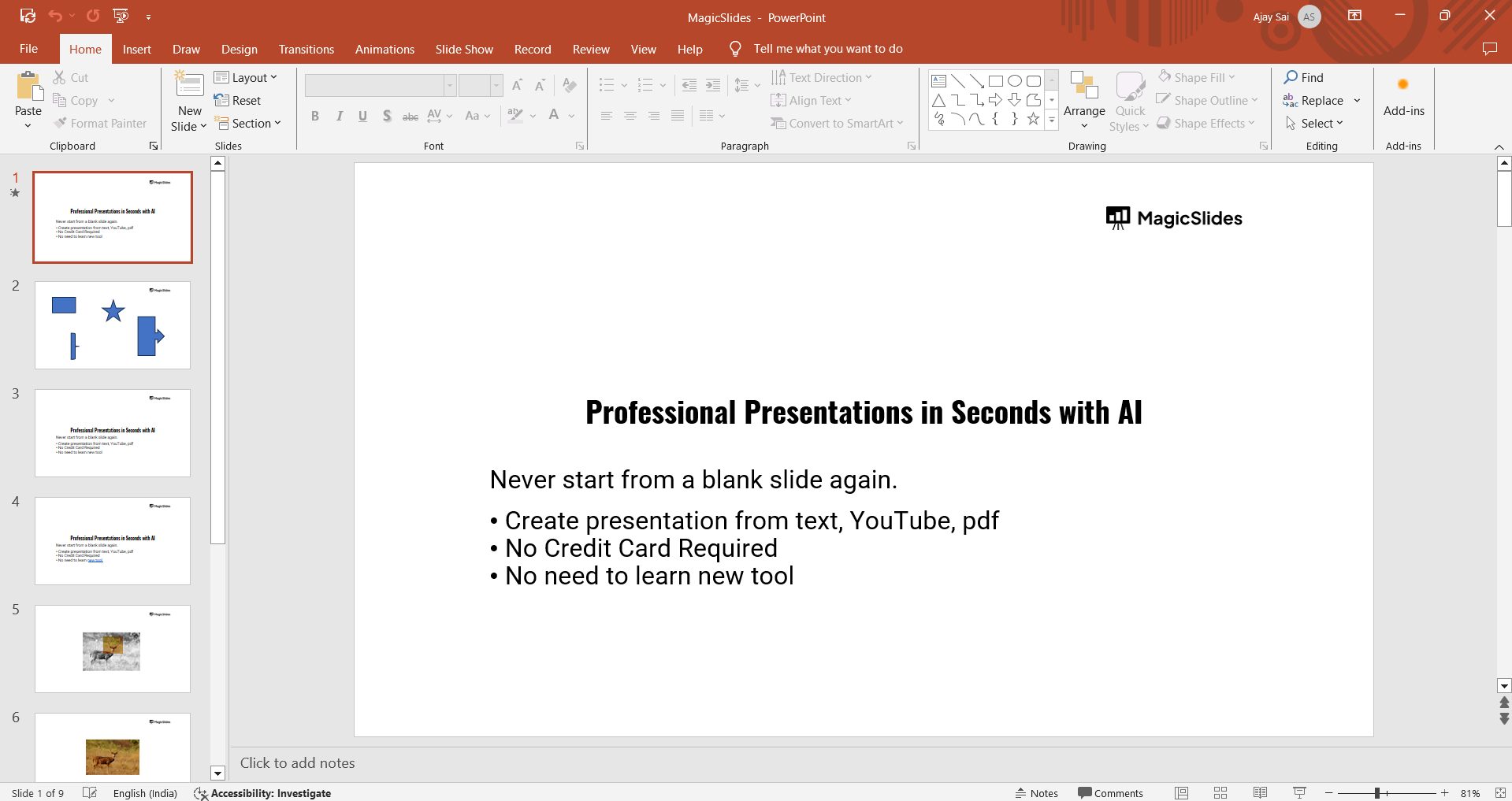
You can do this by double-clicking the file or selecting it through the “Open” option in PowerPoint.
If the file opens in Read-Only mode, you’ll need to enable editing to make any changes.
Step 2: Check for the “Protected View” Banner
If your file has been downloaded from the web or another potentially unsafe location, PowerPoint may open it in “Protected View.”
You’ll notice a yellow banner at the top of the window that says “Protected View.”
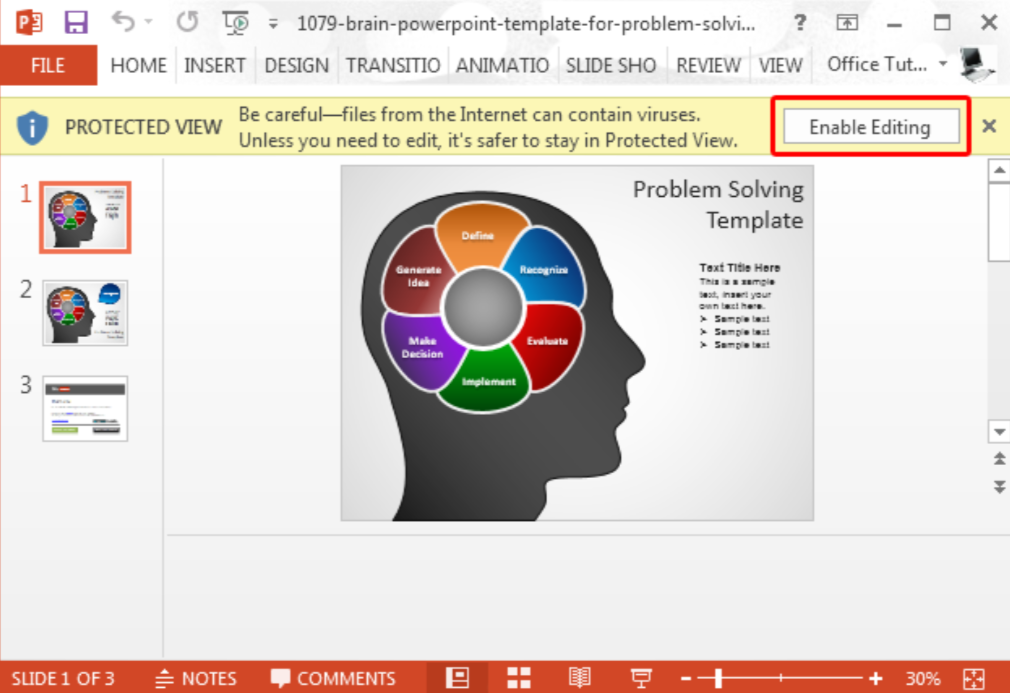
This feature prevents automatic editing to protect your device from potentially harmful content.
Step 3: Click “Enable Editing”
To enable editing, simply click the “Enable Editing” button on the yellow banner at the top of your PowerPoint window.
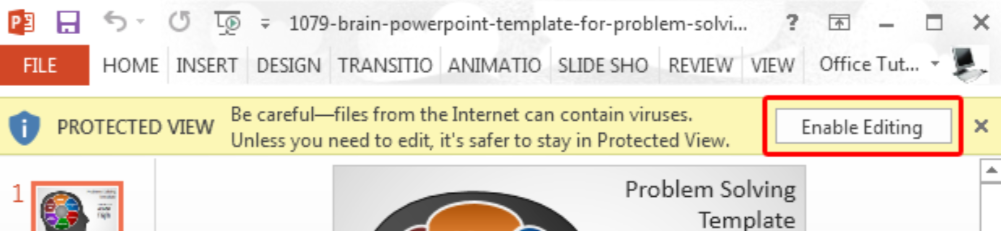
This will lift the restrictions and allow you to make changes to the presentation.
The banner will disappear, and the file will now be in editable mode.
Step 4: Save the Editable File
Once you have enabled editing, make sure to save your changes.
You can click "File" and then "Save" or "Save As" to save a new version of the document if needed.
This will ensure that your edits are not lost and the file remains editable for future use.
Now that you've enabled editing in PowerPoint, learn how to change the dimensions of your PowerPoint slides to customize them for different presentation needs.
Conclusion
Enabling editing in PowerPoint is a simple process that can be done in just a few clicks.
By following these steps, you can easily unlock your presentation and make the necessary changes, whether it's removing "Protected View" restrictions or entering a password.
This ensures you can work on your presentation seamlessly, no matter its source.
FAQs can come handy!
Why is my PowerPoint file in "Protected View"?
PowerPoint uses "Protected View" for files downloaded from the internet to prevent potential security risks.
How do I enable editing in a protected PowerPoint file?
Click the "Enable Editing" button on the yellow banner that appears in the "Protected View" mode.
What if my PowerPoint file is password-protected?
You'll need to enter the correct password to unlock the file and enable editing.


