How to Flip Text in Canva (Step-by-Step Guide)


Learn how to flip text in Canva using simple workarounds. Discover how to create mirrored text, flip text horizontally or vertically, and customize your designs with step-by-step instructions.
Flipping text in Canva is a great way to create mirror effects, reflections, custom logos, heat transfer vinyl (HTV) designs, and other eye-catching graphics. While Canva offers a Flip tool for images, graphics, and other design elements, it does not currently allow you to flip editable text directly. Fortunately, there are simple workarounds that make it easy to achieve the same effect without compromising your design.
In this guide, you’ll learn how to flip text in Canva using reliable methods, whether you want to mirror text horizontally or vertically. We’ll also share helpful tips to maintain text quality and explain when flipping text is most useful, so you can create professional-looking designs with confidence.
Note: Canva’s Flip tool only works with images, graphics, shapes, and other design elements. If you’re working with editable text, you’ll need to use one of the workarounds explained below.
Why Would You Flip Text in Canva?
Flipping text isn’t something you’ll use in every design, but it can be incredibly useful for certain creative and professional projects. Mirrored or upside-down text helps achieve specific visual effects that standard text formatting can’t provide.
Here are some common use cases for flipping text in Canva:
- Create mirror effects: Design realistic reflections for water, glass, or polished surfaces.
- Heat Transfer Vinyl (HTV) projects: Mirror text before printing so it appears correctly when transferred onto fabric.
- Logo and branding mockups: Preview how logos or text will look on reflective objects or transparent materials.
- Creative social media graphics: Make unique posts, banners, or thumbnails that grab attention.
- Artistic typography: Experiment with mirrored or inverted text for posters, album covers, and digital artwork.
Before using flipped text, consider whether readability is important. Mirrored or upside-down text can be difficult to read, so it’s best used as a design element rather than for long passages of content. If your goal is clear communication, use flipped text sparingly and pair it with standard text where necessary.
Understanding when to use flipped text helps you create visually appealing designs while maintaining a good user experience. This ensures your graphics remain both creative and effective.
Step-by-Step Guide to Flip Text in Canva
Although Canva doesn’t let you flip editable text directly, you can still create mirrored or upside-down text using a simple workaround. The easiest method is to convert your text into an image or use Canva elements that support the Flip feature. Once converted, you can flip the text horizontally or vertically just like any other graphic.
Follow the steps below to flip text in Canva.
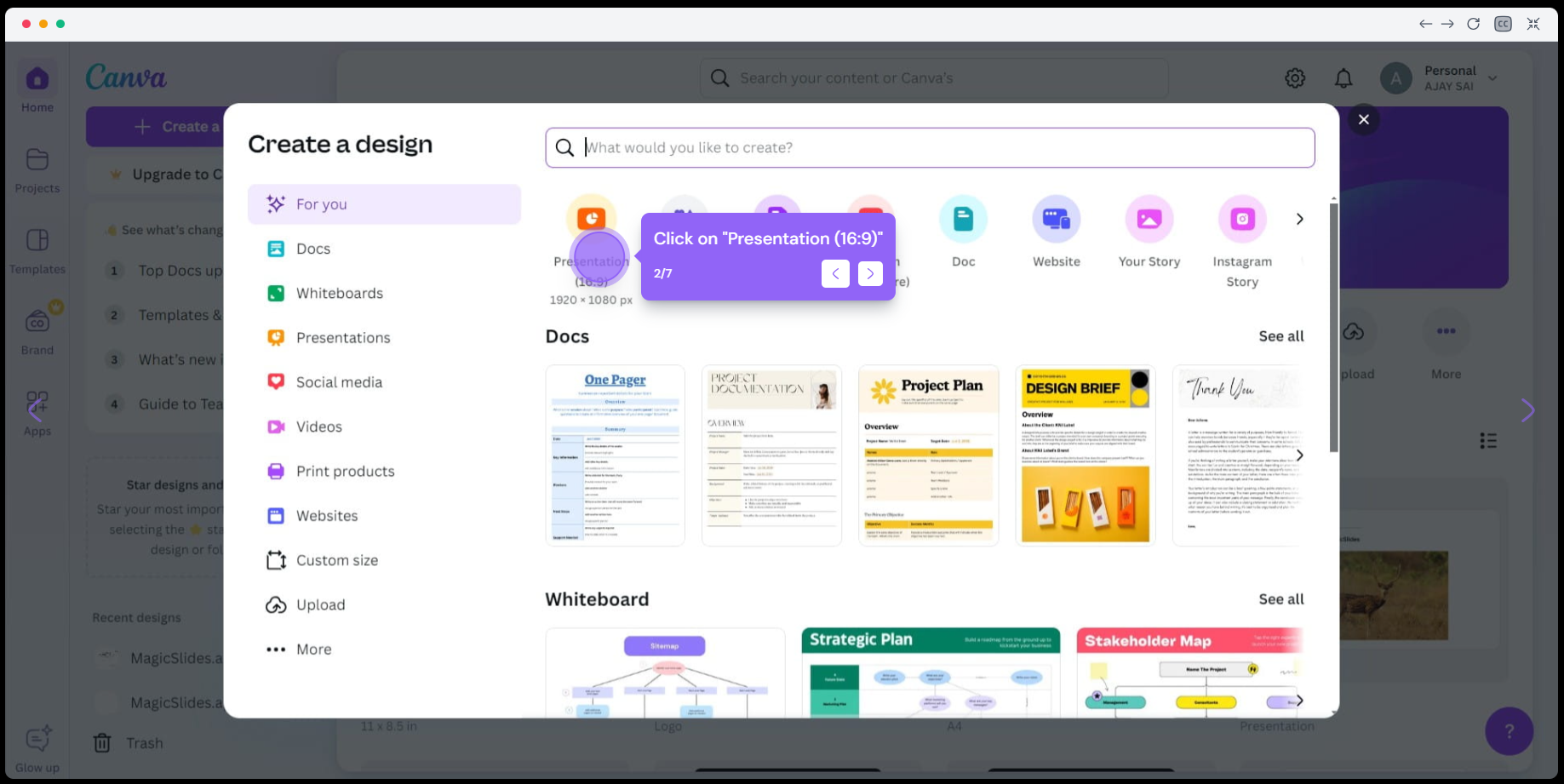
Step 1: Open Your Canva Design
Log in to your Canva account and open the design where you want to flip the text. You can either create a new design from scratch or edit an existing project.
Step 2: Add and Customize Your Text
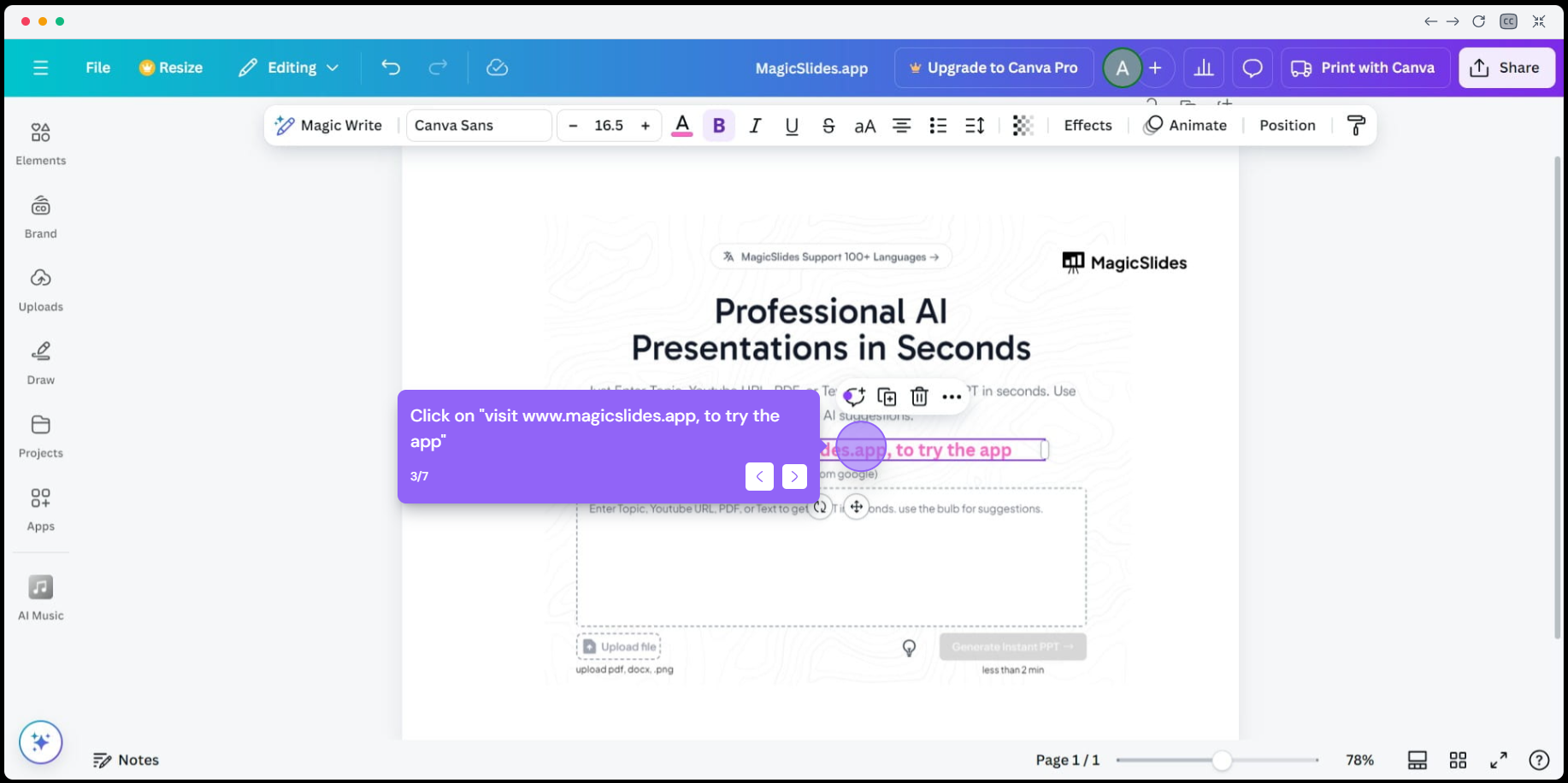
Click the Text option from the left sidebar and add a heading, subheading, or body text. Customize the font, size, color, spacing, and alignment until you’re happy with its appearance before flipping it.
Step 3: Convert the Text into an Image
Since Canva doesn’t support flipping editable text, you’ll first need to convert the text into an image. You can do this by placing the text on a separate page with a transparent or plain background, downloading it as a PNG, and uploading it back into Canva. Alternatively, you can use an online mirrored text generator to create flipped text and import it into your design.
Step 4: Flip the Image in Canva
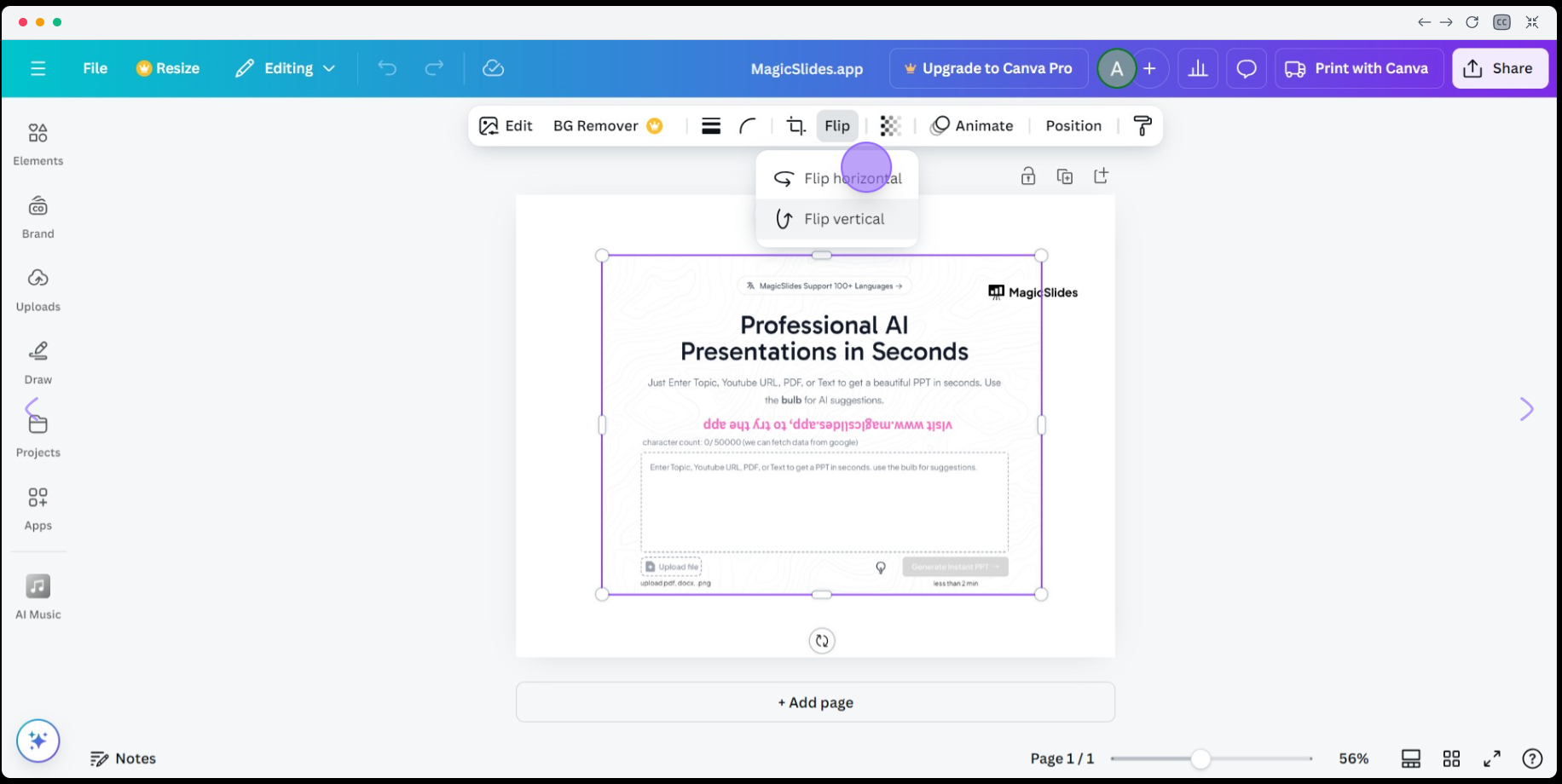
Select the uploaded text image, then click Flip from the toolbar at the top of the editor. Choose one of the following options:
- Flip Horizontal to create mirrored text.
- Flip Vertical to turn the text upside down.
Step 5: Reposition and Customize
Move the flipped text to the desired position within your design. You can resize, rotate, add effects, or combine it with other Canva elements to achieve the look you want. Once you’re satisfied, save or export your finished design in your preferred format.
Pro Tip: If you only need mirrored text for a special project, using an online mirrored text generator before importing it into Canva is often the quickest and highest-quality solution. This preserves text clarity while giving you complete control over placement and styling.
Tips for Flipping Text in Canva
To achieve the best results, keep these practical tips in mind when creating flipped or mirrored text in Canva.
- Finalize your text first: Make all edits to the font, size, color, spacing, and alignment before converting the text into an image. Once it’s an image, you can no longer edit the text itself.
- Use high-quality exports: Export your design as a PNG with the highest quality available to keep the flipped text sharp and clear.
- Choose readable fonts: Simple, bold fonts remain more legible after being mirrored or flipped than decorative or script fonts.
- Use transparent backgrounds when possible: Exporting with a transparent background makes it easier to place flipped text on different designs without unwanted borders.
- Keep accessibility in mind: Mirrored or upside-down text is harder to read, so avoid using it for important information, instructions, or calls to action.
- Preview before downloading: Zoom in and review your design to ensure the flipped text is aligned correctly and doesn’t appear blurry or distorted.
- Save an editable version: Keep a copy of your original Canva project with editable text so you can make changes later without recreating the design from scratch.
Following these best practices helps you create clean, professional-looking designs while avoiding common issues like blurry text, poor alignment, or readability problems.
Save Time Creating Presentations with MagicSlides
If you’re creating presentations in Canva, MagicSlides AI PPT Maker can help you save time by turning documents, PDFs, YouTube videos, websites, or simple prompts into professionally designed presentation slides in minutes. It automatically generates well-structured slides with relevant layouts, visuals, and formatting, which you can then customize in Canva to match your brand, style, or presentation needs.
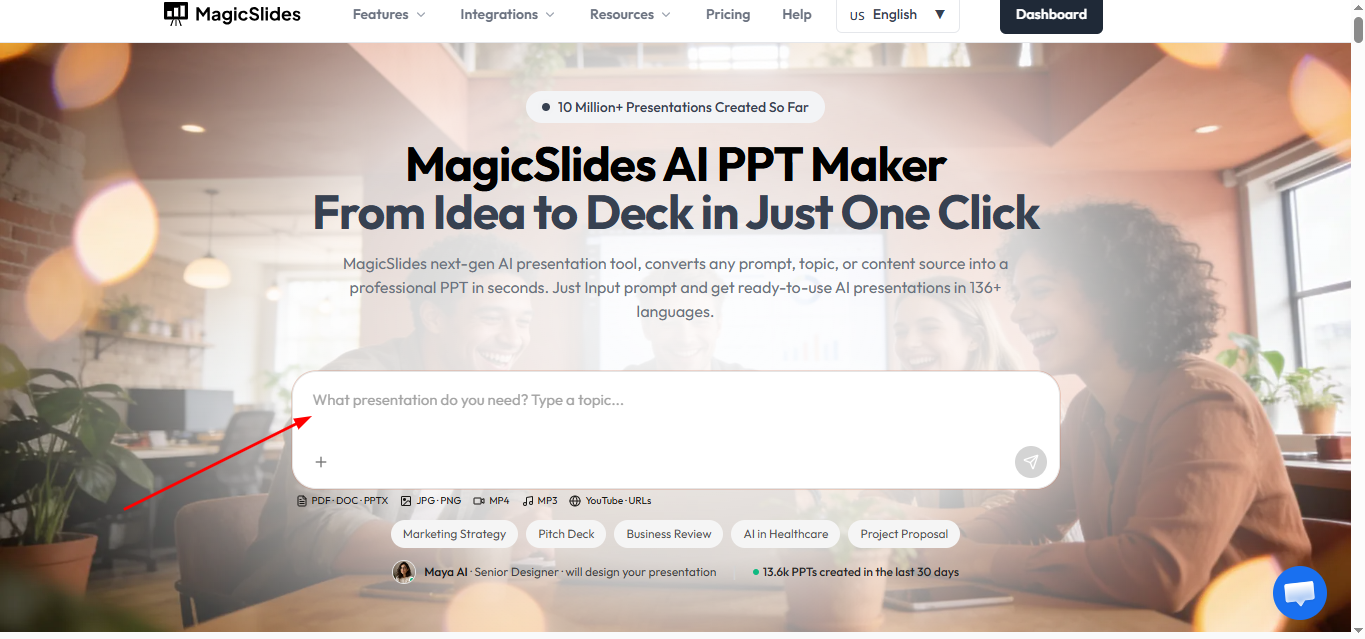
MagicSlides is especially useful for students, educators, marketers, and business professionals who want to create high-quality presentations quickly without spending hours on design.
Conclusion
Flipping text in Canva can help you create unique visual effects for logos, social media graphics, product mockups, and creative design projects. While Canva doesn’t currently support flipping editable text directly, using a simple workaround allows you to mirror or invert text with ease.
By following the steps in this guide, you can flip text horizontally or vertically while maintaining a clean and professional design. Remember to finalize your text formatting before converting it into an image, and use high-quality exports to ensure the best results.
Whether you’re designing for personal projects, business branding, or presentations, these techniques will help you create eye-catching visuals with confidence.
Frequently Asked Questions (FAQs)
Q1. Can you flip editable text directly in Canva?
No. Canva does not currently allow you to flip editable text using the built-in Flip tool. To create mirrored or upside-down text, you’ll need to convert the text into an image or use another workaround before applying the Flip option.
Q2. How do I mirror text in Canva?
To mirror text, first convert the text into an image or upload a mirrored text graphic. Then, select the image, click Flip from the toolbar, and choose Flip Horizontal to create the mirrored effect.
Q3. Can I flip text vertically in Canva?
Yes, but only after converting the text into an image. Once uploaded, select the image and choose Flip Vertical to turn the text upside down.
Q4. Will flipping text reduce its quality?
The quality depends on how you export and re-upload the text. Using high-resolution PNG files and transparent backgrounds helps preserve sharpness and clarity.
Q5. Can I edit the text after flipping it?
No. Once the text has been converted into an image and flipped, it is no longer editable as text. It’s best to keep a copy of your original Canva design with editable text in case you need to make changes later.
Q6. Why would I flip text in Canva?
Flipped text is commonly used for mirror effects, heat transfer vinyl (HTV) printing, logo mockups, reflections, creative typography, and eye-catching social media graphics.
Q7. Is there an easier way to create presentation designs?
If you’re creating presentations along with Canva designs, AI tools like MagicSlides can help generate professional slides from documents, PDFs, websites, YouTube videos, or prompts, allowing you to focus more on your content than manual slide design.


