How to Group things on Canva


Grouping elements in Canva simplifies your design process, allowing you to manage multiple items efficiently.
Grouping elements in Canva is a useful feature that helps you manage and organize your designs more efficiently.
By grouping multiple elements together, you can move, resize, or edit them as a single unit, saving time and ensuring consistency throughout your design.
This is especially helpful when working with complex layouts or when you want to maintain the alignment of certain elements.
In this blog post, we'll walk you through the steps to group elements on Canva, allowing you to streamline your design process.
Step-by-Step Guide to Grouping Elements on Canva
Step 1: Log in to Canva
Begin by logging into your Canva account. Visit Canva's website and enter your login details.
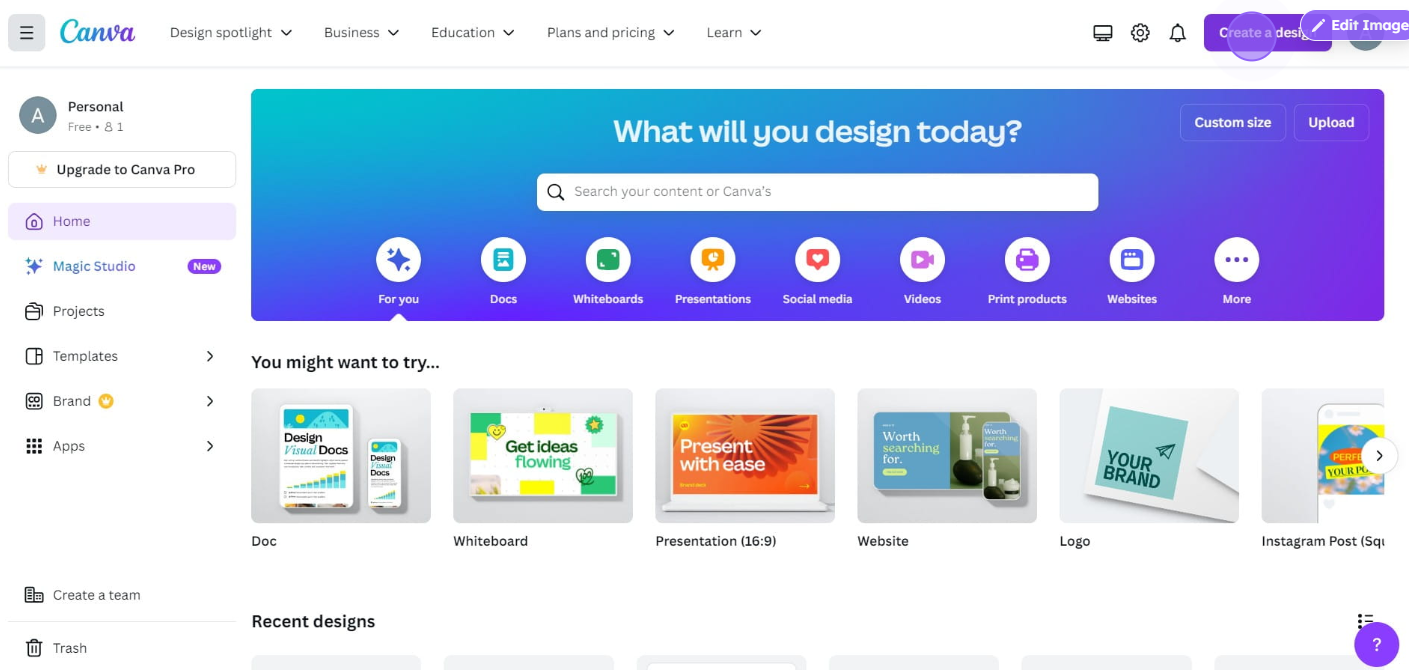
If you don't have an account, you can quickly sign up using your email, Google, or Facebook account.
Step 2: Create or Open a Design
Once you're logged in, you can either start a new design or open an existing one. To create a new design, click on "Create a design" and select your desired template or custom dimensions.
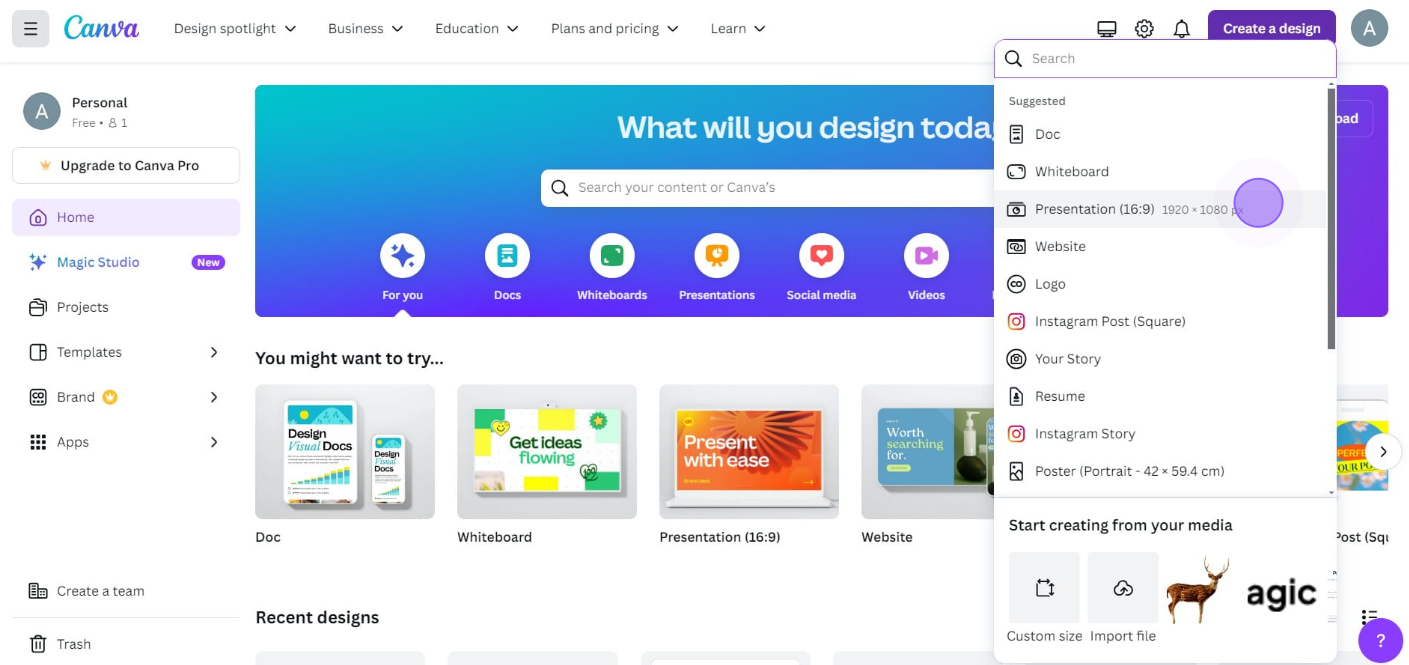
If you want to work on a design you've already started, navigate to the "Your projects" tab and select the design from there.
Step 3: Select the Elements You Want to Group
To group elements, you'll first need to select them.
Click on the first element, then hold down the Shift key on your keyboard while clicking on each additional element you want to include in the group.
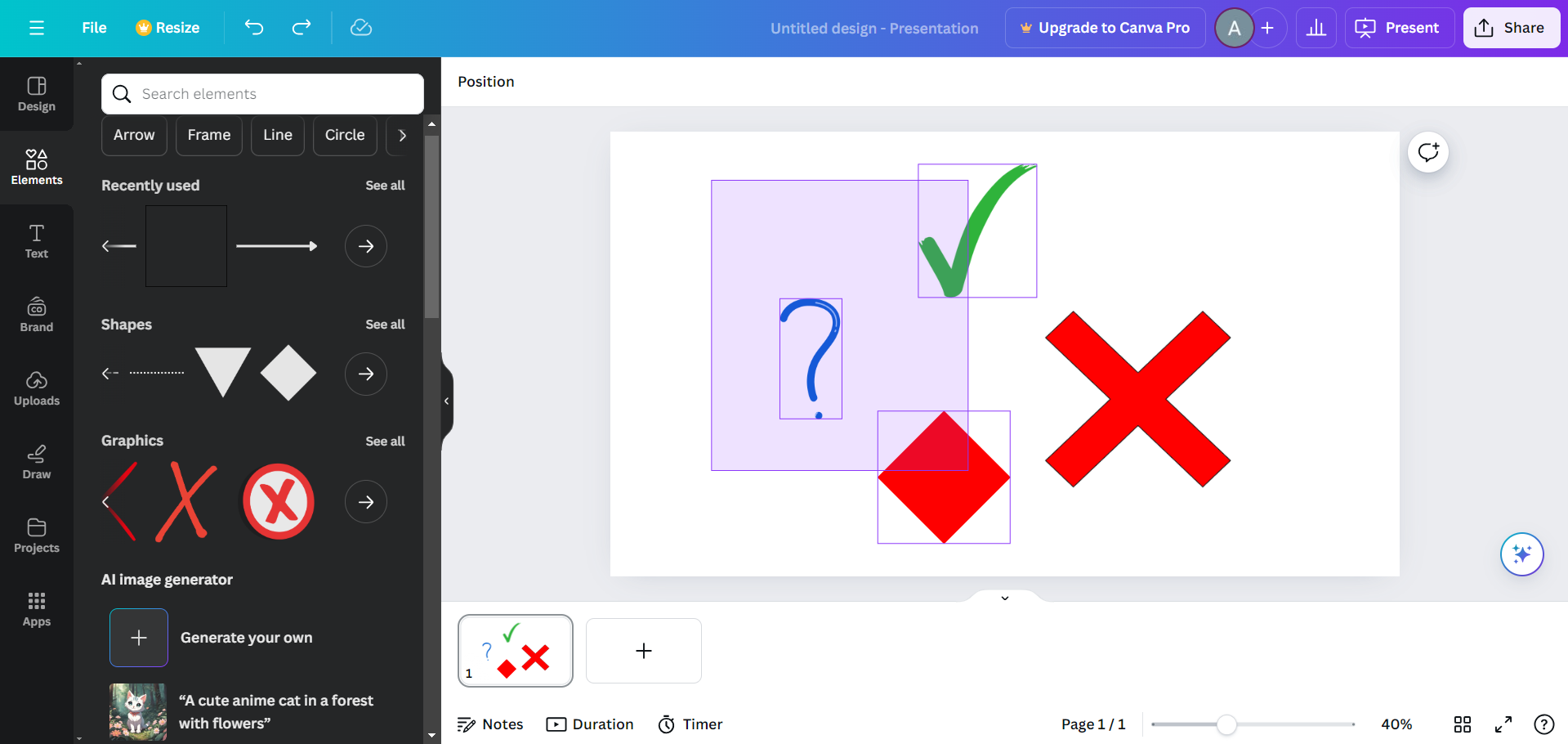
If you're using a touchscreen device, you can tap on each element one at a time to select them.
Step 4: Group the Selected Elements
Once all the elements are selected, you'll see a toolbar appear at the top of the screen. Look for the "Group" button, which looks like two overlapping squares or use the right-click menu and select "Group."
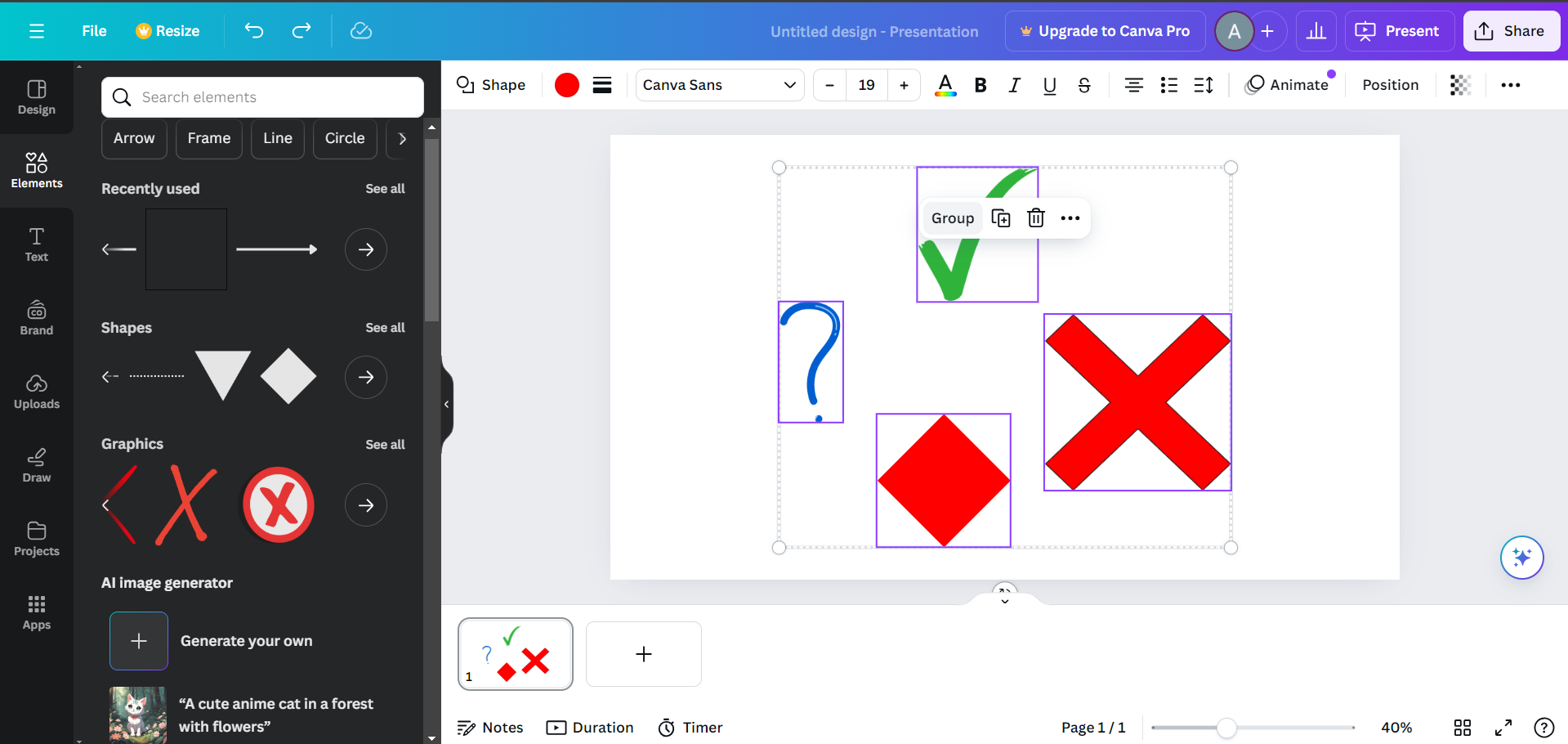
Click this button to group the selected elements together. They will now move, resize, and be edited as a single unit.
Step 5: Ungroup Elements if Needed
If you ever need to ungroup the elements, simply select the group and click on the "Ungroup" button in the top toolbar, or use the right-click menu and select "Ungroup."
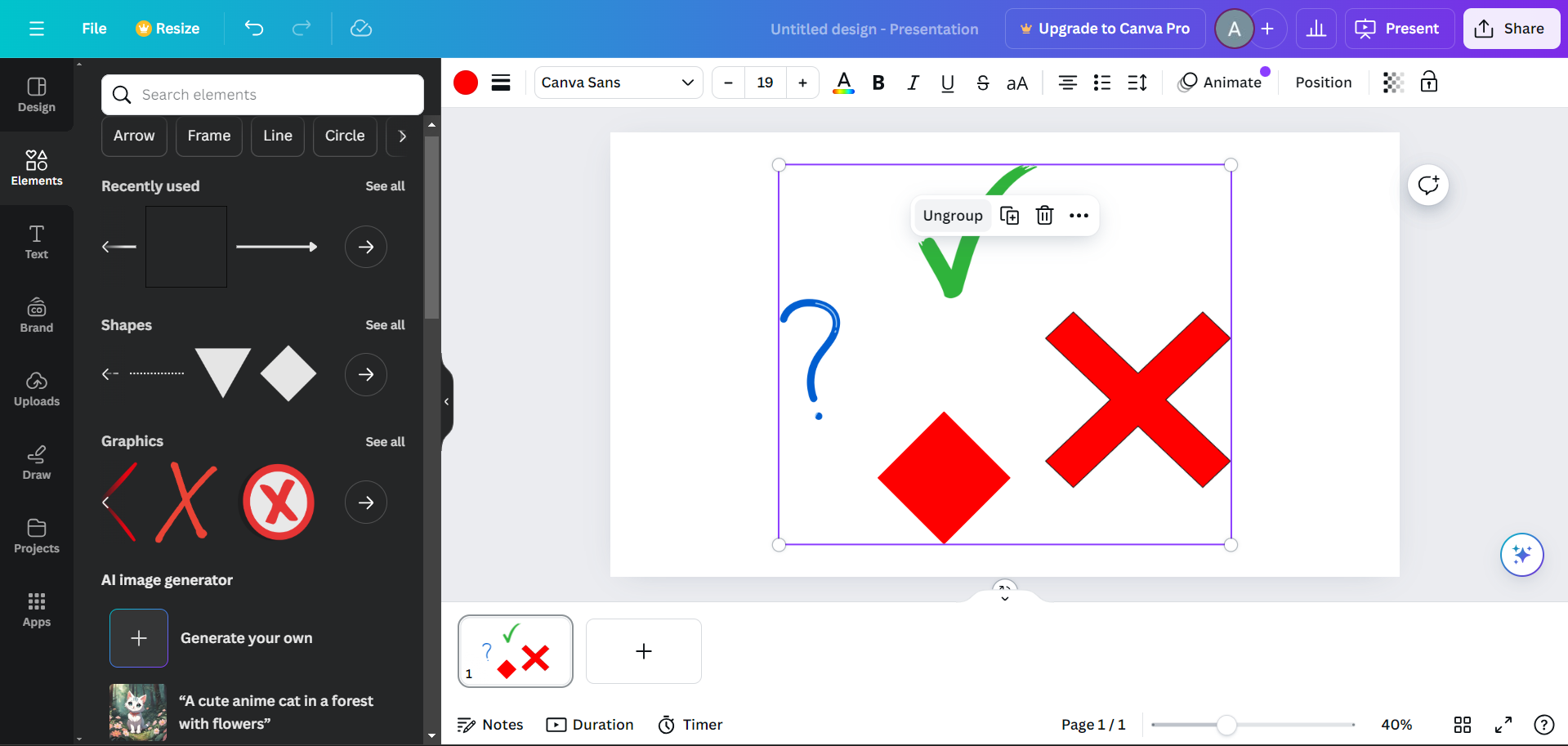
This will separate the elements back into individual pieces, allowing you to edit or move them independently.
Step 7: Save Your Design
Once you've finished grouping and editing your elements, be sure to save your work.
Click on the "Share" button in the top-right corner, select "Download," choose your preferred file format, and click "Download" to save your design.
Conclusion
Grouping elements in Canva is a simple yet powerful feature that can significantly improve your design workflow.
Whether you're working on a complex layout or just want to keep elements aligned, grouping allows you to manage your design with ease.
By following these steps, you'll be able to group, edit, and ungroup elements in Canva, giving you greater control over your creative projects. Experiment with this feature to see how it can streamline your design process and enhance your final results!
FAQs can come handy!
Can I edit individual elements within a group?
Yes, double-click the group to edit individual elements without ungrouping.
How do I ungroup elements?
Select the group, then click the "Ungroup" button in the top toolbar or right-click and choose "Ungroup."
Is grouping available in Canva's free version?
Yes, grouping elements is available in both Canva's free and Pro versions.


