How to Handle Q&A Sessions During Presentations


Learn how to handle Q&A sessions during presentations effectively. Improve audience engagement and enhance your presentations with AI-powered MagicSlides.
Handling a Q&A session during presentations effectively is a skill that every presenter should master. A well-managed Q&A session can enhance audience engagement, demonstrate your expertise, and create a more interactive and informative discussion. However, a poorly handled Q&A can lead to confusion, loss of credibility, or disruption of the presentation flow.
In this blog, we will explore the best practices for handling Q&A sessions smoothly. We will also introduce an AI-powered tool, MagicSlides, which can help you create stunning presentations in minutes, making your delivery even more professional.
Why Q&A Sessions Are Important in Presentations
A question-and-answer (Q&A) session is an opportunity for the audience to clarify their doubts, seek more details, and interact directly with the presenter. It serves multiple purposes:
- Enhances Engagement: A well-structured Q&A session ensures that your audience remains involved.
- Shows Your Expertise: Answering questions confidently demonstrates your knowledge.
- Provides Clarity: Sometimes, key points may need more elaboration. Q&A sessions help address gaps.
- Encourages Discussion: A great way to involve the audience and get different perspectives.
Now, let’s explore the best ways to manage Q&A sessions effectively.
How to Handle Q&A Sessions During Presentations
Here are some practical strategies to manage your Q&A session smoothly:
1. Set Expectations Early
Before you begin your presentation, inform your audience about how and when they can ask questions. There are a few approaches:
- End-of-presentation Q&A: The most common method where all questions are answered at the end.
- Mid-presentation Q&A: Best for interactive sessions where questions are addressed at logical breaks.
- Ongoing Q&A: Works well for informal sessions but can disrupt the flow if not managed well.
Tip: Let your audience know the format in advance to avoid unnecessary interruptions.
2. Prepare for Possible Questions
Anticipate the types of questions your audience may ask and prepare concise yet informative responses. Consider:
- Reviewing your topic for possible gaps.
- Listing common questions and practicing responses.
- Thinking about potential difficult or challenging questions.
3. Encourage Audience Participation
Some audiences may hesitate to ask questions. You can:
- Directly invite questions: “I’d love to hear your thoughts. Any questions so far?”
- Use audience polling tools.
- Have pre-planned questions ready to encourage others.
4. Listen Carefully Before Responding
A common mistake presenters make is jumping to conclusions before fully understanding a question. Instead:
- Listen attentively without interrupting.
- Pause briefly to process the question.
- Clarify if needed: “Do you mean X or Y?” before responding.
5. Keep Your Answers Clear and Concise
When responding:
- Be direct: Avoid long-winded explanations.
- Stay relevant: Stick to the topic and avoid unnecessary details.
- Use examples: Sometimes, a short example can clarify your answer better.
6. Handle Difficult or Unrelated Questions Tactfully
Not all questions will be easy to answer. Some tips include:
- For tough questions: Acknowledge the question, provide a logical response, and offer to discuss in detail later if needed.
- For off-topic questions: Politely steer the discussion back to the main topic.
- For questions you don’t know: It’s okay to say, “That’s a great question. I’ll need to look into it and get back to you.”
7. Maintain Professionalism and Stay Calm
Even if you receive a challenging or confrontational question, stay composed:
- Maintain a positive tone: Avoid defensive responses.
- Acknowledge different perspectives: If a disagreement arises, respect differing opinions.
- Keep control: If someone dominates the Q&A, gently redirect the discussion.
8. Wrap Up the Q&A Session Effectively
As you conclude:
- Summarize key points from the discussion.
- Thank the audience for their questions.
- Offer a way to follow up: “If you have any more questions, feel free to email me.”
How AI Tools Like MagicSlides Can Help Create Engaging Presentations
A well-structured presentation plays a crucial role in delivering an effective Q&A session. MagicSlides is an AI-powered tool that can help you create professional presentations instantly, saving time and effort.
Steps to Use MagicSlides.app for Instant Presentations
- Visit MagicSlides.app.
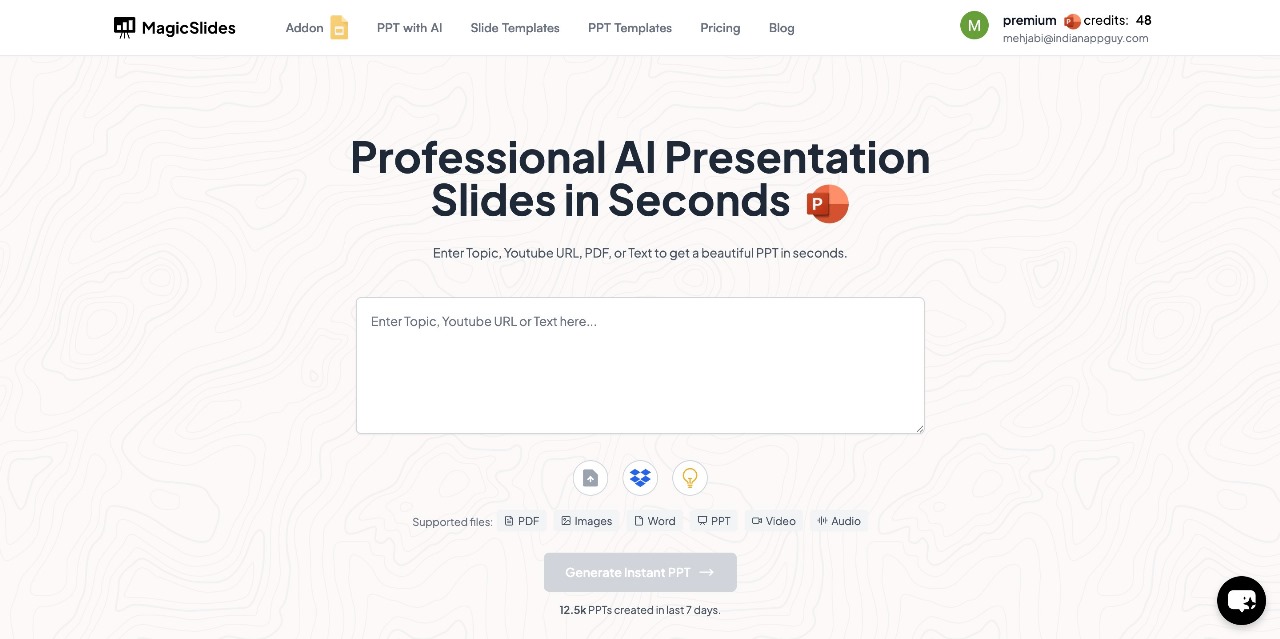
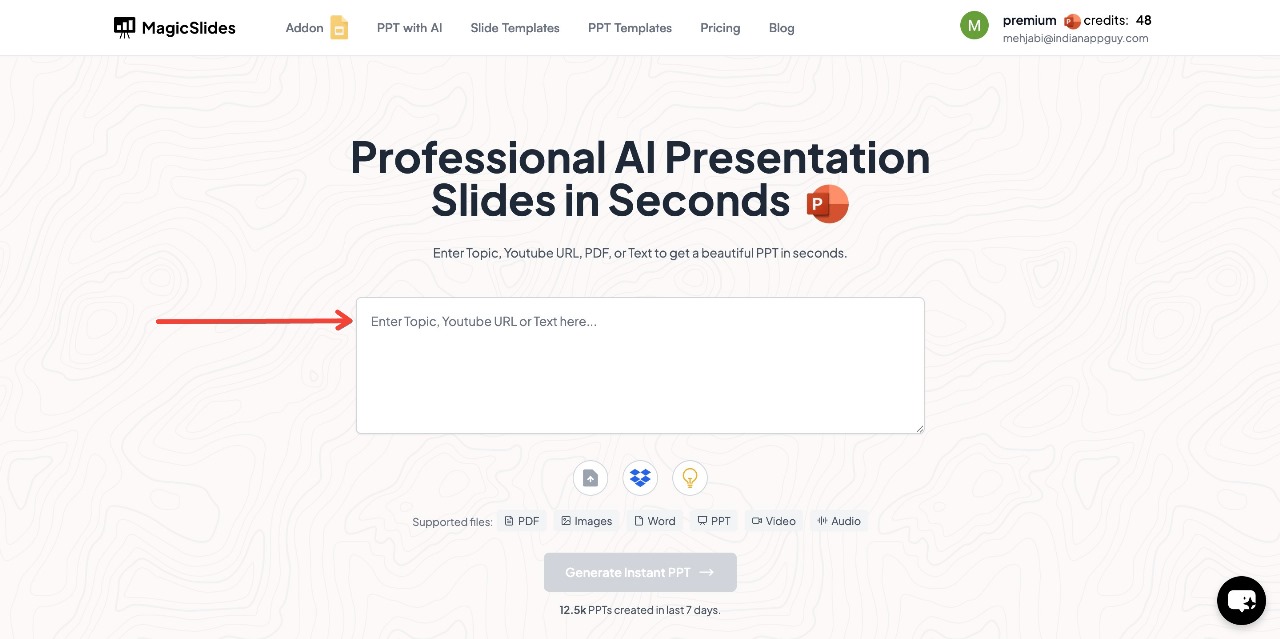
- Enter your topic in the provided space.
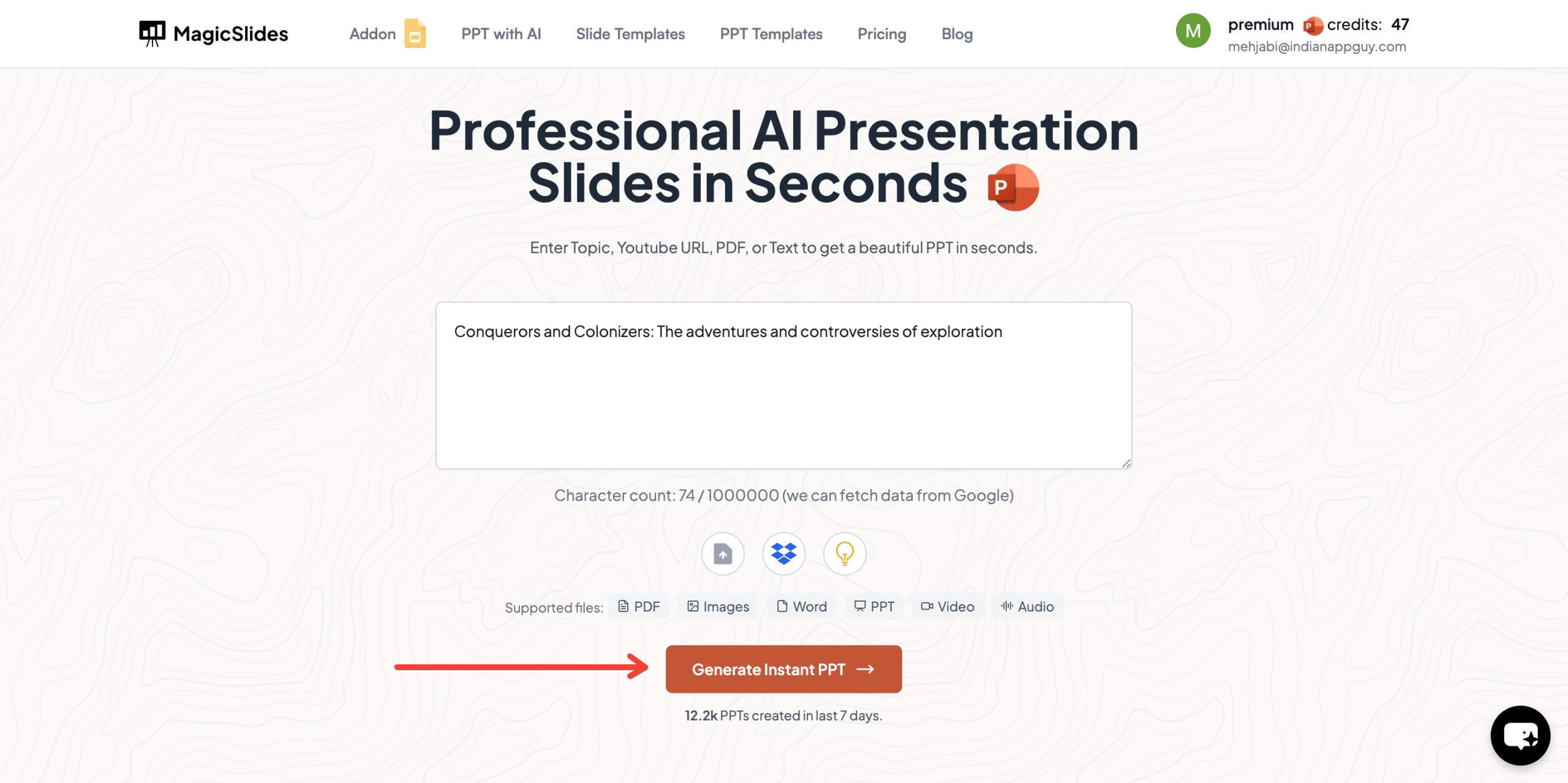
- Click "Generate Instant PPT" to start the process.
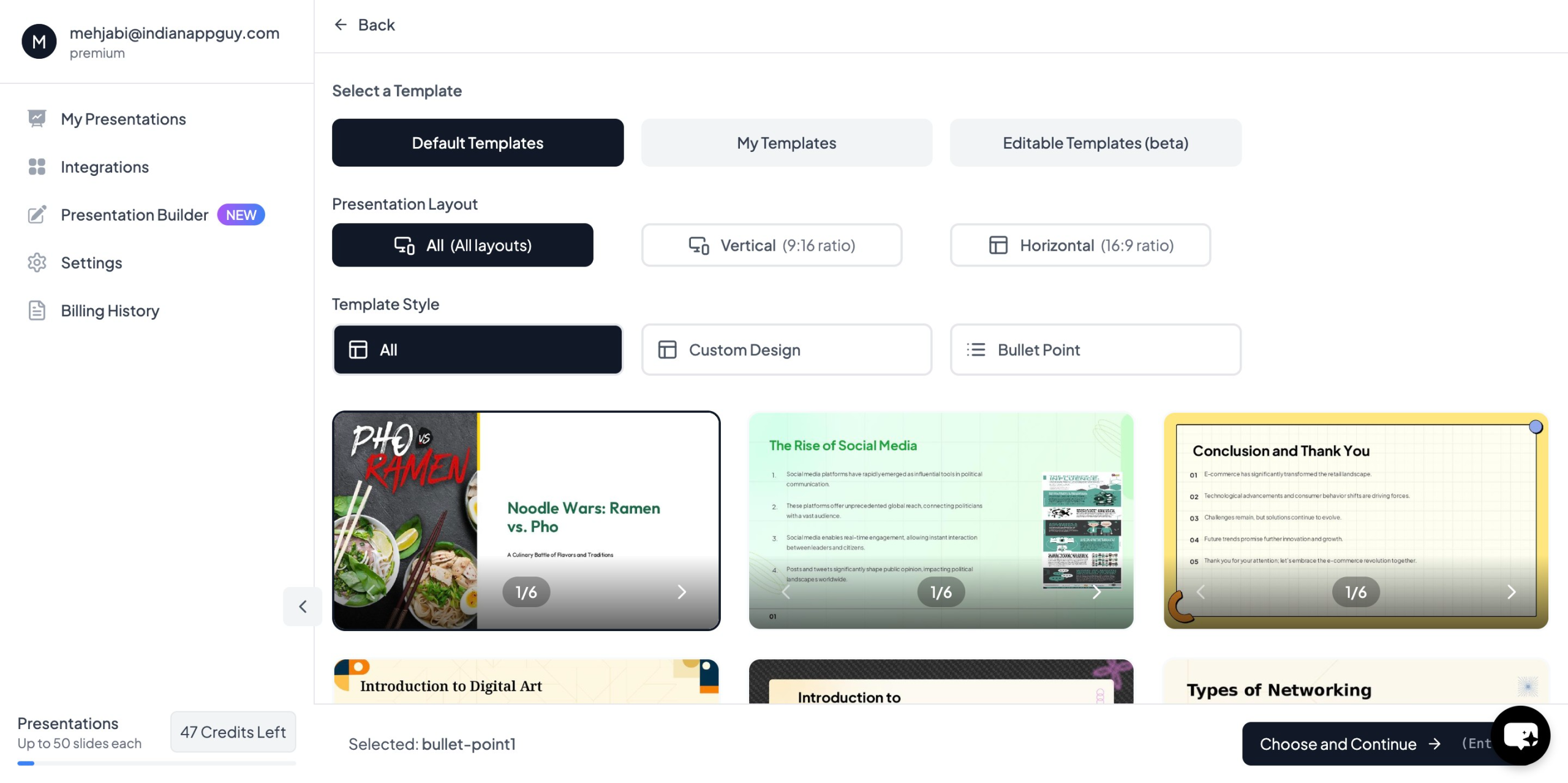
- Choose your template and the number of slides as prompted.
- Fill in the required details, then click "Generate Instant PPT".
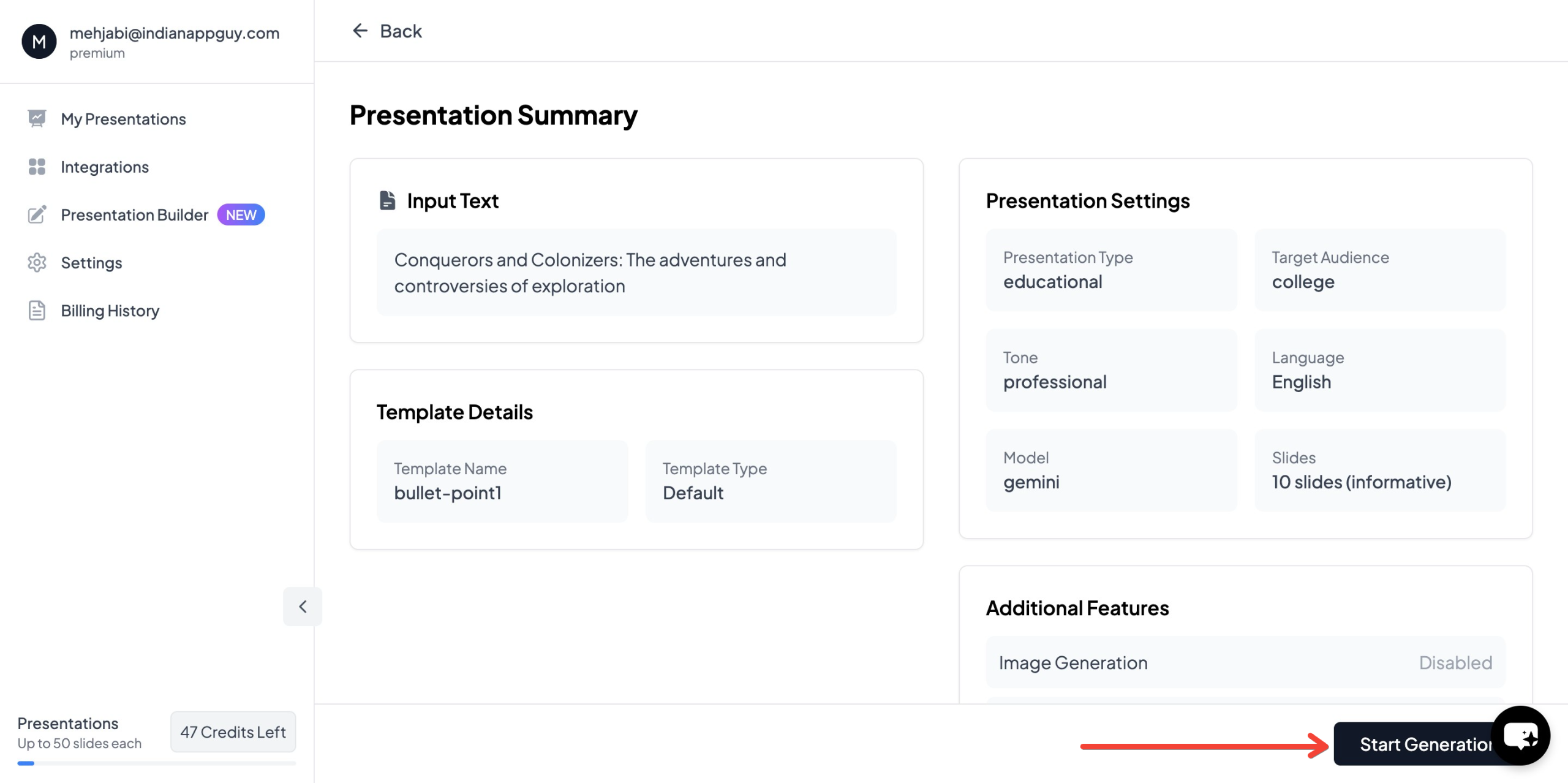
- Your professionally designed presentation will be ready in seconds!

This tool is perfect for professionals, educators, and students who need quick and well-structured slides for their presentations.
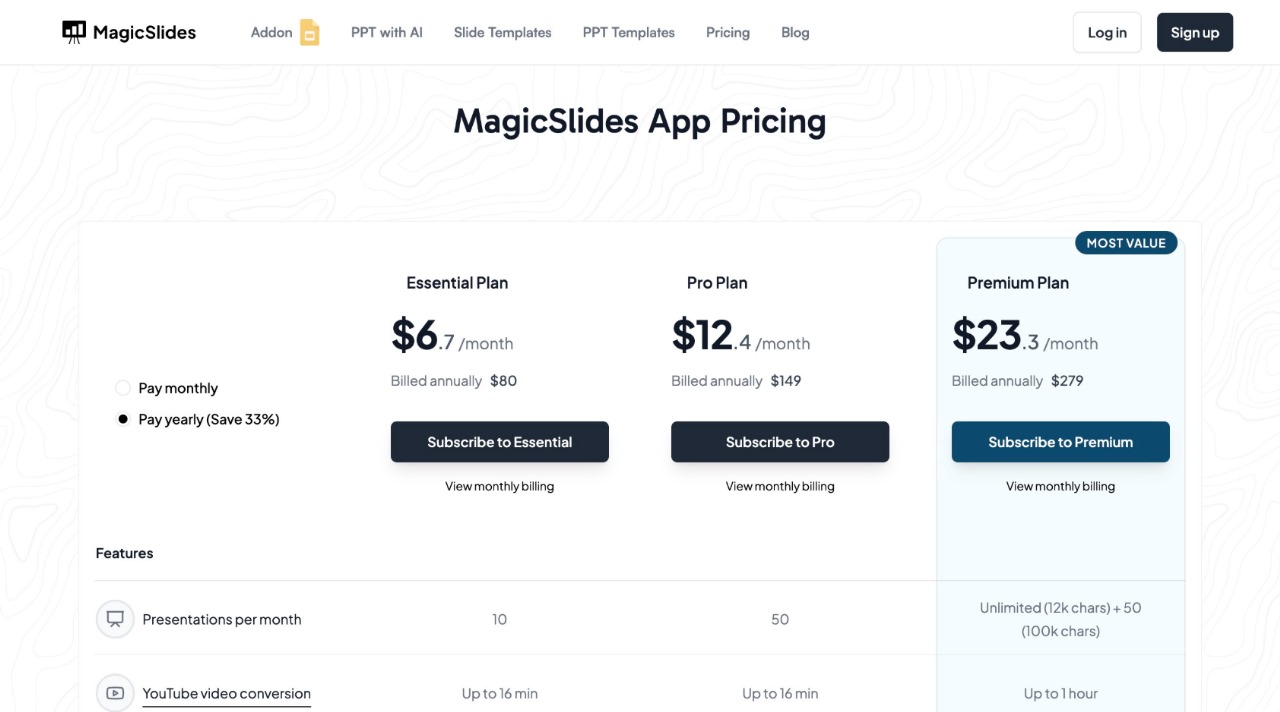
MagicSlides App Pricing & Features
MagicSlides offers three pricing plans, allowing users to select the best option based on their needs:
Why Choose MagicSlides?
- Saves Time: Instantly generates slides based on your topic.
- AI-Powered Enhancements: Uses AI to pull relevant data from Google, Wikipedia, and more.
- Customizable Templates: Allows you to adjust slides as per your branding or preference.
- Integrations: Works seamlessly with Google Slides, Figma, Zapier, and more.
Final Thoughts
Managing Q&A sessions during presentations effectively can elevate your confidence and credibility as a speaker. By setting clear expectations, preparing in advance, and maintaining a professional approach, you can handle any question smoothly.
Additionally, leveraging tools like MagicSlides can help you create impactful presentations quickly, ensuring that your audience stays engaged. Whether you’re a student, a professional, or an educator, MagicSlides makes presentation creation effortless.
Try it today at MagicSlides.app and elevate your presentations!


