How to Import a Google Doc into Canva


Learn how to import Google Docs into Canva for beautifully designed, professional-looking content creations
Importing a Google Doc into Canva is a great way to enhance your text-based content with Canva’s versatile design tools.
Whether you're creating a professional presentation, social media post, or flyer, combining the functionality of Google Docs with Canva's design features ensures that your content is both informative and visually appealing.
Follow this step-by-step guide to easily import a Google Doc into Canva.
How to Import a Google Doc into Canva | Steps to Import a Google Doc into Canva
Step 1: Save Your Google Doc as a PDF
Open your Google Doc in Google Drive. Click on File in the menu bar.
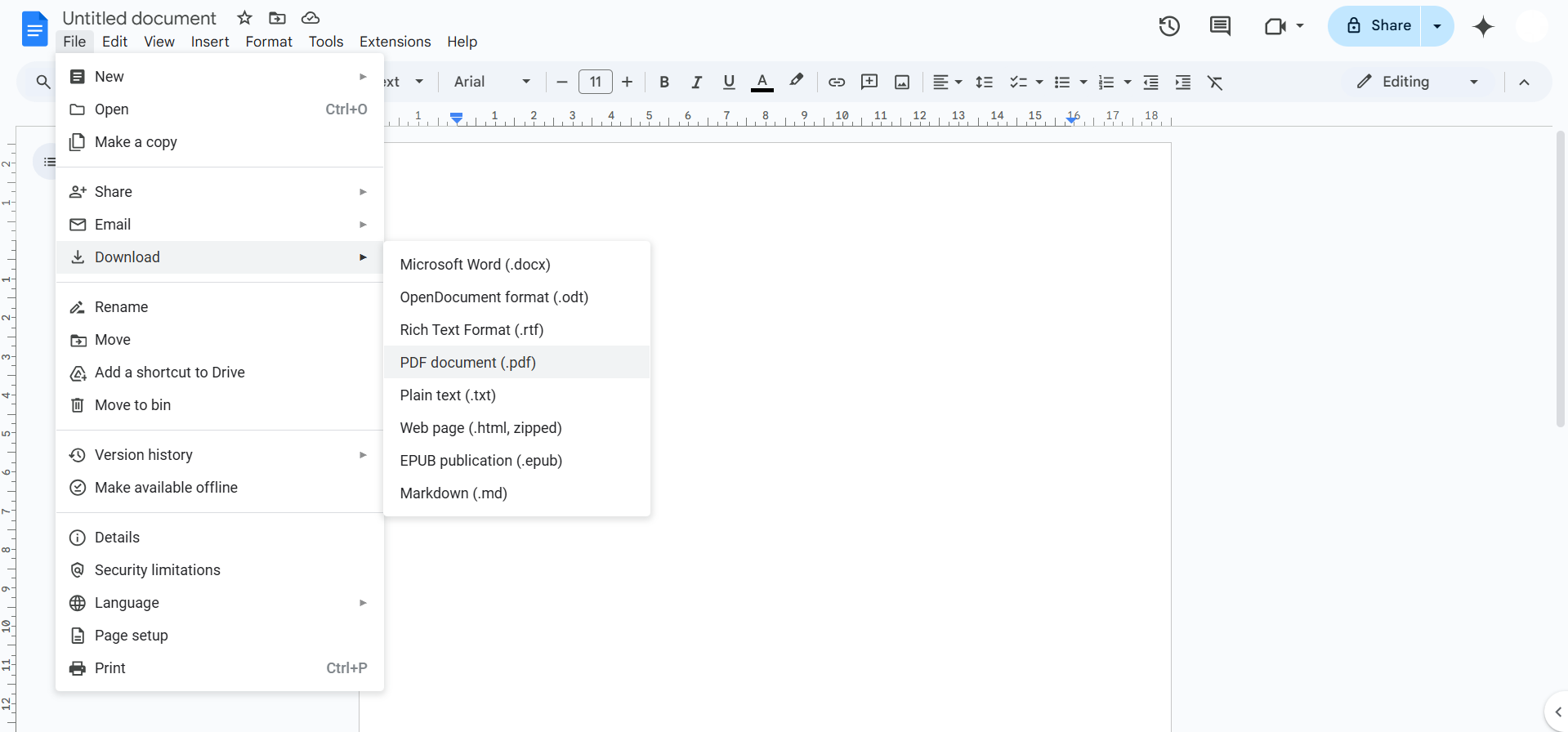
Select Download > PDF Document (.pdf). Save the PDF file to your computer.
Step 2: Open Canva and Create a Design
Log in to your Canva account. Click on Create a Design and choose the format you want, such as a presentation, poster, or custom size.
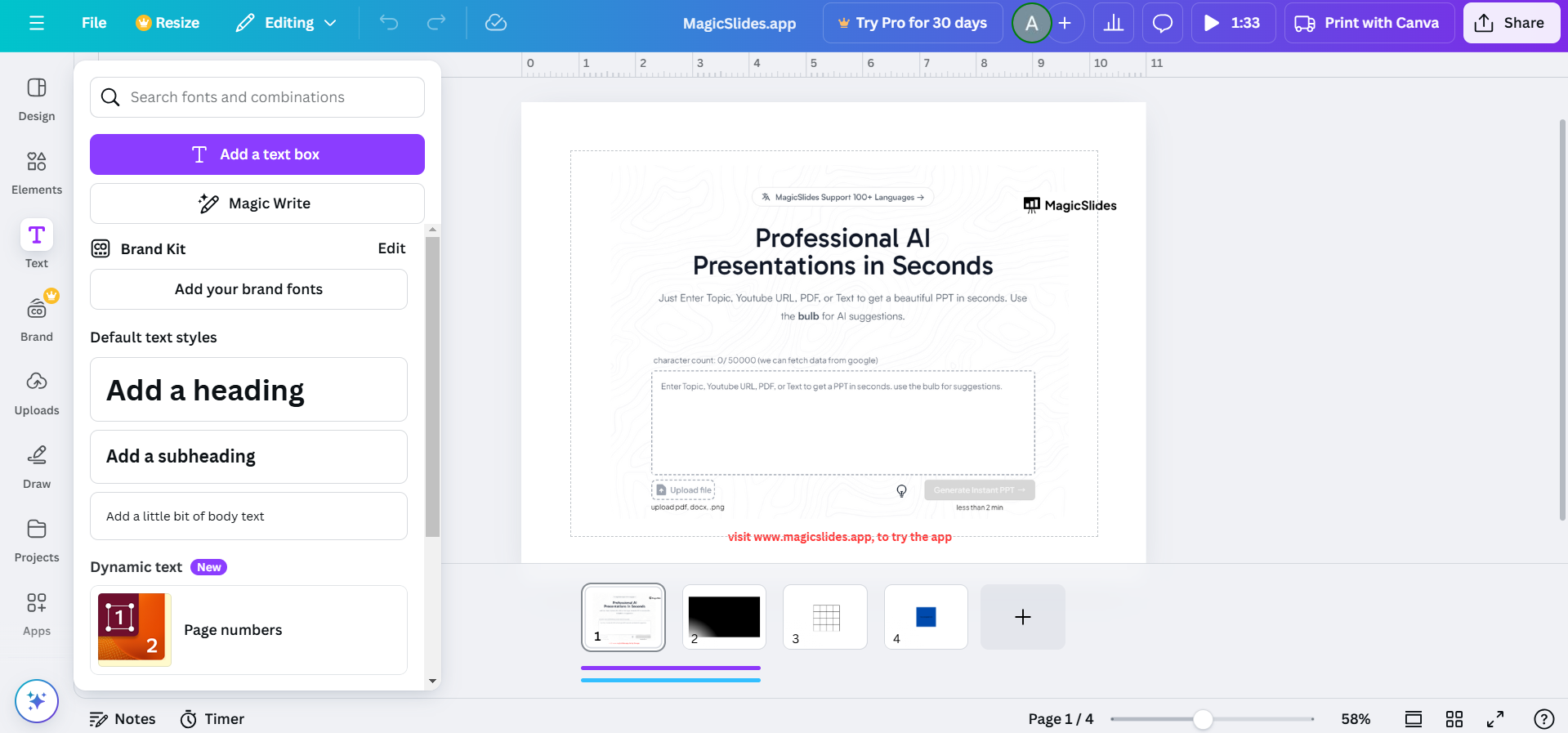
Step 3: Upload the PDF to Canva
On Canva’s dashboard, locate the Uploads section in the left-hand toolbar.
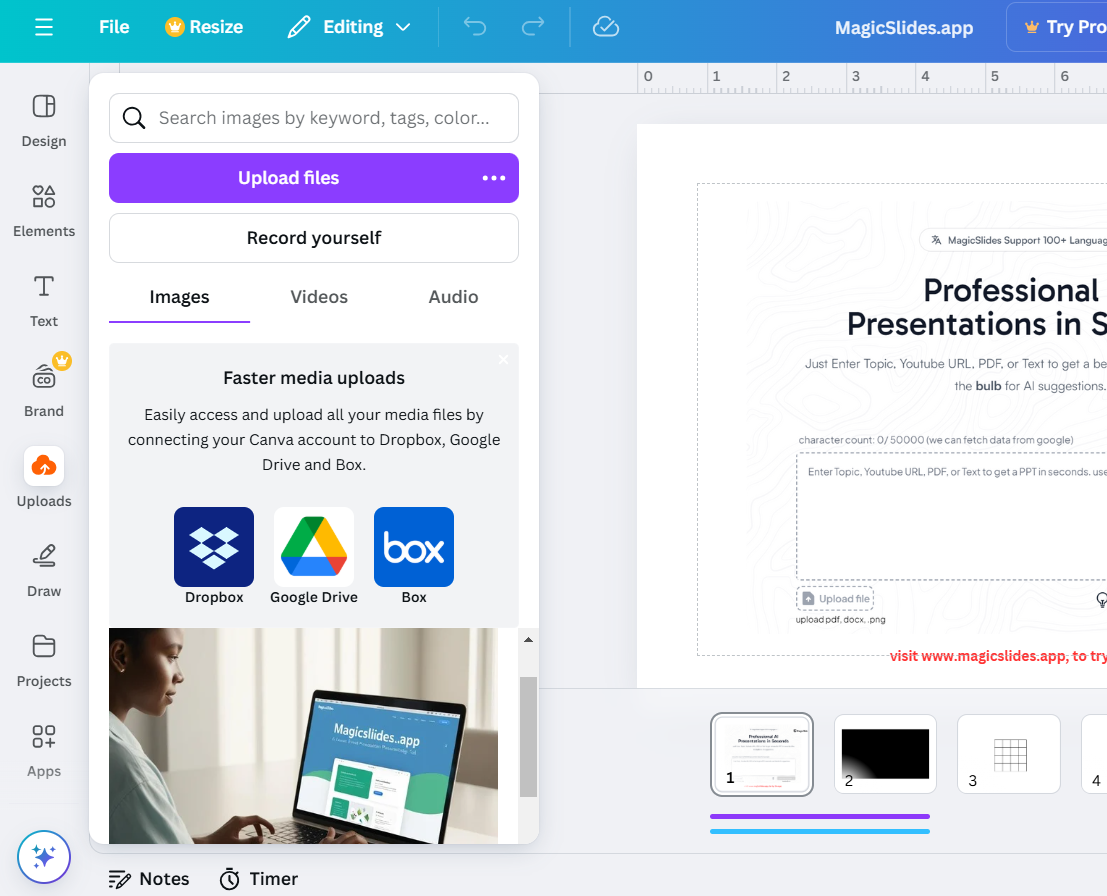
Click Upload Files and select the PDF you downloaded from Google Docs. Once uploaded, the PDF will appear in your uploads folder.
Step 4: Customize the Content
Use Canva’s design tools to enhance the imported content.
- Add images, icons, or other design elements.
- Change fonts, colors, or layouts to match your branding or theme.
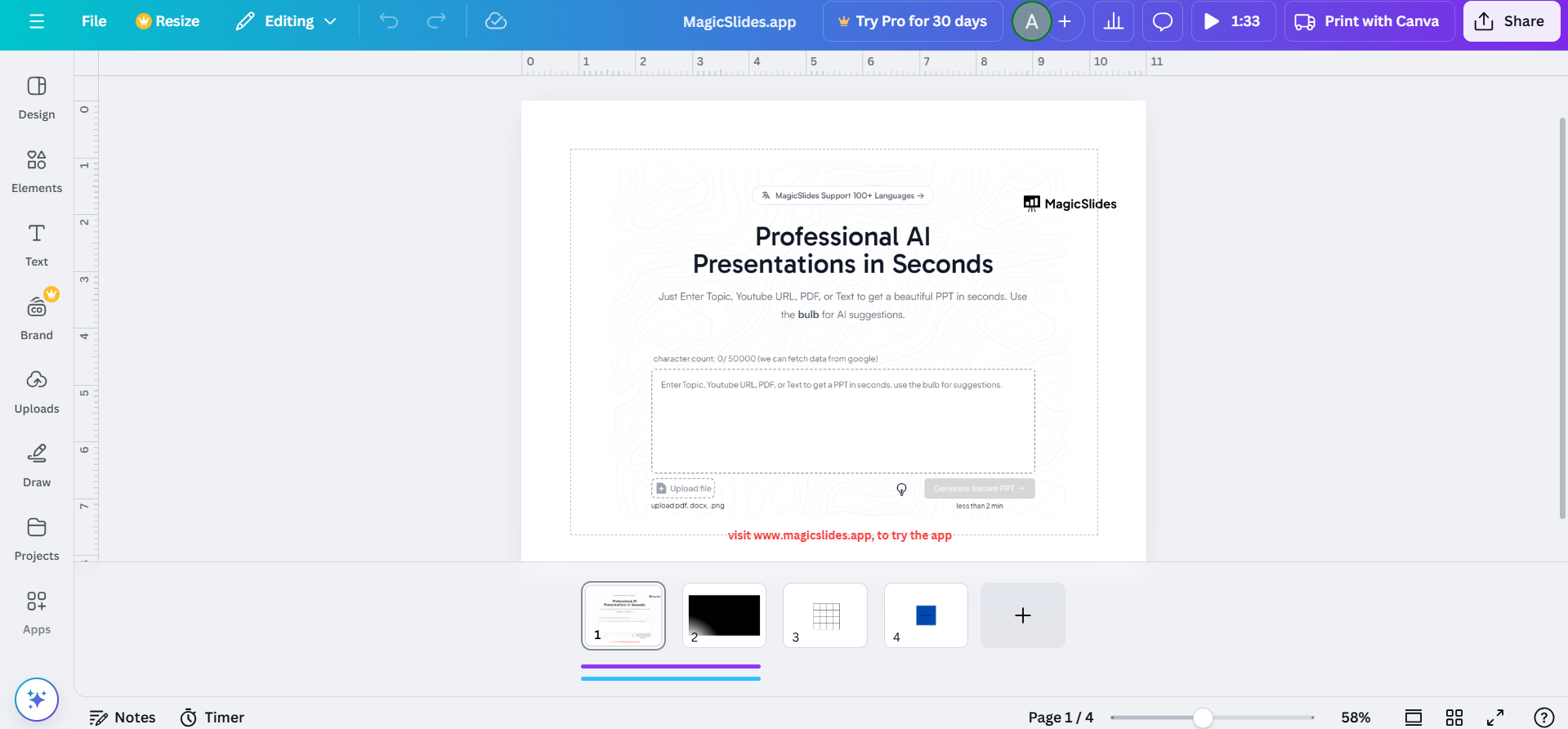
Adjust the imported text or split it across different sections of your design.
Step 5: Save and Export Your Design
Once you’re satisfied with your design, click on Share in the top-right corner.
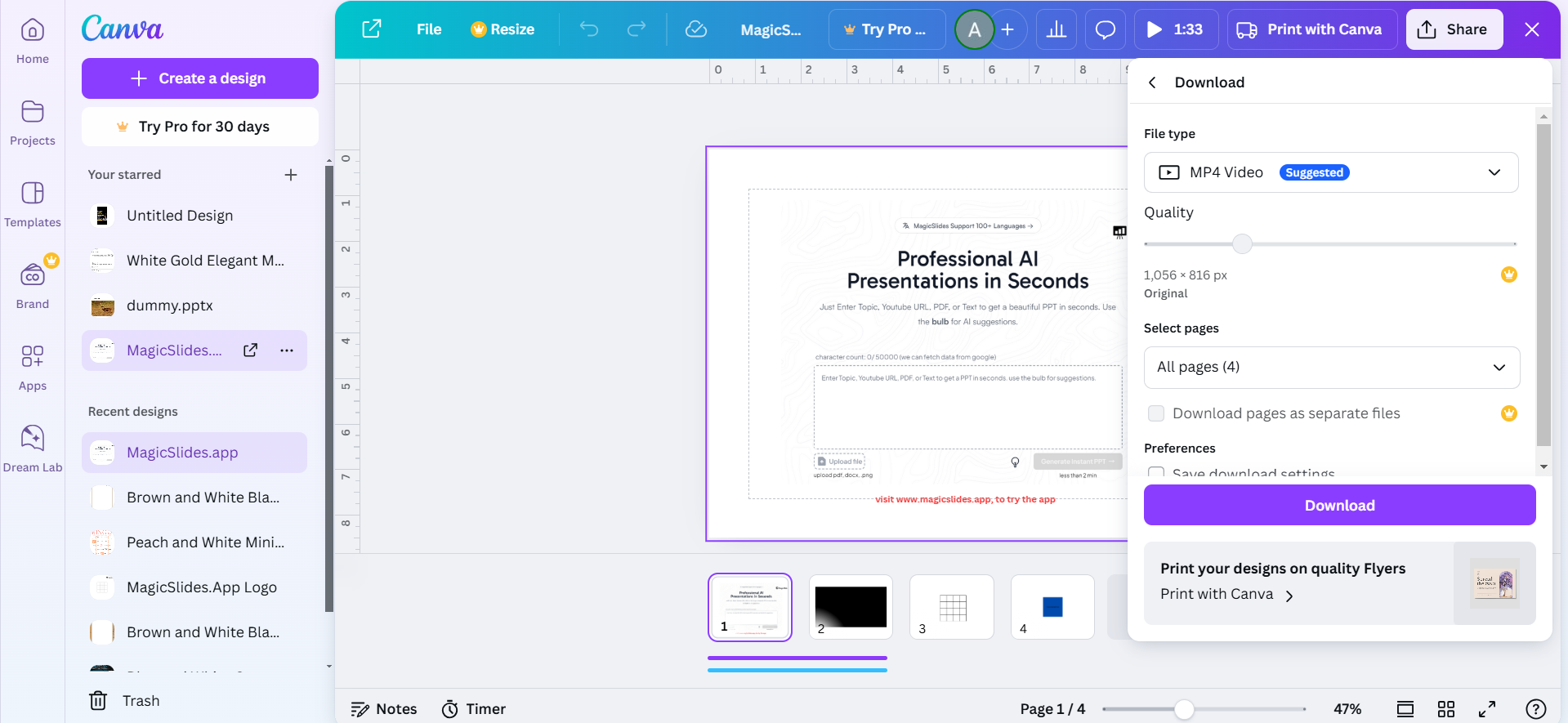
Select Download and choose your preferred file format (e.g., PNG, PDF, or JPEG). Save the final design to your computer or share it directly from Canva.
Conclusion
Importing a Google Doc into Canva is a simple process that unlocks creative possibilities for your content.
By following these steps, you can combine the text from Google Docs with Canva’s design tools to create professional and visually appealing materials.
Experiment with layouts, colors, and effects to make your designs stand out!
FAQs on Importing a Google Doc into Canva
Can I directly copy and paste text from Google Docs into Canva?
Yes, you can copy and paste text into a text box in Canva, but formatting may need adjustments.
Does Canva preserve the formatting of the Google Doc?
When importing a PDF, Canva retains the basic structure, but you may need to adjust fonts or alignments.
Can I edit the text from my Google Doc in Canva?
Yes, once imported as a PDF, you can ungroup text elements in Canva to edit them individually.
With these steps, you’ll be able to seamlessly bring your Google Doc content into Canva and create stunning designs that captivate your audience.


