How to Import PDF into PowerPoint


Easily import a PDF into PowerPoint using objects, images, or full conversion for seamless presentations
How to Import a PDF into PowerPoint
Importing a PDF into PowerPoint allows you to use existing content in your presentations without manually recreating it.
Whether you need to insert specific pages, convert the entire PDF into slides, or extract text and images, PowerPoint provides multiple ways to achieve this.
In this guide, we’ll walk you through different methods to import a PDF into PowerPoint step by step.
Step-by-Step Guide to Import a PDF into PowerPoint
Method 1: Insert PDF as an Object (Best for Linking to Full PDF)
If you want to add the entire PDF as a clickable object in PowerPoint, follow these steps:
Open PowerPoint and go to the slide where you want to insert the PDF.
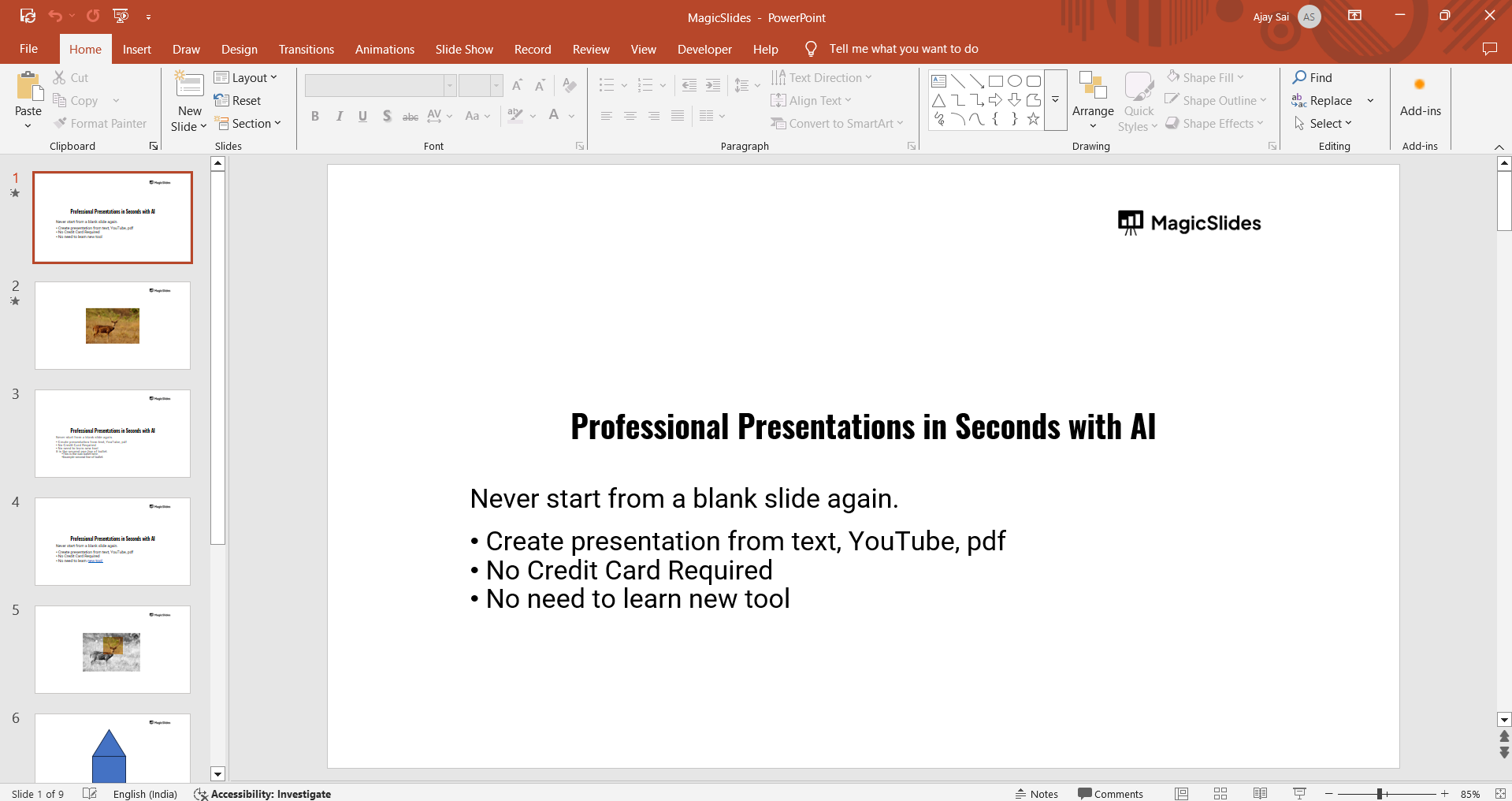
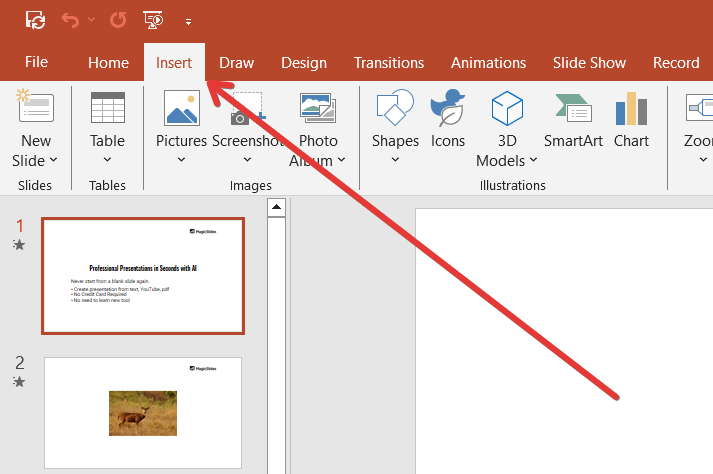
Click on Insert in the top menu.
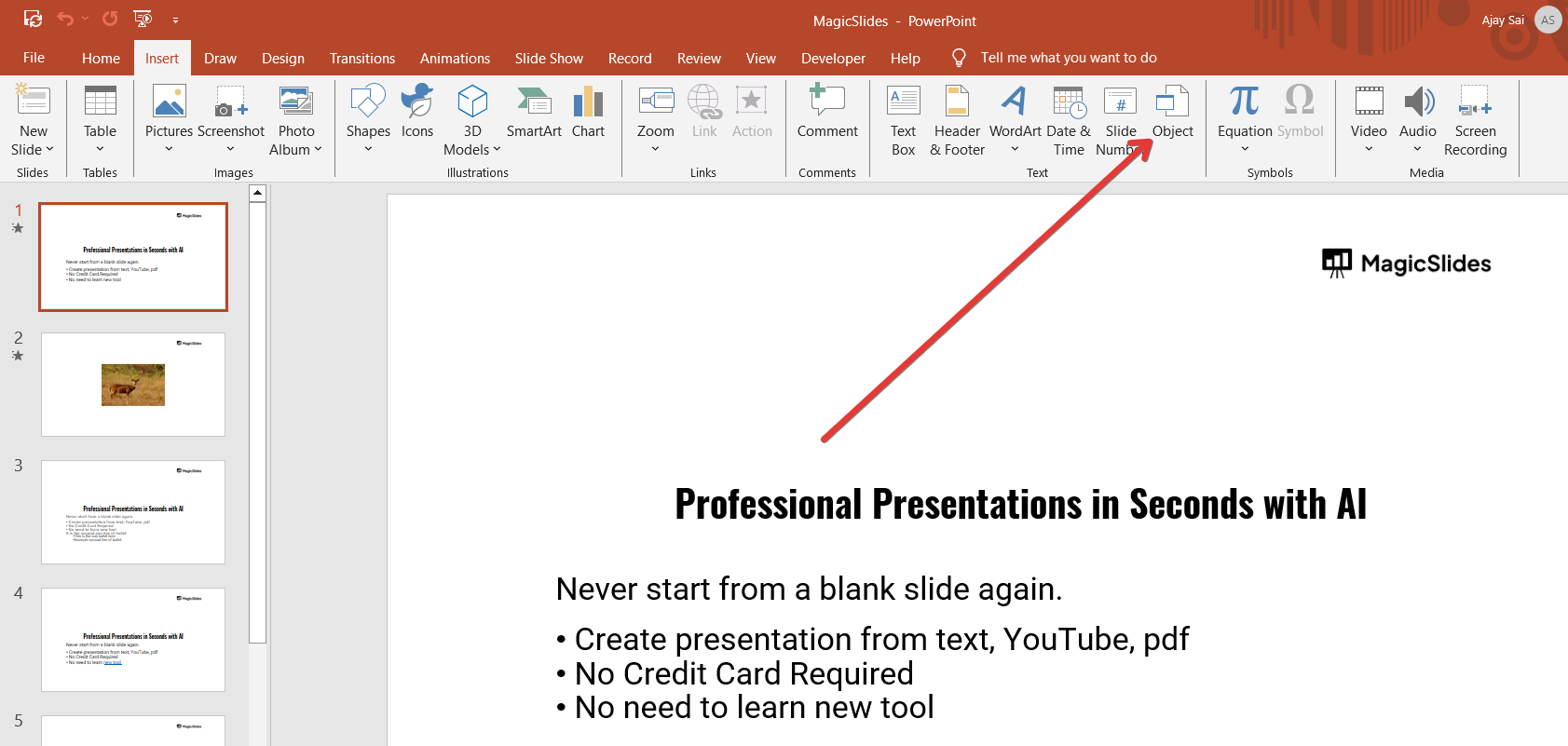
Select Object from the drop-down menu.
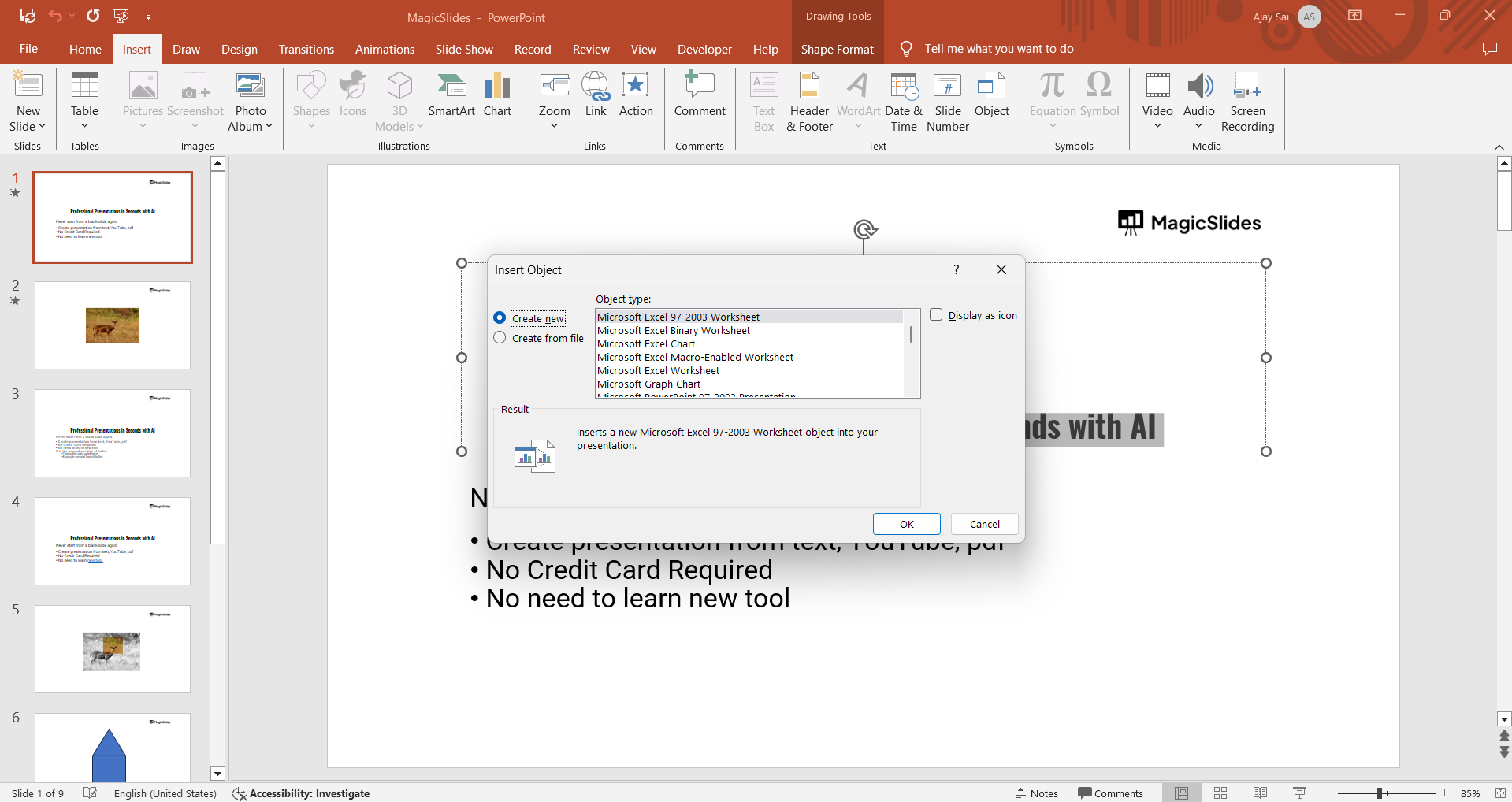
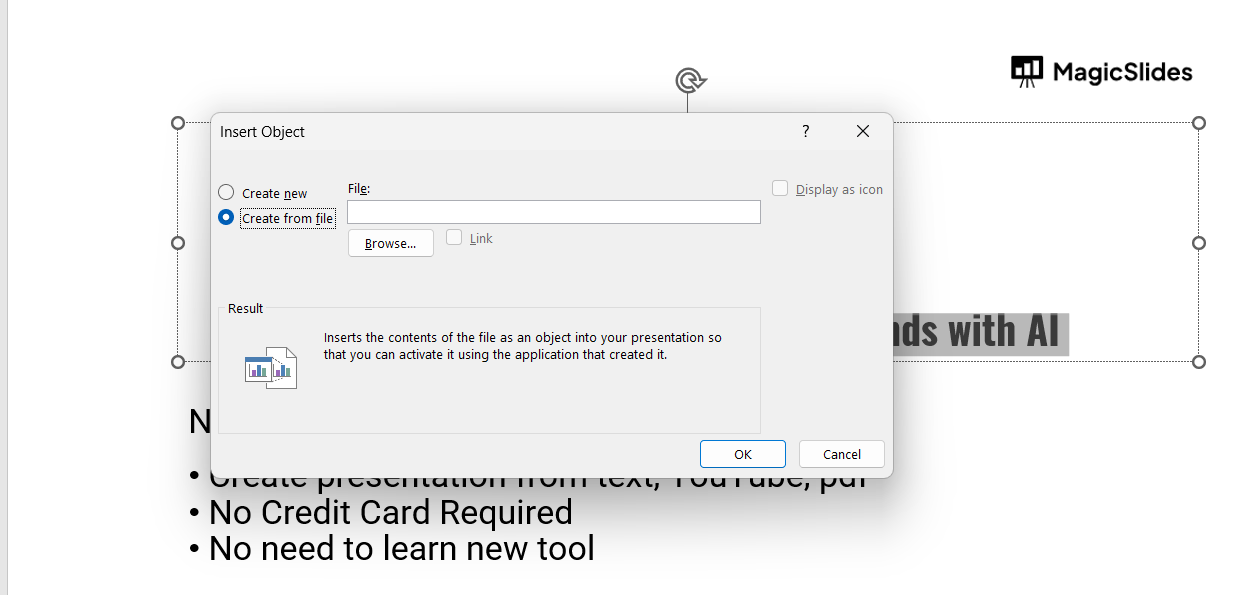
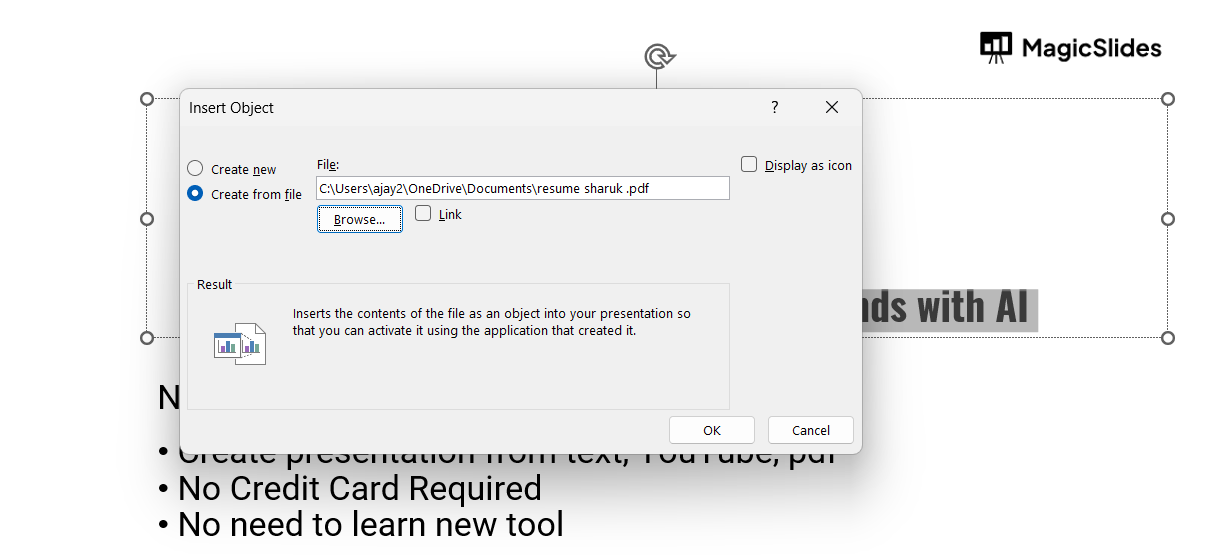
In the Insert Object window, choose Create from File and click Browse.
Locate and select your PDF file, then click OK.
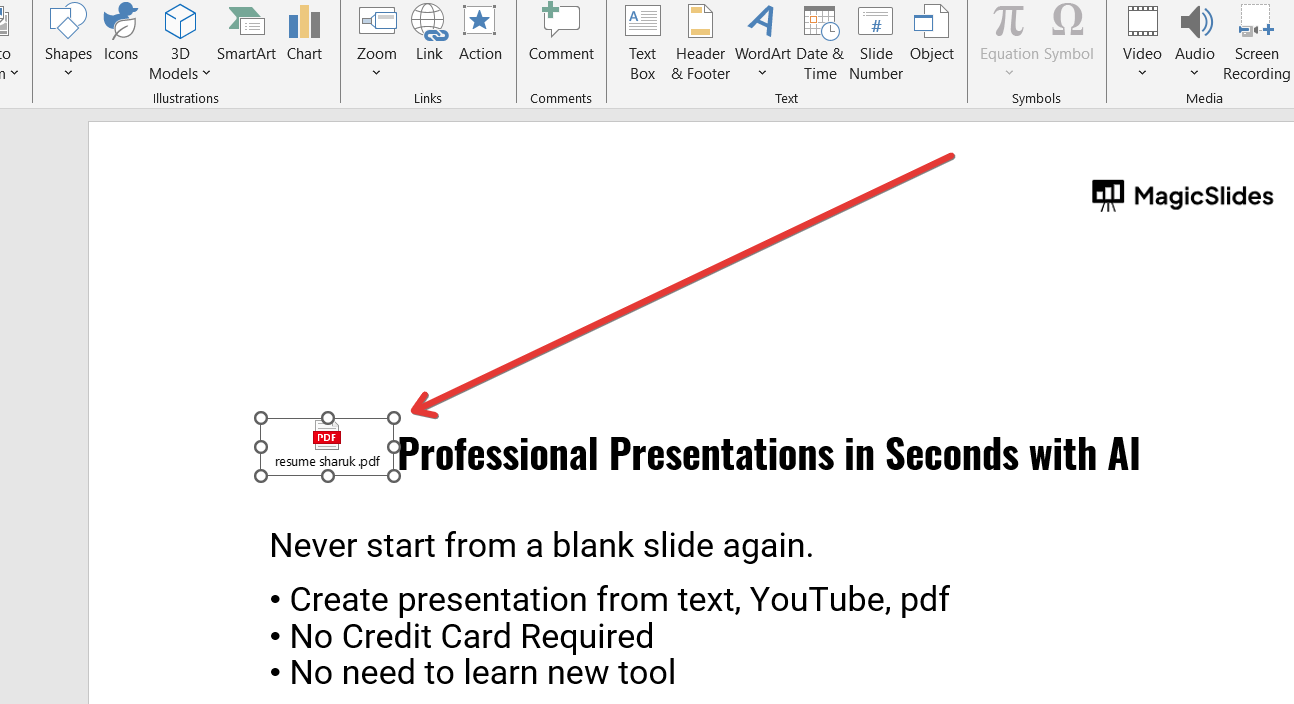
A small PDF icon will appear on the slide. Click on it during the presentation to open the full document.
💡 Tip: This method is great for linking to external PDF files but won’t display the content directly on the slide.
Method 2: Insert PDF Pages as Images (Best for Displaying Content Directly)
If you need to show specific pages from the PDF in your slides:
Open your PDF file on your computer.
Take a screenshot of the page you want to insert. (Use Snipping Tool on Windows or Shift + Command + 4 on Mac.)
In PowerPoint, go to Insert > Pictures > This Device and select the screenshot.
Resize and position the image on your slide as needed.
💡 Tip: This method is ideal if you need to display static content from a PDF without editing it.
Manually importing a PDF into PowerPoint can be time-consuming. With MagicSlides.app, you can instantly convert PDFs into fully designed PowerPoint slides with AI—try it now!
Conclusion
Importing a PDF into PowerPoint can be done in multiple ways depending on your needs.
If you want a clickable link, insert it as an object. If you need to display content, use screenshots.
For full editing capabilities, convert the PDF to PowerPoint. Choose the method that works best for your presentation and make your slides more effective!
FAQs About Importing a PDF into PowerPoint
Can I insert only specific pages from a PDF into PowerPoint?
Yes, take a screenshot of the desired page and insert it as an image in PowerPoint.
Why is my PDF blurry after inserting it into PowerPoint?
If inserted as an image, ensure you use a high-resolution screenshot or export the PDF at high quality.
Can I edit text from a PDF in PowerPoint?
Only if you convert the PDF to PowerPoint format using Adobe Acrobat or an online converter.
Now you can easily import a PDF into PowerPoint using the method that suits your needs! 🚀


