How to Inflate Text in Canva


Learn how to inflate text in Canva to create bold, eye-catching designs with ease
Inflating text, or making it larger, bolder, and more impactful, is a great way to draw attention to specific words or phrases in your Canva design.
This feature is particularly useful for headings, promotional materials, or any design where bold text needs to stand out.
In this guide, we’ll walk you through the steps to inflate text in Canva, allowing you to create eye-catching designs effortlessly.
How to Inflate Text in Canva | Steps to Inflate Text in Canva
Step 1: Open Your Canva Design
Log in to Canva and open the design project where you want to inflate text.
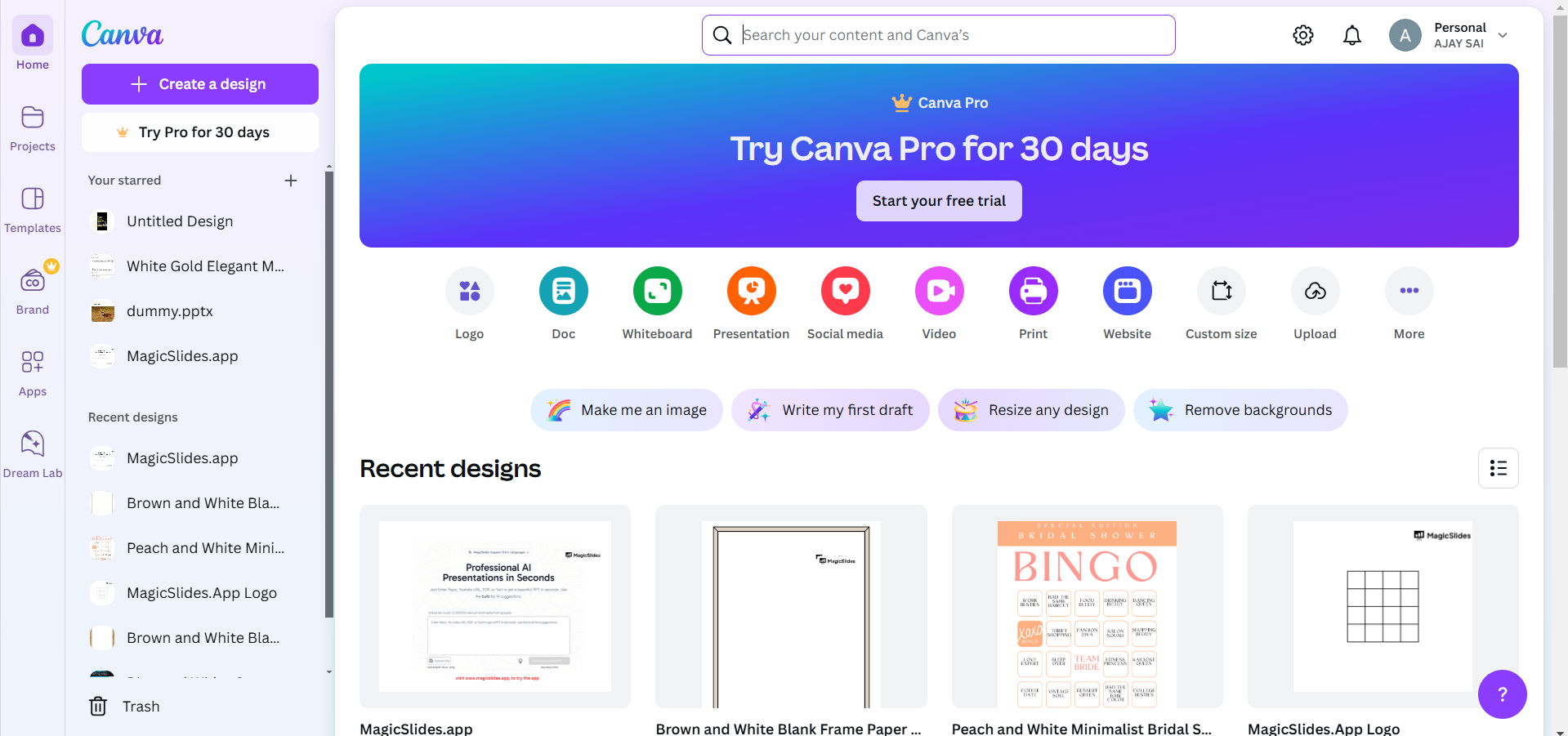
If you don’t have a text box already, click Text from the side menu and choose a text style to add it.
Step 2: Select the Text to Inflate
Click on the text box containing the text you want to inflate.
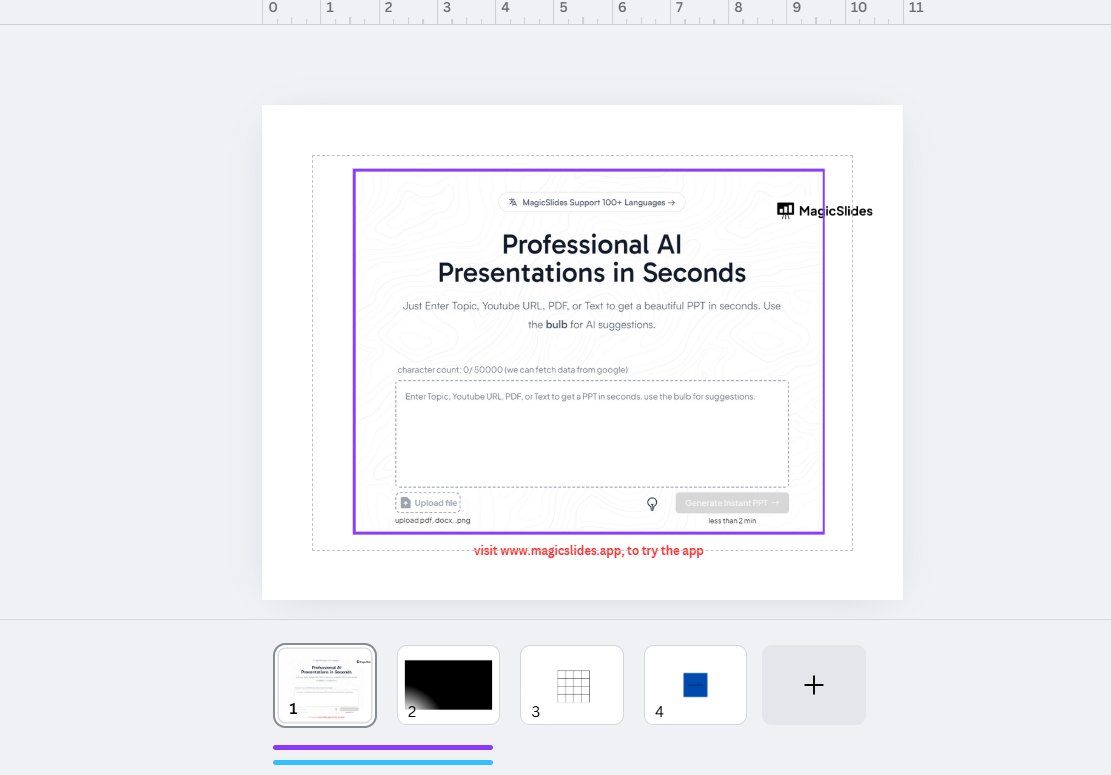
Ensure the text is highlighted by double-clicking or dragging your cursor over the specific text.
Step 3: Adjust the Font Size
Locate the Font Size option in the top toolbar.
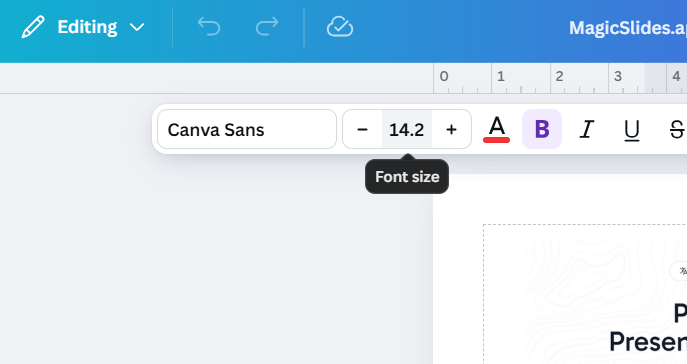
Increase the font size by clicking the + button or typing a specific number. Adjust until the text reaches your desired size.
Step 4: Bolden the Text (Optional)
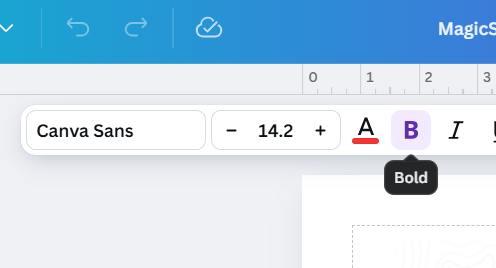
Click the B icon in the top toolbar to make the text bold. This step enhances the text’s visibility and impact further.
Step 5: Add Effects to Enhance Inflation
Click on Effects in the top toolbar with your text selected. Choose options like Shadow, Lift, or Outline to make the text appear inflated and three-dimensional.
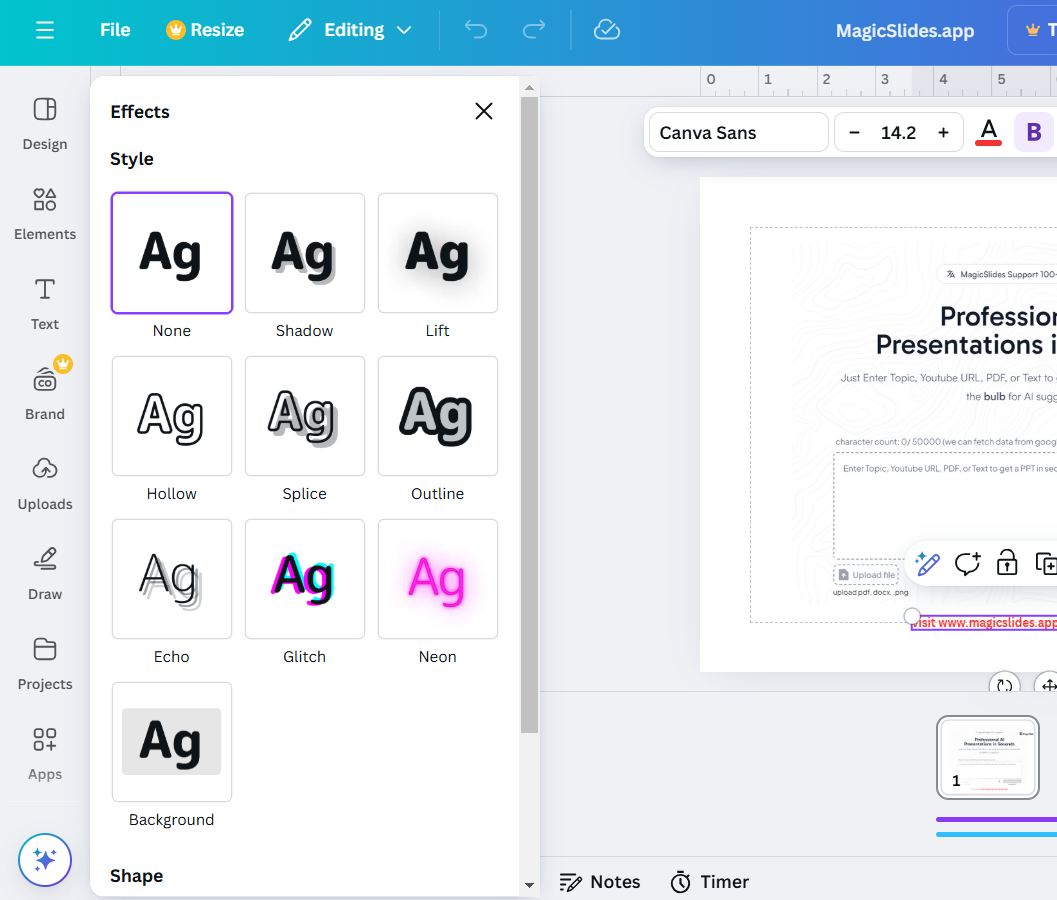
Customize the effect settings, such as transparency, offset, or thickness, to fit your design style.
Step 6: Resize and Position the Text
Use the text box handles to resize the entire text box proportionally if needed.
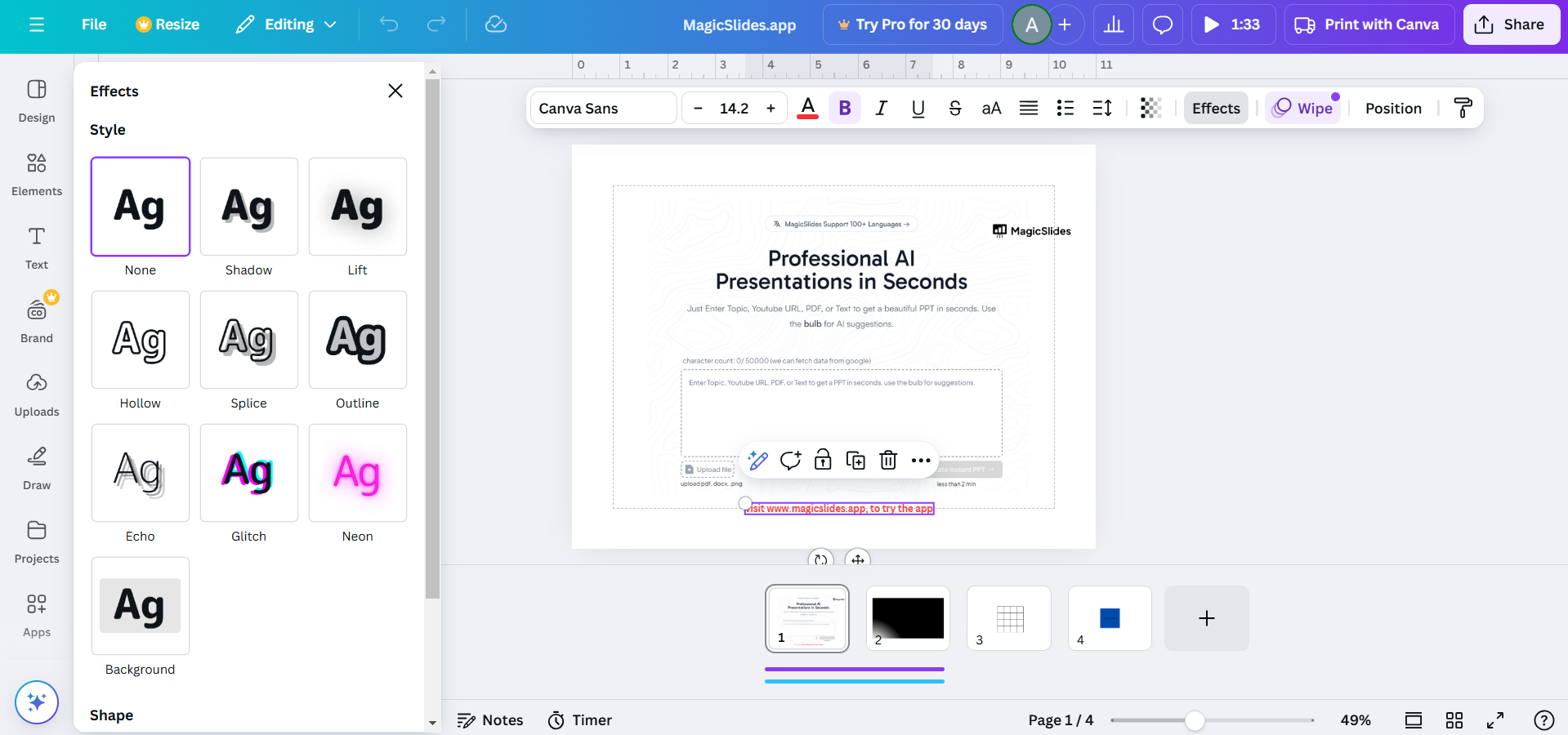
Drag and drop the text box to position it perfectly within your design.
Conclusion
Inflating text in Canva is an easy and effective way to make your designs more visually engaging.
By following these steps, you can enlarge, bolden, and enhance text elements to ensure they stand out in your design.
Experiment with additional effects and styles to create unique and impactful graphics for your audience.
FAQs on Inflating Text in Canva
Can I inflate only a part of the text within a text box?
Yes, highlight specific words or phrases and adjust their size or add effects independently.
What’s the best font to use for inflated text?
Fonts like Montserrat Bold, Impact, or League Spartan work well for bold, inflated text designs.
Can I animate inflated text in Canva?
Yes! After inflating the text, select the text box, click Animate, and choose an animation style to make it dynamic.
By inflating text in Canva, you can transform ordinary text into a striking focal point for your designs.


