How to know Who Edited What on PowerPoint


Learn how to track edits in PowerPoint and see who made changes to your presentation easily
How to Know Who Edited What on PowerPoint
When collaborating on a PowerPoint presentation, tracking edits made by different users is essential for maintaining version control and ensuring accuracy.
Microsoft PowerPoint offers features that allow you to see who made specific changes to your slides.
In this guide, we’ll show you how to check edit history and track changes in PowerPoint step by step.
Steps to Know Who Edited What on PowerPoint
Step 1: Open Your Shared PowerPoint File
Open Microsoft PowerPoint on your computer.
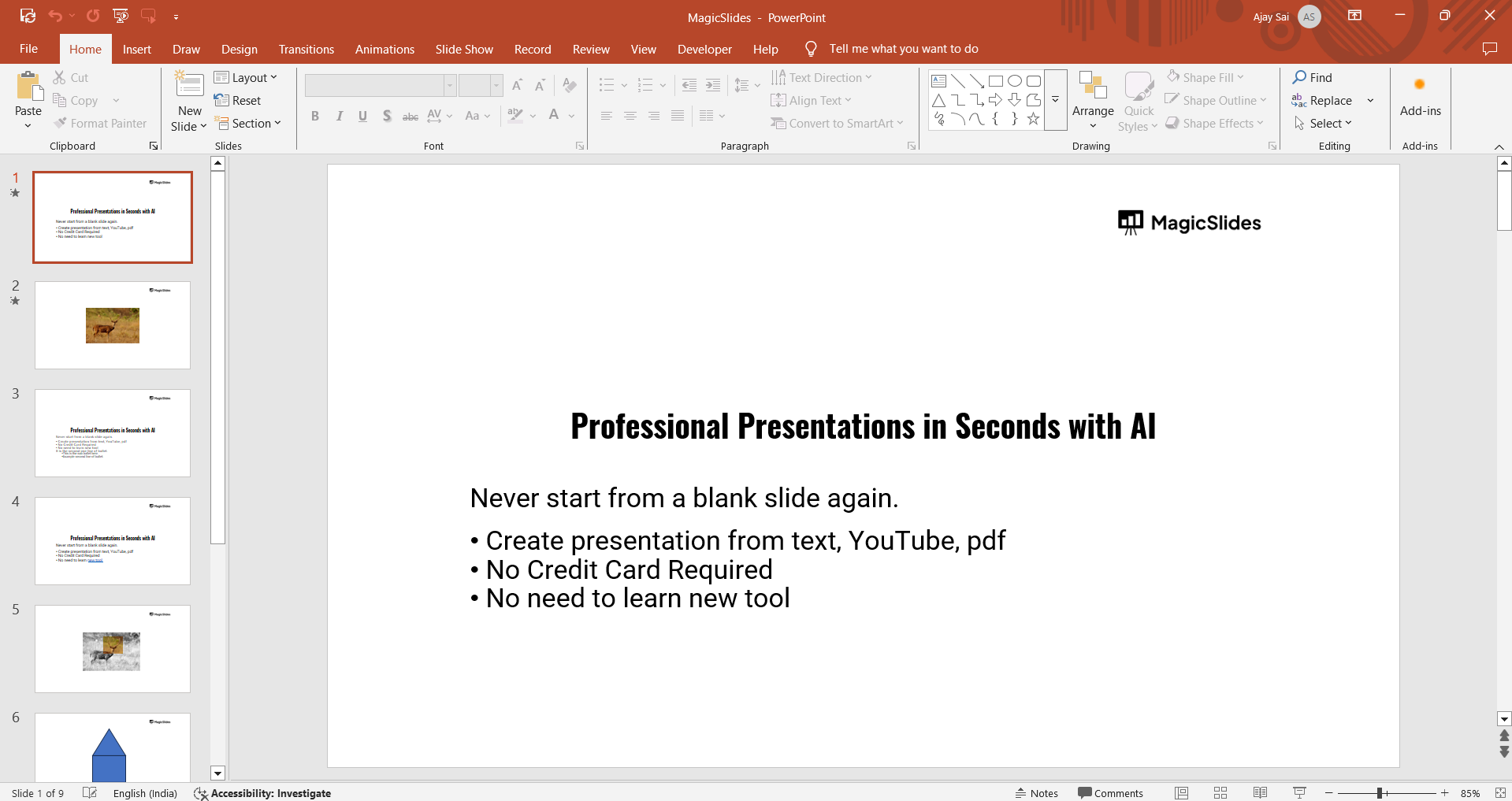
Click on File and select Open to access your shared or cloud-saved PowerPoint file.
Step 2: Use Version History to Track Changes
PowerPoint’s Version History lets you see previous edits: Click File in the top menu. Select Info from the left panel.
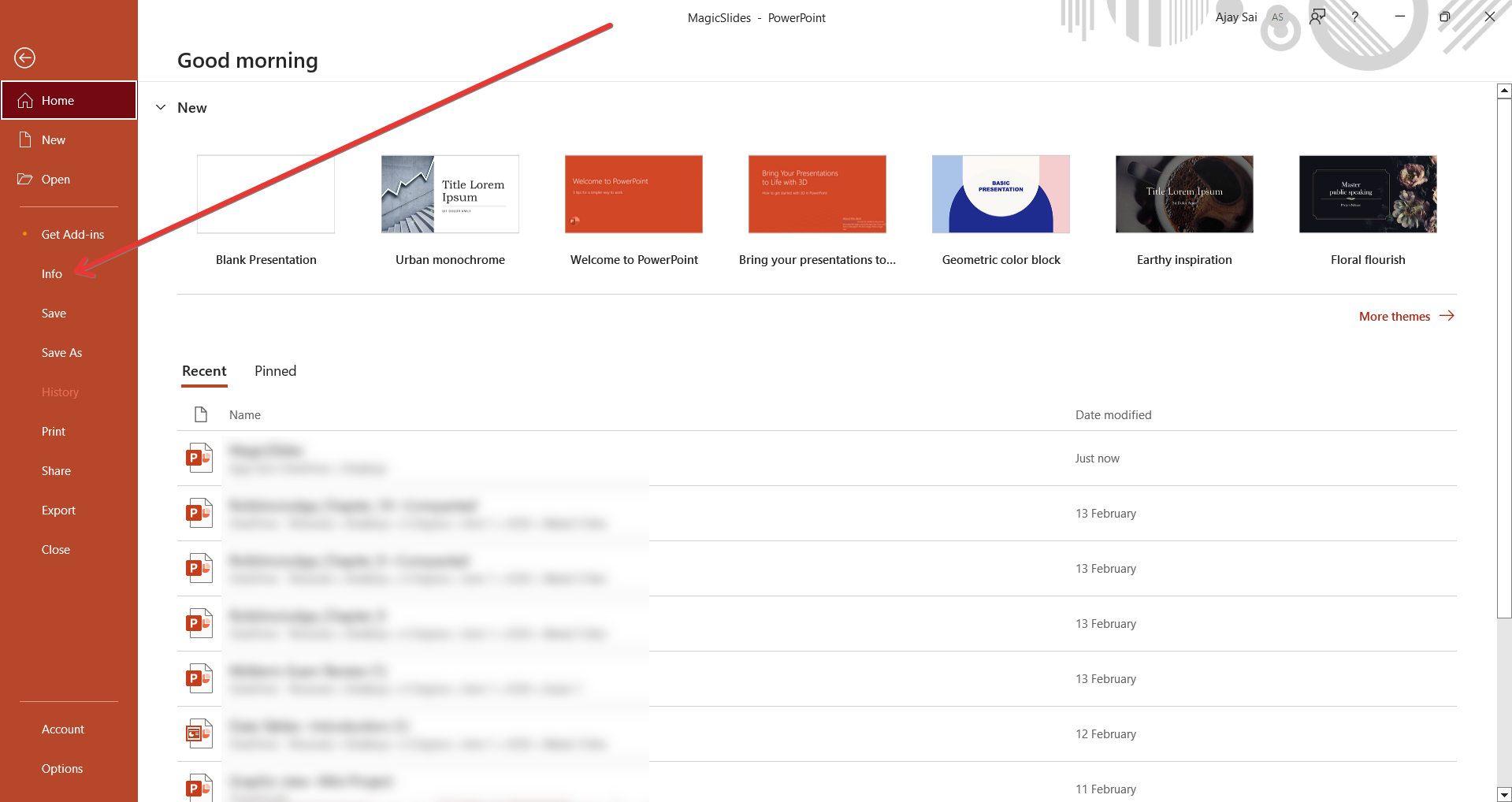
Click Version History (or See All Versions in some versions). A panel will open, showing previous versions with timestamps and editor names.
Click on a version to view the changes made by that user.
Step 3: Check Comments and Notes for Edits
If users leave comments while making changes, you can review them:
Click on the Review tab in the toolbar. Select Show Comments to display feedback and notes from collaborators.
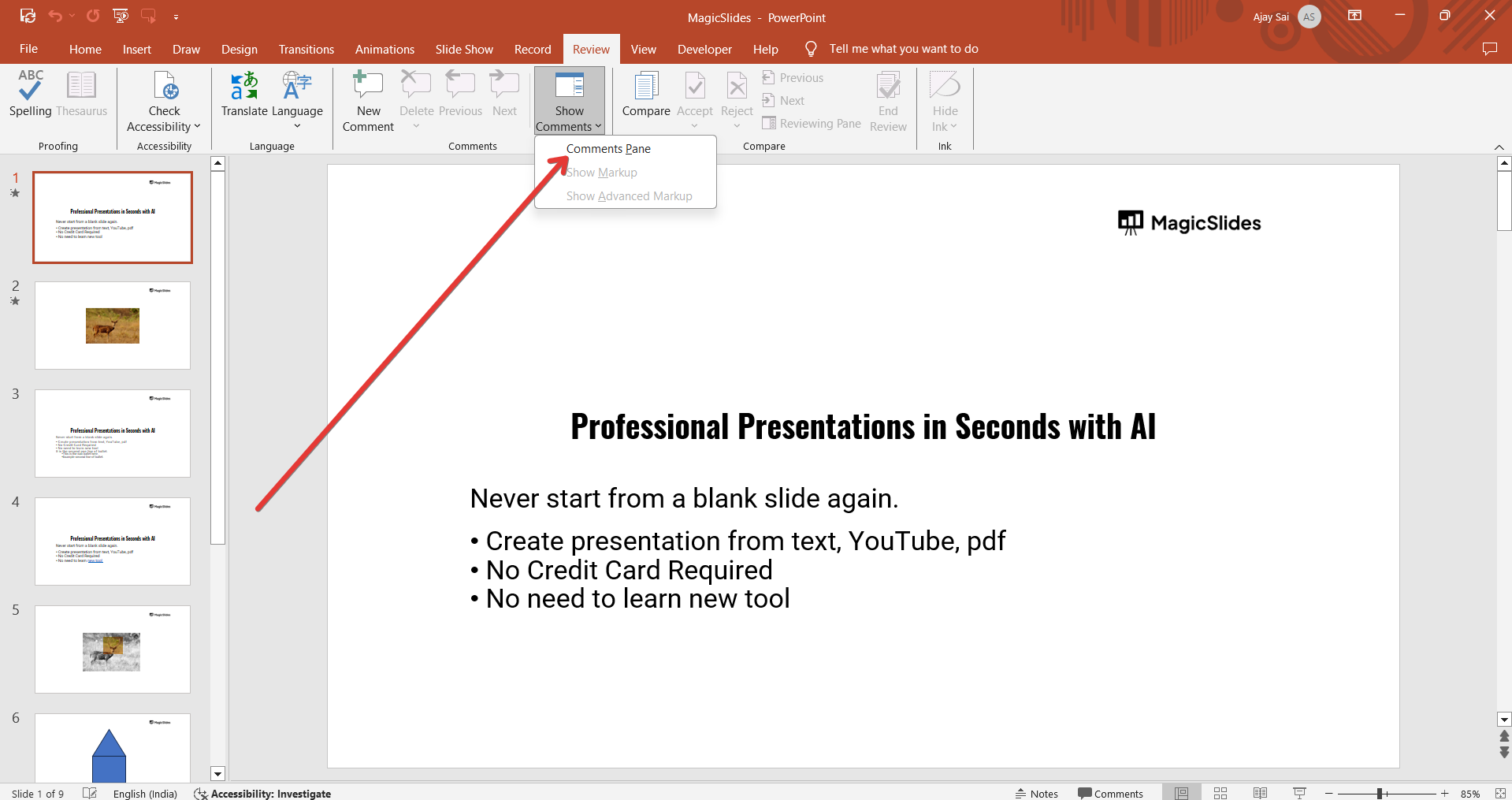
Click on individual comments to see who added them and when.
Step 4: View Real-Time Edits in PowerPoint Online
If using PowerPoint Online (via OneDrive or SharePoint):
Click the Share button in the top-right corner. Open the Activity Panel by clicking the clock icon.
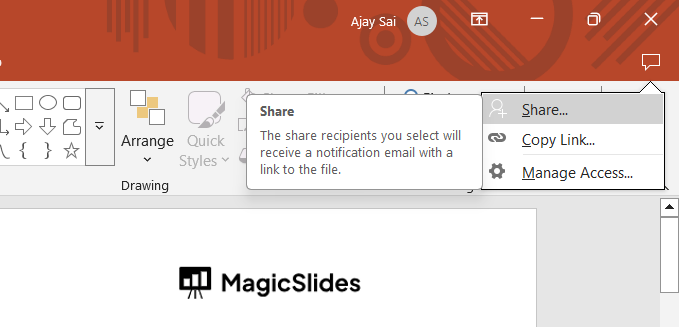
You’ll see a list of recent edits with timestamps and the editor’s name.
Step 5: Compare Changes Using the Compare Tool
PowerPoint’s Compare feature helps track edits:
Open your PowerPoint file. Click on the Review tab. Select Compare and choose a previous version to compare.
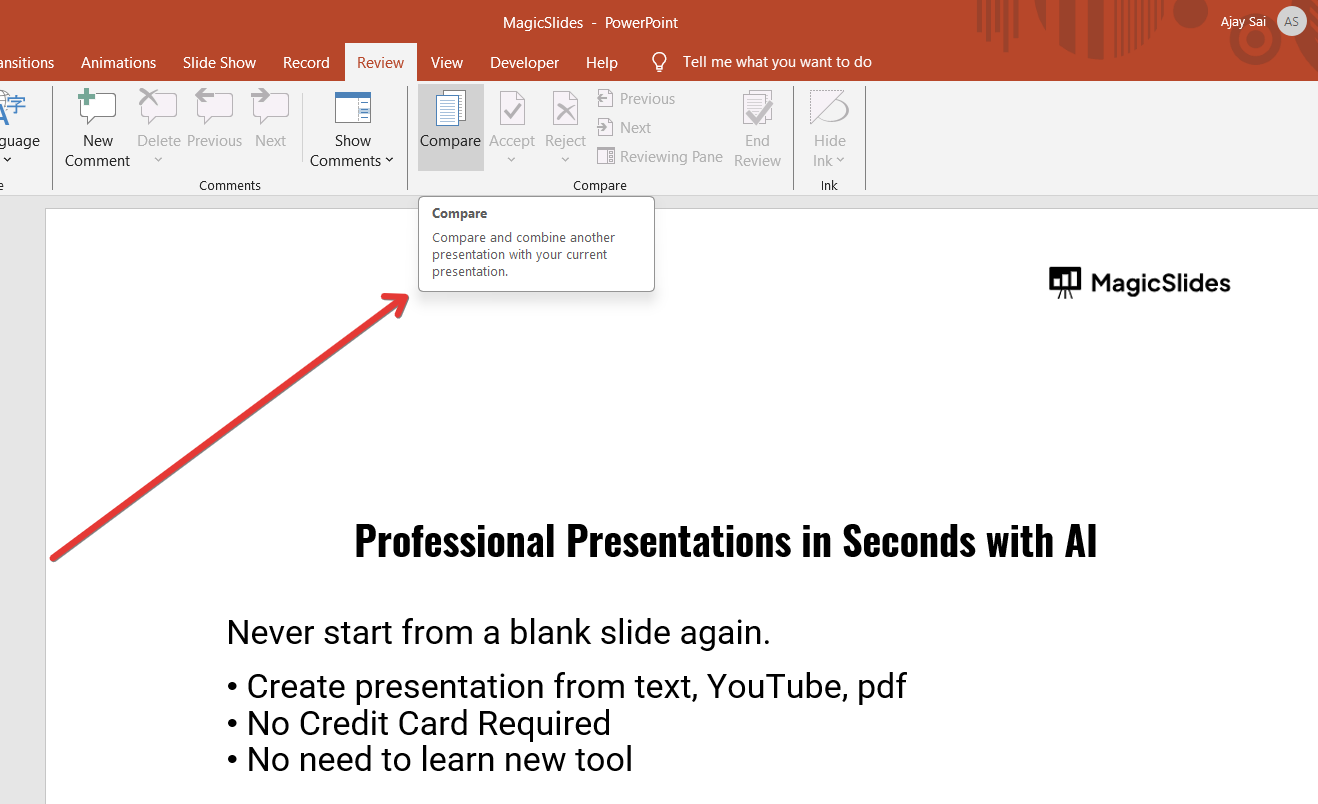
PowerPoint will highlight differences between the versions, showing who made each edit.
Tracking edits in PowerPoint is useful for collaboration, but if you want to speed up the entire presentation creation process, try MagicSlides.app generate complete AI-powered slides in seconds with just a topic or document!
Conclusion
Tracking changes in PowerPoint is essential for teamwork and version control.
Whether using Version History, Comments, the Compare Tool, or PowerPoint Online, you can easily see who edited what and ensure accurate collaboration.
FAQs About Tracking Edits in PowerPoint
Can I see who edited a specific slide in PowerPoint?
Yes, by using Version History or the Compare tool, you can track changes on individual slides.
How do I undo someone else’s changes in PowerPoint?
Go to File > Info > Version History, open a previous version, and restore it if needed.
Does PowerPoint show live edits like Google Slides?
Yes, in PowerPoint Online, you can see real-time edits with the collaborator’s name displayed.
Now, you can confidently track edits and manage PowerPoint collaborations effectively! 🚀


