How To Link Slides In PowerPoint


Learn to seamlessly connect slides in PowerPoint with our step-by-step guide. Elevate your presentations with smooth transitions effortlessly. 🚀
Microsoft PowerPoint is a powerful tool for creating dynamic presentations, and one of its useful features is the ability to link slides seamlessly. Whether you want to navigate within your presentation or direct your audience to external content, here's a step-by-step guide to help you master the art of linking slides.
How To Link Slides In PowerPoint
Access Microsoft PowerPoint
To begin, open Microsoft PowerPoint on your computer. If you haven't installed it, you can sign in with your Microsoft account to access the application.
Open the Presentation You Want to Link
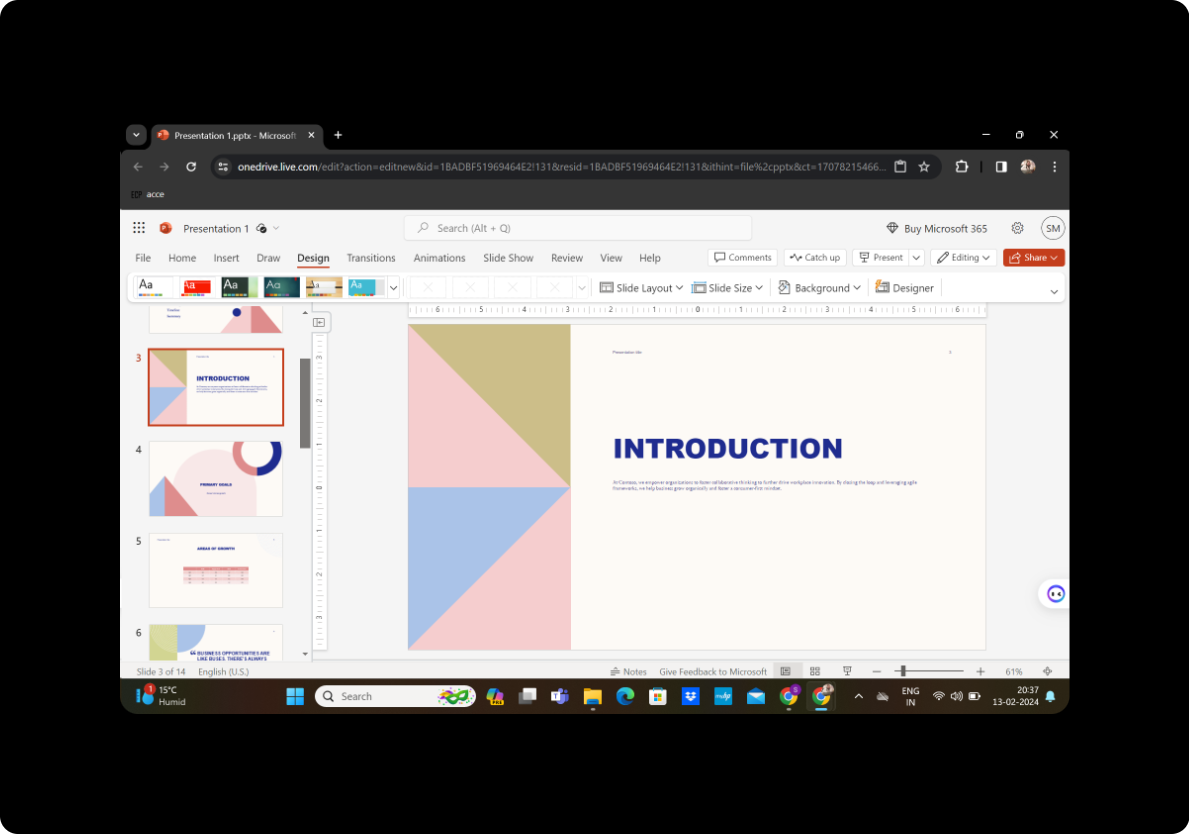
Select the presentation you're working on or open the one you want to link within Microsoft PowerPoint.
Select the Text, Shape, or Picture for the Hyperlink
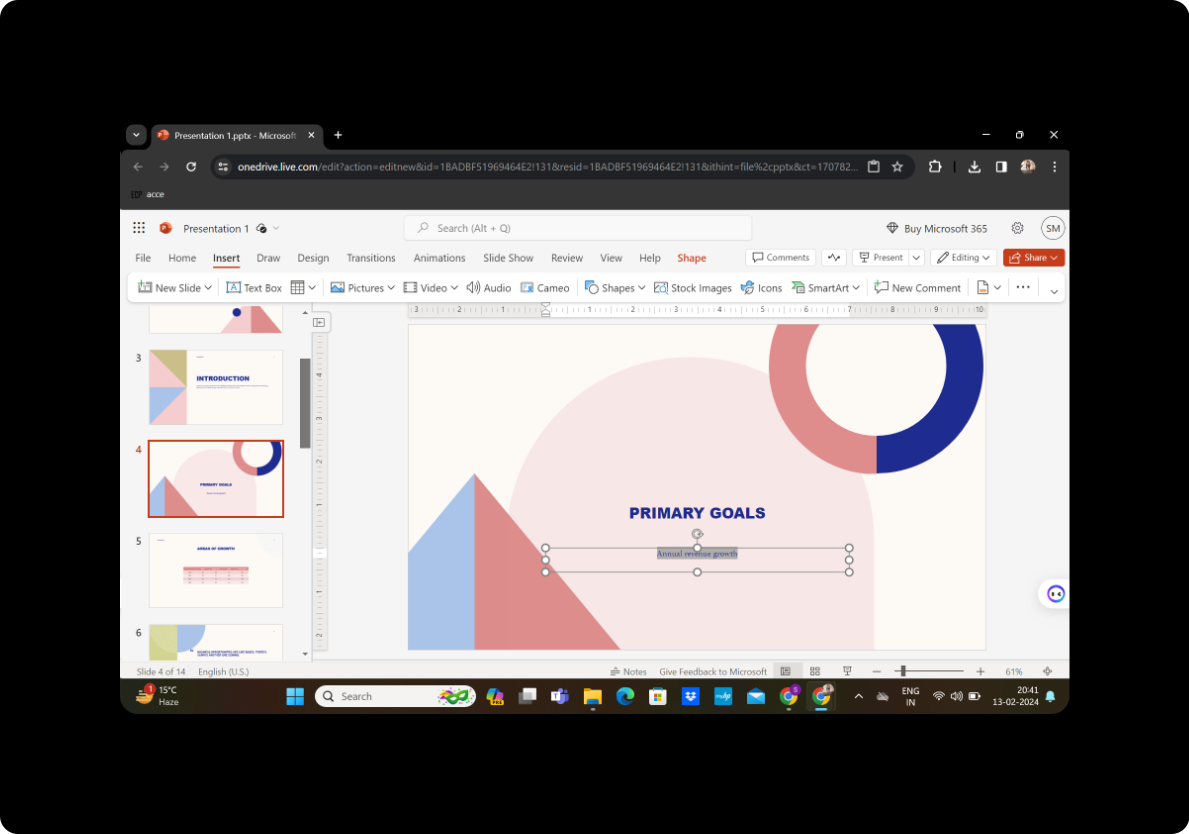
Identify the specific text, shape, or picture in your presentation that you want to turn into a hyperlink. Highlight it by clicking and dragging to select the desired element.
Insert Hyperlink
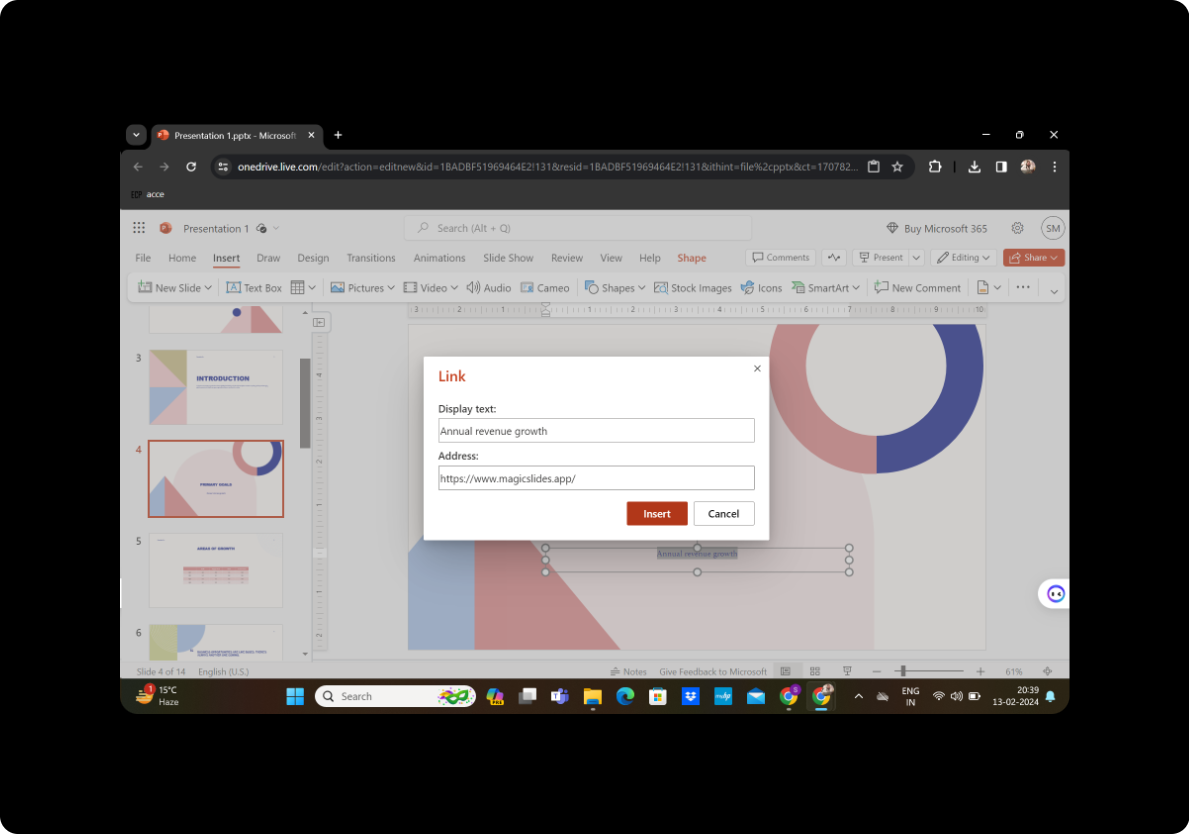
Press “Ctrl + K" to access the hyperlink options.
Select OK
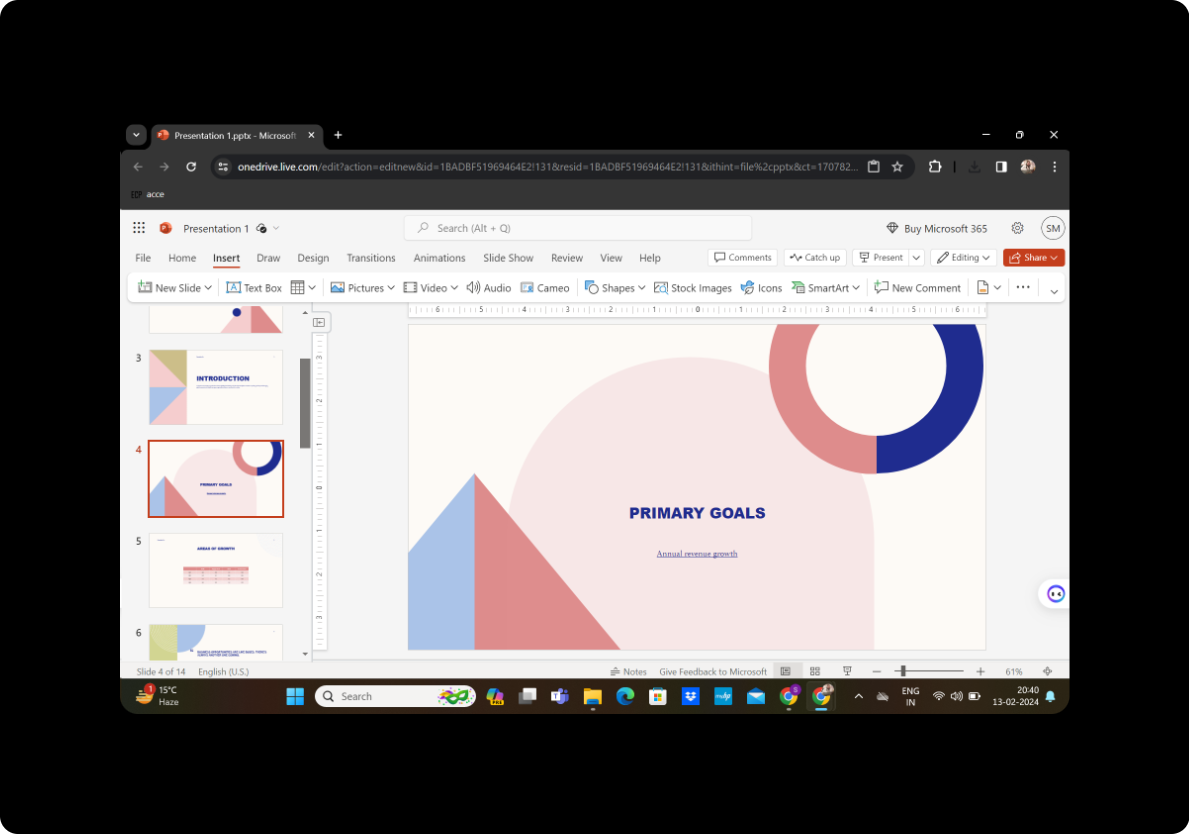
Click "OK" to confirm your hyperlink settings. This action establishes the link within your PowerPoint presentation.
Underlined text shows hyperlinked text
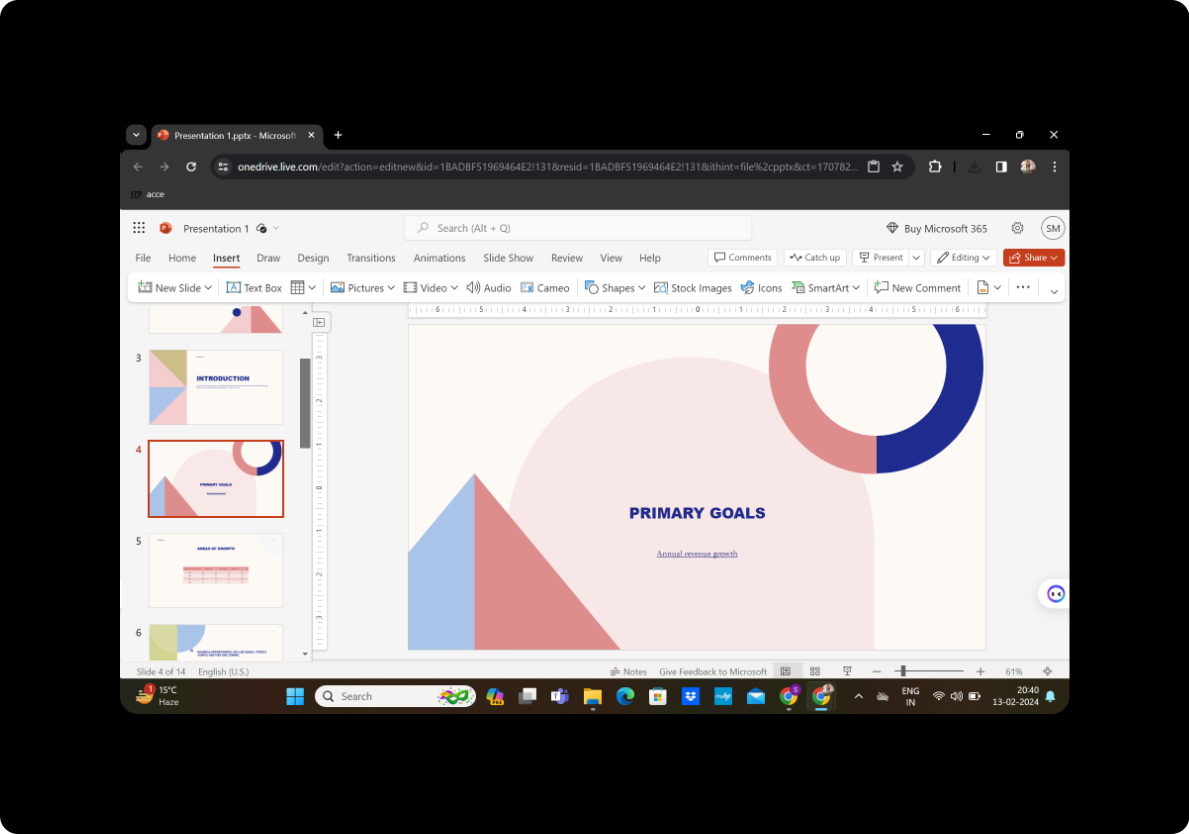
With these straightforward steps, you've successfully linked slides in your PowerPoint presentation. Whether you're navigating internally or connecting to external content, this feature enhances the interactive quality of your presentation.
Conclusion
Mastering the art of linking slides in PowerPoint adds a layer of interactivity and professionalism to your presentations. By seamlessly guiding your audience through related content, you can deliver a more engaging and effective message.
Frequently Asked Questions
Can I link to a specific slide in another presentation? Yes, by choosing the "Create New Document" option, you can link from your current presentation to another.
Is it possible to link to an email address? Absolutely. Use the "E-mail Address" option to create a hyperlink that opens the user's email program.
Can I change the linked destination later? Certainly. Simply select the hyperlink, right-click, and choose "Edit Hyperlink" to modify the details.
What is a ScreenTip, and do I need to include one? A ScreenTip provides additional information when users hover over the hyperlink. While it's optional, it can enhance the user experience by offering context.
How can I test the hyperlinks in my presentation? During the slideshow, click on the linked element to ensure it directs you to the intended destination.


