how to make a border on google slides


Transform your Google Slides with borders! Learn how to make your presentation pop in a few steps.
Adding a border to your Google Slides presentation can be an effective way to make your content stand out and look more polished. Whether you want to emphasize a specific element or give your slides a professional touch, creating borders is a simple yet impactful design choice.
In this step-by-step guide, we will walk you through the process of adding borders to your Google Slides. You don't need to be a design expert; with a few clicks, your presentations can become more visually appealing.
Steps to Add a Border in Google Slides:
- Open Your Presentation: Begin by opening your Google Slides presentation. If you're starting a new presentation, create one from your Google Drive.
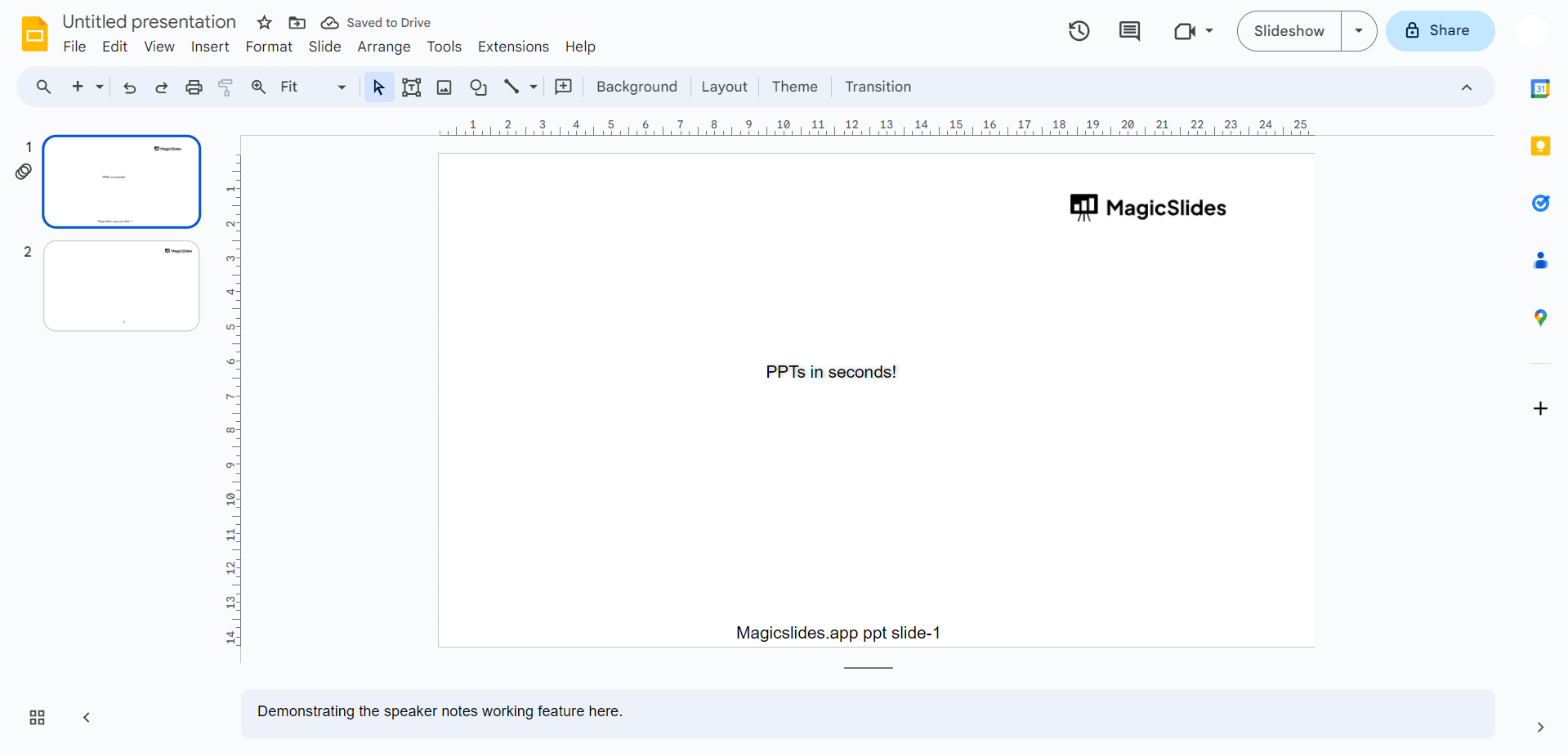
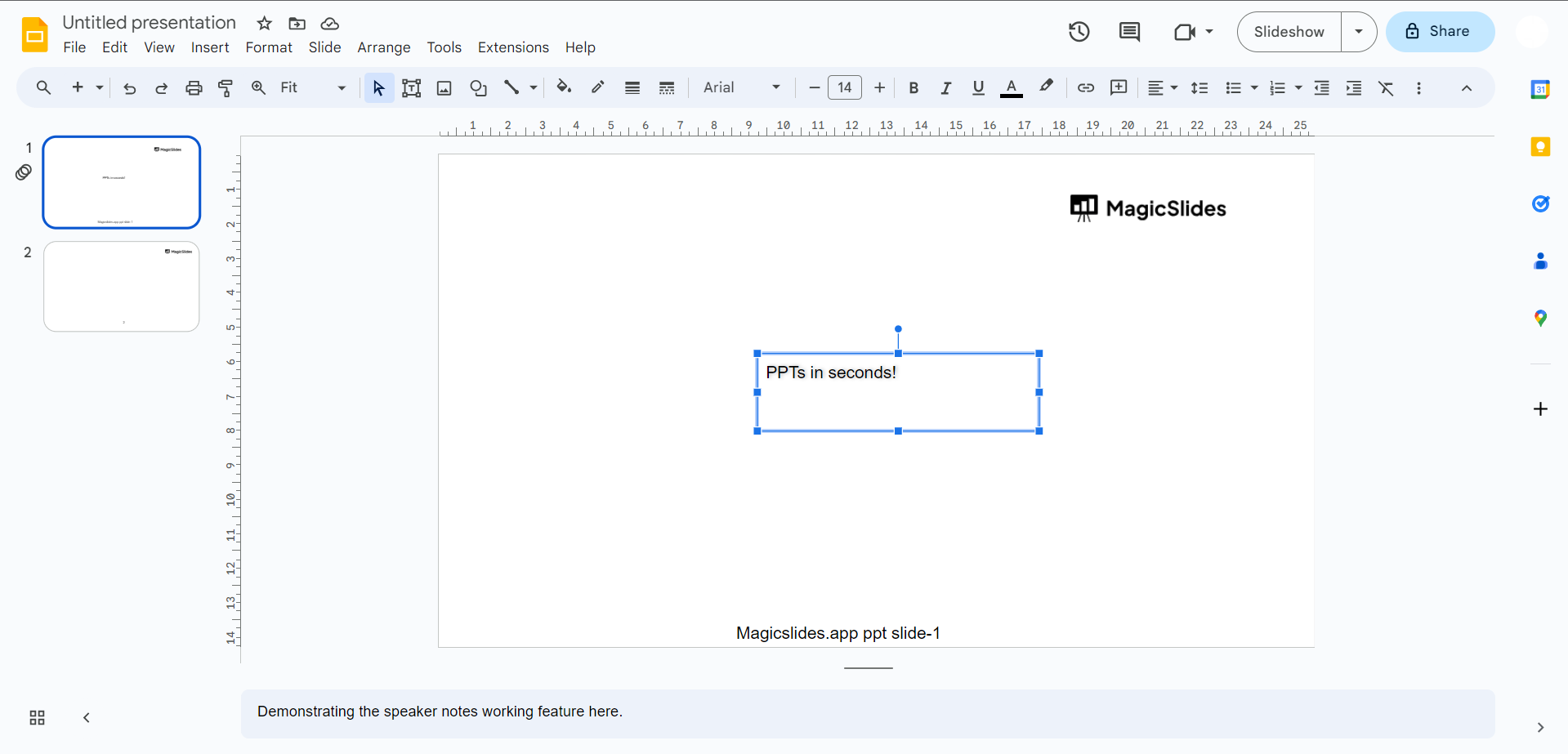
- Select the Object: Choose the object (text box, image, shape, etc.) to which you want to add a border. Click on it to select.
- Format Options: In the top menu, click "Format," and then select "Format options" from the dropdown menu.
- Borders & Lines: A sidebar will appear on the right. Click on the "Borders & lines" tab.
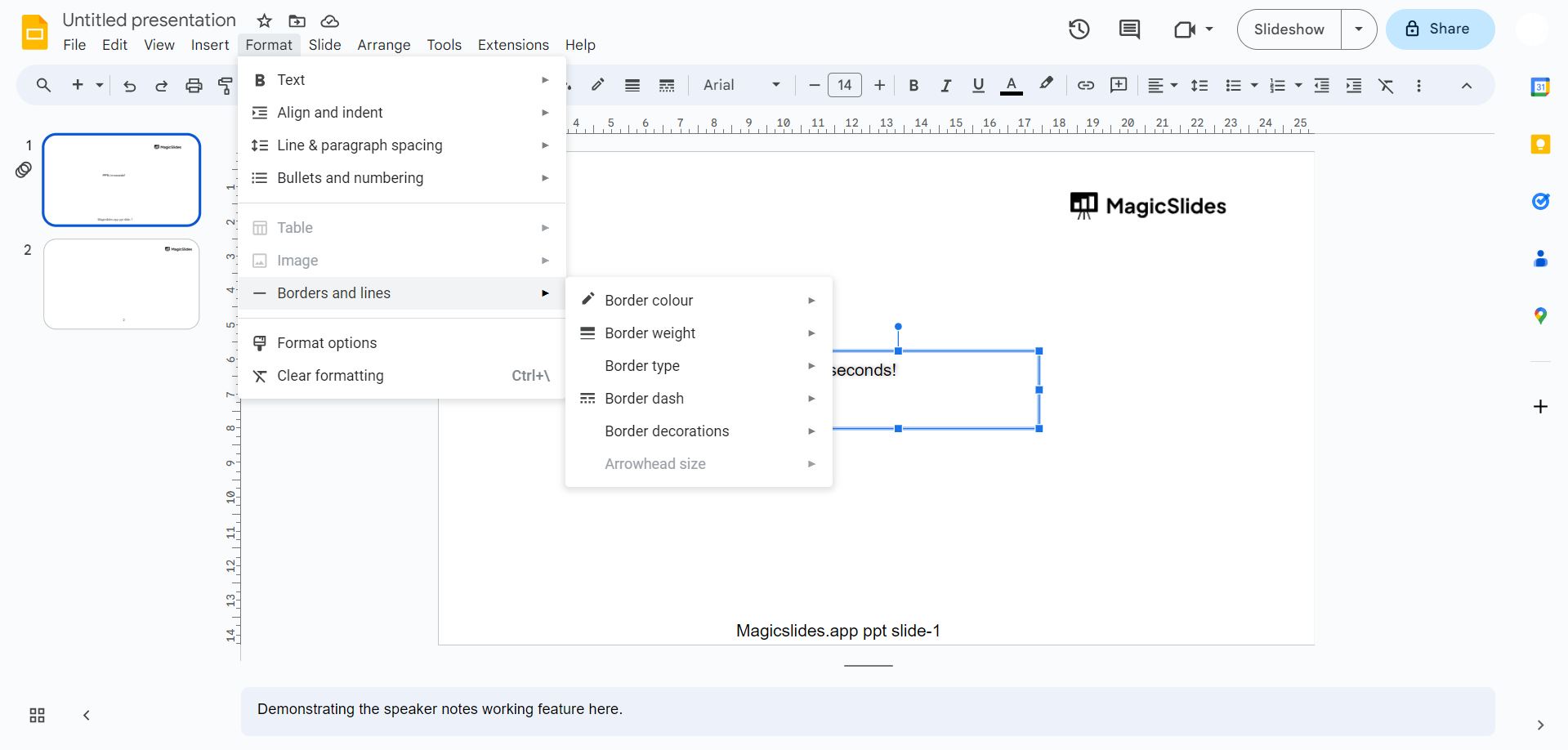
- Border Settings: You can choose the line color, line thickness, and even add a dash or dot pattern. Adjust these settings according to your preference.
- Apply Border: Click the "Apply" button to add the border to your selected object.
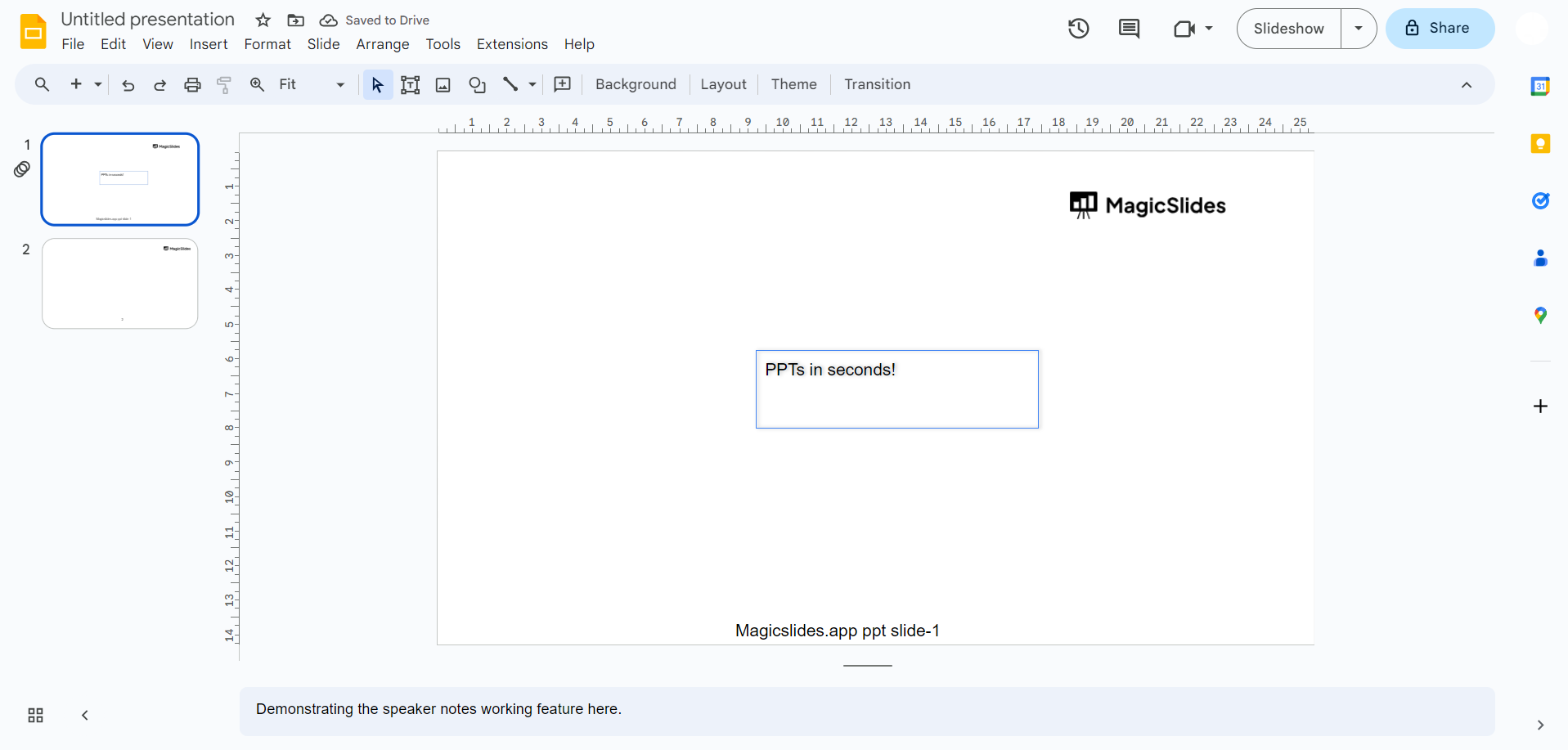
- Repeat (If Necessary): To add borders to other objects, repeat the process.
Conclusion:
Enhancing your Google Slides presentation with borders is a quick and easy way to make your content more visually appealing. It helps direct your audience's attention and adds a professional touch to your slides. By following the straightforward steps outlined above, you can customize your borders to match your presentation's style and message.
Experiment with different border colors and line thicknesses to find the perfect fit for your design. With the ability to create visually captivating presentations, you'll engage your audience more effectively and leave a lasting impression.
So, next time you're working on a Google Slides presentation, remember the power of borders and use them to your advantage. Your audience will appreciate the effort you put into your visual storytelling.
Frequently asked questions:
Why should I add borders to my Google Slides?
Answer: Borders in Google Slides help draw attention to important content, create a professional look, and enhance visual appeal.
Can I add borders to any element in my presentation?
Answer: Yes, you can add borders to text boxes, images, shapes, and other elements to emphasize or stylize them.
What customization options are available for borders?
Answer: You can customize border color, thickness, and pattern to match your presentation's style and message.
Can I remove or change borders once added to an object?
Answer: Yes, you can easily modify or remove borders by accessing the "Borders & lines" settings for the selected object.
Will adding borders make my presentation file larger?
Answer: No, adding borders does not significantly increase file size, as they are a minor design element.


