Addon google slides iconPPT with AISlide TemplatesPPT TemplatesPricingBlog
    PPT with AISlide TemplatesPPT TemplatesPricingBlog
    Google Slides
    1. Home
    2. Blog
    3. How to make a Foggy Background using Google Slides Gradient


    How to make a Foggy Background using Google Slides Gradient

    Ajay Sai

    Published By

    Ajay Sai

    Approved By

    Admin

    Published On

    March 20th, 2025

    Reading Time

    2 min read

    Create a soft, misty effect in Google Slides using gradients for a professional foggy background

    How to Make a Foggy Background Using Google Slides Gradient

    Creating a foggy background in Google Slides using gradients can enhance your presentation’s aesthetic appeal.
    With the right color combinations and transparency settings, you can achieve a soft, misty effect that makes text and images stand out.
    Follow this step-by-step guide to add a foggy background using gradients in Google Slides.

    Step-by-Step Guide to Making a Foggy Background in Google Slides

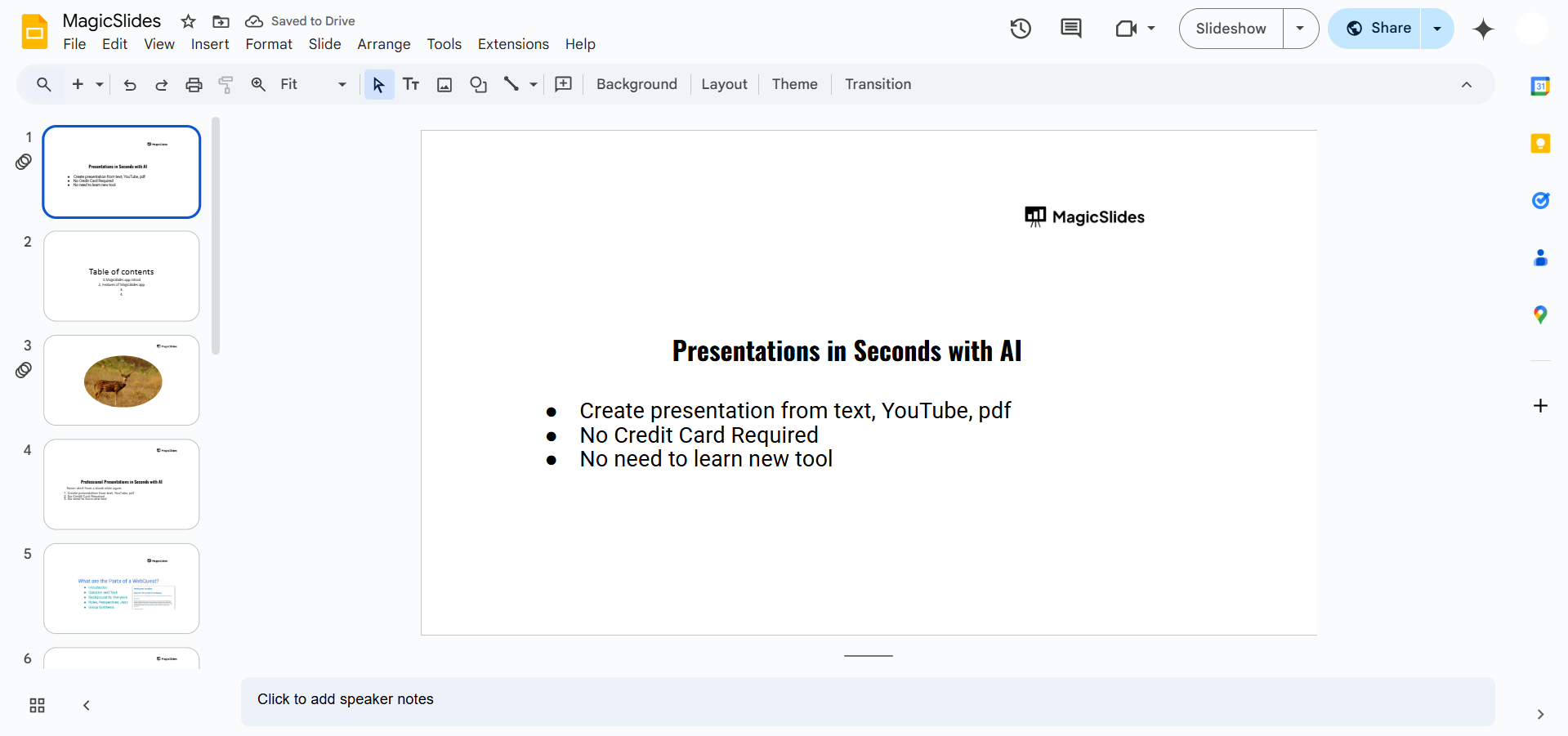
    Step 1: Open Google Slides

    Go to Google Slides and open an existing presentation or create a new one.
    notion image
    Select the slide where you want to apply the foggy background.

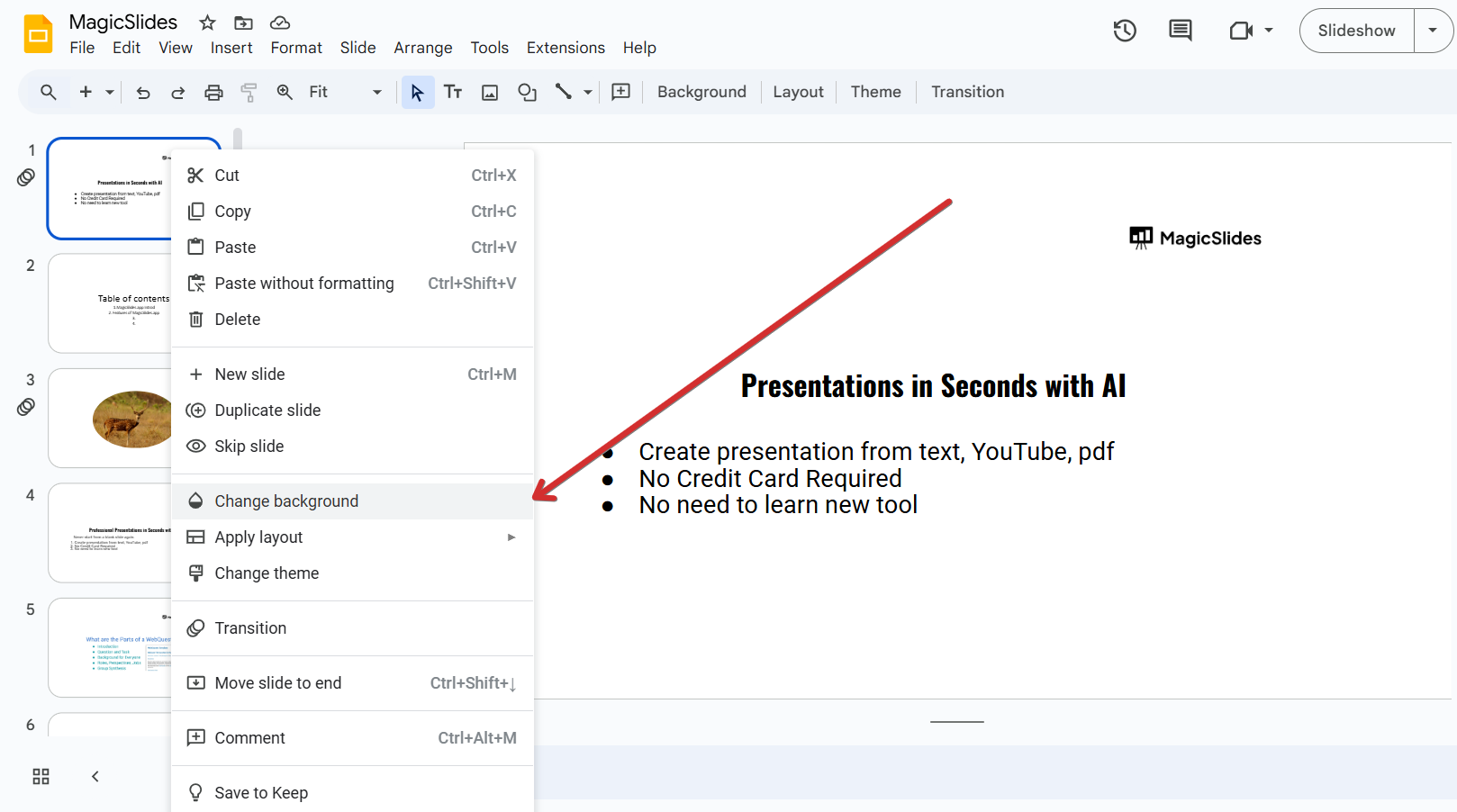
    Step 2: Open the Background Settings

    Click on Background in the toolbar.
    notion image
    Select Choose Image or click on Color to manually adjust the slide’s background.

    Step 3: Apply a Gradient Background

    Click on Color and select Gradient instead of solid color.

    notion image
    Choose a light gray-to-white gradient or create a custom fog effect using transparency.

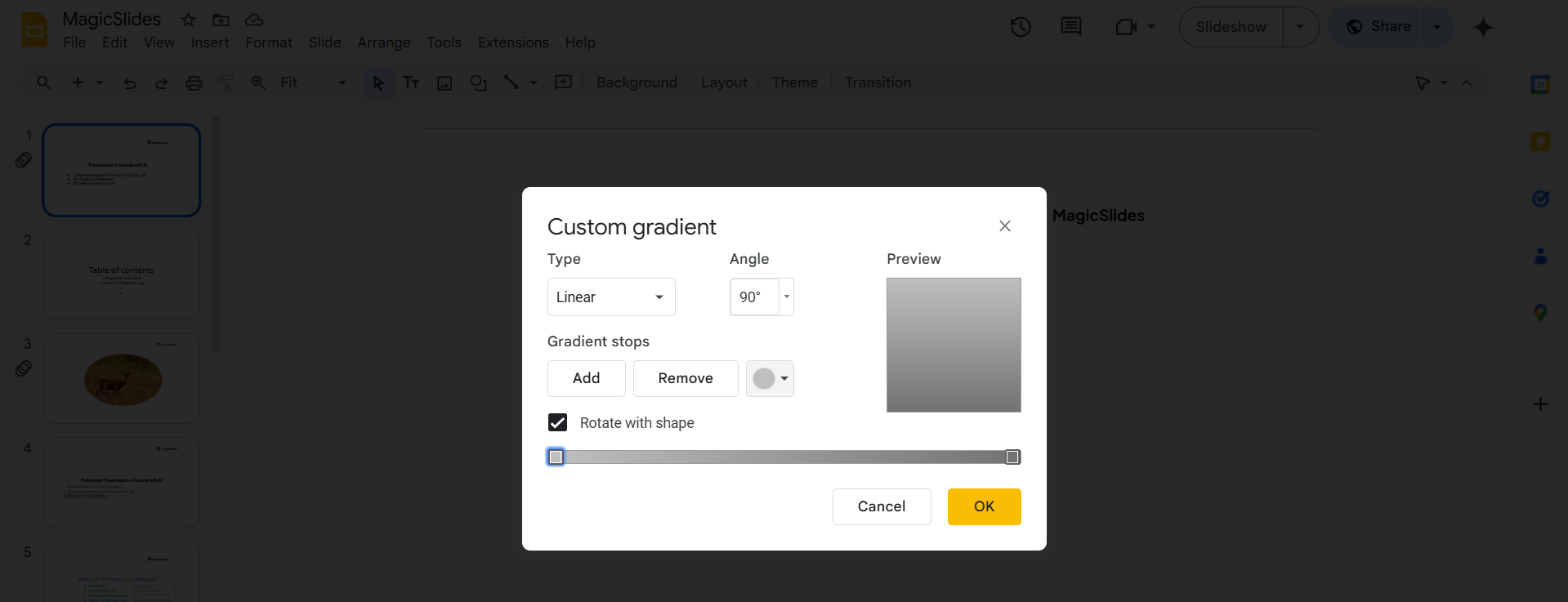
    Step 4: Customize the Gradient

    Click + Custom to create a new gradient. Add gradient stops and adjust colors to shades of white, gray, or light blue for a misty effect.
    notion image
    Increase the transparency on some gradient stops to create depth.
    Set the gradient type to Linear or Radial based on your preference.
    notion image

    Step 5: Apply and Adjust

    Click Done to apply the gradient.
    If needed, go to Format Options > Adjustments to tweak brightness and contrast for a softer look.

    Adding a foggy background with gradients enhances your slides, but why stop there? MagicSlides.app lets you generate entire presentations in seconds, complete with professional designs, layouts, and effects!

    Conclusion

    Using gradients in Google Slides allows you to create a subtle, foggy background that enhances readability and design.
    With the right color choices and transparency settings, your slides will have a smooth, professional misty effect.

    FAQs About Making a Foggy Background in Google Slides

    Can I use an image instead of a gradient for a foggy background?

    Yes, you can upload a foggy texture image from the web and adjust its transparency for a similar effect.

    What colors work best for a foggy background?

    Shades of white, gray, and light blue with soft transitions create the most realistic fog effect.

    How do I make only part of the slide foggy?

    Use Shapes > Gradient Fill to apply a fog effect to specific sections of the slide.
    Now you’re ready to create a stunning foggy background in Google Slides! 🌫️💡

    Share on socials

    About the author

    Ajay Sai profile photo
    Ajay Sai— writer at MagicSlides.app

    Ajay have been a techincal writer for more than 2+ years. from coding tutorials to using day to day apps he have helped 100k+ visitors with their various queries

    More from Ajay

    More from the blog

      100+ Best Seminar Topics for Students in 2026

      3 February 2026

      Best Presentation AI Tool of 2026 (with Real Use Cases + Comparisons)

      2 February 2026

      250+ Good Morning Messages for Her (Romantic, Deep, Cute & Sweet)

      30 January 2026

      200+ Heart Touching Birthday Wishes for Sister (Short, Funny and More)

      29 January 2026

      50+ History Presentation Topics For 2026

      28 January 2026

      How to Add Music to Your Canva Presentation: A Step-by-Step Guide

      27 January 2026

      15 Quick Tips To Use ChatGpt At Work

      22 January 2026

      11 Best AI Tools for Business in 2025

      22 January 2026

      How to Create an Infographic That Clearly Communicates Your Message

      20 January 2026

    Table of Contents

    Create Presentations in Seconds

    Transform your ideas into professional presentations with AI. No design skills needed.

    Try MagicSlides Free

    Create Stunning Presentations with AI in Seconds ✨

    Transform any topic, text, YouTube video, PDF or URL into beautiful presentations instantly with MagicSlides AI.

    Try MagicSlides AI Presentation Maker
    MagicSlides AI Presentation

    Footer

    Solutions

    • MagicSlides App
    • Google Slides Add-on
    • MagicSlides in Chrome
    • MagicSlides in Figma
    • MagicSlides in ChatGPT
    • MagicSlides in Telegram
    • MagicSlides in Zapier
    • MagicSlides in Figma Slides

    Tools

    • AI PPT Tools
    • QR Code Generator
    • Design Tools
    • PPT Templates
    • Slide Templates
    • PDF Tools

    Examples

    • AI Presentations
    • PPT by MagicSlides
    • Quizzes
    • Charts
    • Coloring Pages

    Resources

    • Changelog
    • Documentation
    • API Docs

    Top Blogs

    • How to Create Presentation Using ChatGPT
    • 100+ Best Seminar Topics for Students in 2025

    Company

    • Help
    • MCP
    • Blog
    • Pricing
    • Affiliate Program
    • Manage Subscription
    • Privacy Policy
    • Contact Us
    • Terms & Conditions
    • Refund & Cancellation Policy

    We also built

    • SheetAI - GPT For Sheets
    • MagicForm - GPT For Google Forms
    • SecondBrain.fyi
    • BlogBee - Free Blogging Platform

    © 2026 IndianAppGuy Tech Pvt Ltd. All rights reserved.