How to make a Photo Slideshow in PowerPoint


PowerPoint makes creating a captivating photo slideshow easy, perfect for personal events or professional presentations
Creating a photo slideshow in PowerPoint is an easy way to present pictures in a dynamic and engaging format.
Whether it’s for a personal event or a professional presentation, PowerPoint offers tools to help you design a visually appealing slideshow with transitions, animations, and more.
Here’s a step-by-step guide on how to make a photo slideshow in PowerPoint.
How to Make a Photo Slideshow in PowerPoint: A Step-by-Step Guide
Step 1: Open a New Presentation in PowerPoint
Open PowerPoint and select "Blank Presentation" or any preferred template.
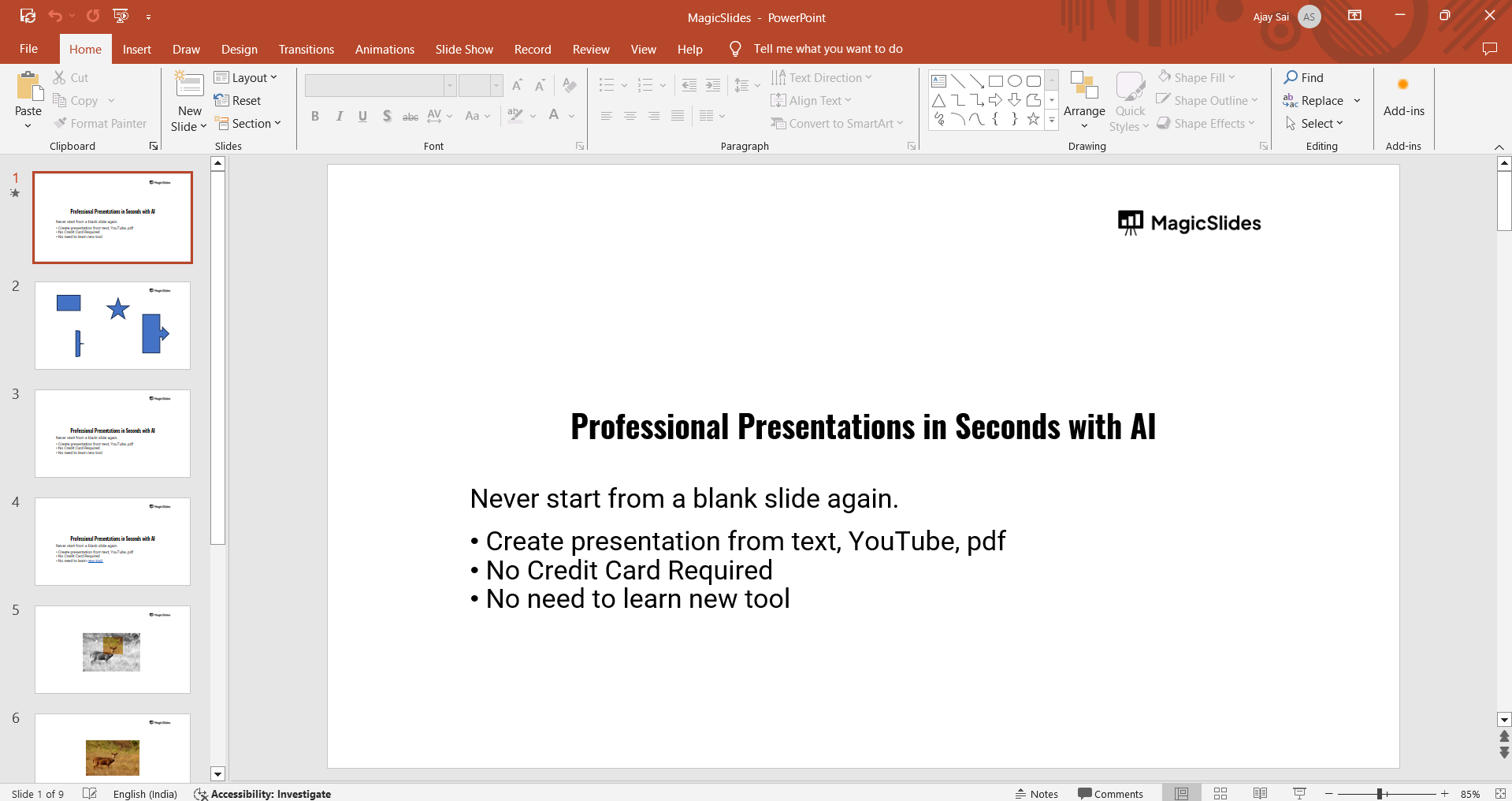
This will be your workspace for arranging photos, adding transitions, and customizing each slide.
Step 2: Insert Your Photos
Go to the "Insert" tab, select "Pictures," and choose "This Device" to upload photos from your computer, or "Online Pictures" if you’re adding images from the web.
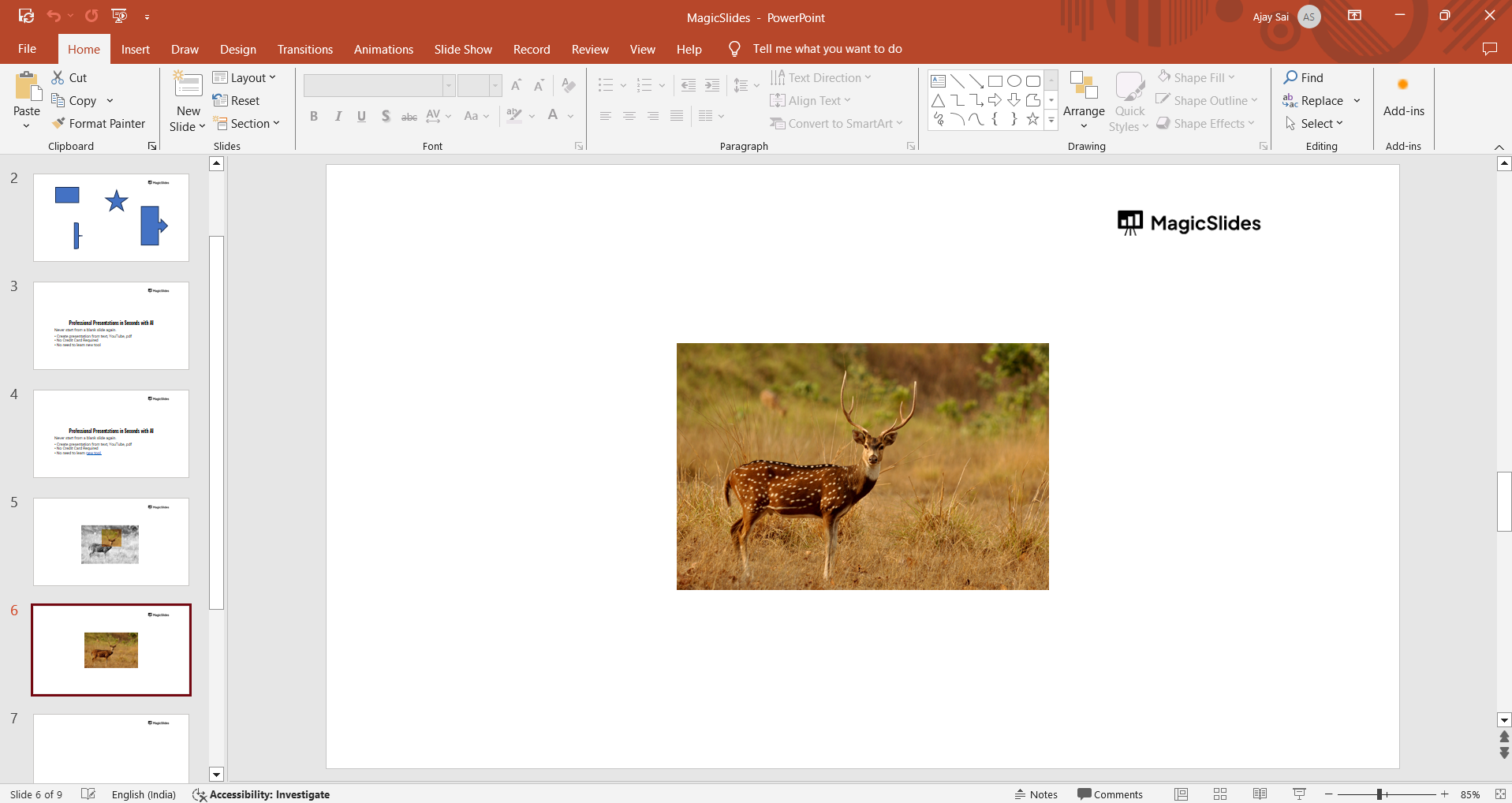
Choose the images for your slideshow, and they’ll appear on your slides. You can add one photo per slide or multiple photos as needed.
Step 3: Arrange and Resize Photos
Once the photos are on your slides, adjust their position and size.
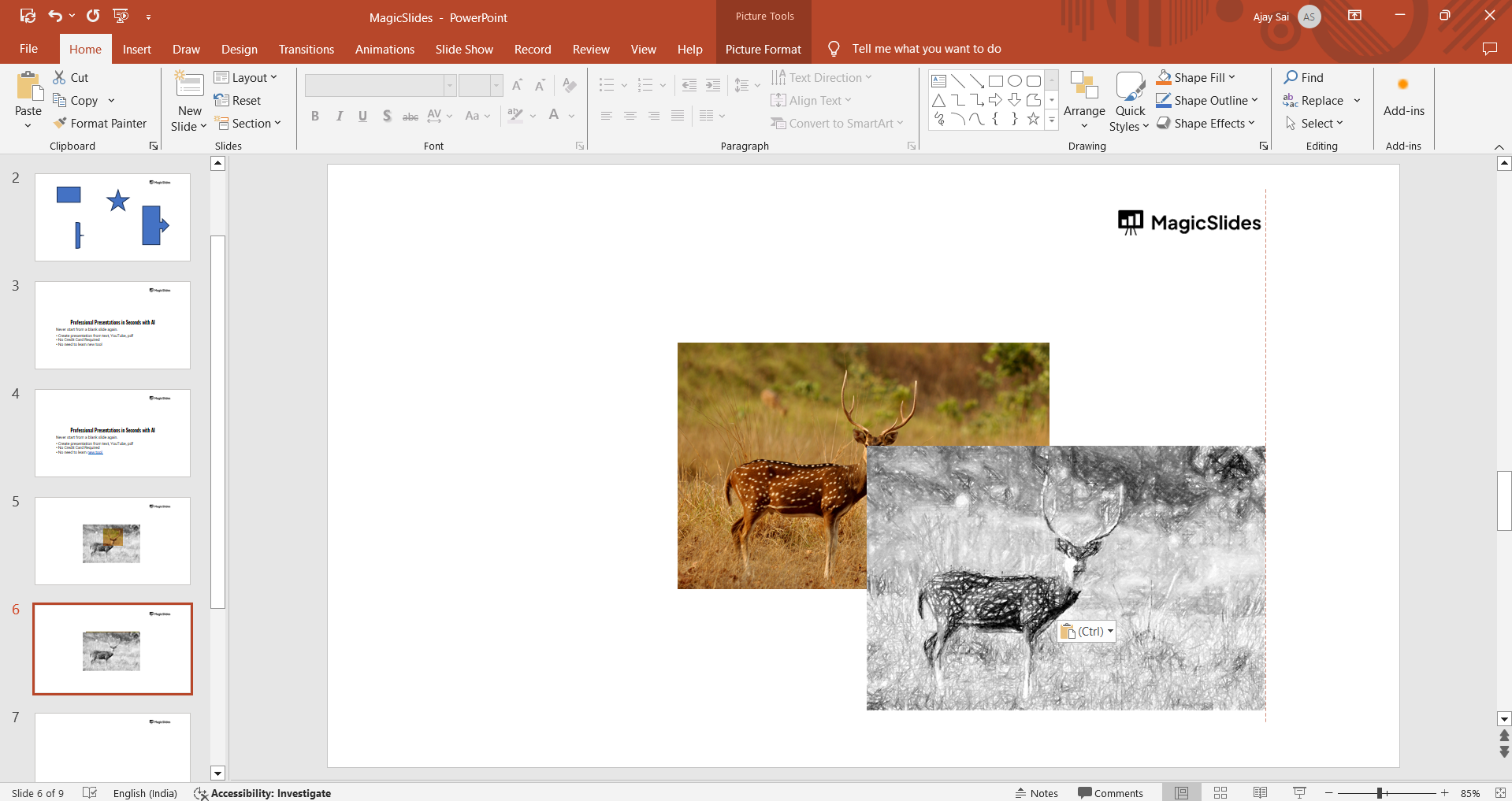
Click on each photo to move, resize, or rotate it, ensuring each slide is visually appealing and suits your layout preferences.
You can also add captions or titles to provide context for each image.
Step 4: Add Transitions Between Slides
Go to the "Transitions" tab to add visual effects between each slide, like "Fade," "Push," or "Wipe."
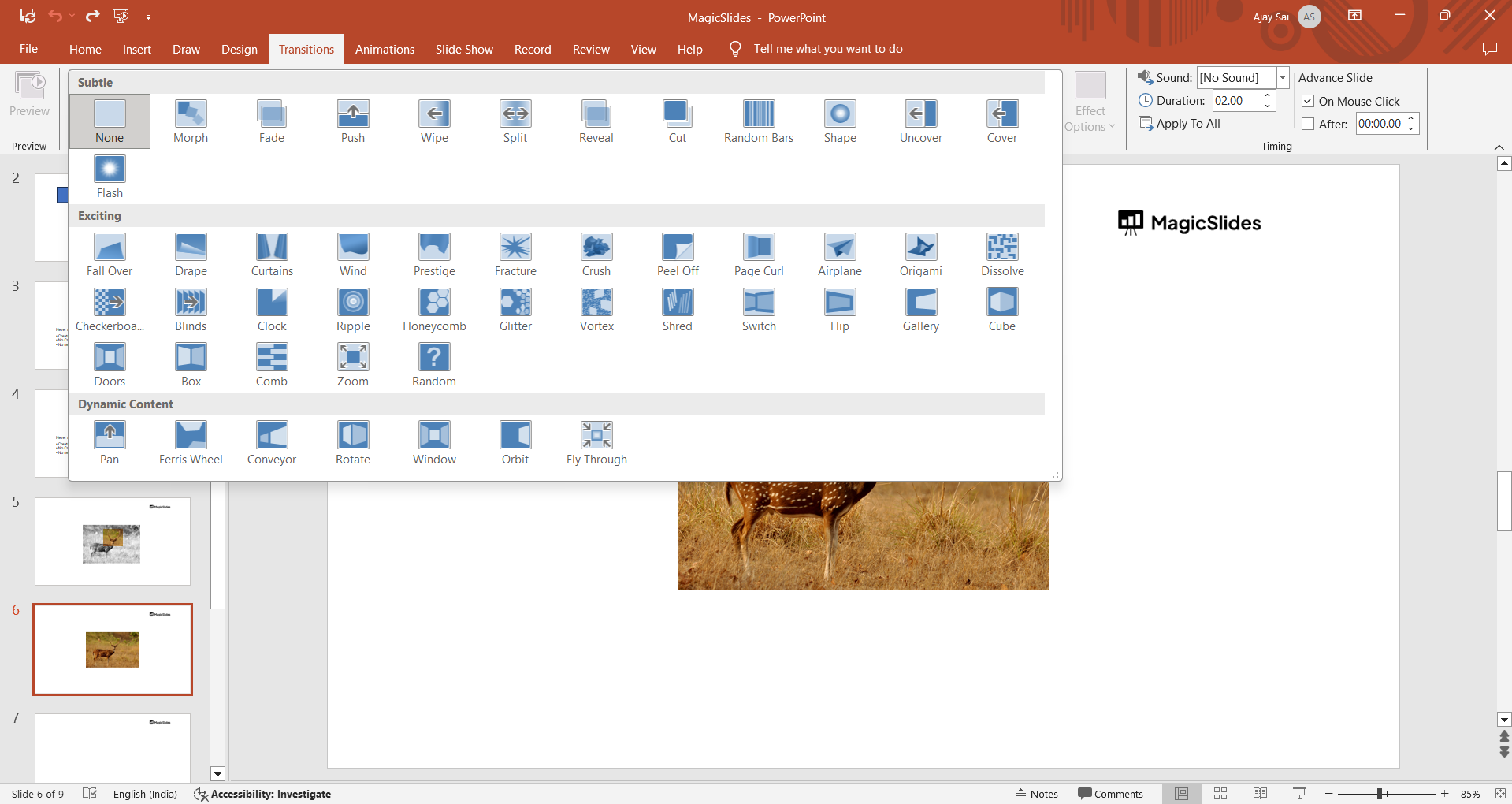
Select a transition, and click "Apply To All" if you want a uniform effect across slides.
This will make the slideshow flow smoothly from one slide to the next.
Step 5: Customize Slide Timing (Optional)
If you want the slideshow to advance automatically, go to the "Transitions" tab and check "After" under "Advance Slide."
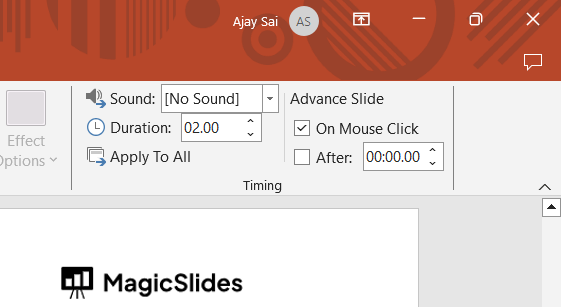
Set the timing for each slide to fit the pace you want for viewing, such as 2 or 3 seconds per slide.
This feature is especially useful for presentations that play automatically.
Step 6: Add Background Music (Optional)
To add background music, go to "Insert," select "Audio," and choose "Audio on My PC" to upload a track.
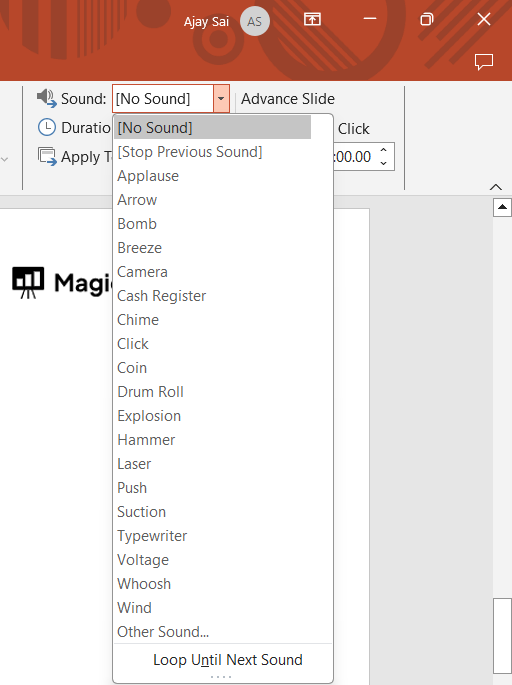
Adjust the playback settings under the "Audio Tools" menu to ensure it plays across all slides and fades in or out if needed.
Step 7: Preview and Save Your Slideshow
Click on the "Slide Show" tab and select "From Beginning" to preview your slideshow.
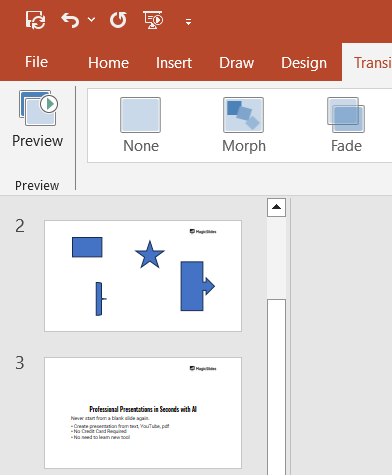
Make adjustments as needed, and once satisfied, save your presentation.
You can save it as a PowerPoint file or as an MP4 video if you want to share it as a standalone video slideshow.
Now that you've crafted a photo slideshow in PowerPoint, take it to the next level by learning how to add music to a Canva video, making your presentations more engaging.
Conclusion
Creating a photo slideshow in PowerPoint is simple and offers many customization options, from transitions to background music.
Follow these steps to build a captivating slideshow that will engage your audience and showcase your photos beautifully.
FAQs are here to guide!
Can I add videos to my photo slideshow in PowerPoint?
Yes, you can insert videos just like photos by selecting "Insert" > "Video."
You can place videos on slides alongside photos for a multimedia experience.
Can I adjust the slideshow to loop continuously?
Yes, go to the "Slide Show" tab, select "Set Up Slide Show," and choose "Loop continuously until Esc." This setting is useful for events or displays.
How do I share my slideshow as a video?
To save the slideshow as a video, go to "File" > "Export" > "Create a Video," then select your preferred quality and timing settings. PowerPoint will export your slideshow as an MP4 video.


