How to make a poll on Google Forms


Empower your data collection game: discover how to effortlessly create engaging polls using Google Forms.
In the digital age, gathering opinions and insights has become streamlined and accessible, thanks to tools like Google Forms. If you're looking to conduct a poll efficiently, Google Forms provides a user-friendly platform to create and collect responses. In this comprehensive guide, we'll walk you through the step-by-step process of crafting engaging polls on Google Forms, making the data collection process smooth and insightful.
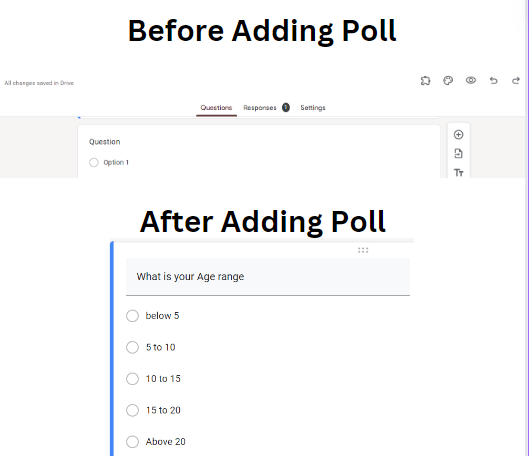
How to make a poll on Google Forms
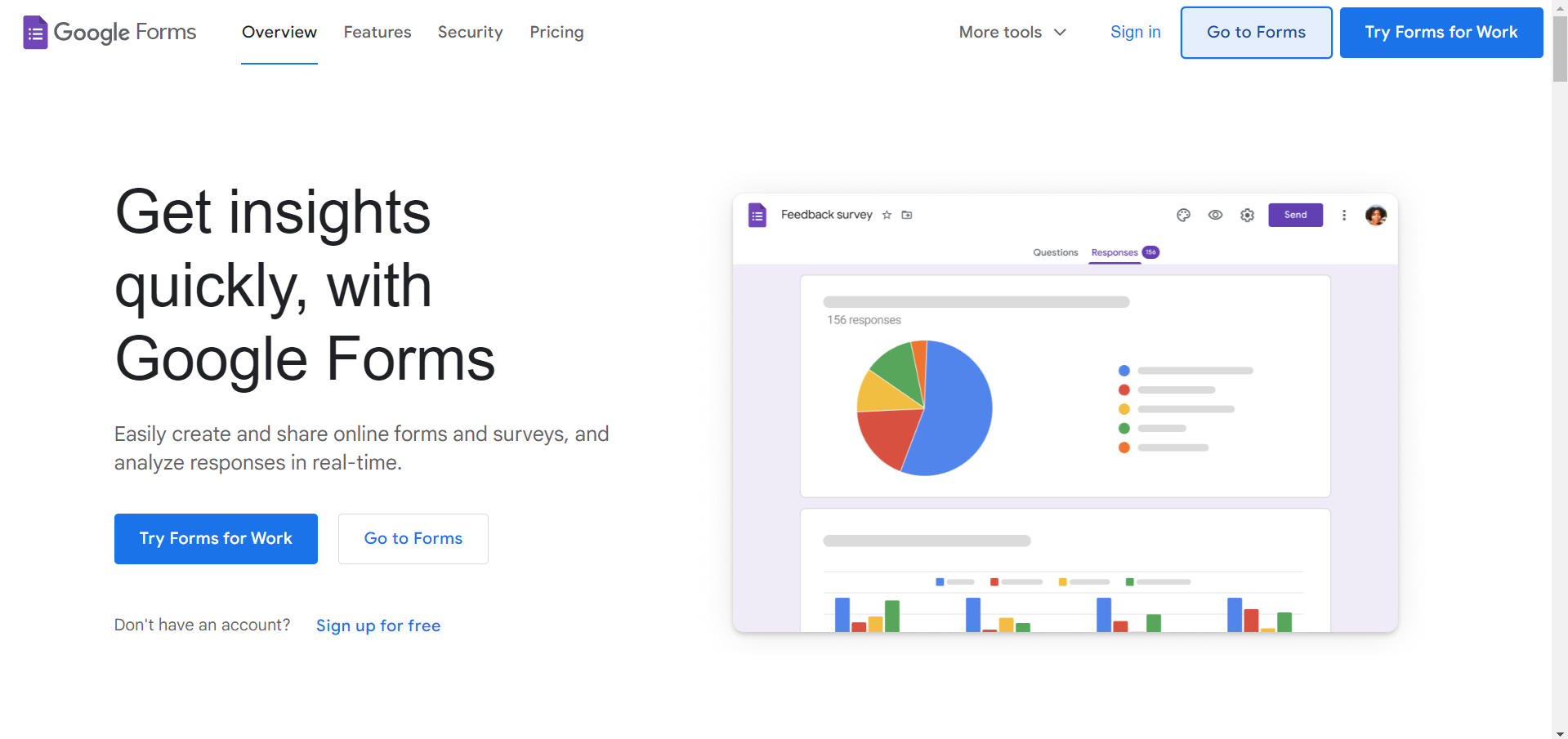
Access Google Forms:
Open your web browser, go to Google Forms (forms.google.com), and log in to your Google account.
Create a New Form:
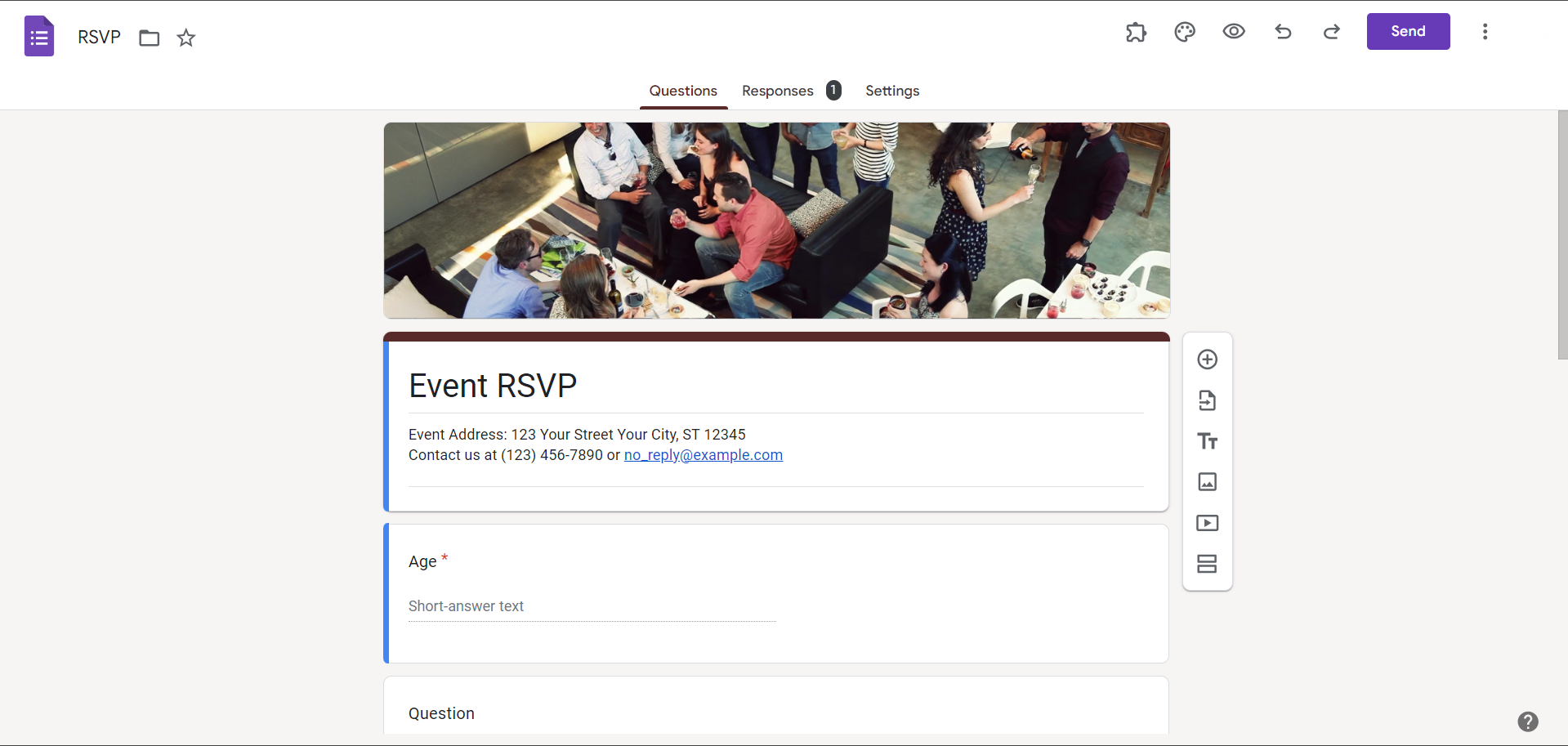
Click on the "+ Blank" button to start a new form. Give your form a title and begin adding poll questions.
Add Poll Questions:
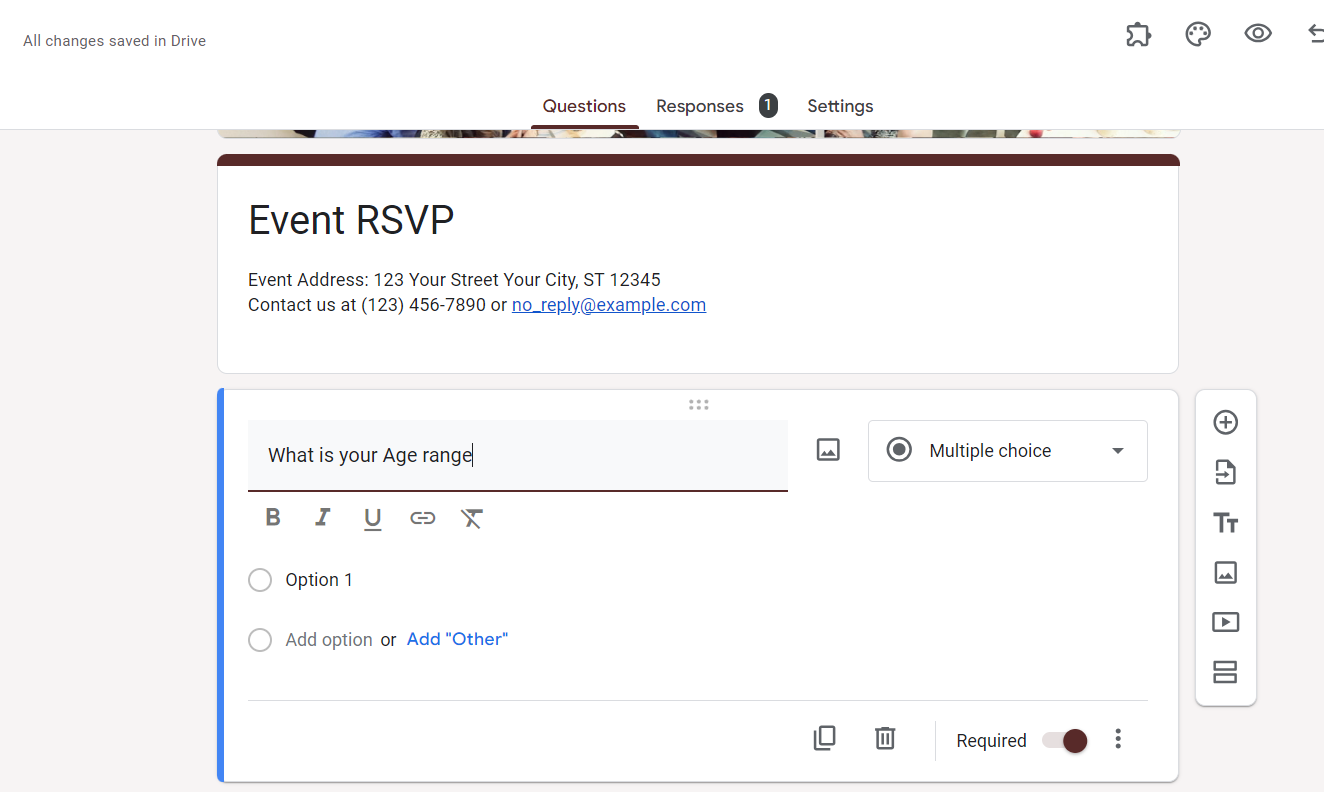
Click on the "+" button to add a new question. Choose the question type (multiple-choice, checkbox, or dropdown) for your poll.
Customize Response Options:
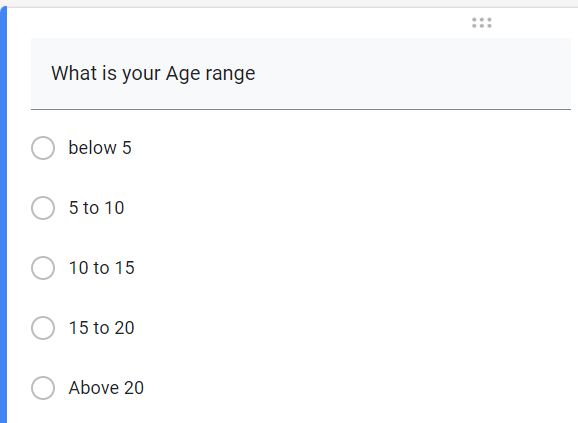
Input your poll response options. For multiple-choice questions, each option can be edited to suit your specific needs.
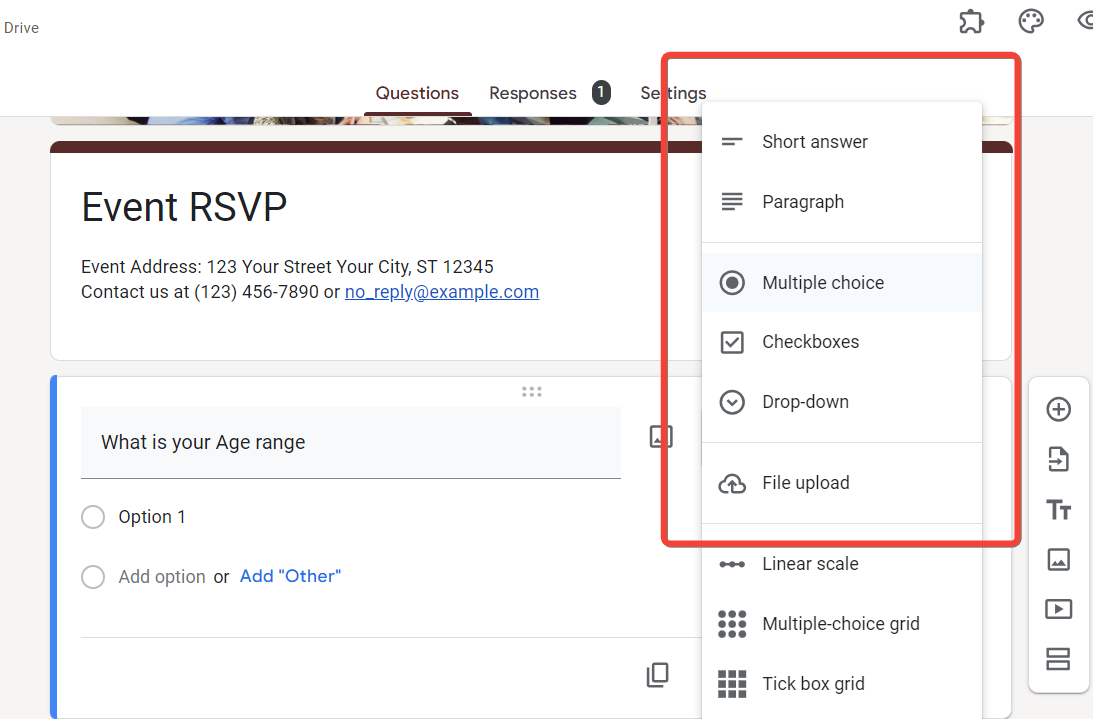
Configure Poll Settings:
Adjust the settings by clicking on the gear icon. Customize options such as allowing respondents to edit responses or limiting responses to one per person.
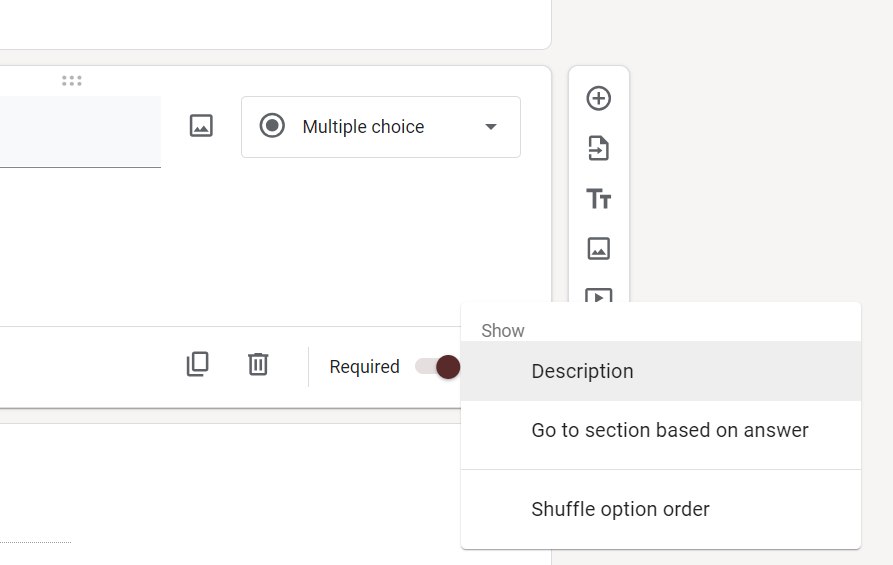
Preview Your Poll:
Click on the eye icon to preview your poll, ensuring questions are formatted correctly and appear as intended.
Send or Embed Your Poll:
Share your poll by clicking on the "Send" button. Options include sending via email, generating a link, or embedding it in a website.
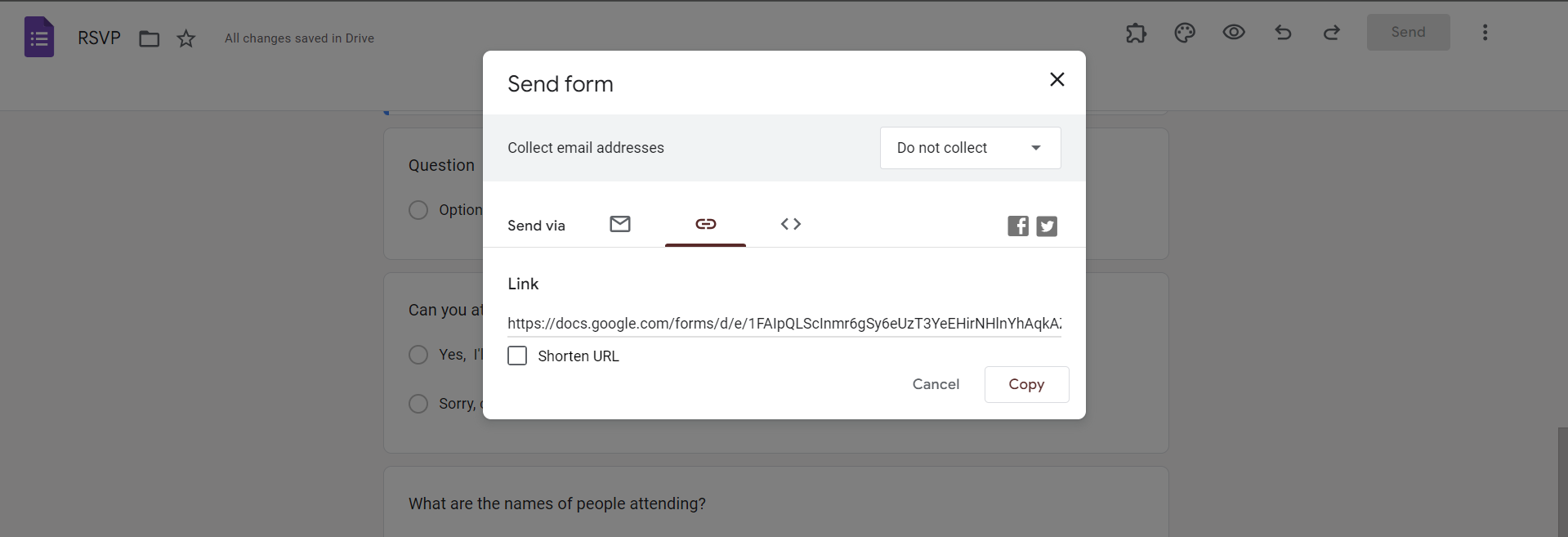
Monitor Responses in Real-Time:
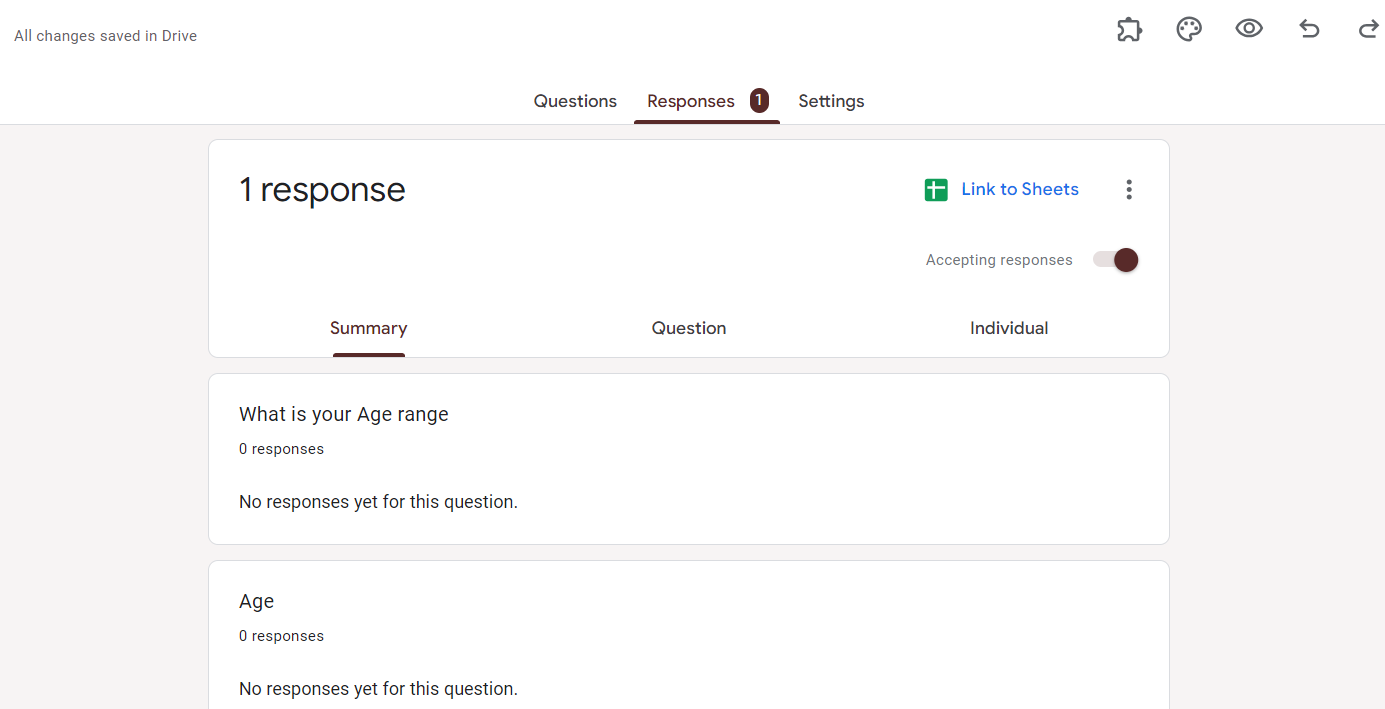
Track responses in real-time by accessing the "Responses" tab. Google Forms automatically generates visual summaries for easy analysis.
Conclusion:
Google Forms provides a powerful and user-friendly platform for creating engaging polls that cater to diverse survey needs. By following the steps outlined above, you can effortlessly design and deploy polls, collect valuable data, and gain insights from your audience. Whether you're seeking feedback, conducting research, or simply curious about opinions, Google Forms is your go-to tool for crafting interactive and insightful polls.
Frequently Asked Questions:
Can I customize the appearance of my poll on Google Forms to match my brand or theme?
Google Forms offers limited customization, but you can choose from various themes to give your poll a consistent look.
Are respondents required to have a Google account to participate in my Google Forms poll?
No, respondents can participate anonymously without a Google account, ensuring a broader range of participants.
Is there a limit to the number of questions or responses I can include in my Google Forms poll?
Google Forms allows a generous number of questions and responses, but exceeding limits may require adjustments in your account.
Can I export the poll results from Google Forms for further analysis or reporting?
Absolutely. Google Forms enables you to export responses to Google Sheets for in-depth analysis and reporting.


