How to make a PowerPoint a Screen Saver


Turn your PowerPoint presentation into a screensaver by following these simple steps for a seamless display
How to Make a PowerPoint a Screen Saver
Want to turn your PowerPoint presentation into a screensaver?
Whether for business displays or personal use, converting PowerPoint slides into a screensaver is simple.
Follow this step-by-step guide to transform your PowerPoint into a visually appealing screensaver.
Step 1: Create or Open Your PowerPoint Presentation
Begin by opening the PowerPoint presentation you want to use as a screensaver. Make sure it contains all the slides, animations, and transitions you want to display.
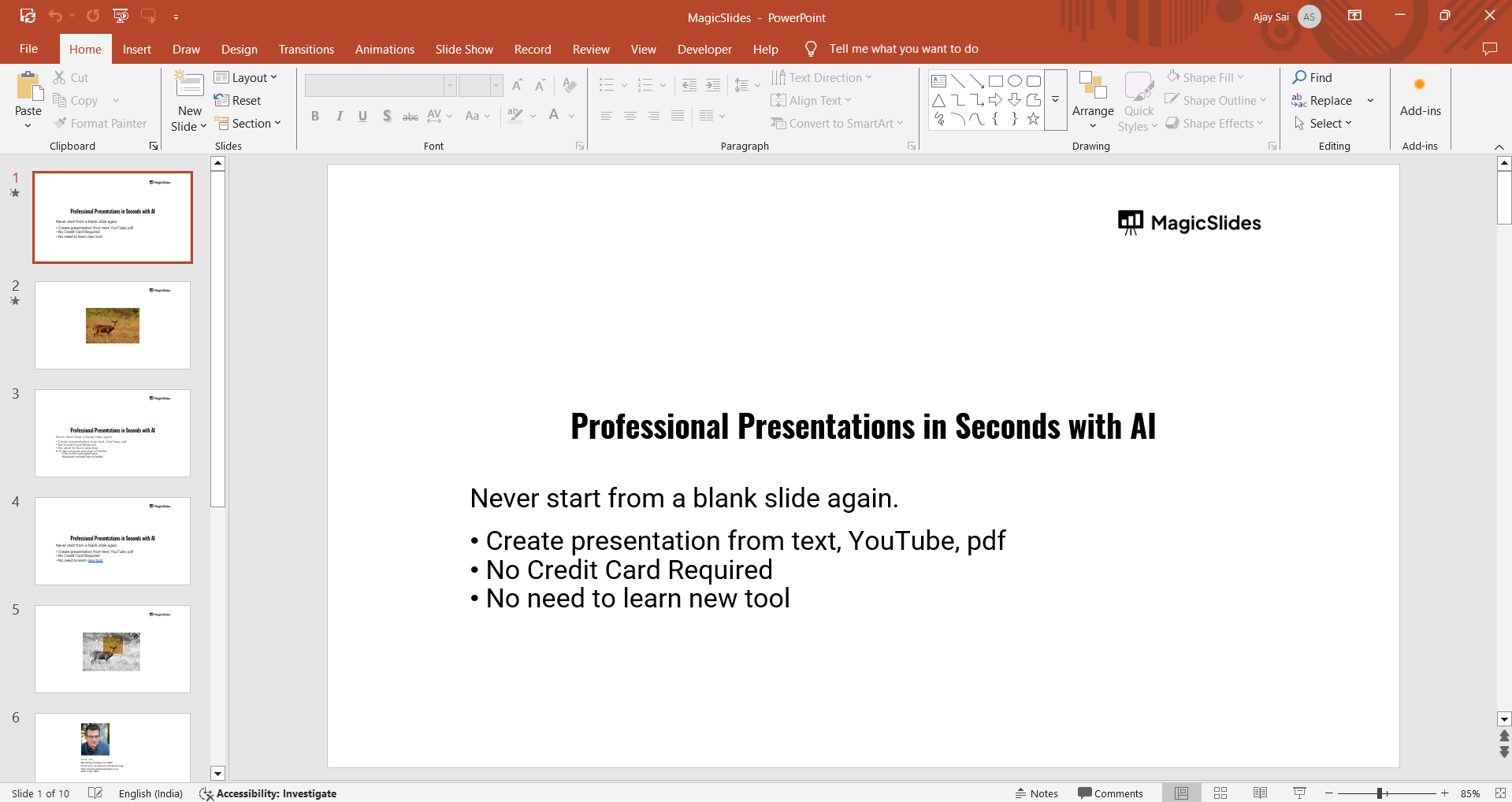
Step 2: Save PowerPoint as Image Files
Since screensavers require image formats, you need to save your slides as images:
Click on File > Save As. Choose a location to save the files.
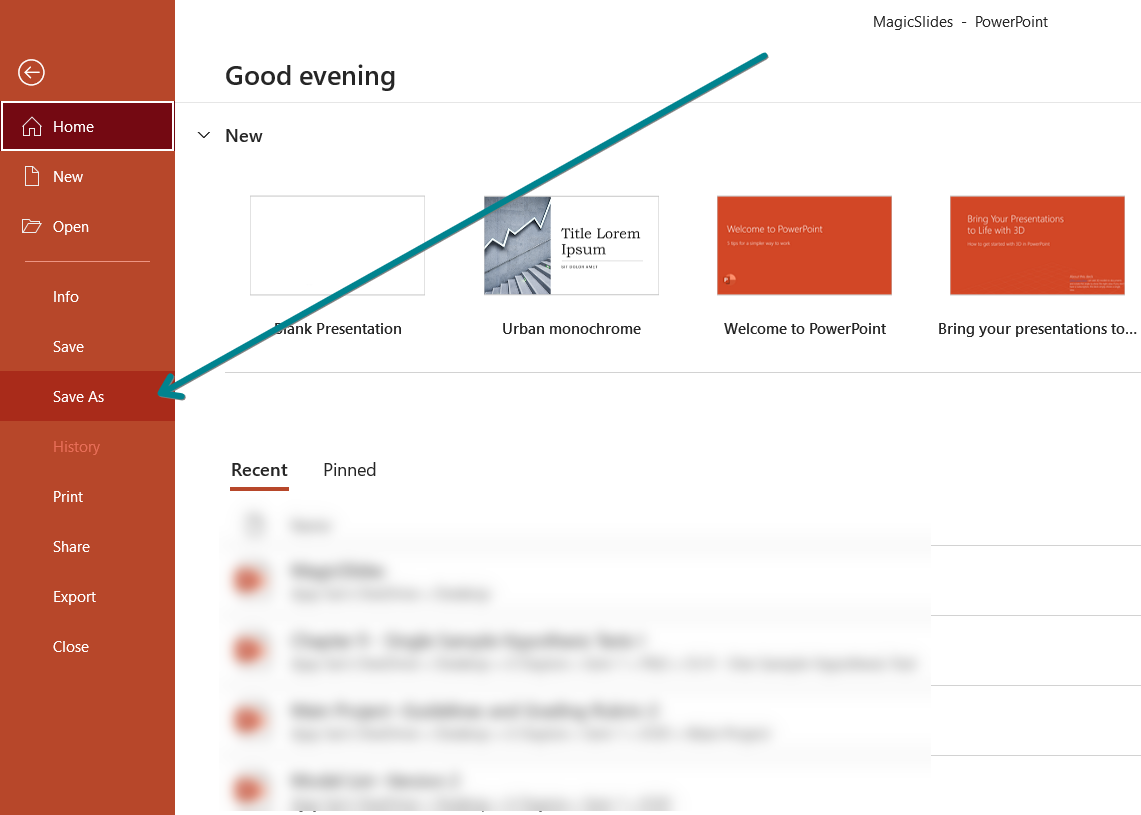
In the Save as type dropdown, select PNG or JPEG. Click Save and choose All Slides when prompted. This will export each slide as an image.
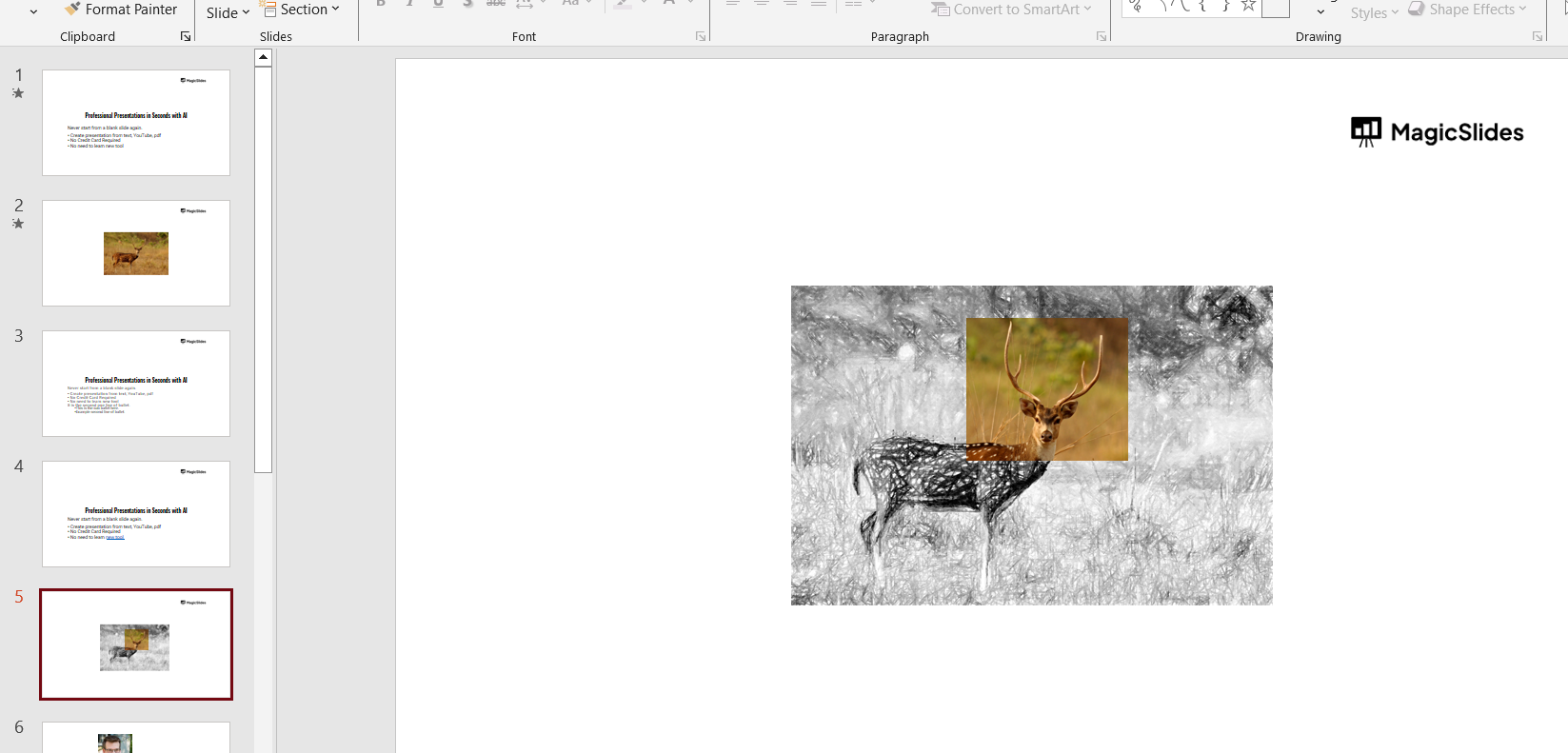
Step 3: Organize Your Saved Images
Locate the folder where your slides were saved. If necessary, rename the images in sequential order for smooth transitions when played as a screensaver.
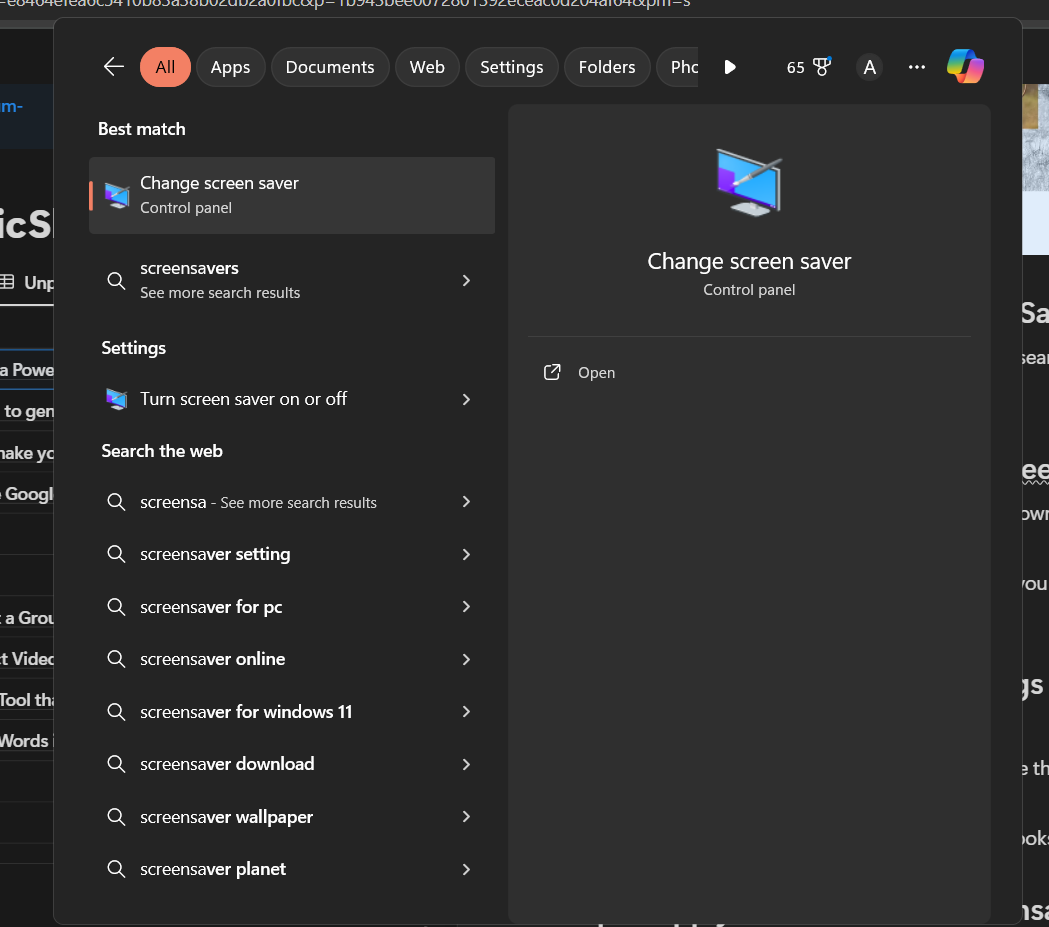
Step 4: Open the Windows Screen Saver Settings
Press Win + S and type Screen Saver Settings in the search bar.
Open the Change Screen Saver option.
Step 5: Select "Photos" as Your Screen Saver
In the Screen Saver Settings window, click the dropdown menu under Screen Saver and select Photos.
Click Settings to choose the folder where you saved your PowerPoint slides as images.
Step 6: Adjust Screen Saver Settings
- Choose the slide transition speed.
- Set how long your computer should be idle before the screensaver starts.
- Preview your screensaver to check if everything looks good.
Step 7: Apply and Save Your Screensaver
Once satisfied with the settings, click Apply, then OK to set your PowerPoint-based screensaver.
Conclusion
Turning your PowerPoint into a screensaver is a creative way to display information, memories, or business presentations. By converting slides into images and setting them as a screensaver, you can showcase engaging visuals effortlessly.
Turning a PowerPoint into a screensaver is a great way to showcase visuals, but if you want to create stunning slides effortlessly, try MagicSlides.app AI-powered presentations generated in seconds!
FAQs can take you forward!
Can I add animations to my PowerPoint screensaver?
No, only static images can be used in screensavers. Animations won't transfer when you save slides as images.
Can I use a PowerPoint slideshow directly as a screensaver?
Windows does not support PowerPoint files as screensavers, so converting slides to images is necessary.
How do I change or remove my PowerPoint screensaver?
Go to Screen Saver Settings, select a different screensaver or choose None to disable it.


