How to make a Shape Transparent in Google Slides


Learn how to make shapes transparent in Google Slides to enhance your presentation’s visual appeal.
Making a shape transparent in Google Slides is a useful technique that allows you to layer text, images, or other shapes while still maintaining visual clarity.
Transparency can enhance the design of your slides by creating depth and making your content stand out.
In this blog post, we’ll guide you through the steps to adjust the transparency of shapes in Google Slides, so you can create more dynamic and visually appealing presentations.
How to make a Shape Transparent in Google Slides
Step 1: Open Your Google Slides Presentation
Begin by opening your Google Slides presentation. Go to slides.google.com and log in with your Google account.
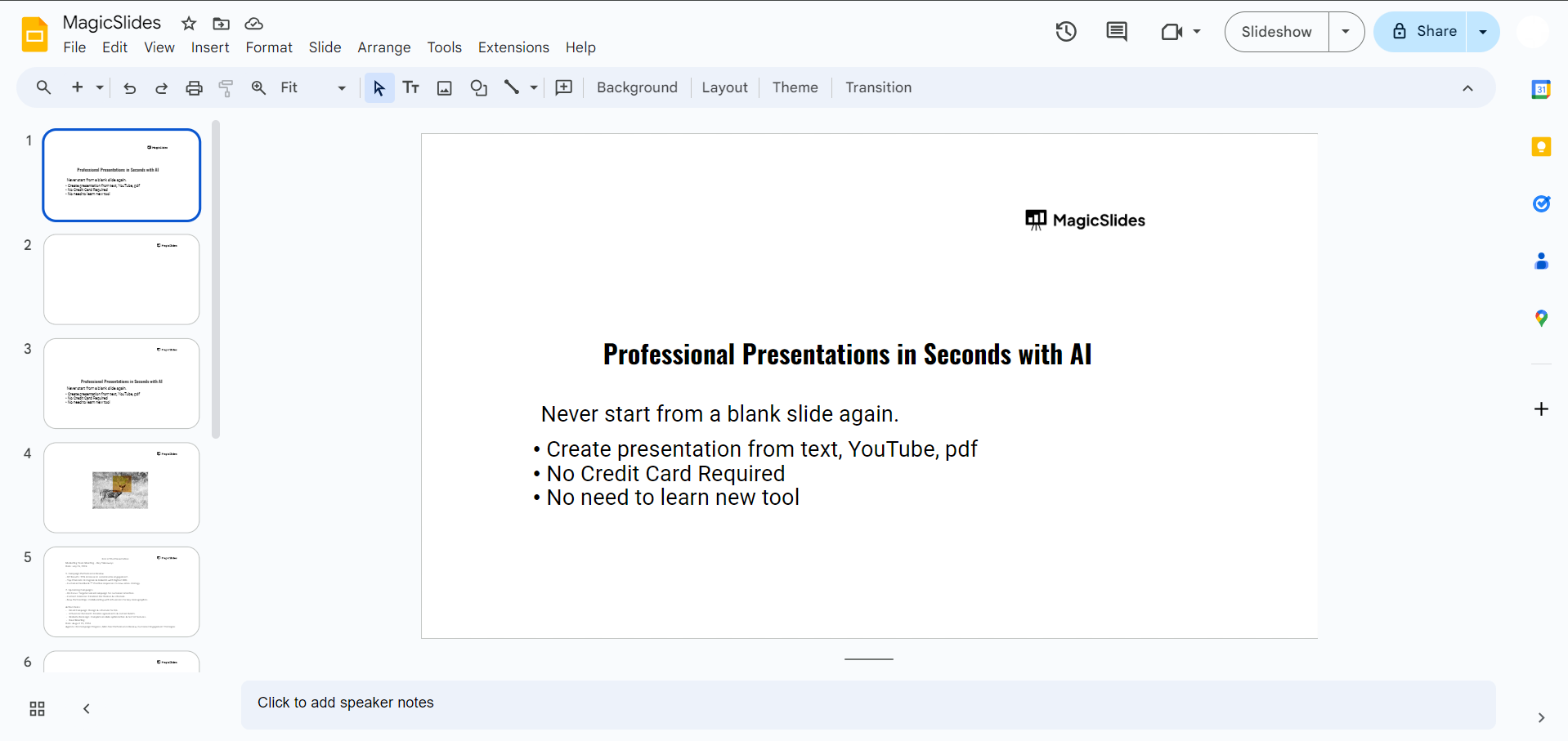
Open the presentation where you want to make a shape transparent.
Step 2: Select the Slide with the Shape
Navigate to the slide that contains the shape you want to make transparent.
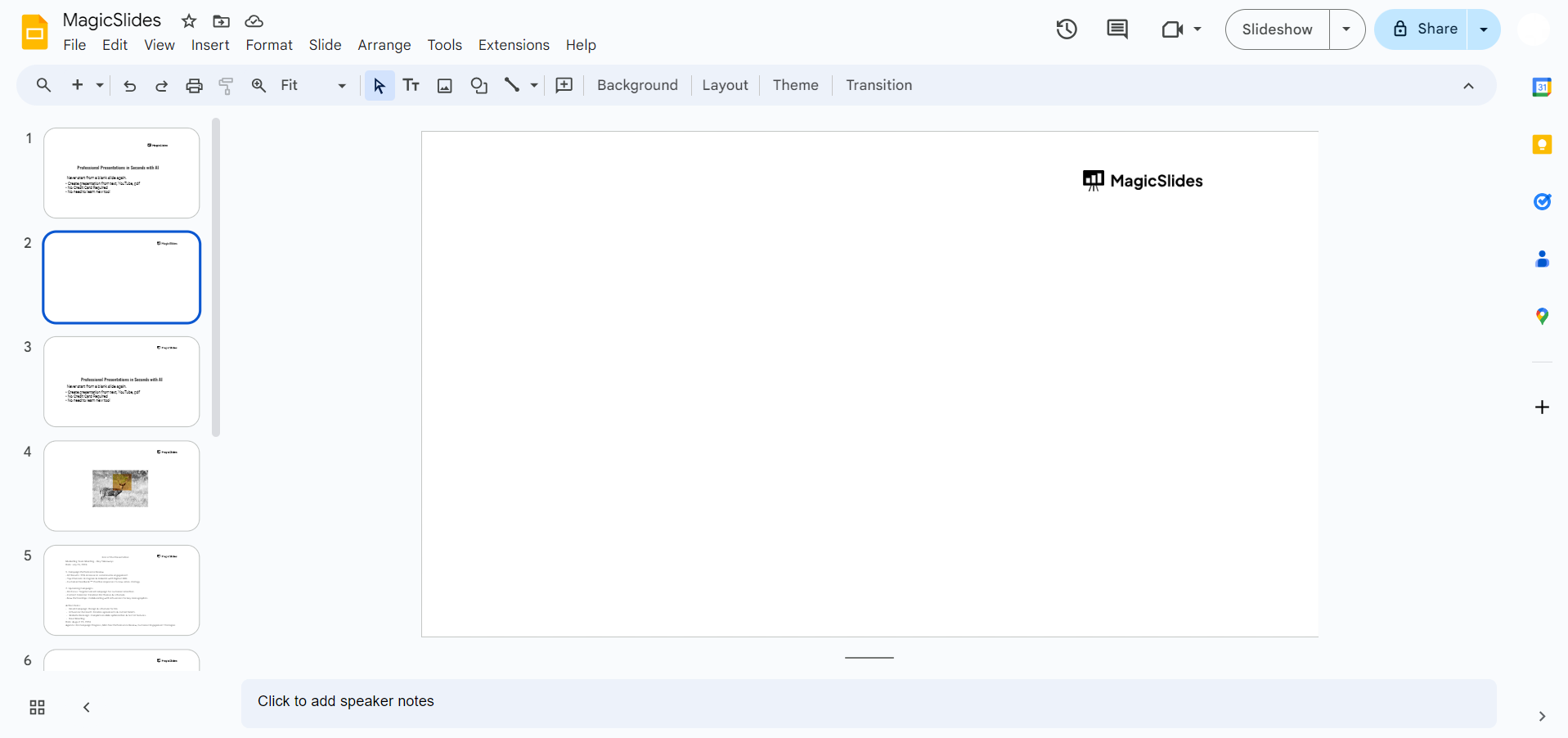
You can do this by clicking on the slide thumbnail in the left-hand panel of the Google Slides interface.
Step 3: Insert or Select the Shape
If you haven’t already added a shape, you can insert one by clicking on the "Shape" icon in the toolbar at the top of the screen.
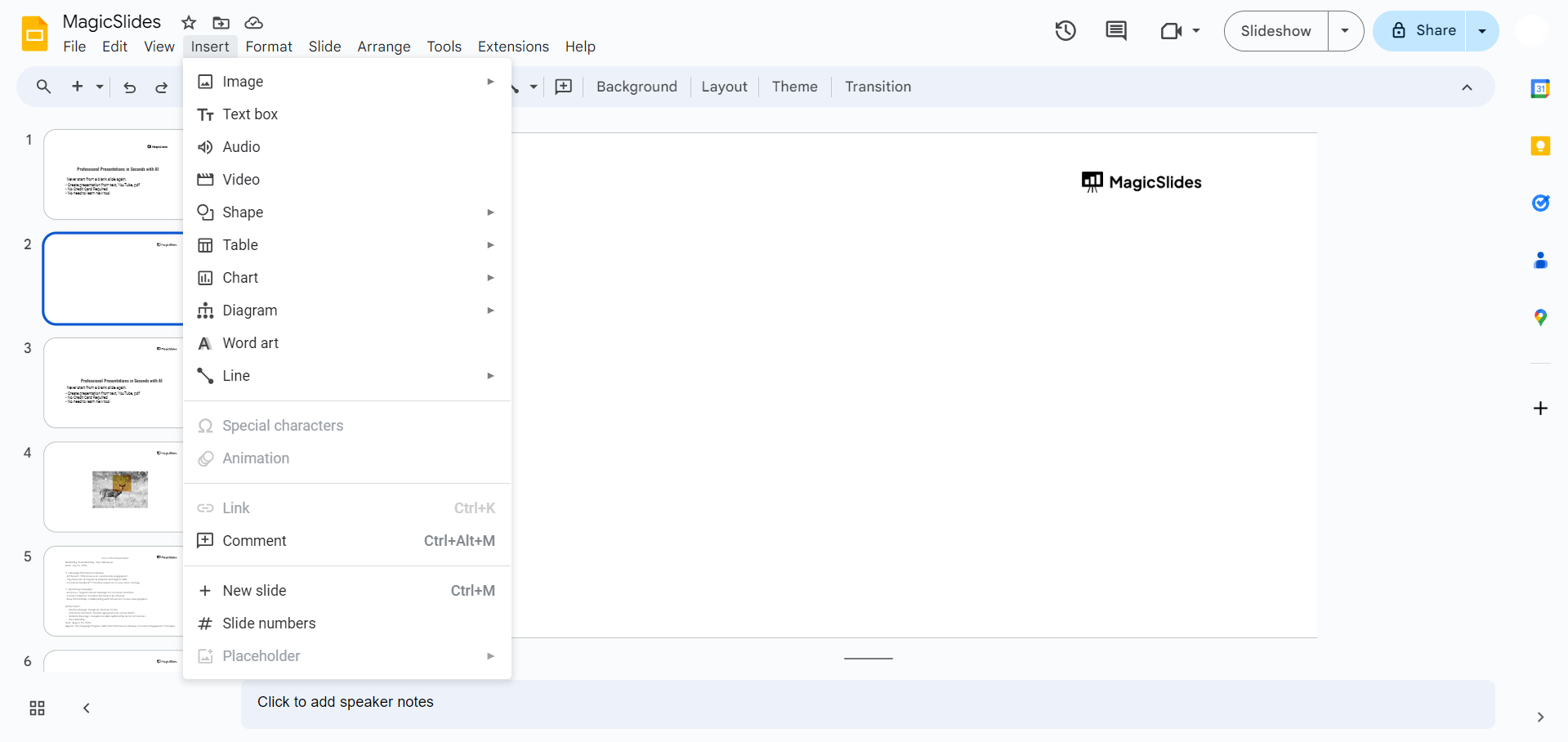
Choose the shape you want from the dropdown menu, and click on the slide to place it. If the shape is already on the slide, simply click on it to select it.
Step 4: Open the Format Options
With the shape selected, look at the top of the screen and click on the "Fill color" icon (a paint bucket symbol).
In the dropdown menu that appears, click on "Custom" to open the color picker.
Step 5: Adjust the Transparency
In the color picker, you’ll see a slider labeled "Transparency" at the bottom. Move this slider to the right to increase the transparency of the shape.
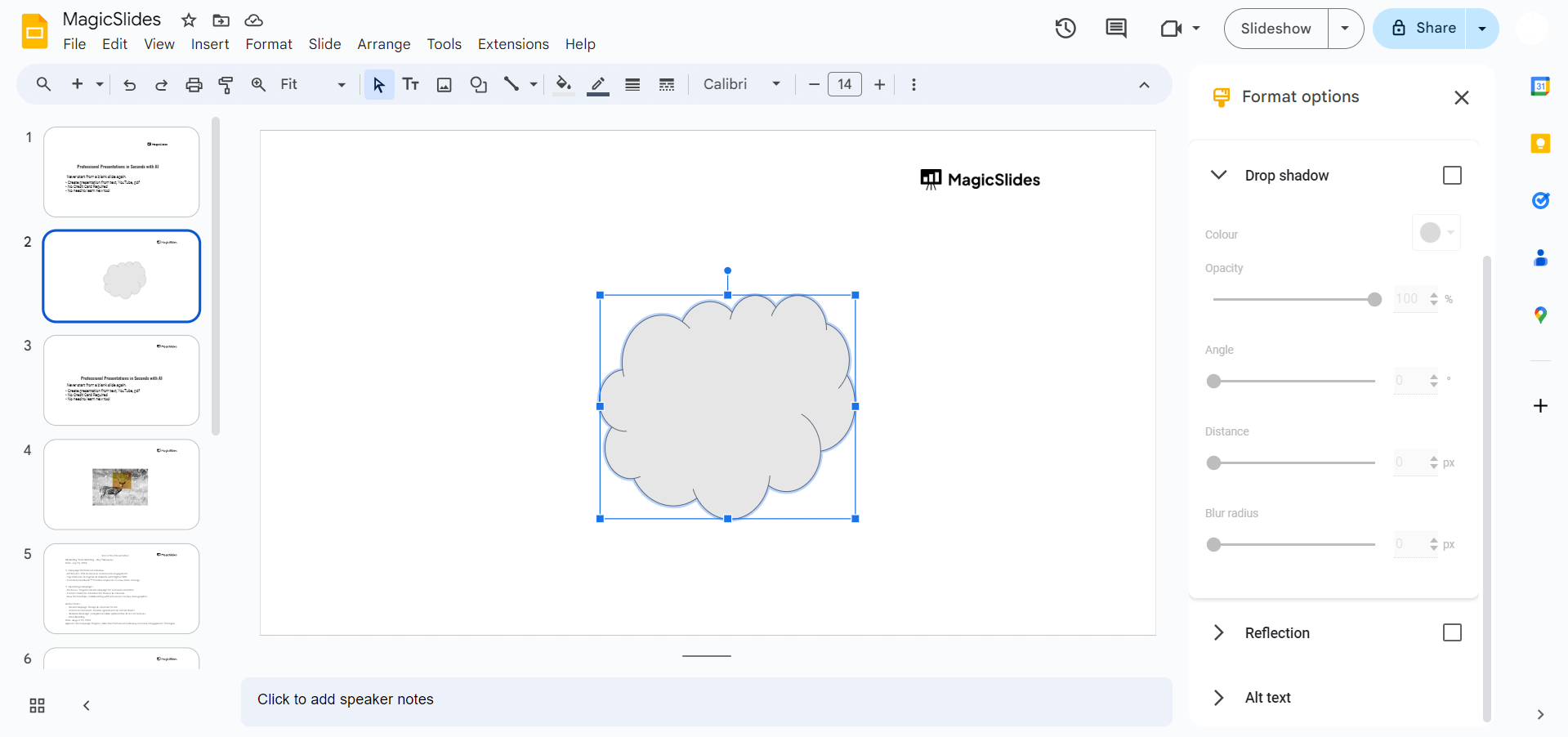
You can adjust it to your desired level of transparency 0% being fully opaque and 100% being completely transparent.
Once you’ve adjusted the slider, click "OK" to apply the changes.
Step 6: Customize and Finalize
After adjusting the transparency, you can further customize the shape by adding borders, adjusting the size, or layering it with other elements on your slide.
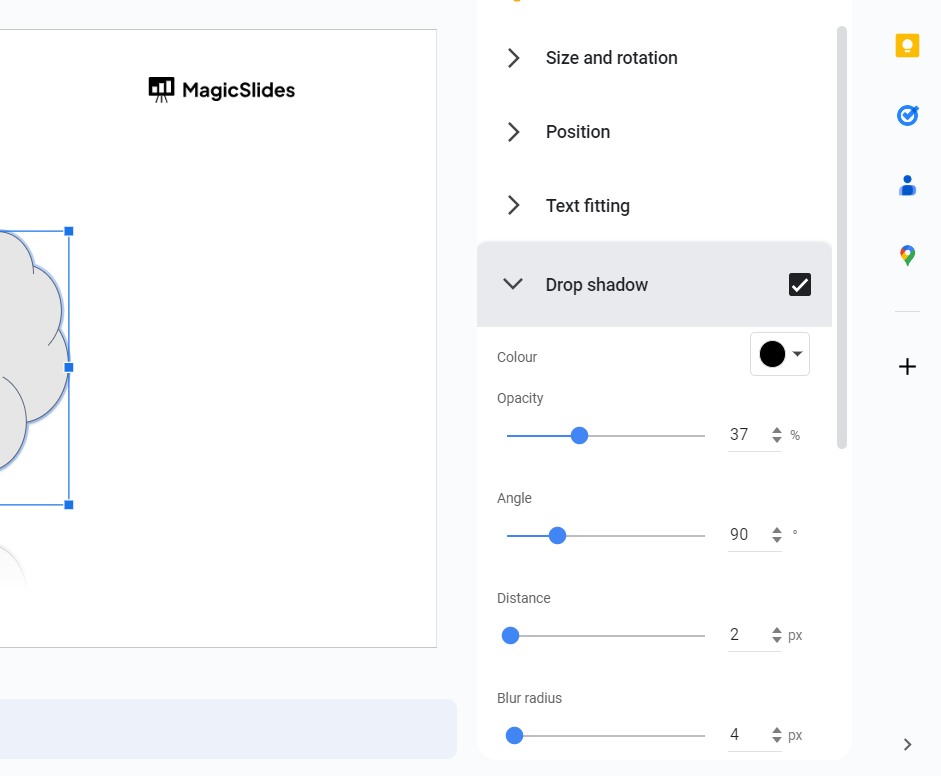
Use the available formatting tools in the toolbar to make any additional changes.
Conclusion
Making shapes transparent in Google Slides is a simple yet effective way to enhance the visual appeal of your presentations.
By following these steps, you can easily adjust the transparency of any shape to create layered designs, highlight content, or add subtle visual effects.
Incorporating transparency into your slides not only makes your presentation more professional but also helps in conveying your message more effectively.
FAQs can come handy!
Can I adjust the transparency of any shape in Google Slides?
Yes, you can adjust the transparency of any shape using the "Fill color" and transparency slider.
Is it possible to make a shape completely invisible?
Yes, by setting the transparency to 100%, the shape will become completely transparent and invisible.
Can I apply transparency to multiple shapes at once?
Yes, select multiple shapes by holding the "Shift" key, then adjust their transparency simultaneously.


