How to make an eye symbol Google Slides


Create a customized eye symbol in Google Slides using simple shapes and creative design techniques
Creating symbols in Google Slides, like an eye symbol, can enhance the visual appeal of your presentation.
Whether for privacy icons, design elements, or creative effects, this guide will walk you through making an eye symbol using shapes and tools available in Google Slides.
How to Make an Eye Symbol in Google Slides | Steps to Make an Eye Symbol in Google Slides
Step 1: Open Your Google Slides Presentation
Log in to your Google account and open the desired presentation or create a new one.
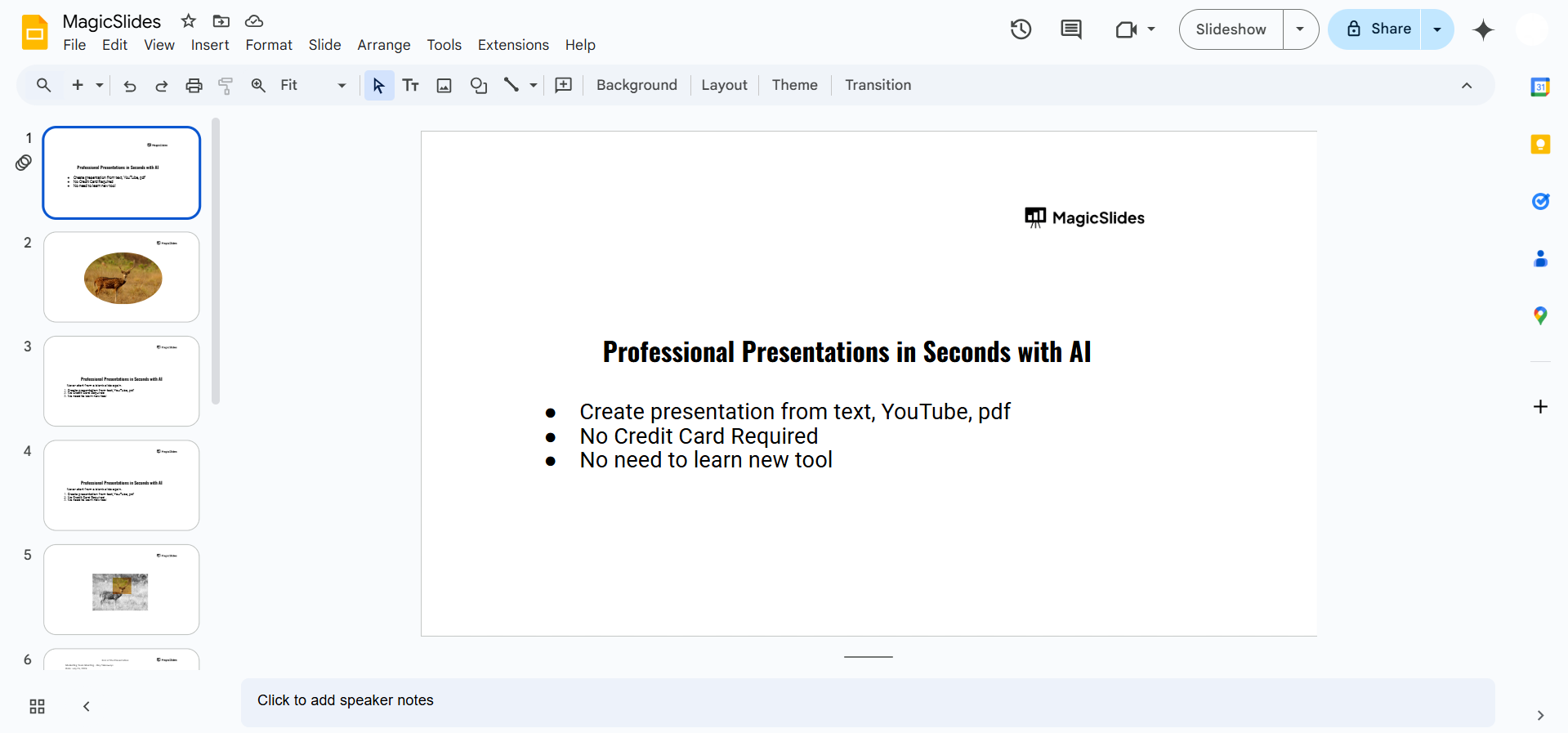
Navigate to the slide where you want to add the eye symbol.
Step 2: Insert an Ellipse for the Eye Outline
Click on “Insert” in the top menu and select “Shape” > “Shapes” > “Oval.” Draw an ellipse (horizontal oval) on the slide by clicking and dragging.
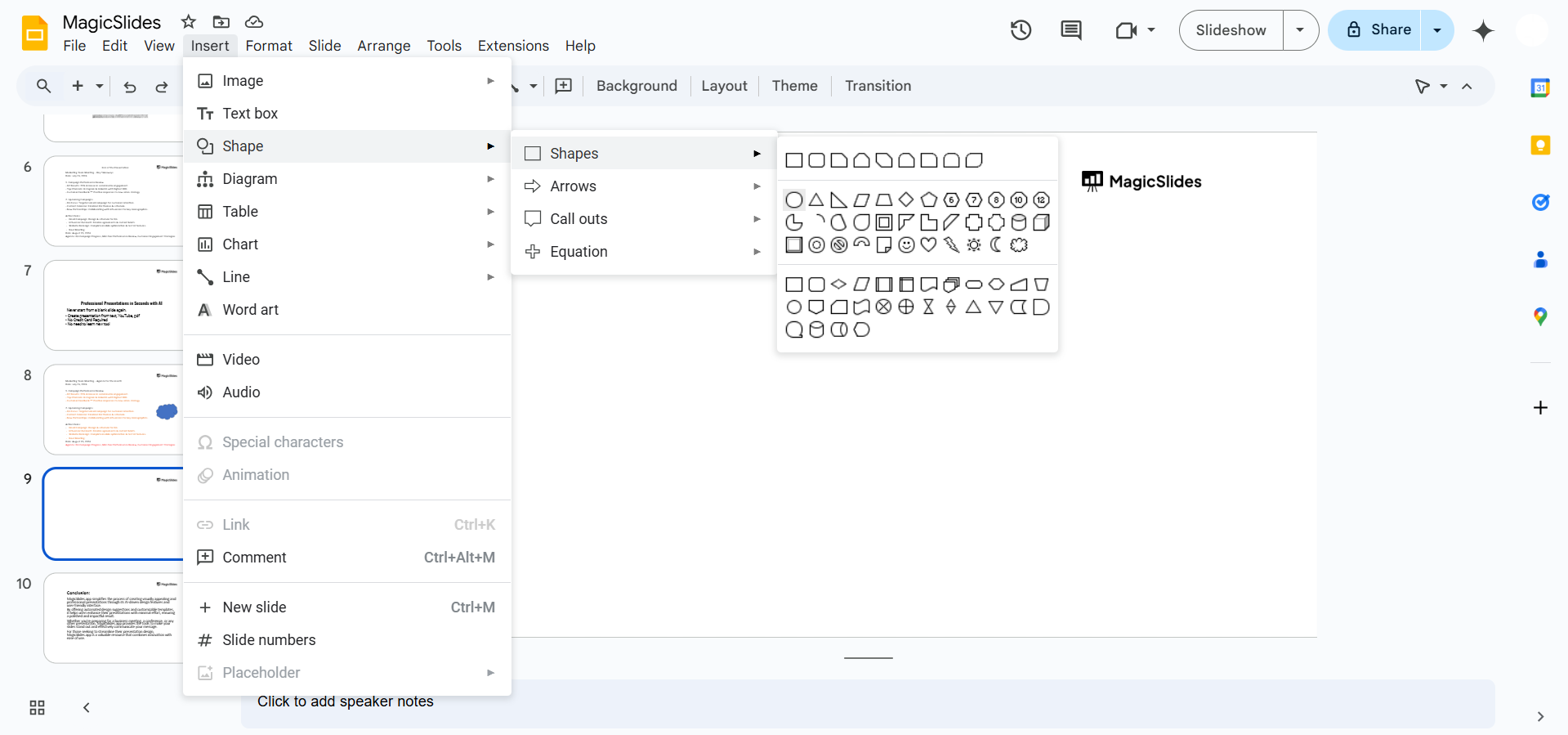
Adjust the size and proportions to resemble the outline of an eye.
Step 3: Add the Pupil
Repeat the same process to insert a smaller circle inside the ellipse. Center the circle within the ellipse to create the pupil.
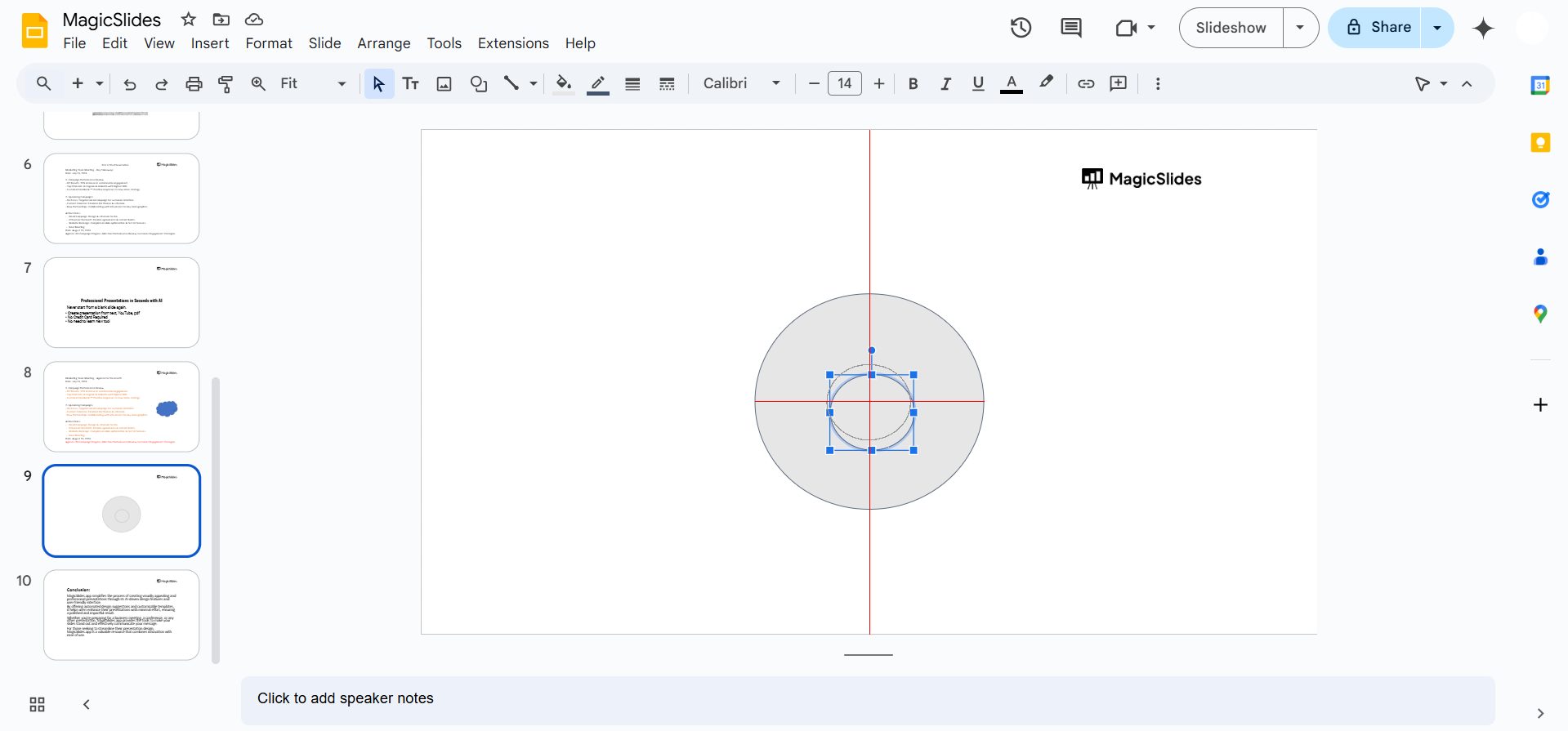
Fill the pupil with a dark color (e.g., black) using the Fill color tool in the toolbar.
Step 4: Add Details to the Eye
To make the eye more realistic, add a smaller circle inside the pupil for the reflection.
Use a white fill color for the smaller circle to simulate light reflection.
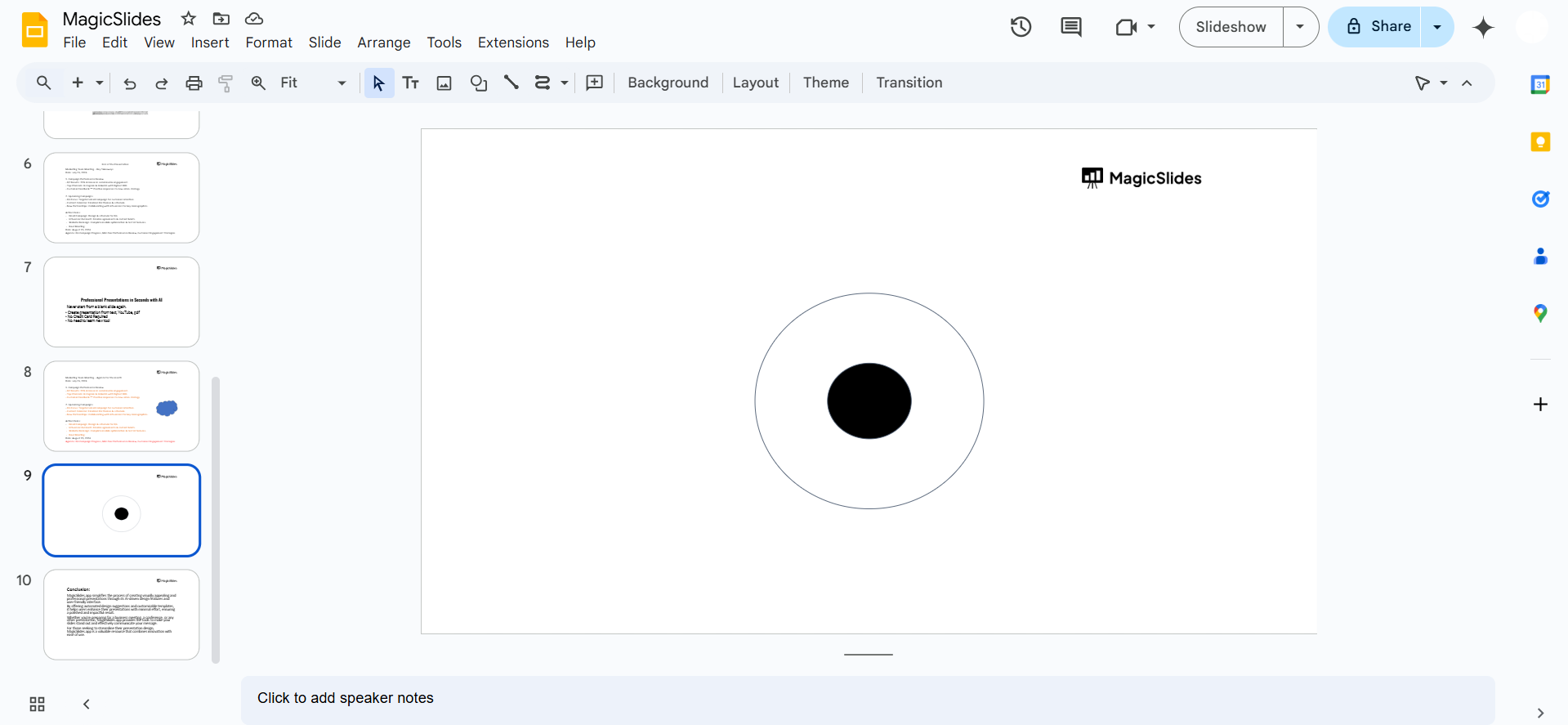
Add additional shapes, like curved lines, to represent eyelashes or other features if desired.
Step 5: Group the Shapes
Select all the shapes that make up the eye (click and drag over them or use Shift+Click).
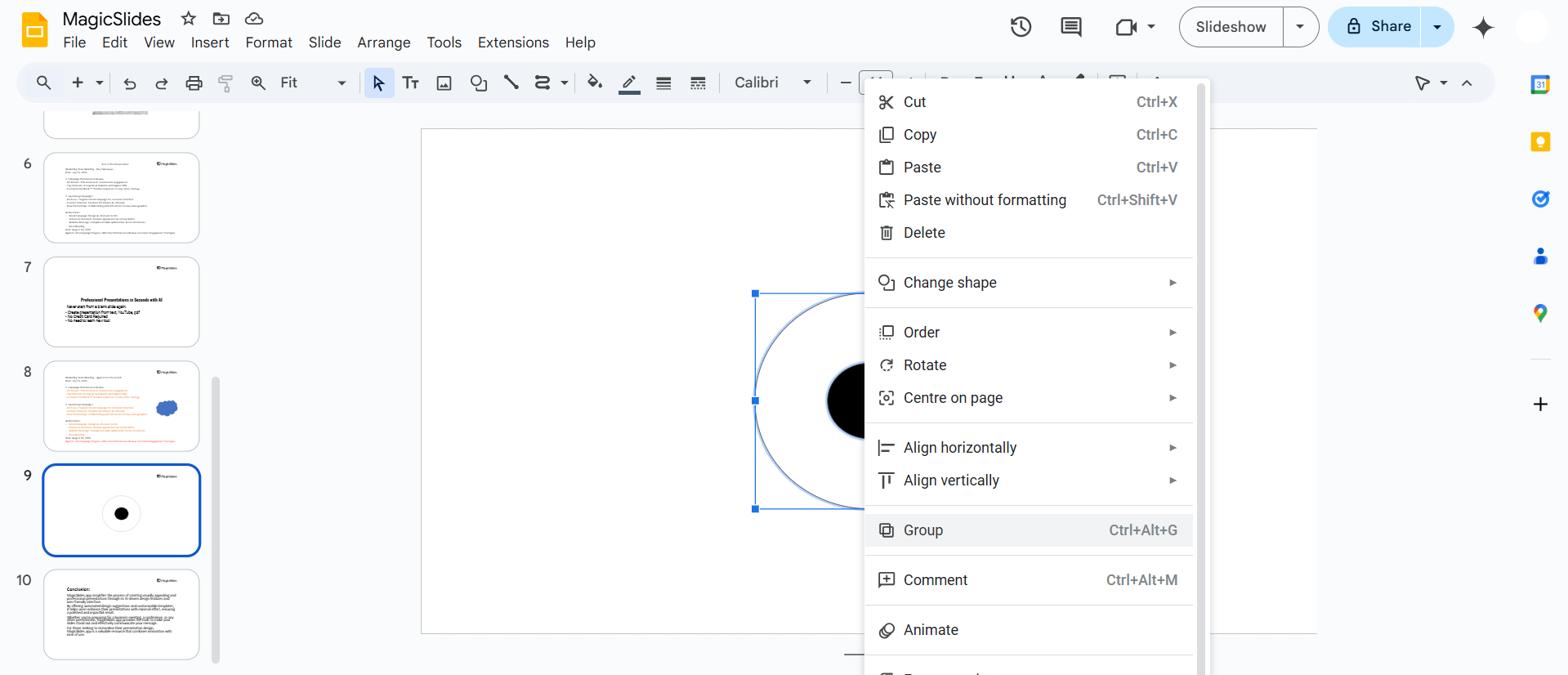
Right-click and select “Group” to combine the shapes into one unit. You can now move or resize the eye symbol as a single element.
Step 6: Customize Colors and Styles (Optional)
Experiment with different colors for the outline, pupil, or reflection to match your design theme.
Adjust line thickness or add shadows for a more professional look.
Conclusion
Making an eye symbol in Google Slides is a creative and straightforward process using basic shapes and tools.
Whether for illustrative purposes or aesthetic value, following these steps allows you to design unique and customizable symbols directly within your presentation.
Practice this technique to enhance your design skills and make your slides visually engaging.
FAQs on Creating an Eye Symbol in Google Slides
Can I save the eye symbol for future use?
Yes, you can copy the grouped eye symbol and paste it into other slides or presentations.
Are there pre-made eye symbols in Google Slides?
No, but you can use the shape and drawing tools to create a custom eye symbol. Alternatively, insert an image of an eye from the web.
Can I animate the eye symbol?
Yes, use the Animation feature in Google Slides to add movement or effects to your eye symbol.
With these steps, you can craft a personalized eye symbol in Google Slides and add flair to your presentations!


