How to Make a Copy of a PowerPoint Presentation


Learn how to copy a PowerPoint presentation effectively, ensuring you always have the right version ready for any situation.
Creating a duplicate of a PowerPoint presentation can be crucial for various reasons, whether you're looking to create a backup, modify an existing presentation for a different audience, or collaborate on a project without altering the original file.
In this comprehensive guide, we’ll explore several methods to make a copy of a PowerPoint presentation across different platforms and devices.
Why You Might Need to Make a Copy
Before we dive into the how-to, let’s discuss a few scenarios where making a copy of a presentation could be beneficial:
- Backup: Protecting your work against accidental loss or corruption.
- Version Control: Keeping an original version intact while experimenting with design changes or new content.
- Customization: Tailoring a standard presentation to different audiences or events.
- Collaboration: Allowing multiple people to work on different parts of the presentation without risk to the original.
Methods to Copy a PowerPoint Presentation
On Windows and macOS
Using File Explorer or Finder
The simplest way to make a copy of your PowerPoint presentation on both Windows and macOS is through the file system.
- Locate the File: Open File Explorer on Windows or Finder on macOS and navigate to where your PowerPoint file is stored.

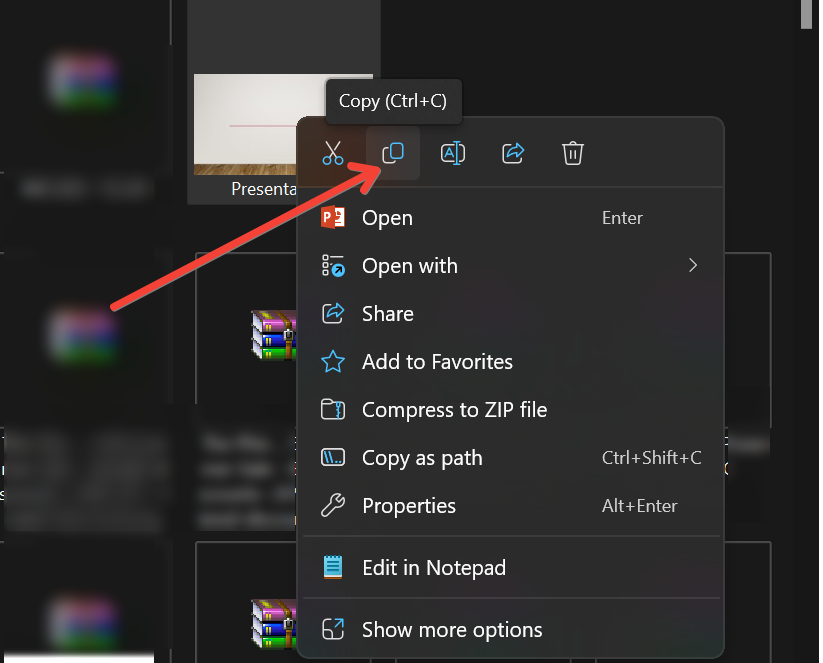
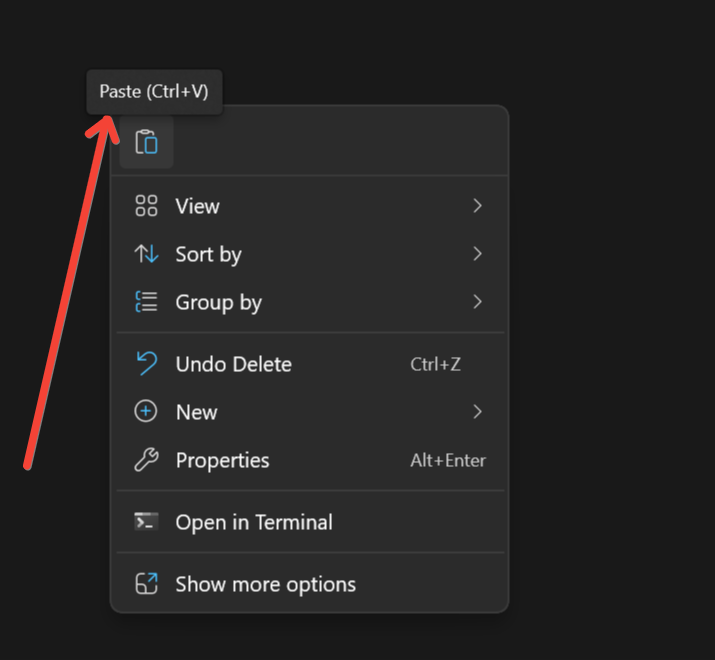
- Copy the File: Right-click on the file, select ‘Copy,’ then right-click on your desktop or inside another folder and choose ‘Paste.’ Alternatively, you can press
Ctrl+C(Windows) orCmd+C(macOS) to copy andCtrl+VorCmd+Vto paste.
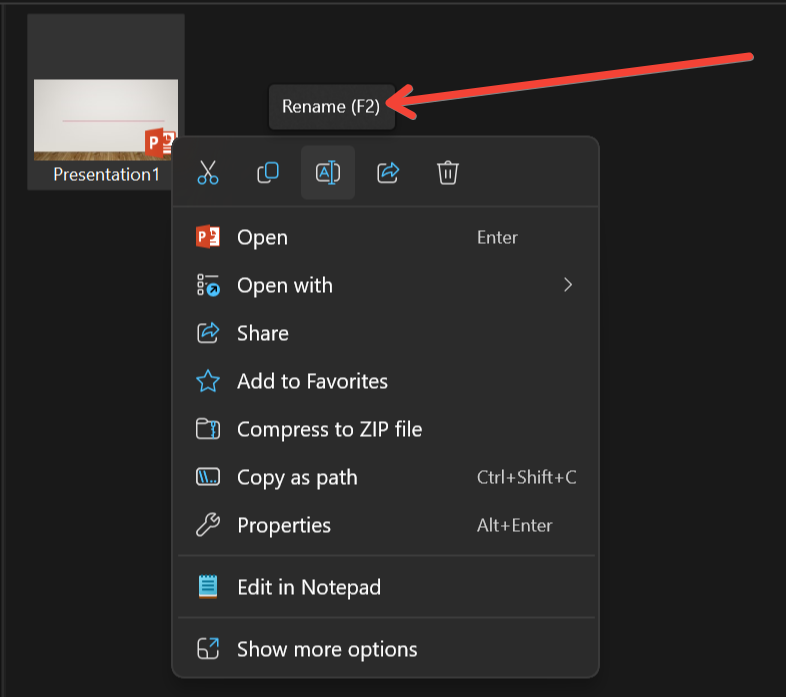
- Rename the File: Right-click on the newly pasted file, select ‘Rename,’ and enter a new name for the presentation to avoid confusion.
Inside PowerPoint
You can also make a copy from within PowerPoint itself, which is handy if you have the file open already:
- Open PowerPoint: Launch the application and open the presentation you want to copy.
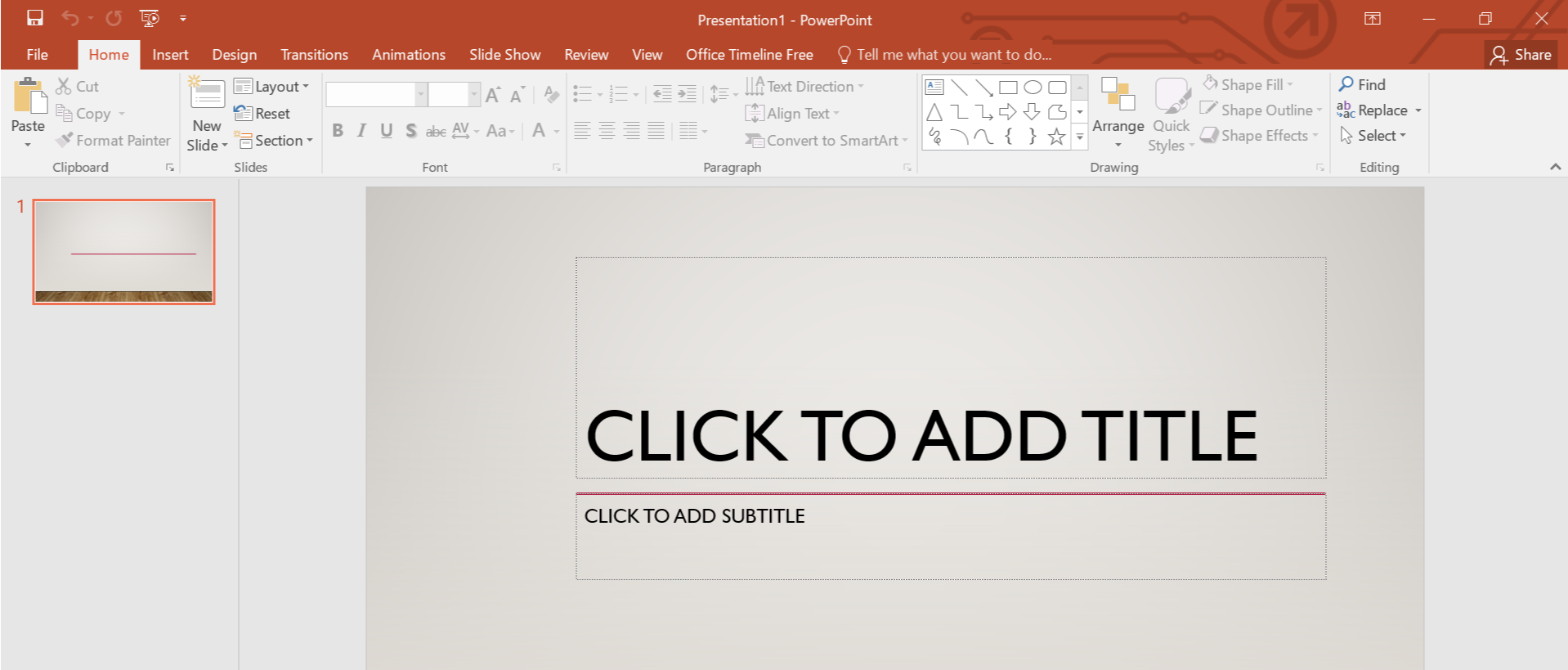
- Save As: Click on ‘File’ > ‘Save As’ and choose a new location or simply a new file name to save your copy.

- Save: Click ‘Save,’ and you now have a copy of your presentation.
On Mobile Devices (iOS and Android)
Copying files on mobile devices is not as straightforward as on a desktop, but it can still be done through various apps.
- Open the PowerPoint App: Launch PowerPoint on your mobile device.
- Open the Presentation: Navigate to the presentation you wish to copy.
- Save As: Tap on ‘File’ > ‘Save As’ and input a new file name. Choose the location where you want the copy to be saved.
- Save: Confirm the save, and your copy will be created.
Using Cloud Services (OneDrive, Google Drive)
Cloud services offer a convenient way to manage and duplicate your files from anywhere.
- Upload the File: If your file isn’t already uploaded, log into your cloud account and upload the PowerPoint file.
- Make a Copy: Right-click on the file in the cloud service and select ‘Make a copy’ or ‘Copy to’ depending on the service. This will create a duplicate in the cloud.
- Rename and Organize: Rename the copied file if necessary and organize it into the appropriate folder within your cloud storage for easy access.
Best Practices for Managing Presentation Copies
- Naming Conventions: Develop a clear naming system for your files to easily distinguish between different versions or types of presentations.
- Regular Backups: Make regular copies of important presentations to avoid data loss.
- Use Version History: If available, use version history features in cloud services to keep track of changes and revert if necessary.
Conclusion
Making a copy of a PowerPoint presentation is a simple but vital skill for anyone who uses the software regularly. Whether you’re backing up your work, preparing different versions for separate audiences, or sharing files for collaboration, knowing how to duplicate and properly manage your PowerPoint files will ensure you always have the right presentation at the right time.


