How to Make Dynamic Table of Contents in Google Slides


Create a dynamic table of contents in Google Slides for easy navigation with clickable links
How to Make a Dynamic Table of Contents in Google Slides
A dynamic table of contents in Google Slides allows you to navigate through your presentation with clickable links.
This is especially useful for long presentations, making it easier to jump between sections.
Follow this step-by-step guide to create an interactive table of contents in Google Slides.
Step-by-Step Guide to Creating a Dynamic Table of Contents in Google Slides
Step 1: Open Your Google Slides Presentation
Go to Google Slides and open an existing presentation or create a new one by visiting slide.new.
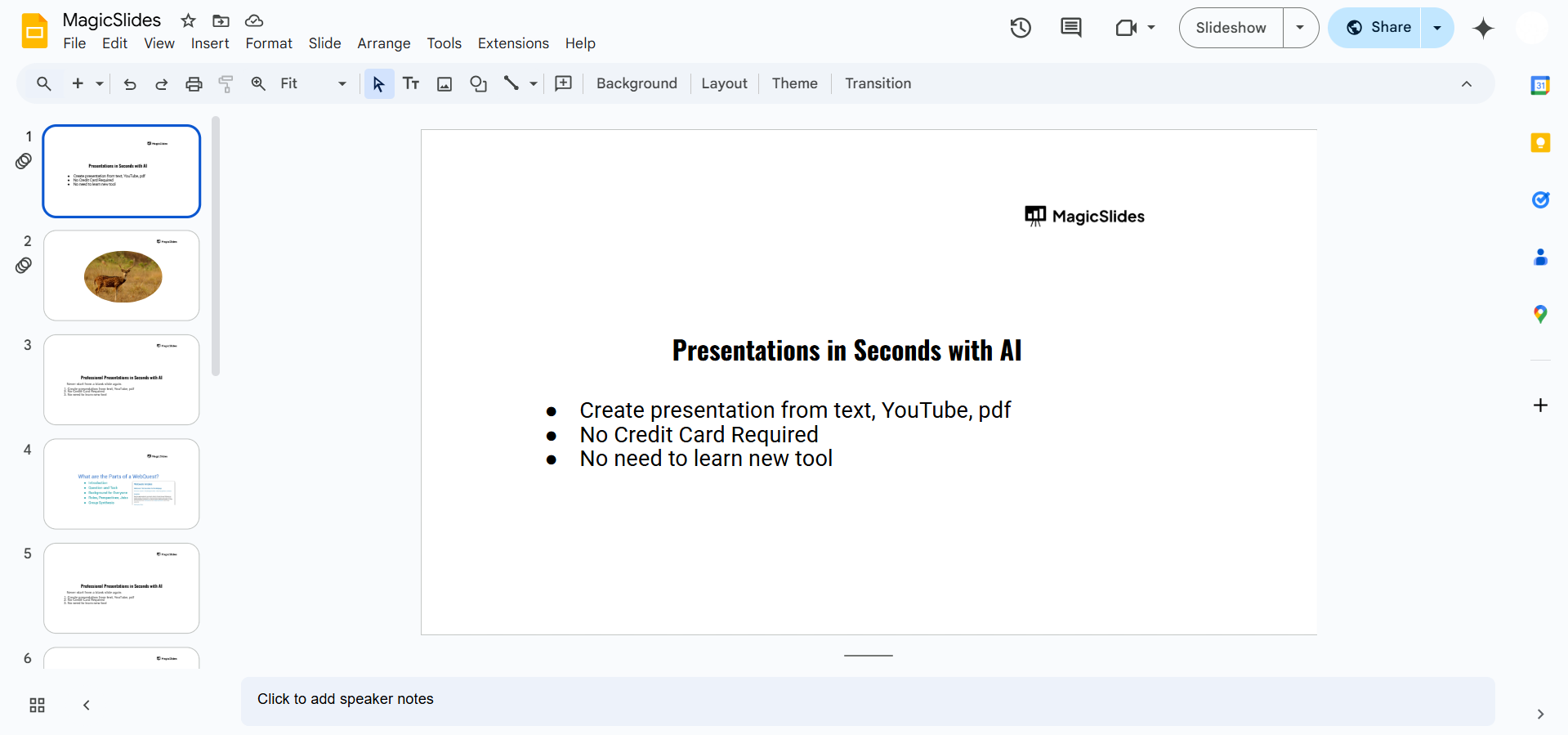
Identify the slides you want to include in your table of contents.
Step 2: Add a New Slide for the Table of Contents
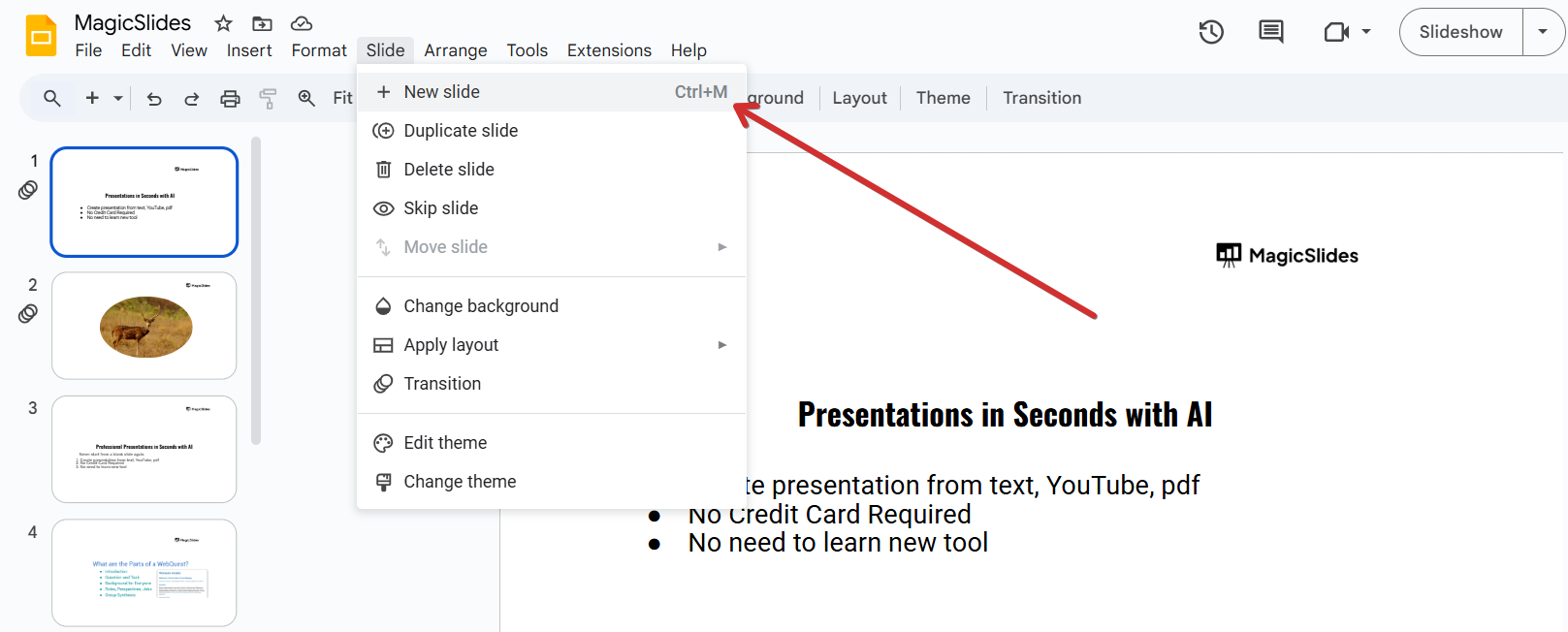
Click Slide > New Slide to create a blank slide. Choose a simple layout like Title & Body to list your sections.

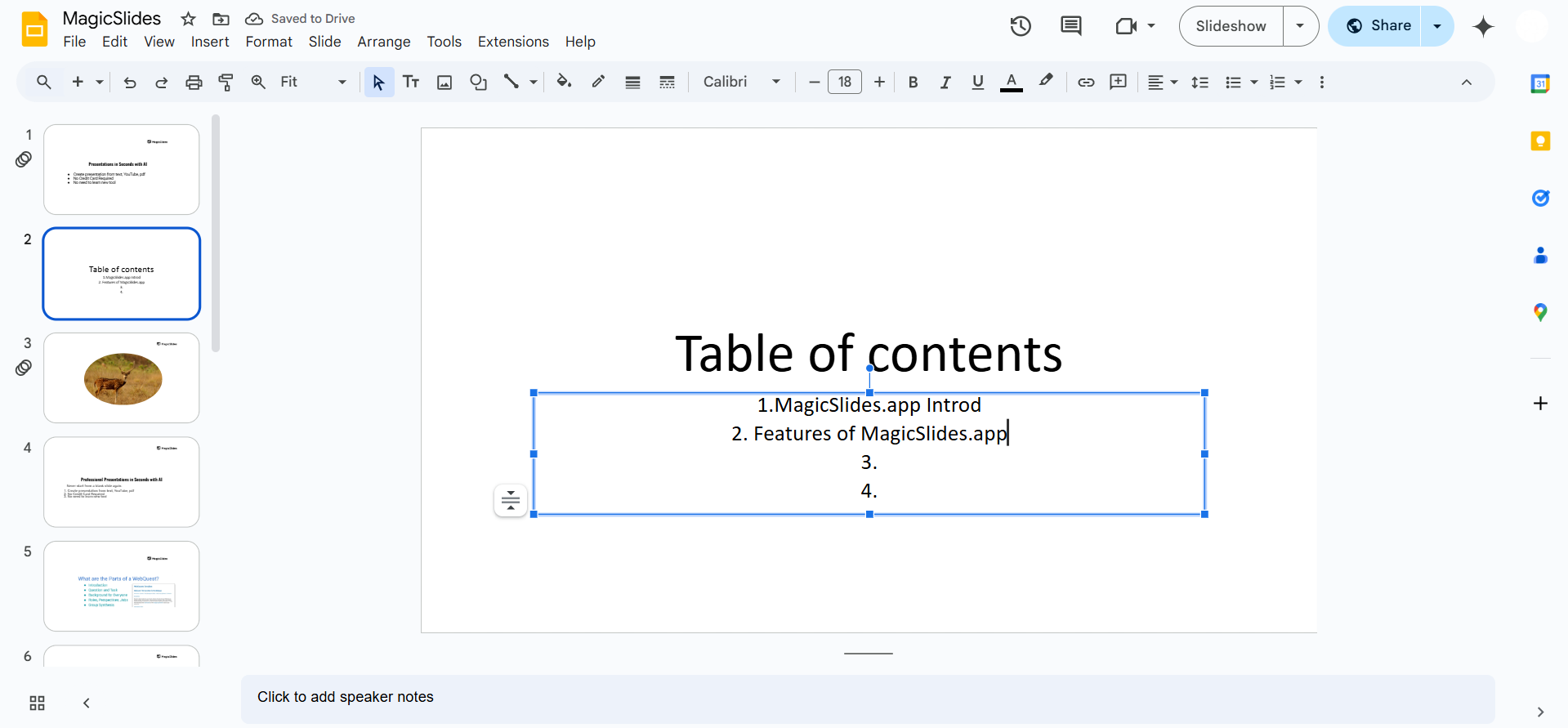
Step 3: List the Sections or Topics
In the text box, type out the titles of the slides you want to include. Arrange them in order, with each topic corresponding to a slide number.
Step 4: Insert Hyperlinks to Each Section
Highlight the text for the first topic. Click Insert > Link (or press Ctrl + K / Cmd + K).
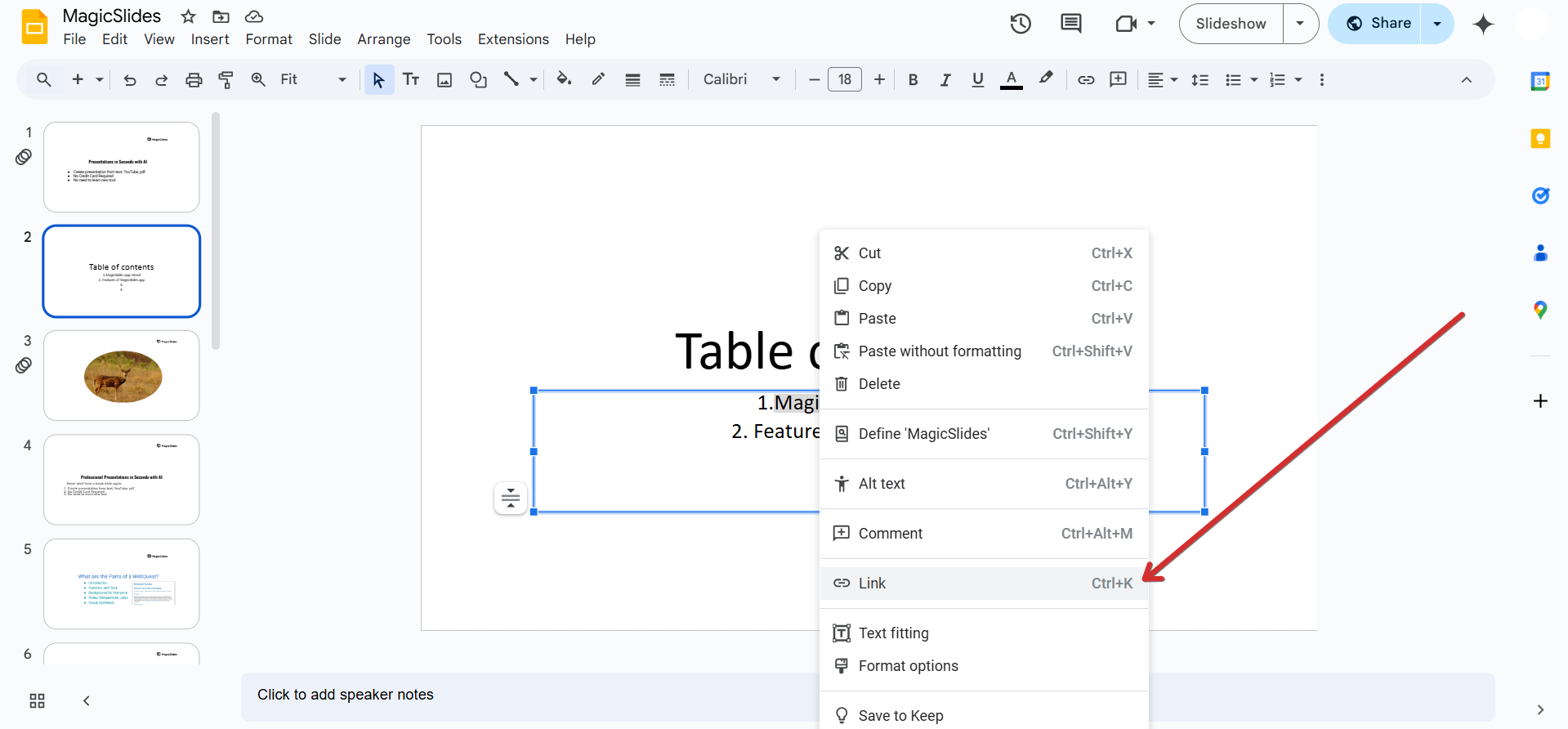
In the pop-up box, select Slides in this presentation and choose the corresponding slide.
Click Apply and repeat for each section.
Step 5: Test the Clickable Links
Switch to Present mode by clicking Slideshow (or pressing Present at the top).
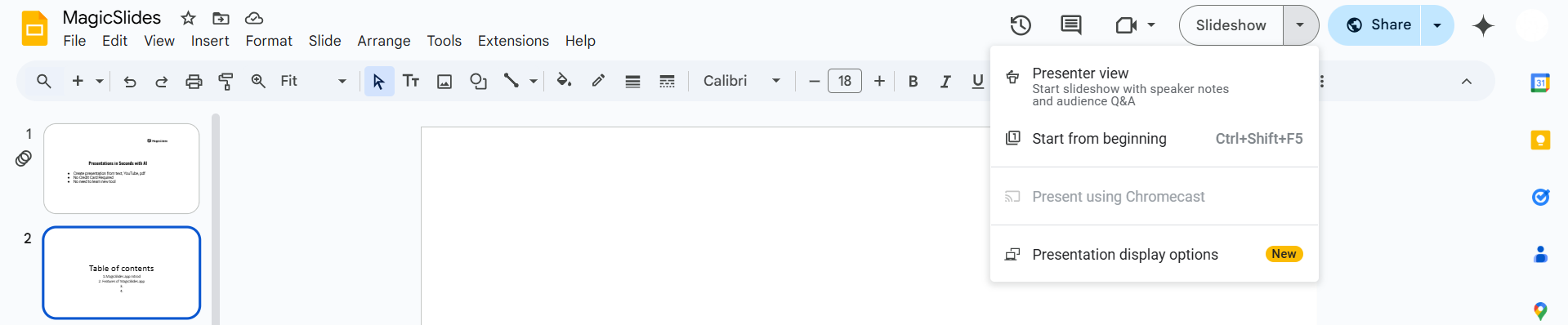
Click on a link to ensure it navigates to the correct slide.
Step 6: Customize Your Table of Contents (Optional)
Use different fonts, colors, or shapes to make your table of contents visually appealing.
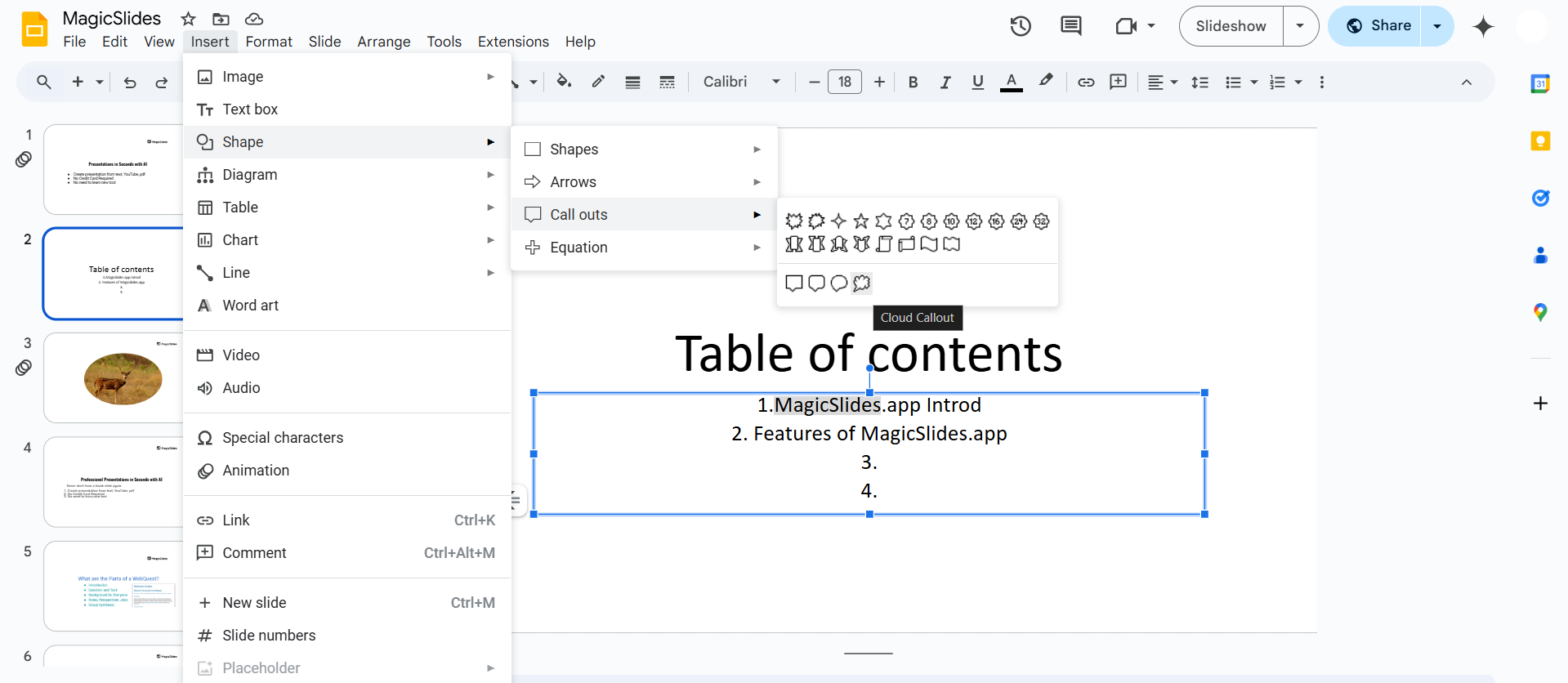
Add icons or buttons for better navigation.
A dynamic table of contents keeps your slides organized, but if you want an AI-powered solution to create structured presentations effortlessly, try MagicSlides.app just enter your topic, and your slides are ready!
Conclusion
Creating a dynamic table of contents in Google Slides improves navigation and makes your presentation more interactive.
By adding clickable links, you can quickly jump between slides and enhance your audience's experience.
FAQs About Making a Dynamic Table of Contents in Google Slides
Can I update the table of contents automatically in Google Slides?
No, Google Slides doesn’t auto-update links. You need to manually add or adjust links when changing slides.
Can I use images as clickable links in the table of contents?
Yes! Select an image, click Insert > Link, and link it to the desired slide.
Can I create a back-to-table-of-contents button?
Yes! Add a small "Back" button on each slide and link it to the table of contents slide.
Now, enjoy seamless navigation with your interactive table of contents in Google Slides! 🚀


