How to make Google Slides pretty


Transform your Google Slides into visually appealing presentations with these easy and creative design tips
Creating visually appealing slides is essential for capturing and retaining your audience’s attention during presentations.
With Google Slides, you have a variety of tools and techniques to enhance the aesthetics of your slides.
This guide will show you step-by-step how to make your Google Slides more attractive and engaging, whether for business, education, or personal use.
How to Make Google Slides Pretty
Step 1: Choose an Appealing Template
Start by selecting a professional and visually pleasing template.
Click on “File” > “New” > “From Template Gallery” to browse pre-designed templates.
Choose a template that complements your topic or brand theme.
Step 2: Use High-Quality Images and Graphics
Incorporate high-resolution images relevant to your content.
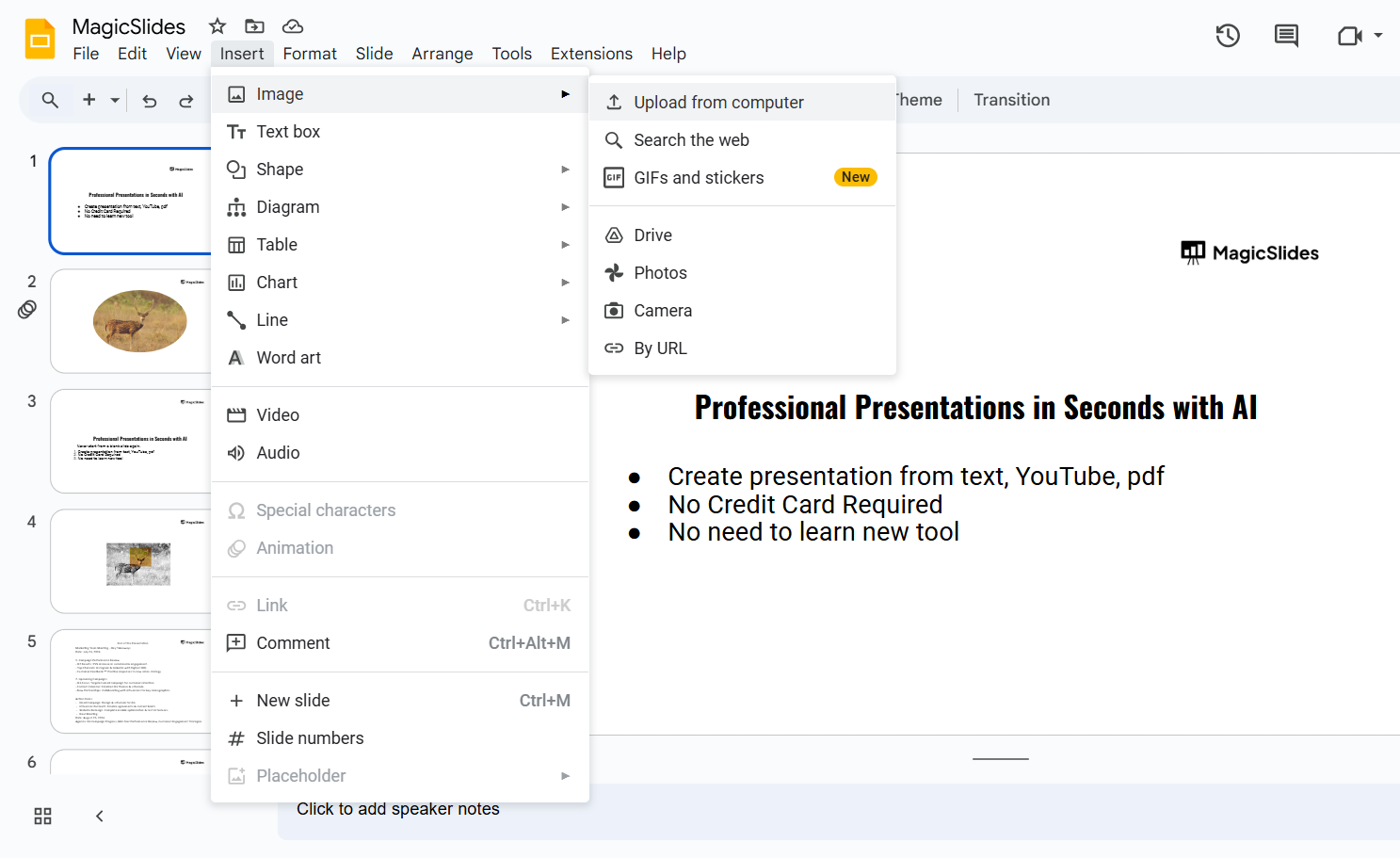
Use Insert > Image to upload or search for images via Google.
Add icons or vector graphics to illustrate points and make slides more dynamic.
Websites like Flaticon or Canva offer free icons.
Step 3: Add Visual Hierarchy with Fonts
Use no more than two to three complementary fonts for consistency.
For example, combine a bold font for headings and a clean, simple font for body text.
Adjust font sizes to emphasize headings and ensure readability.
Step 4: Use Harmonious Colors
Stick to a consistent color palette throughout your slides.
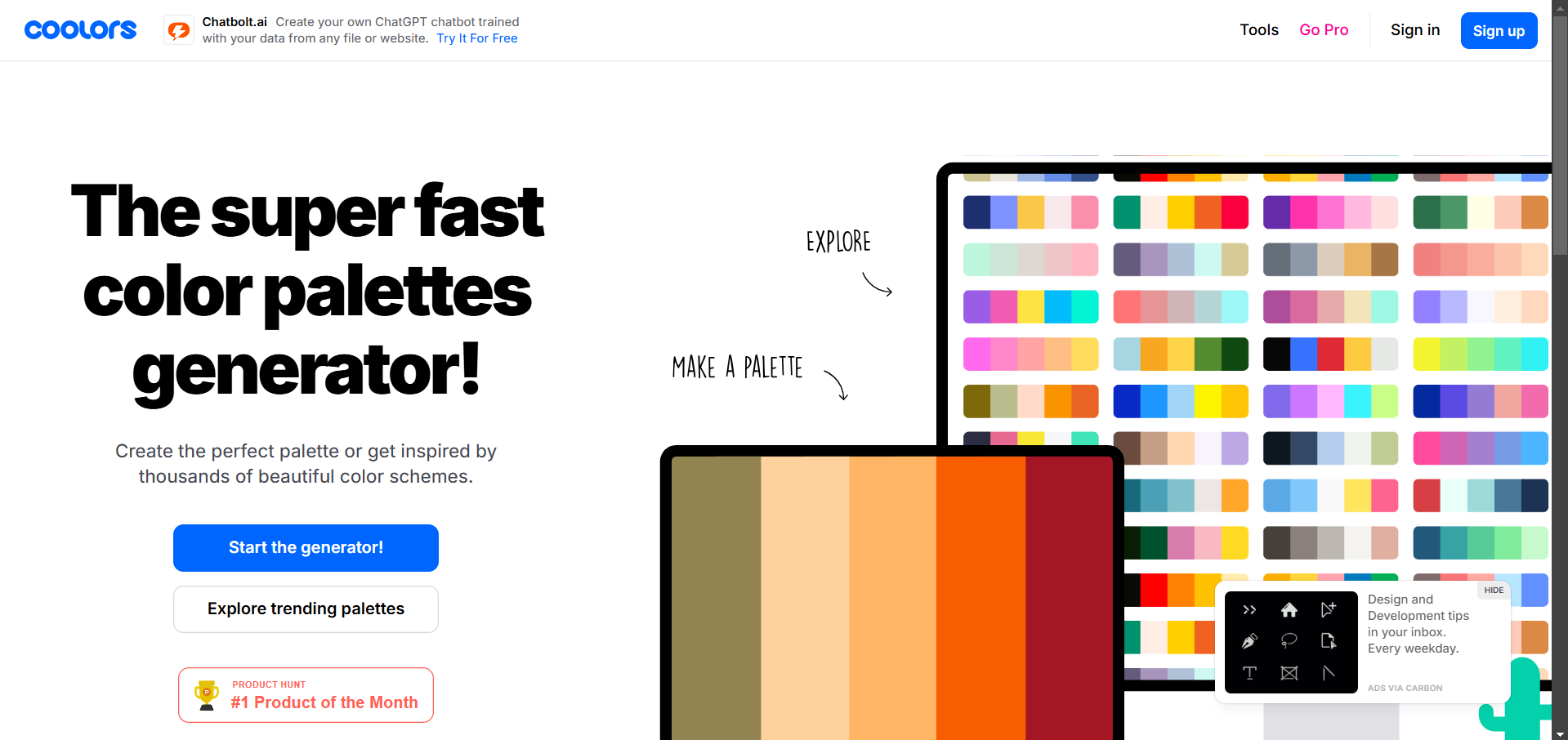
Use tools like Coolors.co to generate matching color schemes.
Highlight key points using contrasting colors while maintaining balance.
Step 5: Utilize Shapes and Lines for Structure
Add shapes, lines, or frames to separate sections or emphasize key elements.
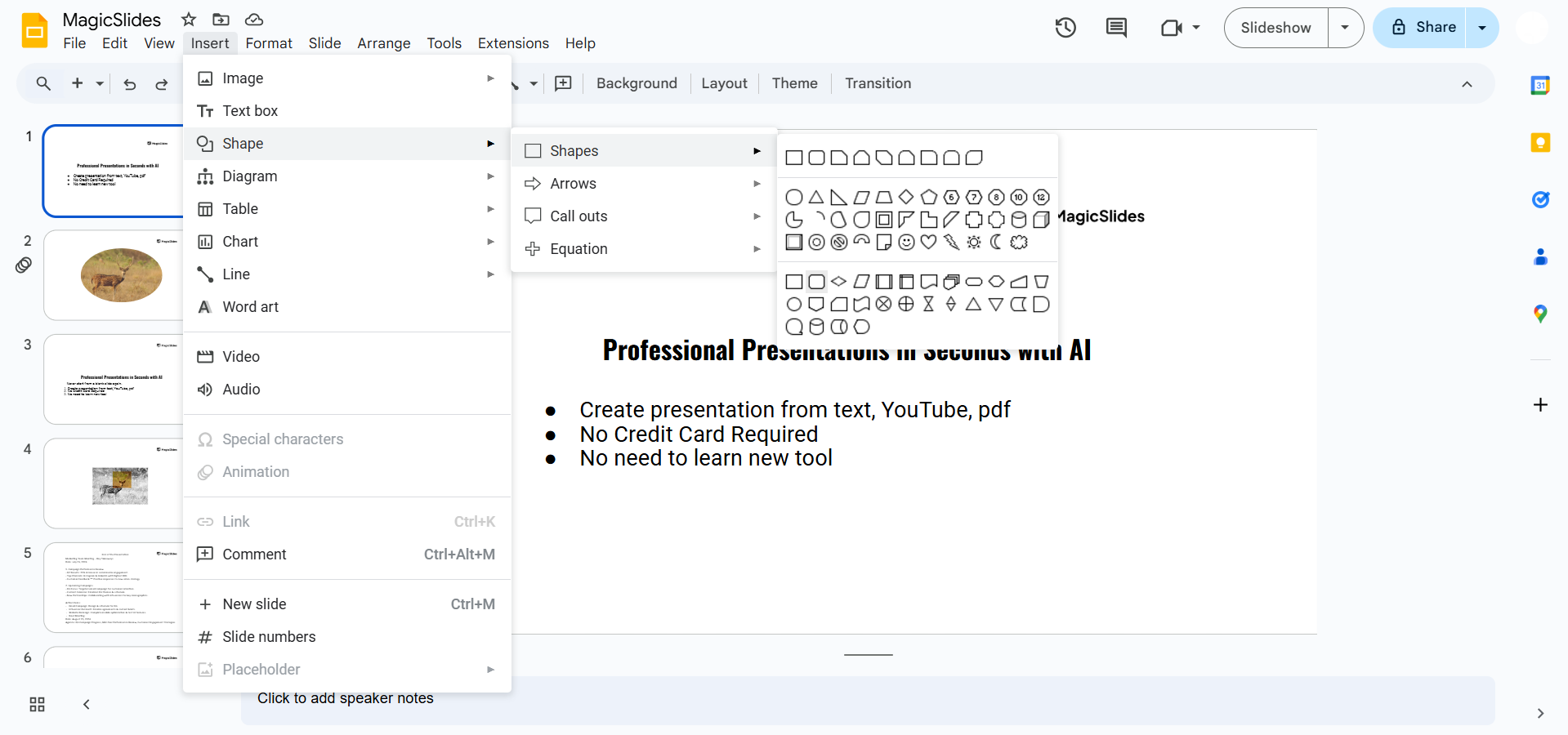
Go to Insert > Shape to create rectangles, circles, or custom shapes.
Adjust transparency, colors, and borders to match your design.
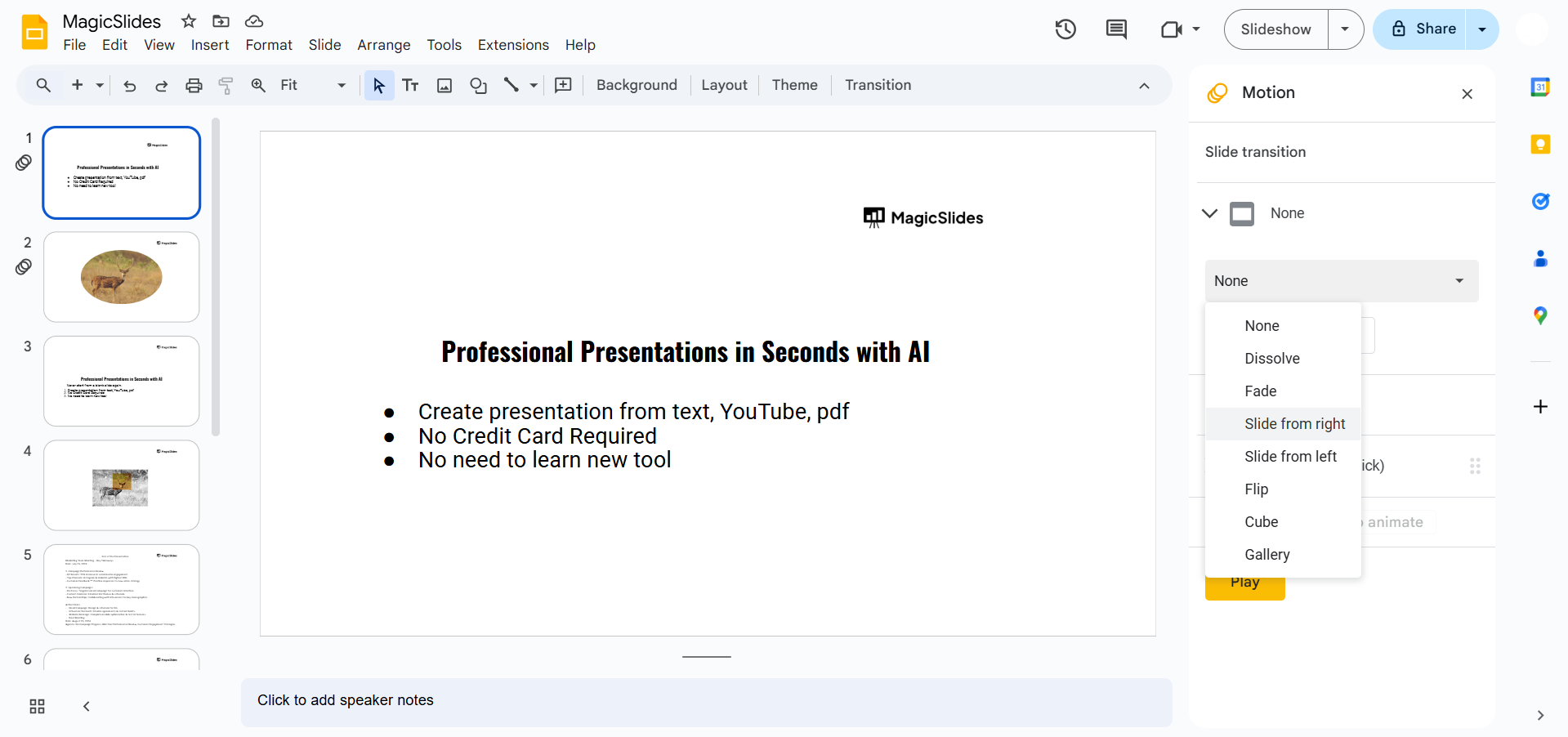
Step 6: Incorporate Animations and Transitions
Apply smooth animations to text or objects for a dynamic presentation.
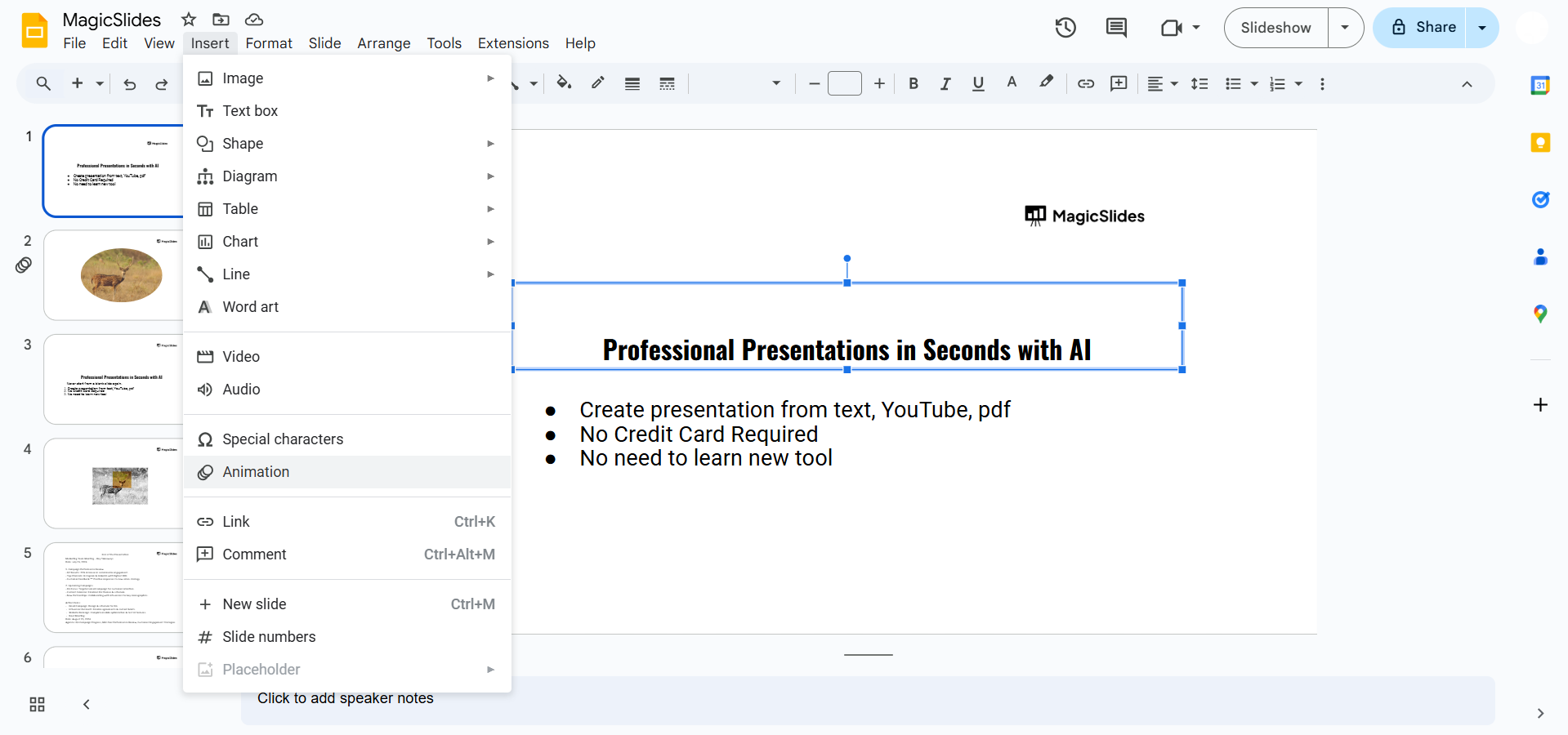
Go to Insert > Animation and choose subtle effects like fade or slide.
Add slide transitions for a polished flow.
Select Slide > Transition and pick a transition style.
Step 7: Minimize Clutter
Keep slides clean by focusing on one idea per slide.
Use bullet points or short phrases instead of long paragraphs.
Leave ample white space to avoid overcrowding.
Step 8: Add Consistent Branding
Include your logo, brand colors, and fonts if applicable.
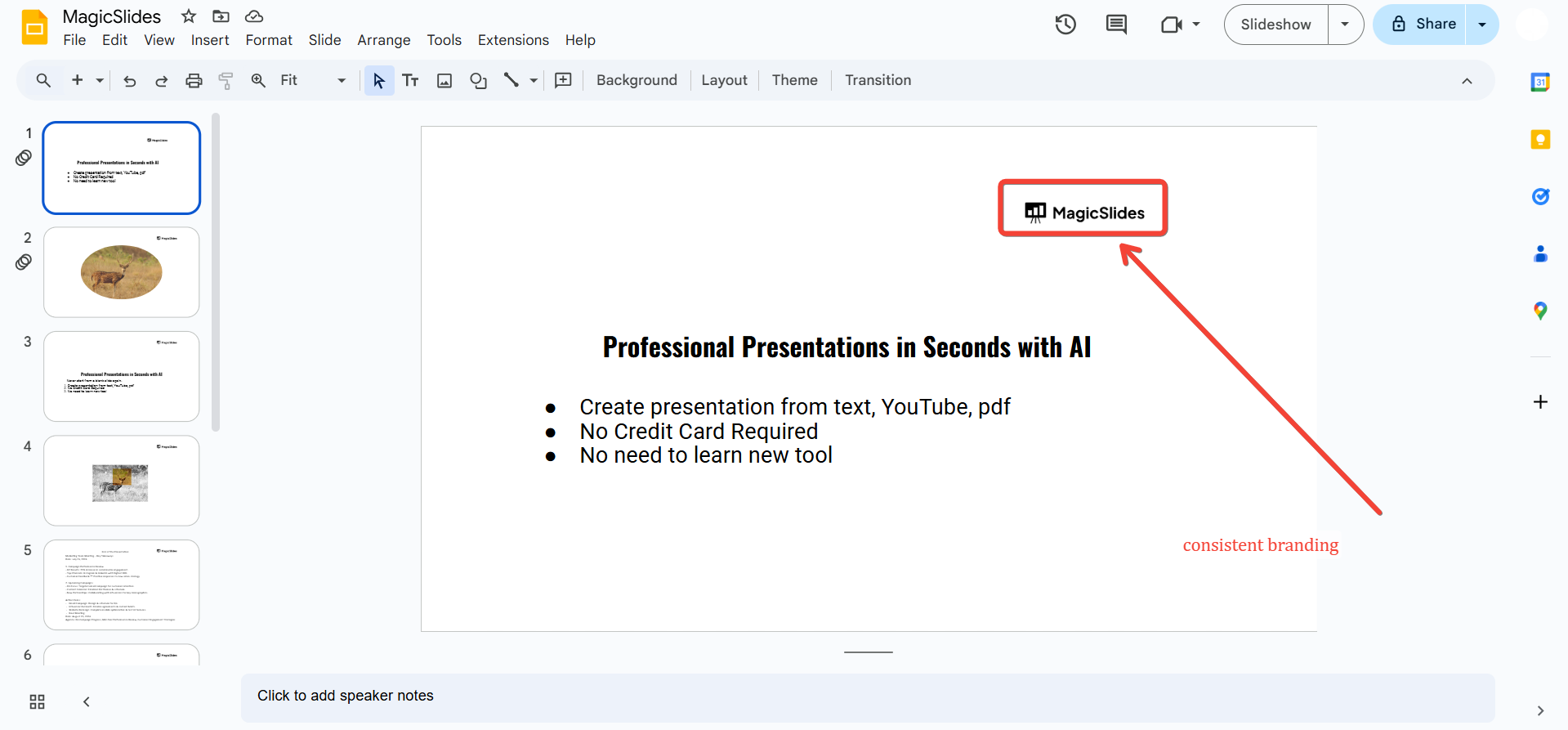
Create a custom master slide to ensure consistency across all slides.
Conclusion
Making your Google Slides pretty doesn’t have to be a complex task.
By choosing appealing templates, using high-quality visuals, and maintaining a cohesive design, you can create stunning presentations that impress your audience.
Remember, a visually captivating slide deck enhances communication and ensures your message is memorable.
FAQs on Making Google Slides Pretty
Can I customize templates in Google Slides?
Yes! Once you select a template, you can modify fonts, colors, and layouts to suit your needs.
Are there free resources for images and icons to use in slides?
Yes, websites like Unsplash, Pexels, and Flaticon offer free resources for high-quality visuals.
How do I ensure my slides look professional?
Keep the design simple, maintain a consistent style, and focus on clear communication to avoid over complicating your slides.
With these tips, you’ll be able to transform your Google Slides into a visually stunning and effective presentation!


