How to Make Multiple Bingo Cards in Canva


Learn how to create multiple unique bingo cards in Canva for fun events and activities
Creating multiple unique bingo cards in Canva is an efficient and creative process.
With Canva's tools, you can design individual cards and replicate them with varying content to suit your event or activity.
This guide will help you create multiple bingo cards step by step while maintaining a cohesive design.
Steps to Create Multiple Bingo Cards in Canva
Step 1: Open Canva and Select a Template
Log in to your Canva account. In the search bar, type “Bingo Card” and choose from the available templates.
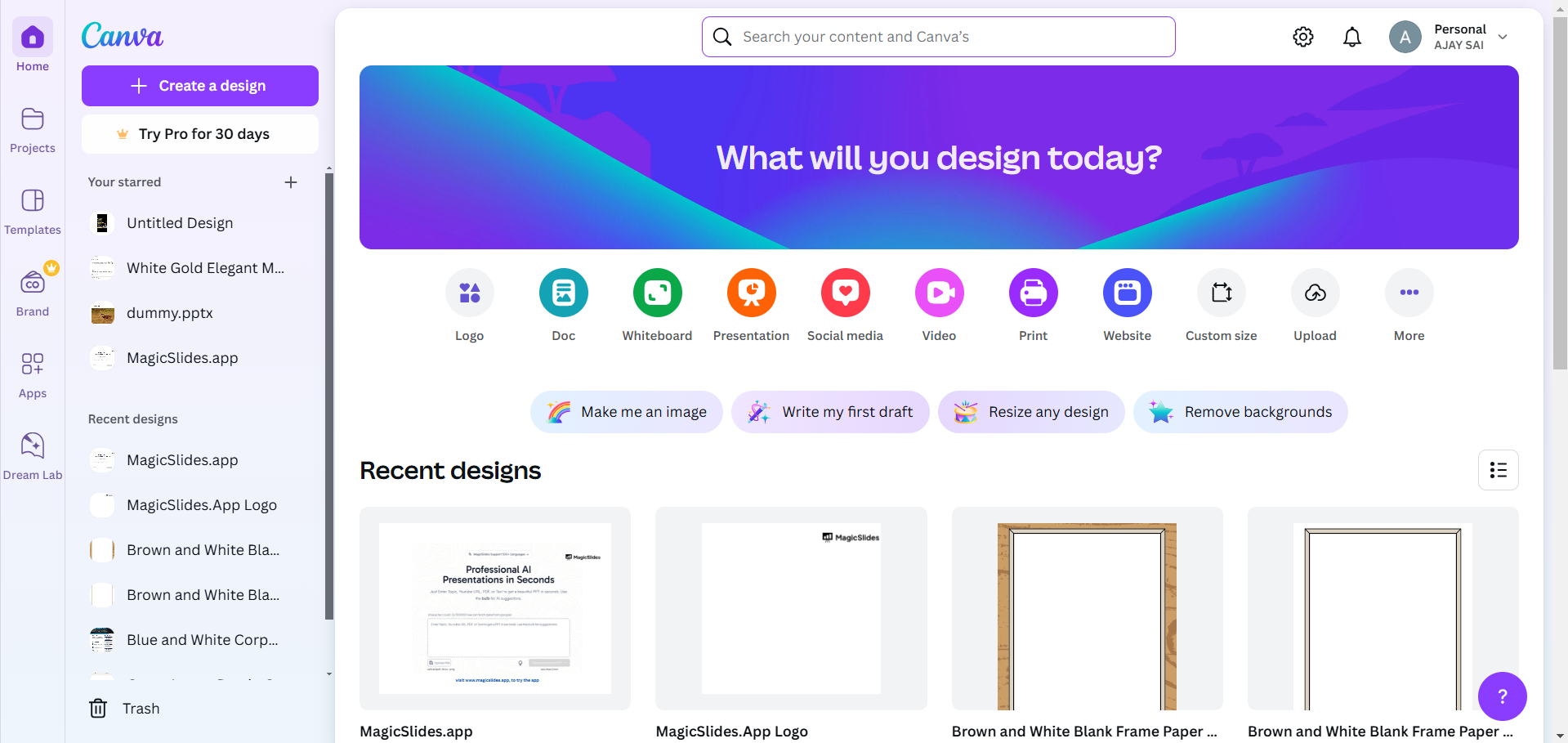
Alternatively, create a custom design by clicking “Custom Size” and inputting your desired dimensions (e.g., 8.5 x 11 inches for standard paper).
Step 2: Design Your Bingo Card Layout
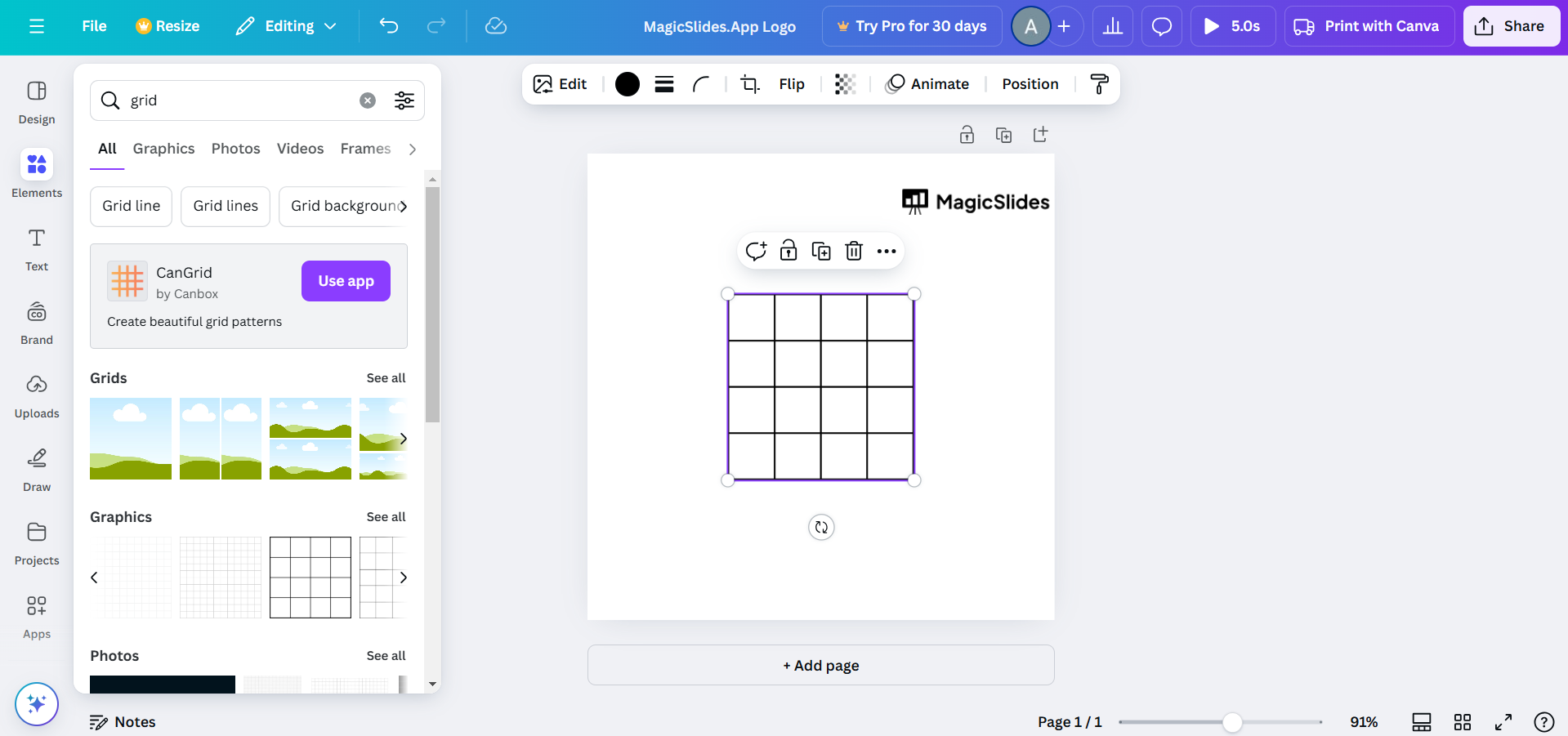
Add a grid to your design by clicking “Elements” and selecting a grid or table format.
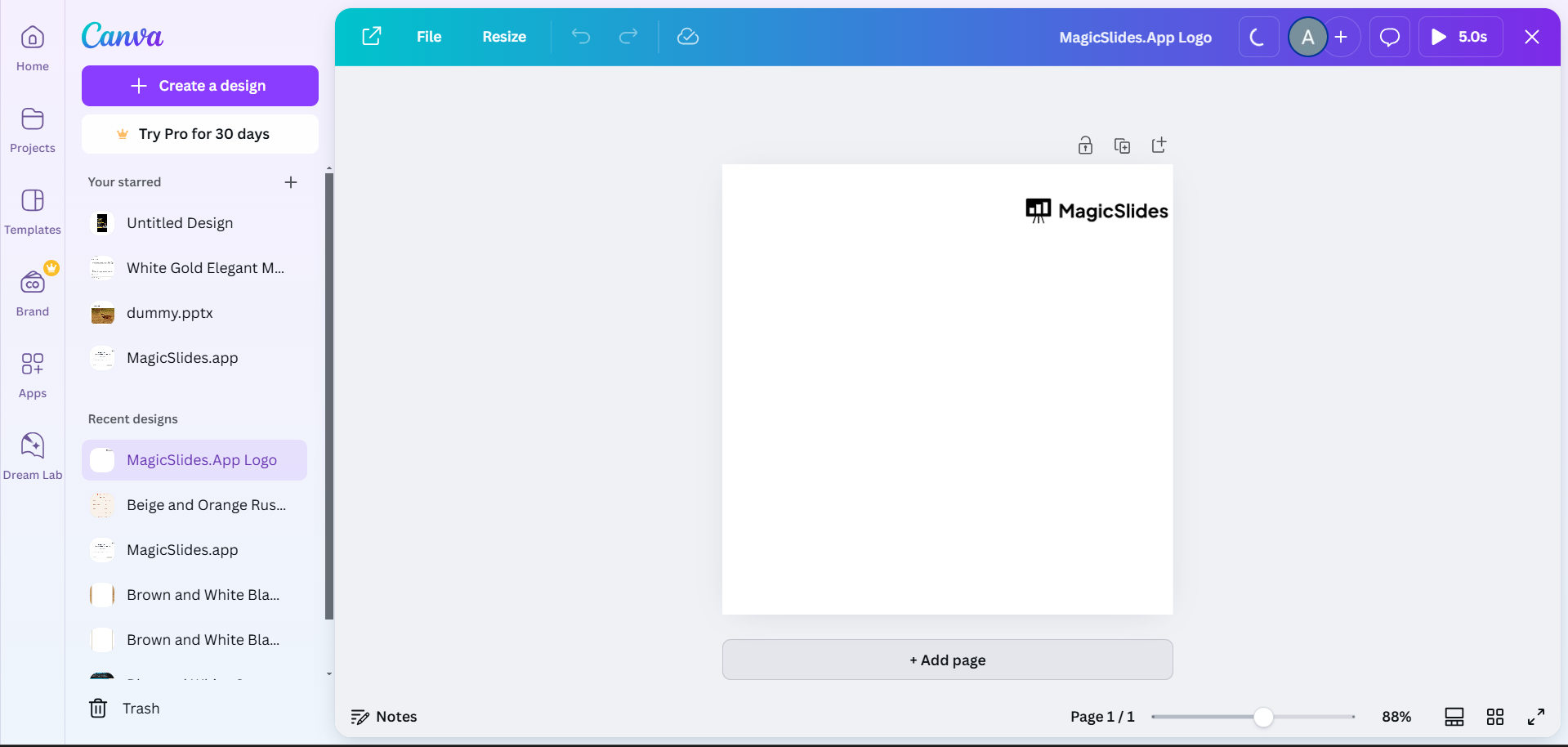
Customize the grid to include the desired number of rows and columns (e.g., 5×5 for a traditional bingo card).
Label the top row with the letters B-I-N-G-O or any headings of your choice.
Step 3: Add Content to the Bingo Card
Fill each square with text, icons, or images that correspond to your bingo theme.
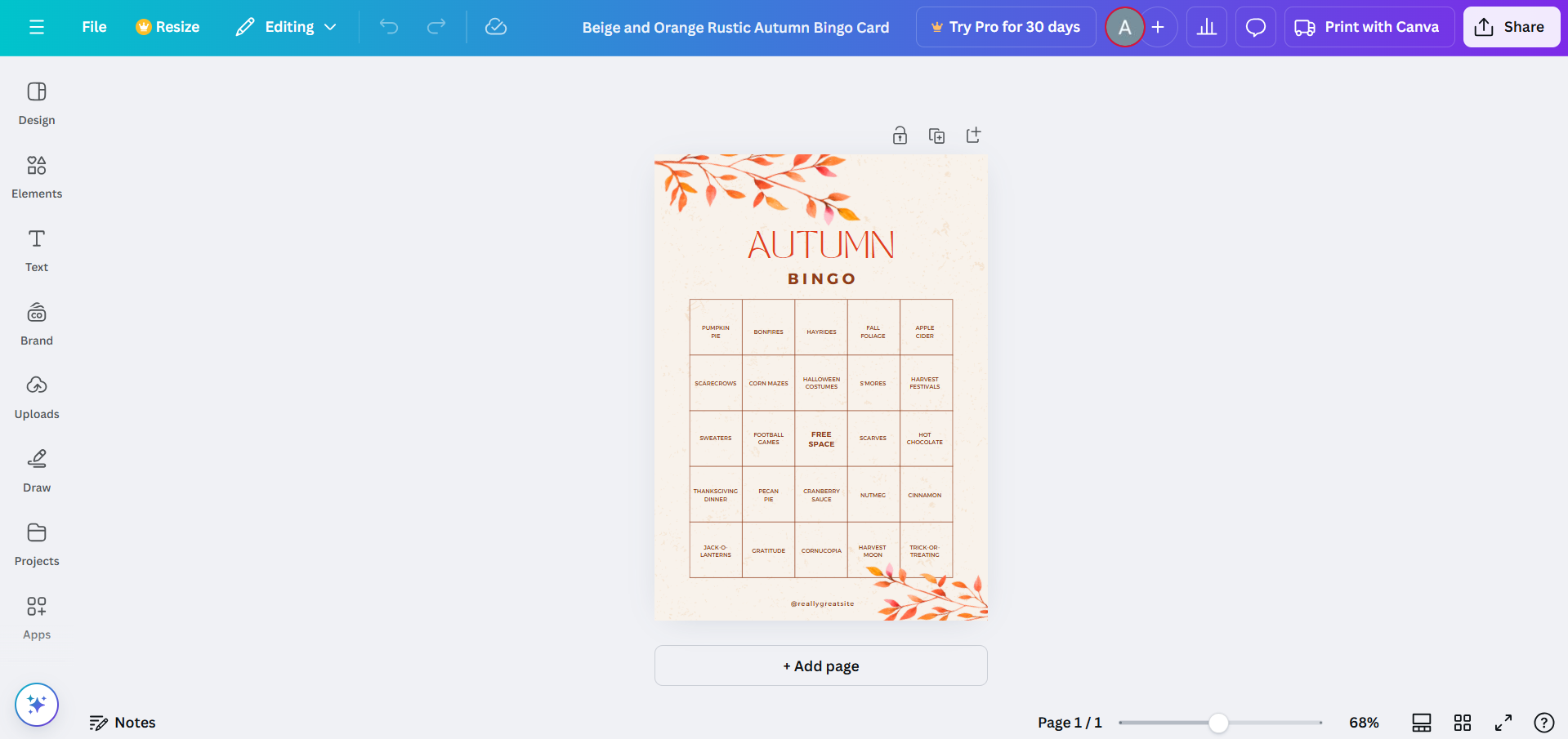
Use “Text” or “Elements” from Canva’s library to add content. Ensure the central square is labeled as “Free Space” if applicable.
Step 4: Download and Print the Bingo Cards
Once all your cards are ready, click on the “Share” button and choose “Download.”
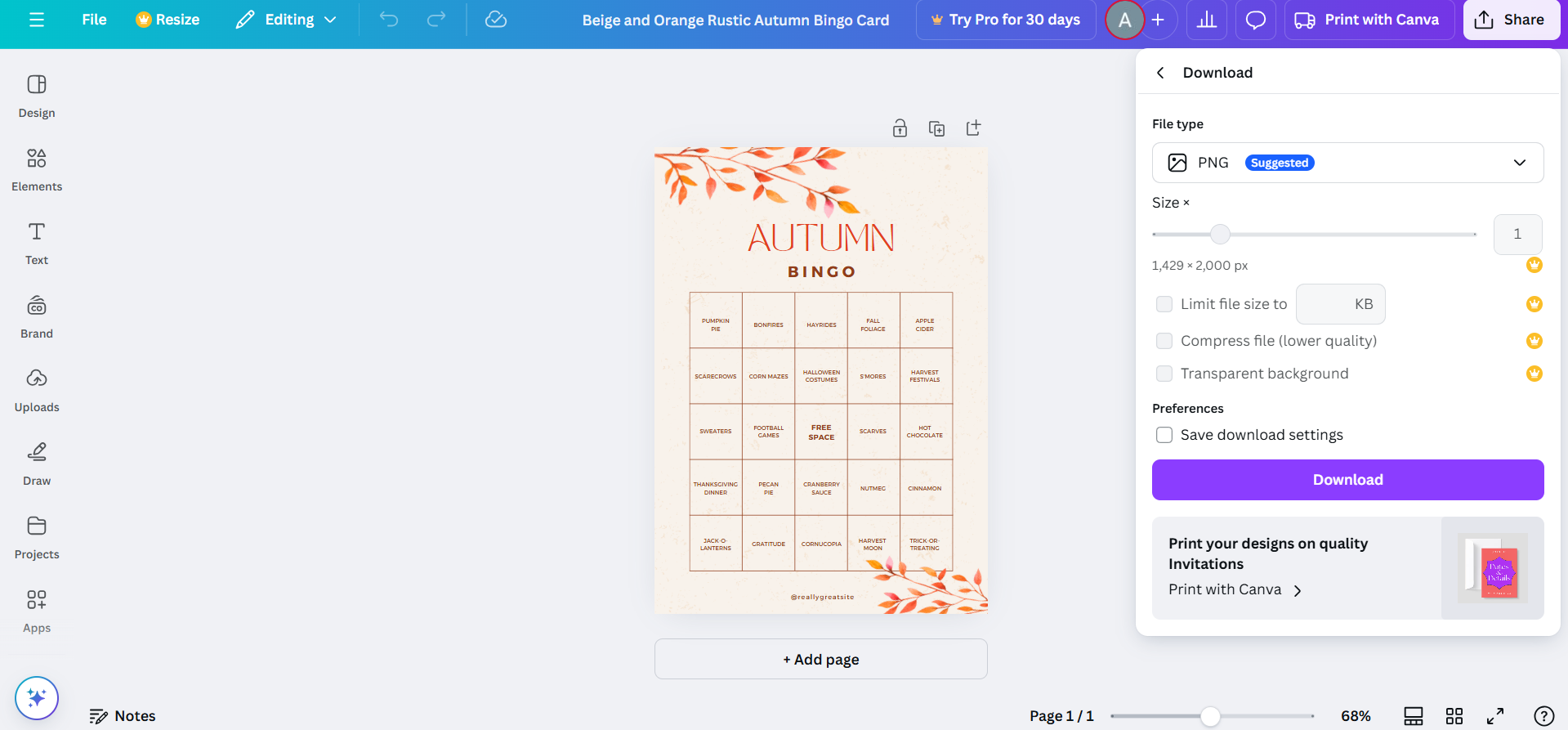
Select PDF Print for high-quality printing. Print the cards directly or send them to a professional printing service.
Conclusion
Creating multiple bingo cards in Canva is a simple process that lets you combine creativity with functionality.
By following these steps, you can design unique and visually appealing bingo cards for any event, ensuring a fun and engaging experience for your audience.
FAQs on Making Multiple Bingo Cards in Canva
Can I randomize bingo card content automatically in Canva?
No, Canva doesn’t have a randomization feature. You’ll need to manually adjust the content for each card.
Is there a limit to how many bingo cards I can create in Canva?
There’s no set limit, but ensure your device has enough memory to handle large Canva projects.
Can I use Canva’s free version to create bingo cards?
Yes, Canva’s free version provides all the essential tools for designing bingo cards, though some premium templates and elements require a subscription.
By leveraging Canva’s intuitive interface, you can efficiently create multiple customized bingo cards for any occasion!


