How to make PowerPoint Vertical


Switching to a vertical layout in PowerPoint is quick, enhancing your presentation’s visual appeal
Creating a vertical or portrait-oriented PowerPoint presentation can be useful for various purposes, such as posters, infographics, or when you need to display content on devices with a vertical screen.
While PowerPoint defaults to a horizontal (landscape) orientation, you can easily switch to a vertical layout with just a few clicks.
In this blog post, we'll guide you through the step-by-step process of making your PowerPoint presentation vertical, ensuring your slides are perfectly suited for your specific needs.
How to make PowerPoint Vertical
Step 1: Open Your PowerPoint Presentation
Start by opening the PowerPoint presentation you want to make vertical.
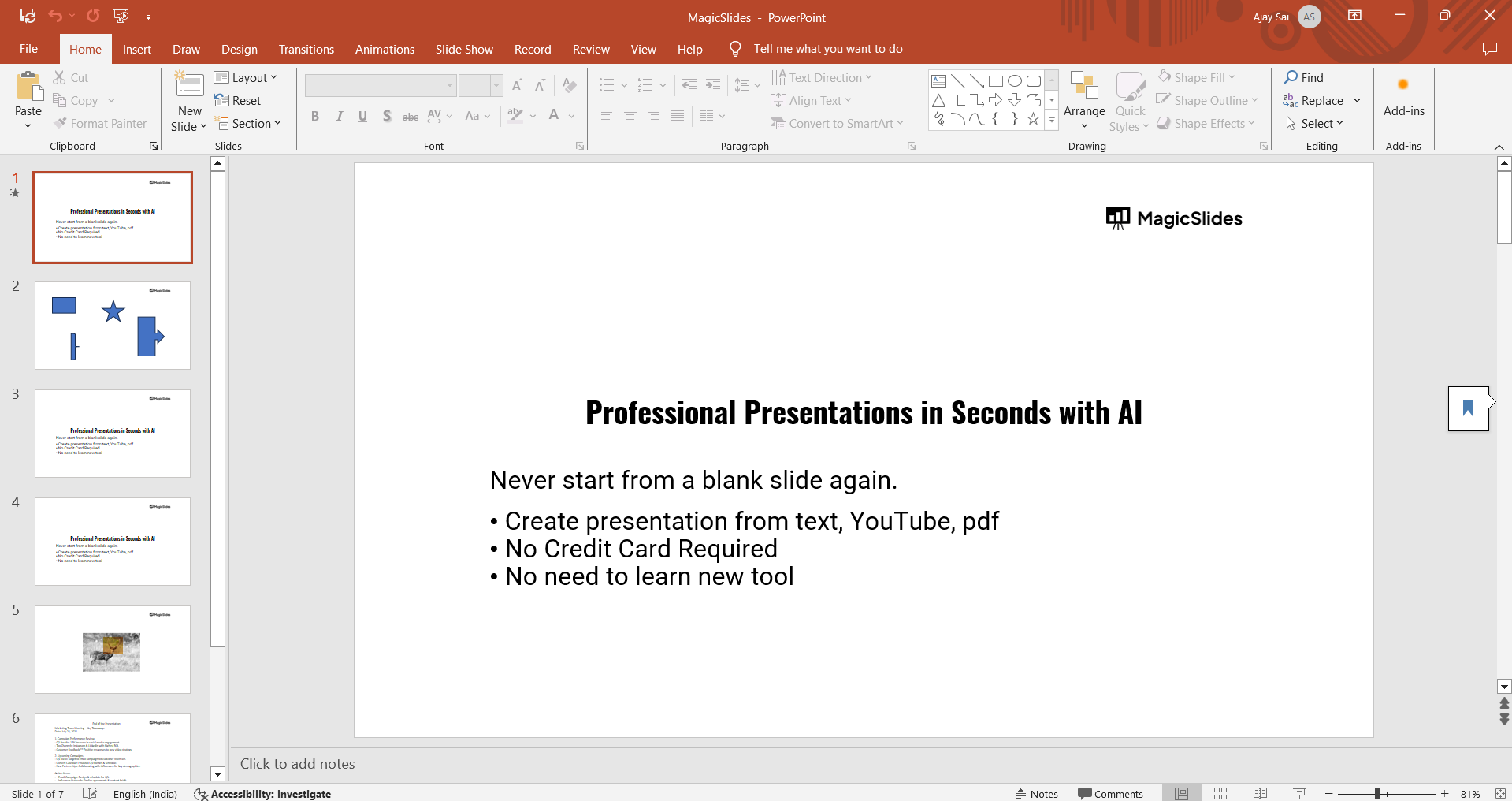
You can either create a new presentation by selecting "Blank Presentation" or open an existing one by going to "File" > "Open" and choosing your file.
Step 2: Access the Slide Size Settings
Once your presentation is open, navigate to the "Design" tab on the PowerPoint ribbon.
In the "Design" tab, look for the "Slide Size" option, which is typically located on the right side of the ribbon.
Step 3: Choose Slide Size
Click on the "Slide Size" button, and a drop-down menu will appear with two options: "Standard (4:3)" and "Widescreen (16:9)."
Below these options, click on "Custom Slide Size" to access more detailed settings.

Discover how public speaking can transform your presentation skills and boost your professional communication effectiveness.
Step 4: Change the Orientation to Portrait
In the "Slide Size" dialog box that appears, you’ll see options for adjusting the slide dimensions and orientation.
Under "Orientation," you’ll find options for both "Slides" and "Notes, Handouts & Outline."
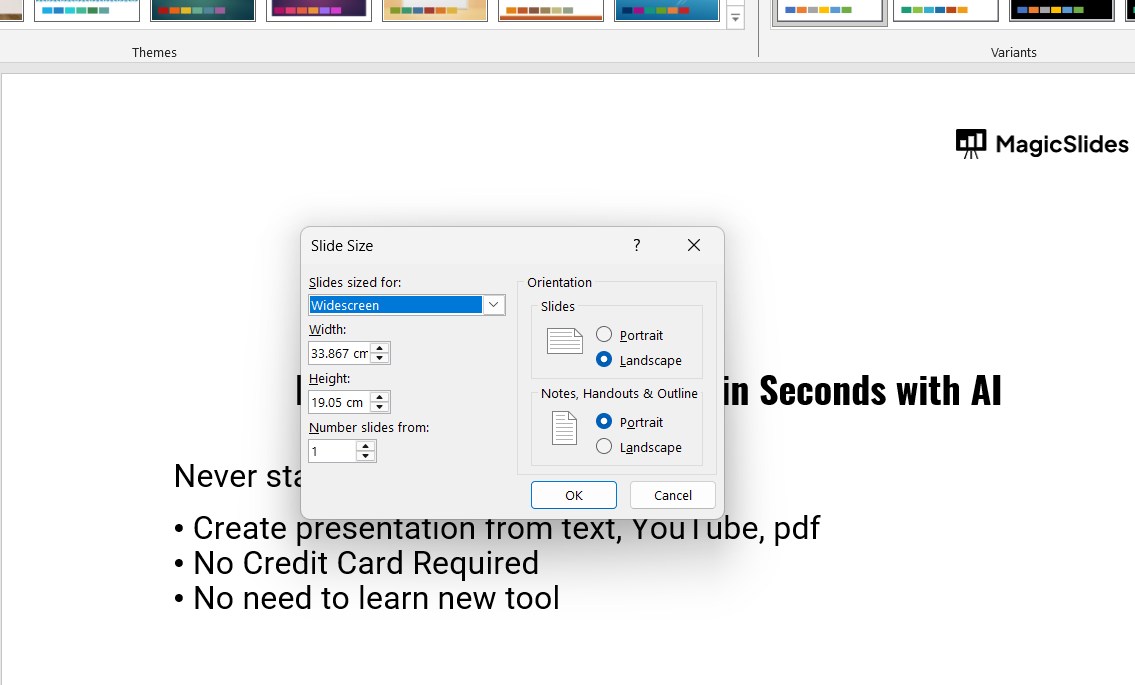
To make your slides vertical, select "Portrait" under the "Slides" section. You can also adjust the slide dimensions if needed, but the default size should work for most vertical presentations.
Step 5: Apply the Changes
After selecting the "Portrait" orientation, click "OK" to apply the changes. PowerPoint may ask if you want to maximize the content on your slides or ensure that content fits within the new orientation.
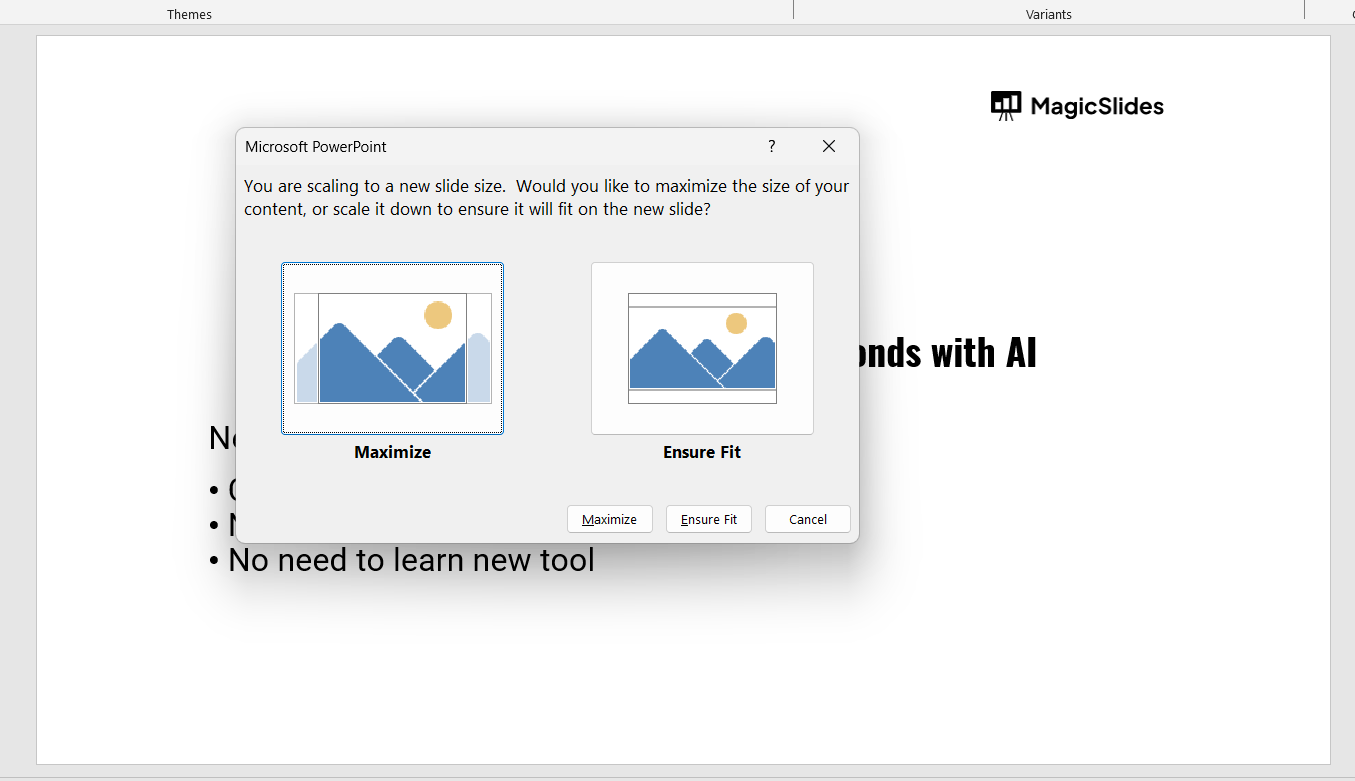
Choose the option that best suits your needs select "Maximize" if you want to fill the slide, or "Ensure Fit" if you want to keep all content within the slide borders.
Step 6: Adjust Your Slide Content
Once the orientation changes to vertical, some elements on your slides may need adjustment to fit the new layout.
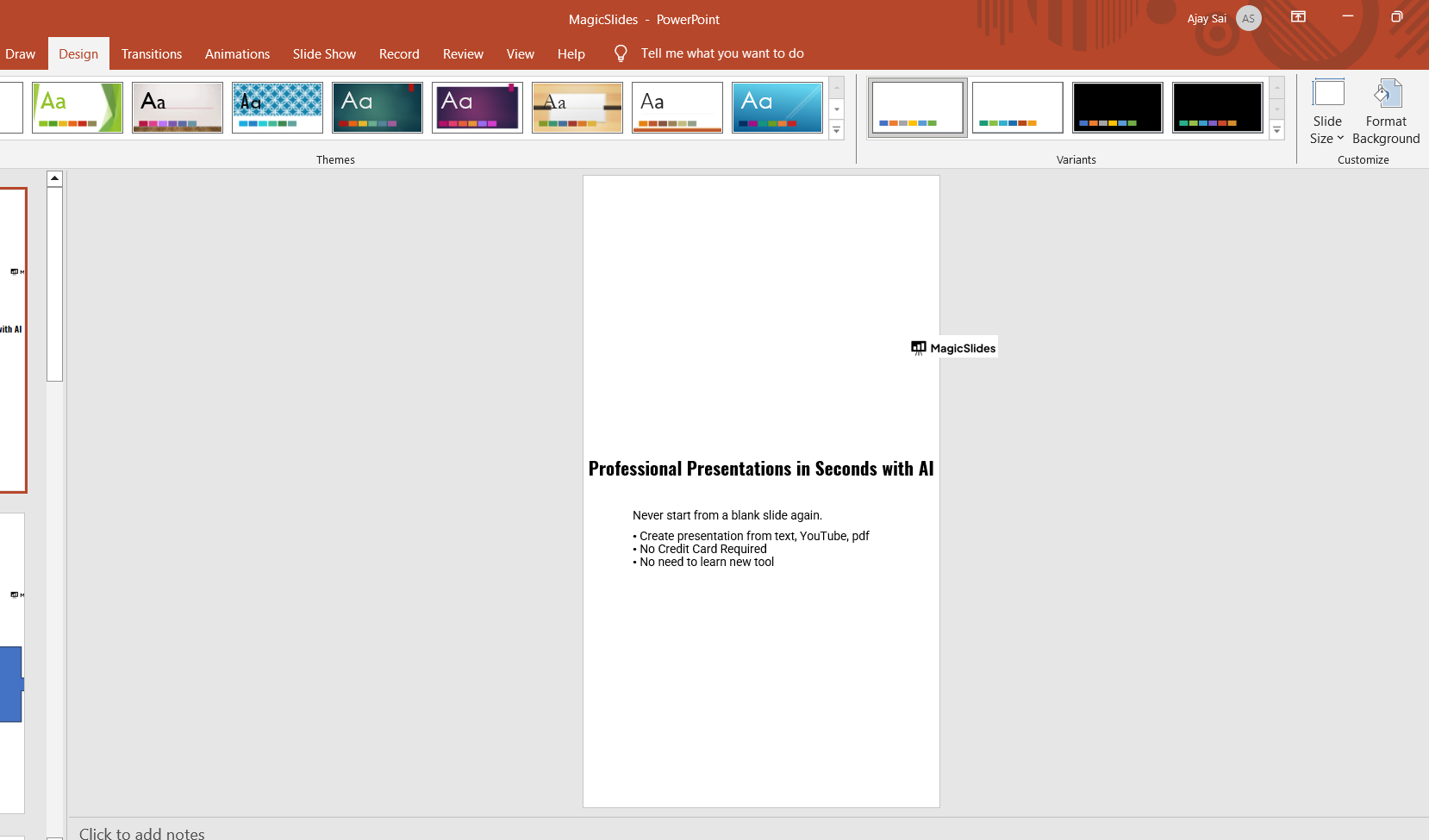
Review each slide in your presentation, and make necessary adjustments to ensure everything is properly aligned and looks visually appealing.
Step 7: Save Your Vertical Presentation
After making all necessary adjustments, save your presentation to keep the vertical orientation.
Click "File," then "Save As," and choose the desired location and format for your file.
Conclusion
Changing the orientation of your PowerPoint presentation to vertical is a simple process that can be done in just a few steps.
Whether you're creating a poster, infographic, or any other type of content that benefits from a portrait layout, this guide will help you make the transition smoothly.
By following these steps, you can ensure that your presentation looks great and is perfectly suited for its intended purpose.
Tired of maing presentations? what if we tell you you can make presentation with just a prompt, convert YouTube videos to PPTs, convert website content to PPTs? Yes! checkout magicslides.app that does all and enjoy the free credits to make presentations in seconds.
FAQs are here to help!
Can I switch back to landscape orientation after making my PowerPoint vertical?
Yes, you can easily switch back by following the same steps and selecting "Landscape" in the Slide Size settings.
Will changing the orientation affect the content on my slides?
Some content may need adjustment after changing the orientation. PowerPoint offers options to either maximize content or ensure it fits within the new layout.
Can I apply the vertical orientation to only selected slides?
No, the orientation change applies to the entire presentation, not individual slides.


