How to make text Transparent in PowerPoint


Setting slide timings in PowerPoint helps automate your presentations for smoother, timed transitions.
Making text transparent in PowerPoint is a creative way to overlay text on images, videos, or backgrounds while maintaining readability and enhancing visual appeal.
It’s a useful design technique for creating visually engaging slides.
In this blog post, we'll walk you through how to make text transparent in PowerPoint step by step.
How to make text Transparent in PowerPoint: Step-by-Step Guide
Step 1: Open PowerPoint and Create a New Slide
First, open PowerPoint and either create a new presentation or open an existing one.
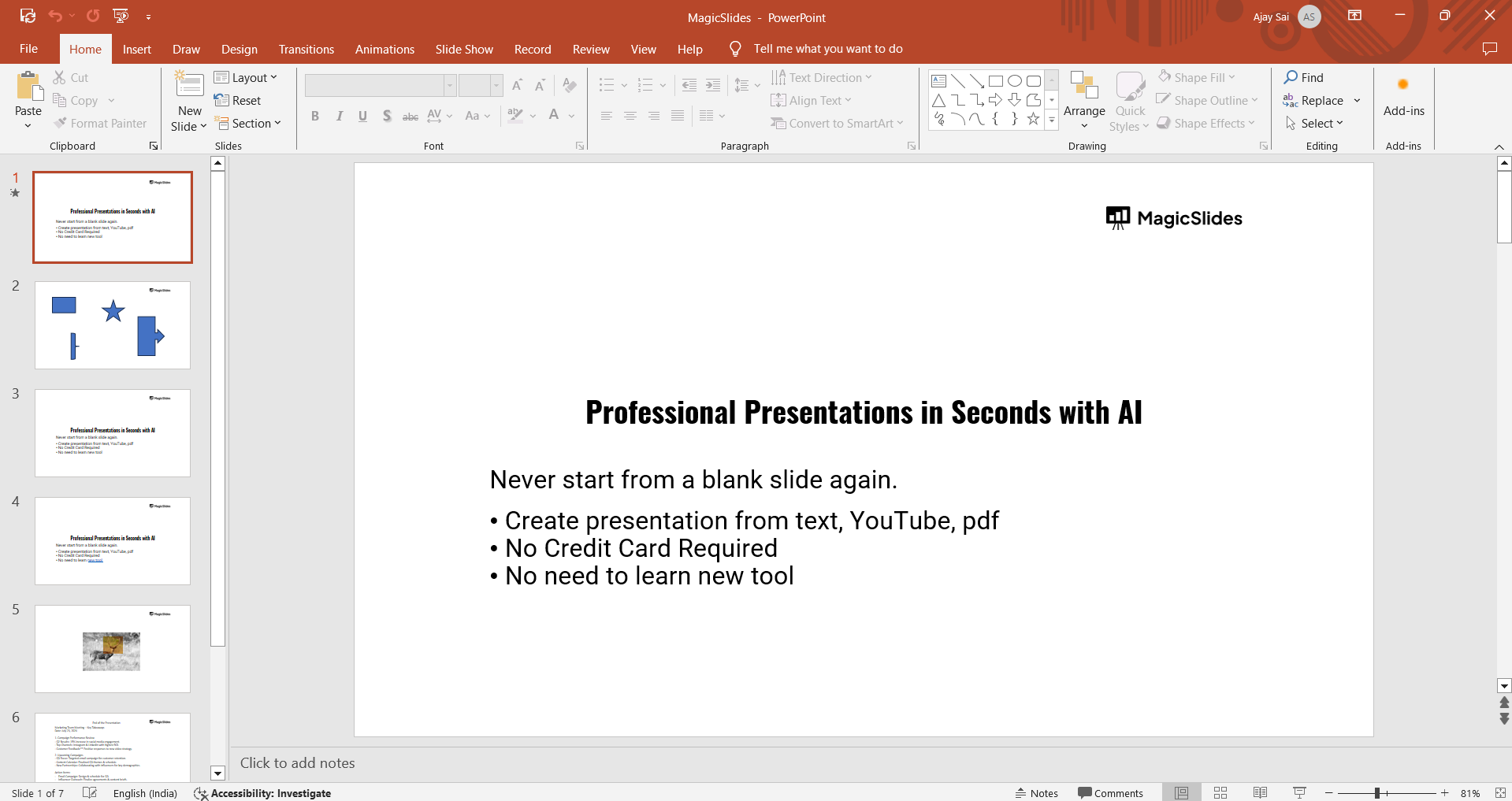
To create a new slide, go to the "Home" tab and click "New Slide." Choose a layout that fits your design.
Step 2: Insert Text Box
To add text, go to the "Insert" tab and click on "Text Box."
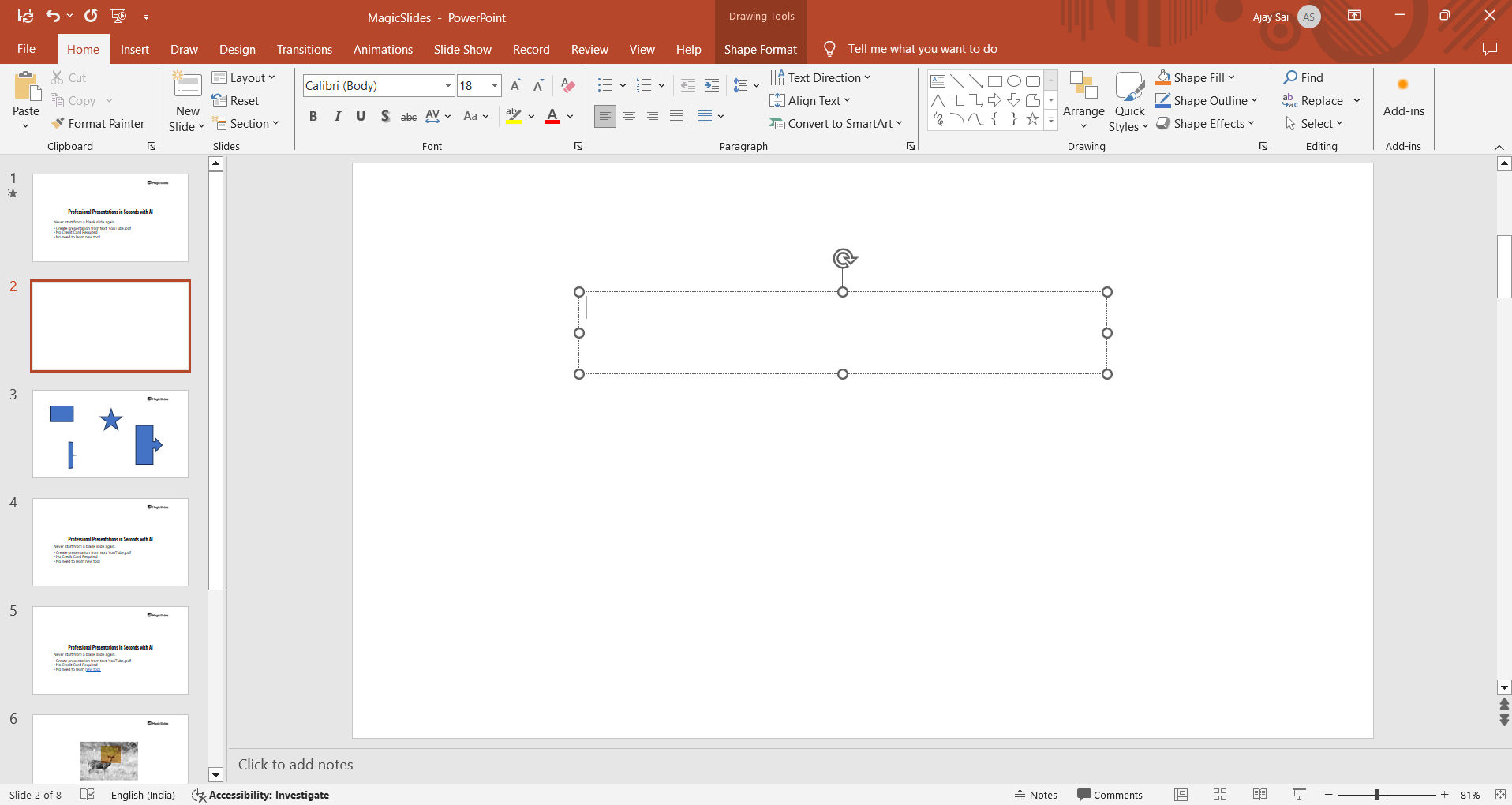
Click anywhere on your slide, and then type the text you want to make transparent.
Step 3: Select the Text
Click on the text box to highlight the text you want to adjust.
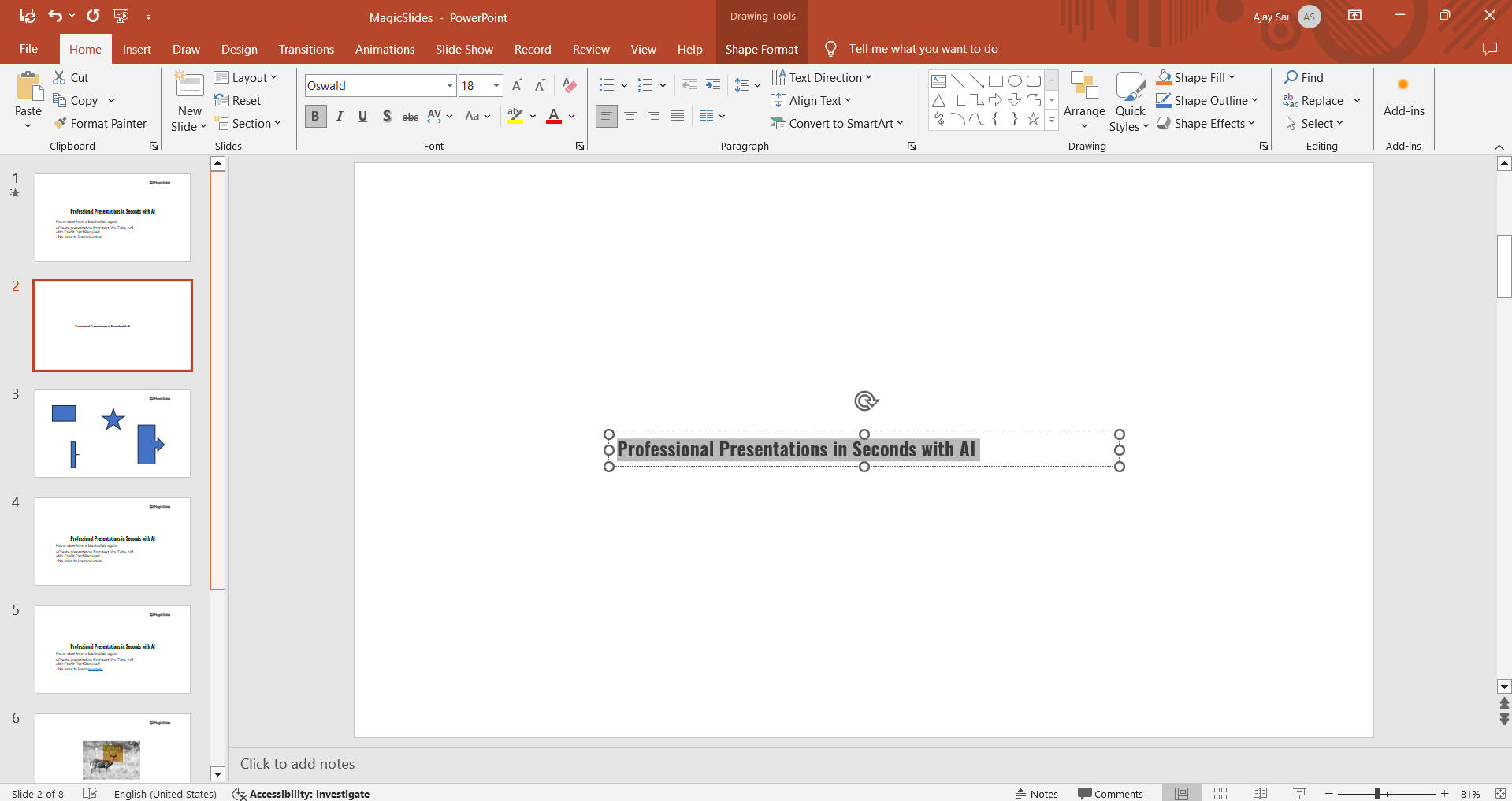
Make sure that all the text is selected before proceeding.
Step 4: Open the Format Options
With the text selected, right-click on the text box and choose "Format Shape" from the menu.
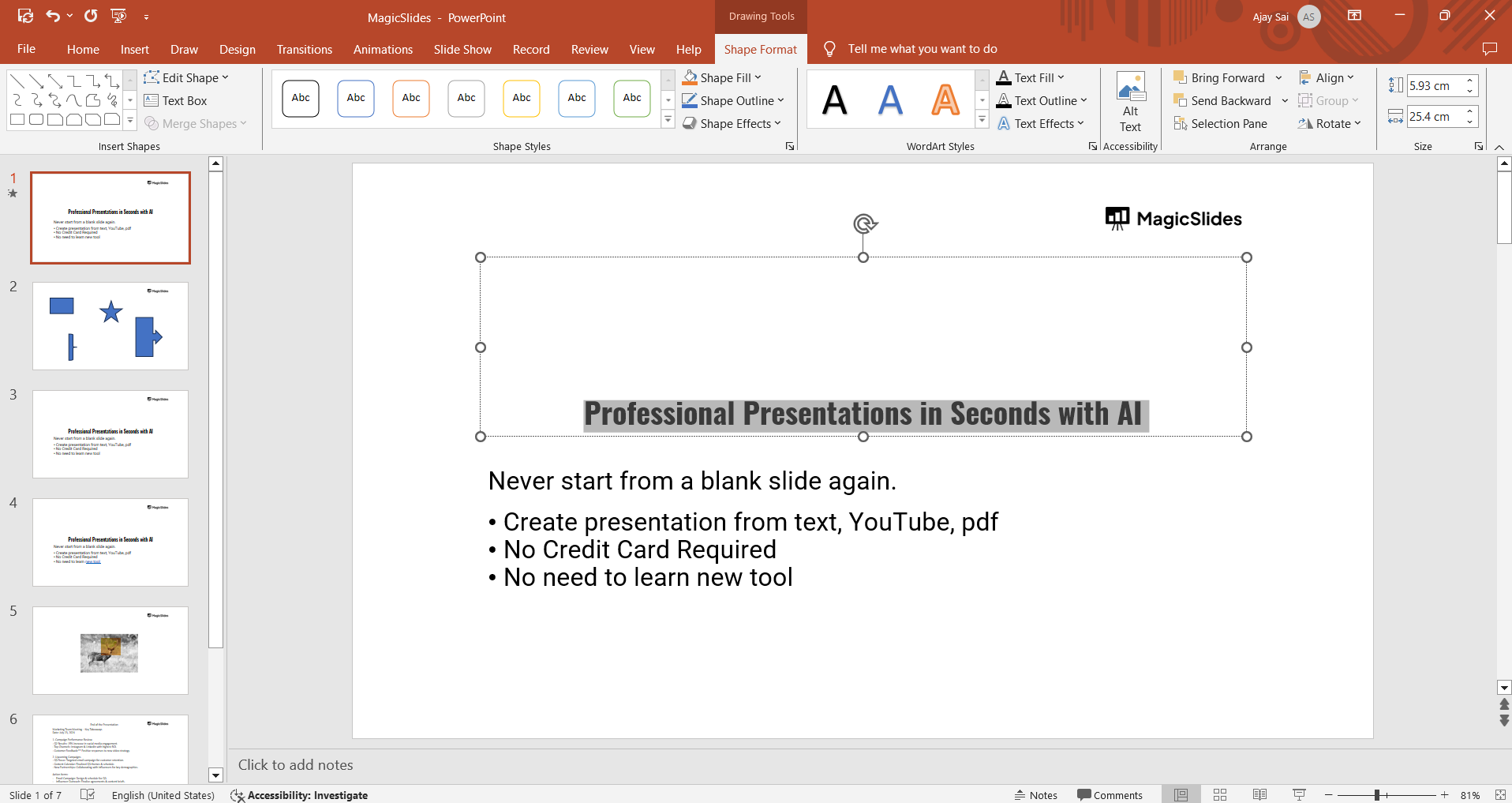
A new pane will open on the right side of the screen, allowing you to customize various aspects of the text box and its content.
Step 5: Adjust Text Fill Transparency
In the "Format Shape" pane, click on the "Text Options" tab (marked by a letter "A"). Under "Text Fill & Outline," click on "Text Fill."
You will see a "Transparency" slider at the bottom of this section. Drag the slider to adjust the transparency of the text.
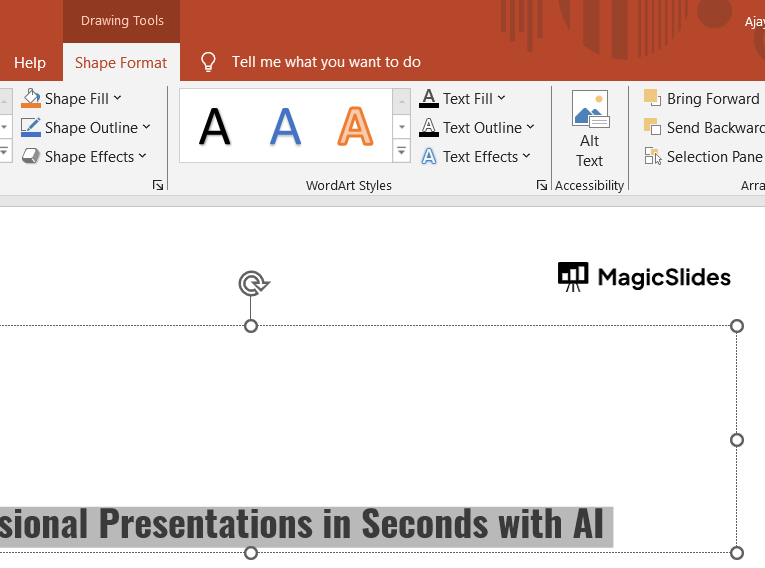
Moving it to the right will increase the transparency, while moving it to the left will make the text more opaque.
Step 6: Preview and Adjust
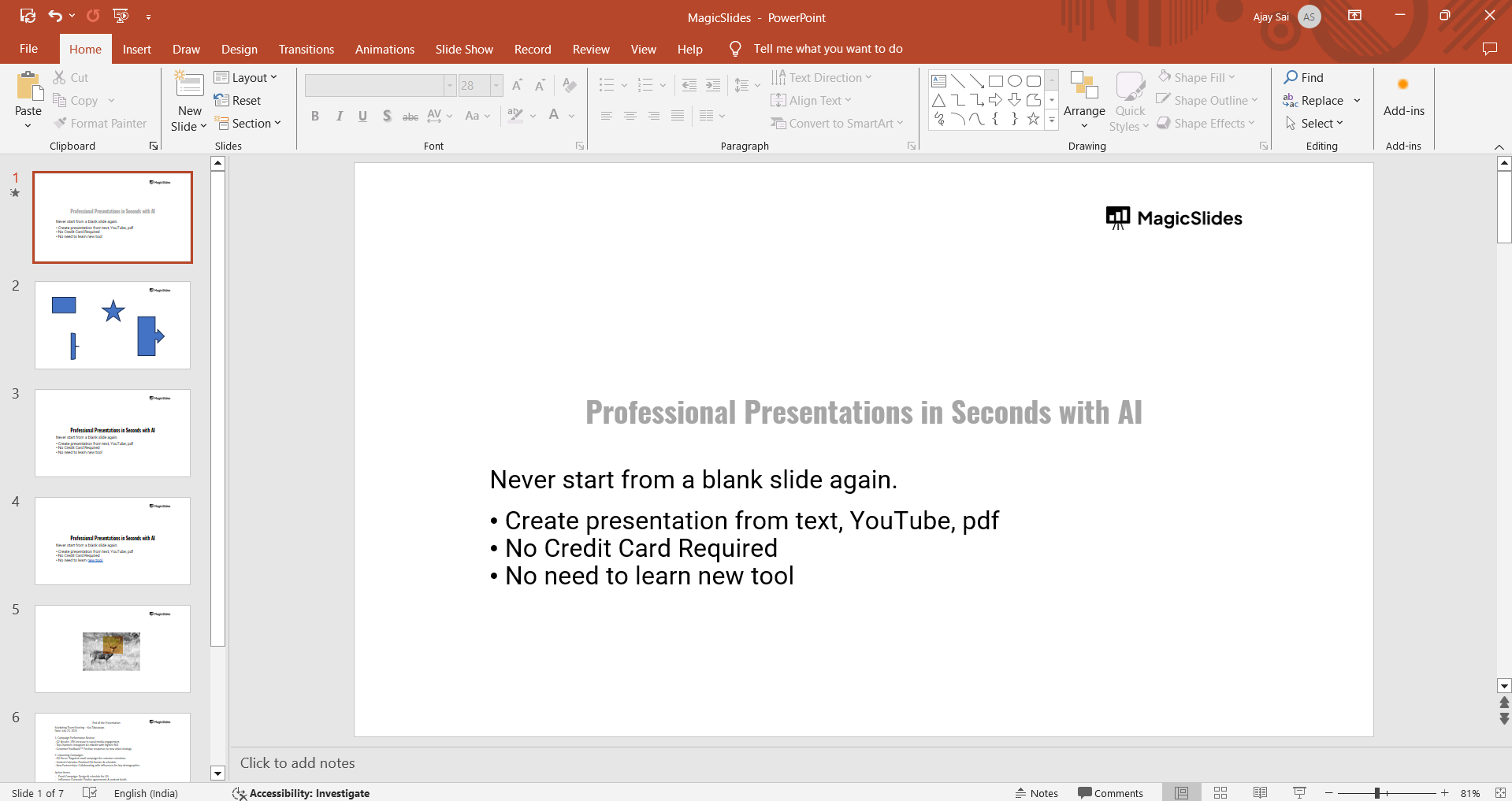
Once you’ve set the transparency level to your liking, preview your slide by selecting "Slide Show" from the top menu.
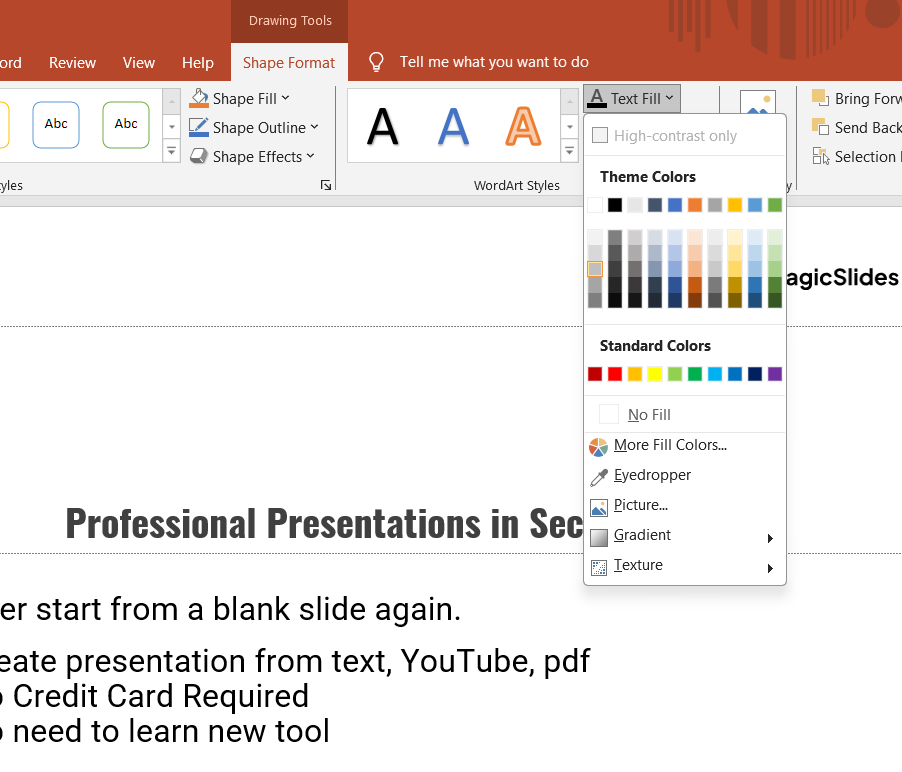
If necessary, return to the "Format Shape" pane to make further adjustments until the text transparency perfectly complements your slide design.
Step 7: Apply to Other Slides (Optional)
If you want to apply the same transparent text effect to other slides, repeat the process or copy the text box to another slide and modify the content as needed.
Conclusion
Making text transparent in PowerPoint is a simple yet powerful way to enhance your presentations design.
By adjusting the transparency, you can create a more dynamic and professional look that helps text blend seamlessly with images or backgrounds.
Follow these steps to add a creative touch to your slides, ensuring they stand out in your next presentation.
FAQs can come handy!
How do I set automatic timings for slides in PowerPoint?
Use the "Transitions" tab and adjust the "After" timing option for automatic slide transitions.
Can I set different timings for each slide?
Yes, each slide can have individual timings by adjusting the "After" box for each one.
How do I preview my slide timings before presenting?
Go to the "Slide Show" tab and select "Rehearse Timings" to preview and adjust timings.


