How to make Vector file Canva


Learn how to create scalable, high-quality vector files in Canva for professional digital and print designs
Creating vector files in Canva is an efficient way to design scalable graphics that maintain quality at any size.
Whether you're designing logos, illustrations, or icons, vector files are essential for print and digital use.
Canva offers tools that allow you to create vector-style graphics, which can be exported in formats suitable for both web and print applications.
Follow these simple steps to create a vector file in Canva.
How to Make a Vector File in Canva | Steps to Make a Vector File in Canva
Step 1: Open Canva and Start a New Design
Log in to your Canva account or sign up for a new one if you haven't already.
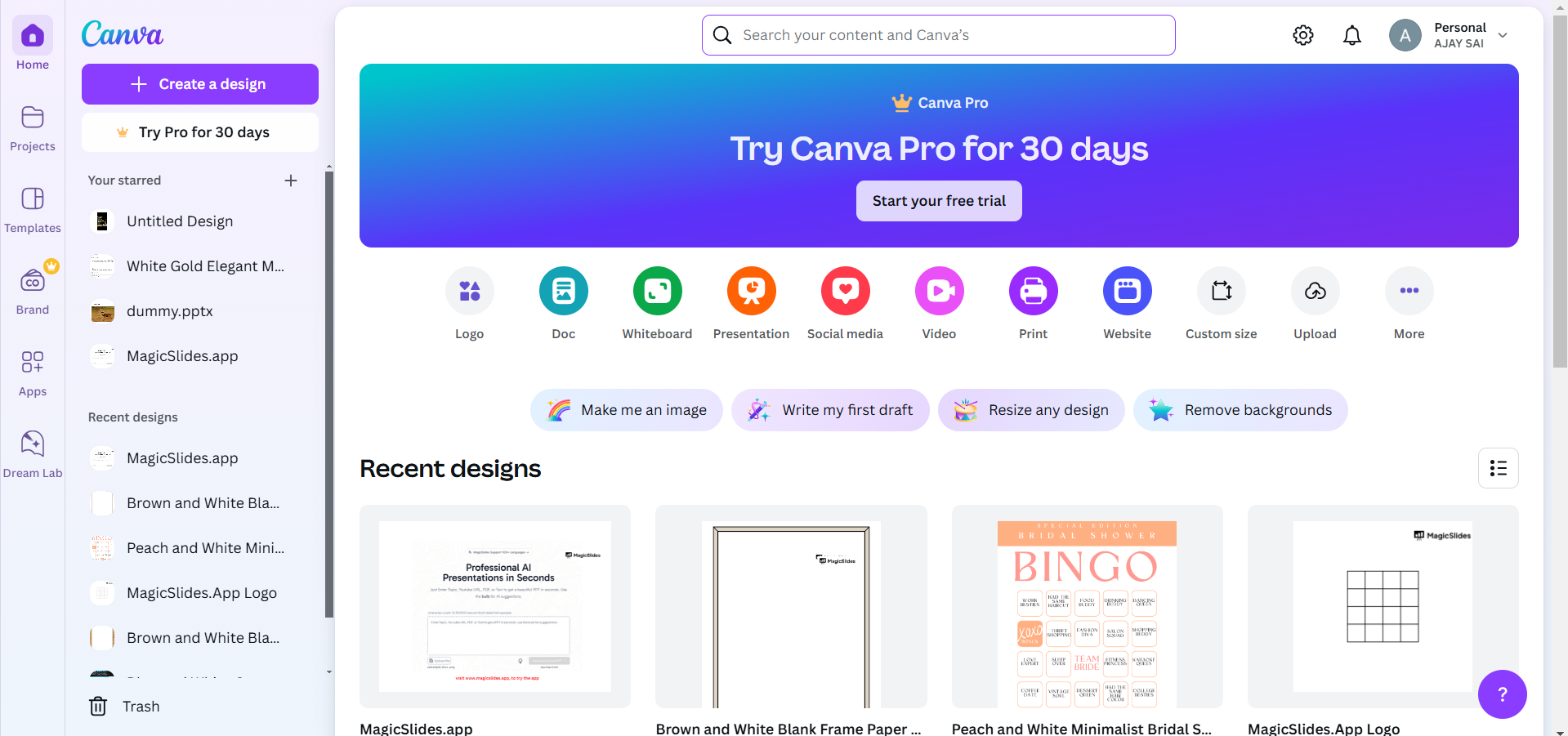
Click on “Create a Design” in the top right corner, and select a custom size or pre-set template (such as a logo or flyer) based on your needs.
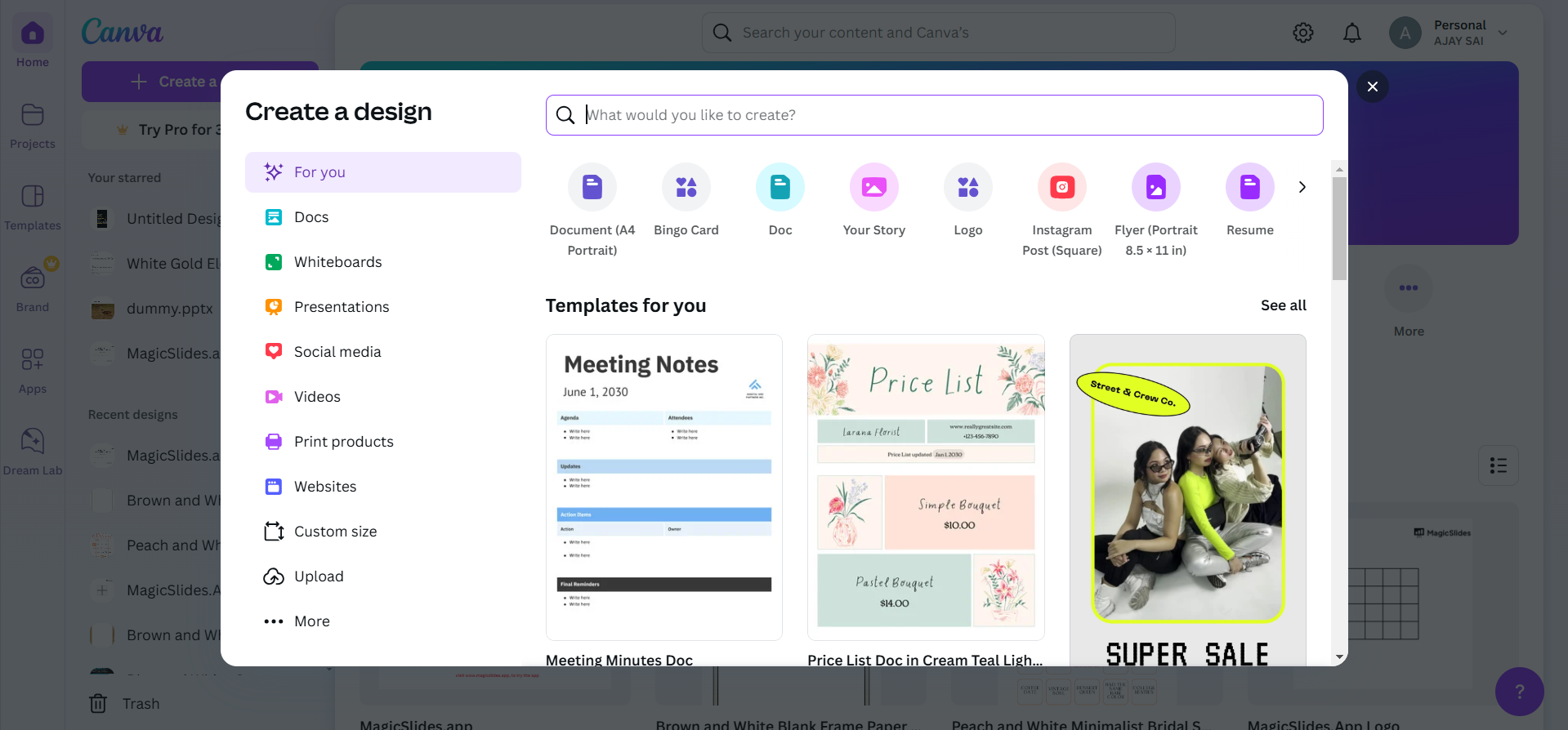
Step 2: Create Your Design Using Canva Elements
Add shapes, text, or images to your canvas using Canva's pre-built elements.
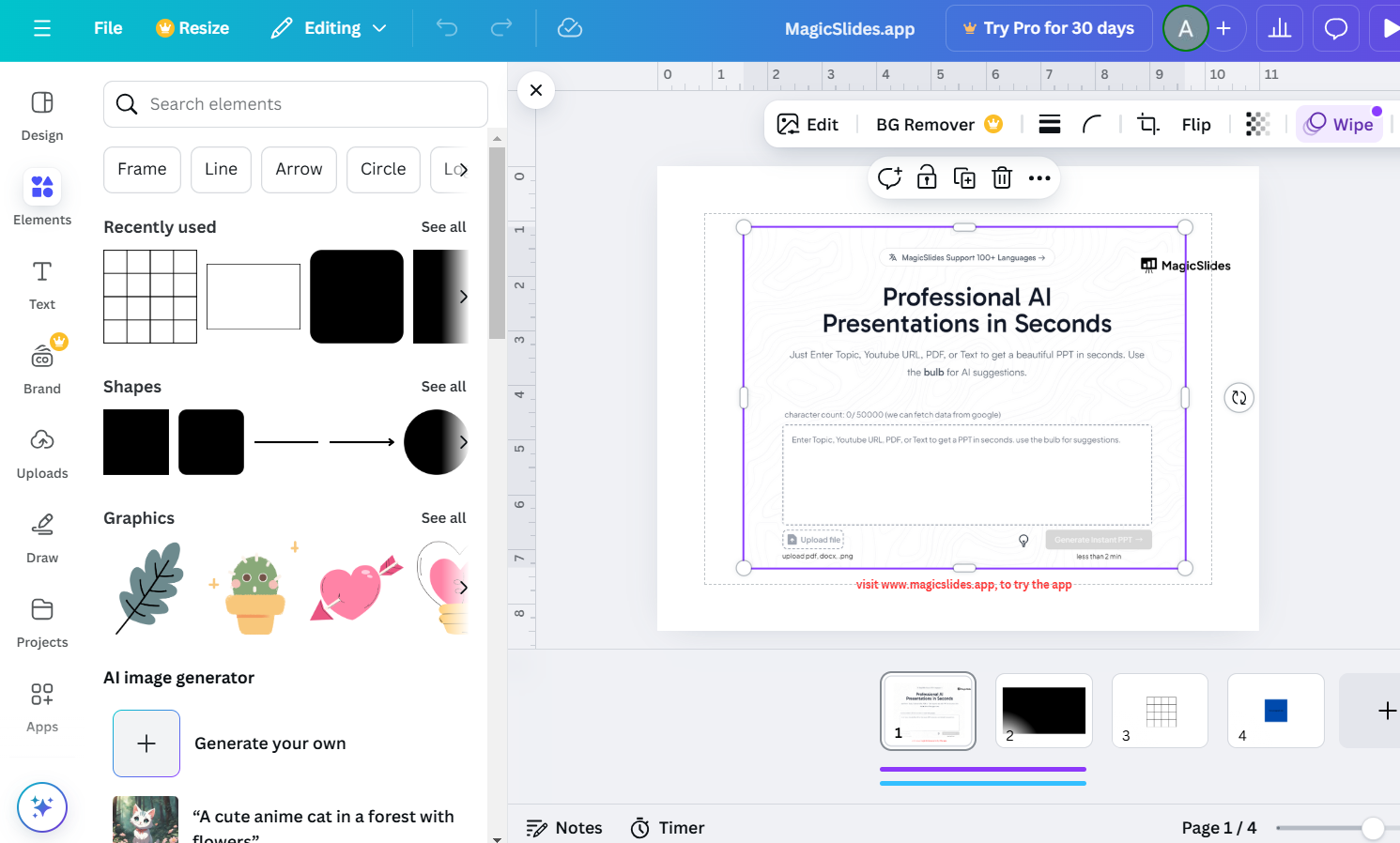
To create vector-style graphics, use shapes (like rectangles, circles, and lines) and icons that are scalable and maintain quality.
Avoid using pixel-based images (like photographs), as they are not suitable for vector files.
Step 3: Customize the Design
Modify colors, add text, and experiment with design features.
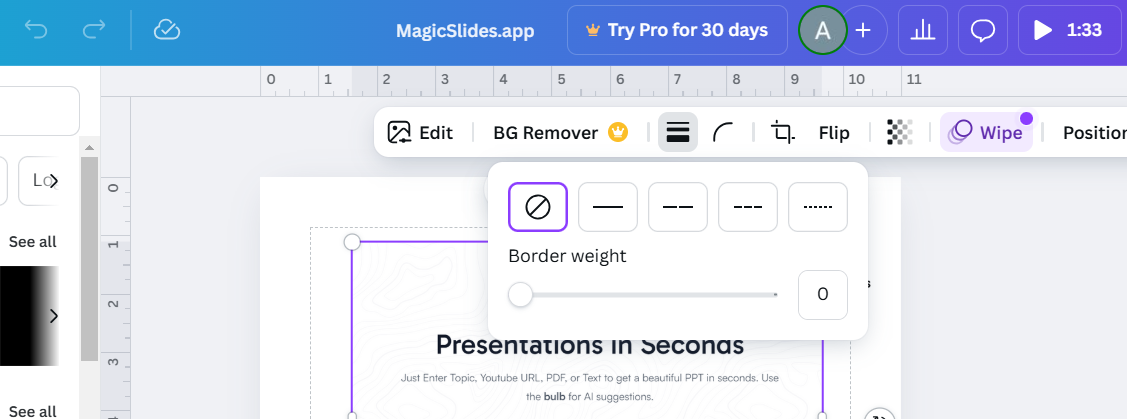
Use the Transparency slider or Group tool to adjust the elements and make them work together.
Step 4: Download as SVG (For Vector Files)
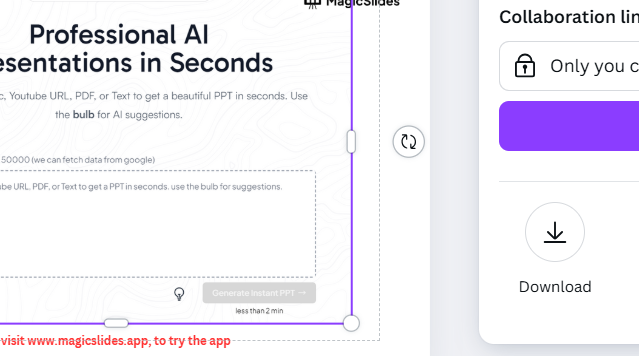
Once your design is complete, click the “Share” button in the top right corner of Canva.
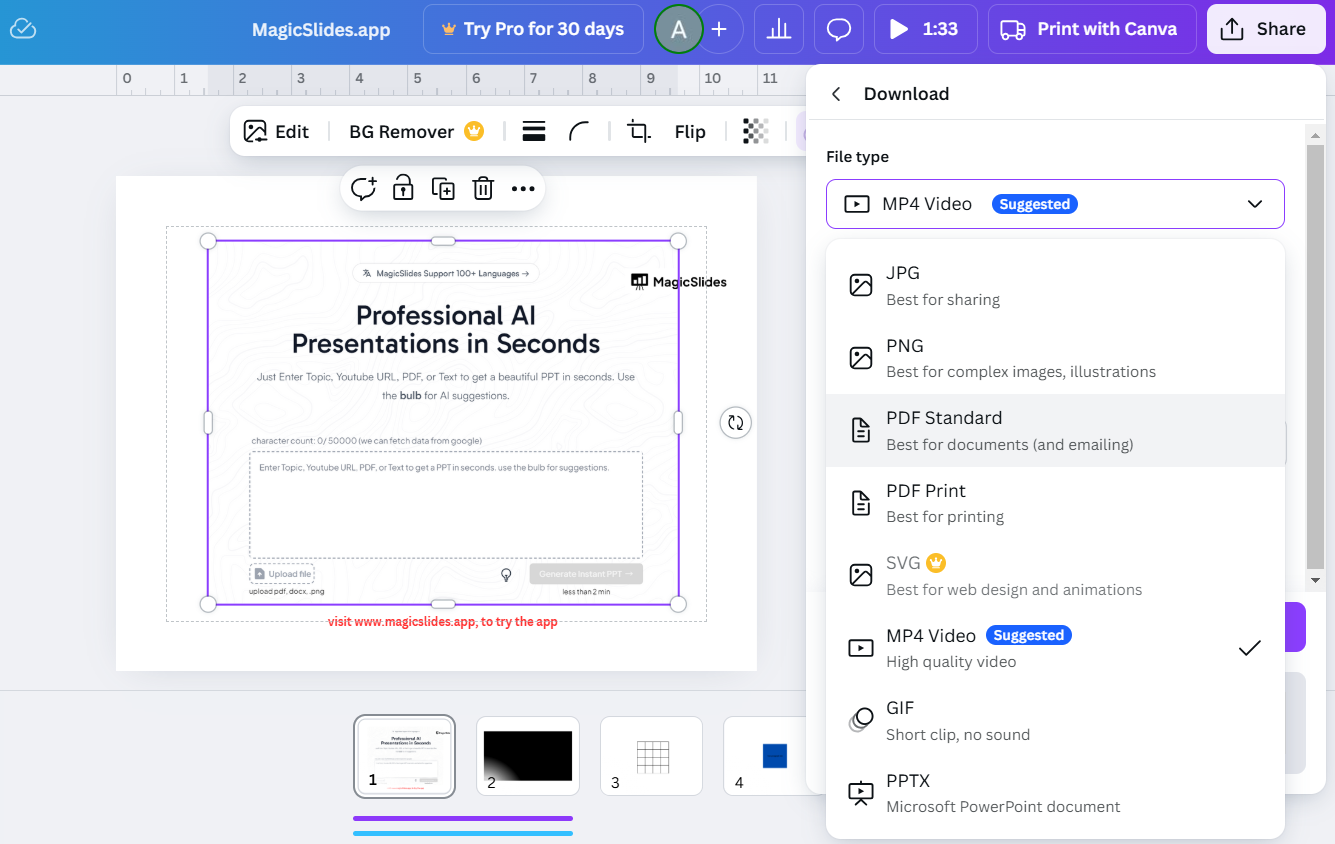
Select “Download” and choose the file format “SVG” (Scalable Vector Graphics).
SVG is a widely-used vector format that allows you to resize the image without losing quality.
If SVG isn’t available on your plan (Canva Pro required for some features), consider exporting your design as a PNG or PDF for a high-quality result.
Step 5: Verify the Vector File
Open the downloaded SVG file in a vector editing software (such as Adobe Illustrator or Inkscape) to check if the design is fully scalable.
You should be able to scale the vector file up or down without losing quality.
Conclusion
Creating a vector file in Canva is a straightforward process that can help you produce scalable, high-quality designs for both digital and print applications.
By following these simple steps, you’ll be able to create professional vector files that can be resized without sacrificing image quality.
Canva’s easy-to-use tools and the option to download in SVG format make it a great choice for creating vector-style graphics quickly.
FAQs on Making a Vector File in Canva
Can I create a vector file with Canva’s free version?
Yes, you can create a vector file in Canva’s free version, but exporting as SVG requires Canva Pro.
Can I edit a vector file after downloading it from Canva?
Yes! You can edit the SVG file in any vector editing software like Adobe Illustrator or Inkscape.
What other formats can I export from Canva besides SVG?
You can export files as PNG, JPG, PDF, and other formats, but only SVG supports vector scaling.
Creating a vector file in Canva is simple and allows you to create high-quality designs that are versatile and scalable for various uses.


