How to Open a PowerPoint Template in Google Slides Fast


Learn how to open a PowerPoint template in Google Slides fast. Follow step-by-step methods and discover MagicSlides for instant AI-generated presentations
In today's fast-paced digital world, efficiency is key. If you've ever received a PowerPoint template (.PPTX) but needed to edit it in Google Slides, you may have found yourself searching for a quick and seamless way to do it. Whether you're collaborating with a team or prefer Google’s cloud-based platform, this guide will show you how to open a PowerPoint template in Google Slides fast.
Additionally, we will introduce MagicSlides, an AI-powered tool that simplifies the process of creating presentations directly in Google Slides, saving you valuable time.
Why Use Google Slides for PowerPoint Files?
Google Slides is a powerful, free alternative to Microsoft PowerPoint. It allows for easy collaboration, cloud-based access, and automatic saving. Opening PowerPoint files in Google Slides lets you:
- Edit and share your presentation online.
- Access it from any device with an internet connection.
- Maintain compatibility with PowerPoint users.
Now, let’s dive into the process of opening a PowerPoint template in Google Slides quickly.
Steps to Open a PowerPoint Template in Google Slides
Follow these simple steps to open and edit a PowerPoint template in Google Slides:
Method 1: Upload the PowerPoint Template to Google Drive
- Go to Google Drive.
- Click on the New button (top-left corner) and select File Upload.
- Select the PowerPoint template (.PPTX file) from your device.
- Once uploaded, right-click on the file and choose Open with → Google Slides.
- Google Slides will convert the PowerPoint file, allowing you to edit it.
Create PowerPoint Presentations in Google Slides Instantly with MagicSlides
If you're looking for an even faster way to create presentations, MagicSlides is an AI-powered tool that automates the entire process. Instead of manually creating slides, MagicSlides generates presentations based on your topic in seconds.
How to Use MagicSlides to Generate a PowerPoint in Google Slides
- Visit MagicSlides.app.
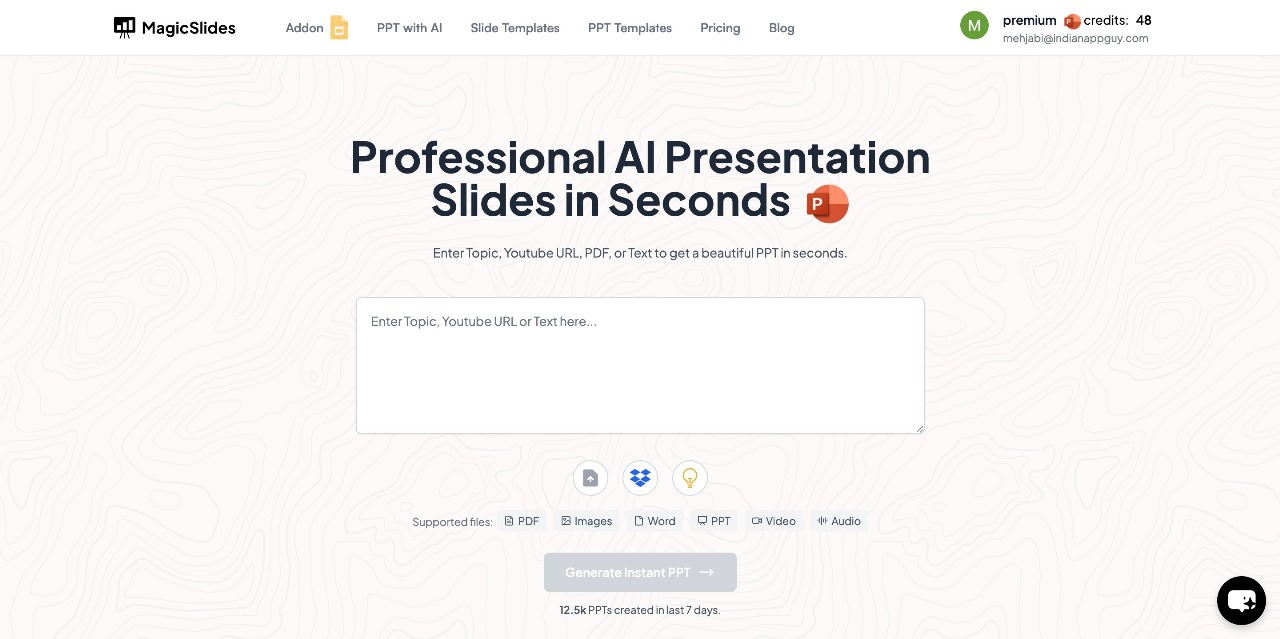
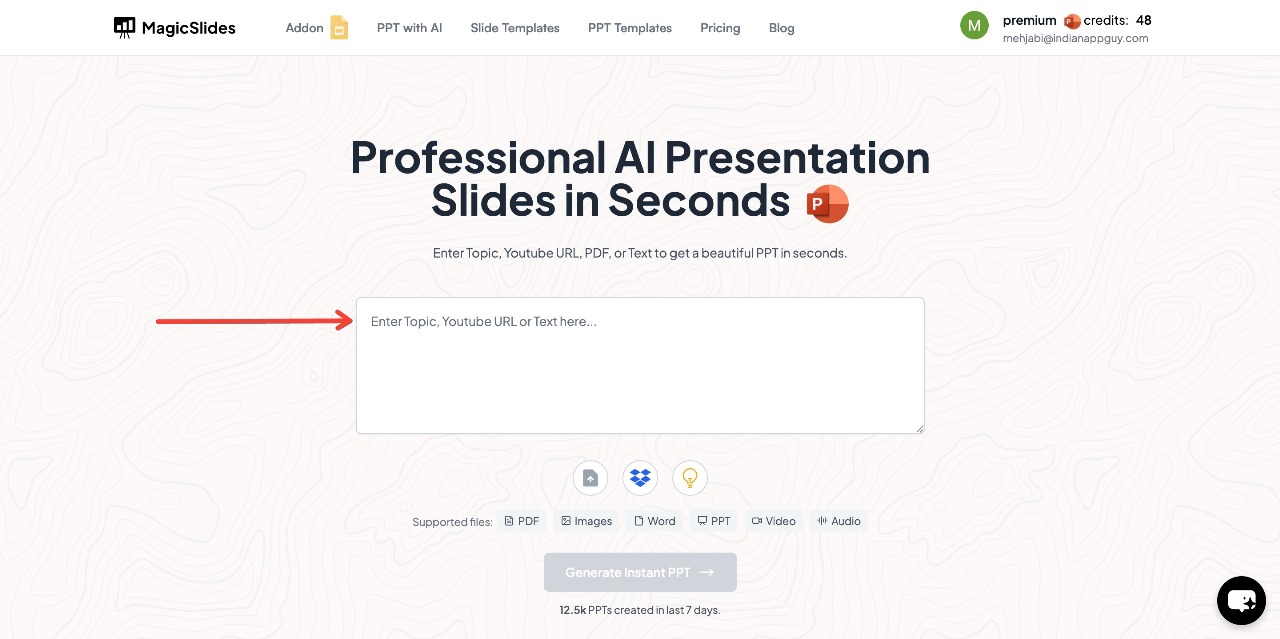
- Enter your topic in the given space.
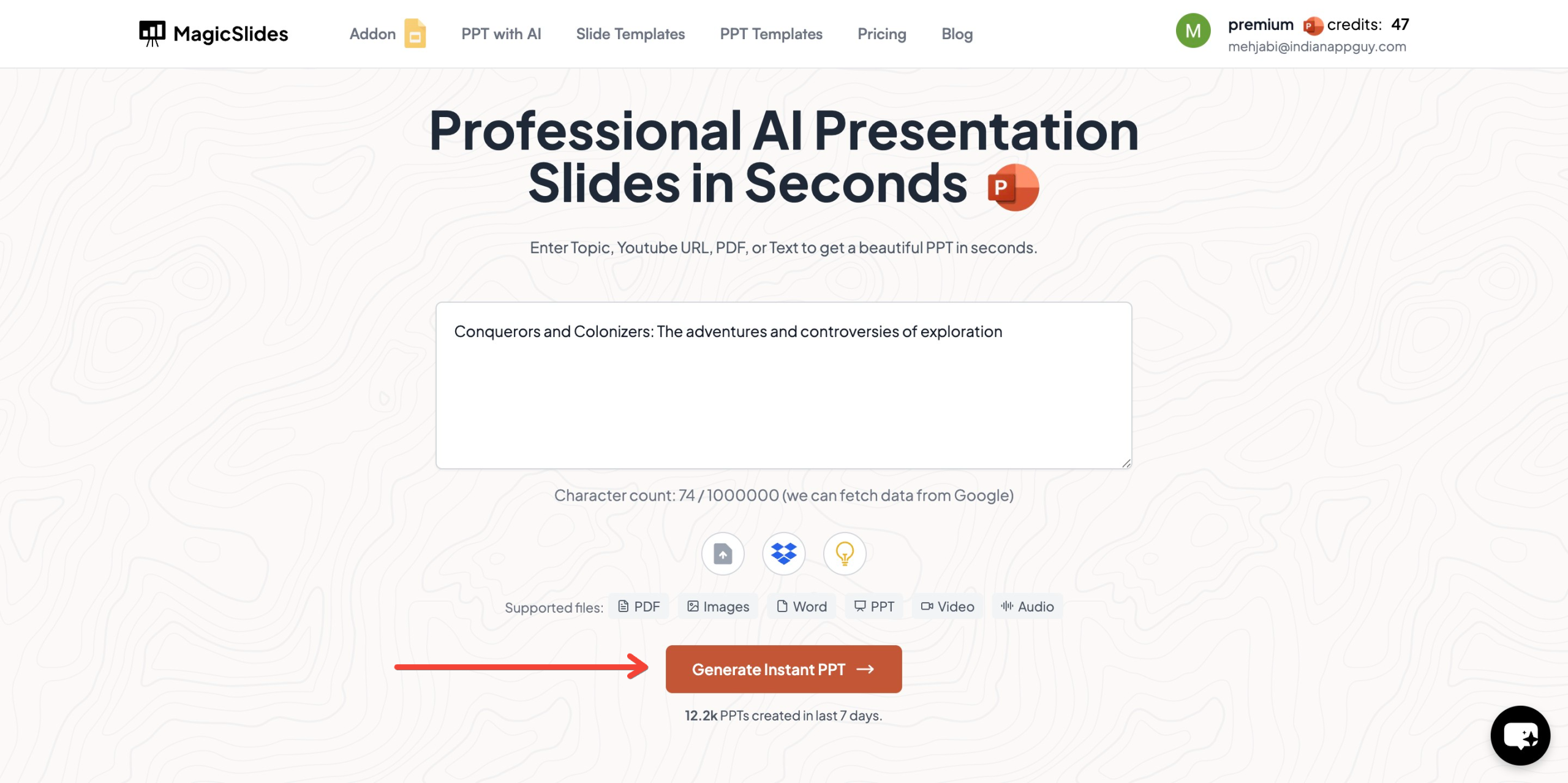
- Click Generate Instant PPT.
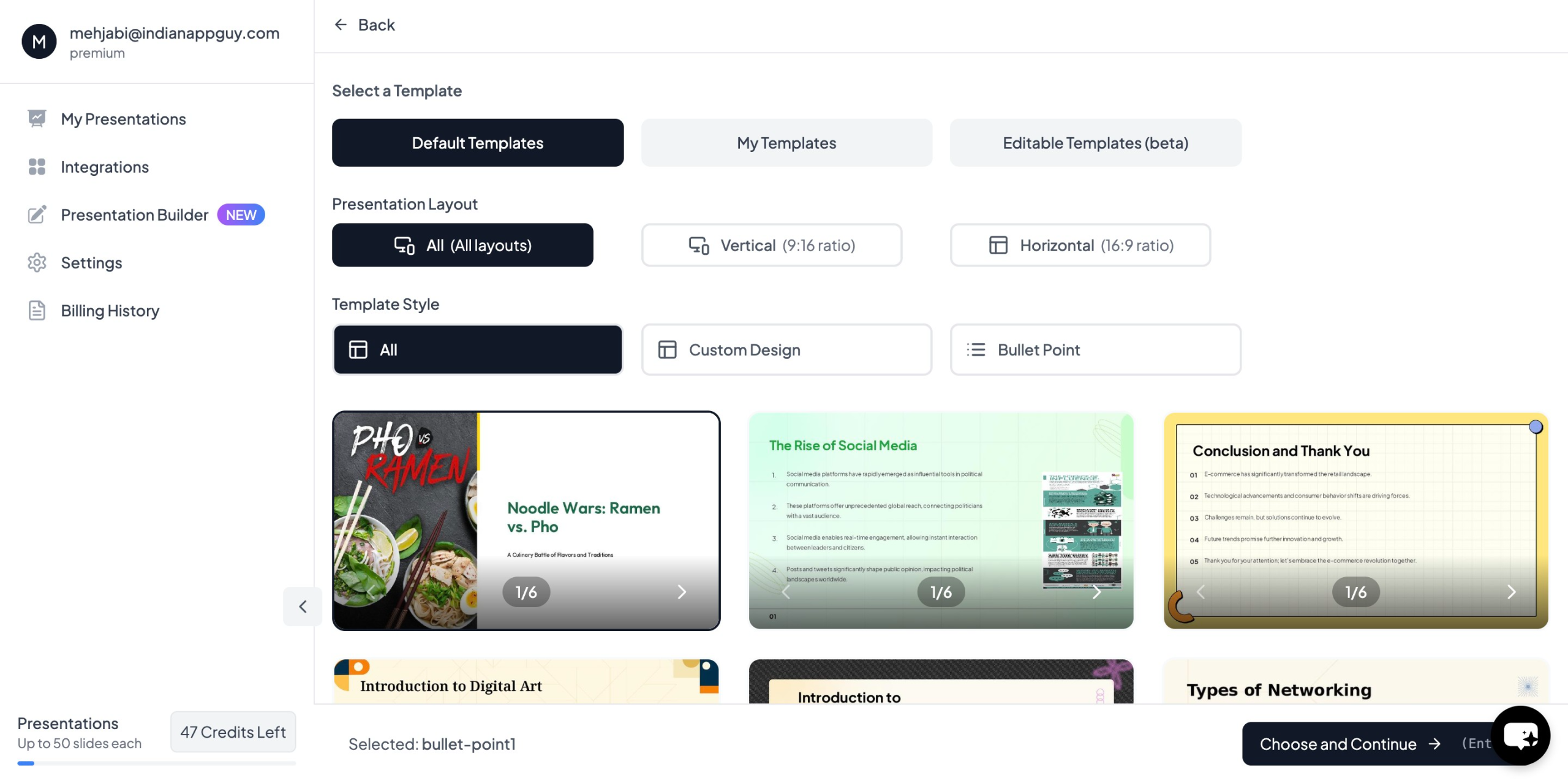
- Choose your template and number of slides as prompted.
- Once all your details are filled, click Generate Instant PPT.
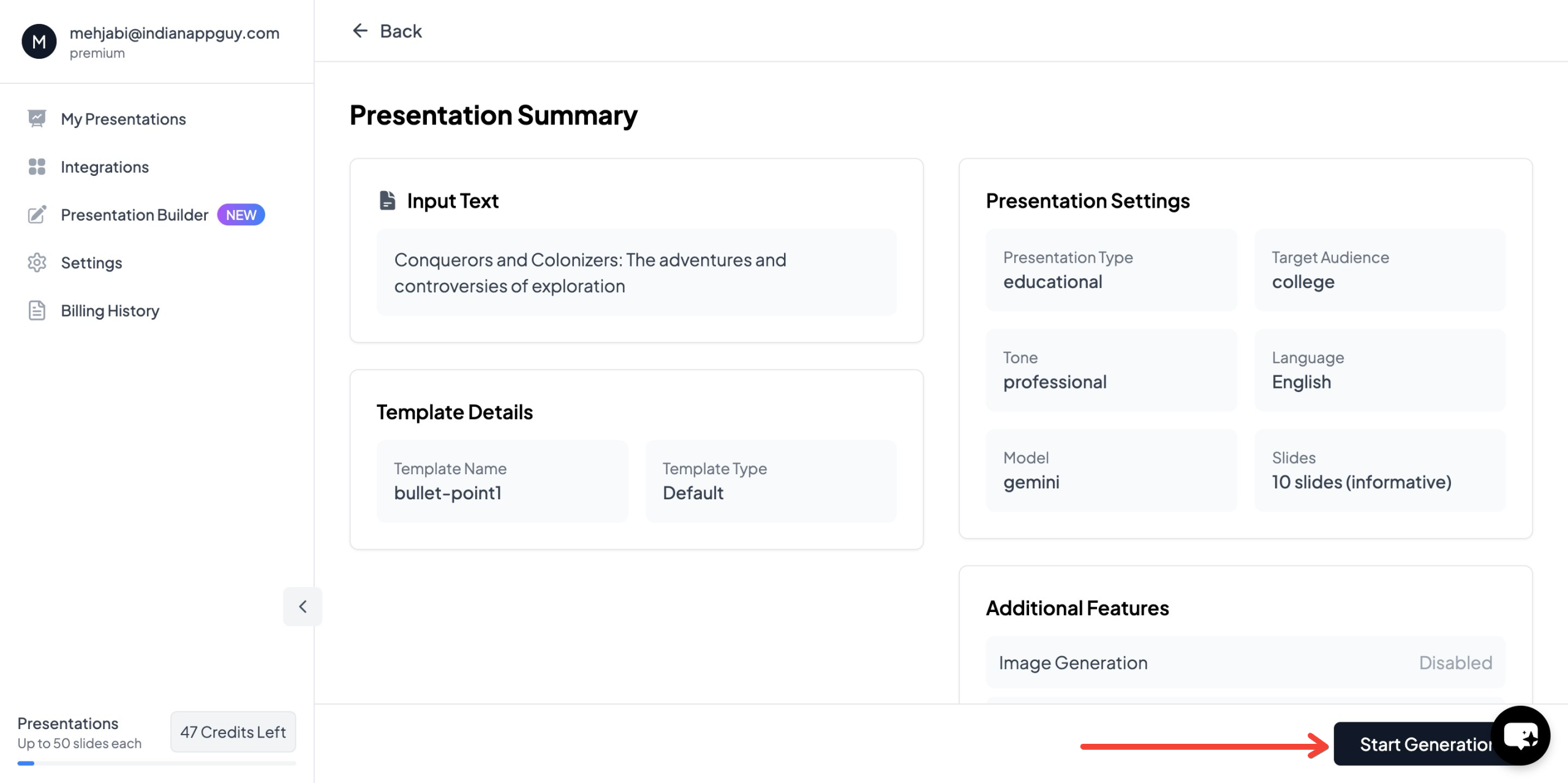
- Your presentation will be generated instantly, ready for use in Google Slides.
Why Use MagicSlides?
- Saves time by instantly generating presentations.
- Provides AI-assisted formatting and slide design.
- Allows for quick customization and edits.
- Ideal for students, professionals, and educators.
MagicSlides Pricing & Plans
MagicSlides offers flexible pricing options, making it accessible to various users. Here’s a breakdown of its pricing plans:
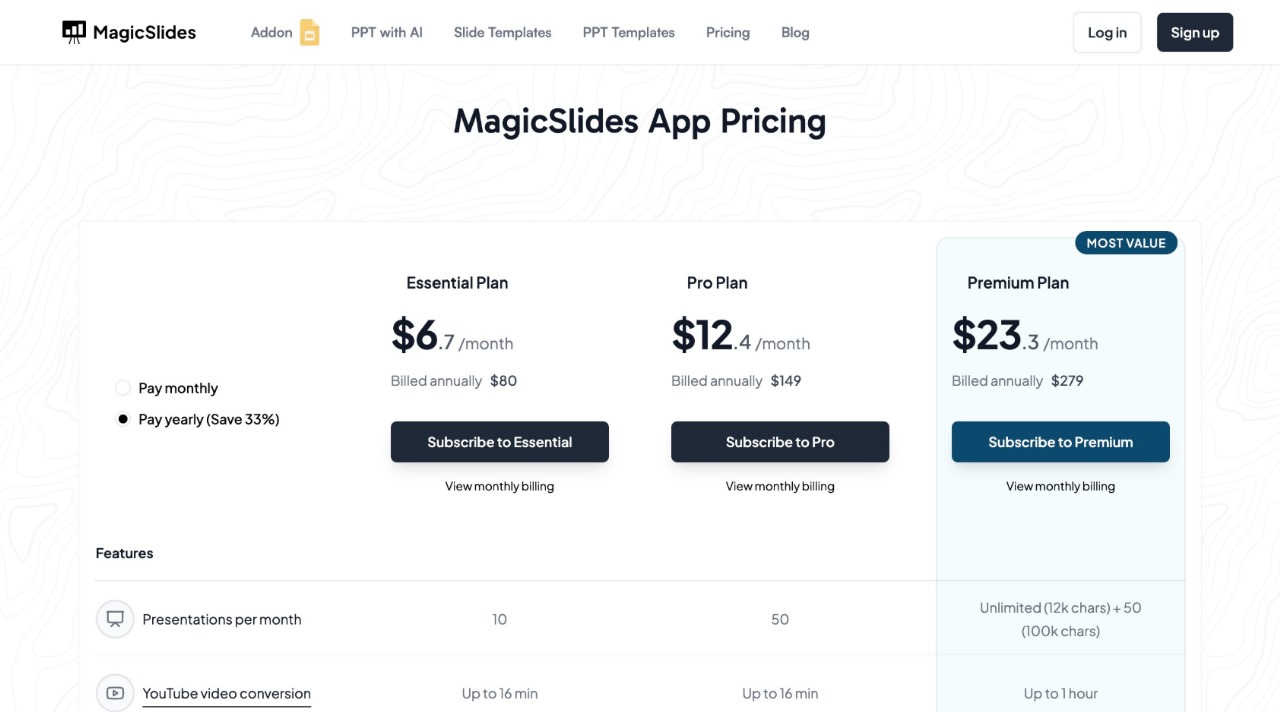
MagicSlides provides automation and efficiency, making it a great investment for anyone needing to create presentations frequently.
Final Thoughts
Using Google Slides to open PowerPoint templates is a simple and efficient way to collaborate and edit presentations without needing Microsoft PowerPoint. However, if you’re looking to speed up the creation process, MagicSlides is an excellent AI tool that automates slide generation and enhances productivity.
Whether you're a student, professional, or educator, MagicSlides ensures you spend less time on slide creation and more time on delivering impactful presentations.
Try MagicSlides today and experience a smarter way to create presentations!


